
Welcome!
We're excited to have you here! This Help Center shows you how to use GradeChum as a student: joining your teacher's class, answering activities and checking your results.
What is GradeChum?
GradeChum is an AI-powered platform that checks your activities for your teacher. Whether your class answers on paper or online, our system checks your answers against the answer key or rubrics your teacher provided. For a paper activity, your teacher scans the answer sheets and GradeChum takes it from there.
What you can do in GradeChum
- View your results: Once your teacher releases the results of an activity, see your score, and your answers, the questions and the answer key if your teacher released them, from any device.
- Learn from AI feedback: When your teacher releases the answers, each item can come with a general explanation, a tip, a sample perfect answer and the common mistakes to avoid.
- See where you ranked: When your teacher releases the class ranking, see your place among the students who took the activity. Only you can see it.
- Ask for a regrade: Check how each item was scored, and ask your teacher to check an item again while they accept regrade requests.
- Keep every activity in one place: Each class lists its activities, what you still have to answer and what you have already been scored on.
Finding your way around
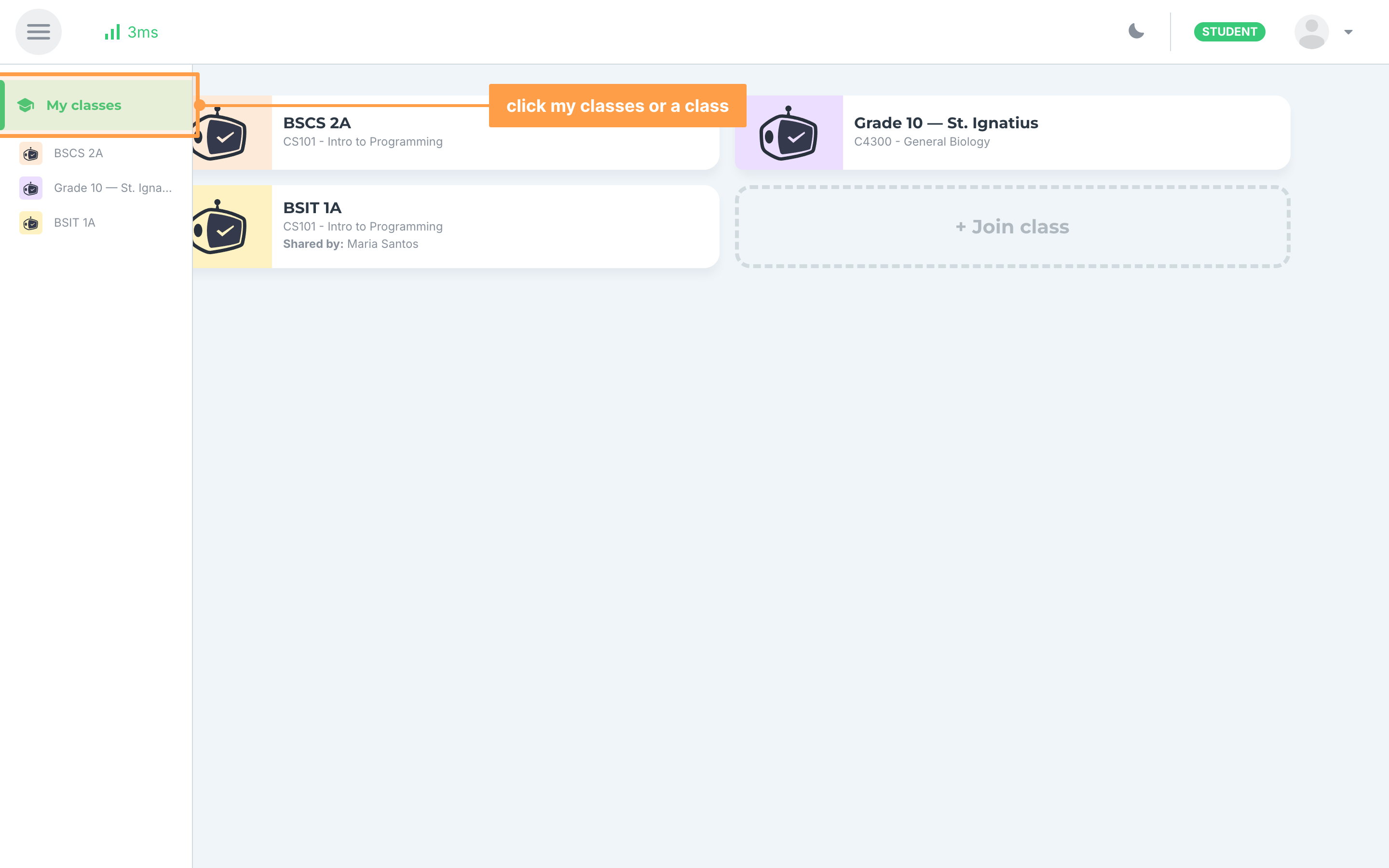
Click the menu button at the top left of any page to open the sidebar, then click My classes to see all your classes, or the name of a class to go straight to its activities.
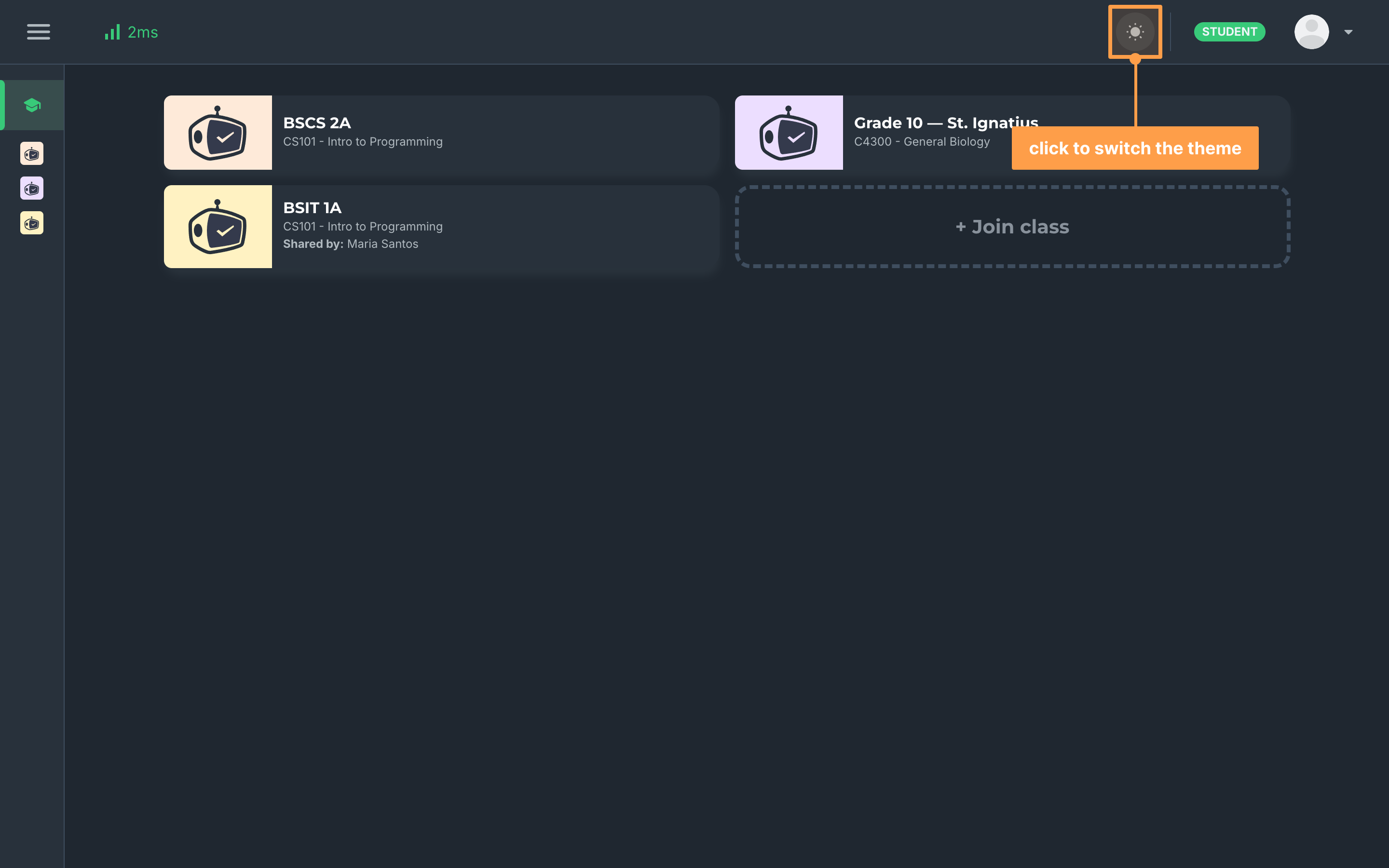
If you prefer a darker screen, click the moon icon at the top right of the page to switch to the dark theme, and the sun icon to switch back to light. You also find this button at the top of the screen while answering an online activity. GradeChum remembers your choice in this browser only, so it does not follow you to another device or browser, and it switches back to the light theme when you log in again.
Let's get started! Pick the page that matches what you want to do, and if you need anything else, we're always here to help.
🔑Sign up and log in 1Join class 2Answer activity online 3Answer activity on paper 4View activity results 5Request for a Regrade 📑View activity reviewer 👤Manage your account ❓FAQs