
Join class
Introduction
Learning is part of a student's journey through life, which is why we go to school, attend classes, and take part in activities and exams that show how much we have learned.
When your teacher uses GradeChum to give an activity, you can see your results and your teacher's feedback on it in GradeChum. But first, you need to join your teacher's class.
In this guide, you will join your teacher's class with a Class code.
Steps
Note: You must have already created your GradeChum student account before proceeding. See Sign up and log in. Your teacher must also have added you to the class record, or GradeChum cannot match your account to the class.
To join a class, follow the steps below:
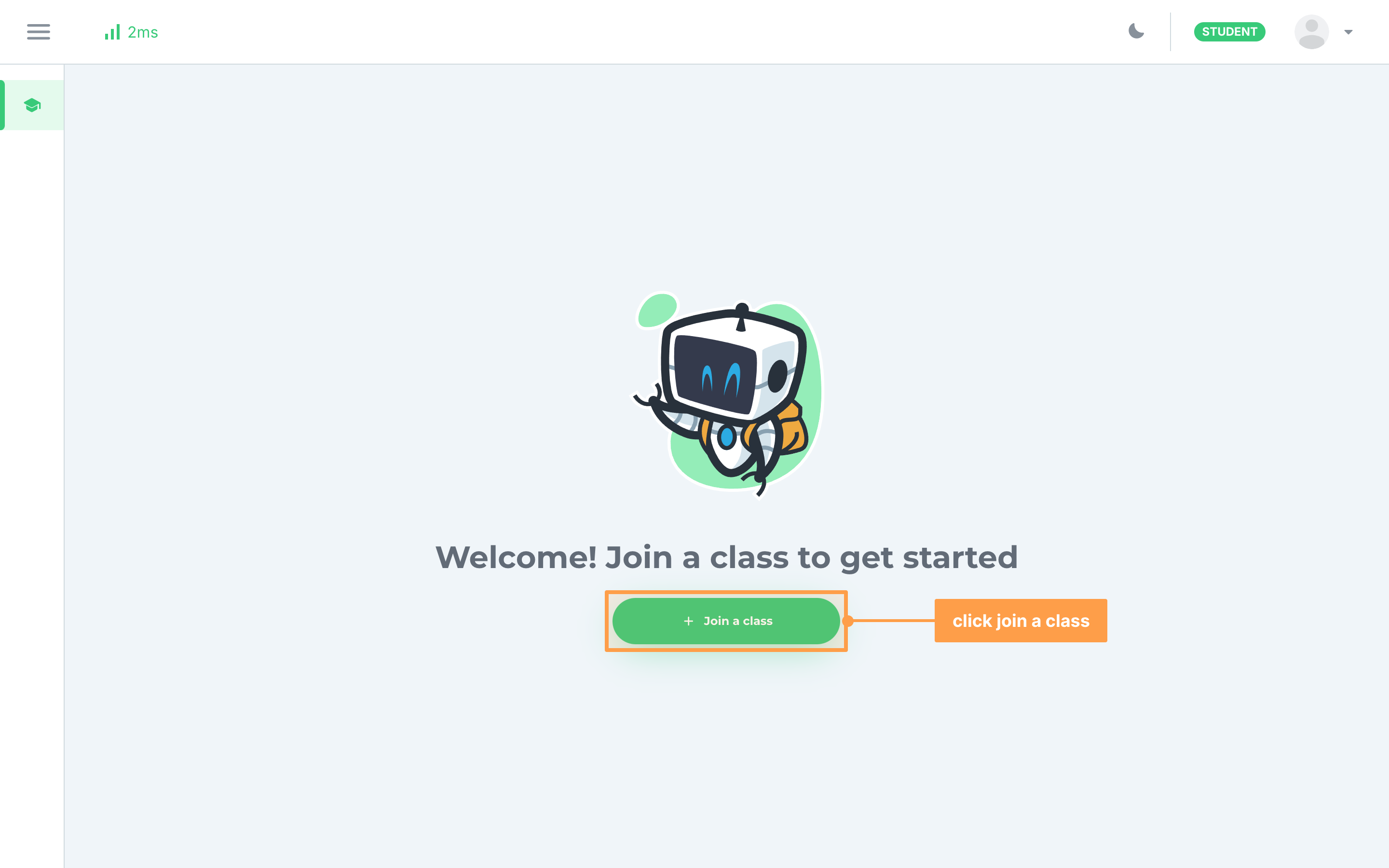
- After logging in, My classes opens. If you have not joined a class yet, it says "Welcome! Join a class to get started": click Join a class. If you already have classes, click the + Join class card at the end of your class list.
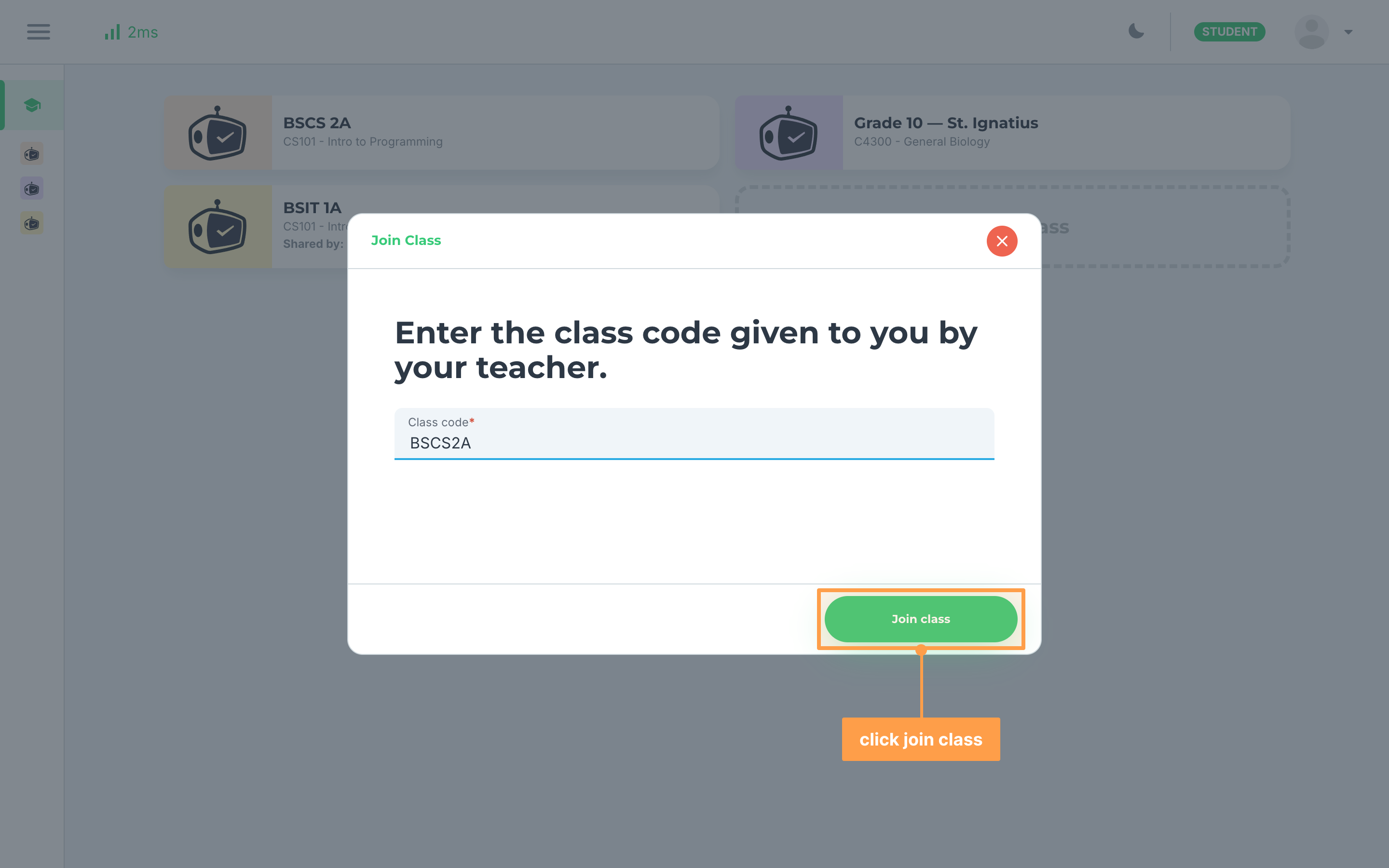
- In the Join Class modal, type the class code your teacher gave you in Class code, then click Join class. The button stays disabled until you type a code.
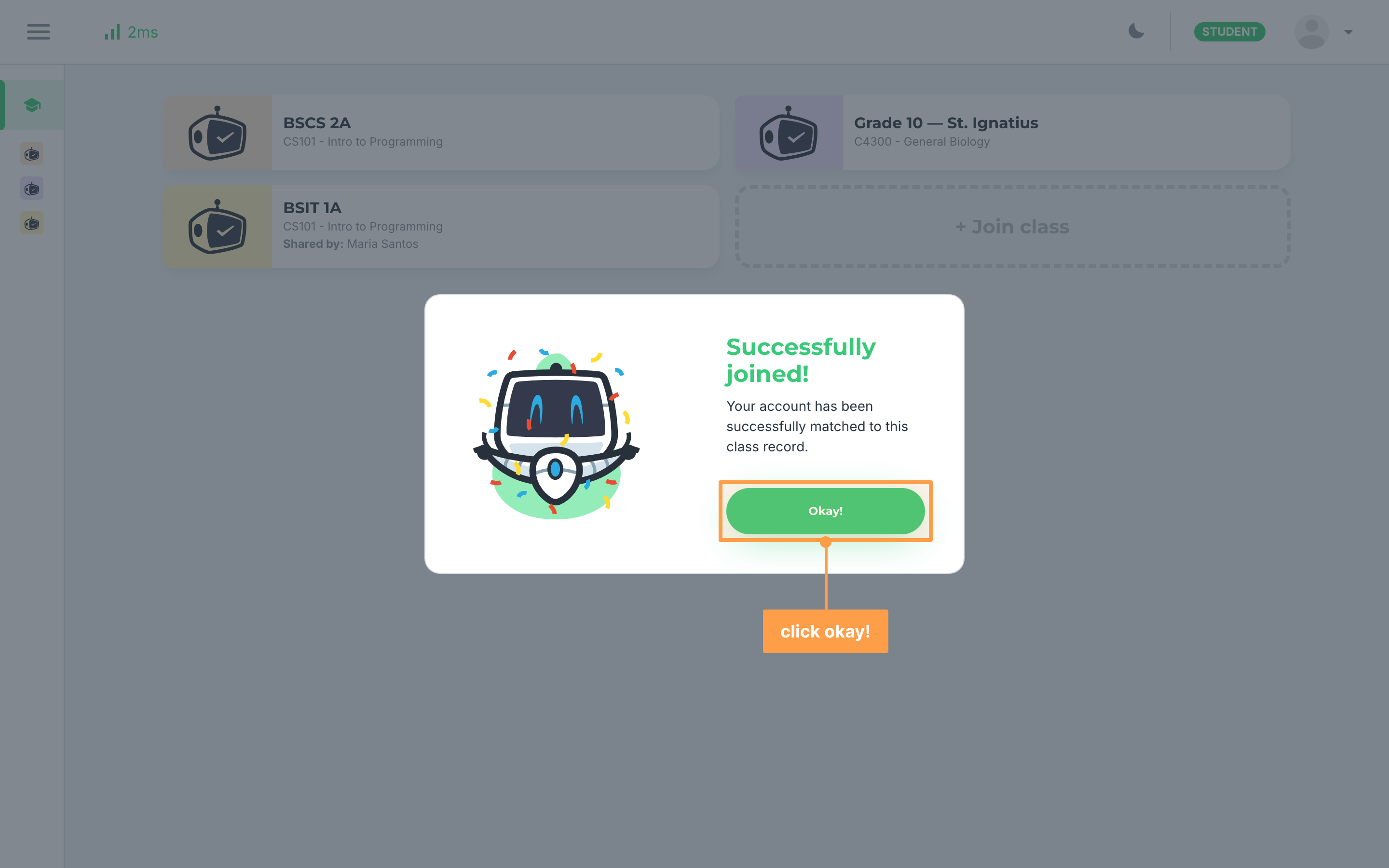
- Once Successfully joined! shows, your account is matched to your row in your teacher's class record. Click Okay!.
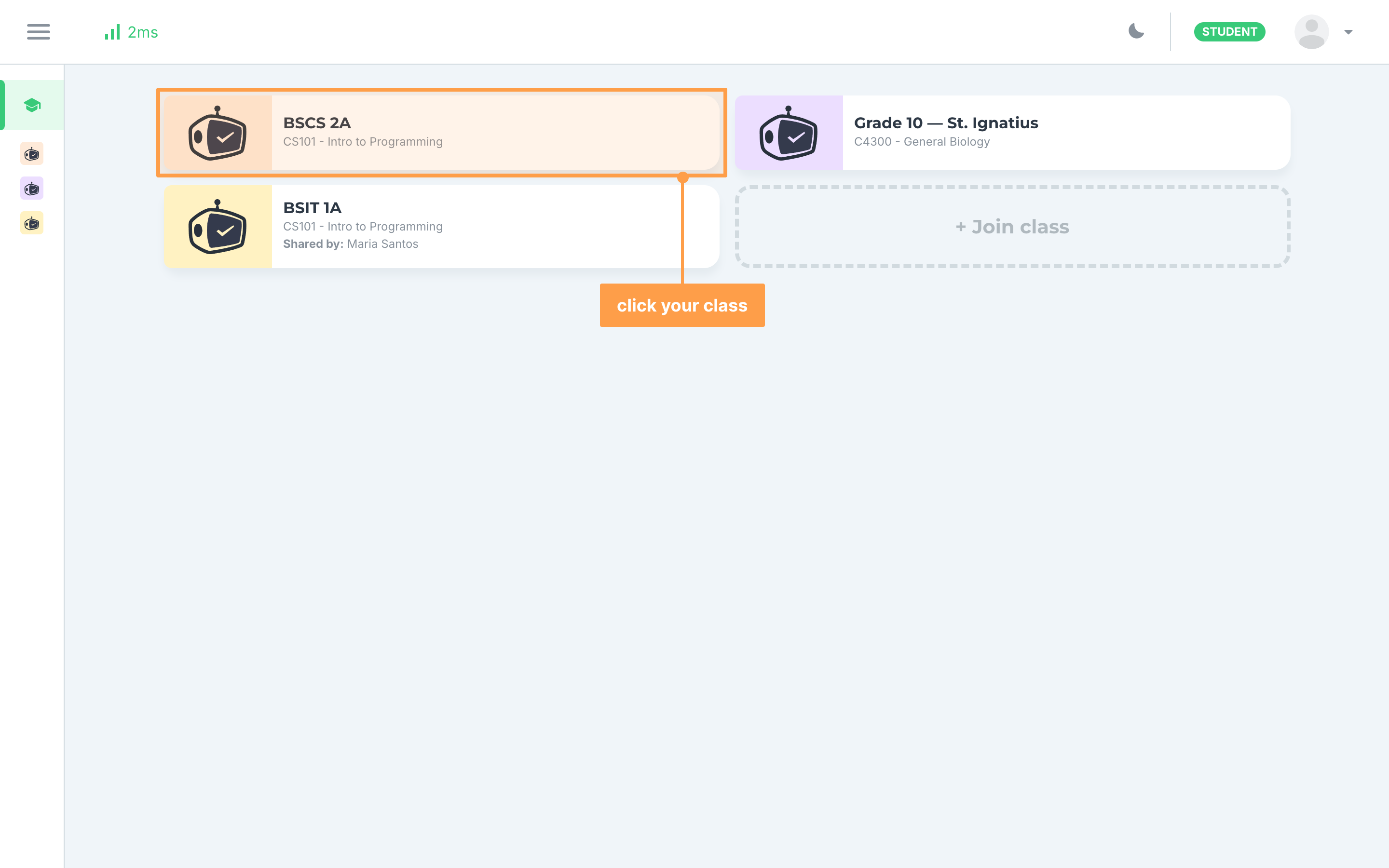
- Finally, click your new class card on My classes to open the class and see the activities your teacher has given. You can also open a class from the class list in the sidebar.
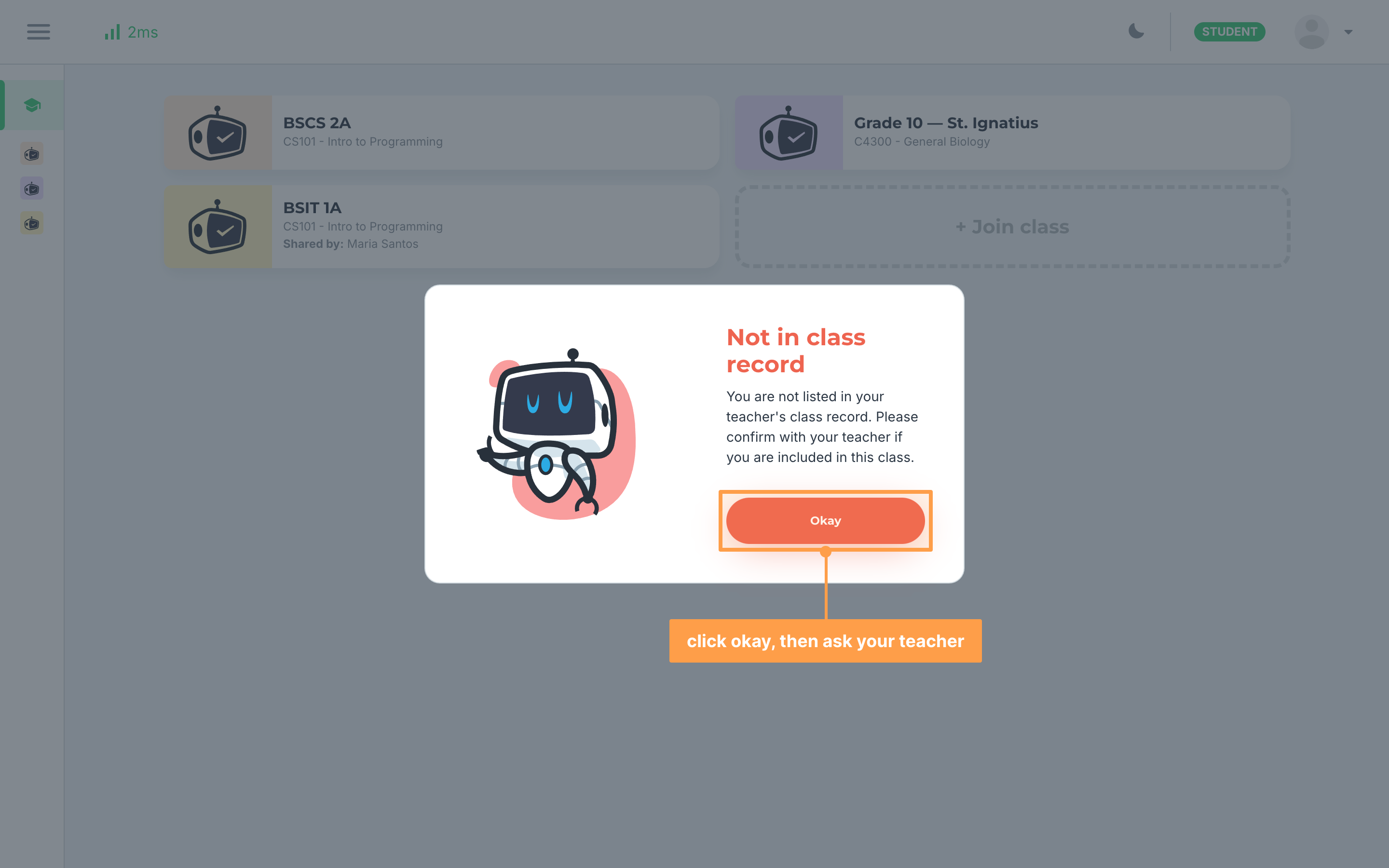
If you see Not in class record
"You are not listed in your teacher's class record." means your teacher has not added you to the class yet. Click Okay, ask your teacher to add you to the class record, then type the code again.
If you see Invalid class code or Class inactive
- Invalid class code means the code does not match any class. Click Okay, check the code with your teacher, and type it again exactly as they gave it.
- Class inactive means your teacher's class is not open for joining right now. Click Okay and ask your teacher to reactivate it.
- If "Something went wrong. Please try again later." shows under Class code, wait a moment and click Join class again.
If you see Already joined
You are already in this class. Click Go to class to open it, or click Close.
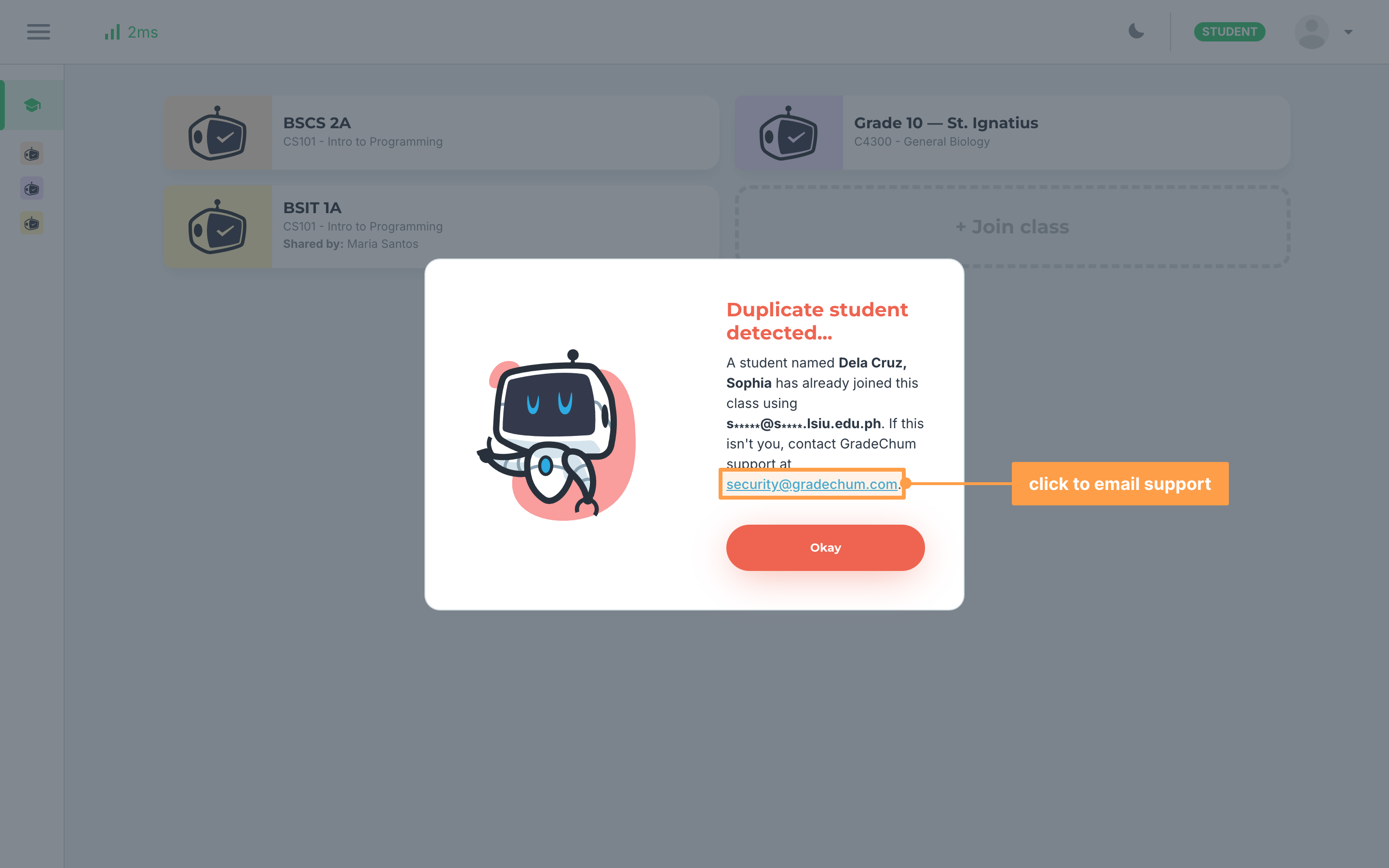
If you see Duplicate student detected...
A student with your name has already joined this class, using the email address shown in the message with some letters hidden. If that was not you, click security@gradechum.com in the message. Your email app opens a message to GradeChum support with your name, the class code and your email already filled in, so you only need to send it.
If the class is connected to your school's LMS
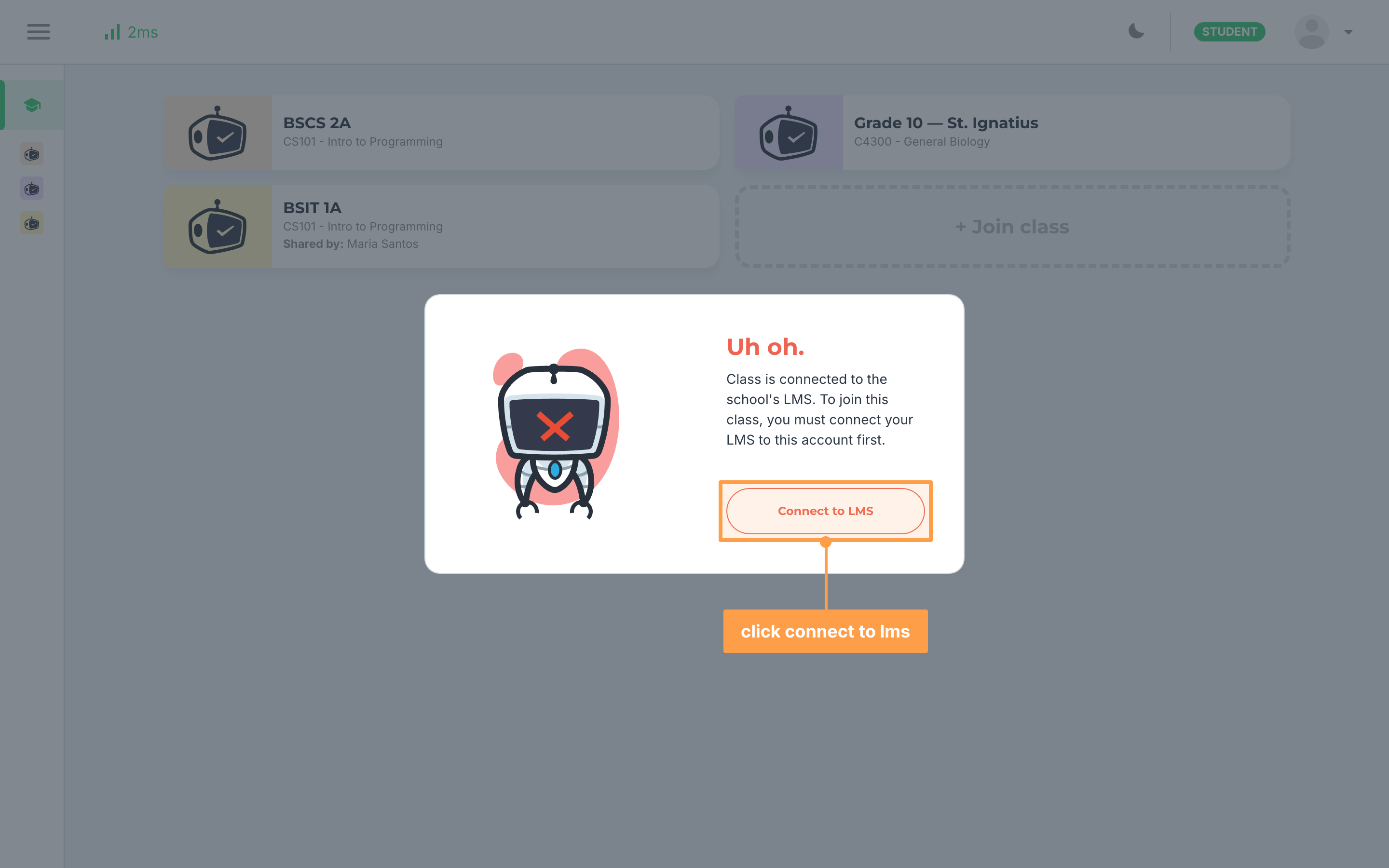
If your teacher linked the class to your school's LMS and your account is not connected to it yet, an Uh oh. modal says you must connect your LMS to this account first.
- Click Connect to LMS. The Connect to an LMS today! modal opens.
- Connect your account to your school's LMS. See Connect to LMS.
- Type the class code again and click Join class.
If the Uh oh. modal says your account is not connected to the same LMS as the class, you cannot join it with this account. Click customer support in the message to contact us.
What a class card shows
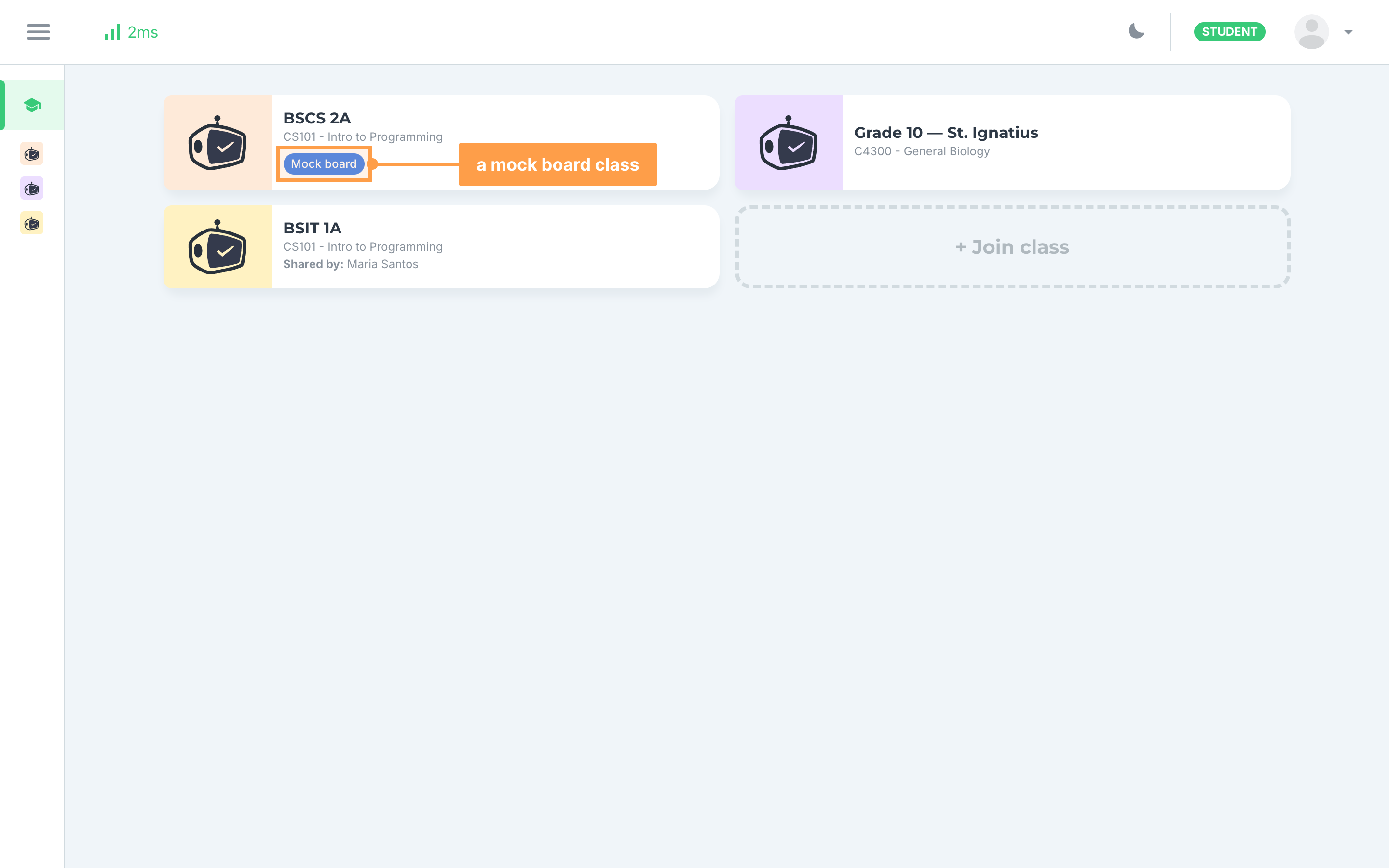
Each class you joined has a card on My classes with the class name. A card can also show:
- the course code and name, if your school sets courses for its classes
- Shared by: and a teacher's name, when the class is shared between teachers
- a Mock board badge, when the class is a mock board exam class. You open and use it like any other class.
My classes only lists classes that are still active. More cards load as you scroll down.
If a class does not open
- "You cannot view a past class" means the class has ended, so it is no longer open to students. You go back to My classes. Ask your teacher if you still need something from it.
- "Class not found" means the class no longer exists. You go back to My classes.
And that's how you join a class in GradeChum! Next, let's answer an activity online.