
Welcome!
This Help Center gives you everything you need to know about GradeChum: its features, how to use them, and what to do when something does not go as expected.
From creating your first class to scanning your students' papers and releasing their results, these pages walk you through each part of GradeChum, one step at a time.
What is GradeChum?
GradeChum is an AI-powered platform that checks your students' work for you. Your students answer an activity on paper or online inside GradeChum, and either way our system checks their answers against the answer key or rubrics you provided. For a paper activity, you scan the answer sheets with GradeChum Scanner, our phone app, and GradeChum reads them from there. GradeChum then grades the work, gives feedback and prepares the results for you to review and release, with little to no manual checking.
You build each activity from tests, and each test from items. GradeChum supports these item types:
- Multiple Choice
- Identification
- Enumeration
- Essay
- Problem-solving (without visuals)
- Code on paper (beta)
- Visuals (beta)
Benefits for teachers
GradeChum makes grading faster and more consistent:
- Handwritten activities are checked for you. GradeChum reads your students' scanned answer sheets, extracts their answers and compares them with your answer key, so you do not grade each paper by hand.
- Online activities are checked too. Your students can answer inside GradeChum within a schedule you set, and their answers are checked the same way.
- Many kinds of questions are supported. From multiple choice to essays and problem-solving, you set the answer key or rubrics for each item and GradeChum applies them the same way to every student.
- You get more time for teaching. The hours you would spend checking papers go back to lesson planning and to your students.
Finding your way around
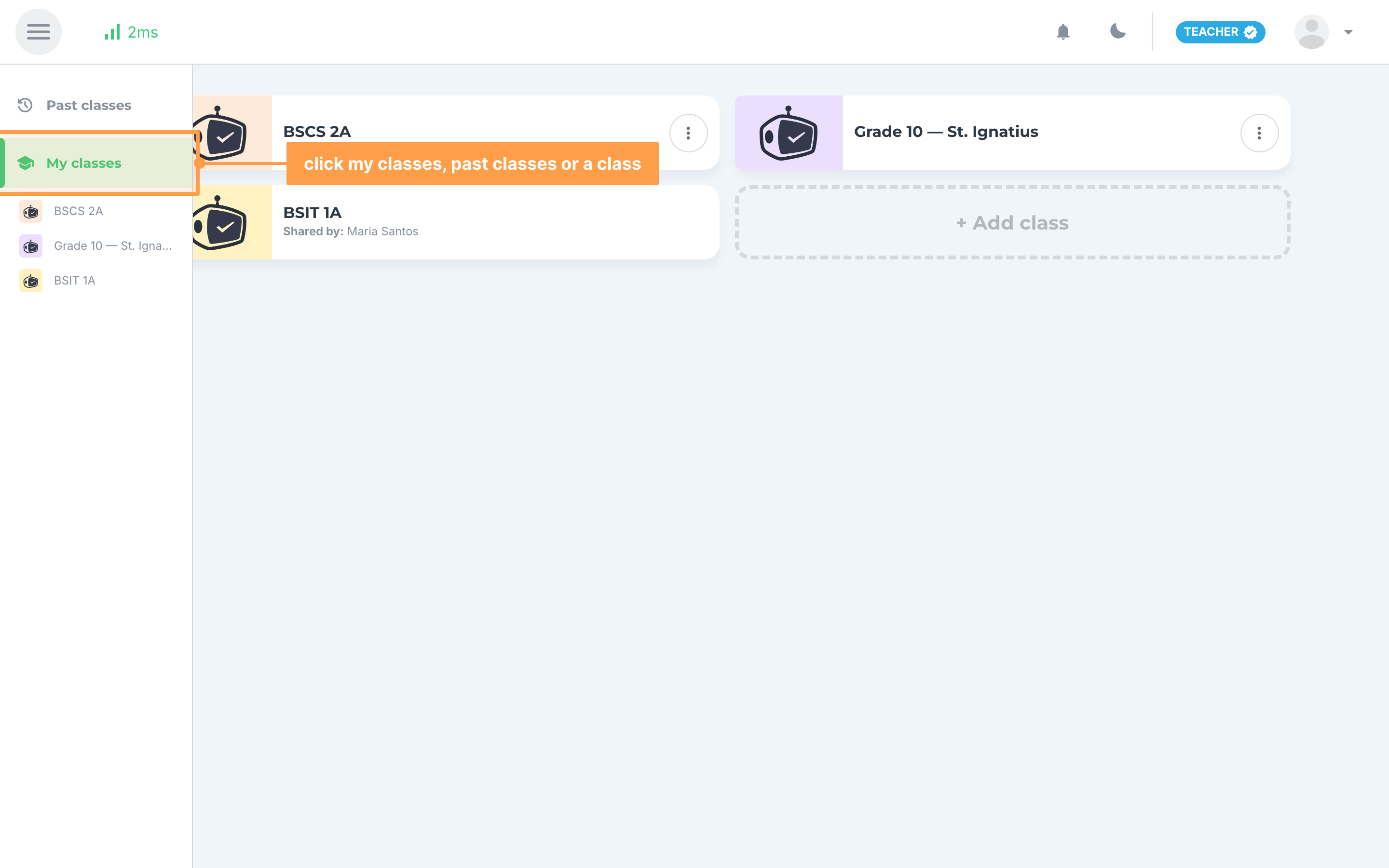
Every page in GradeChum has the same frame. Click the menu button at the top left to open the sidebar, then click My classes to see your active classes, Past classes to see your past classes, or the name of a class to go straight to its activities. Inside a class, switch between Activities and Class Record with the tabs at the top of the page, or at the bottom of the screen on a phone.
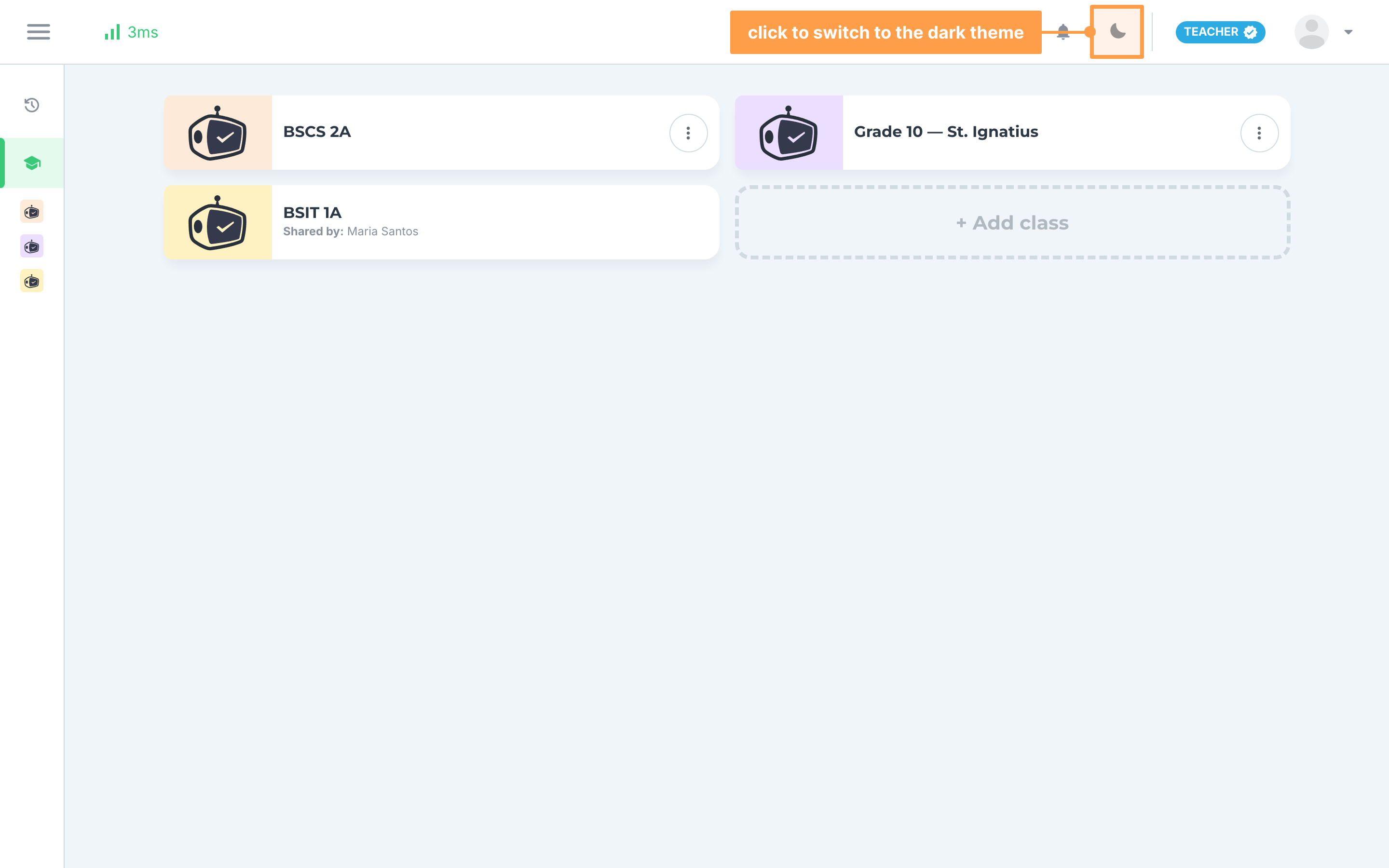
If you prefer a darker screen, click the moon icon in the top bar to switch to the dark theme, and the sun icon to switch back to light. GradeChum remembers your choice in this browser only, and switches back to the light theme when you log in again.
To learn more, see Getting around GradeChum.
Not sure where to begin? Start with the page that matches what you want to do:
🔑Sign up and log in 1Create a class 3Create activity 📲GradeChum Mobile Scanner ✏️Edit or delete a class 🪙Activity credits and school licenses 🎯View learning outcomes 🏫LMS Integration ❓FAQs