
Request for a Regrade
Introduction
As a student, asking for a regrade helps make sure your work is checked fairly and accurately. It gives you the chance to point out possible mistakes, understand your teacher's feedback better, and show the effort you put into the activity.
In this section, we'll explore how to ask your teacher for a regrade, and how to change or delete a request you already sent.
Steps
Note: You can request a regrade only when your teacher has released the activity's results and allowed regrade requests, and only until the deadline your teacher set. You must also have joined your teacher's class with your GradeChum student account.
To request a regrade from your teacher, follow these steps:
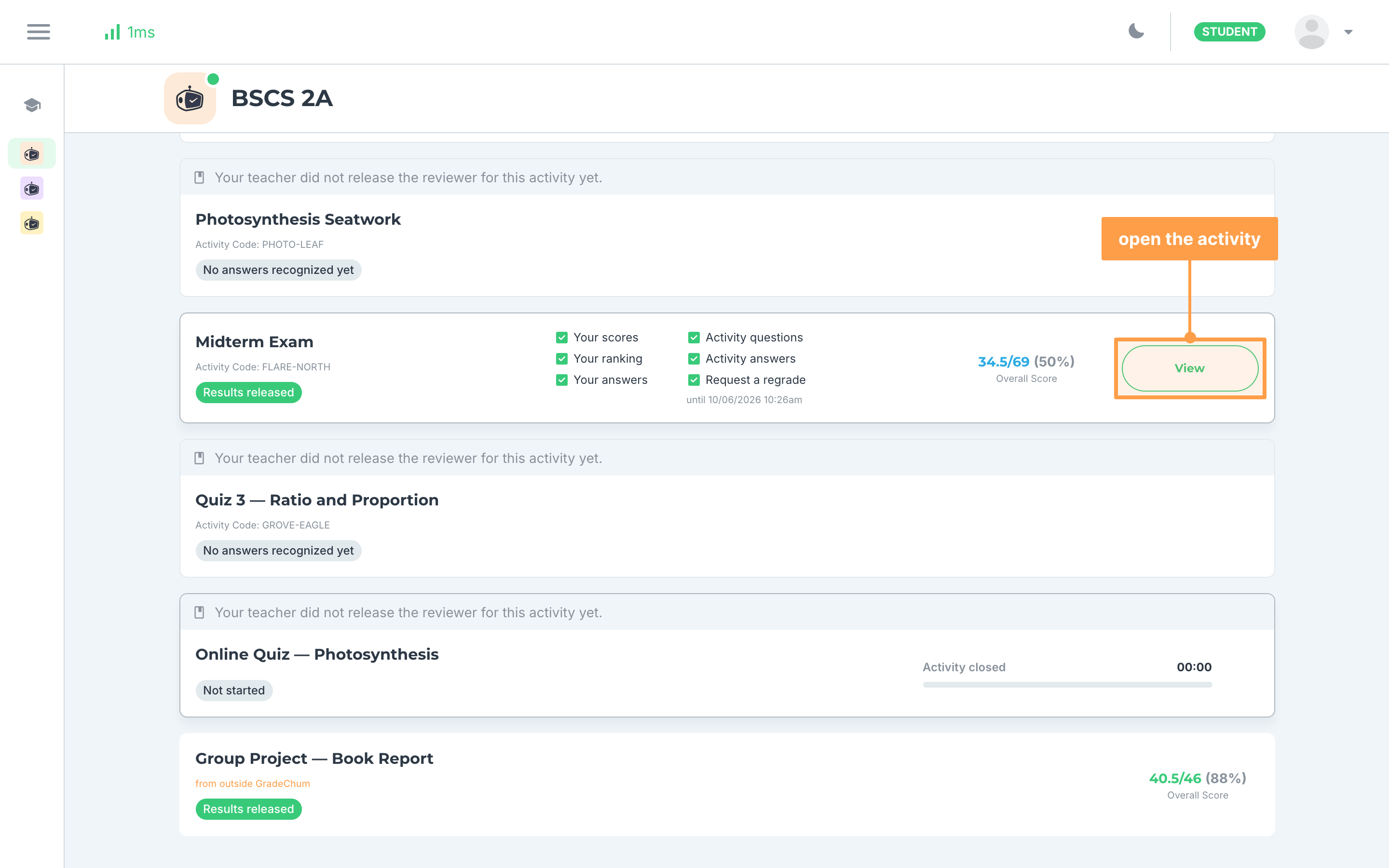
- Open your class and click the activity. If your teacher allowed regrade requests, its card shows Request a regrade checked, with the date the requests are accepted until.
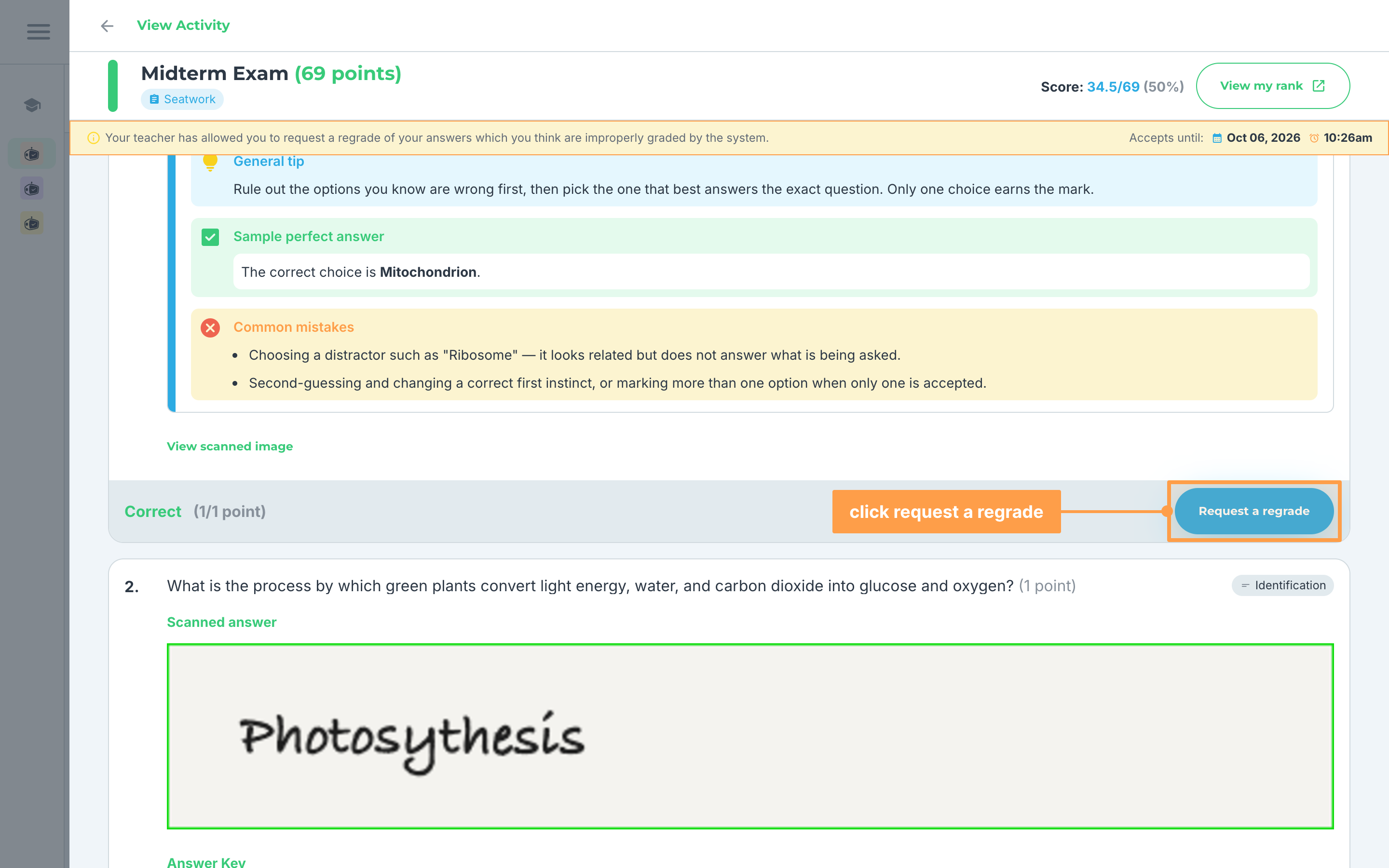
- At the top of your result, a banner says "Your teacher has allowed you to request a regrade" and shows the date and time under Accepts until:. Scroll to the item you think was graded wrongly and click Request a regrade under it.
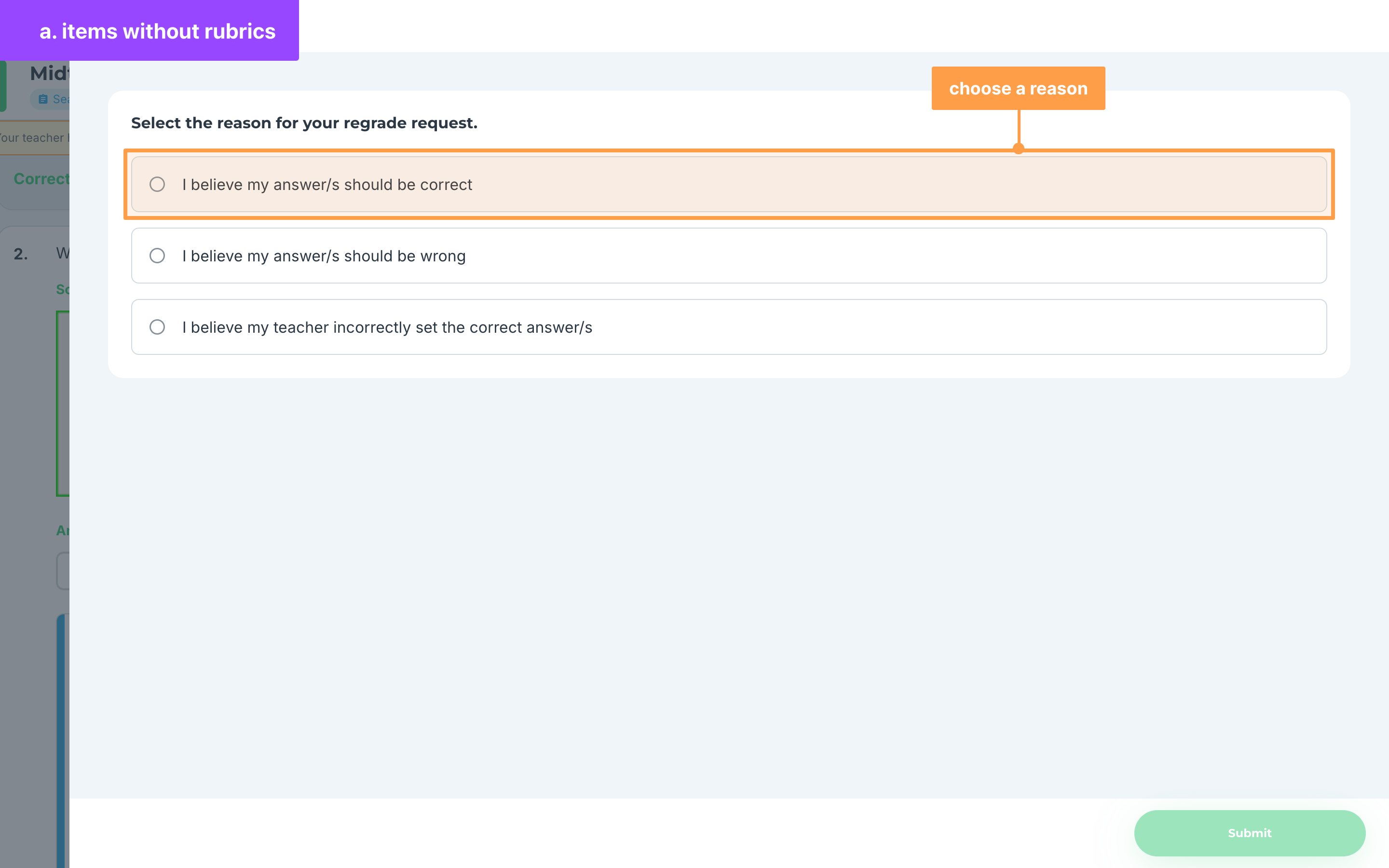
- The Request a regrade modal opens. There are two ways to request a regrade, depending on the item:
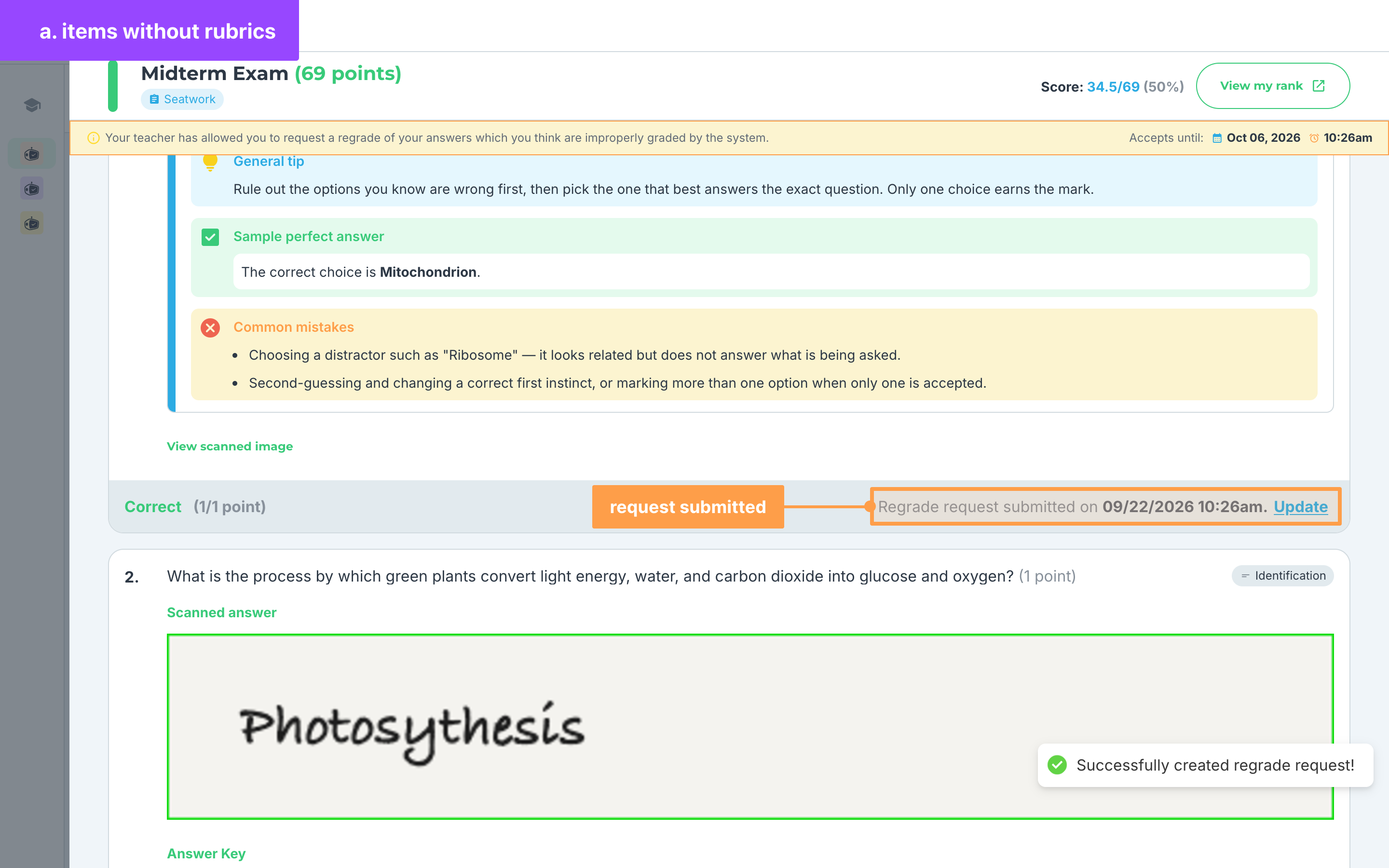
a. Items without rubrics
- Under "Select the reason for your regrade request.", choose I believe my answer/s should be correct or I believe my answer/s should be wrong.
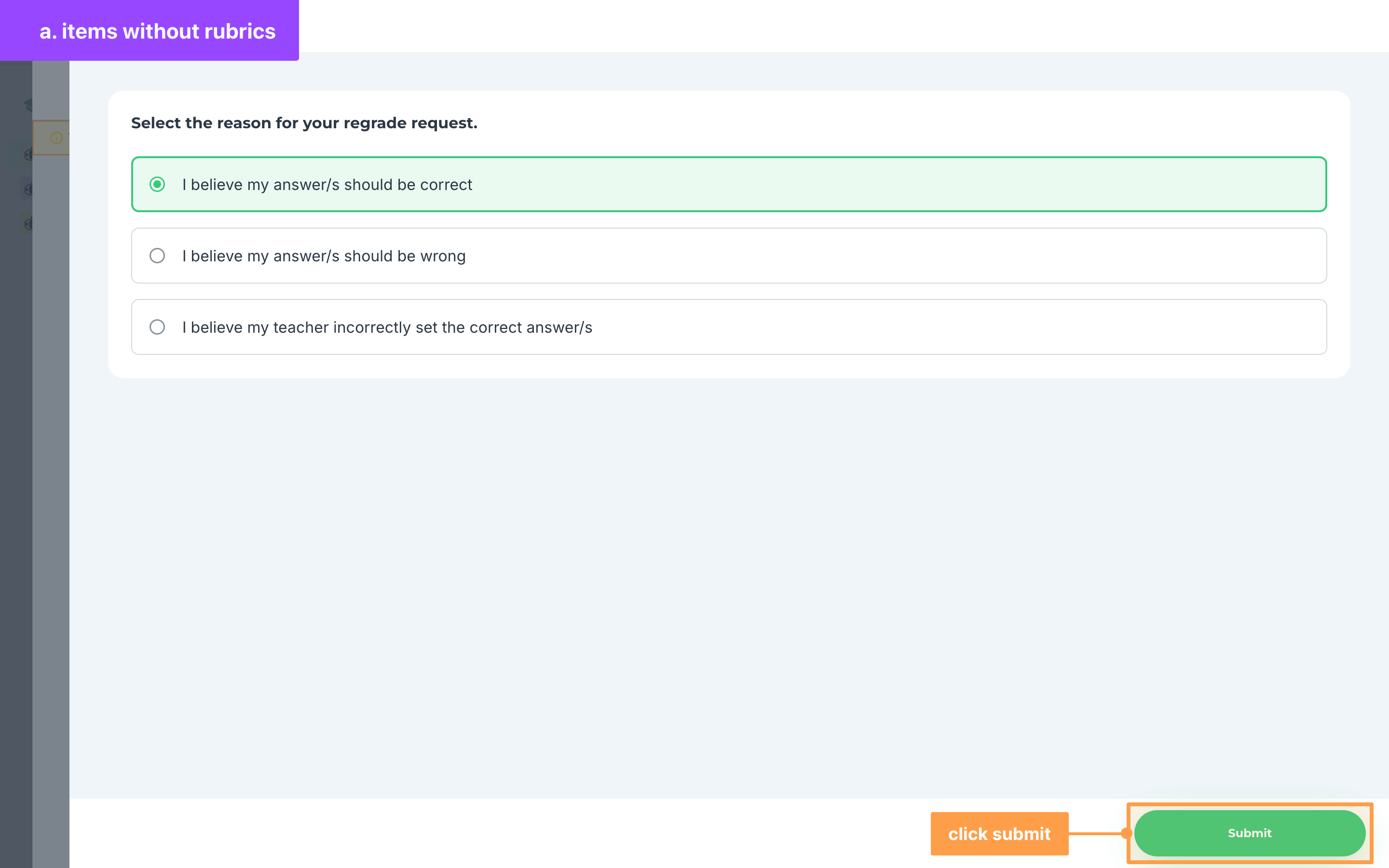
- Then, click Submit.
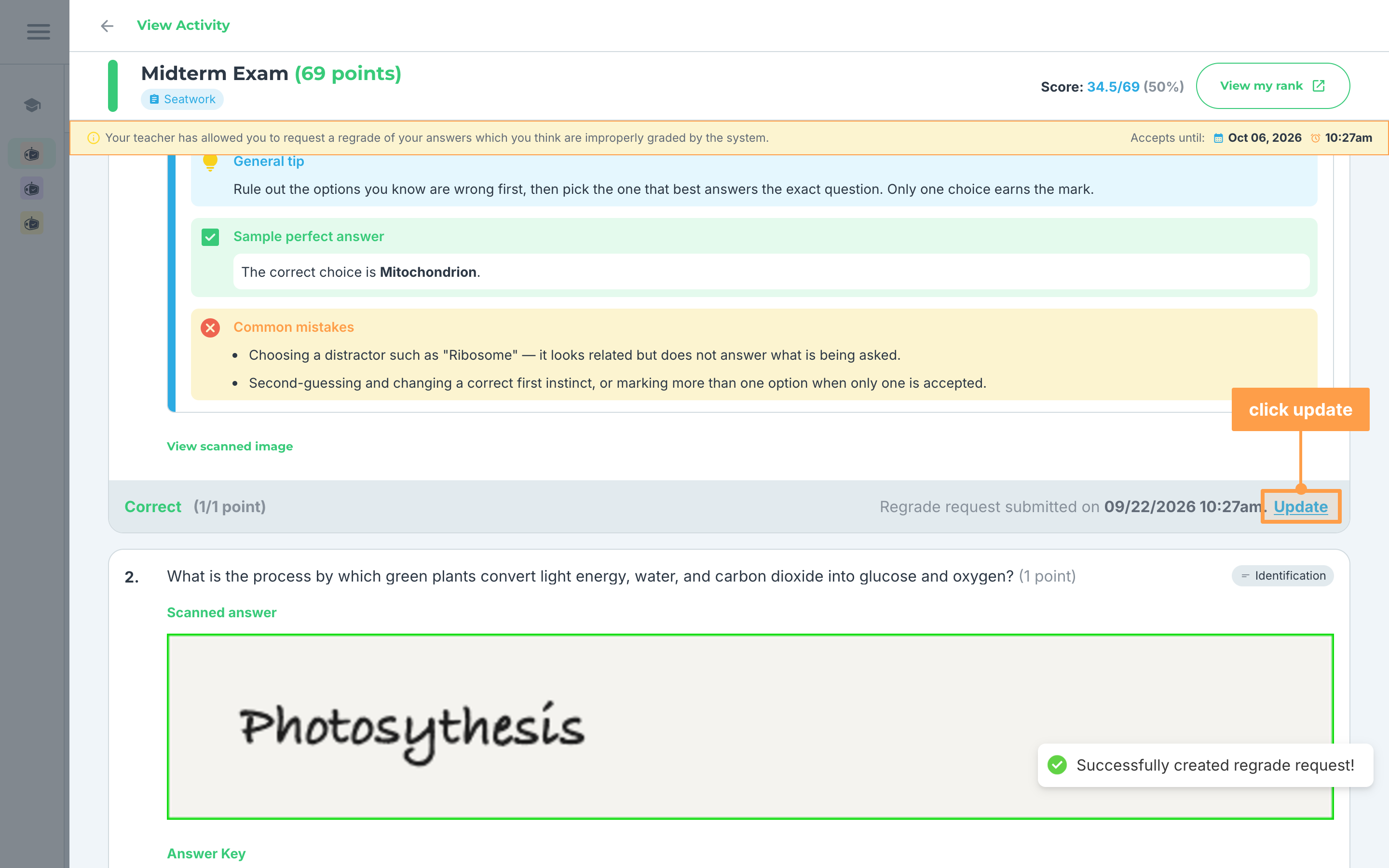
- Finally, check the item. You see "Successfully created regrade request!", and the item now shows "Regrade request submitted on
." with an Update button beside it.
b. Items with rubrics
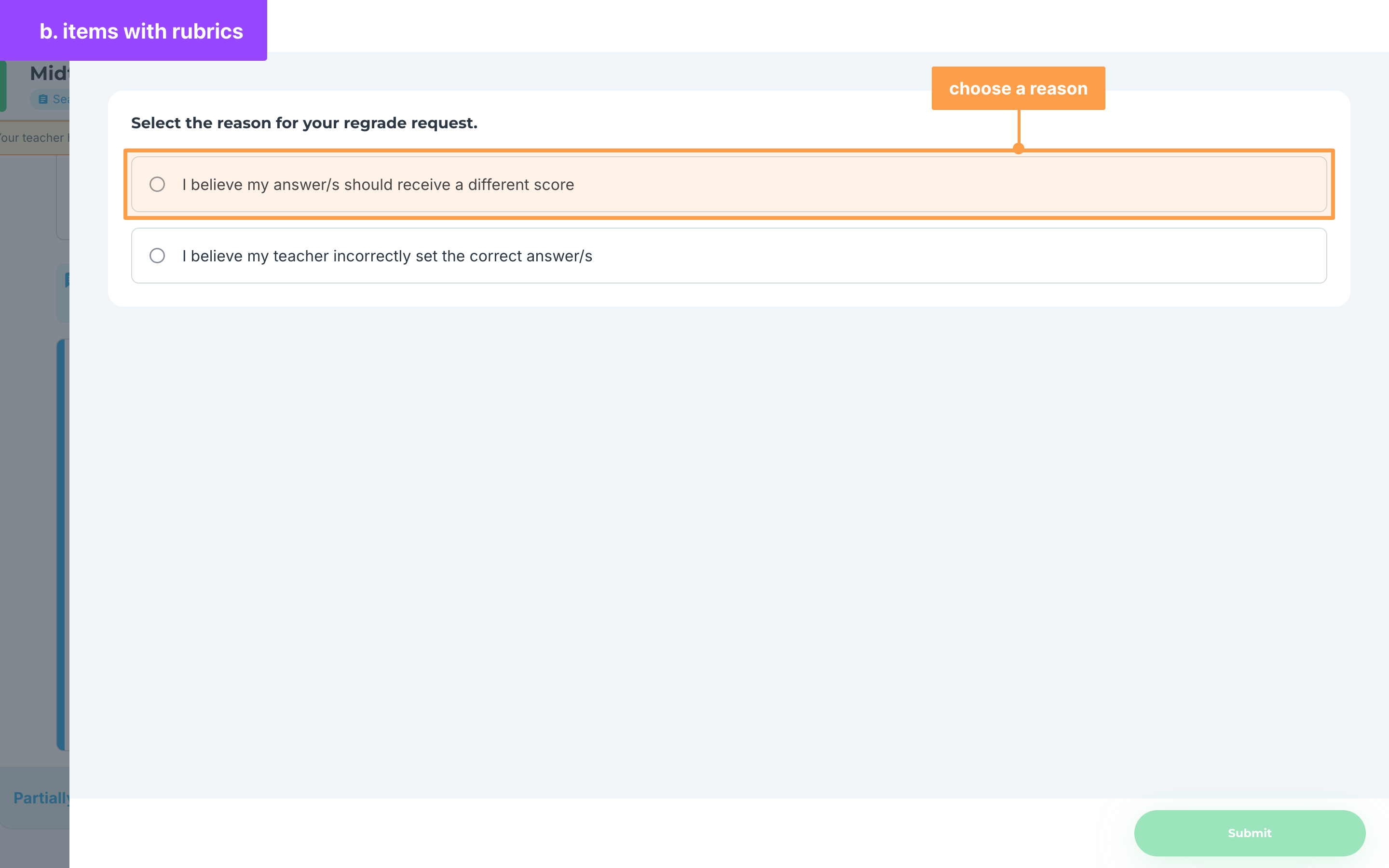
- Under "Select the reason for your regrade request.", choose I believe my answer/s should receive a different score.
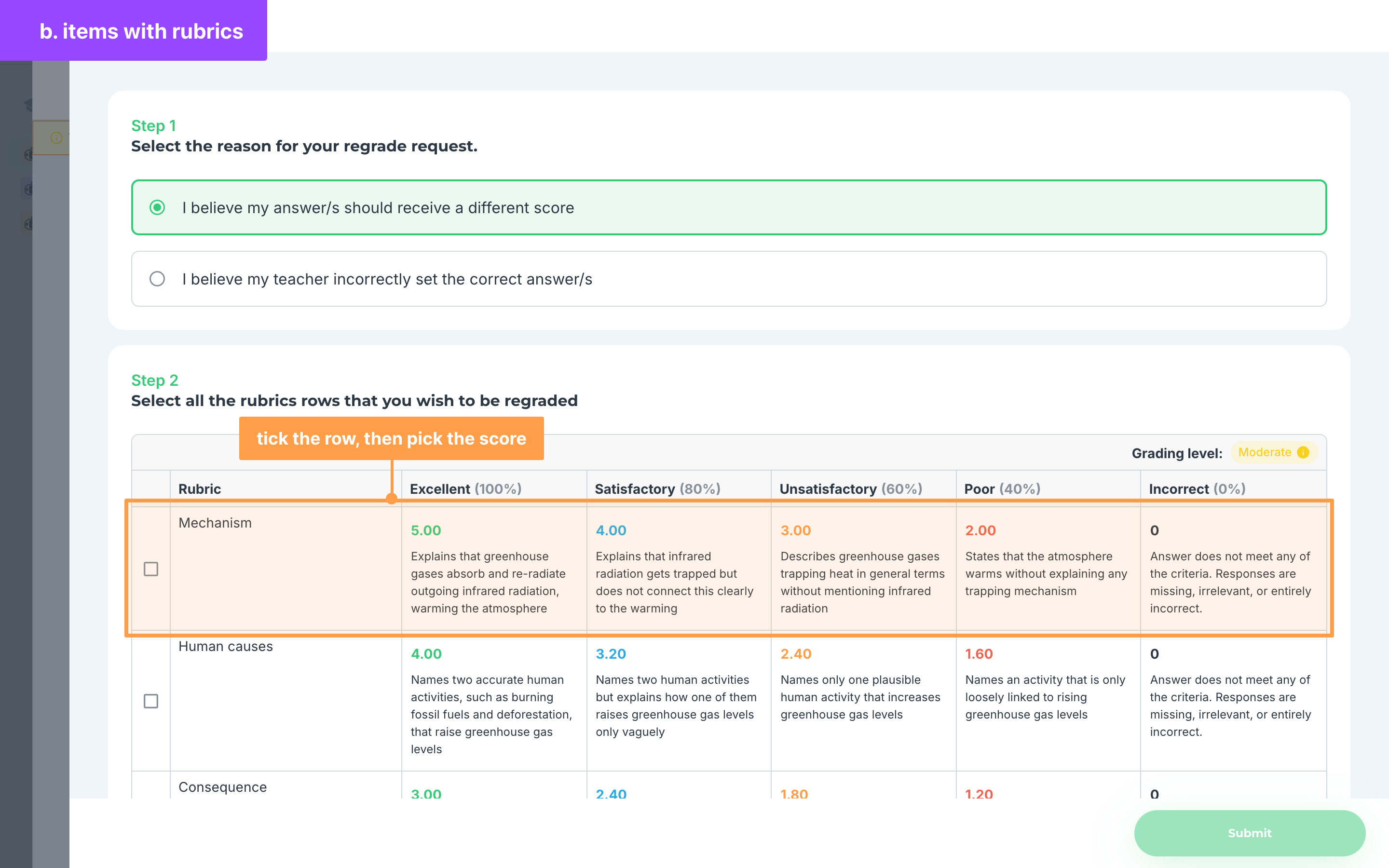
- Under "Select all the rubrics rows that you wish to be regraded", tick each rubric row you want your teacher to check again, then pick the score in that row that you believe your answer deserves.
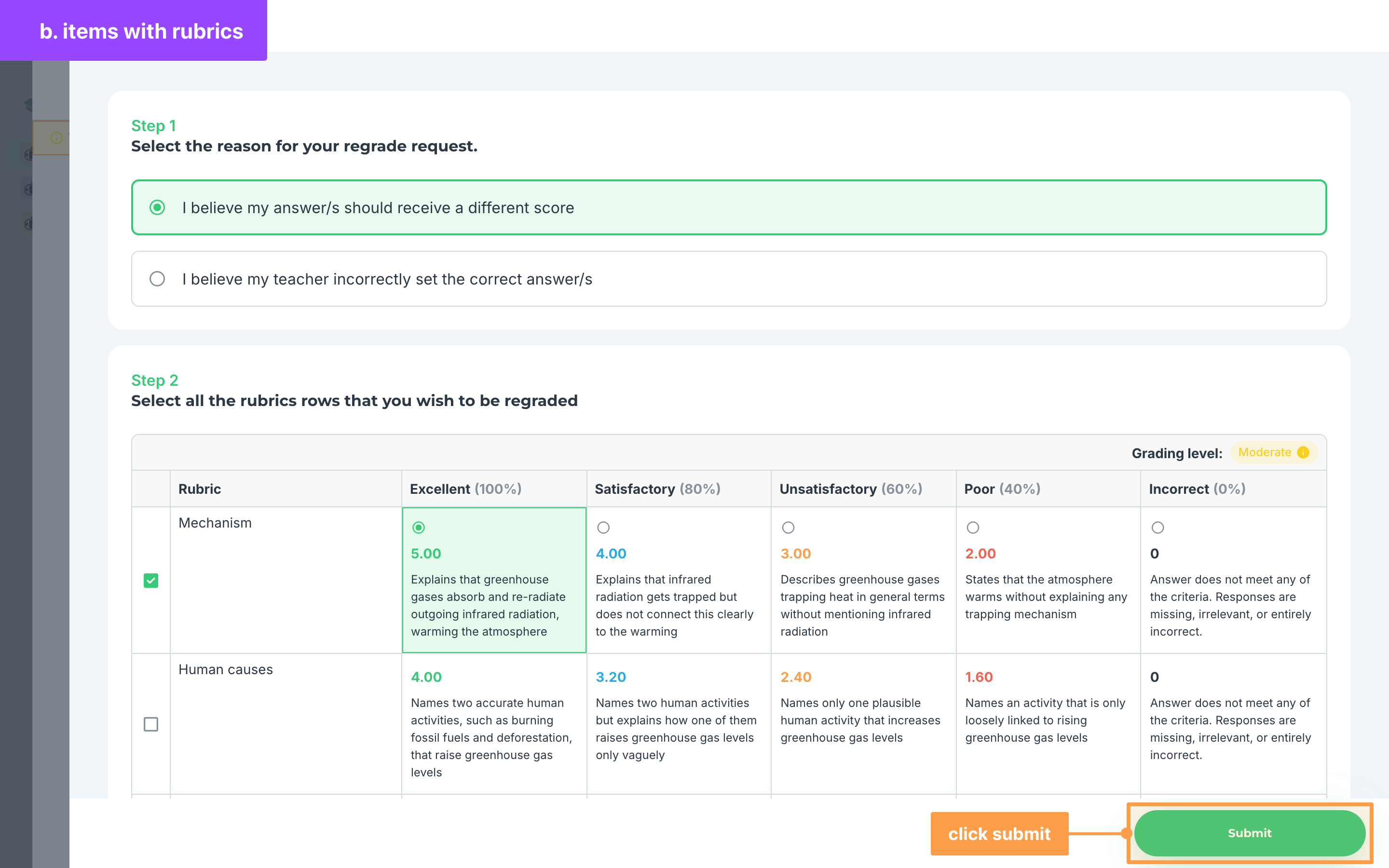
- Then, click Submit. It stays grayed out until you tick at least one rubric row.
- Finally, check the item. You see "Successfully created regrade request!", and the item now shows "Regrade request submitted on
." with an Update button beside it.
Note: If you think your teacher set the wrong correct answer, choosing I believe my teacher incorrectly set the correct answer/s shows "This cannot be processed as a regrade request." and Submit stays grayed out. Talk to your teacher directly about it, online or in person.
- If you wish to request a regrade on another item, repeat steps 2-3. You can send one request per item.
Update or delete your request
Until your teacher reviews your request, and before the deadline passes, you can still change it:
- Click Update beside "Regrade request submitted on
." on the item. On a phone, the item shows "Submitted." with an info icon for the date, and Update beside it.
- To change your request, pick another reason or change the rubric rows, then click Update. It stays grayed out until you change something.
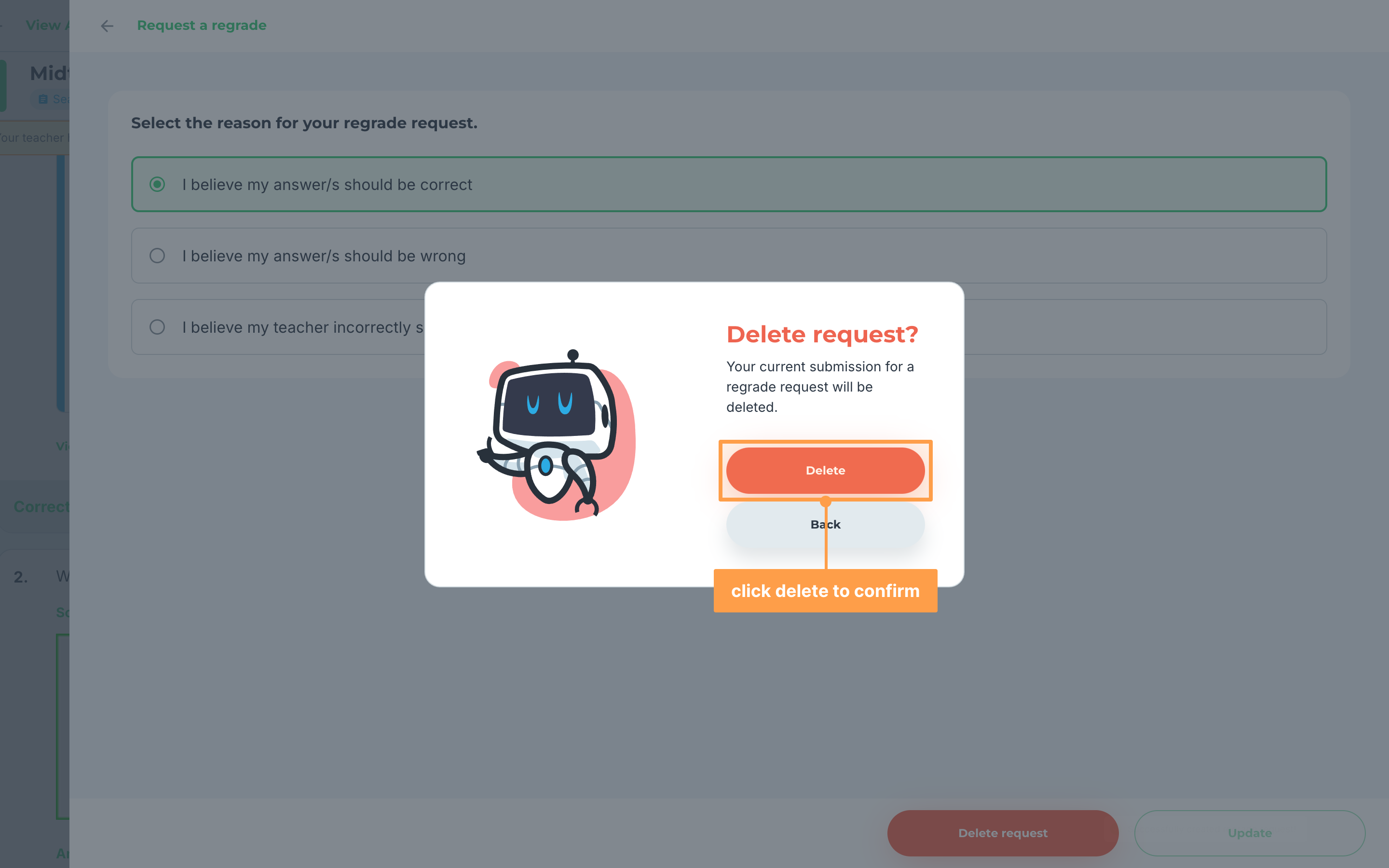
- To delete your request, click Delete request, then click Delete in the Delete request? modal. Click Back to keep your request.
After your teacher reviews your request
Once your teacher reviews your request, the item shows "Reviewed by teacher." in place of Update, and you can no longer change the request. On an item with rubrics, click View regrade request to see the rubric rows you sent.
When the deadline passes, the banner, Request a regrade, Update and "Reviewed by teacher." no longer show on the items.
If sending, updating or deleting a request fails, you see a message such as "Failed to submit regrade request." Try again in a moment.
And that's how you request a regrade from your teacher! Next, let's explore how to view your activity reviewer.
For questions or concerns, contact info@gradechum.com or message us on Facebook.