
Manage your account
Introduction
Your GradeChum account carries the name and photo your teachers see. Your name shows in their class list and class record, and your photo shows beside your name at the top of every page, so keep both correct and up to date.
Your account also holds your email address and your password. GradeChum asks you to confirm your email with a code, and if you log in with an email and password, you can change that password at any time.
In this guide, you will manage your account from My Account.
Steps
Note: You must have already created your GradeChum student account before proceeding. See Sign up and log in.
To manage your account in GradeChum, follow the instructions for each:
a. Change your name and profile photo
- After logging in, click your name in the navigation bar, then click My Account.
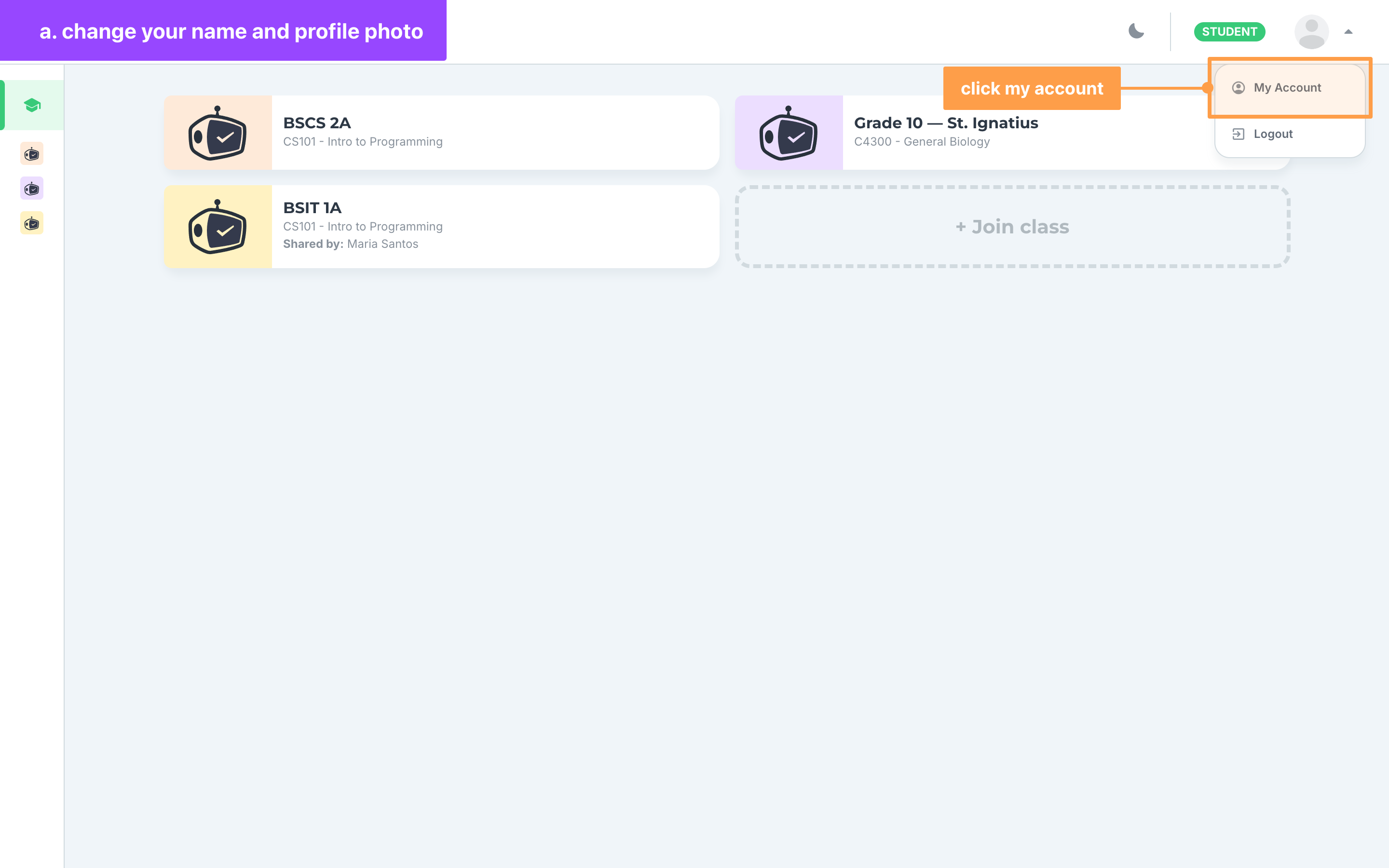
Note: On a phone, open the side menu and click your name at the bottom of it instead. The page then shows two tabs at the top, Personal and Account, in place of the Account Settings list.
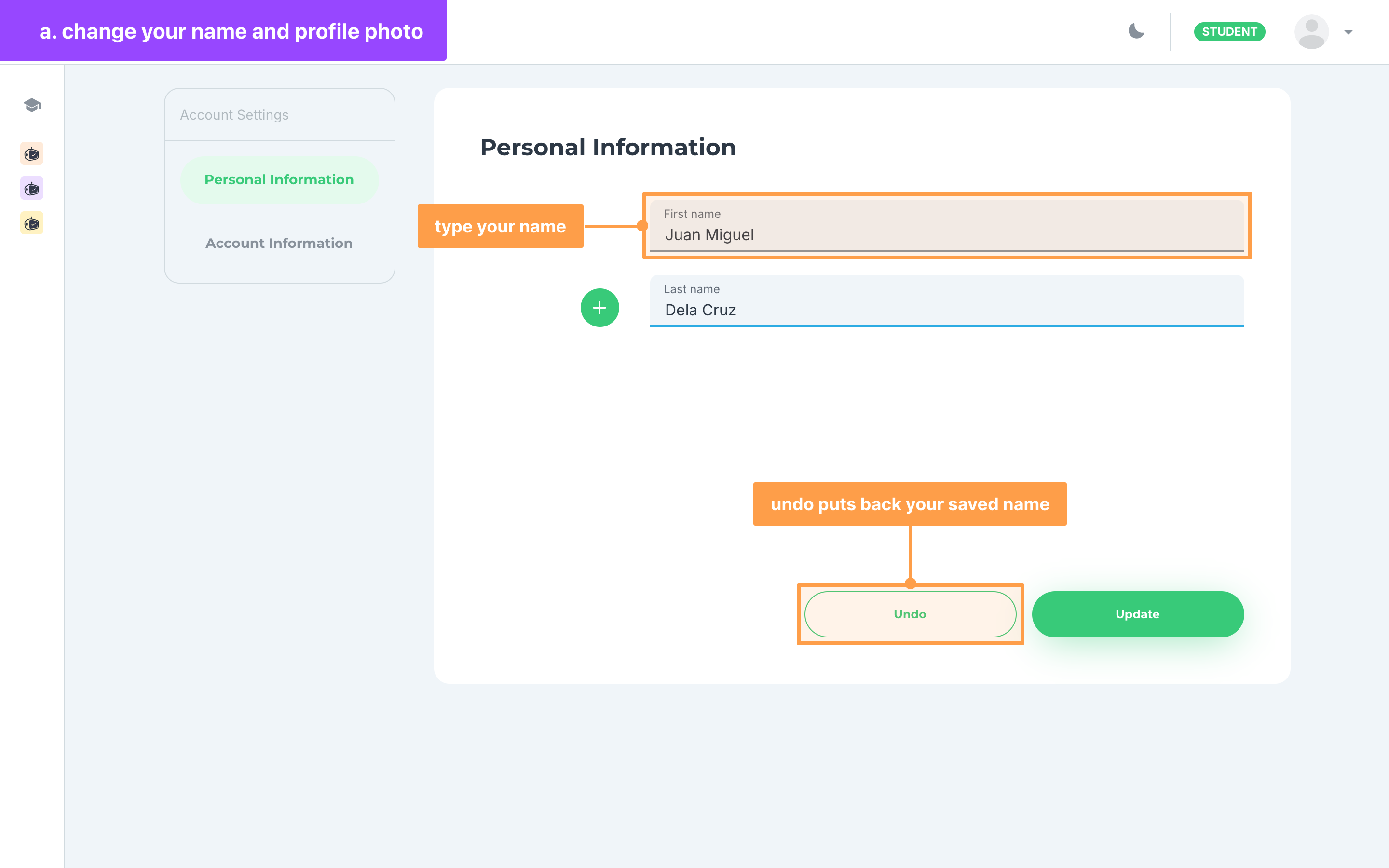
- My Account opens on Personal Information. Type your name in the First name and Last name fields. Undo appears as soon as you change something: click it to put back your saved name and photo.
- To change your profile photo, click the round green + button on your photo. If you have no photo yet, a placeholder picture shows in its place. In the Upload Image modal, click Upload and choose a PNG, JPEG, GIF, WebP or SVG image. Drag the image to position it in the round frame, then click Save.
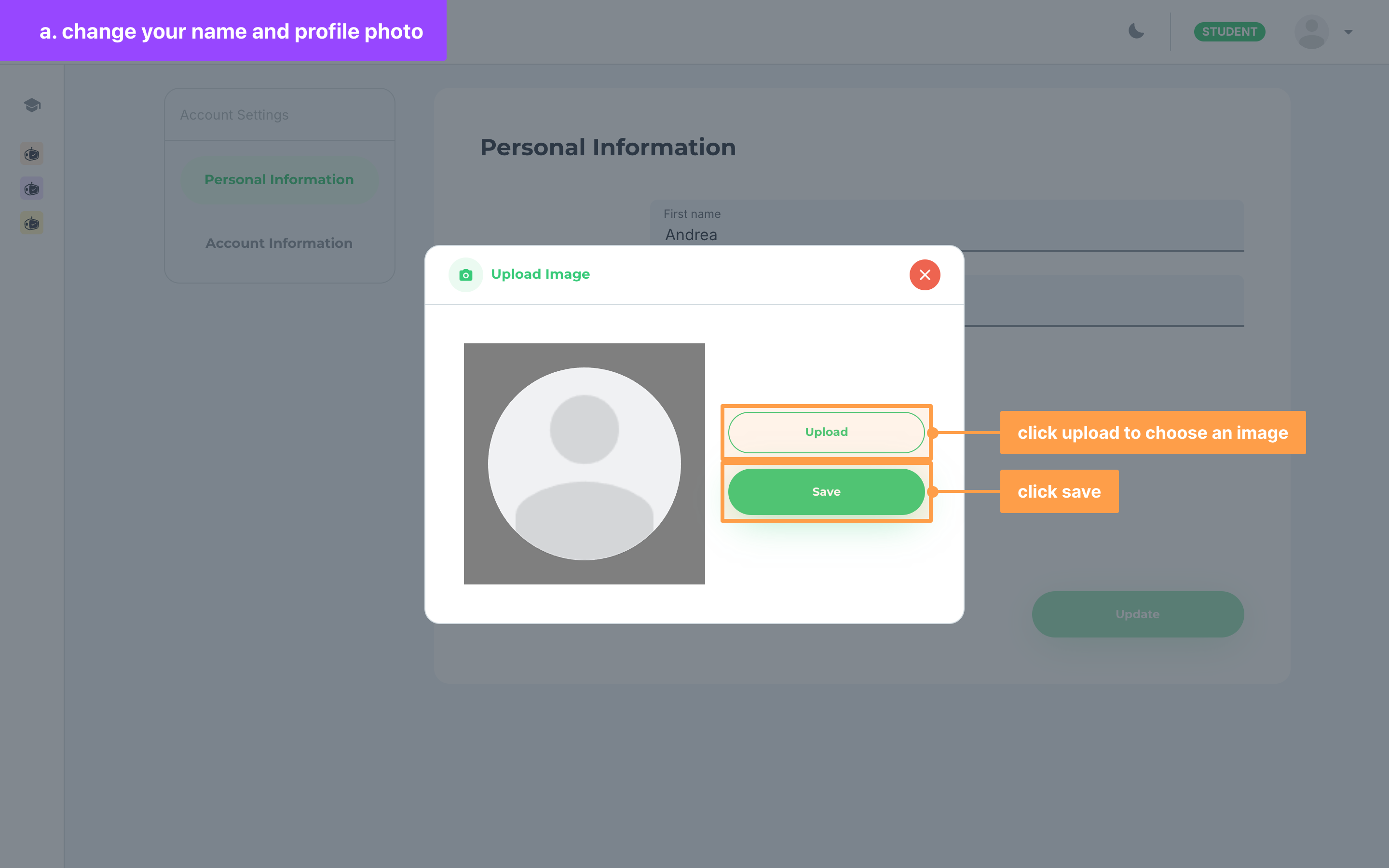
The photo is not stored yet: Save only puts it on the form.
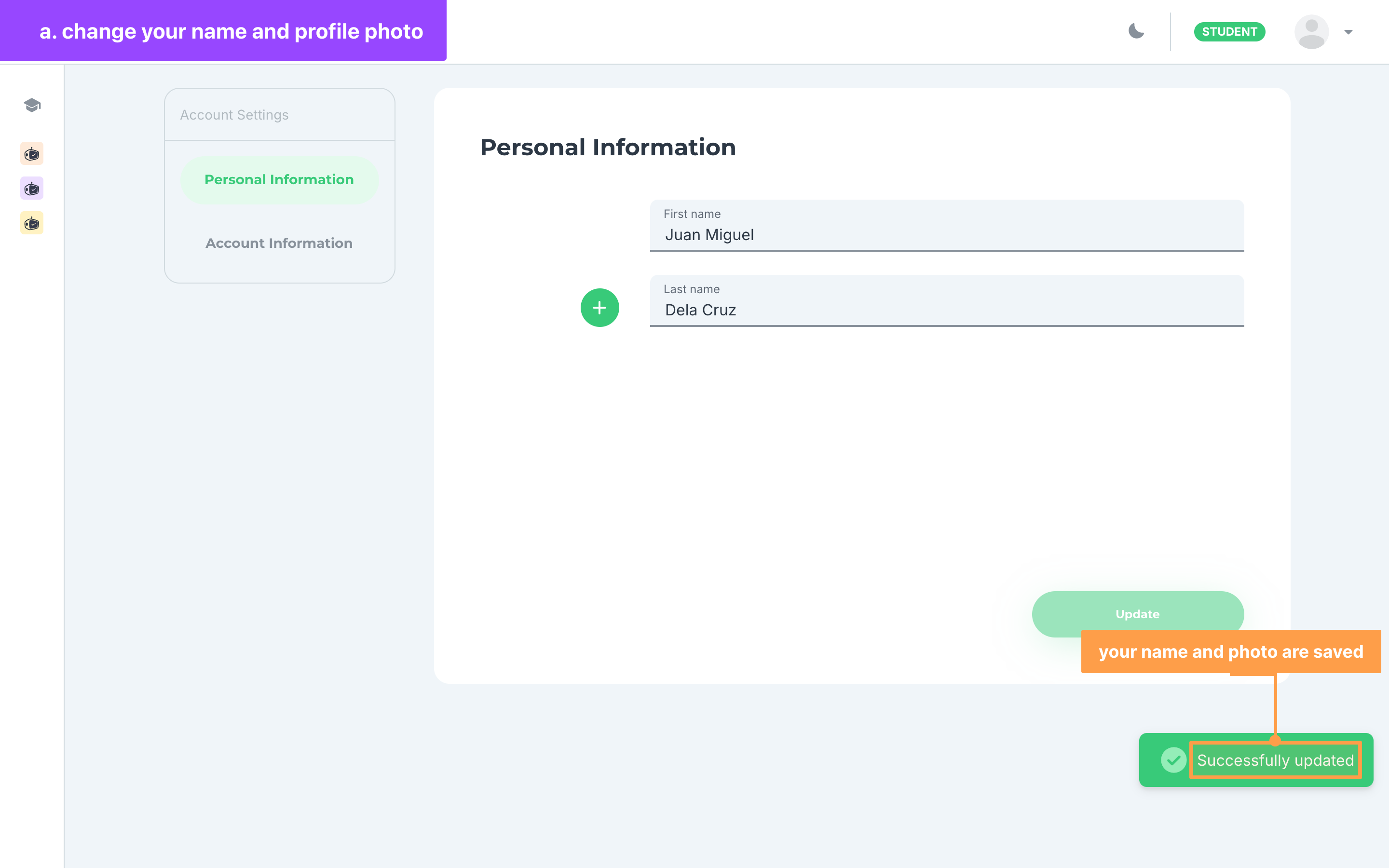
- Finally, click Update. The button stays disabled until you change your name or photo. Once a green "Successfully updated" message shows, your new name and photo are saved.
If your name is not accepted
When you click Update, a message under the field tells you what to fix:
- "First name is required" or "Last name is required" means the field is empty.
- "This field can only contain valid letters and spaces." means the name has a number or a symbol in it. Letters, spaces, apostrophes and hyphens between letters are allowed.
- "This field cannot contain only spaces." means the field has spaces but no letters.
If a red "Something went wrong. Try again later." message shows instead, your change was not saved. Click Update again after a moment.
If your image is not accepted
Upload only takes image files. Any other file shows "Please upload a valid image file." Choose a PNG, JPEG, GIF, WebP or SVG image instead.
If you close the Upload Image modal without clicking Save, the image you picked is thrown away. You can replace your photo at any time, but there is no option to remove it.
b. Verify your email
Note: GradeChum also opens Verify your email for you when you log in with an email that is not yet verified, and on every 15th page you visit until you verify it. If you are already on that page, skip to step 2.
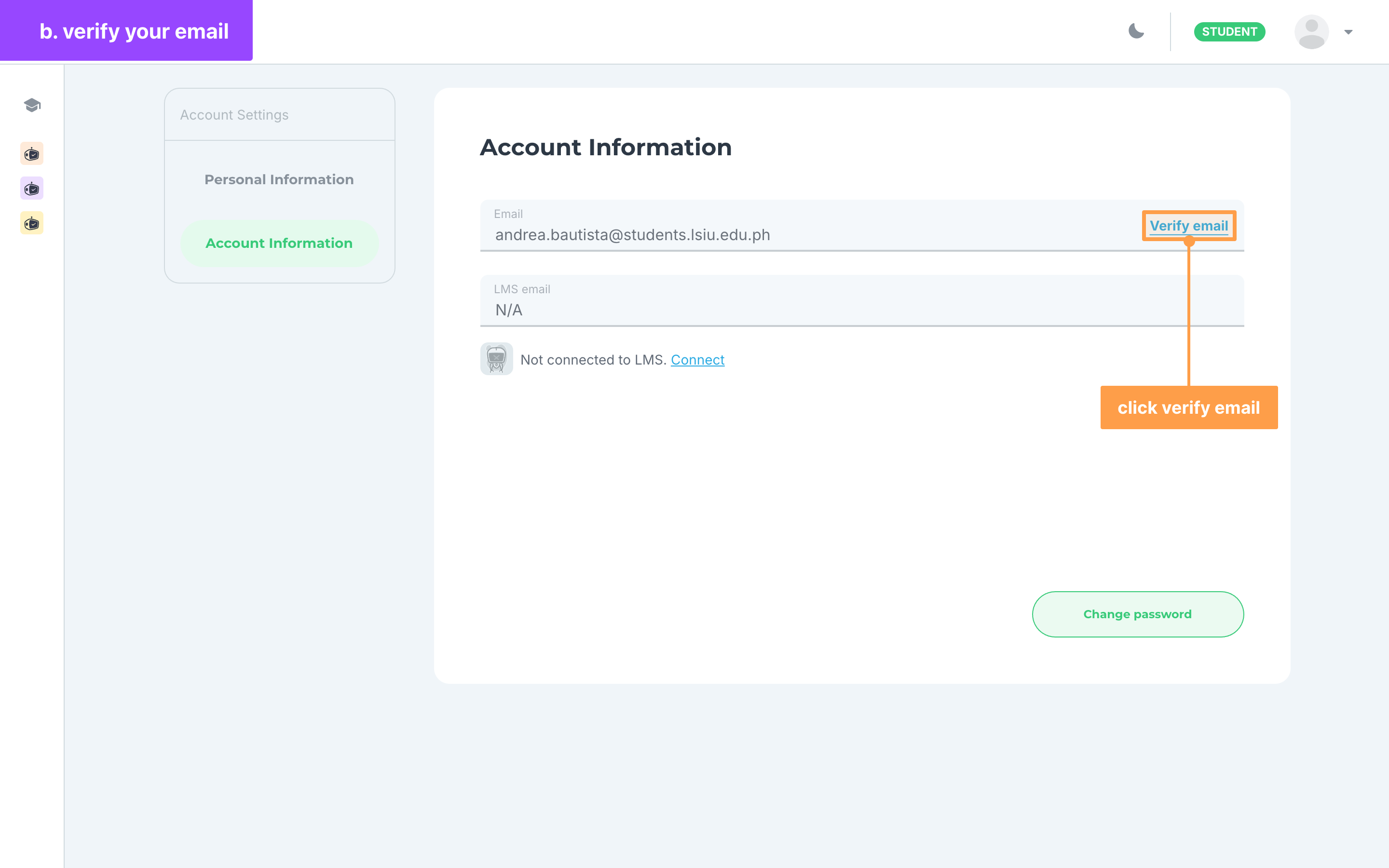
- In My Account, click Account Information. Beside Email, a green Verified mark means your email is already confirmed. If you see a Verify email button instead, click it.
- Open the email GradeChum sent to the address shown on the page, then type the 6-digit code in the Verification code field.
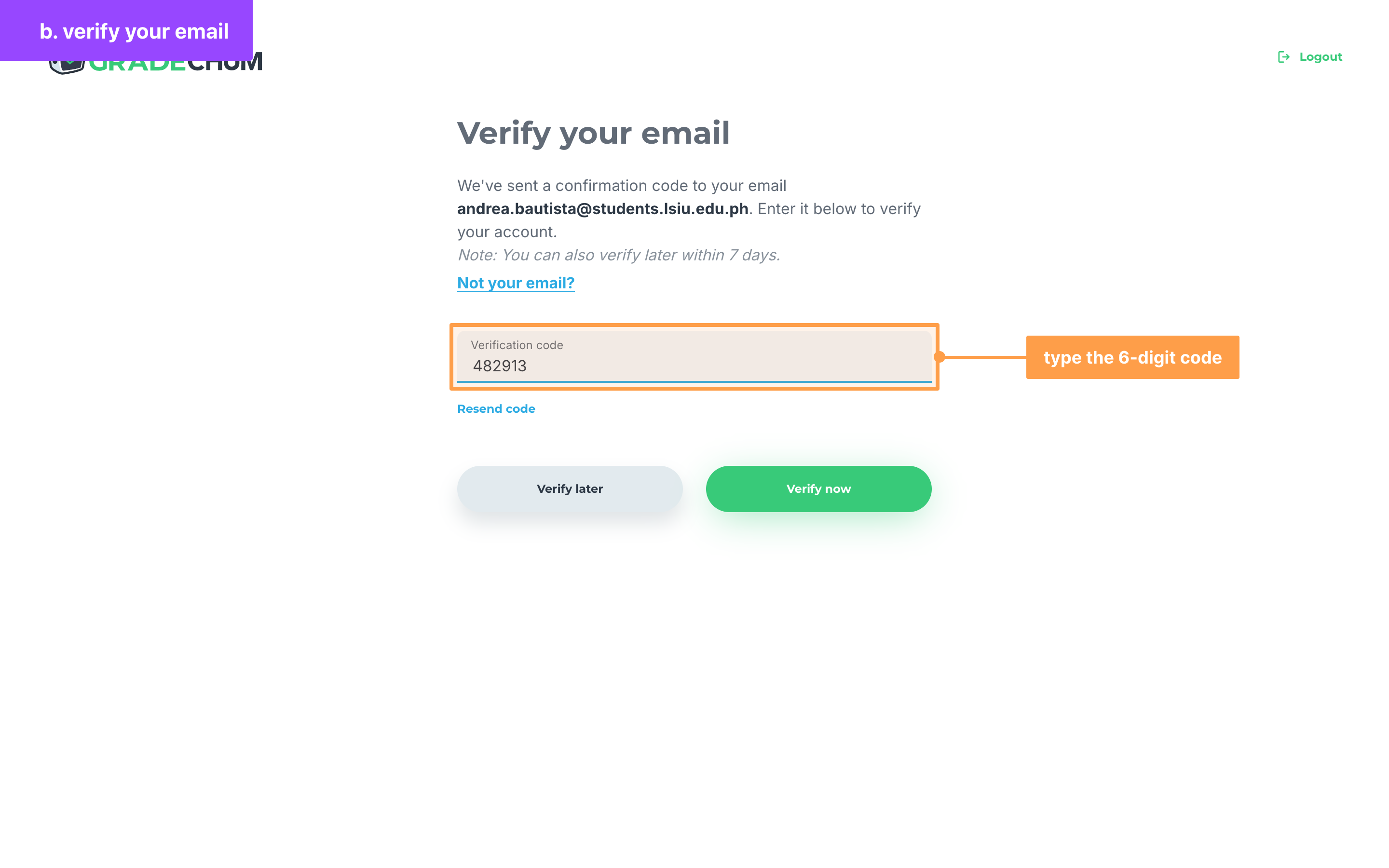
- Finally, click Verify now. The button stays disabled until the code is exactly 6 digits. Once Verification Successful! shows, click Close to go back to Account Information, where your email now shows Verified.
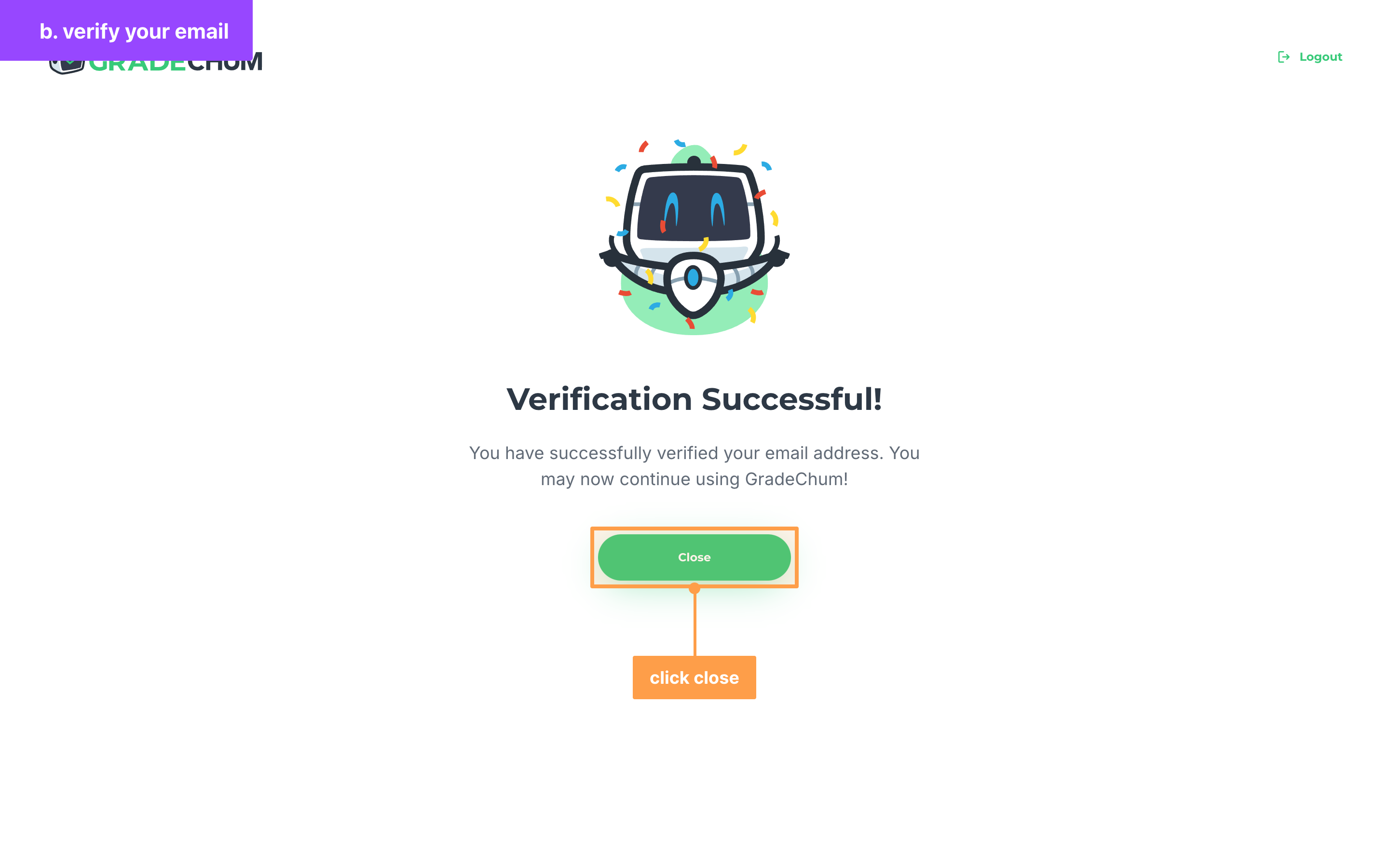
If GradeChum asked you to verify when you logged in, the button reads Proceed instead and takes you to your home page.
If the code did not arrive
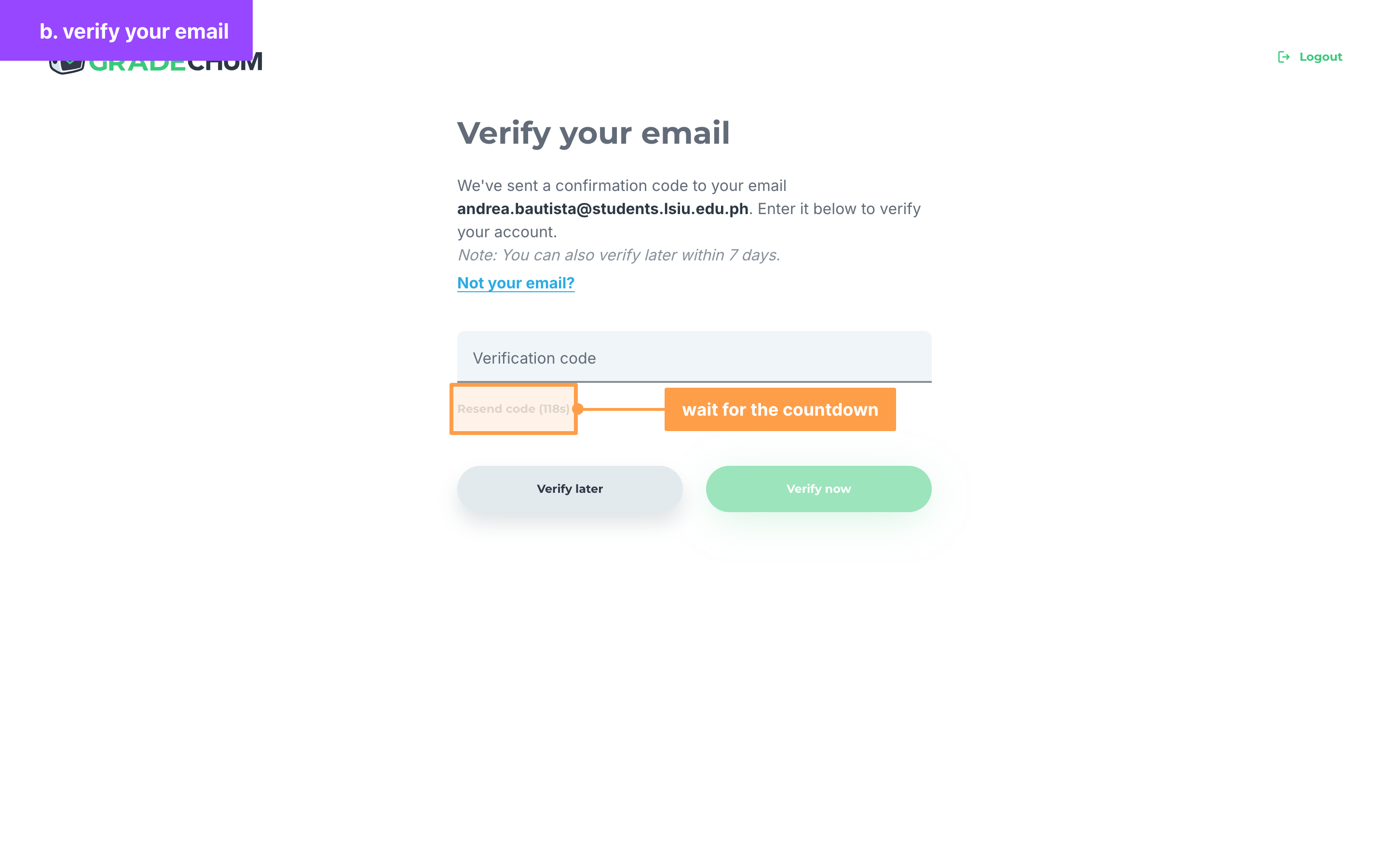
Click Resend code under the Verification code field to get a new code by email. After a code is sent, the button turns gray and counts down, for example Resend code (118s). Wait for the countdown to finish before you ask for another code, and always type the code from the latest email.
If the email address is wrong
- Click Not your email? under the page description.
- Type the correct address in the Email field of the Not your email? modal, then click Submit.
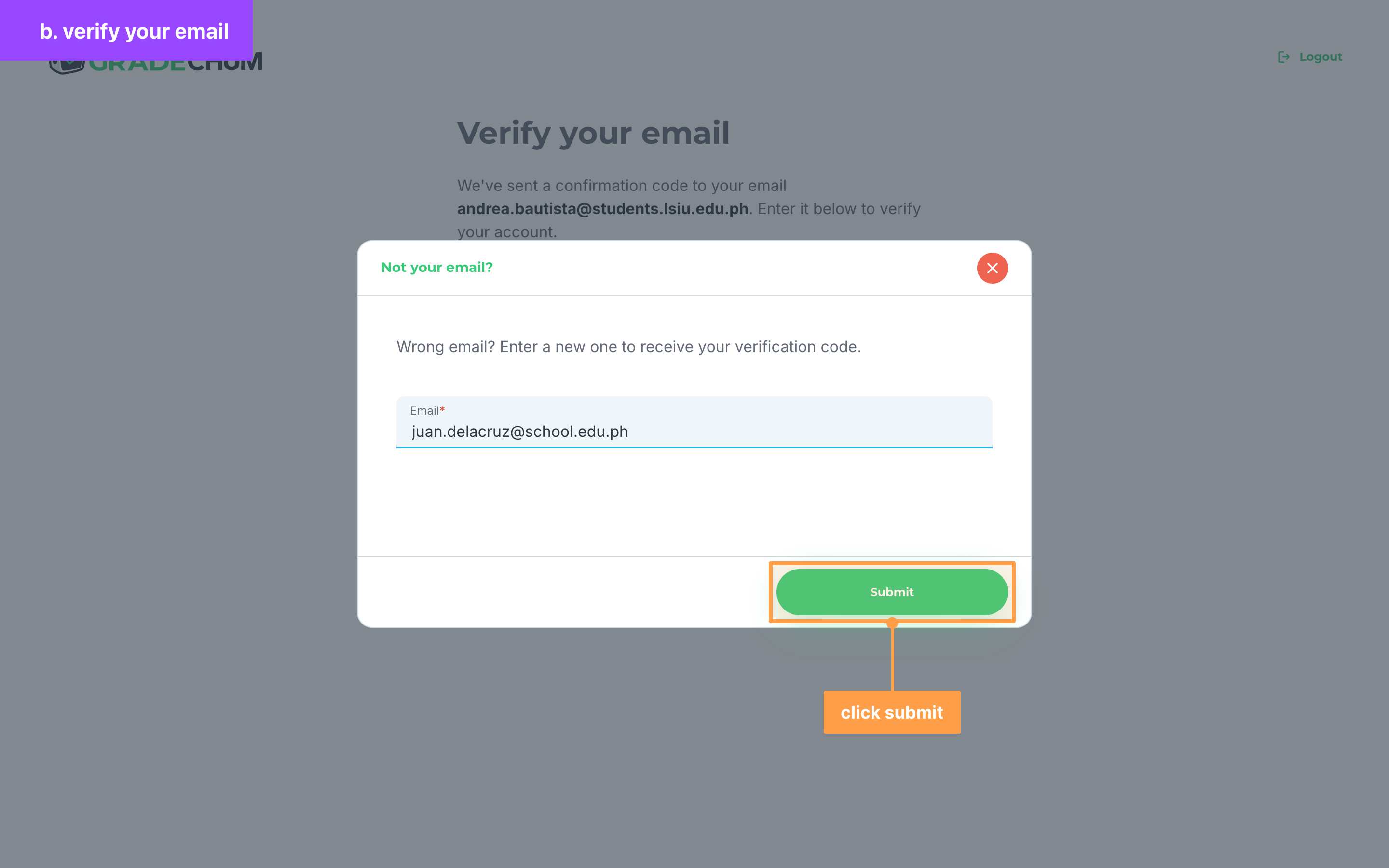
- Once Email updated! shows, click Close, then type the code GradeChum sent to the new address.
If the modal says "Please enter a valid email address", check the address for typos. If it says the email is already in use, that address belongs to another GradeChum account, so enter a different one.
If the code is not accepted
"Invalid or expired code." means the code was mistyped or is no longer valid. Check that you typed the code from the latest email, or click Resend code to get a new one.
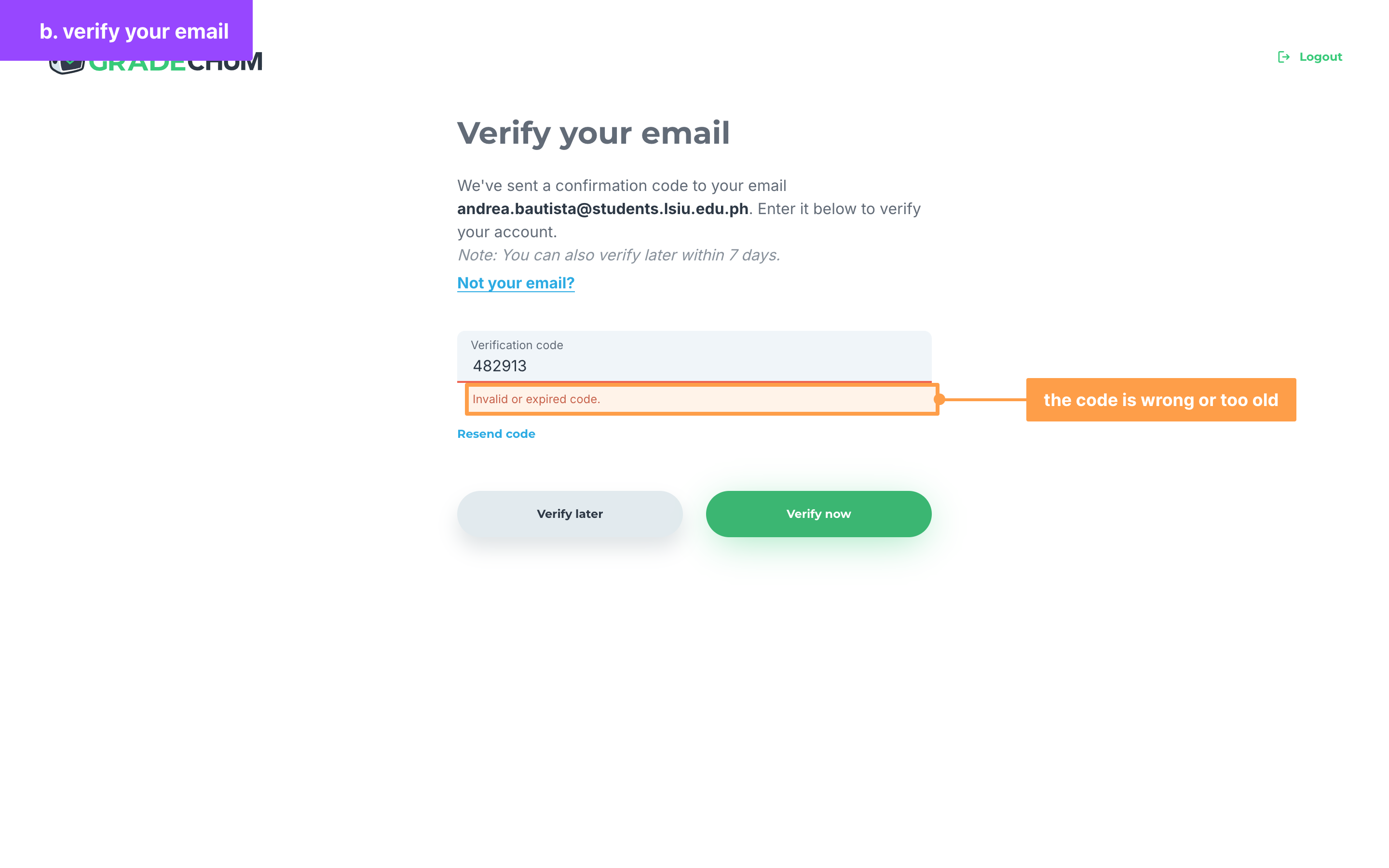
"Code must be 6 digits." and "Code must contain digits only." mean the code you typed has too few or too many characters, or has a letter or a space in it.
If you want to verify later
Click Verify later to keep using GradeChum and verify another time. You go back to the page you were on. While "Note: You can also verify later within 7 days." shows on the page, you can still put it off.
After those 7 days, Verify later no longer shows: you have to verify your email to continue, or log out.
c. Change your password
Note: Change password only shows for accounts that log in with an email and password. If your account was created with Google or Facebook, or you log in through your school's LMS, your password is managed there, so change it in that account instead.
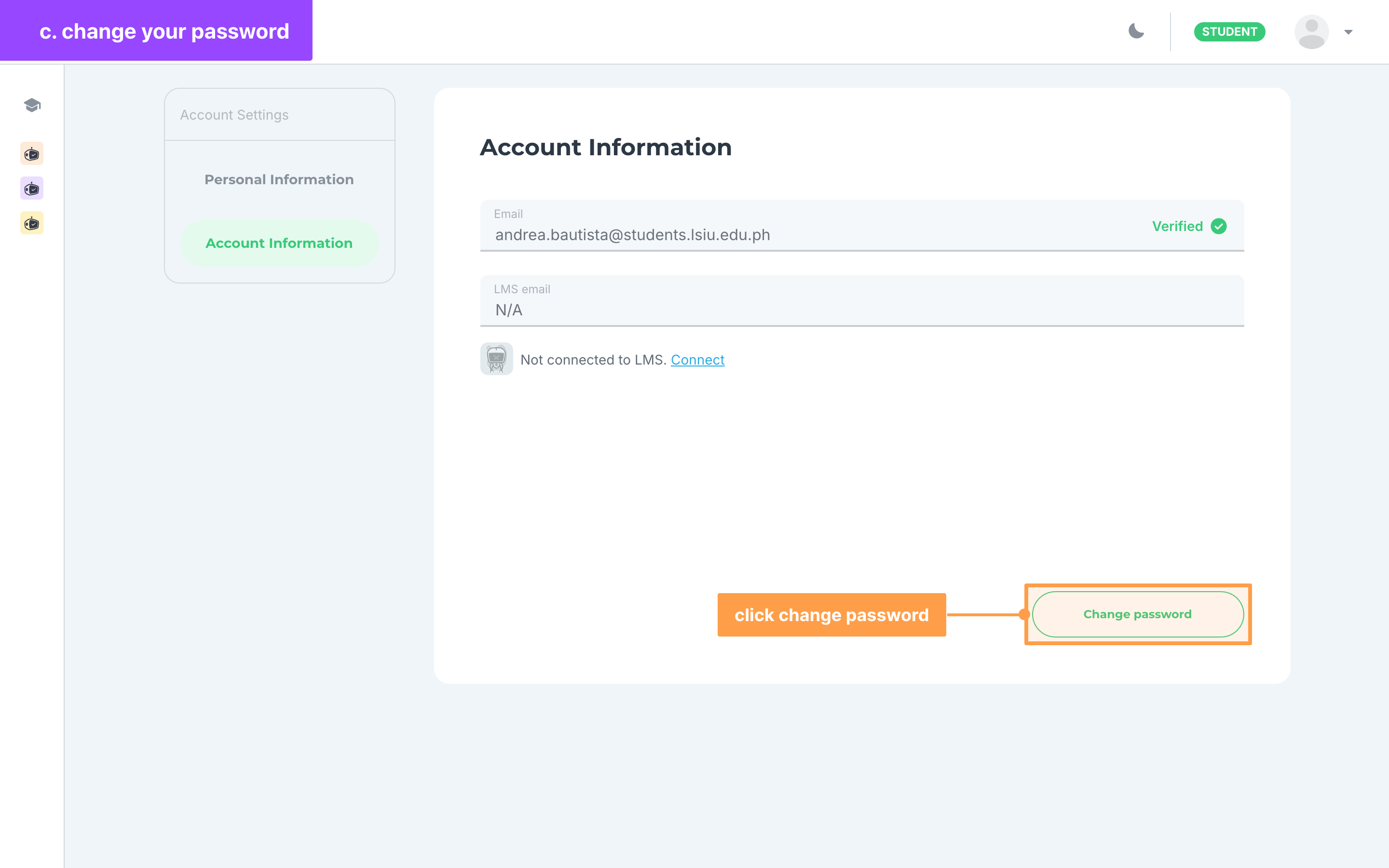
- In My Account, click Account Information, then click Change password at the bottom of the page.
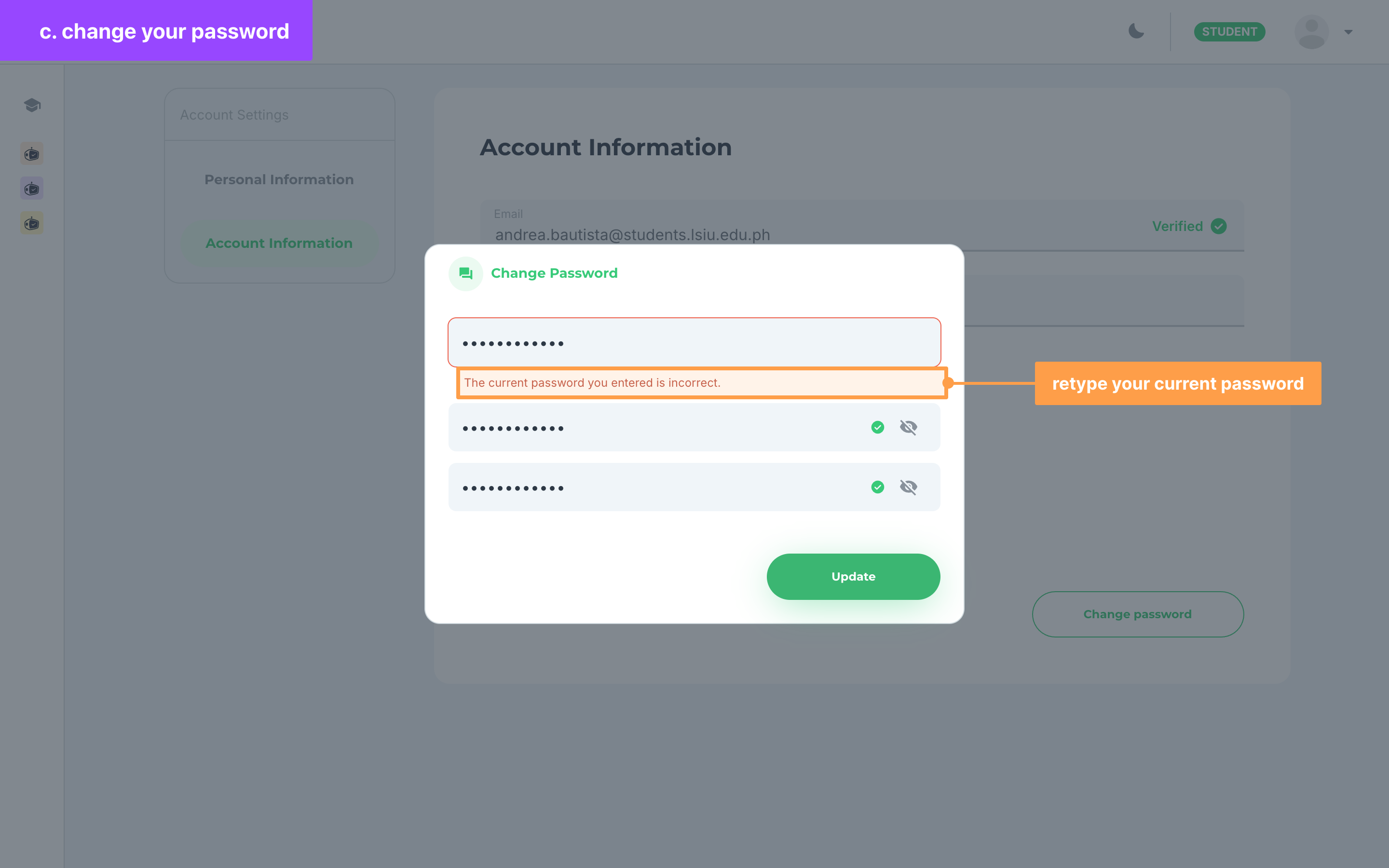
- In the Change Password modal, type the password you log in with now in Current password. Then type your new password in New password and again in Confirm new password.
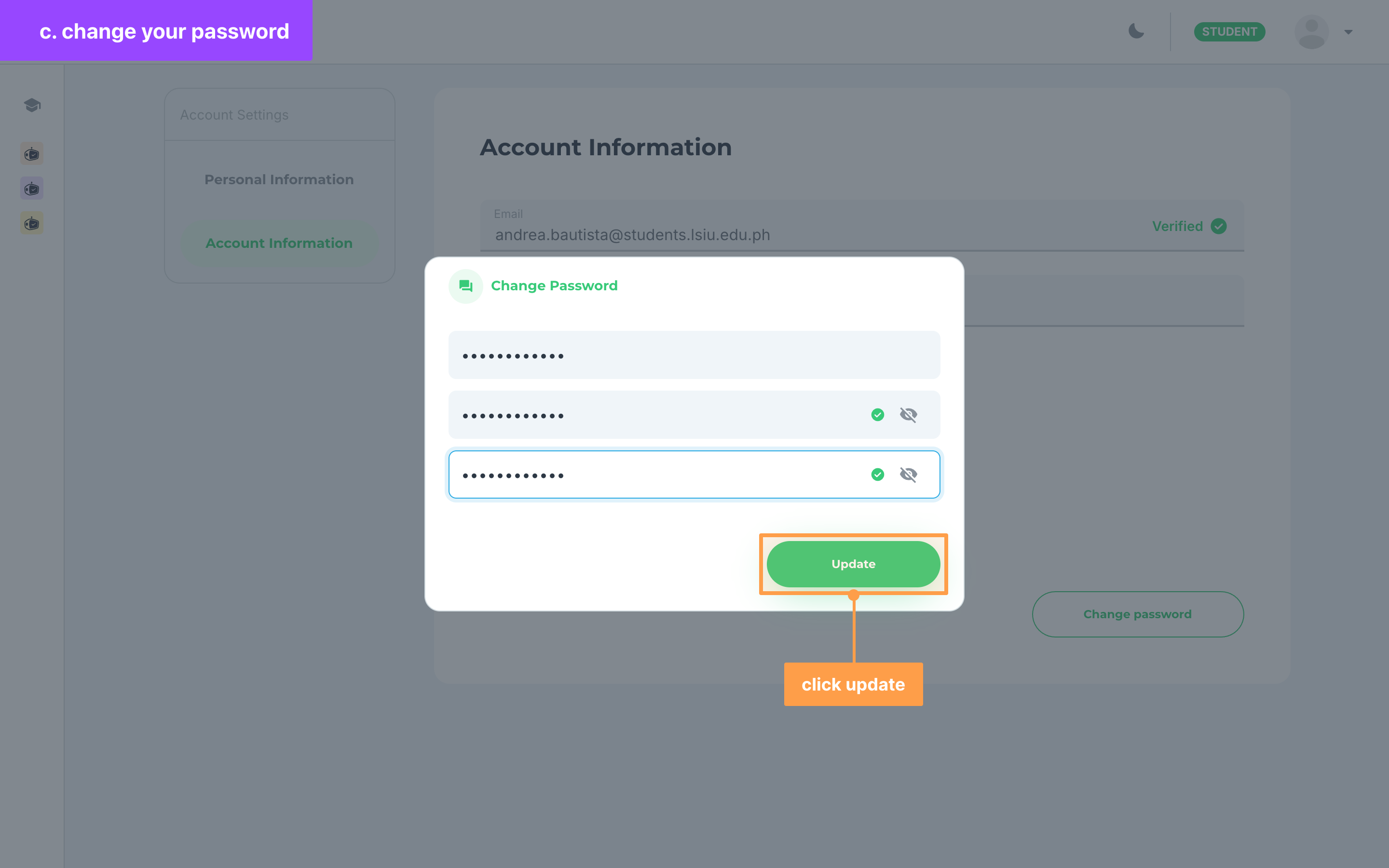
Your new password must be at least 8 characters long and at most 30, with at least 1 special character, 1 uppercase character, 1 lowercase character and 1 number. The icon in the New password field turns into a green check once every rule is met.
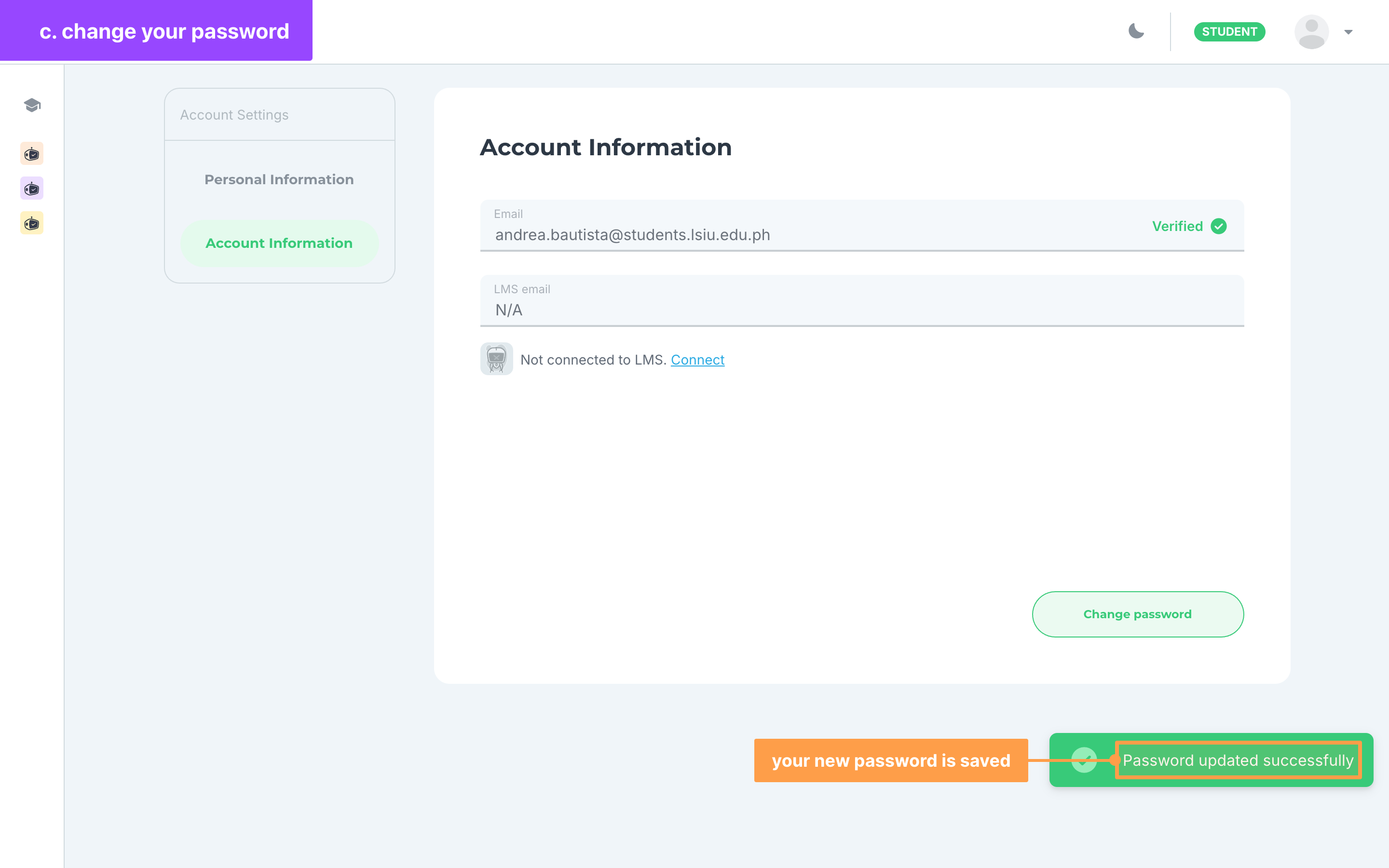
- Finally, click Update. The button stays disabled until the new password meets every rule and Confirm new password is filled in. Once the modal closes and a green "Password updated successfully" message shows, use your new password the next time you log in.
If your password is not accepted
A message under the field tells you what to fix:
- "The current password you entered is incorrect." means Current password does not match the password you log in with now. Type it again. If you no longer know it, log out and click Forgot password? on the login page.
- "This must match with your new password." means Confirm new password is not the same as New password.
- "This must be less than or equal to 30 characters." means your new password is too long.
- "Current password is required.", "New password is required." and "Confirm new password is required." mean that field is empty.
Note: Account Information also shows your LMS email and whether your account is connected to an LMS. See Connect to LMS.
And that's how you manage your account in GradeChum! Next, let's join a class.