
Answer activity online
Introduction
Not every activity is answered on paper. When your teacher gives an online activity, you answer it right in GradeChum, from your computer or your phone, within the schedule your teacher set.
Your answers save as you type, even if your internet connection drops for a while. If the activity has a time limit, a countdown shows how much time you have left, and GradeChum submits your answers for you when it runs out.
In this guide, you will learn how to answer an online activity in GradeChum.
Steps
Note: You must have already joined your teacher's class before proceeding. See Join class.
To answer an online activity, follow these instructions:
- After logging in, click the class card of the class where your teacher gave the activity.
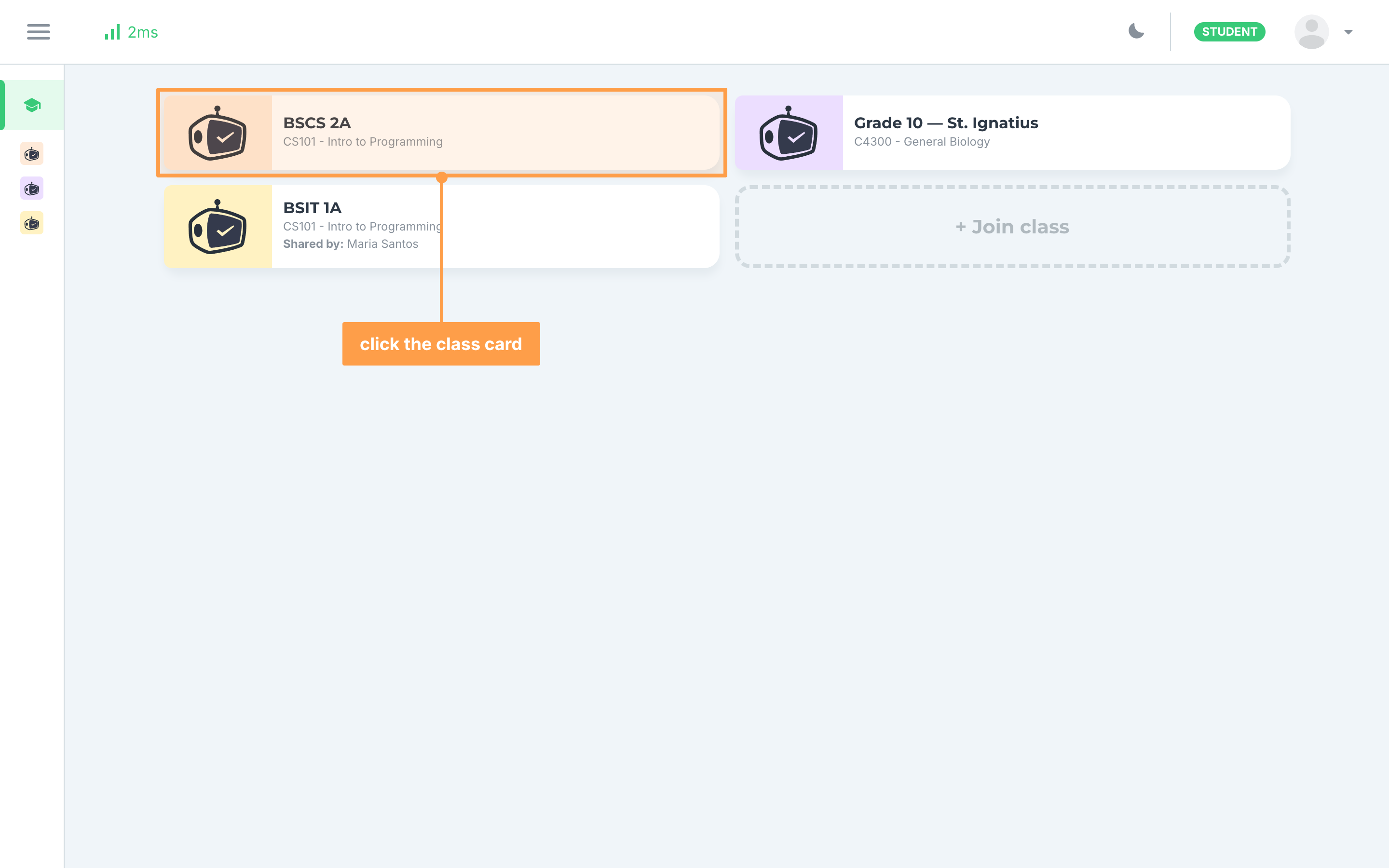
- On the Activities page of your class, find the online activity. Its card shows the open date, the due date, the Time limit if your teacher set one, and a countdown. Click Start, or Continue if you already began answering it.
a. Before the activity opens
The badge reads Not started and the countdown reads Activity starts in. The Start button is disabled until the open date and time.
b. While the activity is open
The countdown reads Activity closes in, and Start is clickable. If you already began answering, the badge reads Ongoing and the button reads Continue. If your teacher lets you retake the activity, you also see Continue.
c. After the due date and time
The countdown reads Activity closed. If you never submitted your answers, the card has no button, and you can no longer answer the activity.
d. After you submit
The badge reads Submitted and Your Score shows a question mark over the total, for example ?/50, until your teacher releases the results. Once they do, the badge reads Results released and View opens what your teacher released. See View activity results.
- If a Before you start modal opens, read it. When it asks for a password, type the activity password your teacher gives you, then click Start. Your time starts only once the activity has started.
Why a Before you start modal opens
The card shows a Password needed badge when your teacher set a password, and a One question at a time badge when you answer one question per screen. Either one opens Before you start when you click Start. When you continue a retake, you are not asked for the password again.
If the modal shows a message under the password field, the password is wrong or missing. Ask your teacher for the correct activity password and try again. Once you click Start, you cannot cancel while GradeChum starts the activity.
- Answer each question of the test. Each question shows its number and its points.
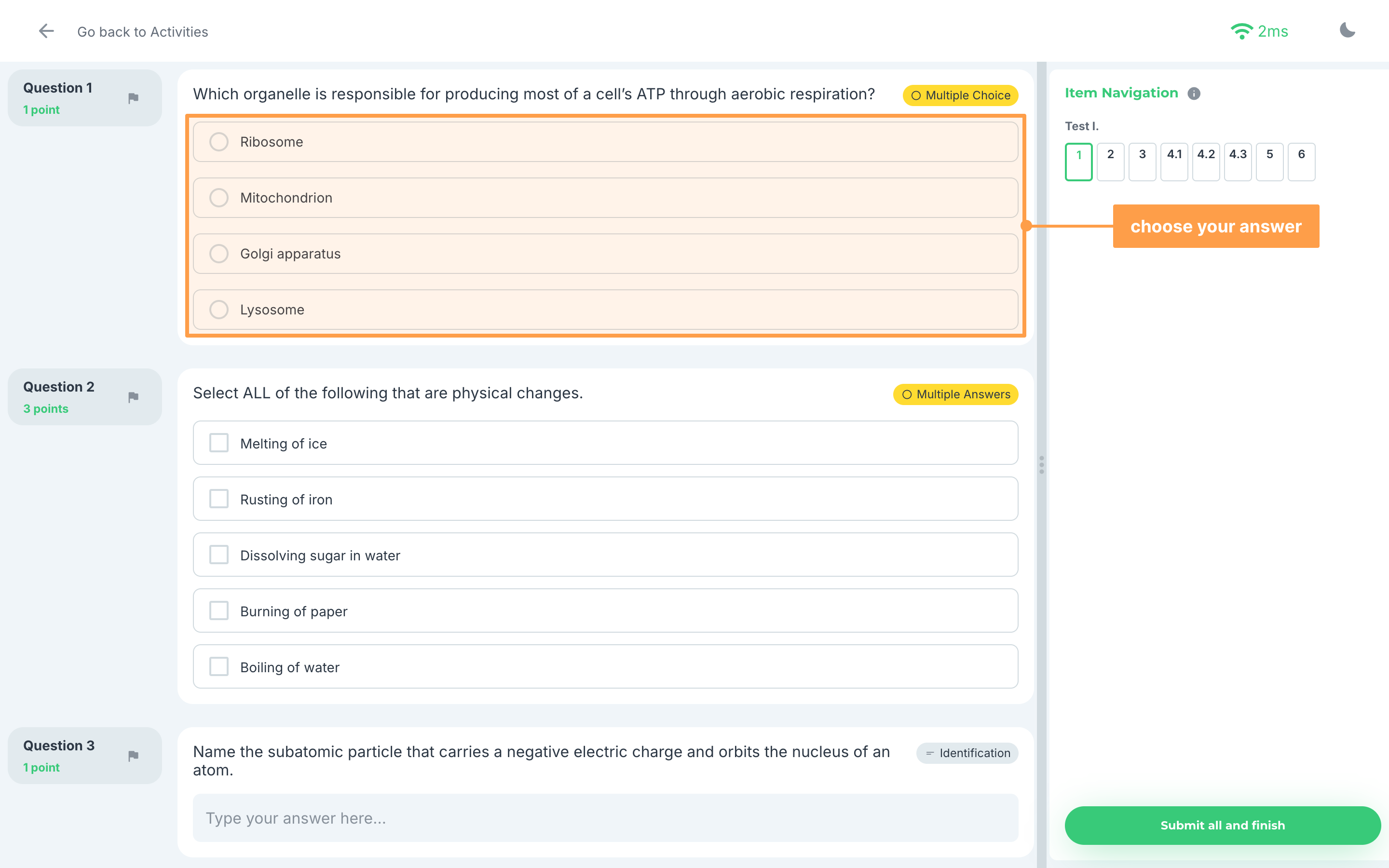
a. Multiple choice
Click the one option you think is correct. A question with checkboxes takes more than one answer: tick every option that applies.
b. Identification
Type your answer in the Type your answer here... field.
c. Enumeration
Type one answer in each field: Answer 1, Answer 2, and so on.
d. Essay
Write your answer in the Write your essay here... field. You can format your text with the toolbar above it.
e. Problem-solving
Type your solution in the math editor. Click a symbol to insert it, or click See all for more. To turn a LaTeX command into an equation, type the command, then press Enter. To add a new line, press Shift + Enter. Under LaTex mode, switch between Rendered and Raw to see your answer as equations or as plain text.
For more room, click the expand button on the editor. The Insert Answer modal shows the question again. Nothing you type there is saved until you click Confirm.
f. Item groups
Some questions share one main question and have Sub-questions under it, numbered like Sub-question 4.1. Answer each sub-question the same way as a question of its type.
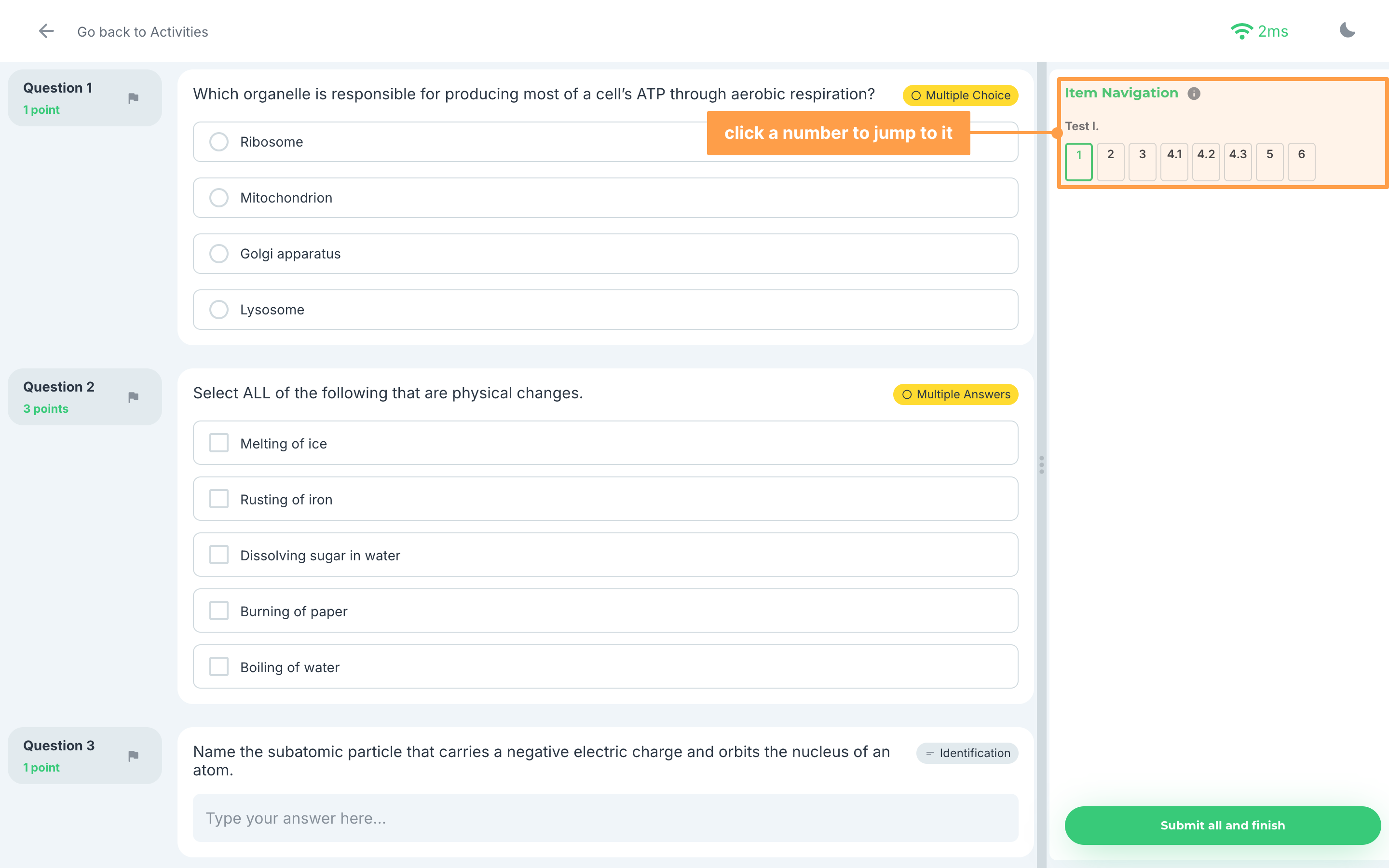
- Use Item Navigation to jump to any question by clicking its number. Hover over the info icon beside Item Navigation to see what each color means. If the activity has more than one test, click Next and Prev to move between them.
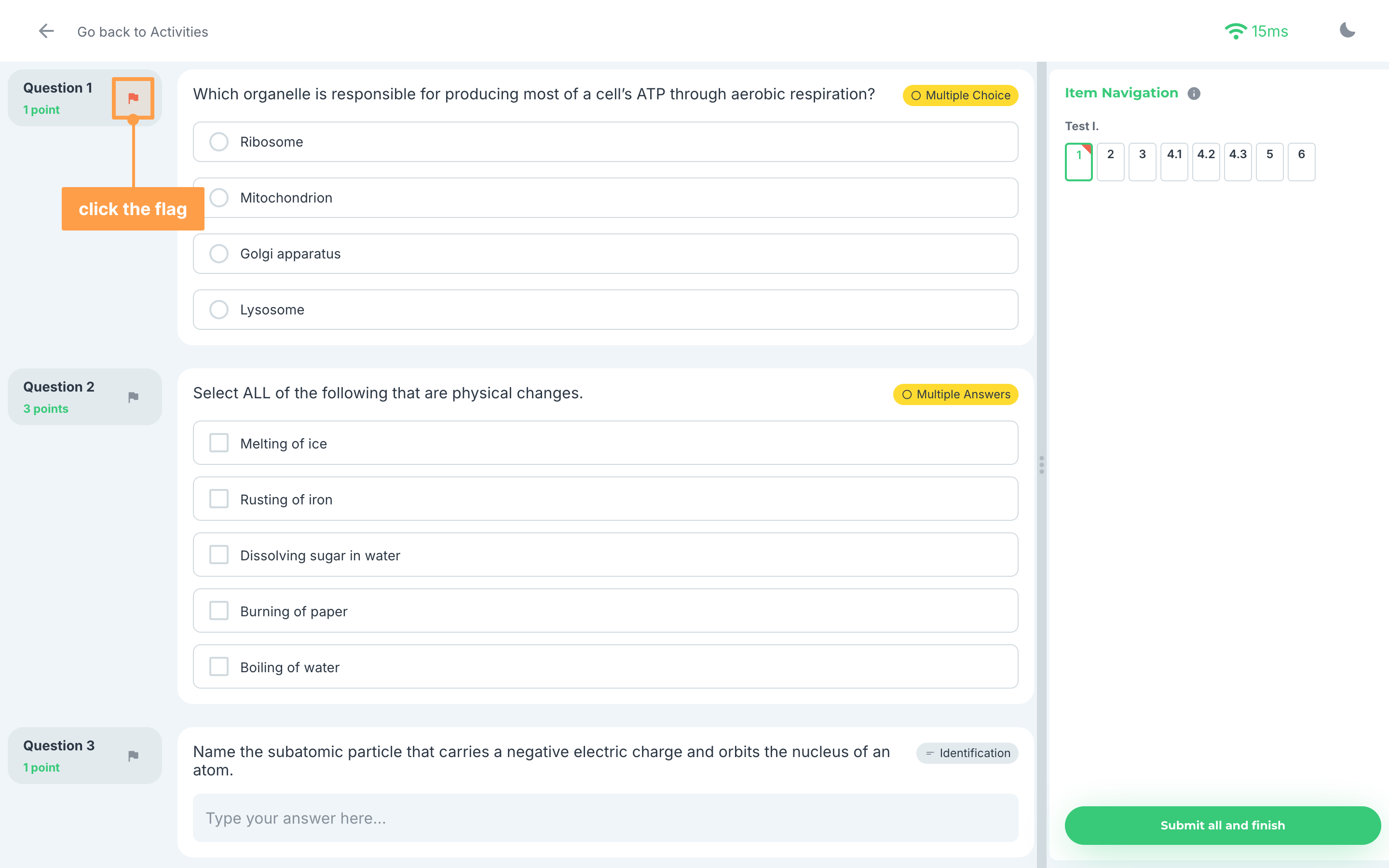
- To come back to a question later, click the flag button on it. The flag turns red and the question stands out in Item Navigation. Click the flag again to remove it.
- If the activity has a time limit, keep an eye on the countdown at the top of Item Navigation. On a phone, it shows as Time left: at the bottom of the screen.
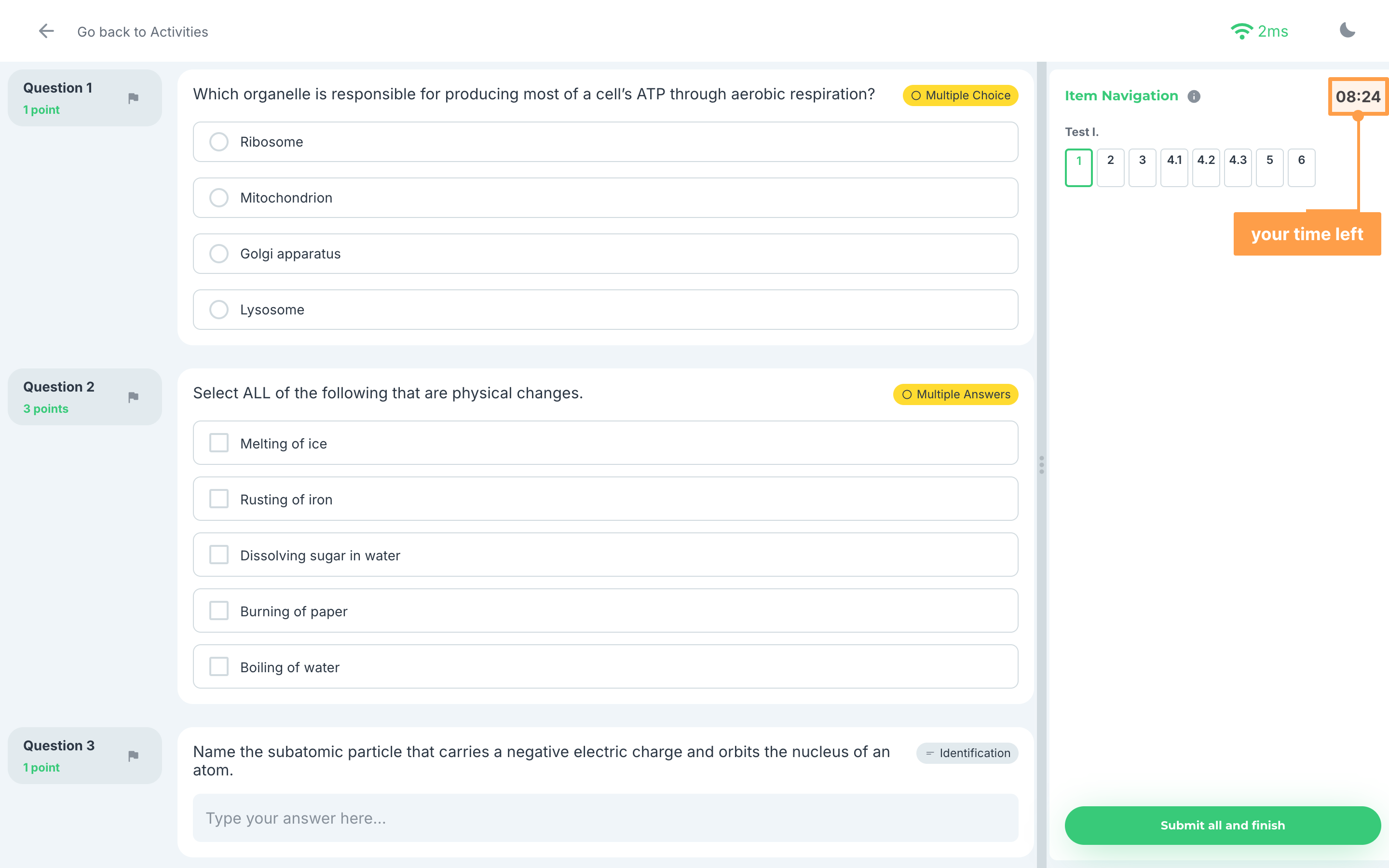
Note: When the time runs out, GradeChum submits your answers for you and shows Time's Up! Click OK to go back to the Activities page.
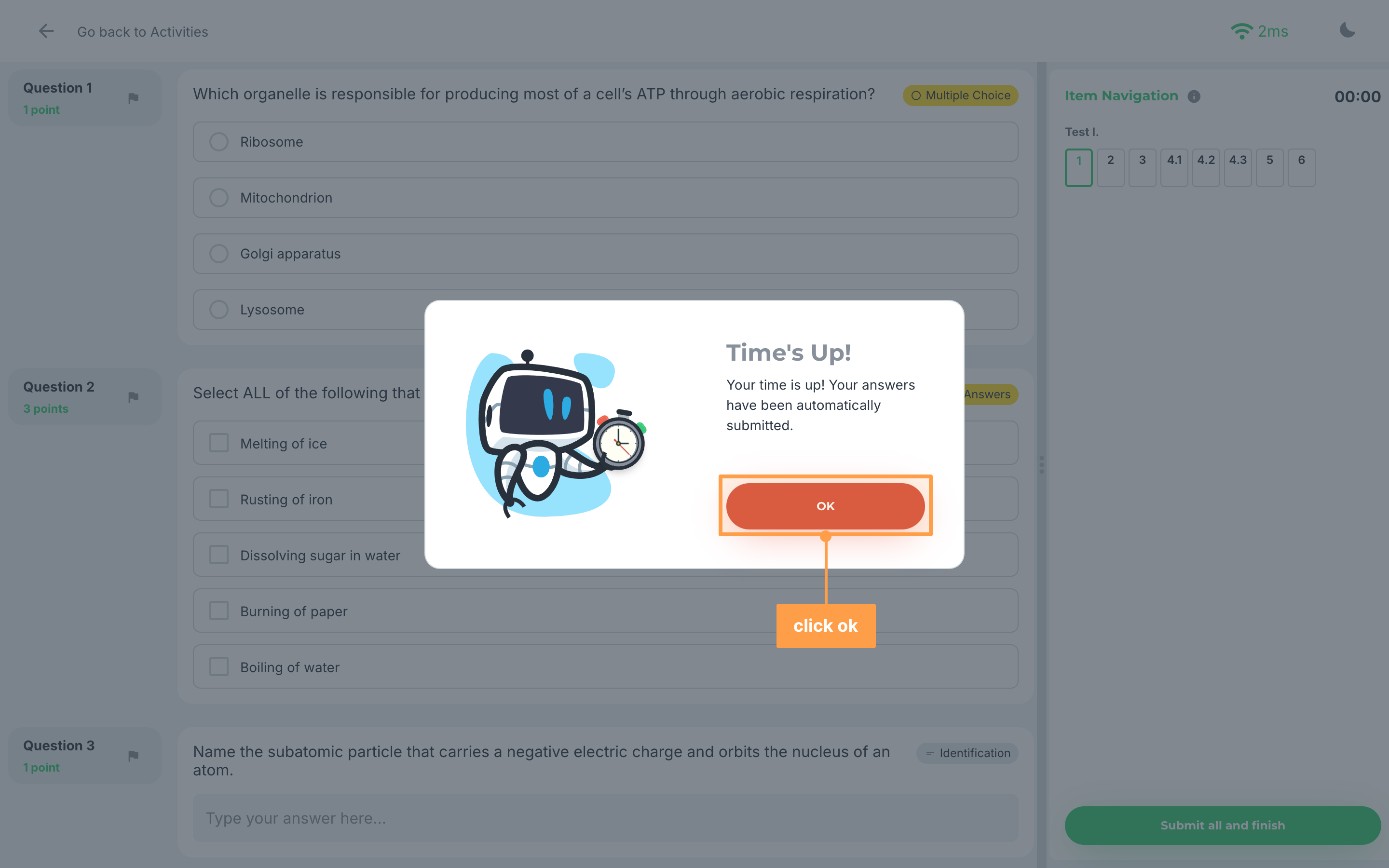
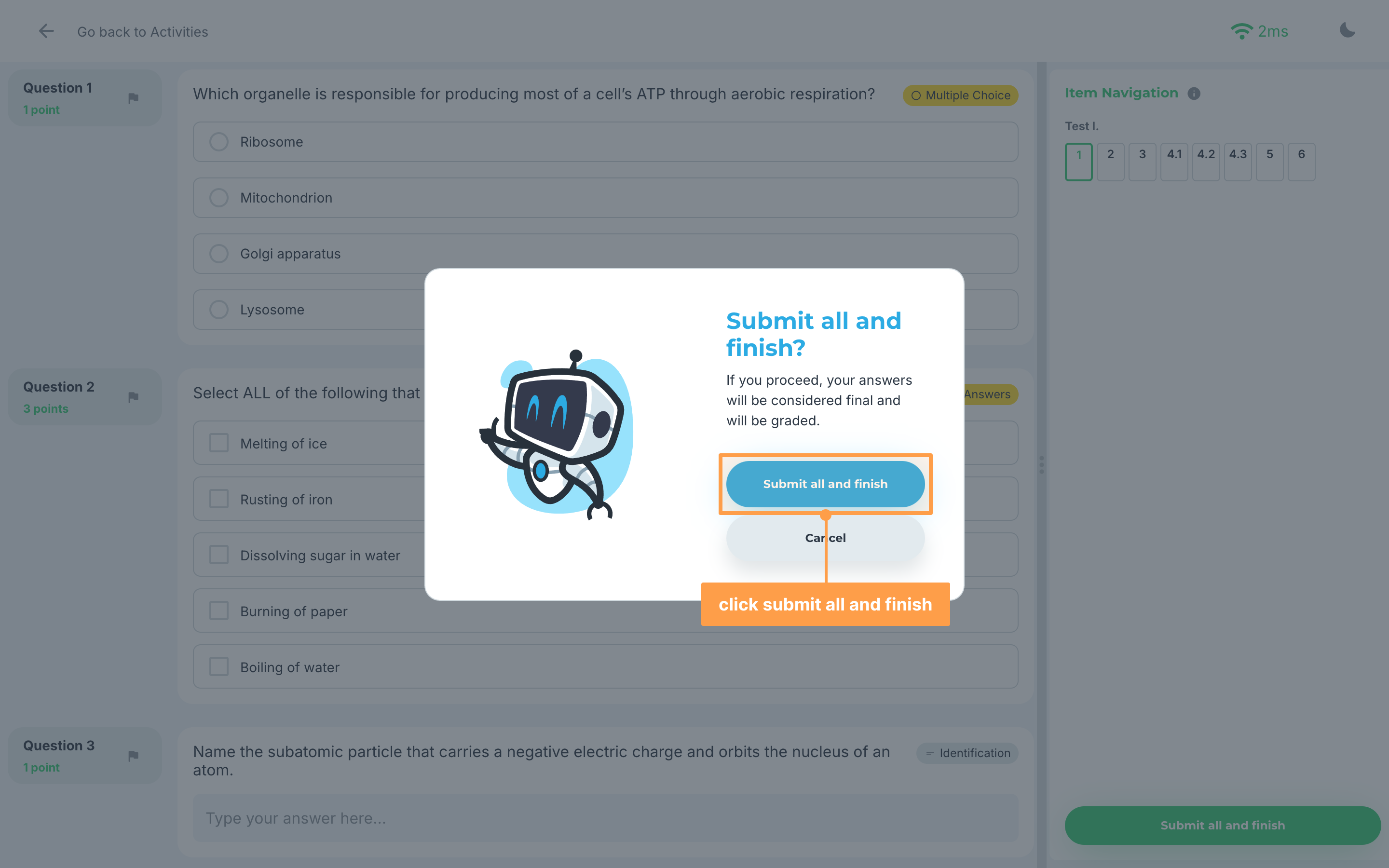
- Once you have answered every question, click Submit all and finish at the bottom of Item Navigation. In the Submit all and finish? modal, click Submit all and finish again to confirm. Your answers are final once you submit them.
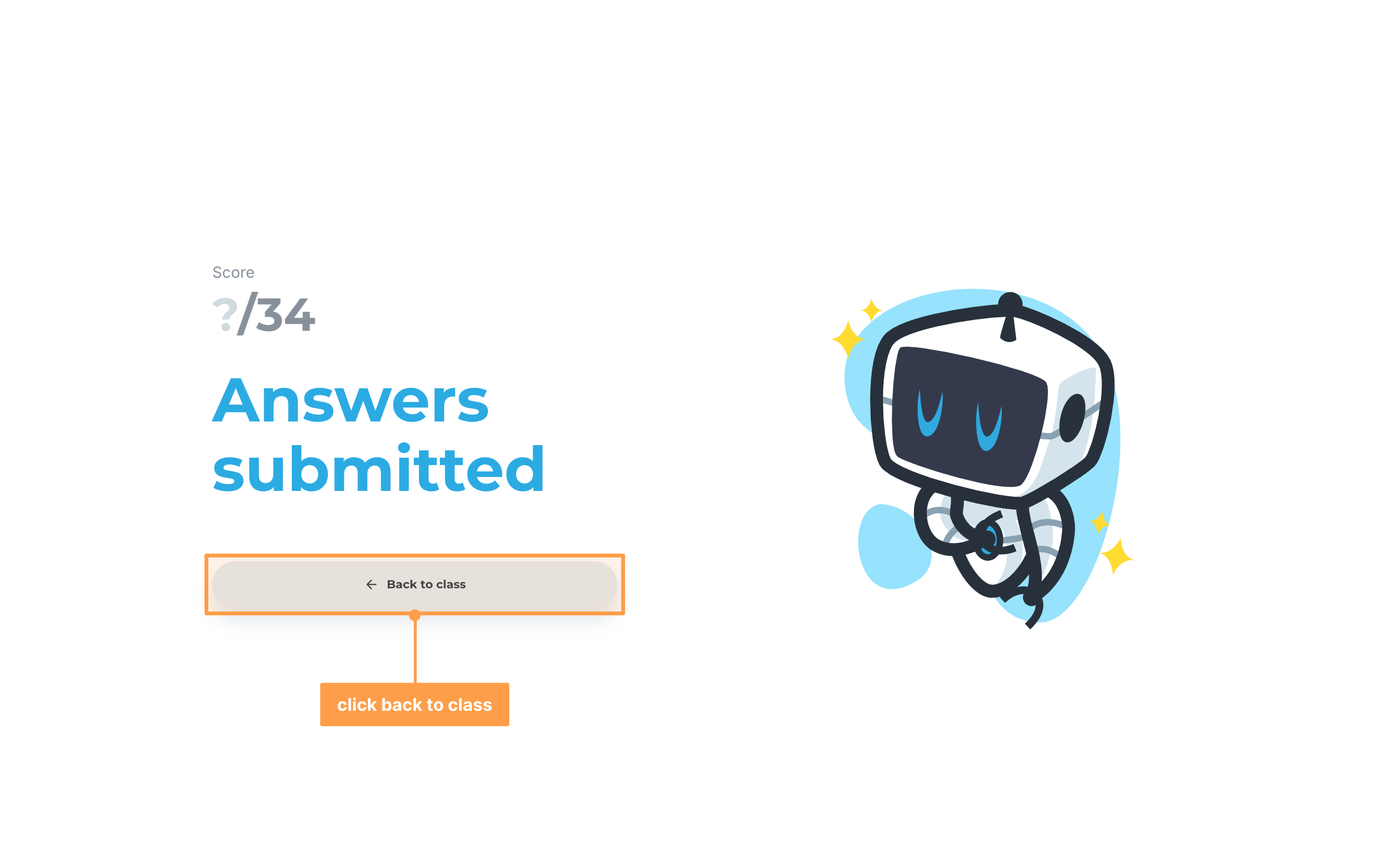
- Finally, once Answers submitted shows, click Back to class. Your Score stays hidden until your teacher releases the results.
Answering on a phone
On a phone, click the list button at the bottom of the screen to open Item Navigation, where you jump between questions and find Submit all and finish. Use the arrow buttons beside the test name, such as Test I., to move between tests.
If you lose your internet connection
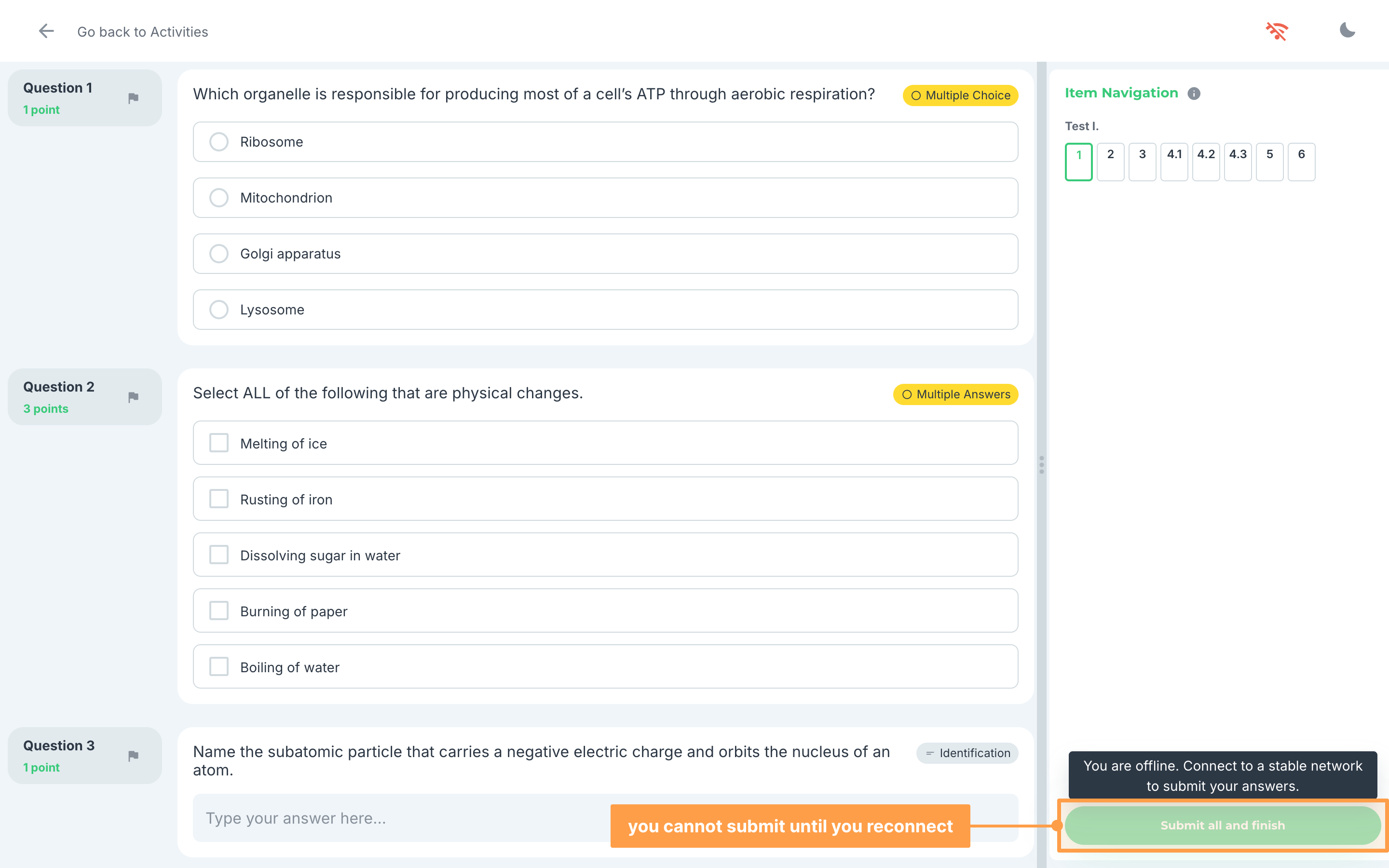
You can keep answering. Your answers are kept on your device and sync once you are back online, even if you refresh the page on the same browser. The top bar shows Offline, and a message says "You're offline. Your answers will sync when you reconnect."
While you are offline, Submit all and finish is disabled, and it says "You are offline. Connect to a stable network to submit your answers." Connect to a stable network before you submit. While your answers are being saved, the top bar shows Saving…
Other messages you might see
- "Still syncing your answers. Please wait a moment and try again." means some answers have not reached GradeChum yet. Wait a moment, then submit again.
- "Some answers could not be saved. Please try again." means a save failed. Check your connection and try again.
- "An error occurred while submitting your answers" means the submit did not go through. Stay on the page and try submitting again.
- "Your retake has started. This page has refreshed with a new attempt" means your teacher gave you a retake while you were answering. Changes you had not saved before it started are not kept.
- If GradeChum cannot start the activity, for example because it has closed, a message tells you why and you go back to the Activities page.
If the activity is one question at a time
You see one question per screen, with a count such as 1/10. Click Next to go to the next question. You cannot go back to a question you have passed, and Item Navigation says "This activity is set to one question at a time, so you can't go back to previous items."
In this mode, questions have no flag button. If you refresh the page or open the activity on another device, you continue from the furthest question you reached. On the last question, submit from Item Navigation.
If the activity is in Exam Mode
Your teacher can turn on Exam Mode for an exam. GradeChum then checks your setup before you start and records what you do while answering, so your teacher can review it. Only the first check that applies shows at a time.
a. A separate window is required
On a computer, an exam opens in its own window. Click Got it, proceed to open it. If the window does not open, allow GradeChum to open new windows in your browser settings, then click Got it, proceed again.
b. Trouble reaching our servers
Your connection is too slow or unstable to save your exam. Stay on the page: GradeChum keeps retrying and the screen goes away once your connection is back. Repeated interruptions are recorded for your teacher, so tell your teacher if it keeps happening.
c. Unsupported browser
On a computer, answer the exam in Google Chrome, Microsoft Edge, Opera or Brave. Any other browser shows Unsupported browser, so open GradeChum in one of those four.
d. Multiple monitors detected
Using a second screen is not allowed. Disconnect the extra monitor or stop extending your display to it, and the exam continues.
e. Full screen required
On a computer, the exam must stay in full screen. Click Go full screen to continue. If you leave full screen again, a warning shows each time and your teacher can see how often it happened.
f. Before you begin
Every attempt at switching tabs or using other windows is recorded. Tick I understand and would like to proceed., then click Proceed. Pasting text copied from outside the exam does nothing.
What else the Activities page shows
- If a class shows "You don't have any viewable activity results yet", your teacher has not given you an activity in that class yet.
- An activity you answer on paper shows its Activity Code instead of a schedule. See Answer activity on paper.
- An activity marked from outside GradeChum is graded outside GradeChum, and only its Overall Score shows once your teacher releases it.
- An activity with a DEMO mode badge is one your teacher is trying out with sample results, so its results are examples and not your real scores.
- An activity your teacher gave in sets shows your set before its name, such as (Set A).
- A reviewer line above a card lets you study for the activity. See View activity reviewer.
And that's how you answer an online activity in GradeChum! Next, let's view your activity results.