
4
View activity results
Introduction
For a student, it is important to know how well they did in an activity and to know where they can improve for the next assessment of what they have learned in class.
In GradeChum, you can access your activity result and see GradeChum’s personalized feedback for you.
Steps
Note: Make sure the teacher already informs the class that the result of the activity has been released and you have already created a GradeChum student account before proceeding to the steps below.
To view your activity result, there are two ways to do so:
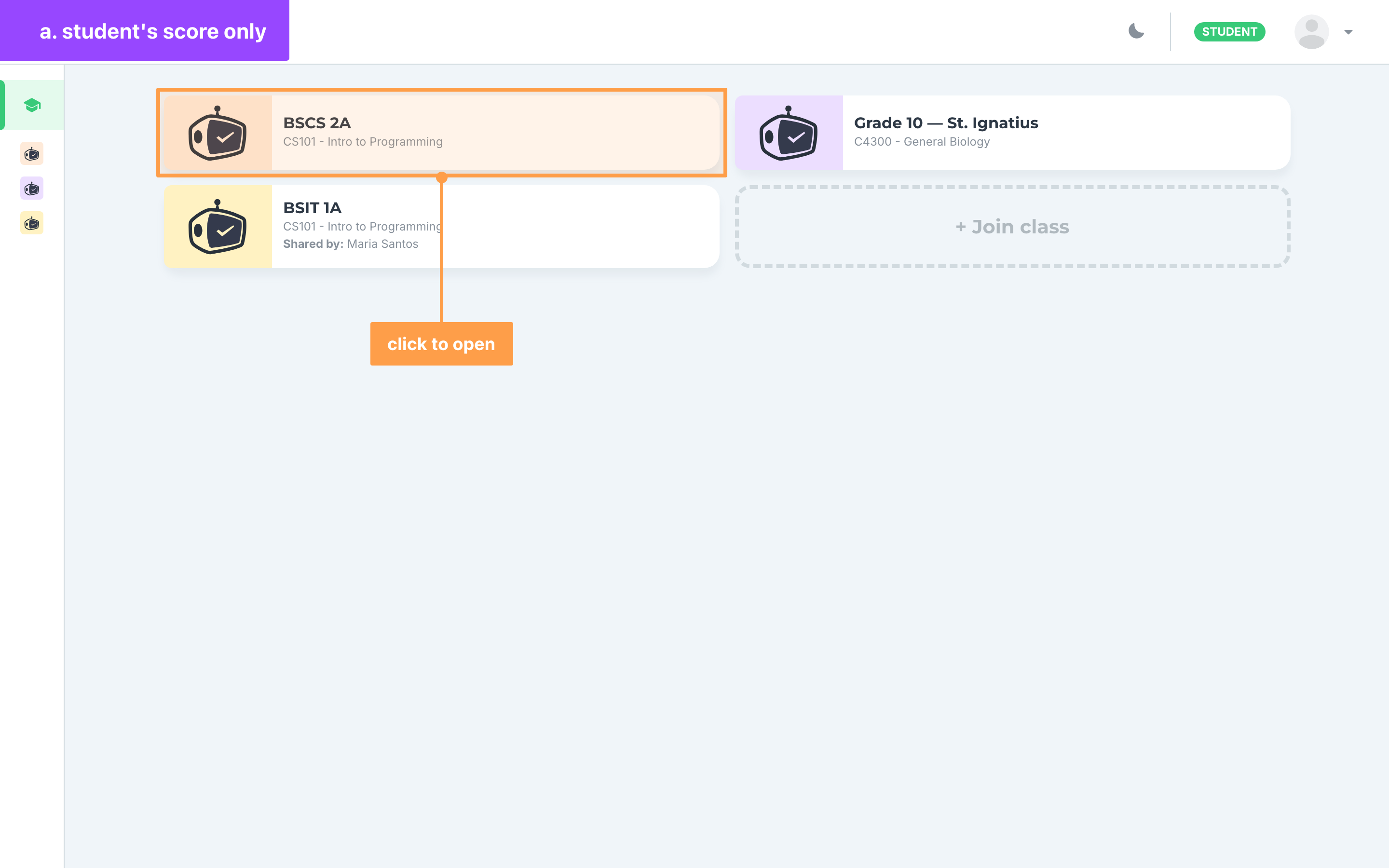
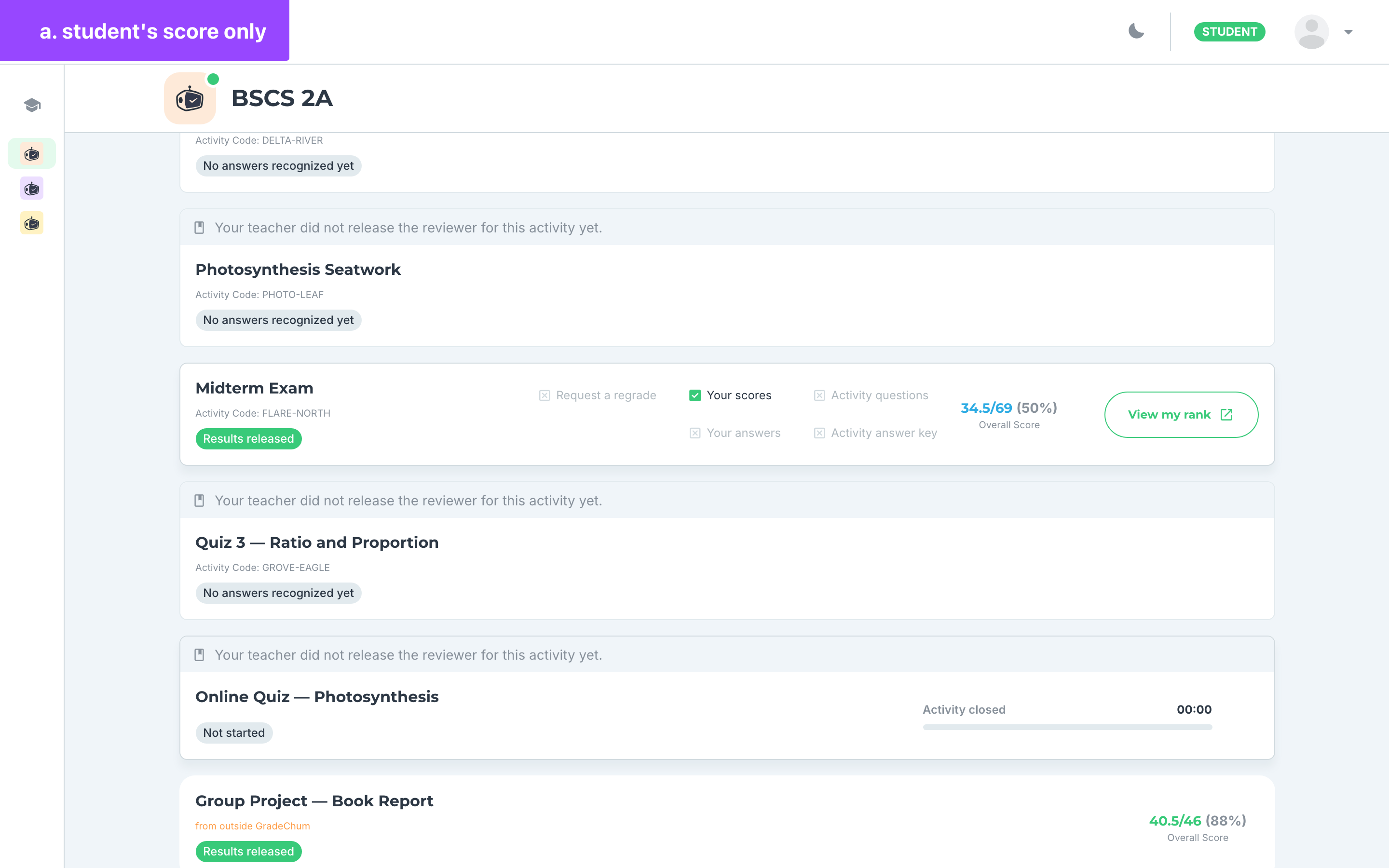
a. When the teacher only released the student's scores:
- Once the result has been released by the teacher, click on the class card where you want to check your activity result.
- On your class's Activities list, you will see the activity name and your Overall Score for that activity on the right side of the activity card.
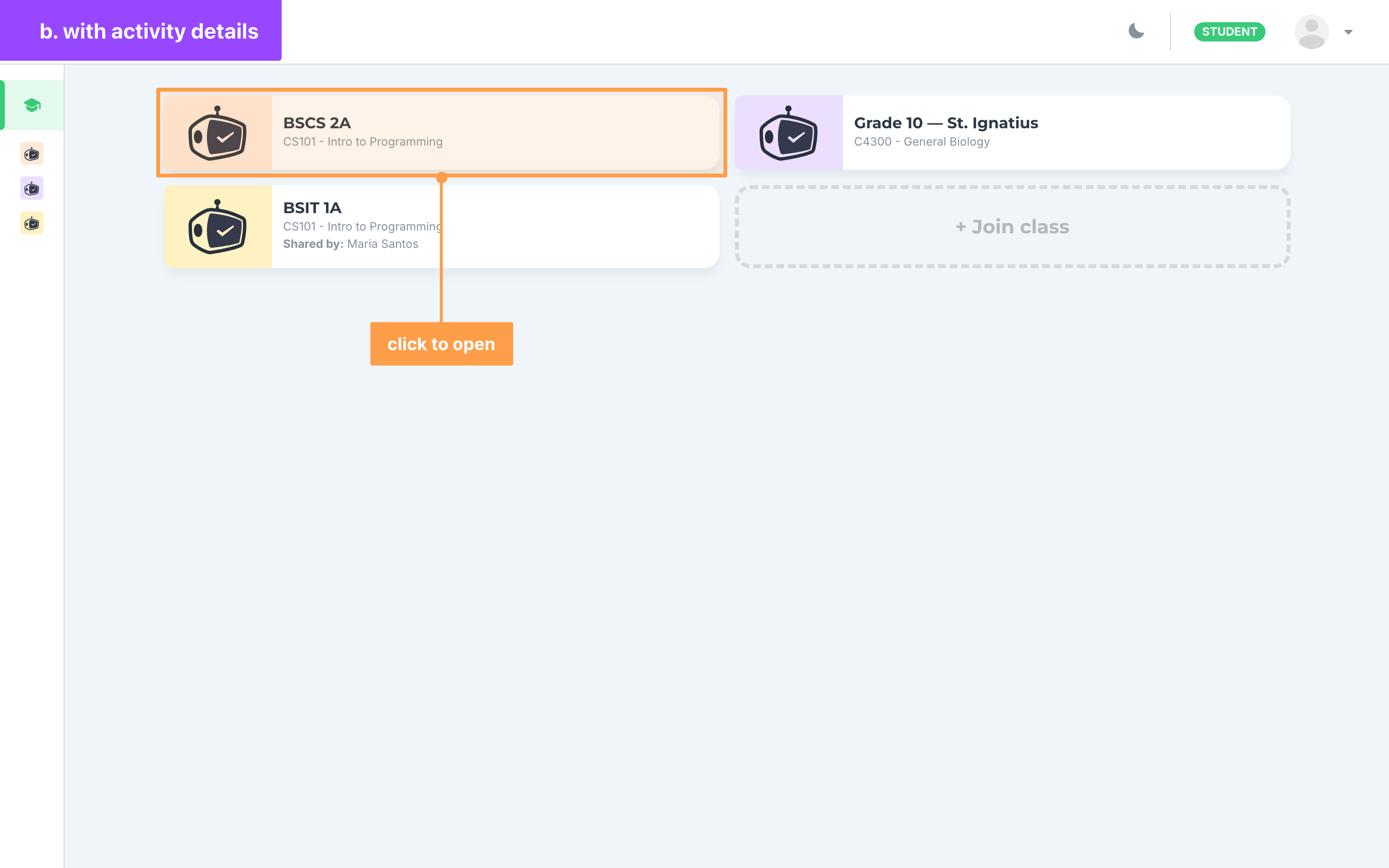
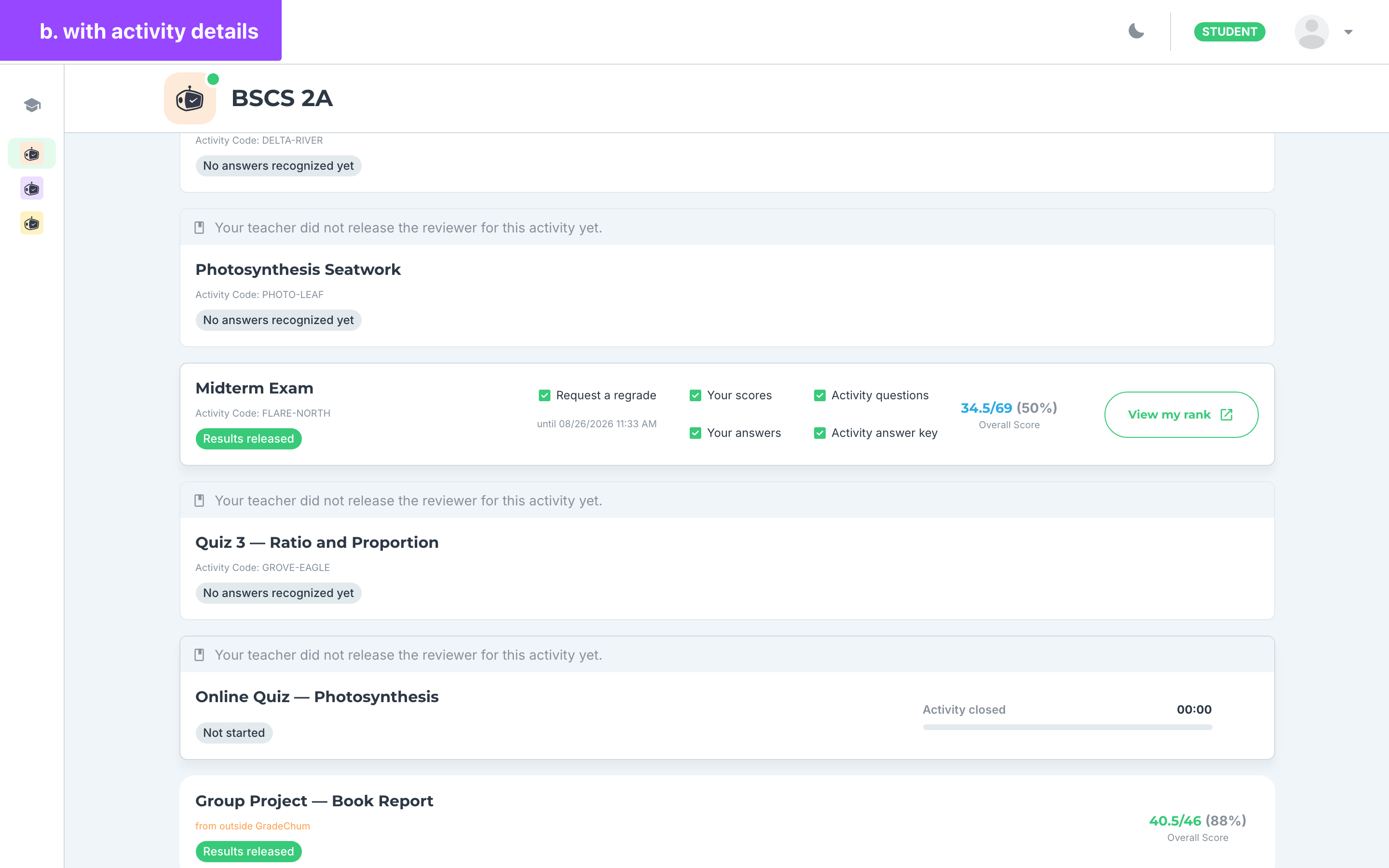
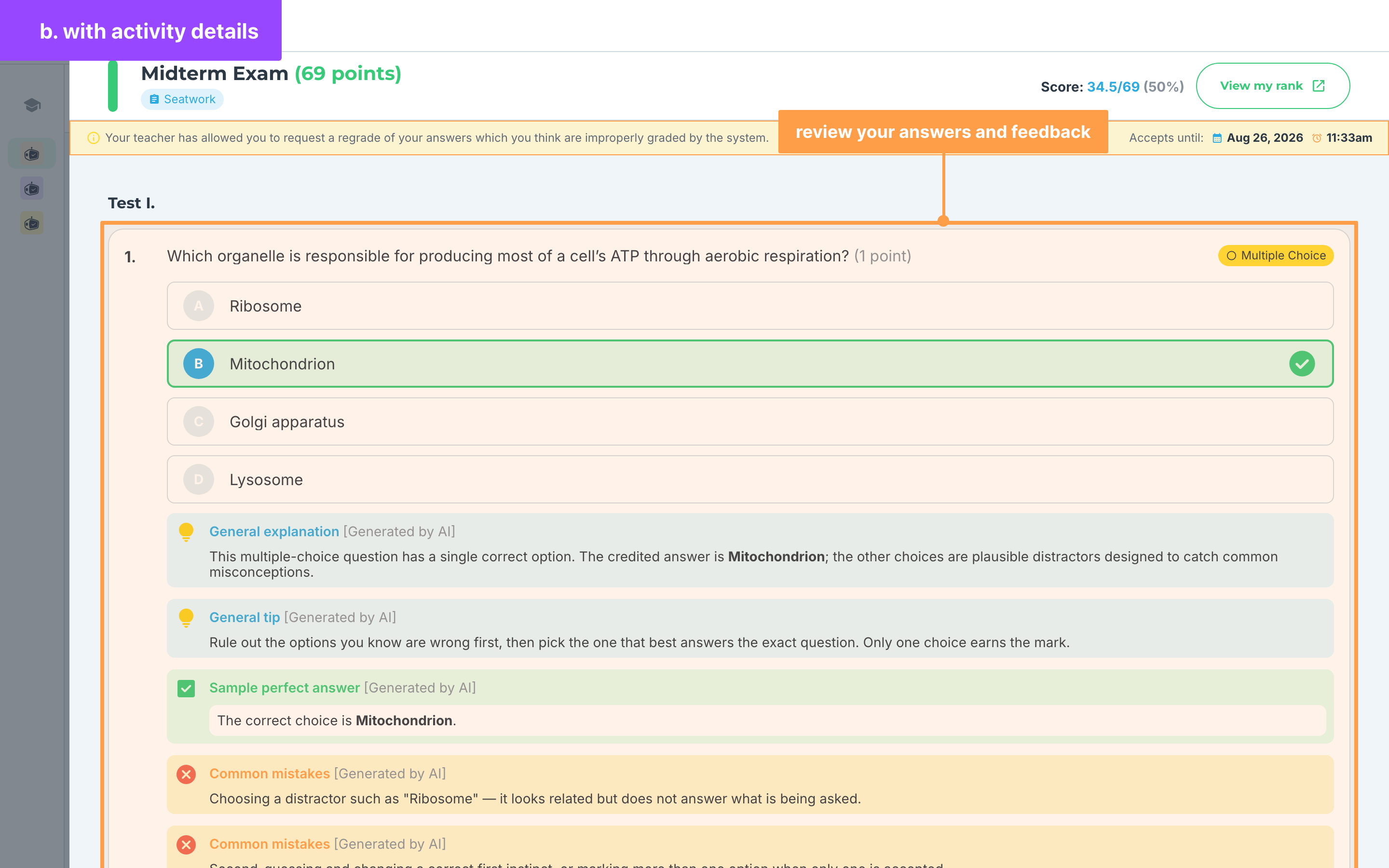
b. When the teacher released all the details of the activity:
- Once the result has been released by the teacher, click on the class card where you want to check your activity result.
- On your class's Activities list, click on the activity name. A View Activity window opens over the list and shows the details your teacher released (Your scores, Your answers, Activity questions and Activity answer key).
- Finally, you can review your answers against the answer key and read GradeChum's feedback on each item: a General explanation, a General tip, a Sample perfect answer and the Common mistakes to watch out for in the next activity.
Now, you know how to view your activity results! Next, let's explore how to request a regrade from your teachers.
Last updated February 26, 2026