
1
Join class
Introduction
Learning is part of a student’s journey through life which is why we go to school and attend classes, take part in activities and exams to evaluate how much we have learned while studying.
When educators use GradeChum to create an activity, it also allows students to view their results and be given personalized feedback on that activity. But first, we must join that teacher’s class.
In this section, let's explore how to join your teacher's class in GradeChum.
Steps
Note: You must have already created your GradeChum student account before proceeding to these next few steps.
To join a class, follow the steps below:
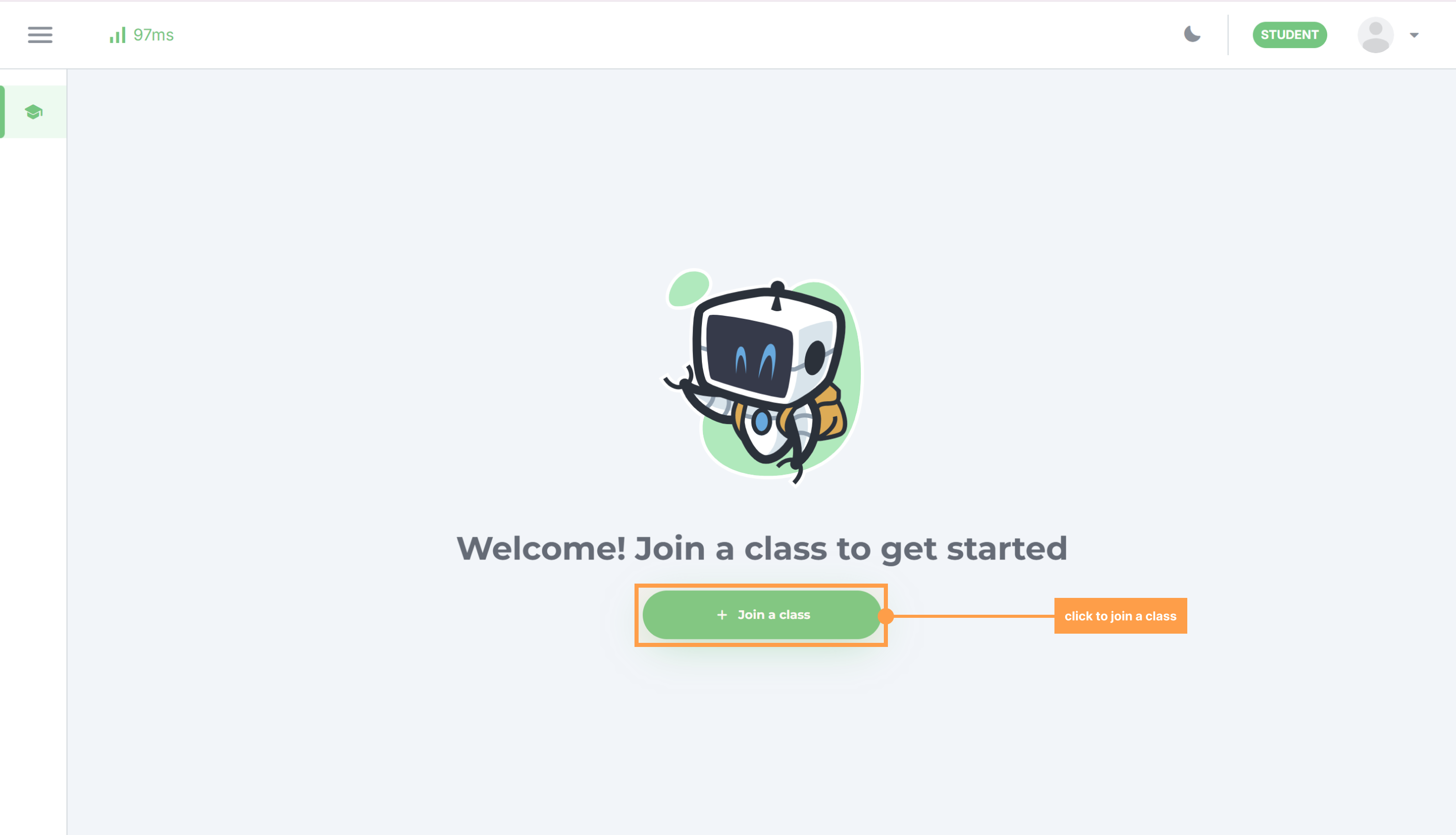
- After logging in to your GradeChum student account, you will see this interface. Click the green "+ Join a class" button. You will be asked to enter the class code.
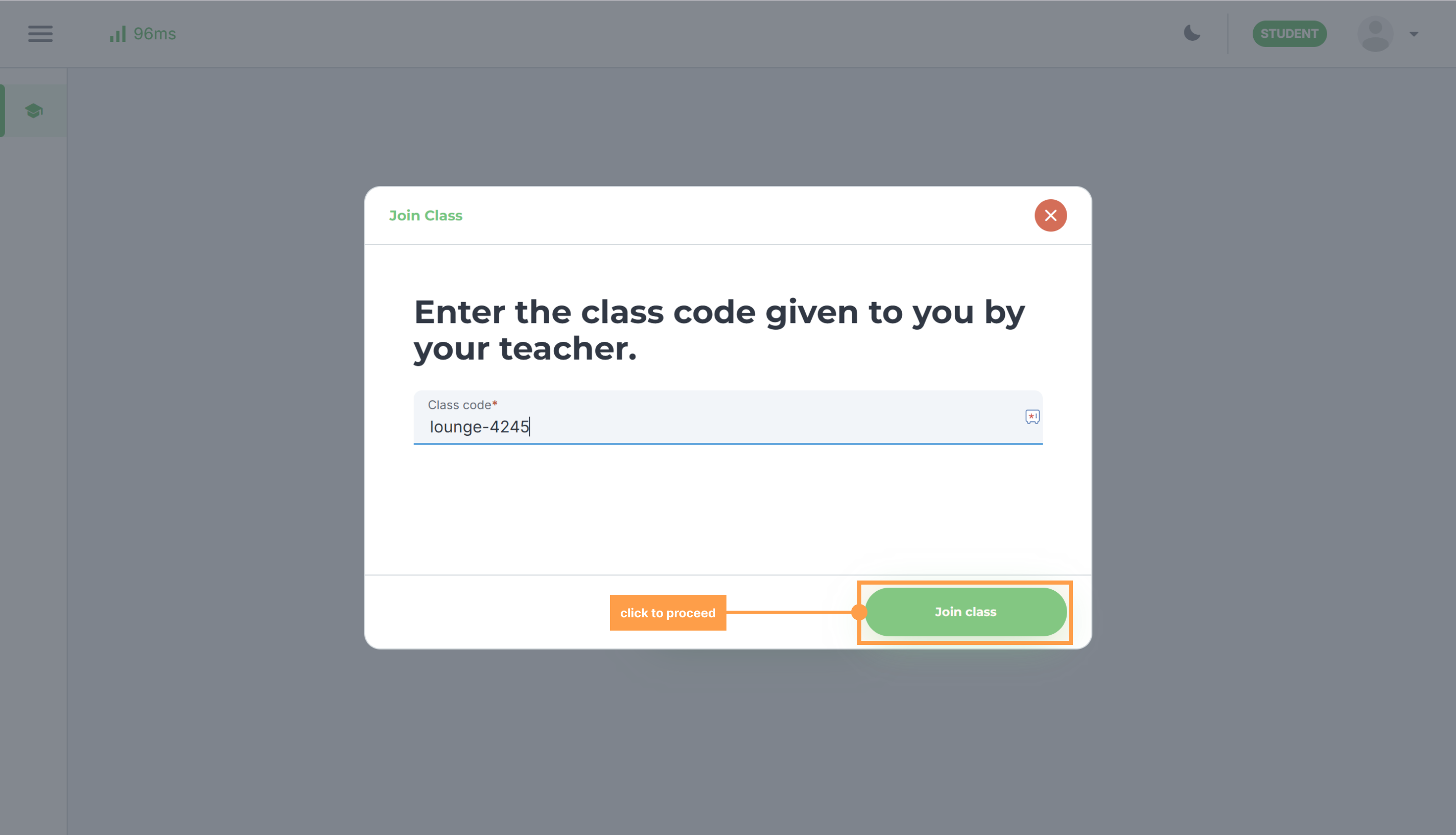
- Ask your teacher for the class code, input the class code given by your teacher then click Join class.
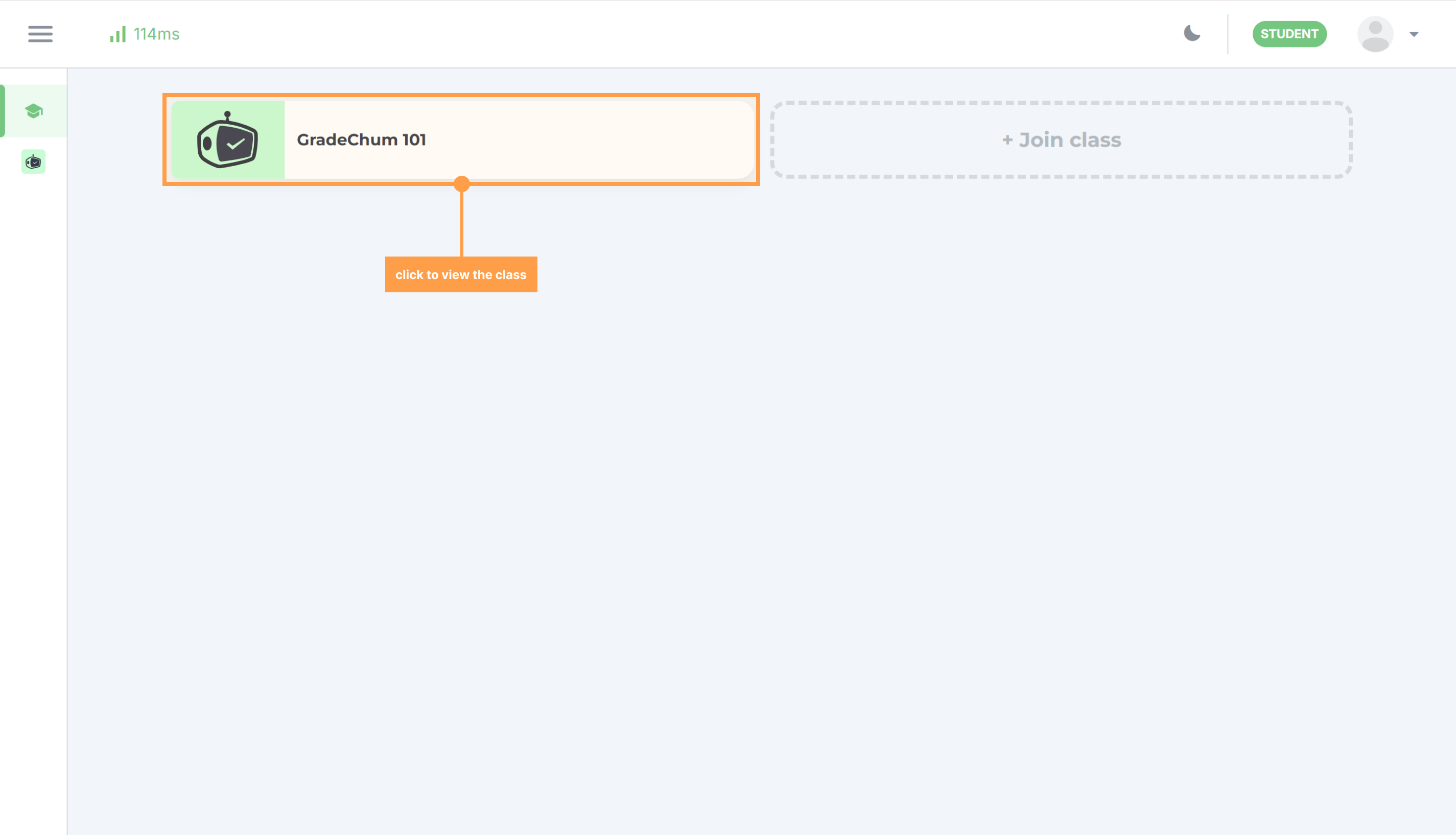
- Then, click on the class card to see the activities created by your teacher. A card shows the class name, its course, and (if another teacher shared the class) who shared it.
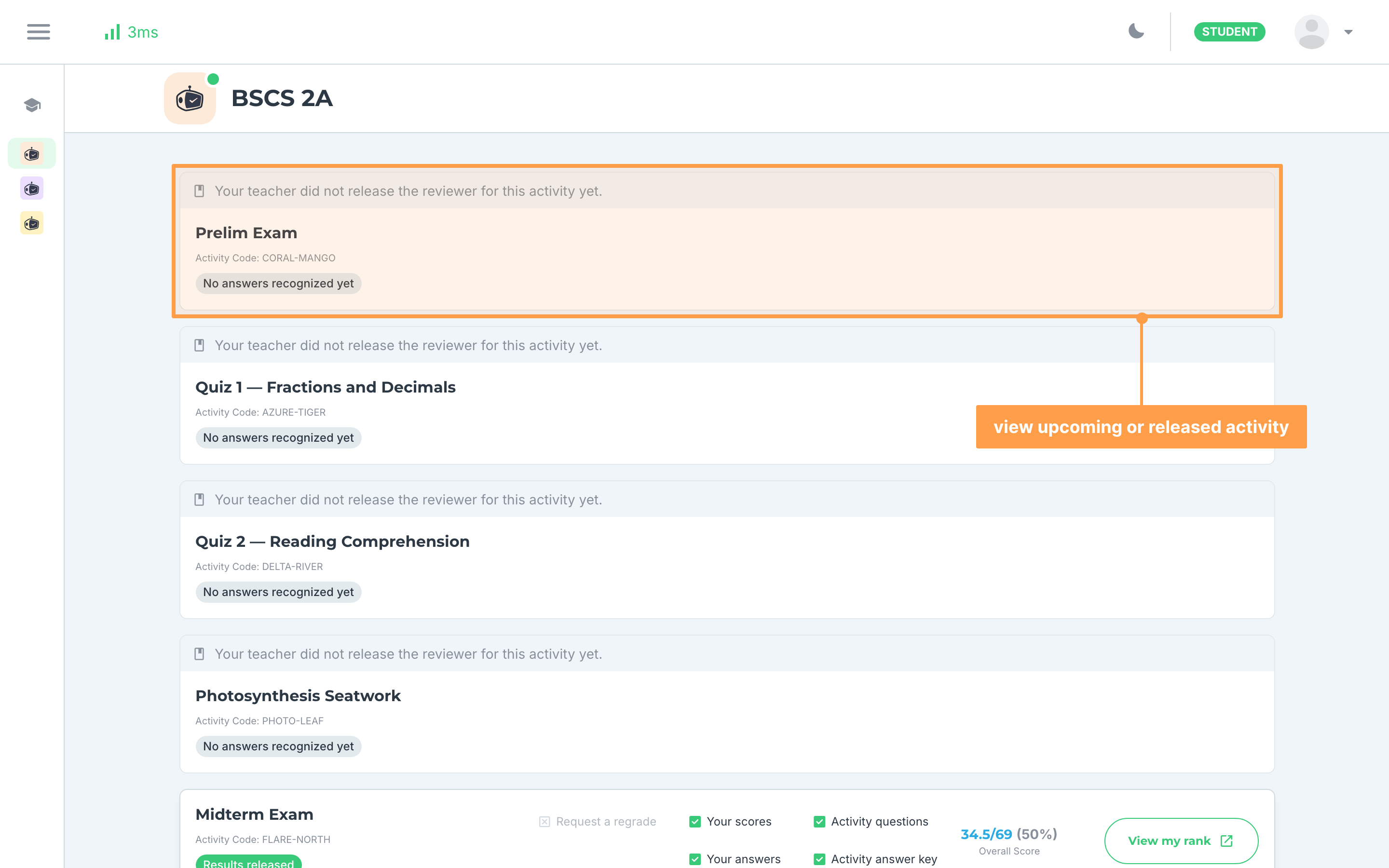
- Finally, after clicking the class you will see every activity your teacher has set for it. Each card shows the activity name, its Activity Code and its current status, and a line above the card tells you whether your teacher has released the reviewer for that activity yet.
And that’s how you join a class in GradeChum! Next, let’s explore how to answer the activities given by the teacher.
Last updated February 25, 2026