
Getting around GradeChum
Introduction
Every page in GradeChum shares the same frame: a sidebar on the left and a top bar across the page. Once you know them, you can jump from one class to another without going back to your class list, and switch between a class's pages in one click.
The top bar also holds a few tools you use everywhere in GradeChum: the button that switches between the light and dark theme, and a signal icon that tells you whether your connection to GradeChum is fast, slow or down.
In this guide, you will learn how to get around GradeChum.
Steps
To find your way around GradeChum, follow these instructions:
- After logging in, click the menu button at the top left of the page to open the sidebar. On a computer, the closed sidebar is a narrow strip of icons, and opening it shows their names. Hover over an icon of the closed sidebar to see its name.
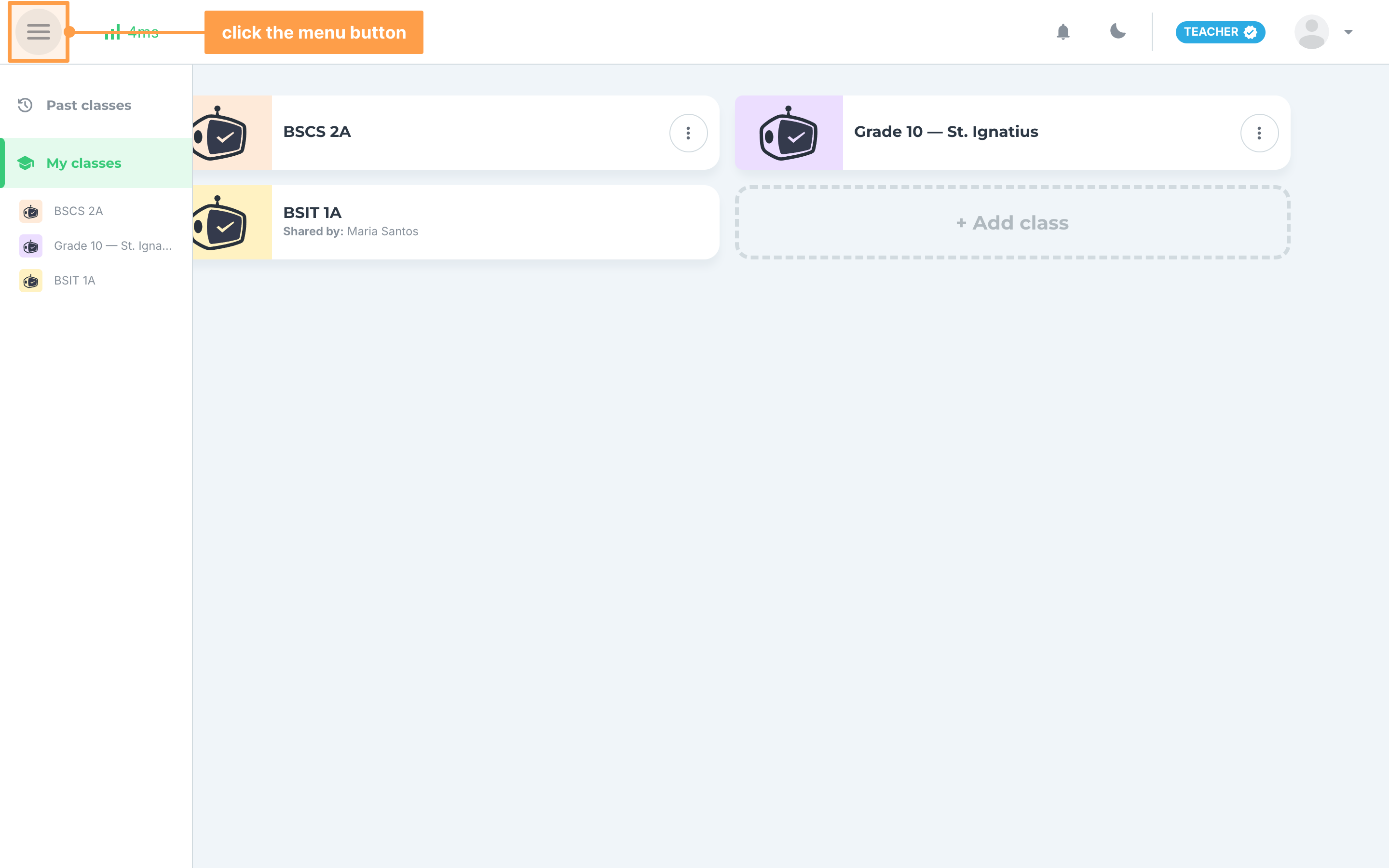
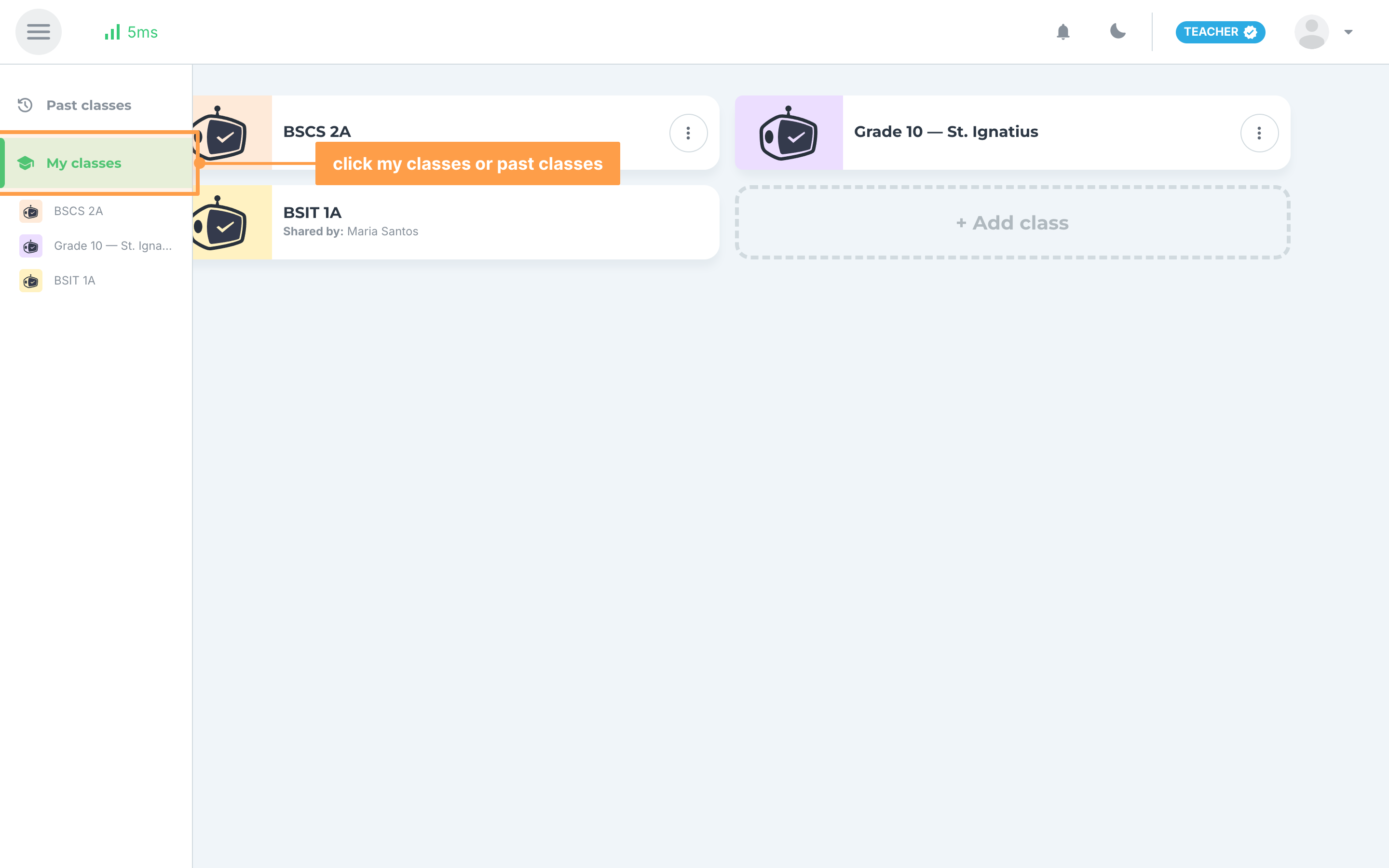
- Click My classes to see your active classes, or Past classes to see the classes you have deactivated. See Past classes.
- To go straight to a class, click its name in the sidebar. Its Activities page opens. The sidebar lists your active classes, including the classes other teachers shared with you, and the class you are in stays highlighted.
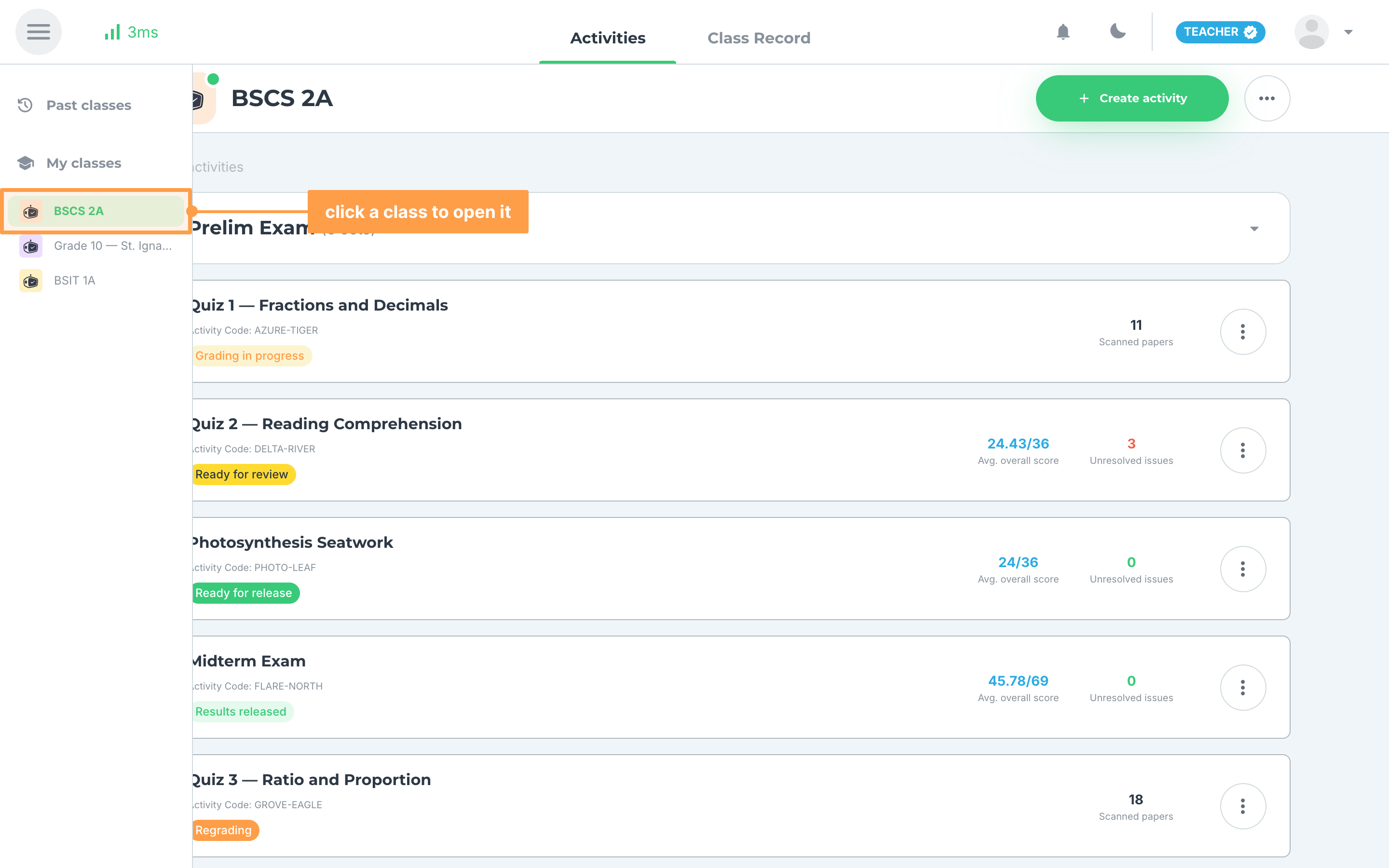
Note: The sidebar closes by itself when you open a page or click anywhere outside it. If you have no active classes, the sidebar shows only Past classes and My classes.
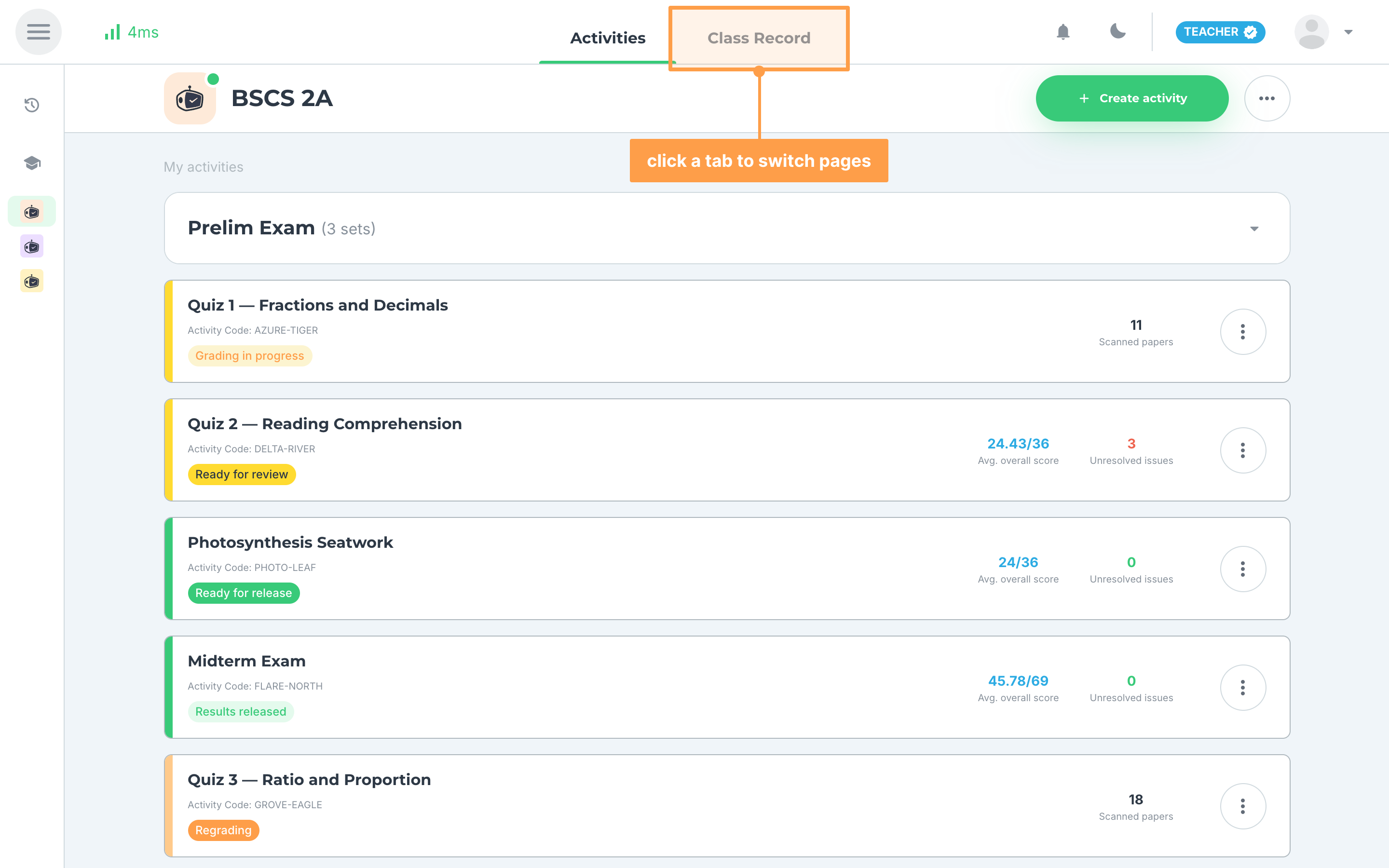
- Inside a class, click the Activities or Class Record tab at the top of the page to switch between the class's pages. See View your class record.
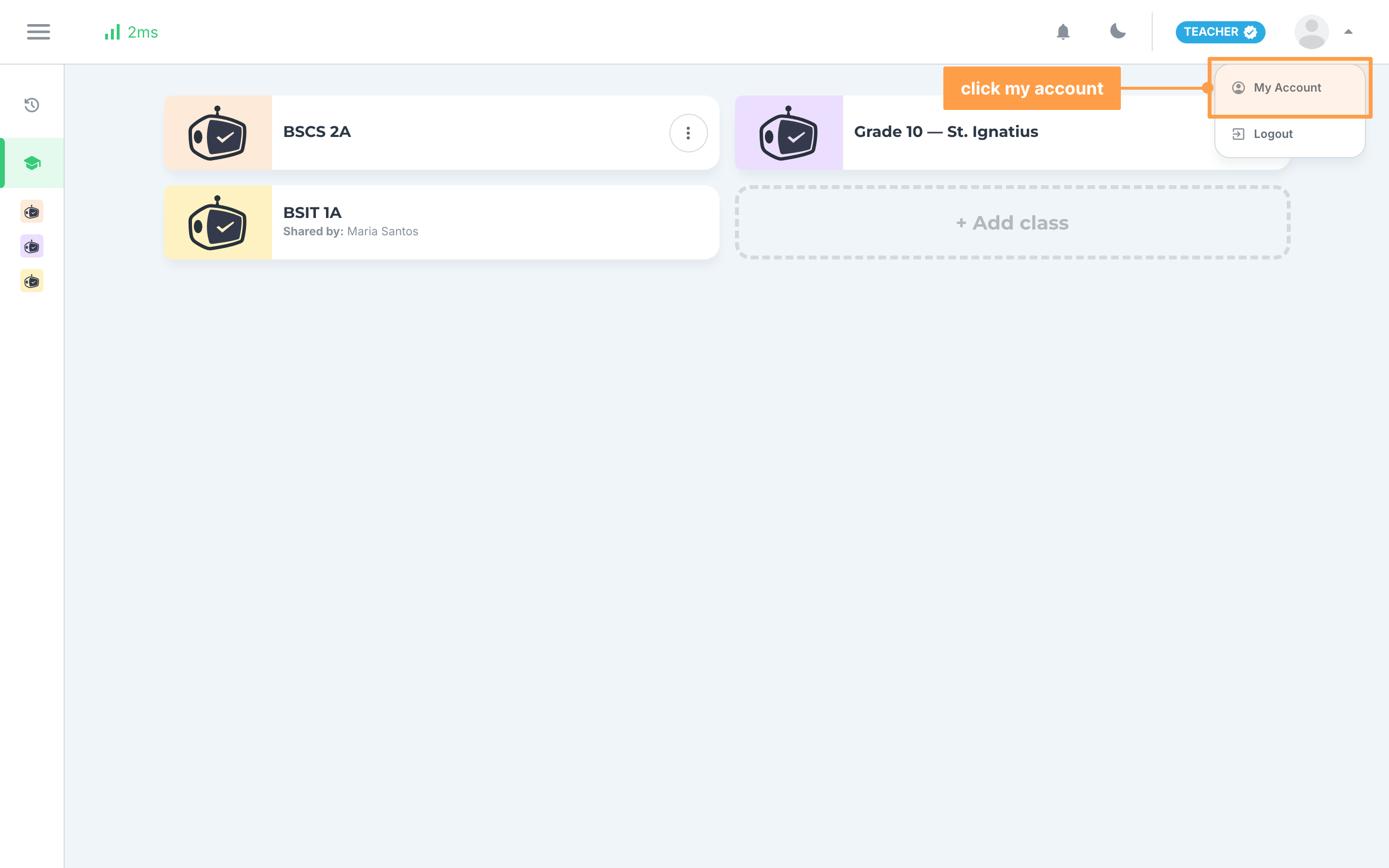
- Finally, click your profile picture at the top right of the page to open the menu. Click My Account to manage your account, or Logout to log out. See Manage your account.
Check your connection
On a computer, a signal icon sits at the top left of the page, beside the menu button, with the time in milliseconds that a round trip to GradeChum takes. GradeChum checks the connection every 10 seconds while you are logged in.
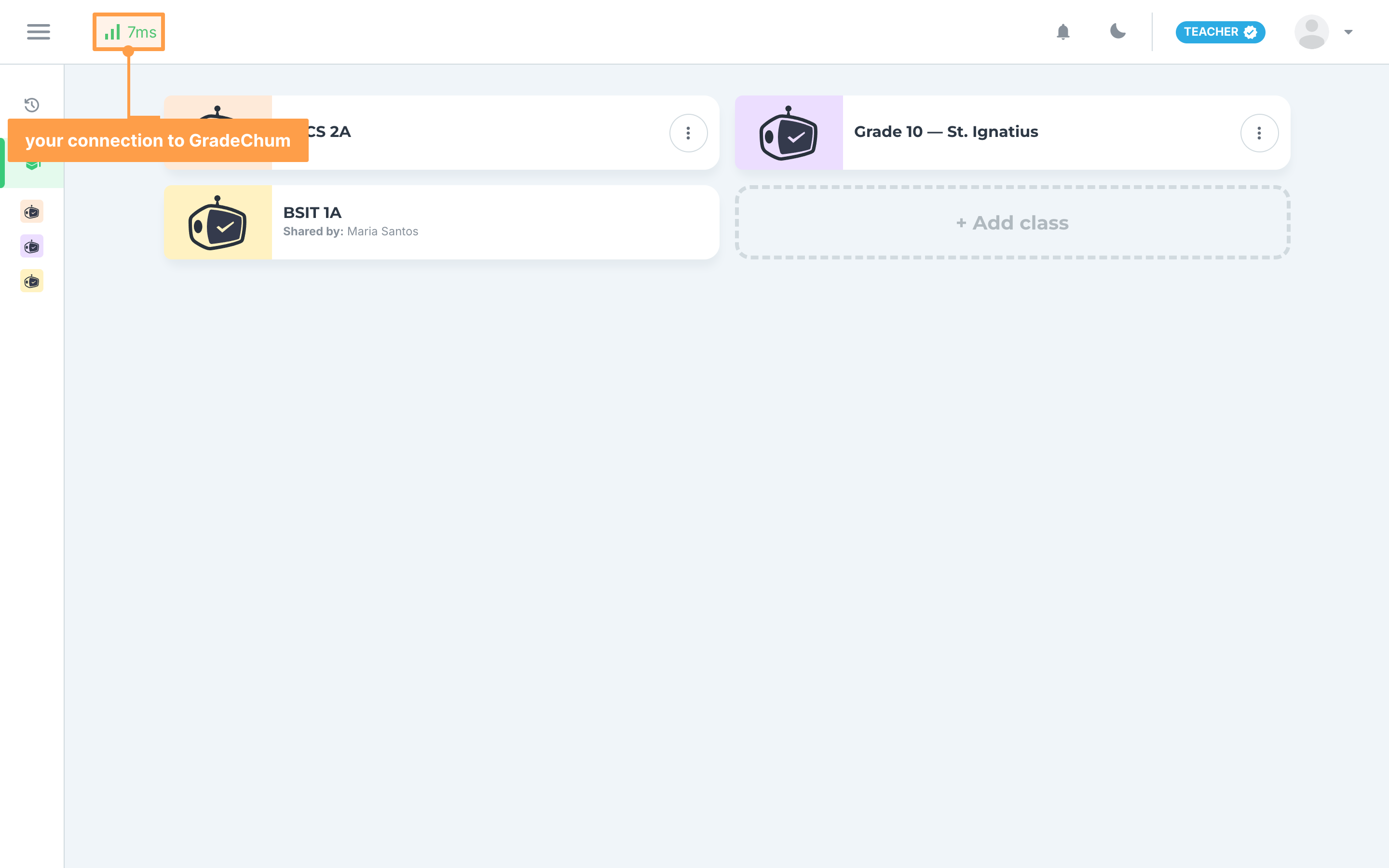
- Green, full bars: 125ms or less. Your connection is fast.
- Yellow, two bars: more than 125ms, up to 300ms. Pages may load a little slower.
- Red, one bar: more than 300ms. Your connection is slow. The time never shows higher than 999ms.
- Red, no bars and no time: GradeChum could not be reached within 8 seconds. Check your internet connection. If other websites load fine, wait a moment and try again.
Note: Right after a page loads, the icon shows red with no time until the first check finishes, about 10 seconds later. The icon is hidden on a phone-width screen.
What your students see while answering an online activity
While answering an online activity or practicing with an activity reviewer, your students see a Wi-Fi icon in the top bar instead, at any screen width. It also updates each time their answers save. If it shows no connection, and the top bar reads Offline, they can keep answering: their answers stay on their device and sync when they reconnect. They cannot submit until they are back online, so ask them to connect to a stable network before they click Submit all and finish. See Answer activity online.
Switch between the light and dark theme
If a bright screen is hard on your eyes, for example during long grading sessions, switch GradeChum to its dark theme.
- Click the moon icon at the top right of the page. GradeChum switches to the dark theme.
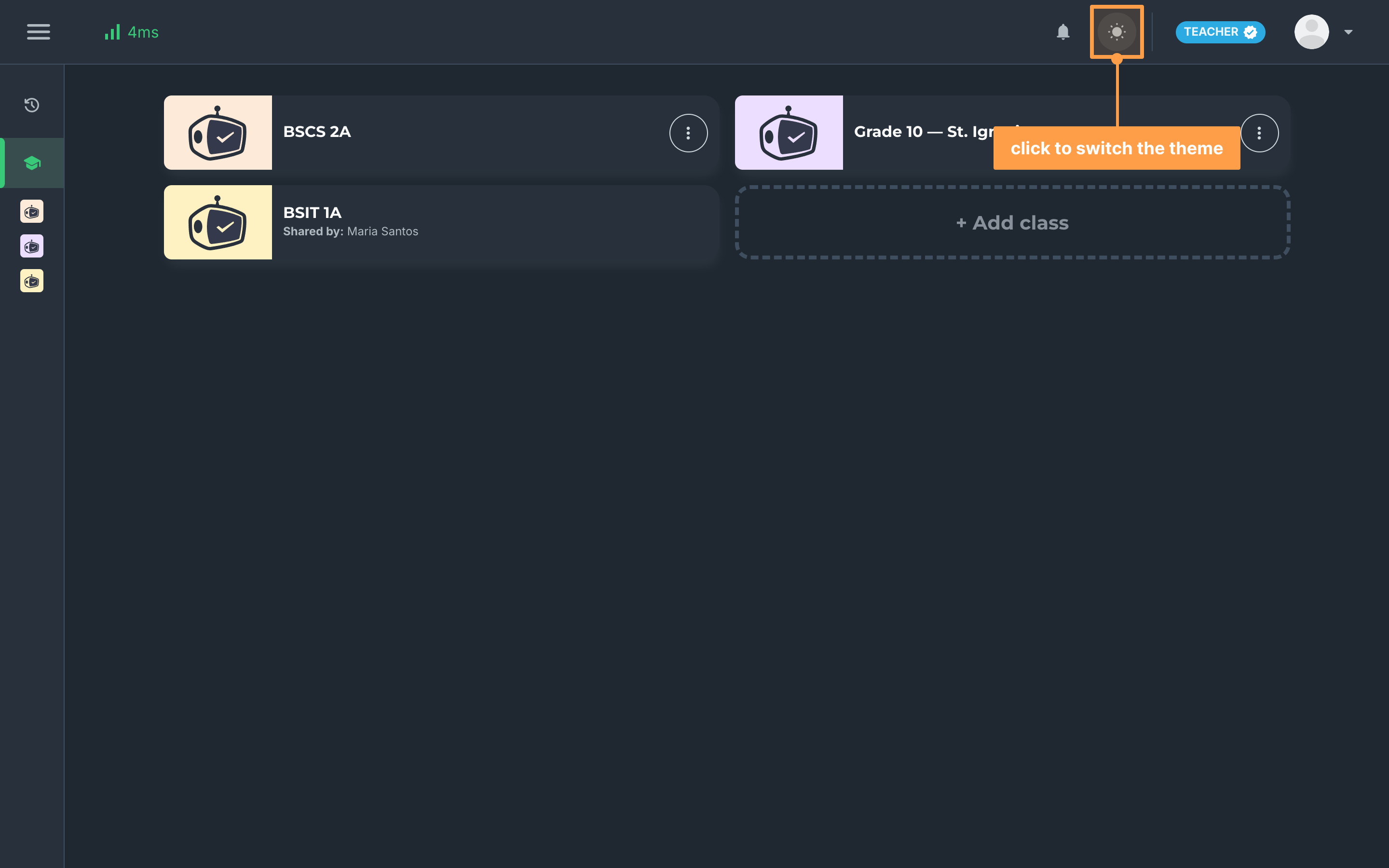
- Finally, to go back to the light theme, click the sun icon in the same place.
Note: GradeChum remembers your theme in this browser only, so it stays after you refresh or come back later, but not on another device or browser. Opening the log in page switches the theme back to light, so after you log in again, GradeChum starts in the light theme. Your students find the same button on their pages and while answering an online activity.
Getting around on a phone
On a phone, the frame changes to fit the screen:
- The closed sidebar is hidden. Click the menu button at the top left to slide it in over the page, with Past classes, My classes and your classes.
- Your profile picture and name, with My Account and Logout, sit at the bottom of the open sidebar instead of the top bar.
- Inside a class, the Activities and Class Record tabs move to the bottom of the screen as icons. If the class's course has learning outcomes, an Outcomes tab is added. See View learning outcomes.
- On your account pages, the Personal and Account tabs at the bottom of the screen switch between your personal information and your account information.
- The signal icon is hidden.
And that's how you get around GradeChum! Next, let's create a class.