
View activity items
Introduction
Before you release results or talk through an activity with your class, it helps to see exactly what the activity asked and how GradeChum checks each answer. A wrong answer key or a strictness level that is too strict shows up in your students' scores, so it is worth a look.
The Items tab of View Activity lists every question of the activity, test by test, with its item type, its choices or answer key, its rubrics and its strictness level. You can read all of it without opening the activity editor, and download every item as a Word file to print or share.
In this guide, you will view and export the items of an activity.
Steps
Note: You must have already created an activity with at least one test. See Create new.
To view the items of an activity, follow these instructions:
- After logging in, go to My classes and click your class card. In the Activities tab, click the activity card to open View Activity.
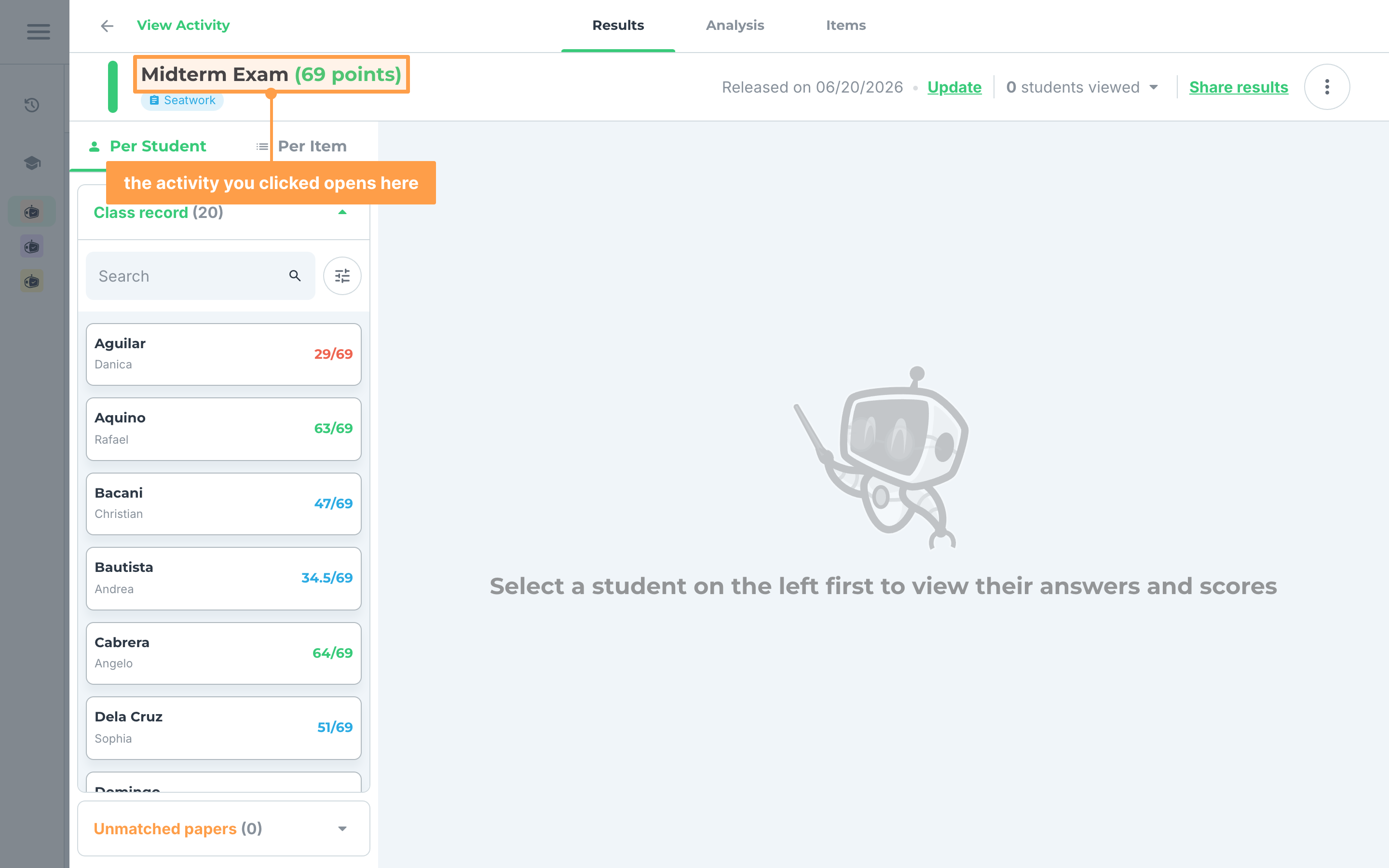
- Click the Items tab. It opens even when the results of the activity are locked, so you can check your items before you unlock them.
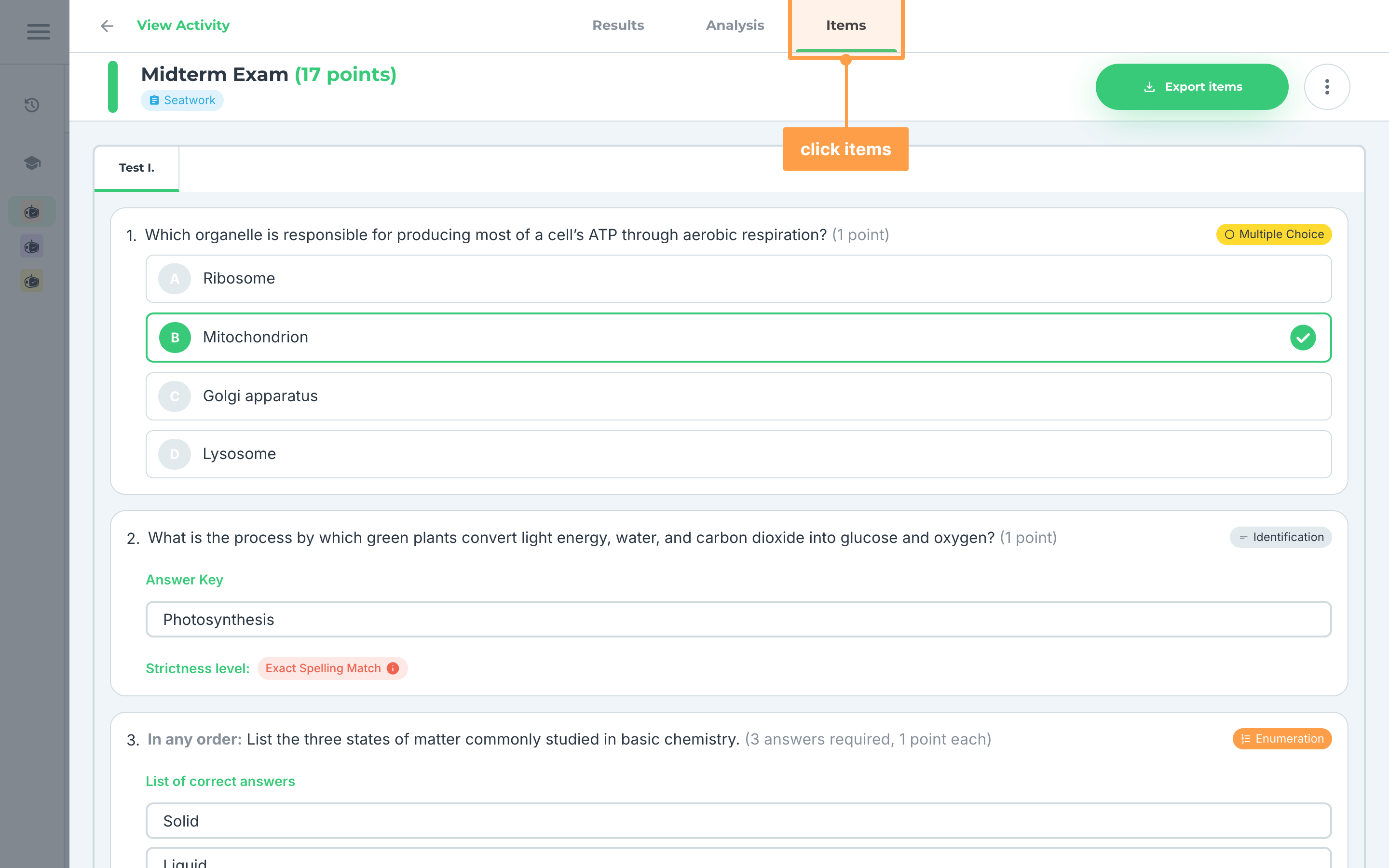
- If the activity has more than one test, click Test I., Test II. and so on to switch between tests. Each tab lists only the items of that test.
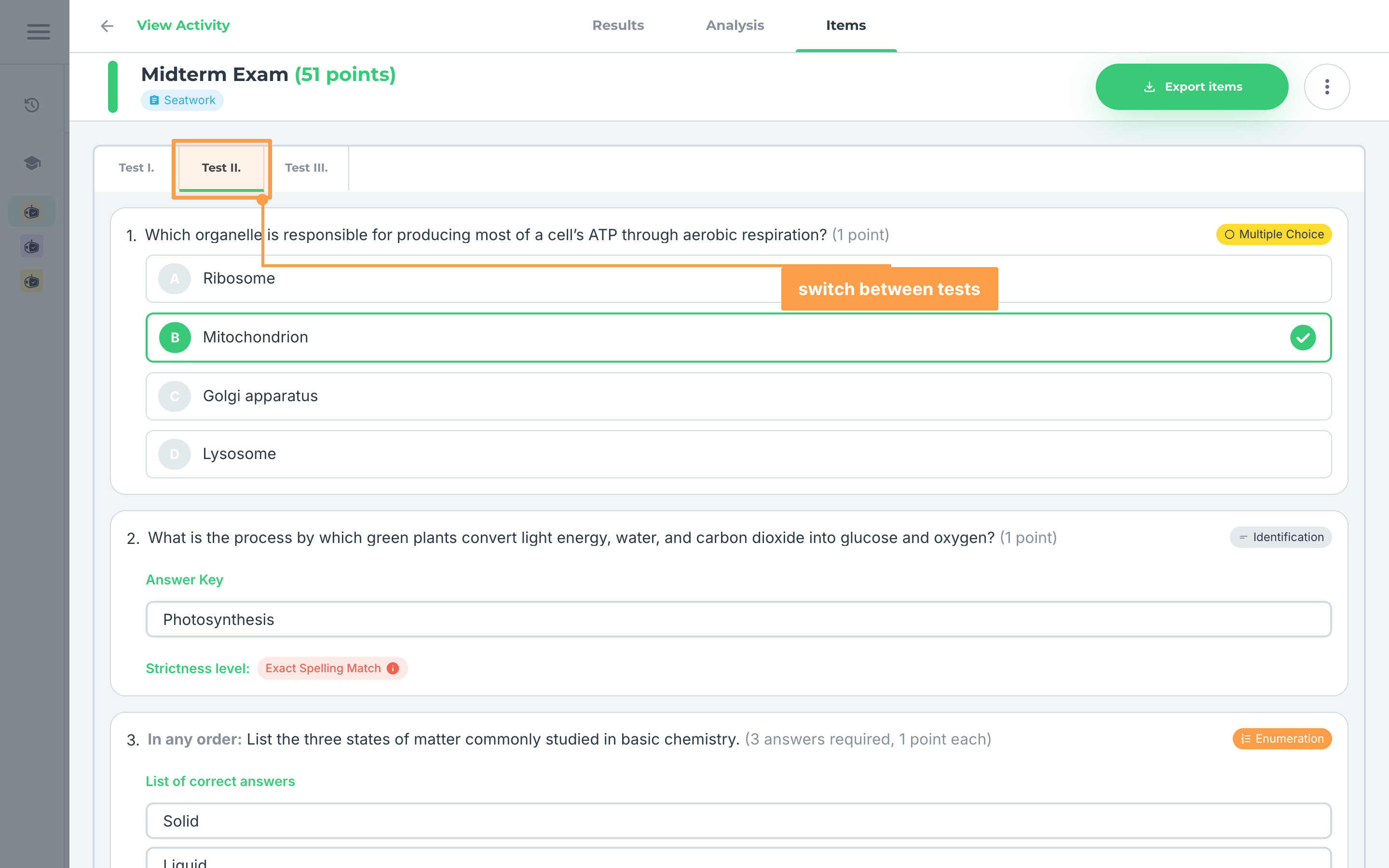
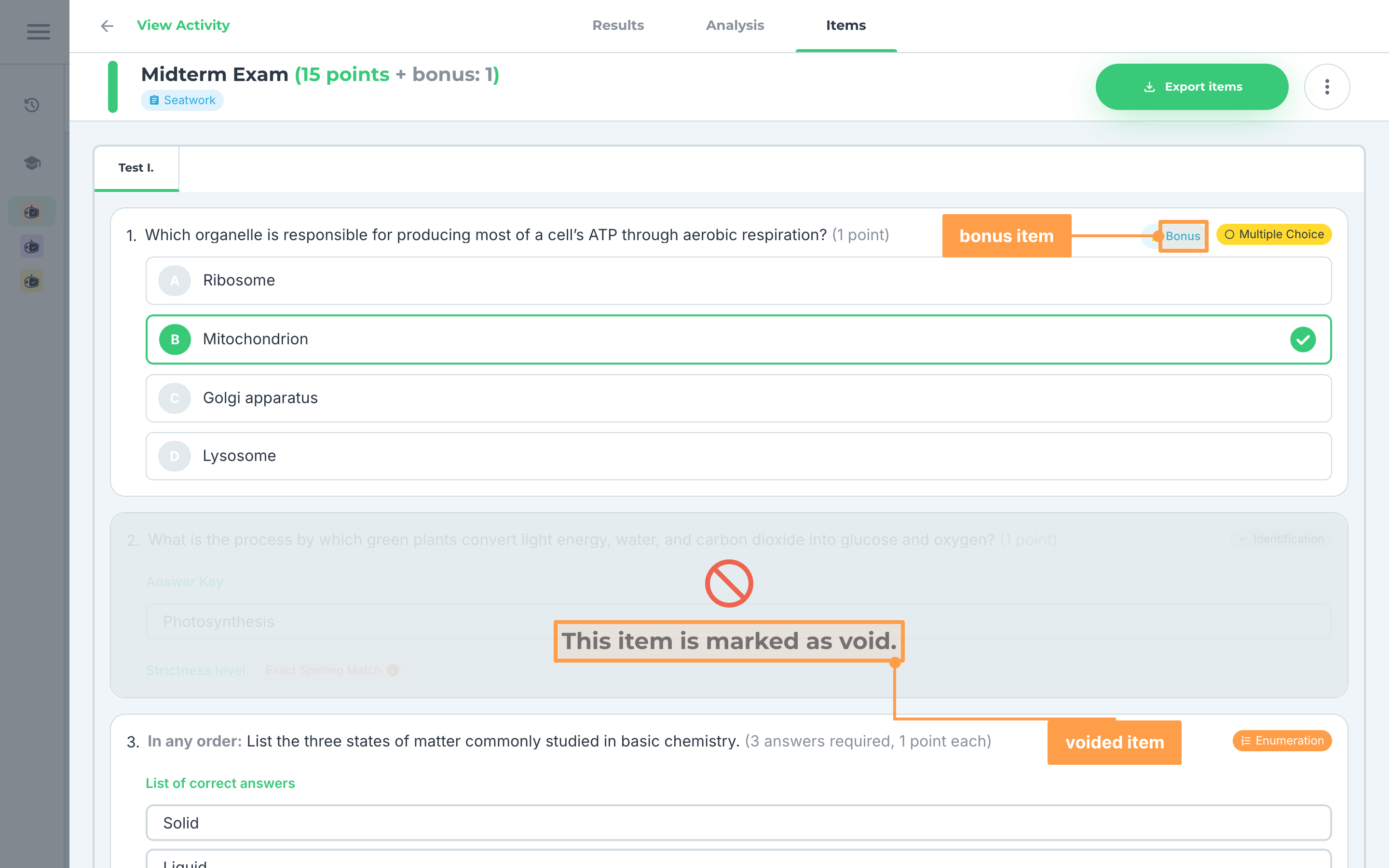
- Each card shows the item's number, its question and its item type badge, such as Multiple Choice, Identification or Essay. A Bonus badge beside it marks a bonus item.
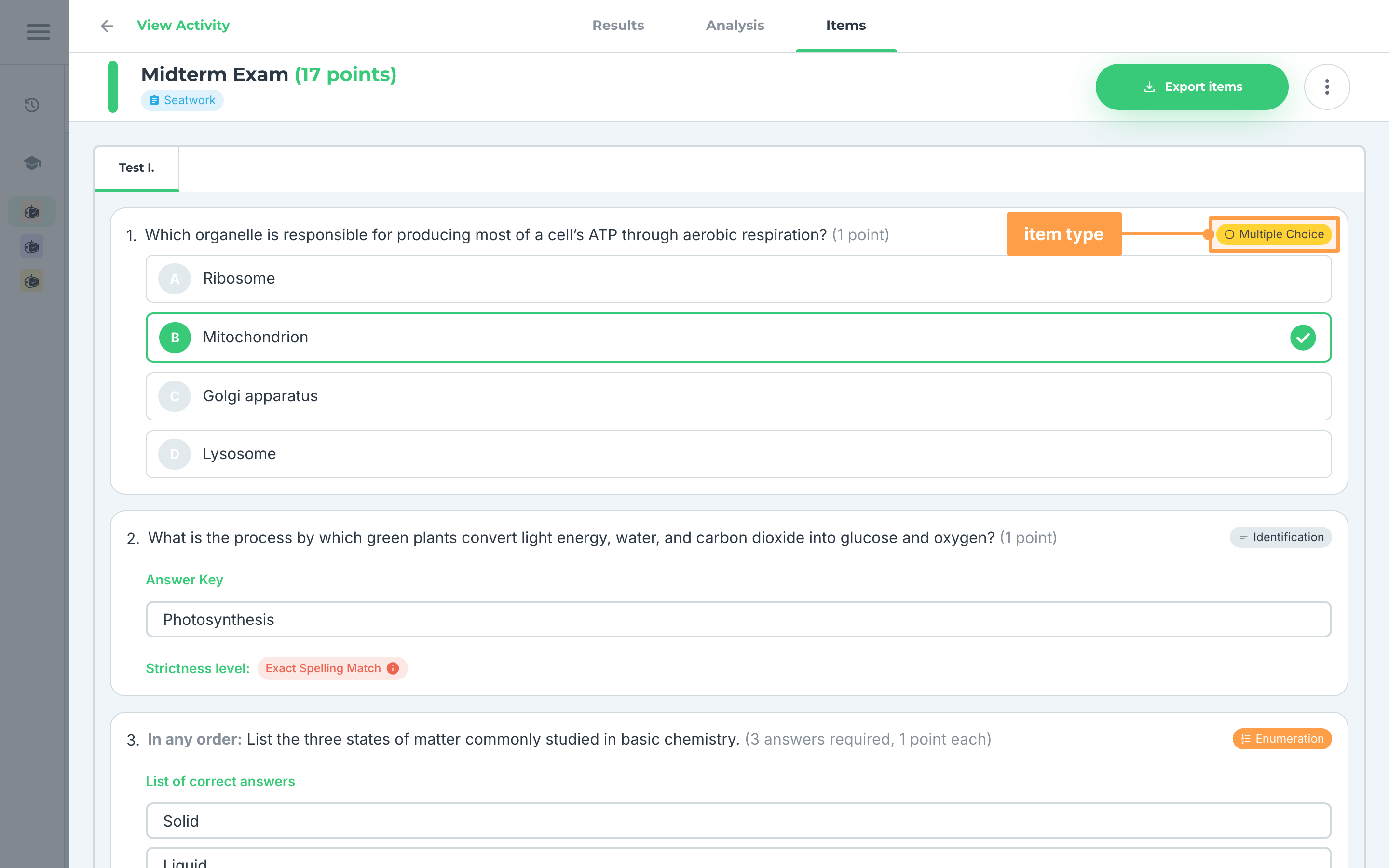
- Under the question, the card shows what GradeChum checks your students' answers against. What you see depends on the item type:
a. Multiple choice items
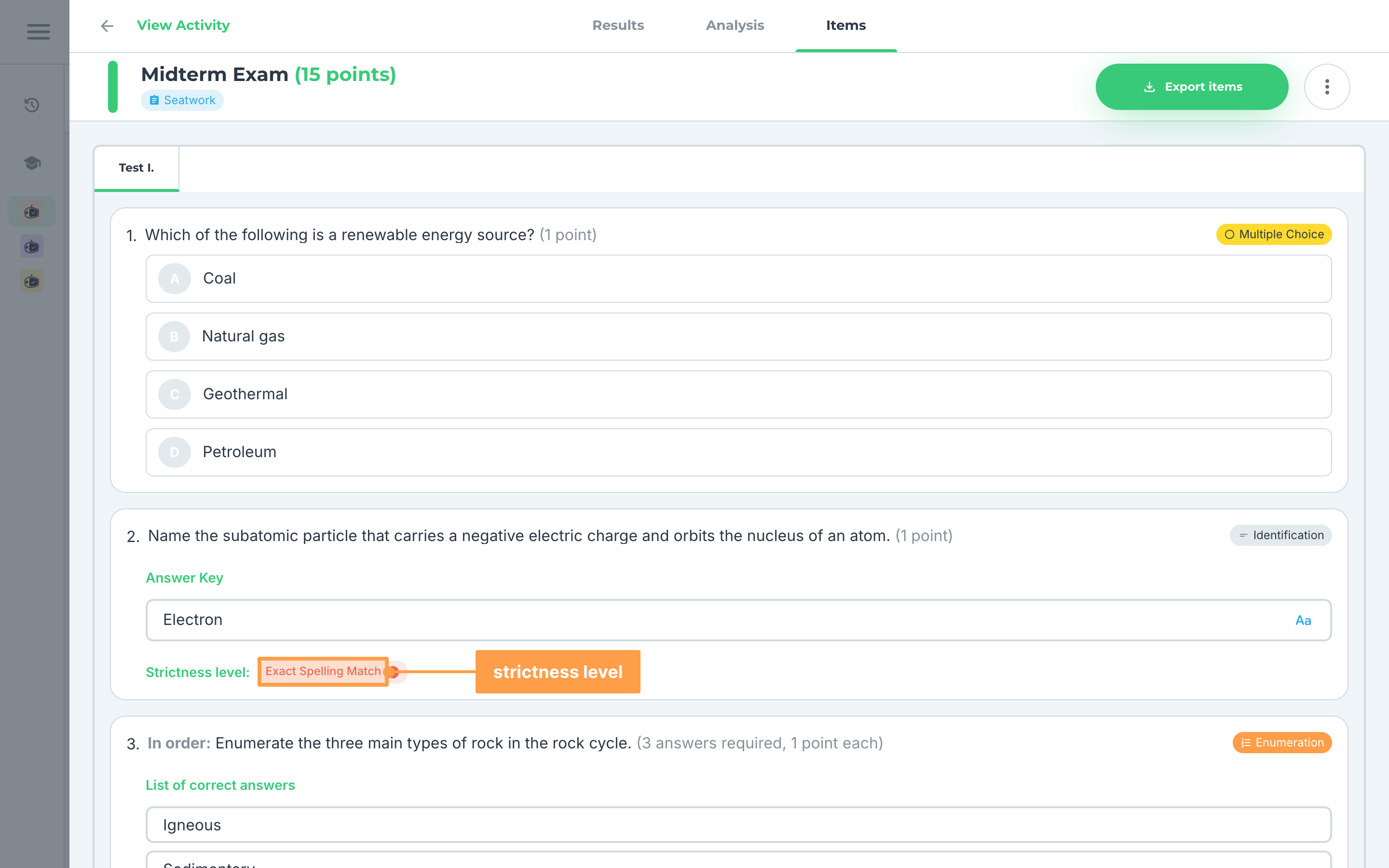
The card lists every choice. The correct choice is highlighted and marked with a check.
b. Identification, enumeration and answer key items
- Answer Key lists the accepted answers. For enumeration, it reads List of correct answers.
- Strictness level: shows how strictly GradeChum compares a student's answer with the key: Flexible or Exact Spelling Match. Hover over the info icon on the badge to see what the level focuses on.
- A blue case icon beside an answer means it is case-sensitive, so capital and small letters must match. It only shows on items set to Exact Spelling Match.
c. Items checked with rubrics
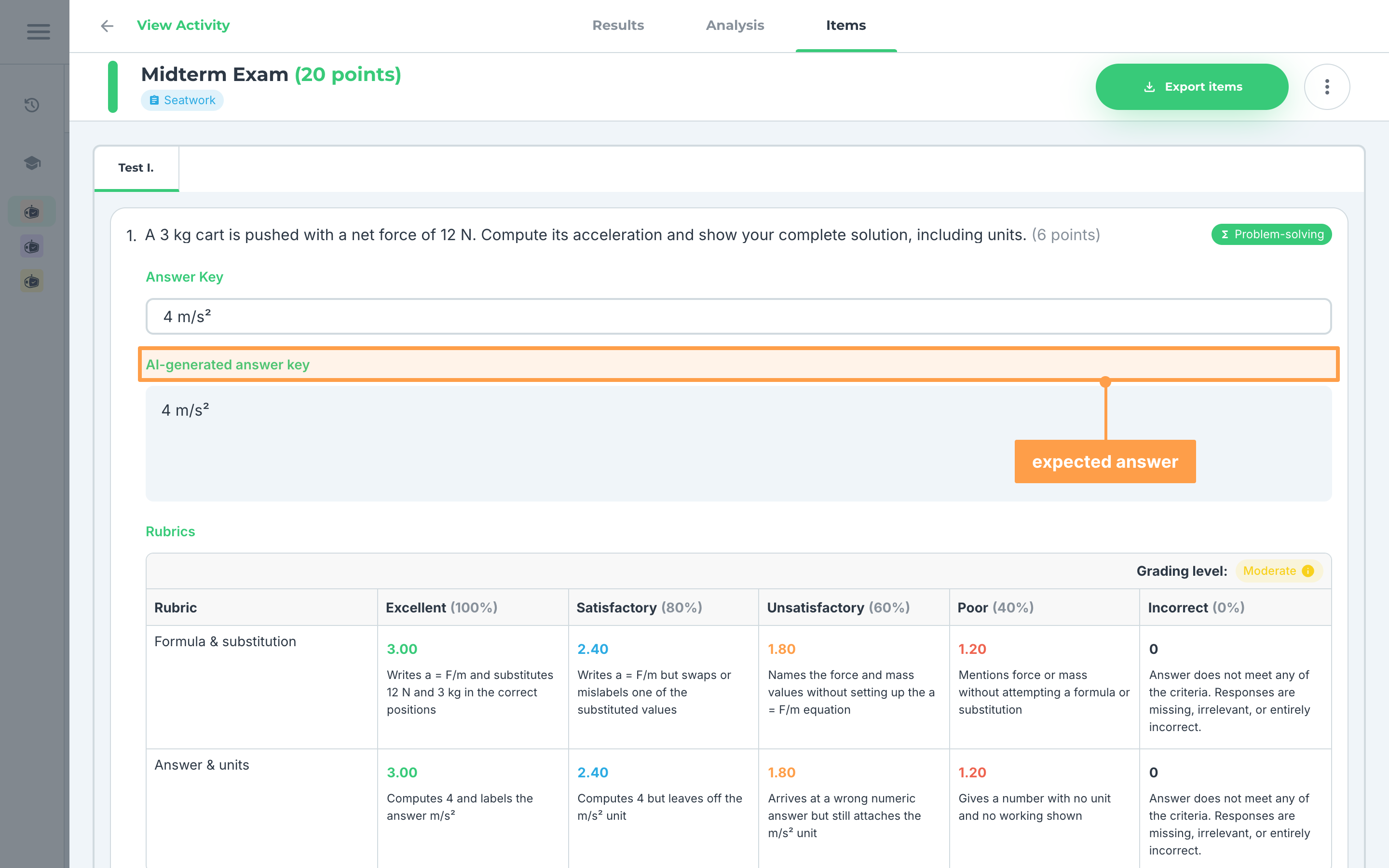
Essay, problem-solving, code on paper and visuals items, and other items with rubrics, can show:
- Key Idea/s: the key ideas set for the item.
- Answer key or AI-generated answer key: the expected answer GradeChum checks against. It reads AI-generated answer key until you change the key yourself, and then Answer key. Items with subjective rubrics have no expected answer, so this block does not show.
- Rubrics: each criterion with its points. Grading level: above the table shows the grading level set for the item: a grading level such as Detailed, a strictness level such as Moderate, or the name of a grading level you made yourself.
d. Item groups
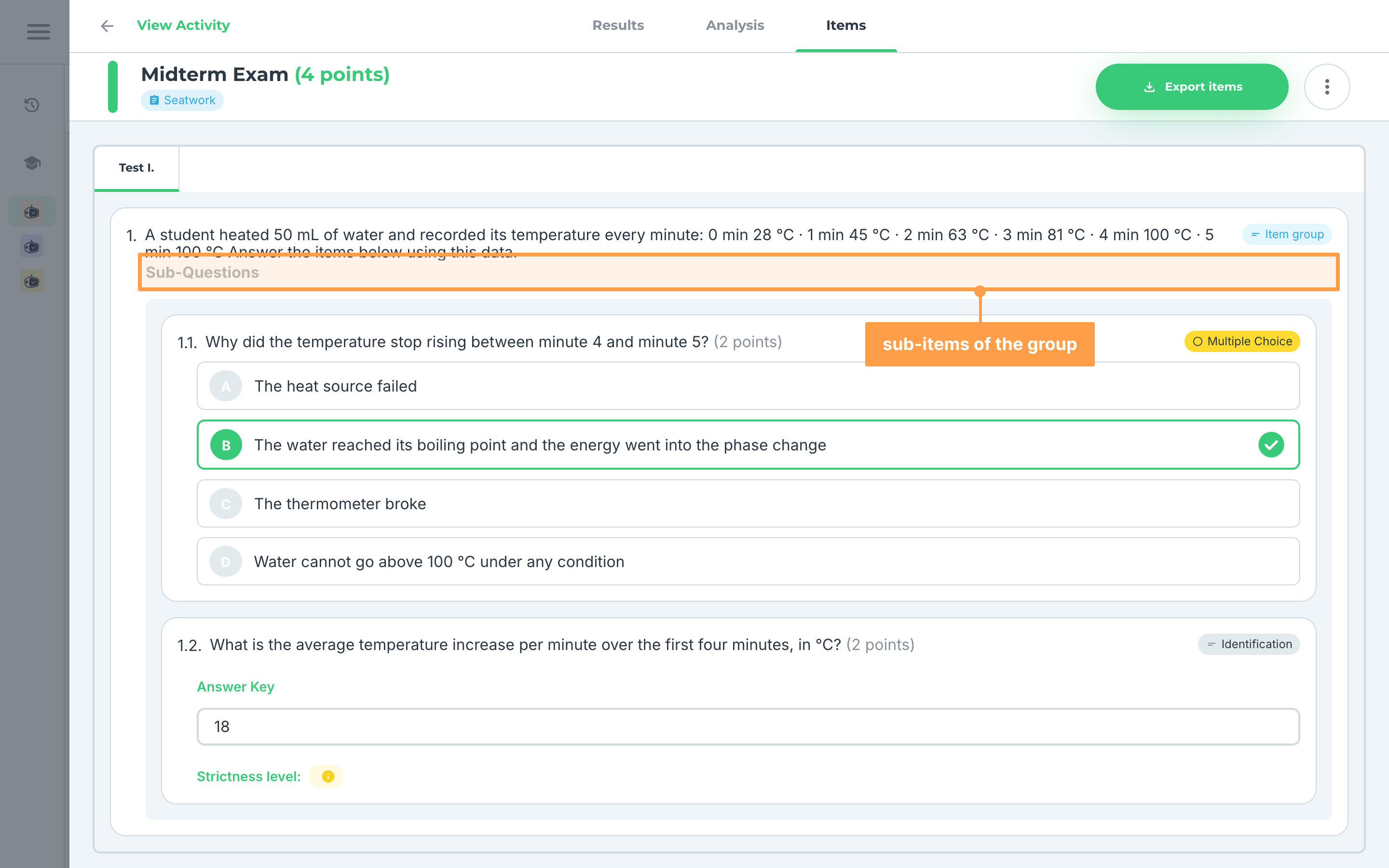
An item group shows as one card with the Item group badge and its main question. Its sub-items are listed under Sub-Questions, each with its own number, item type badge and answers.
e. Bonus and voided items
A Bonus badge marks a bonus item. A voided item is grayed out under "This item is marked as void." It no longer counts toward your students' scores. To set or remove either, see Add new test.
f. Items tagged with a learning outcome
If your department uses learning outcomes and the course of your class has them, a tagged item shows ILO: with its outcome at the bottom of the card. Hover over the outcome to read its full description. Voided items do not show it. See View learning outcomes.
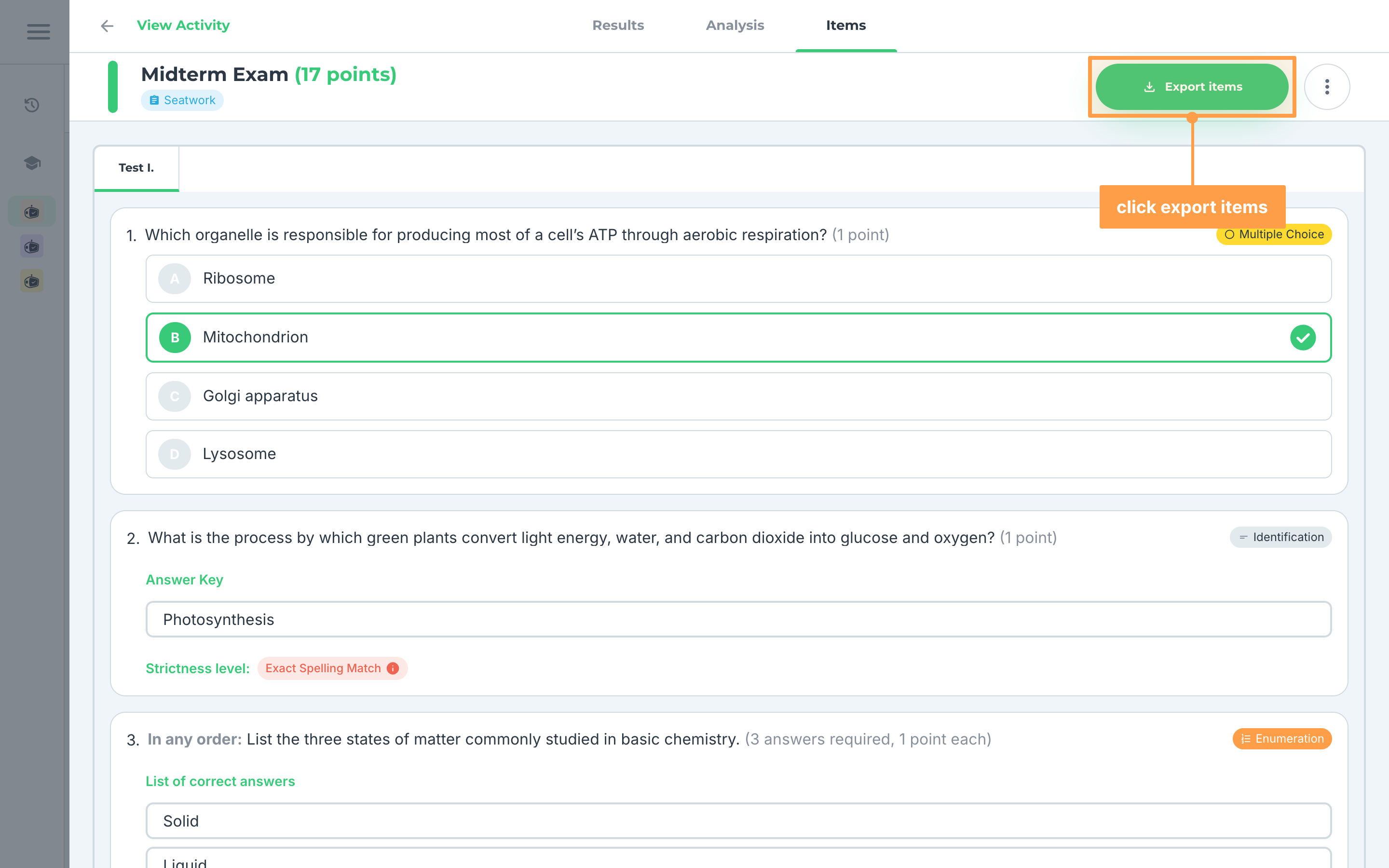
- Finally, to download the items, click Export items at the top of View Activity, beside the activity's actions. On a phone, it is the download icon in the modal's header. While "Exporting Items..." shows, keep the window open. Once the file is ready, GradeChum downloads a Word file named after the activity, such as "Midterm Exam_Items.docx", with every item of the activity.
Note: If "Failed to start export. Please try again.", "Failed to export items." or "Failed to download items." shows, the file was not downloaded. Click Export items again. If "There was an error loading the activity." shows instead of the items, close View Activity and open it again.
Note: The Items tab does not show for an activity from outside GradeChum, which has no items. It also does not show in a linked class until the class has students.
And that's how you view and export the items of an activity! Next, let's discuss the activity with your students.