
👩🏫
Link GradeChum class to LMS
Once you have successfully connected to your LMS account, it is now time to make use of GradeChum's LMS integration to its full potential.
Here is how you link a GradeChum class to your existing LMS class:
Note: This will only be possible if you have set up your LMS classes and enrollments before doing this step.
Link your class to an LMS class
Whether the class is brand new or one your students are already using, linking it to an LMS class does not affect their progress. Follow these steps:
- Open the class you wish to link to an LMS.
- Beside the class name in the class header you will see "Not connected to an existing LMS class." Click Connect. This opens the Link to LMS class modal.
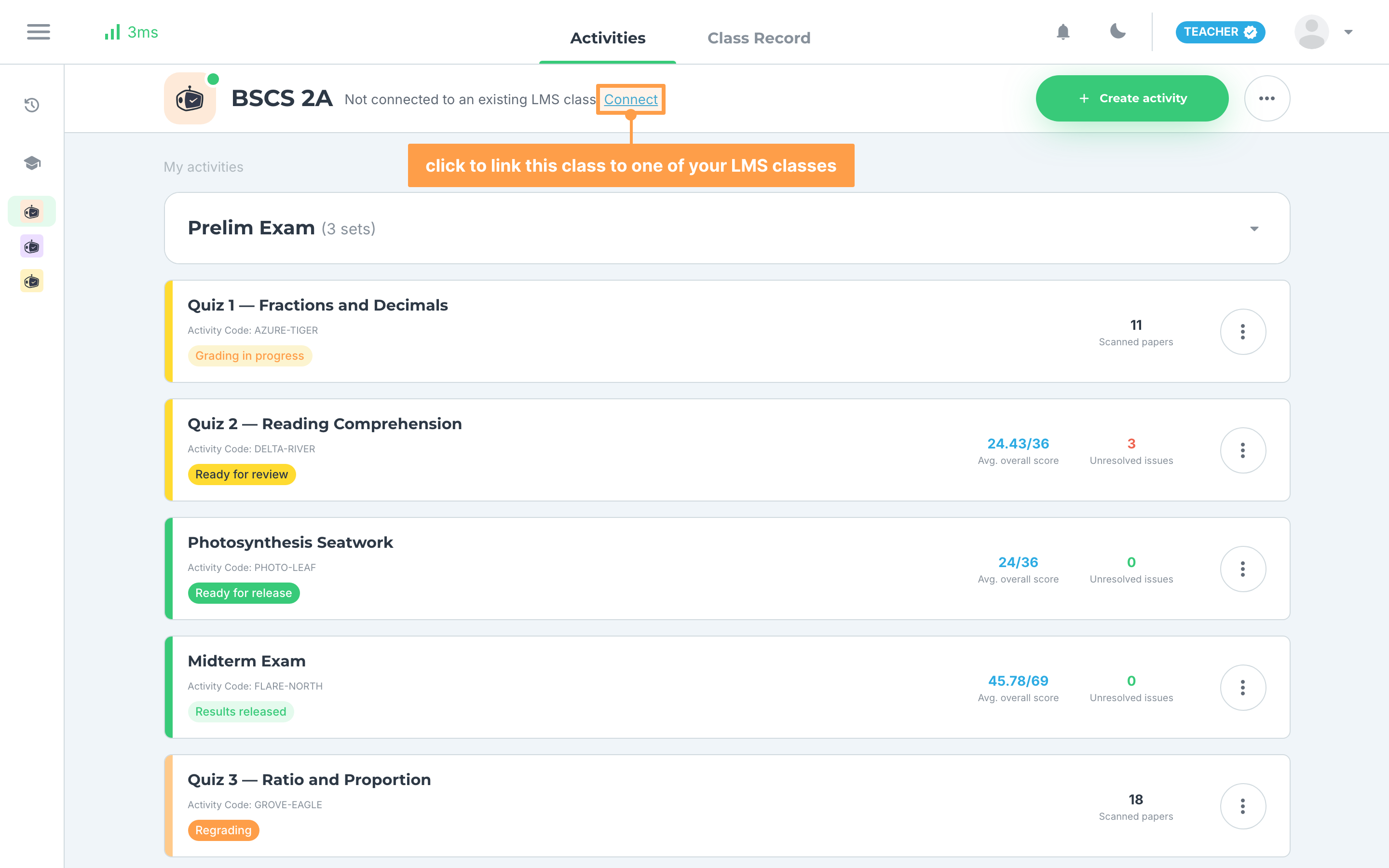
- (Important!) The modal lists your LMS classes. Select the one you want this class linked to. On Canvas, selecting a course also opens its sections so you can link one section instead.
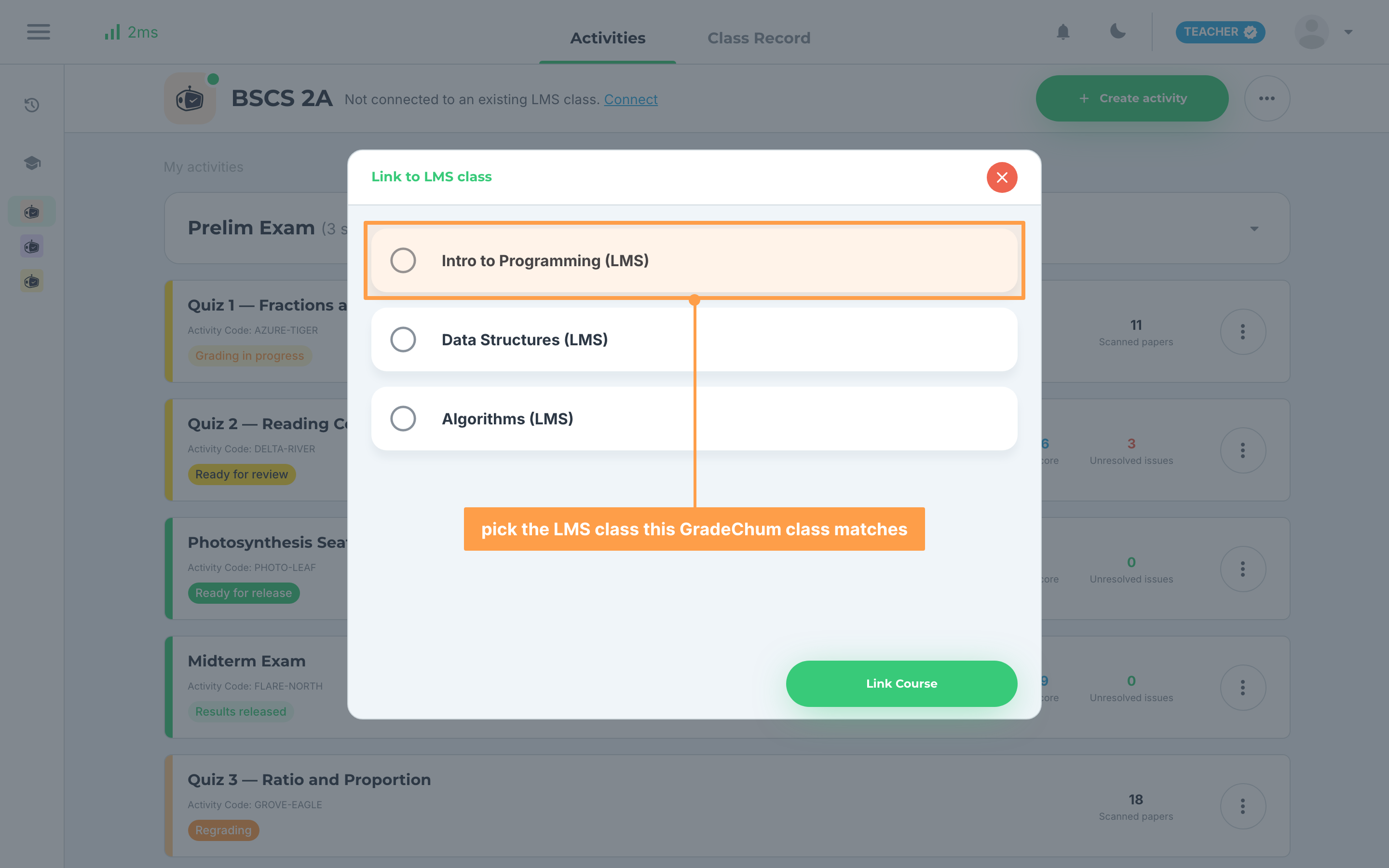
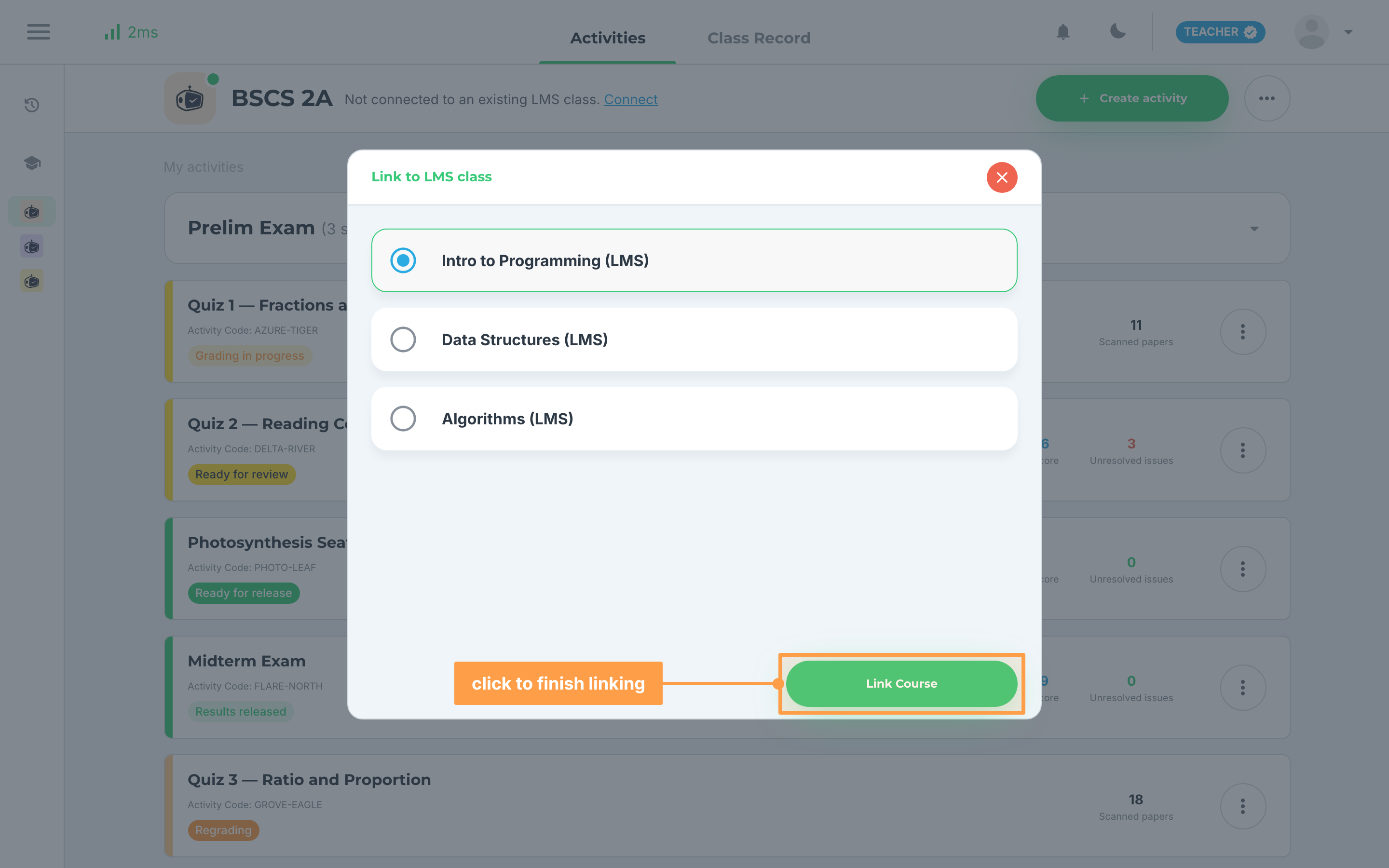
- Click Link Course.
How to know if linked
To identify whether your class is already linked to the LMS class, here are several steps you can check on your end:
- In GradeChum > Classes, a class has a link icon on its card, which, when hovered, says This class is linked to an LMS.
- If you view the GradeChum class, in class header under the class name, it indicates the LMS class it's linked into, which you can click to redirect you to the LMS class directly.
- If you view the LMS class linked, you can see in the list of assignments that there are added items from the courses and custom activities you have created in GradeChum.
Once your class is linked to LMS, it's now time to let your students in!
Last updated December 15, 2025