
Invite students to LMS-linked class
Introduction
Once your GradeChum class is linked to a class in your school's LMS, it's time for your students to join in. When you link the class, GradeChum starts bringing in the students enrolled in your LMS class, so most of your students do not need a class code at all.
In this article, let's explore the two ways your students can get into your LMS-linked class: by connecting their account to your school's LMS, or by joining with the class code.
Steps
Note: You must have already set up your class and its enrollments in your LMS, and linked your GradeChum class to it, before proceeding.
Your students can join your LMS-linked class in either of these two ways:
a. Connect to LMS
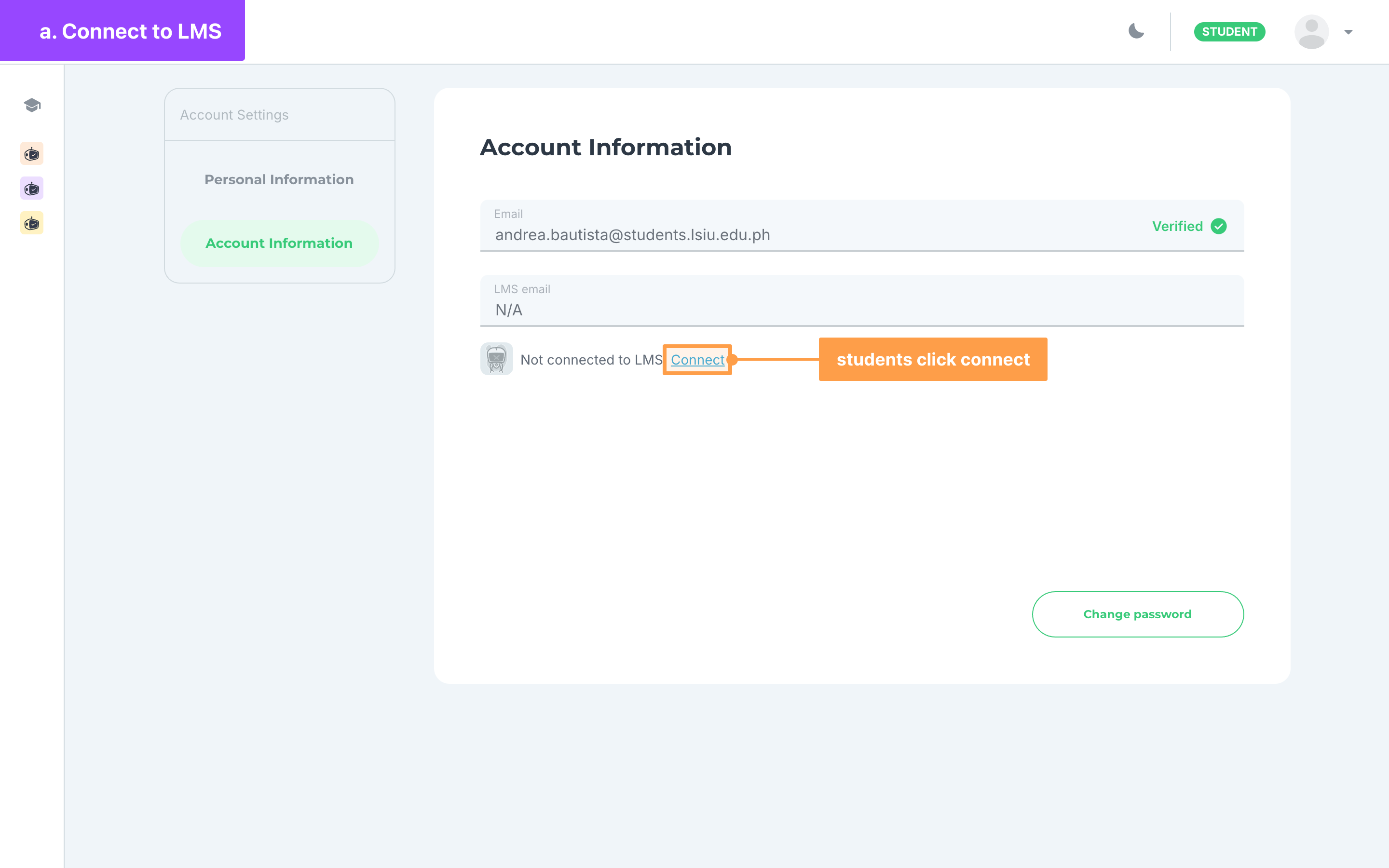
- Ask your students to connect their GradeChum account to your school's LMS. They can do it at any time from My Account > Account Information, and GradeChum also asks them to when they type the class code of an LMS-linked class. Share the Connect to LMS guide with them.
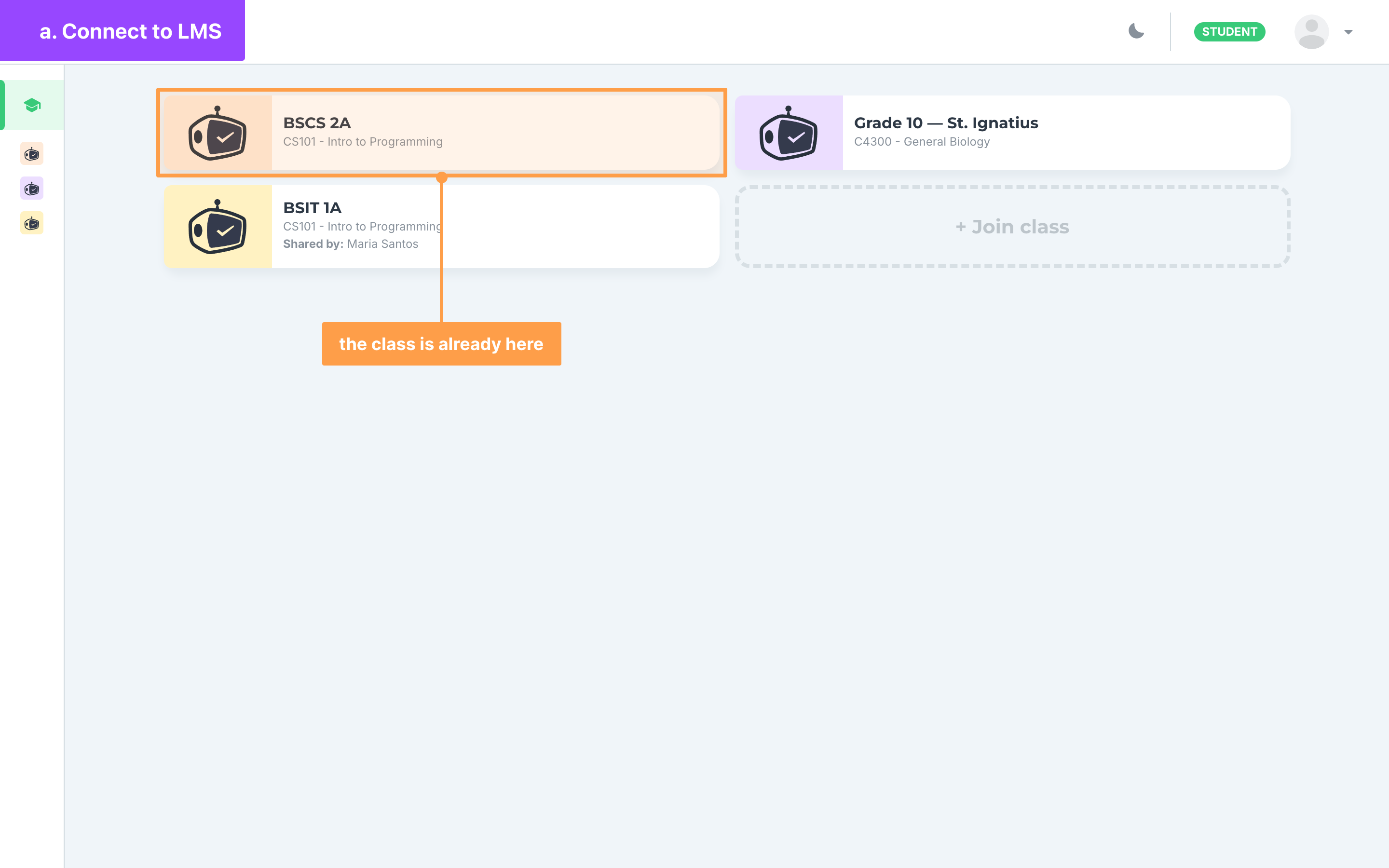
- Finally, once a student's account is connected, GradeChum adds them to the GradeChum classes linked to the LMS classes they are enrolled in. The class shows on their My classes, with no class code needed.
b. Join via class code
If some of your students cannot connect their LMS account, or the class does not show for them after connecting, they can join with the class code instead.
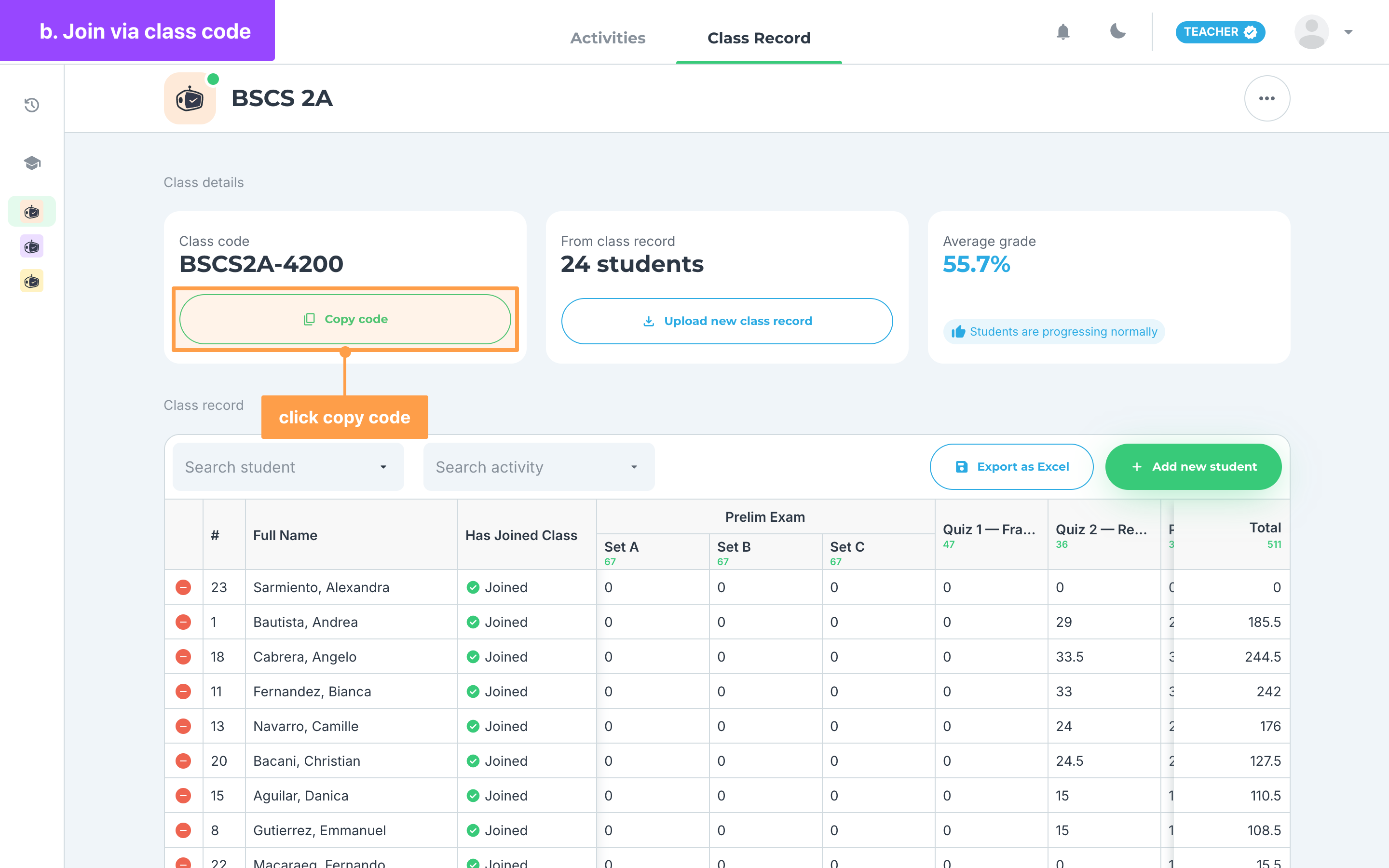
- Open your LMS-linked class, click the Class Record tab, and on the Class code card, click Copy code (Copy on a small screen). The button keeps its label, fills in with a check, and its tooltip reads "Copied" once the code is on your clipboard.
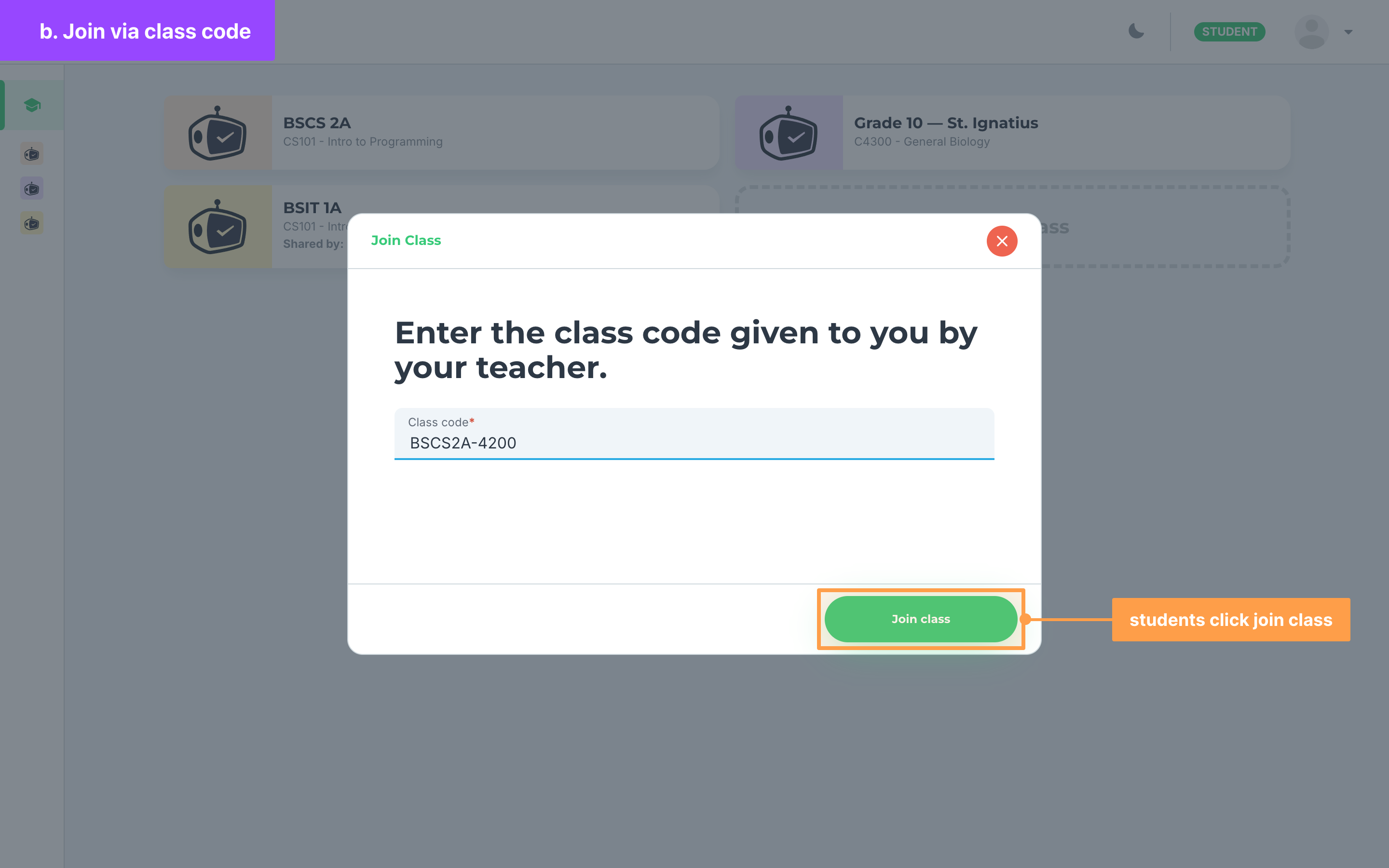
- Send the class code to your students. They click + Join class on My classes, type the code and click Join class. Only students who are in your class record can join, so add them to your class record first.
- If a student's account is not connected to an LMS yet, GradeChum does not accept the code and asks them to connect their LMS first. They click Connect to LMS, follow the Connect to LMS steps, then type the code again.
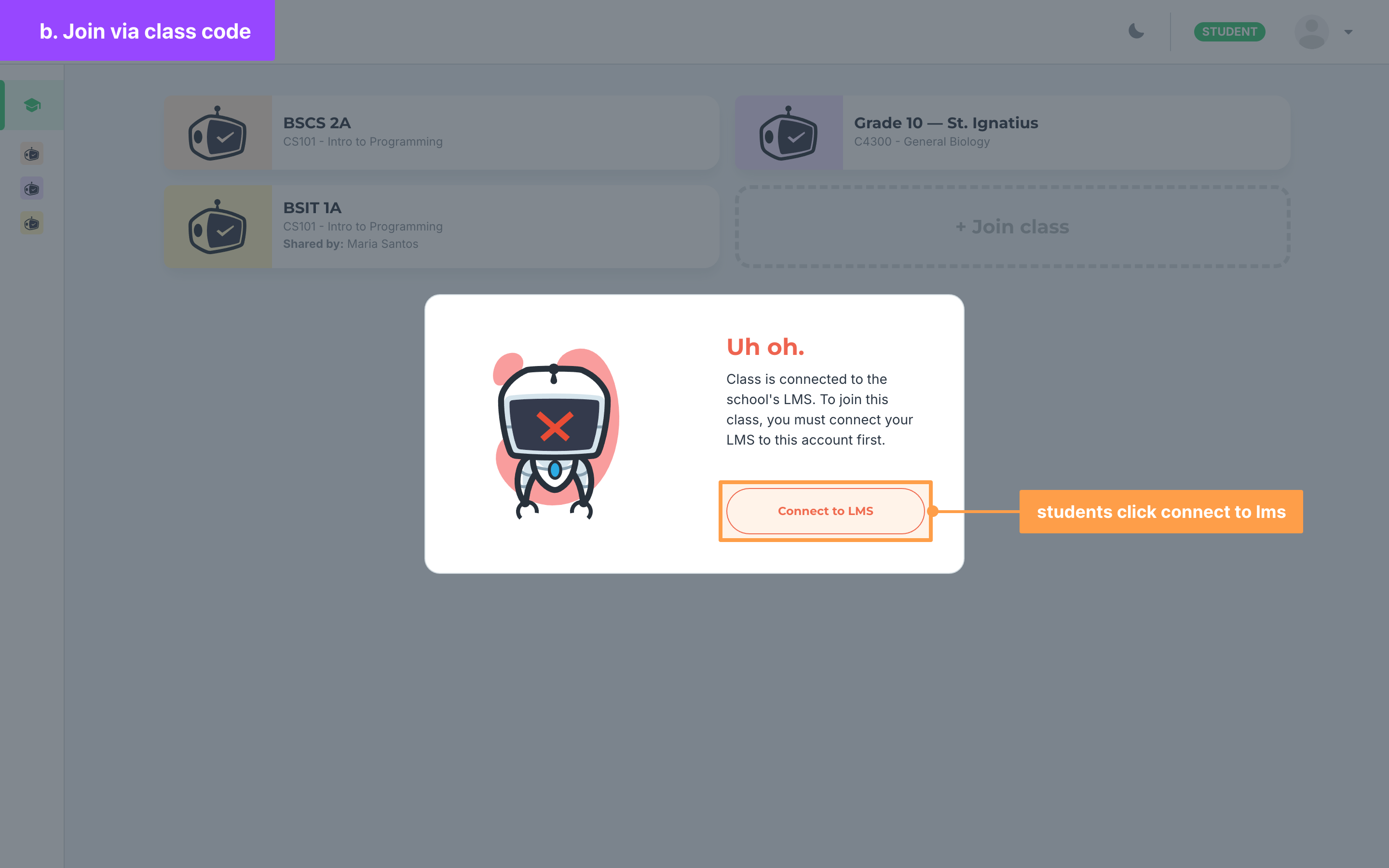
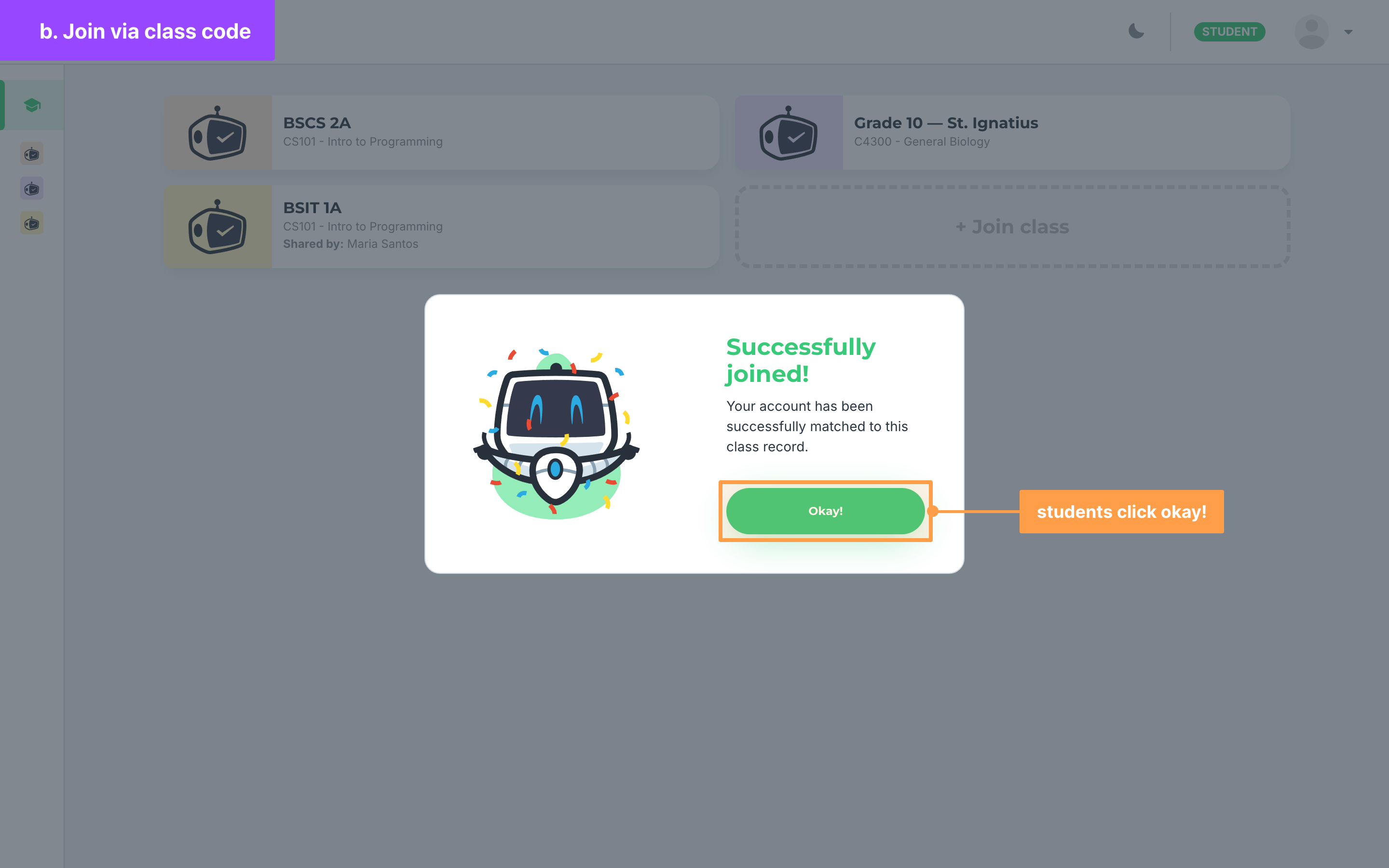
- Finally, once Successfully joined! shows, the class is on the student's My classes. For what your students see at each step, see Join via class code.
Note: A student whose account is connected to a different LMS than your class cannot join it with that account. GradeChum tells them to contact customer support.
And your students are now in! Let them answer activities in your class, and when the time is right, let's sync their grades to your LMS.