
Buy activity credits
Introduction
If your school has no GradeChum license, you unlock each activity's results with activity credits. Unlocking an activity uses 1 credit when all its items are multiple choice, and 2 credits when it has other item types. When your balance runs low, you can buy a pack of credits and pay for it with your e-wallet.
A credit pack is a one-time payment. Nothing renews, and there is nothing to cancel. In this article, let's explore how to buy activity credits.
Steps
Note: You can buy credits only after your DepEd school ID is verified. Until then, the Buy credits button does not show. See Activity credits and school licenses to get your first check free.
To buy activity credits in GradeChum, follow these instructions:
- After logging in, click Buy credits in the strip at the bottom of the page. The strip shows your balance, for example "You have 1 activity credit."
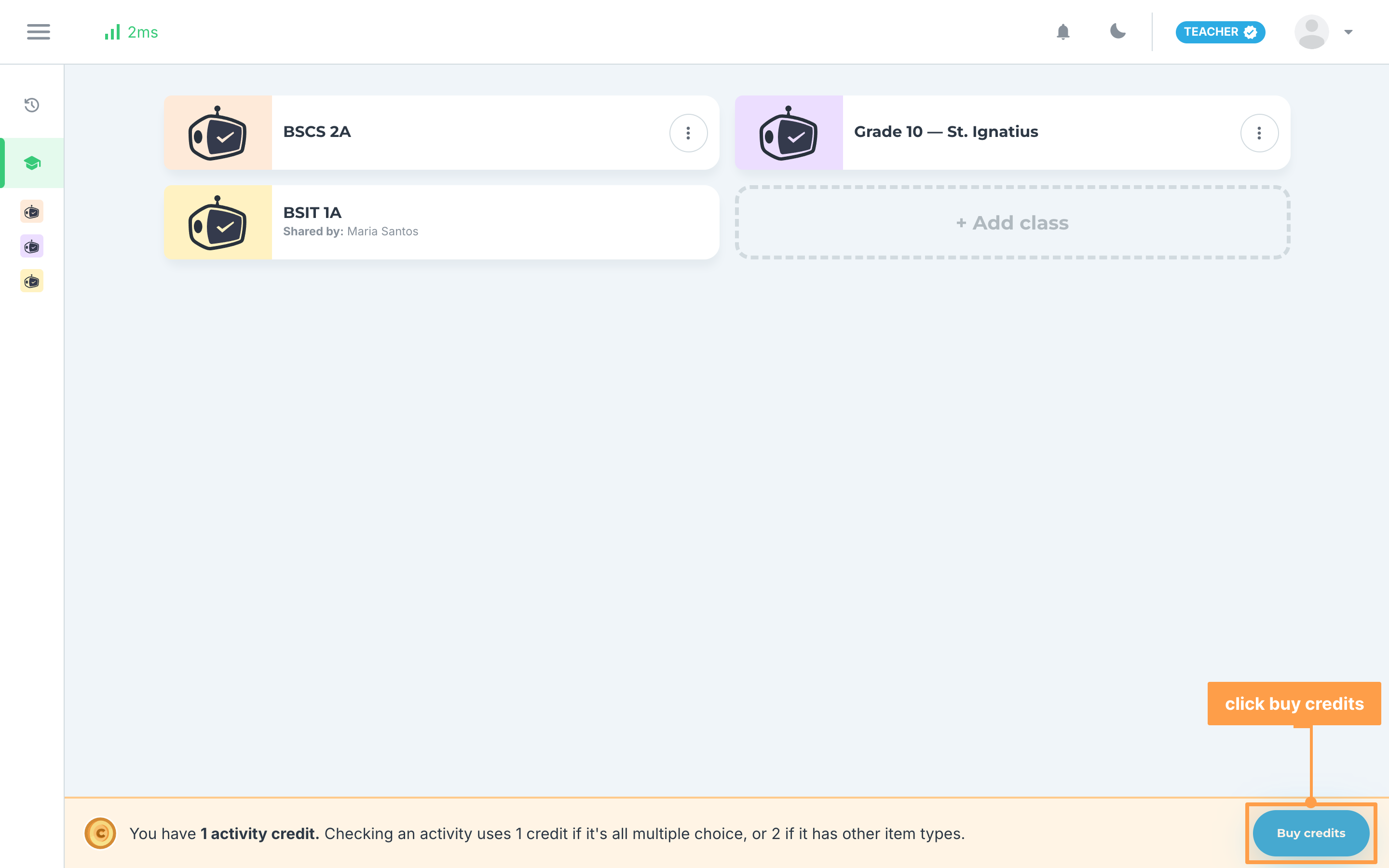
Note: On a small screen, the strip only shows on My classes, Past classes and your account pages. It also hides while an activity you already unlocked is open.
Other ways to open Buy activity credits
When your balance is lower than what an activity uses, View results on the activity's Results tab is grayed out. Hover it to see how many more credits you need, for example "You need 1 more activity credit. Viewing these results uses 2." Then click Buy credits in that message.
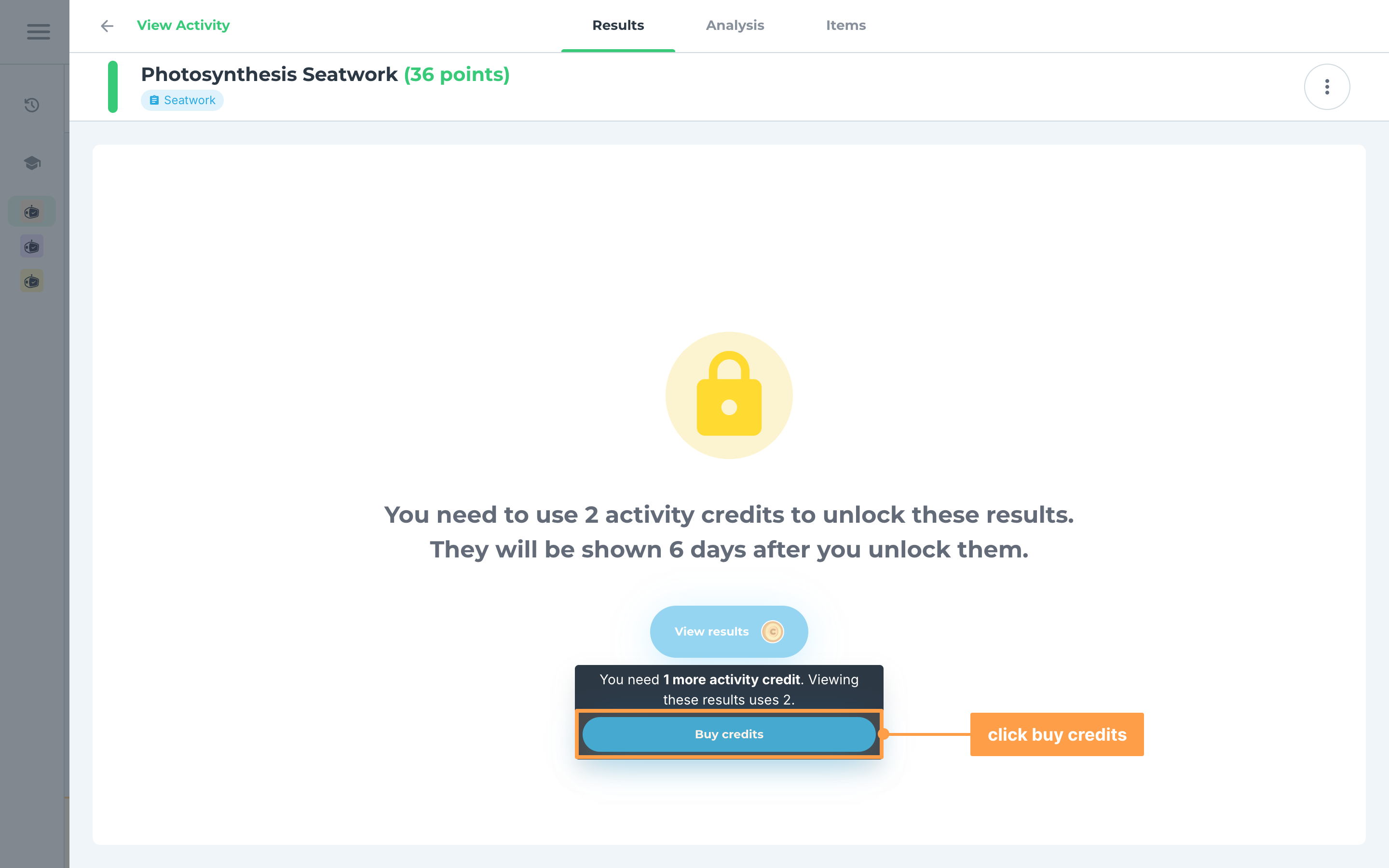
The same Buy credits button shows when you hover a locked Edit, Export results or Discuss with students in the activity's menu.
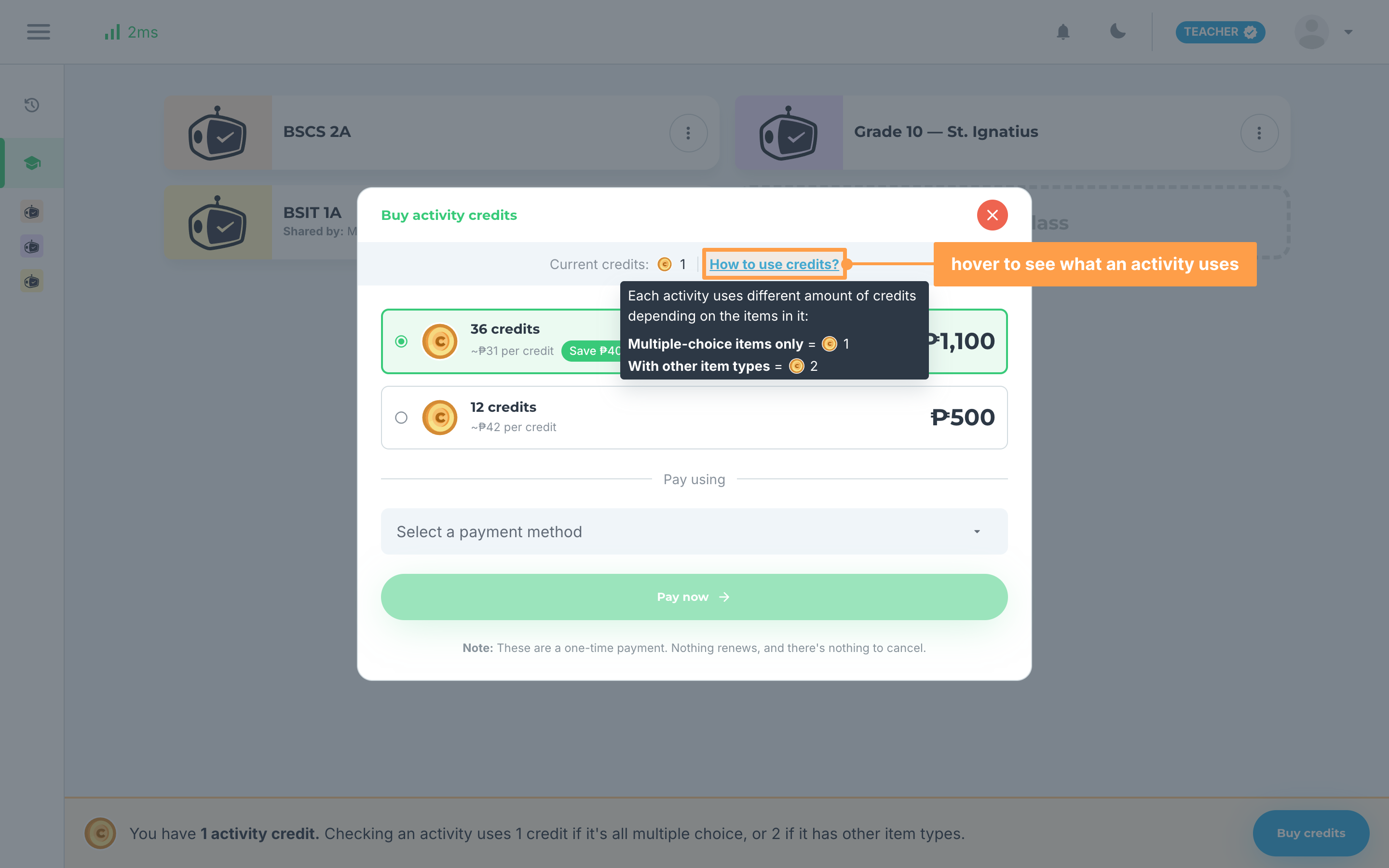
- The Buy activity credits modal opens with your balance beside Current credits: at the top. Hover How to use credits? to see what an activity uses: Multiple-choice items only uses 1 credit, and With other item types uses 2.
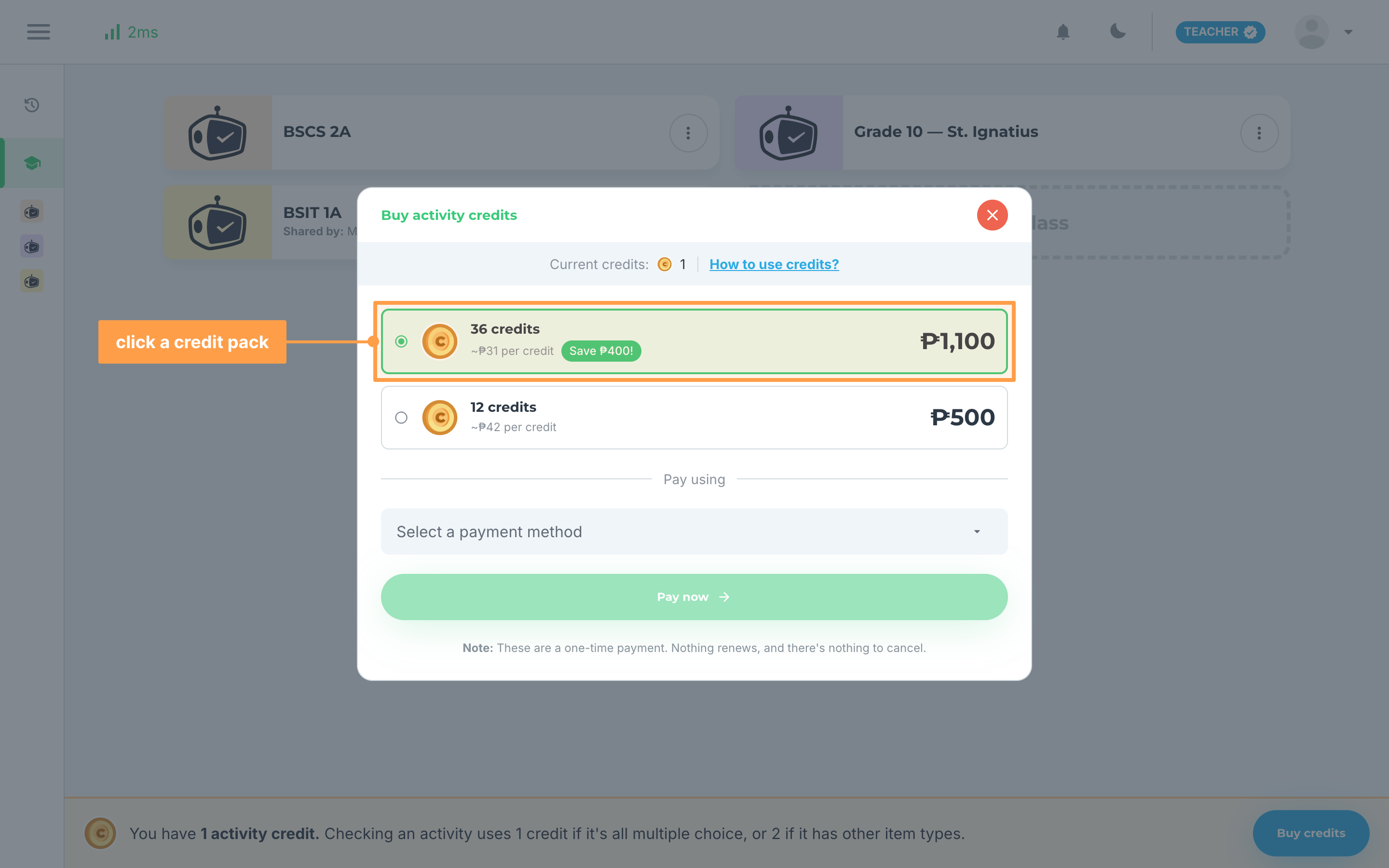
- Click the credit pack you want to buy. Each pack shows how many credits it has, about how much each credit costs, how much you save when it is a bigger pack, and its price.
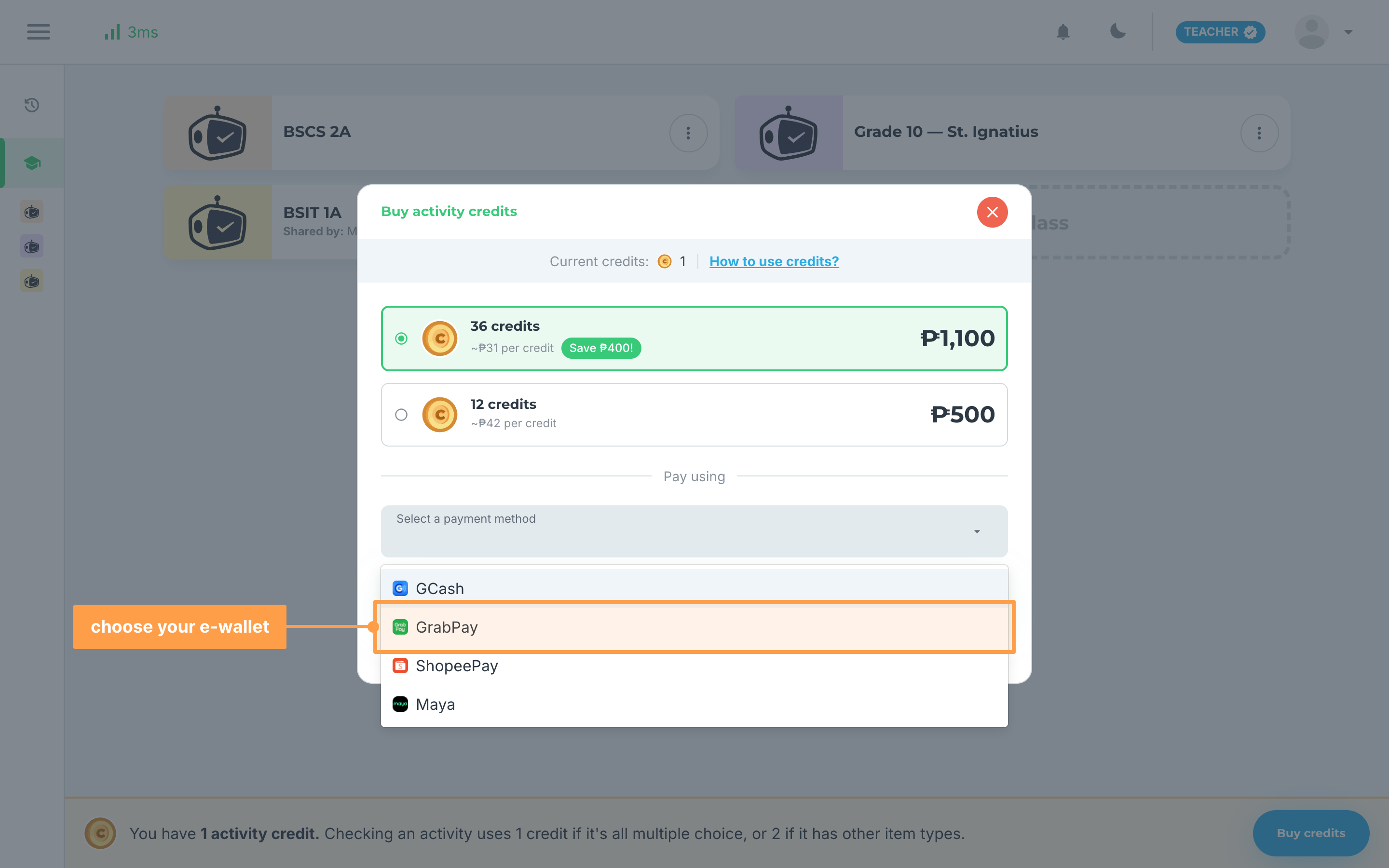
- Under Pay using, click Select a payment method and choose your e-wallet: GCash, GrabPay, ShopeePay or Maya.
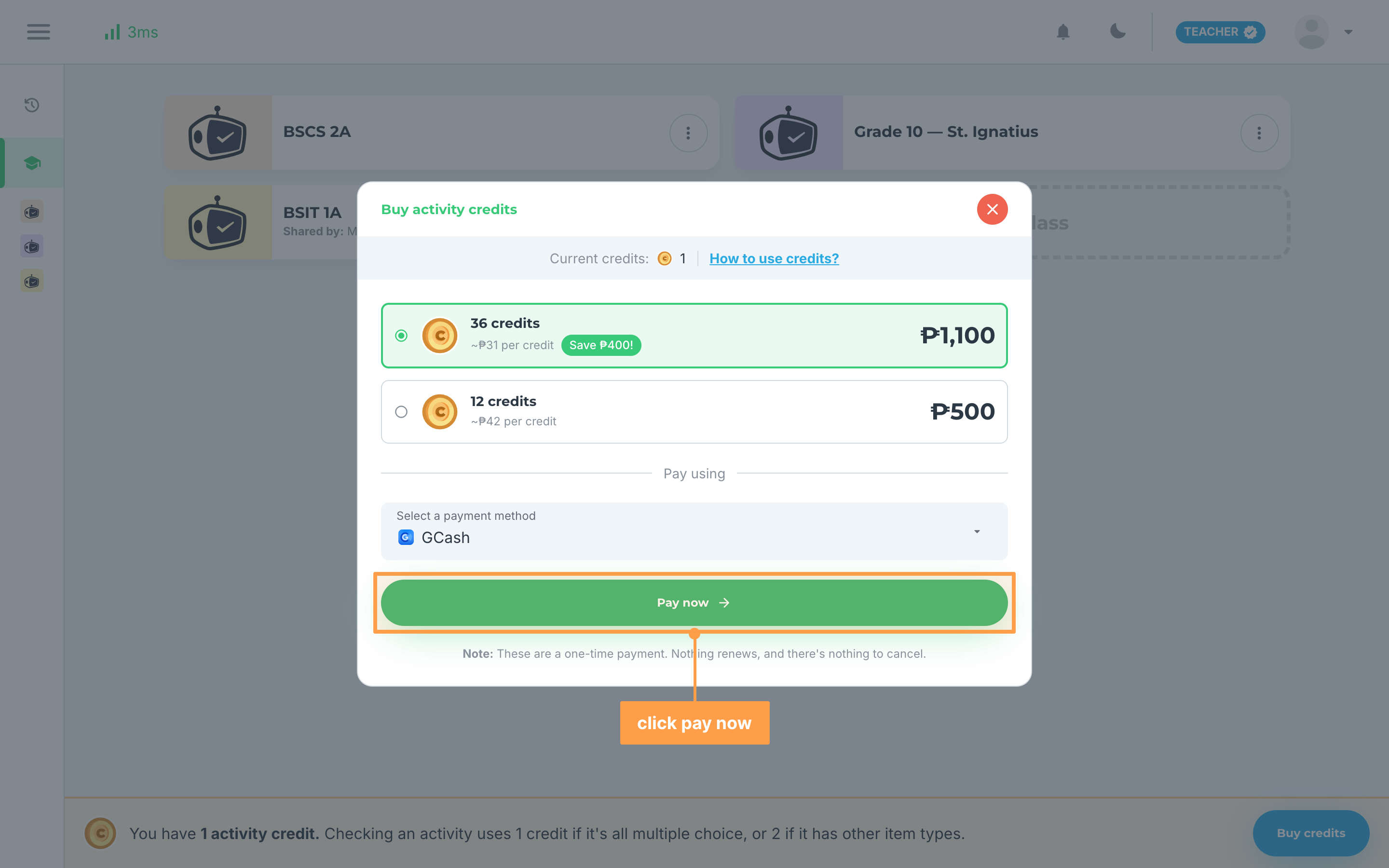
- Click Pay now. The button stays disabled until you choose both a pack and a payment method. GradeChum takes you to your e-wallet's checkout page, where you complete the payment.
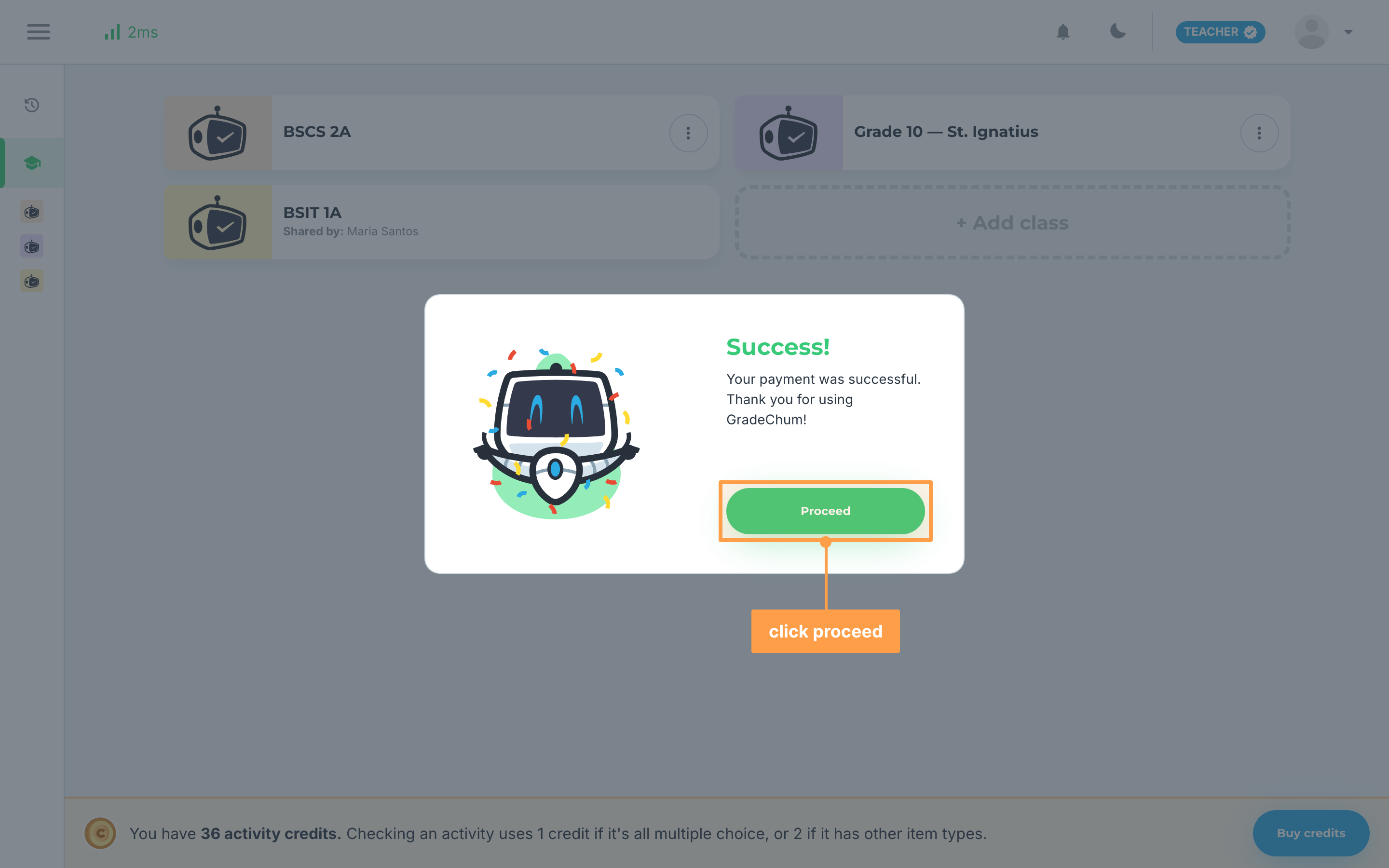
- Finally, once you pay, your e-wallet brings you back to GradeChum. When Success! shows, click Proceed. The pack's credits are already added to your balance.
If you pay with ShopeePay on a computer
- Choose ShopeePay and click Pay now. Instead of a checkout page, the modal shows the ShopeePay QR Code and the amount to pay.
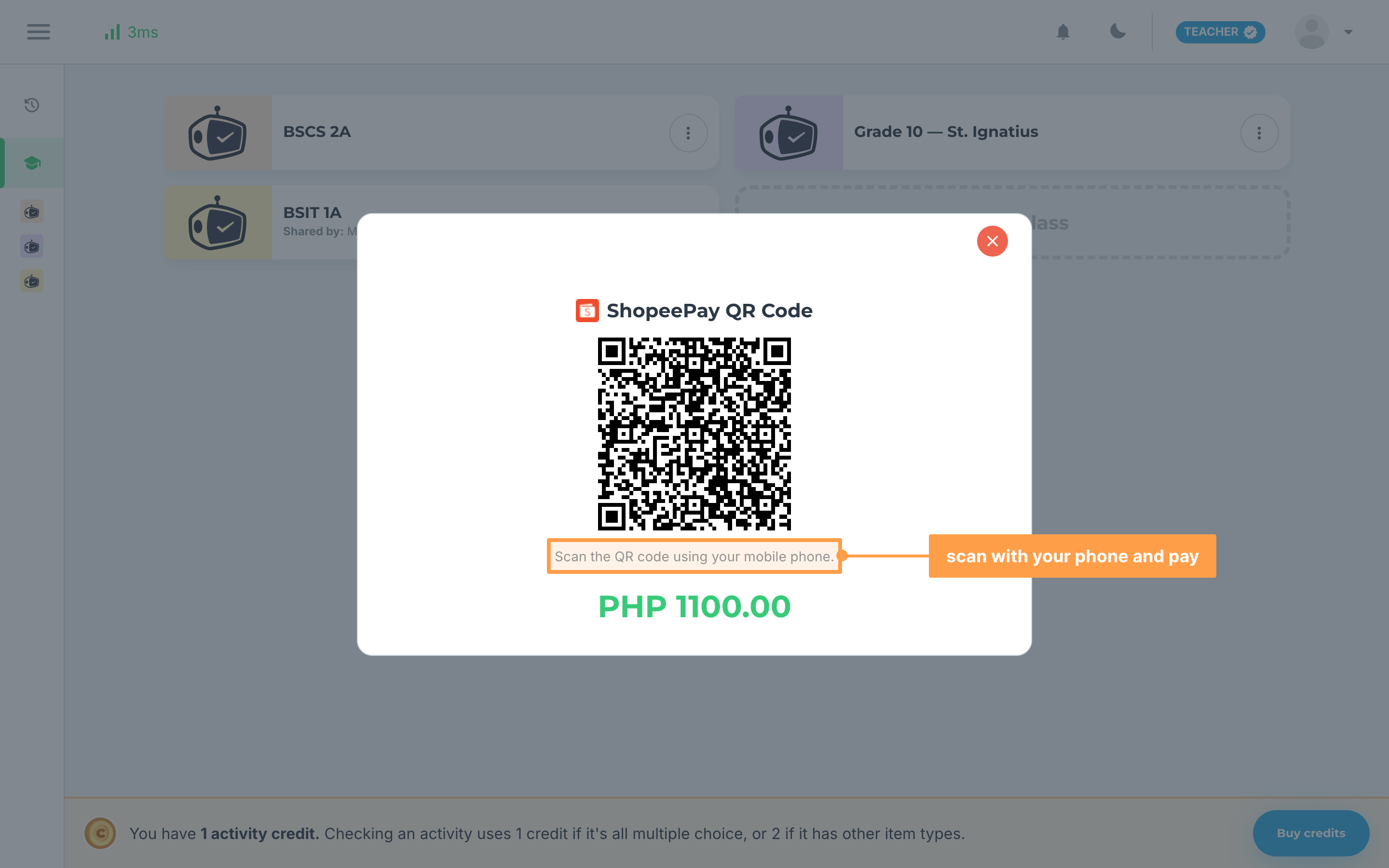
- Open the ShopeePay app on your phone, scan the QR code and pay. Keep the modal open while you pay: GradeChum checks for your payment every few seconds, then shows Success!
On a phone, ShopeePay takes you to its checkout page like the other e-wallets.
If your payment did not go through
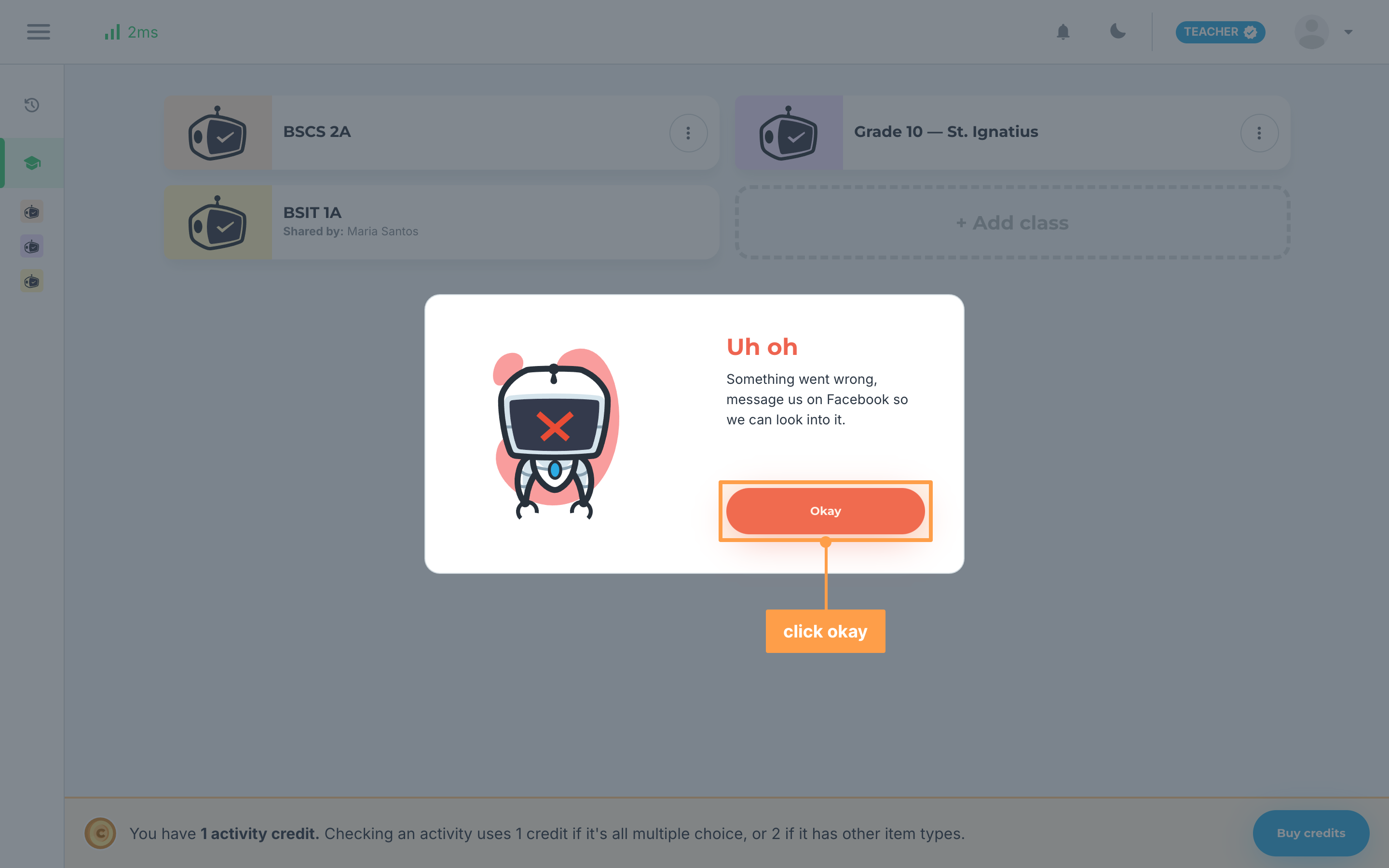
If the payment failed, was canceled or could not start, Uh oh shows with "Something went wrong, message us on Facebook so we can look into it." Click Okay. No credits are added. Click Buy credits to try again, or message us on Facebook so we can look into it.
If your payment is still being confirmed
GradeChum waits about a minute for your e-wallet to confirm the payment, or about 10 minutes while a ShopeePay QR code is showing. If your e-wallet has not confirmed it by then, Still confirming your payment shows. Click Okay.
If you completed the payment, your credits appear in your balance within a few minutes, and nothing extra is charged. Do not buy the pack again while you wait.
If the credit packs do not load
"We couldn't load the credit packs. Please try again." means GradeChum could not get the packs on offer. Close the modal and click Buy credits again.
And that's how you buy activity credits in GradeChum! Next, let's view learning outcomes.