
Mock board classes
Introduction
A mock board class is a class for board exam practice. Your students answer multiple choice items on a board exam style answer sheet, and each student hands in two papers: an information sheet that says who they are, and an answer sheet with their answers.
Because every activity in a mock board class uses the same kind of sheets, you download the answer sheets and questionnaires for the whole class at once, and you can give each activity up to four sets. When GradeChum cannot match a scanned sheet to a student, you find the right sheet and assign it yourself.
In this guide, let's explore how to create a Mock board class, prepare its activities and sheets, and fix a student's missing sheet.
Steps
Note: Mock board only shows as a class type if GradeChum has allowed mock board classes for your department. If you do not see Choose a class type. when you create a class, contact us at info@gradechum.com.
To work with a mock board class, follow the instructions for each:
a. Create a mock board class
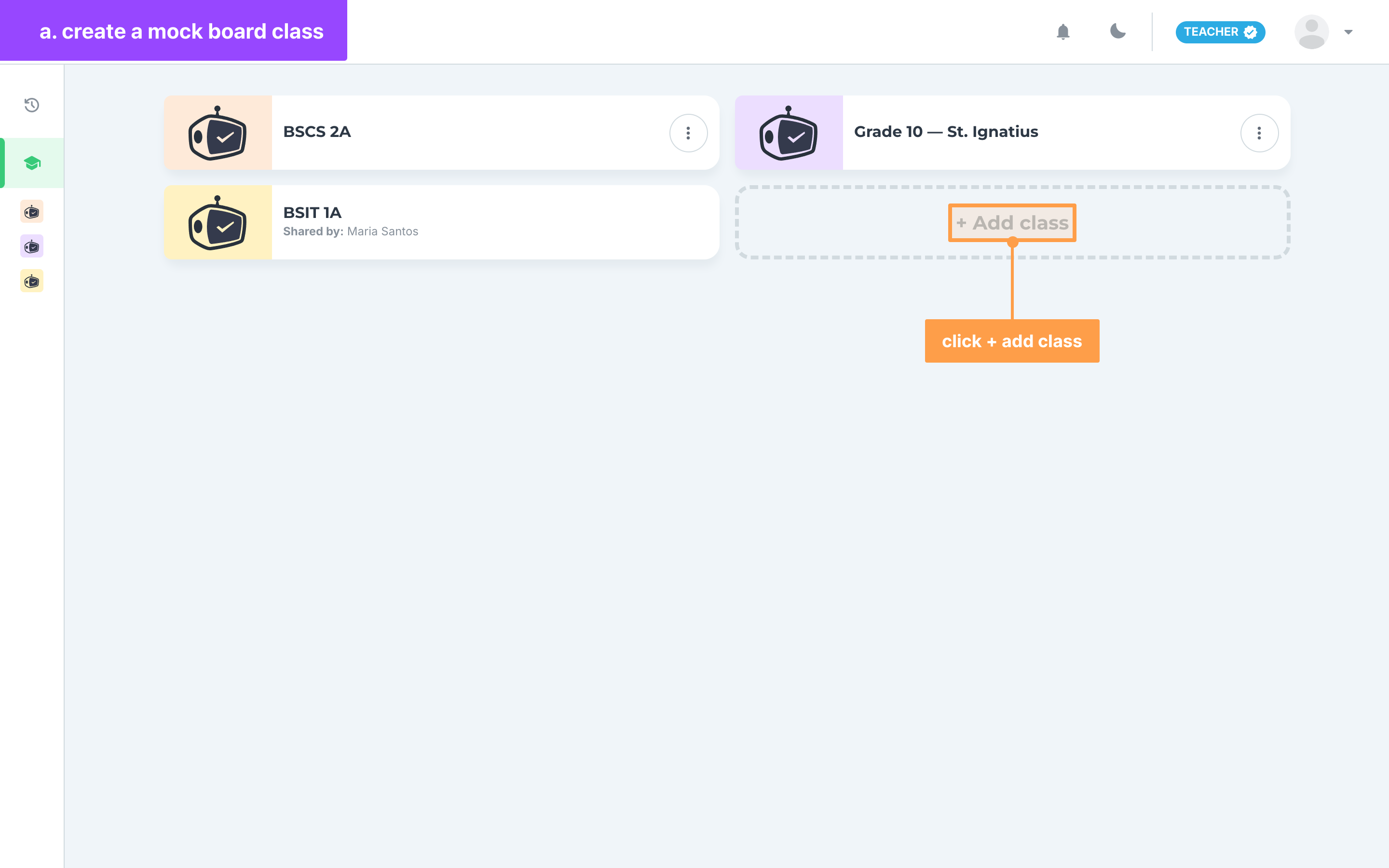
- On My classes, click + Add class, or Create your first class if you have no classes yet. In the Create class modal, type the class name under Enter the class name.
- Under Choose a class type., select Mock board. You cannot change the class type once the class is created.
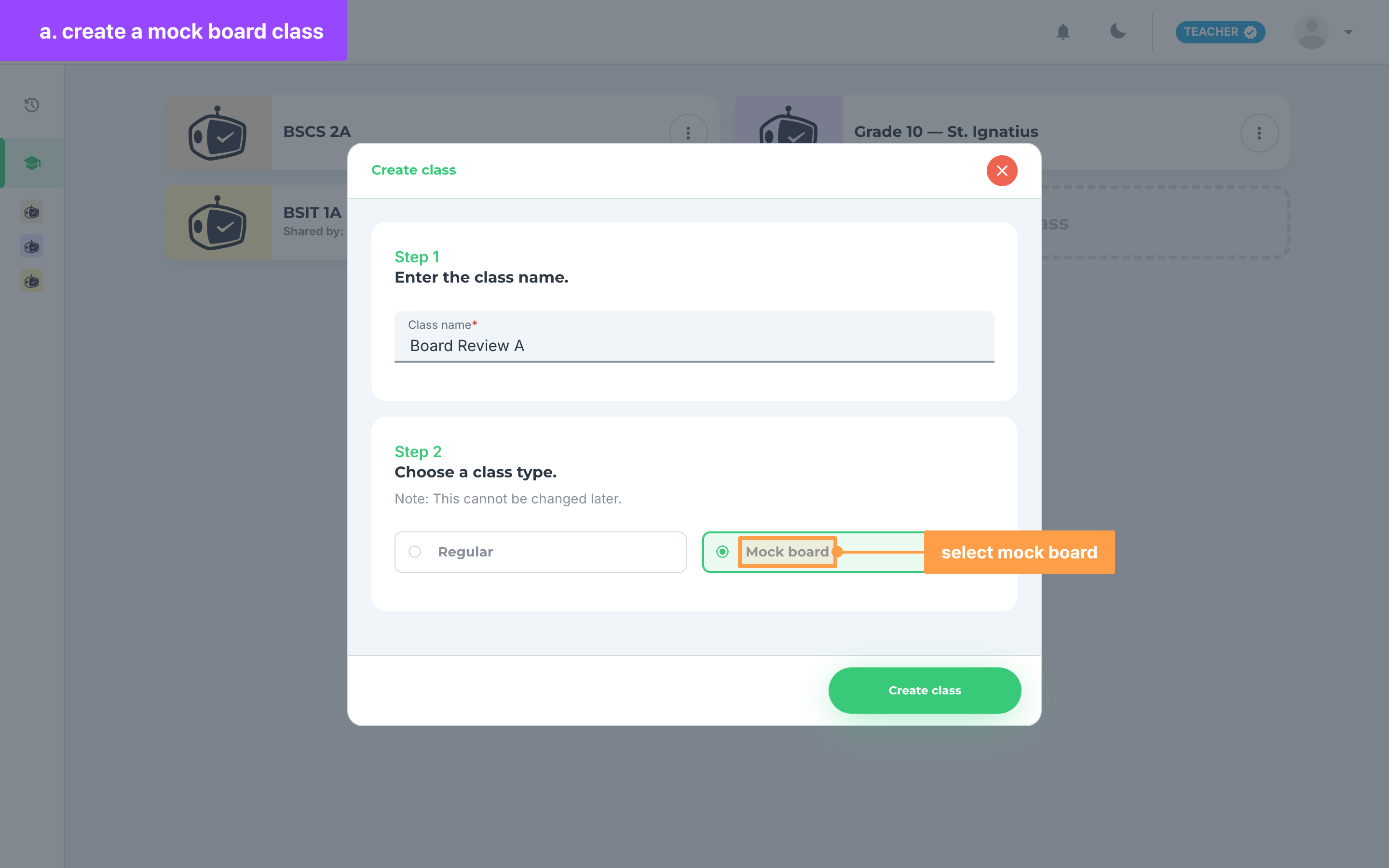
- Finally, click Create class. The class card and the class page show a Mock board badge. See Create a class for the other class settings.
b. Create a mock board activity
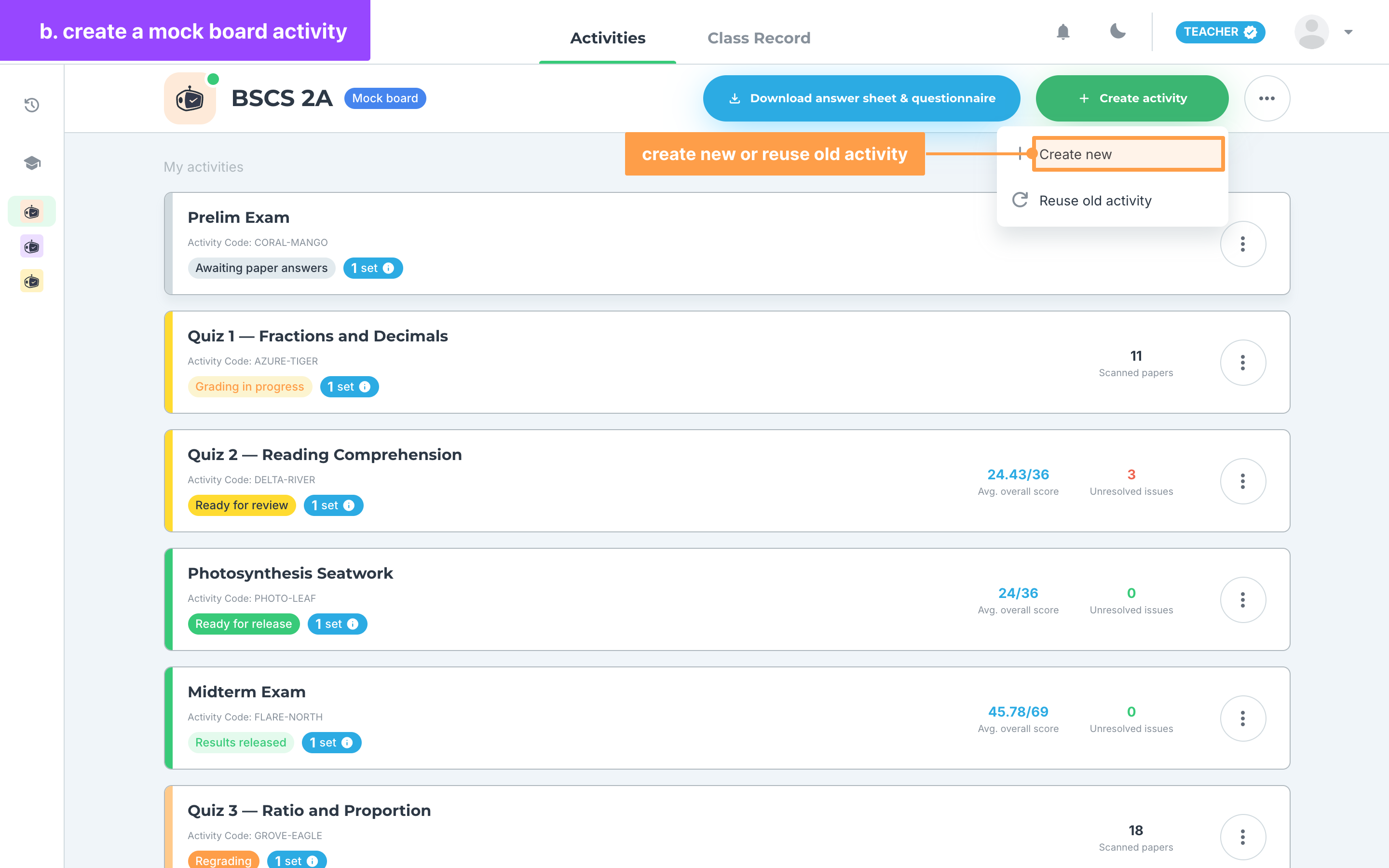
- Open the class, click Create activity, then click Create new or Reuse old activity. Reuse old activity lists only activities from your mock board classes.
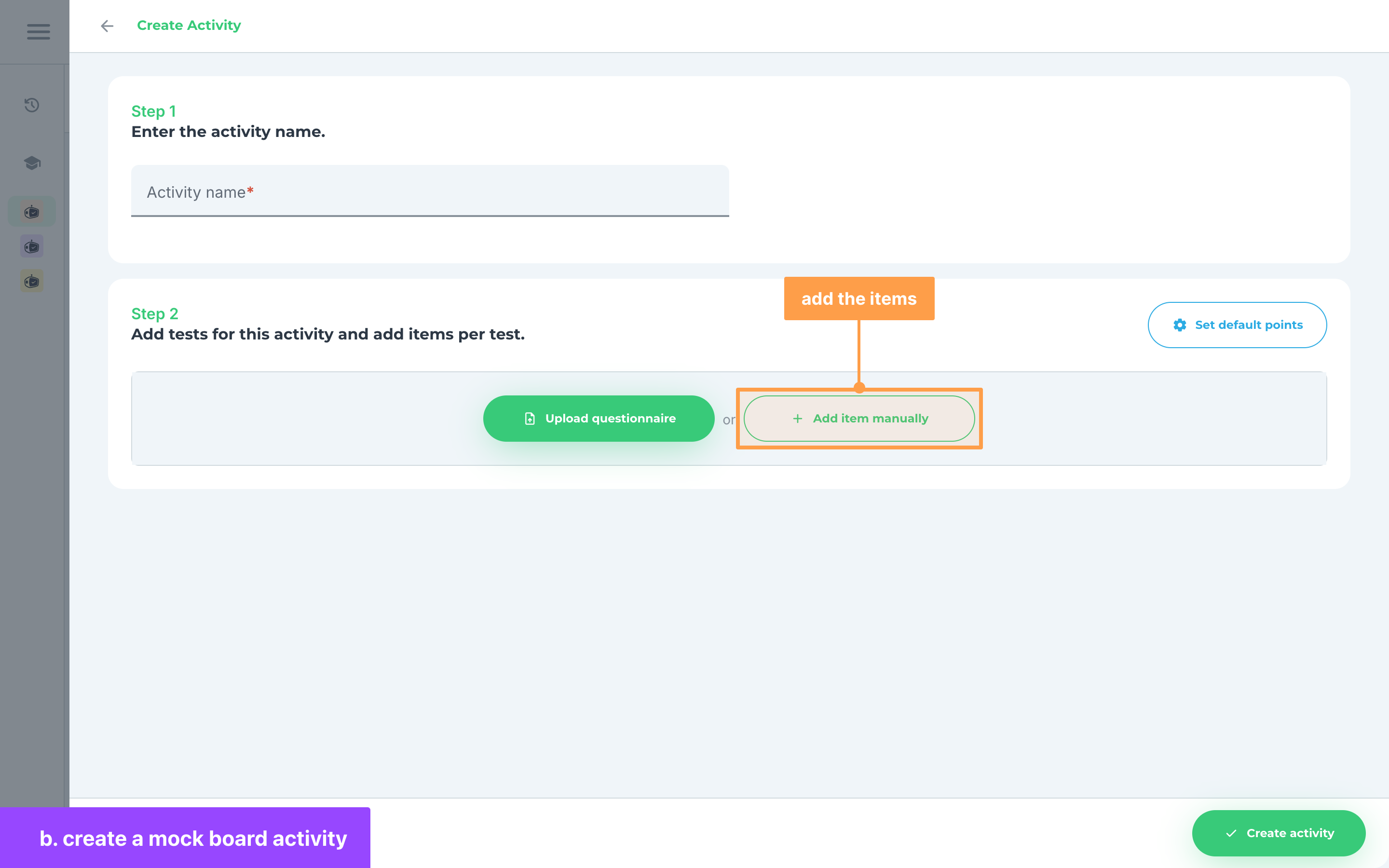
- Name the activity. A mock board activity has no activity type, time restriction, additional settings, linked classes or answer sheet preview steps, so you go straight to the items in step 2.
- Add the items with Upload questionnaire or Add item manually (Upload and Add manually on small screens). Every item is multiple choice, and an uploaded questionnaire keeps only its multiple choice and multiple answers items, in one list.
Note: An activity holds up to 100 items. At the limit, both buttons are disabled with "You cannot add any more items as you have reached the 100-item limit." The totals read Activity items: and Activity score:.
- Finally, save the activity. To give your students different versions, click Autogenerate set/s on the success message and choose how many shuffled sets to add. A mock board activity has at most four sets, A to D, so it offers at most three, and the button is disabled once it has them all. See Create sets.
c. Download the answer sheets and questionnaires
Note: Import your class record first. The sheets need it to know how many students you have and which sheet ID each one gets. Until then, the download shows a yellow lock and the message "Answer sheets require a class record to determine the number of students and sheet IDs." Click Import class record in that message to import it. See Invite students to class.
- Open the class. Once it has at least one activity, Download answer sheet & questionnaire shows beside Create activity. A mock board activity has no download of its own, so this one button covers every activity in the class.
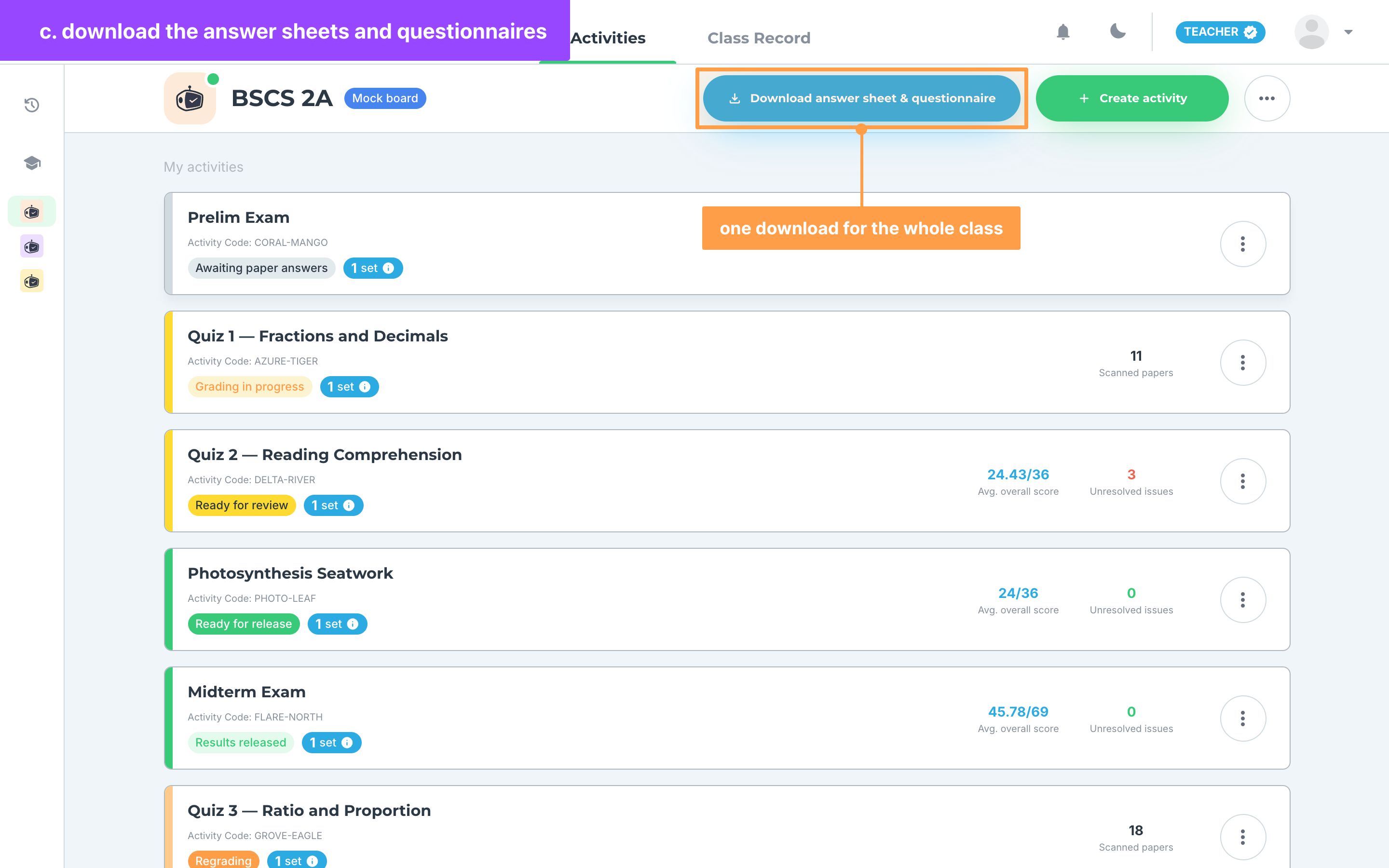
- Finally, click Download answer sheet & questionnaire. The button reads Downloading... until the file is ready. On a phone, click the ⋯ button at the top right and click Download answer sheet & questionnaire under Class actions instead.
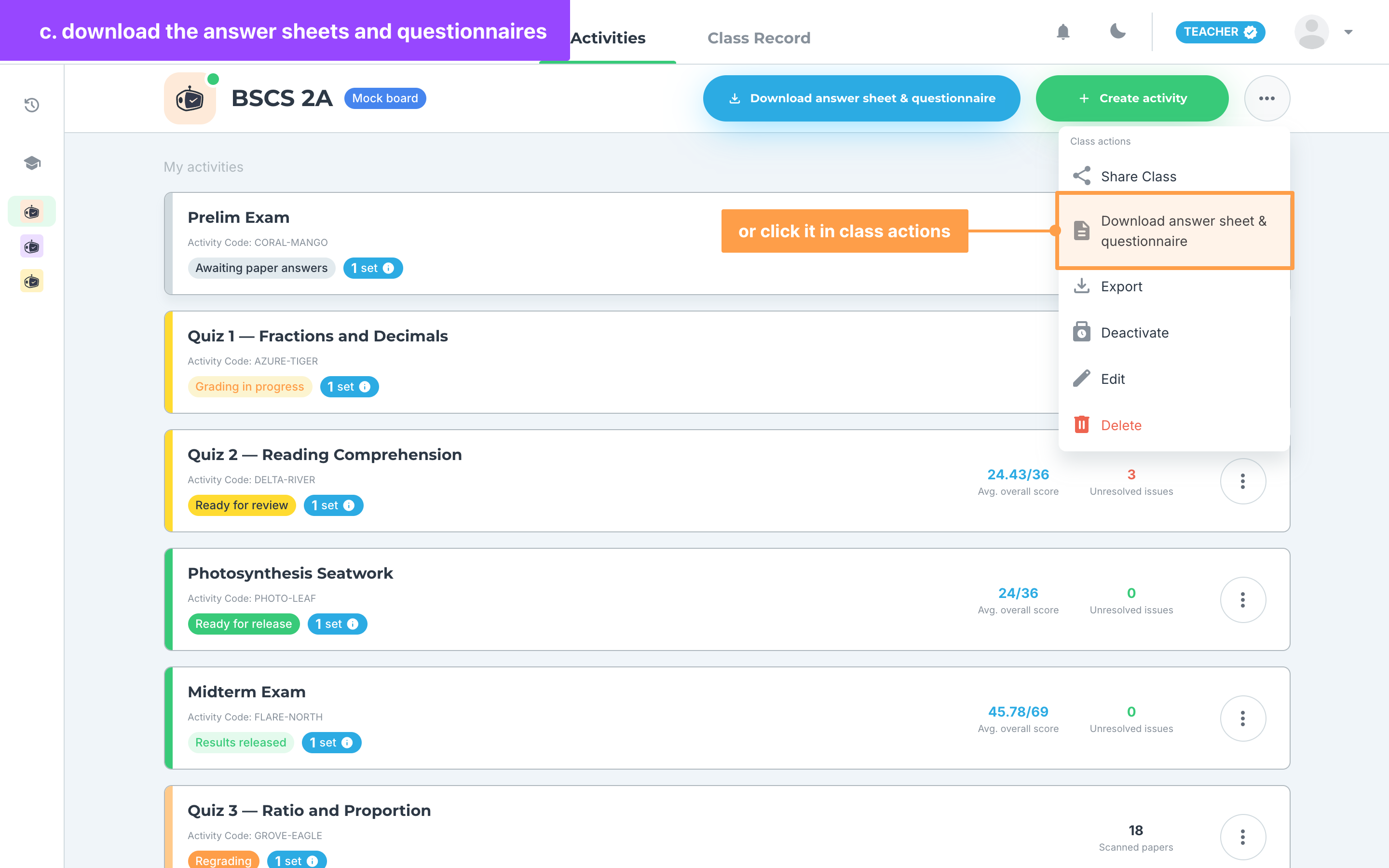
If "Error during download." shows, the file was not downloaded. Click the button again after a moment.
d. Find a student's missing sheet
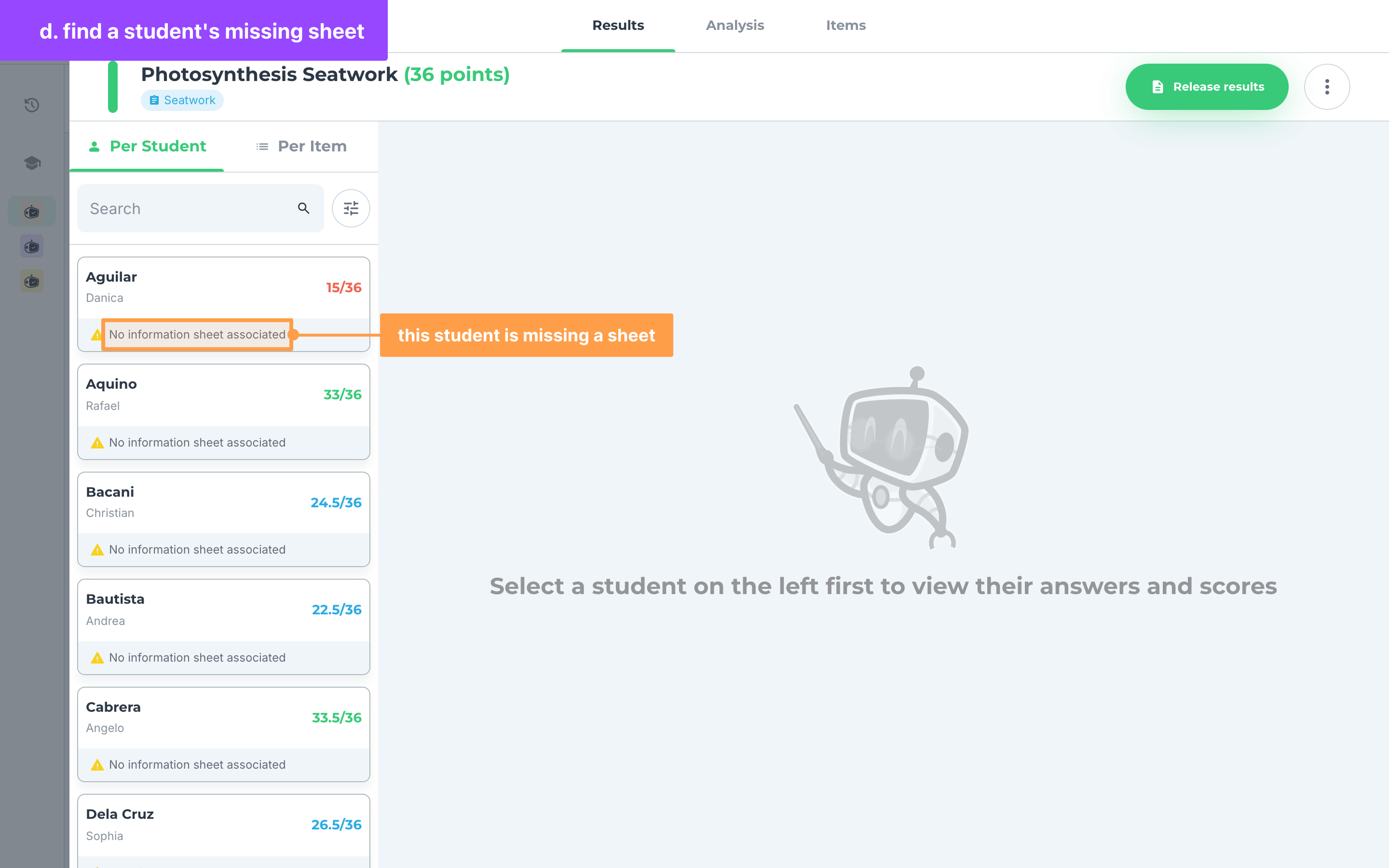
- Open the activity and click the Results tab. A student card that says No information sheet associated or No answer sheet associated is missing that sheet. Click the student.
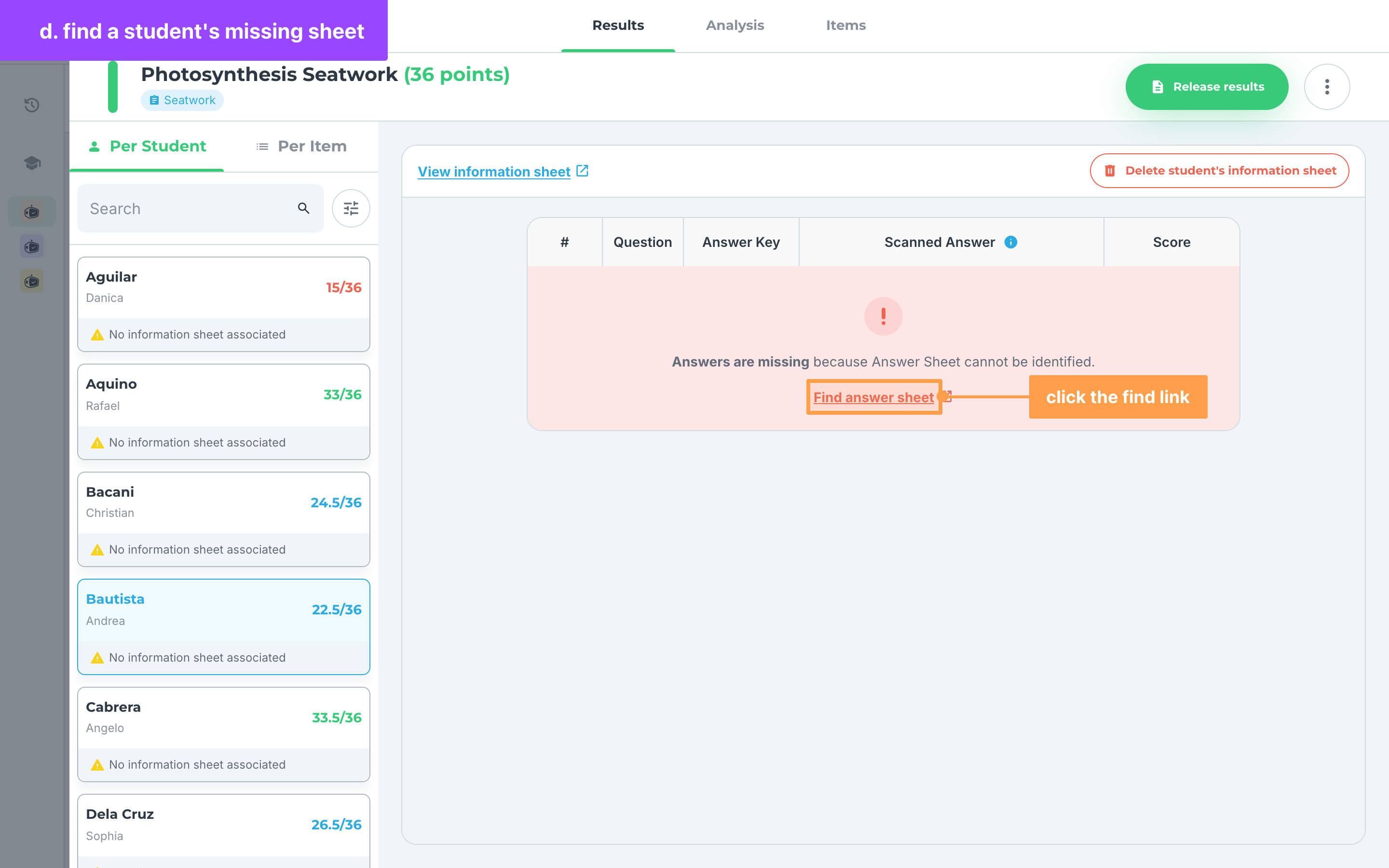
- Click the find link for the missing sheet:
- Find information sheet: "The student cannot be identified because the Information Sheet is missing." shows in place of the student's answers.
- Find answer sheet: "Answers are missing because Answer Sheet cannot be identified." shows where the student's answers should be.
- In the Find Answer Sheet or Find Information Sheet modal, check the student under Student name:. Each scanned paper that could be theirs shows a Paper Preview, which you can open with View full paper, and the Student associated with it.
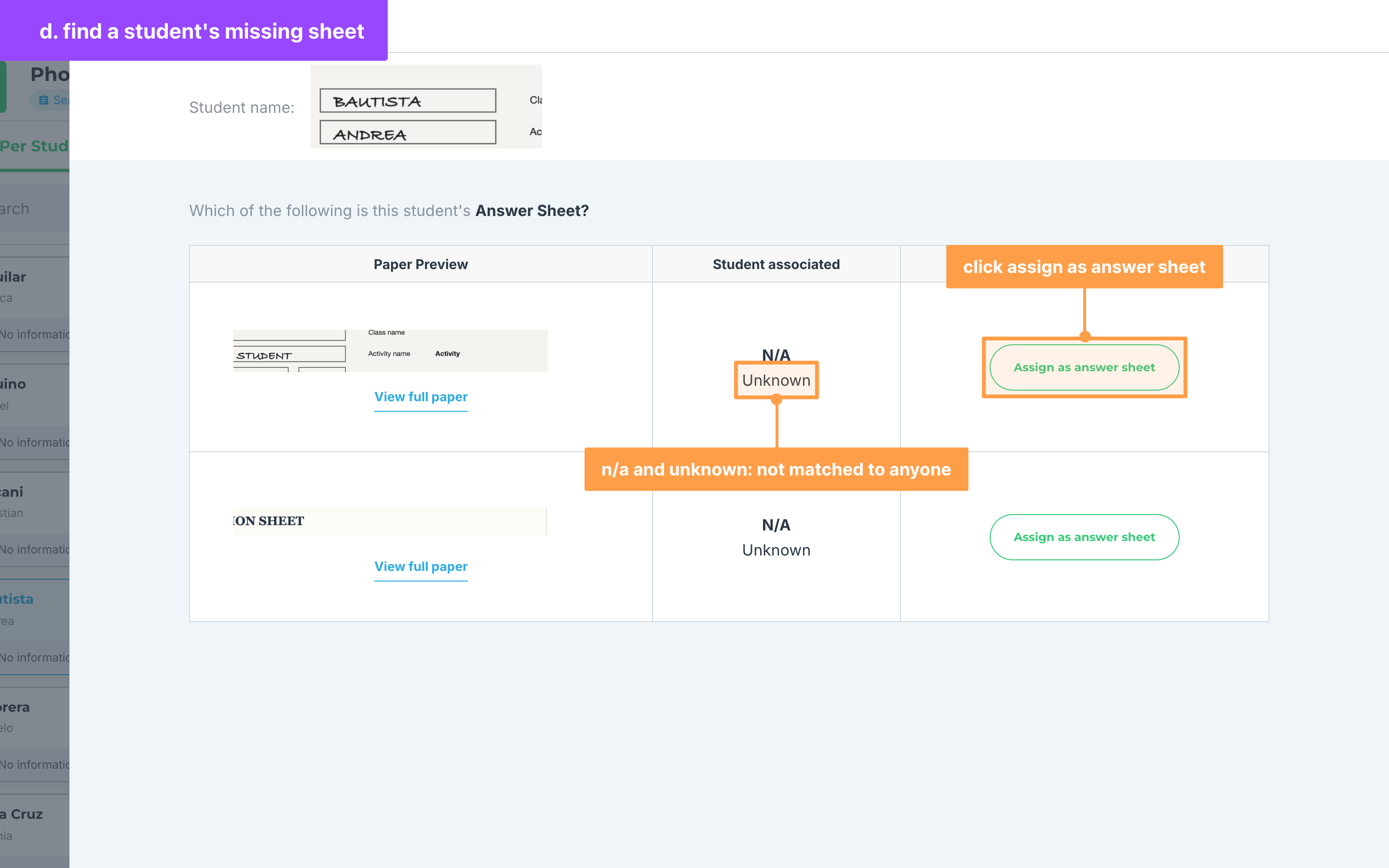
- A paper showing N/A and Unknown was not matched to anyone. It is usually the sheet you are looking for.
- A paper showing a student's name belongs to that student now. Assigning it moves it to the student you are fixing.
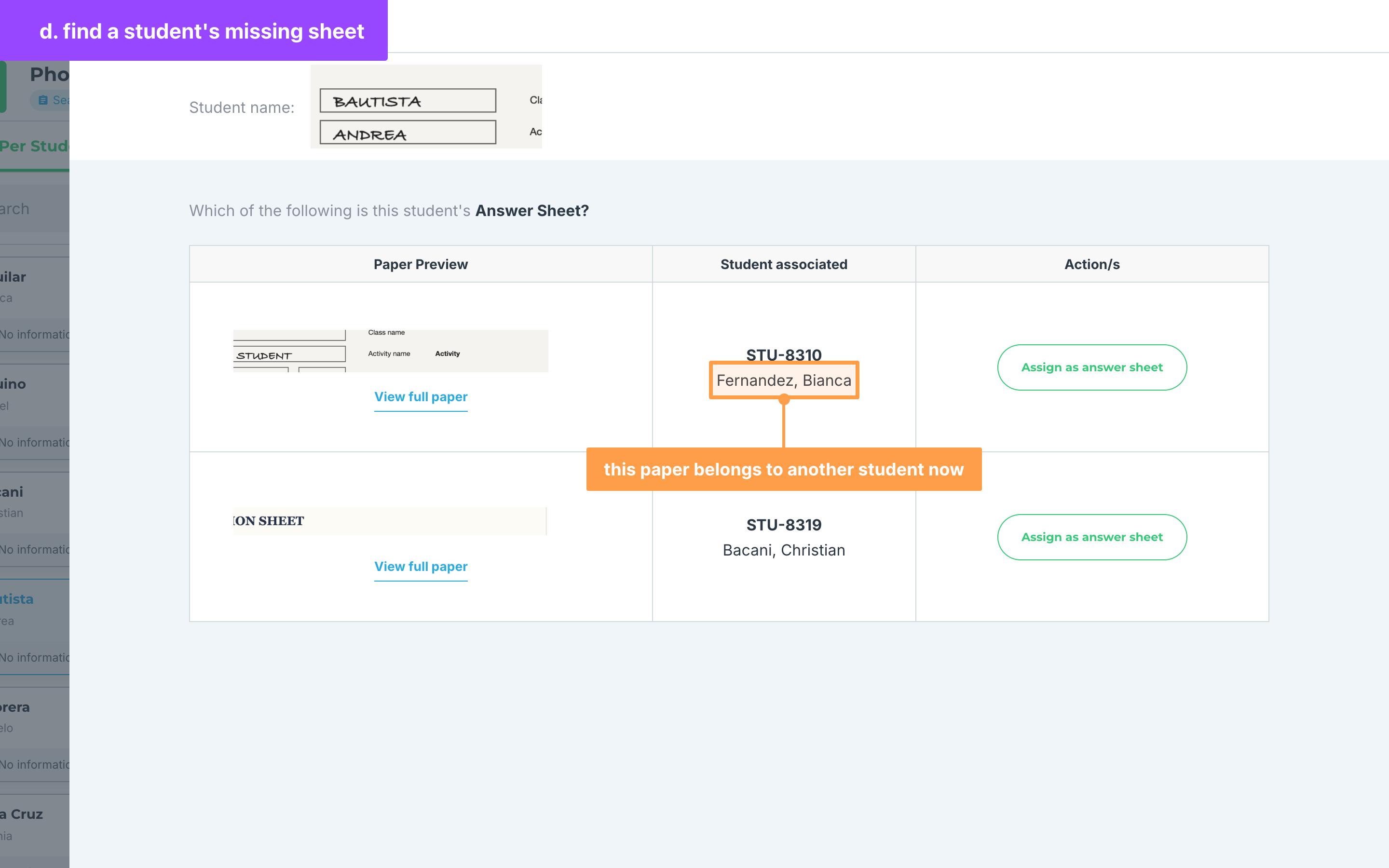
- Finally, click Assign as answer sheet or Assign as information sheet on the right paper. Once "Answer sheet saved successfully!" or "Information sheet saved successfully!" shows, the modal closes and the paper now belongs to the student.
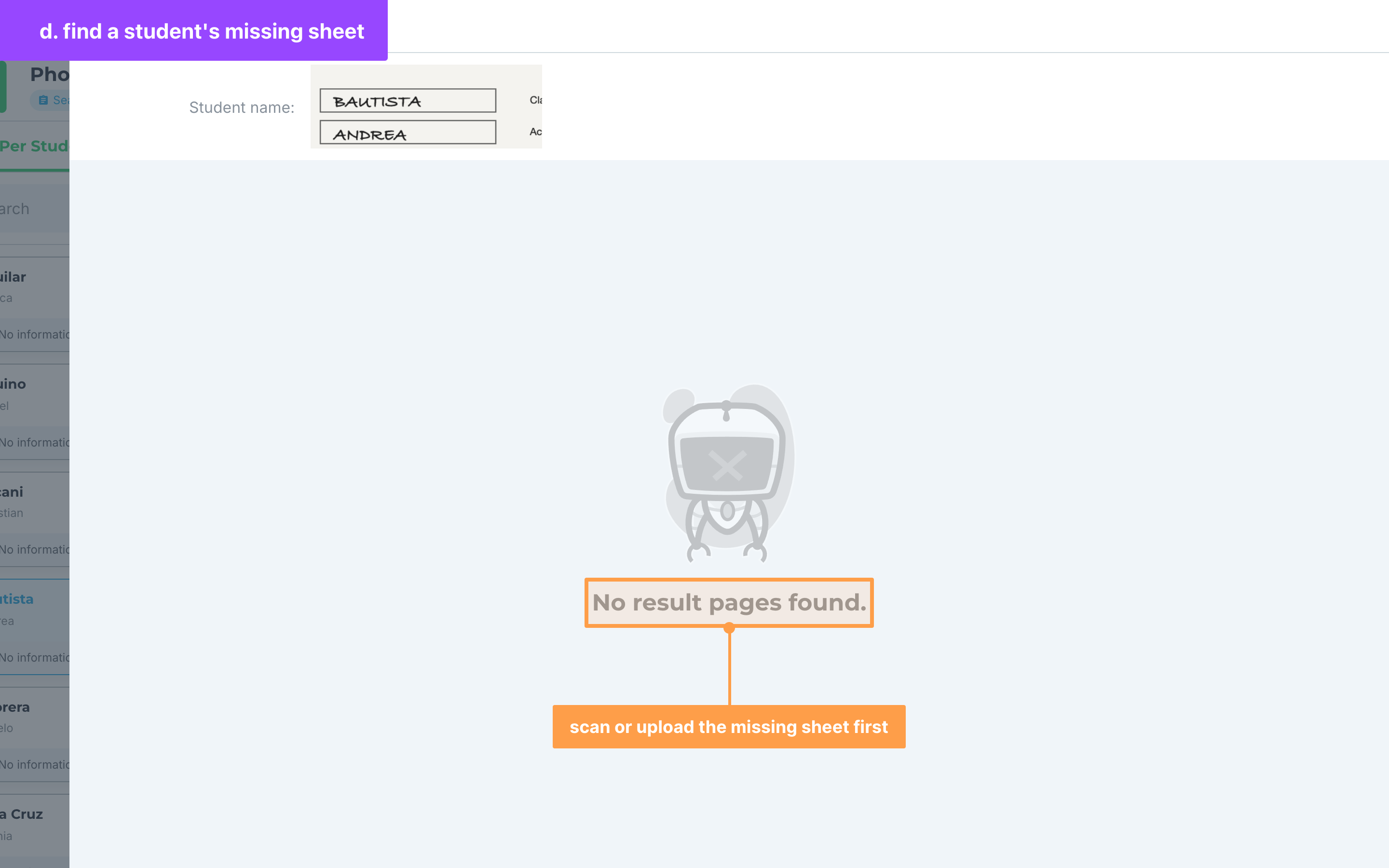
If no paper is listed
"No result pages found." means no scanned paper could be this student's sheet yet. Scan or upload the missing sheet first, then find it again.
If you cannot assign a paper
The assign buttons are disabled with "Resolving issues. Please wait for a while..." while the student's result is still processing or another paper is being assigned. Wait, then try again.
If "Something went wrong. Please try again later. If issue persists, please contact our customer support." shows, the paper was not assigned.
If a student has the wrong sheet
- Click View information sheet above the student's answers, or View Answer Sheet beside the line that says which items are located in the answer sheet.
- In the banner that asks Not this student's information sheet? or Not this student's answer sheet?, click Find information sheet or Find answer sheet, then follow steps 3-4.
While the student's result is being regraded, the find button is disabled with "Regrading in progress. Please wait to reassign pages."
If you want to remove a student's sheets
On a computer, click Delete student's information & answer sheets, or Delete student's information sheet when the answer sheet is missing. In the Delete results? modal, click Yes, delete. The sheets are permanently deleted and no longer recorded in the activity.
What is different in a mock board class
- Activity cards and the View Activity modal have no Download answer sheet & questionnaire of their own, and the modal has no View activity reviewer.
- An activity card shows its sets and its Activity Code: once the activity has sets.
- The Results tab has no unmatched papers list and no test tabs. Before any paper is checked, it says "The results are not available yet."
- The class code your students join with has no number added after a dash.
- When you link a regular activity to other classes, mock board classes are not listed.
- A teacher you shared the class with who can only view it does not see the download, the find links or the delete button.
And that's how you run a mock board class in GradeChum! Next, let's explore activity credits and school licenses.