
Activity credits and school licenses
Introduction
Once GradeChum has checked your students' papers, the results are ready for you in the activity's Results tab. If your school has a GradeChum license, every result and every activity action is open to you. If it does not, an activity's results stay locked until you unlock them.
Your first check is free: upload a photo of your DepEd school ID and the results open. After that, each activity you unlock uses activity credits. In this section, let's explore what locks an activity and how to unlock your results.
What locks an activity's results
If your school has no license, an activity's results are locked once more than 3 of its papers are graded. You can view the first 3 results for free.
While an activity is locked:
- A lock card takes the place of the Results, Regrade Requests and Analysis tabs. The Items tab stays open.
- Edit, Export results and Discuss with students show a yellow lock in the activity's menu and cannot be clicked.
- Release results does not show, unless you already released the results.
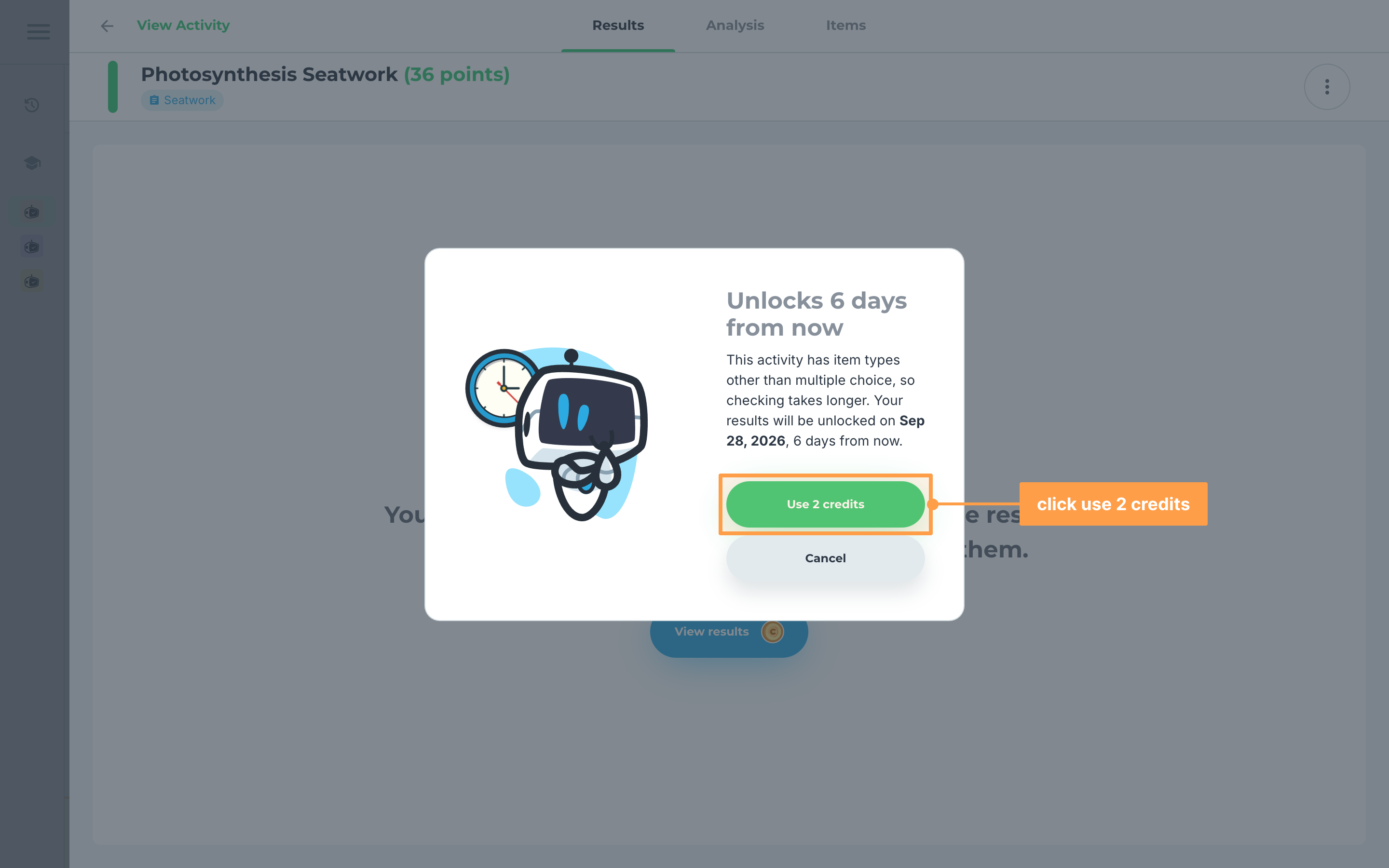
Unlocking an activity uses 1 activity credit when all its items are multiple choice, and 2 activity credits when it has other item types. Results unlocked with 2 credits open 6 days after you unlock them, because checking those items takes longer.
One unlock opens one activity for one class. If an activity is in several classes, you unlock it, and use credits, for each class.
Steps
Note: Your phone number must be verified before you can unlock any results. Until then, the lock card says "Results are ready, but you need to verify your phone number first to view the results." Click Verify phone number and follow Verify your email and phone number.
a. Get your first check free
- Go to your class's Activities tab and click the activity card. On the Results tab, the lock card says "Your results are ready." and "Your first check is free. Just upload your DepEd school ID.", with an Upload photo button in the box under it.
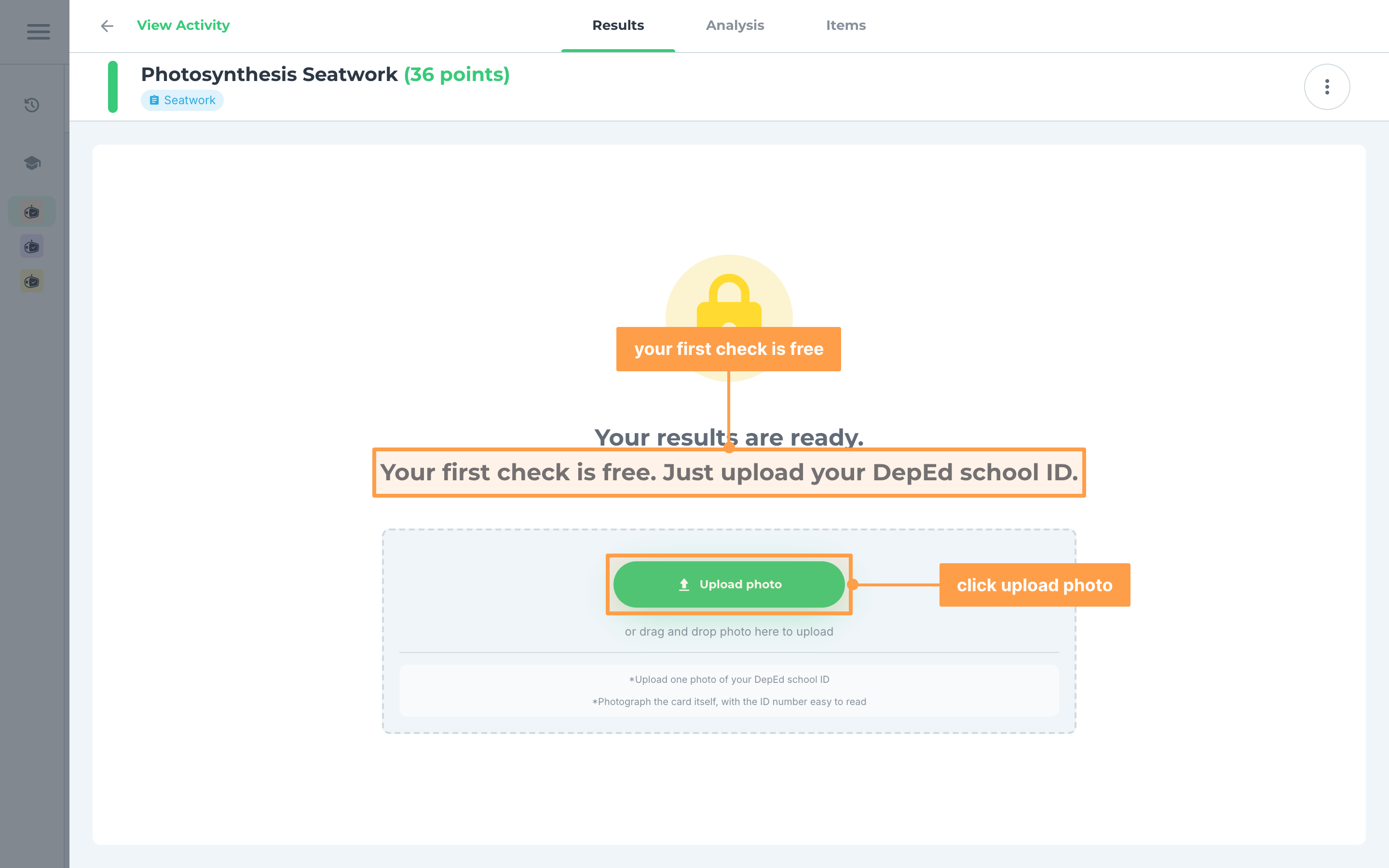
- Click Upload photo and choose a photo of your DepEd school ID, or drag and drop the photo onto the box. Upload one photo of the card itself, with the ID number easy to read. It must be a JPEG, PNG or WebP file of up to 10 MB.
Note: A file of another type, a photo over 10 MB, or more than one photo is not picked. A red message under the box says what to fix.
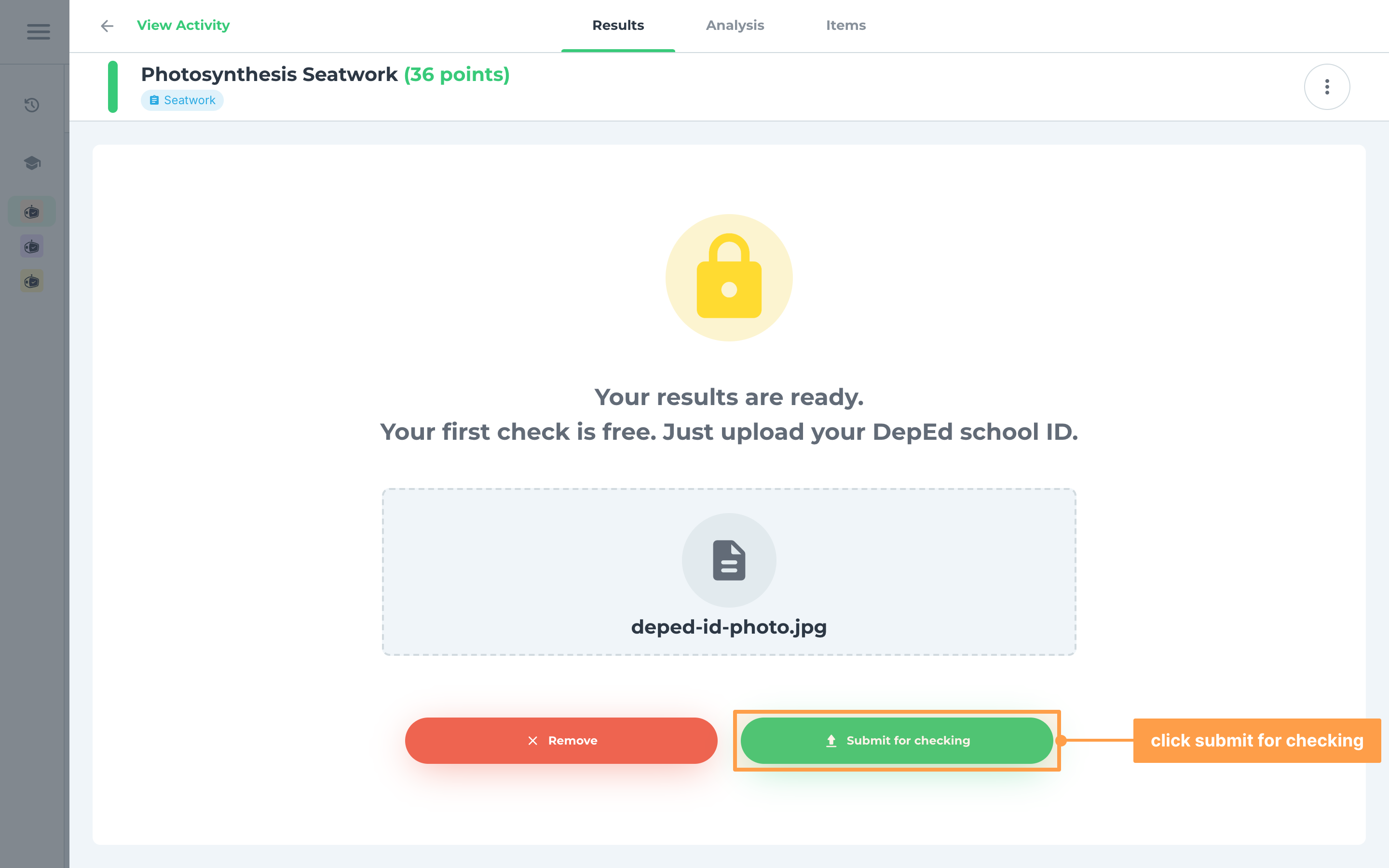
- The box shows the photo's file name. Click Remove to choose another photo, or click Submit for checking.
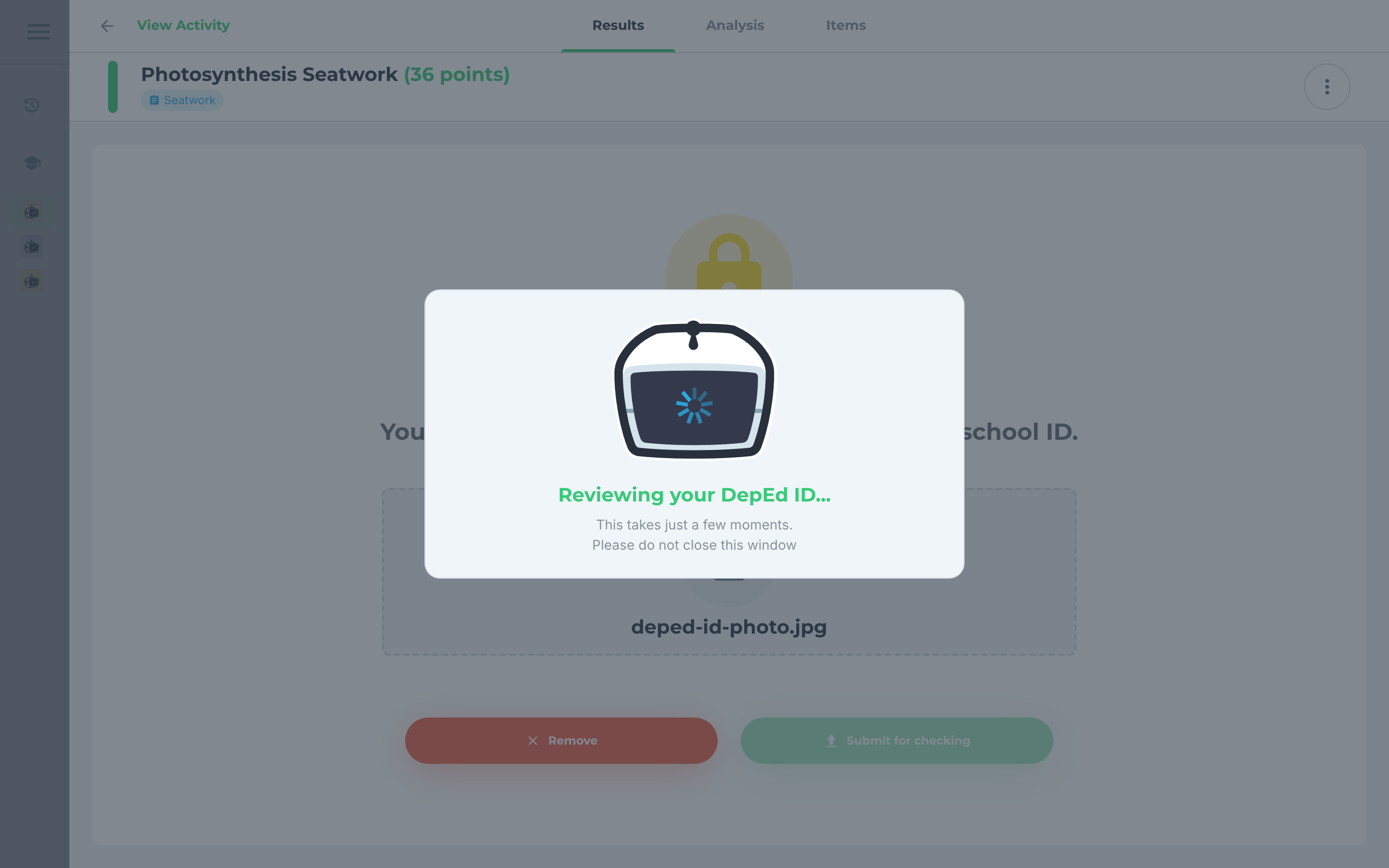
- Reviewing your DepEd ID... shows while we check your photo. This takes a few moments. Keep the window open until it finishes.
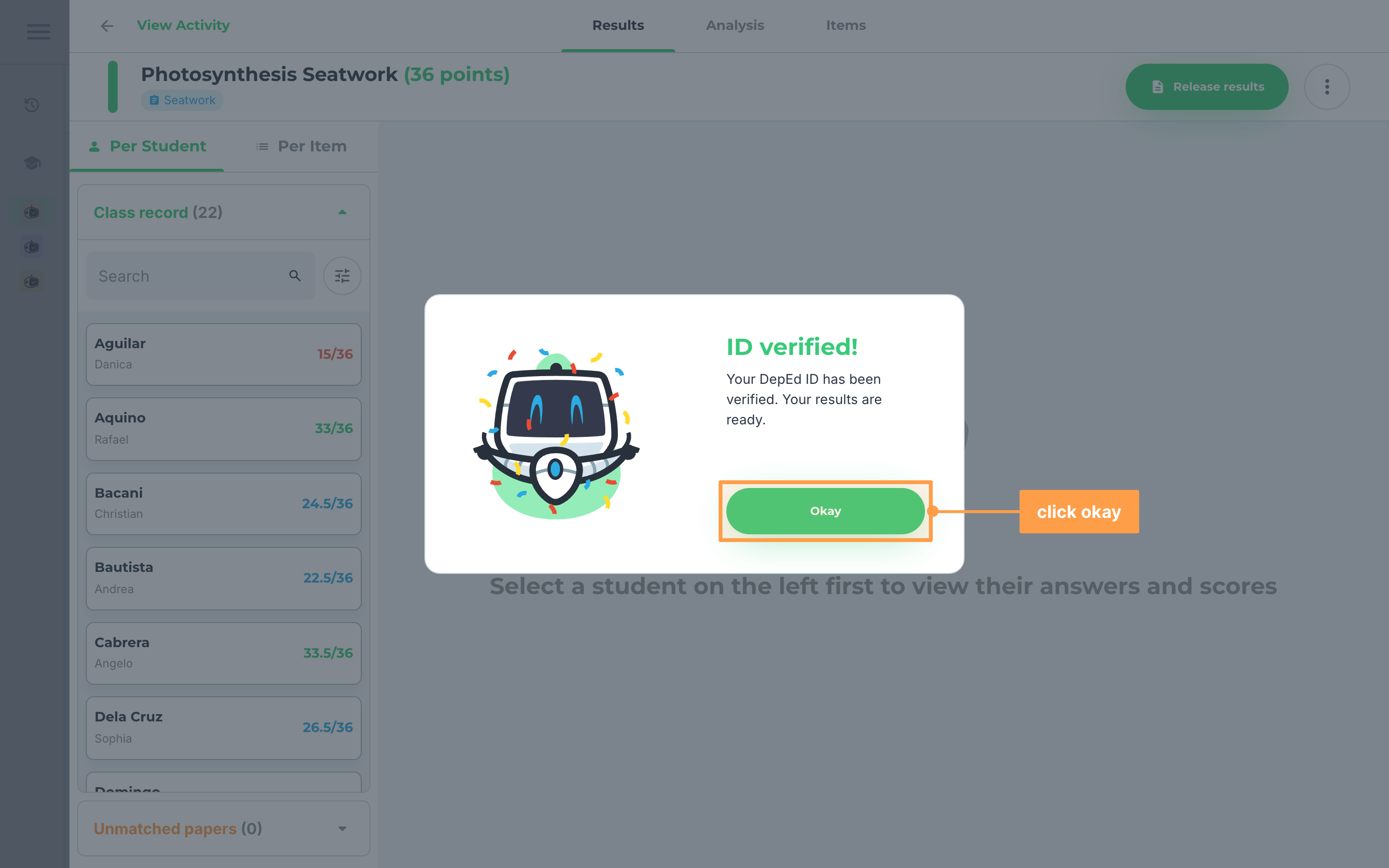
- Finally, when ID verified! shows, click Okay. The activity's results open right away, whether it would have cost 1 or 2 credits, and no credits are used. Other locked activities now use activity credits.
If your DepEd ID is not accepted
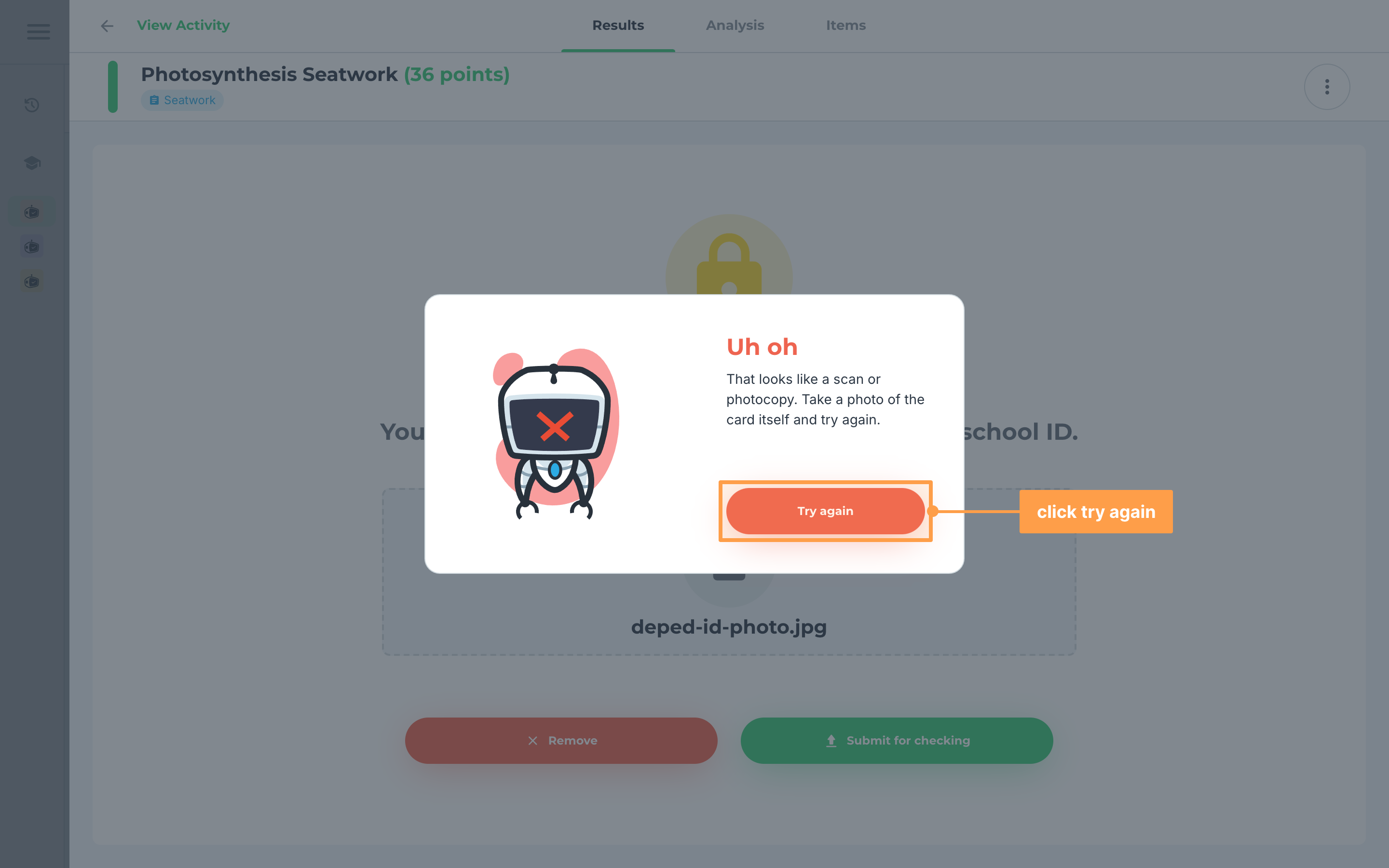
An Uh oh window tells you why. Click Try again or Okay to close it, then do what it asks:
- "That photo doesn't look like a DepEd school ID.": take a photo of your DepEd school ID and submit it again.
- "We couldn't see an ID number on your photo.": take a clearer photo where the ID number is easy to read.
- "That looks like a scan or photocopy.": take a photo of the card itself, not a scan or a photocopy.
- "Upload a JPEG, PNG, or WebP image up to 10 MB.": choose a photo of that type and size.
- "We couldn't check that photo.": the check could not run. Your photo stays picked, so click Submit for checking again.
- "This DepEd ID is already used on another account.": a DepEd ID works on one GradeChum account only. Log in to the account that used it.
- "Too many attempts. Try again later.": you have checked too many photos for now. Wait and try again later.
Your photo stays picked after "That photo doesn't look like a DepEd school ID." and after "We couldn't check that photo." After every other answer, choose a photo again before you submit.
b. Unlock results with activity credits
- Open the locked activity's Results tab. The lock card says how many credits it uses: "Results are ready, but you need to use 1 activity credit to view them." for an all multiple-choice activity, or "You need to use 2 activity credits to unlock these results." for one with other item types. Hover the coin on View results to see the same number.
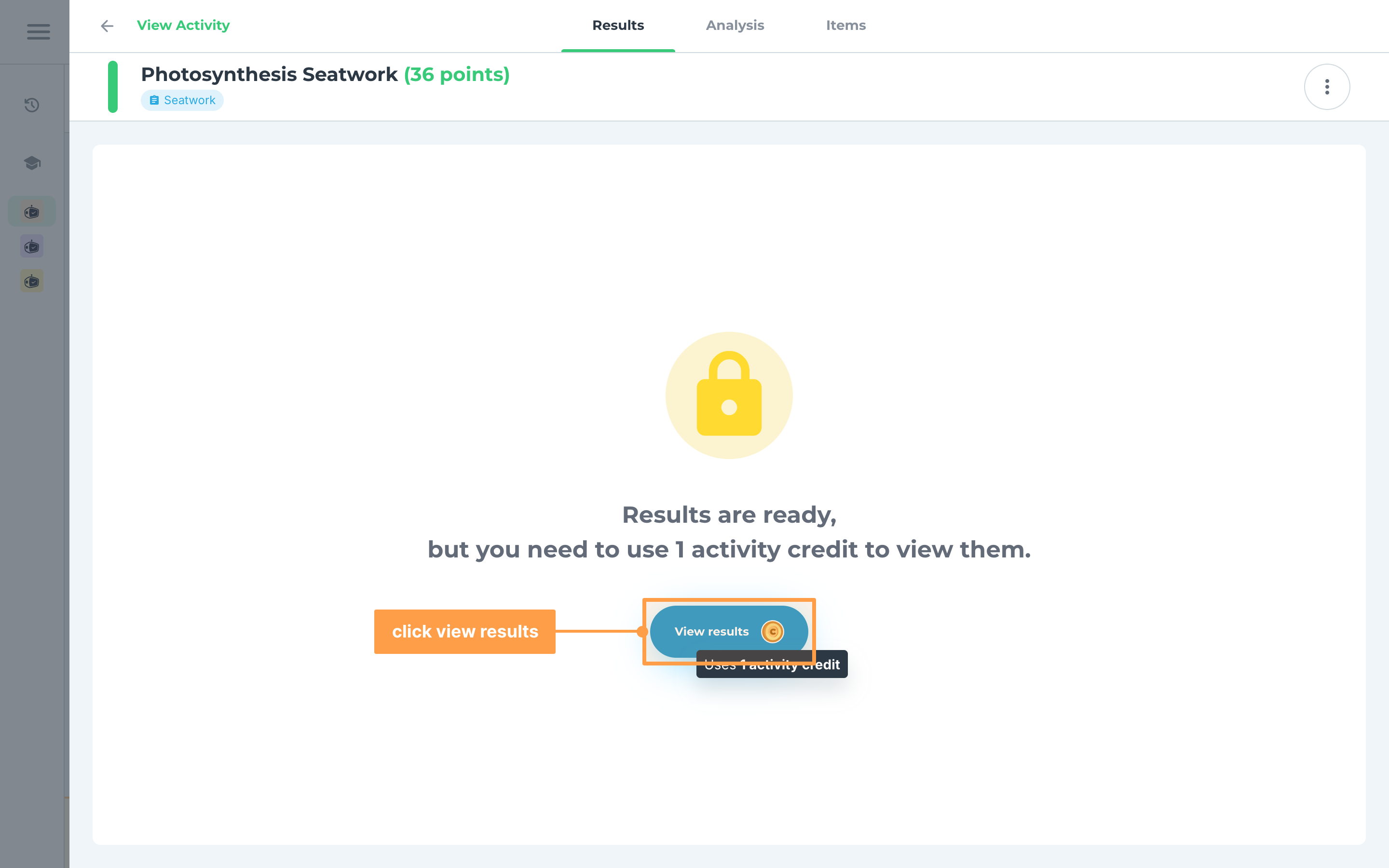
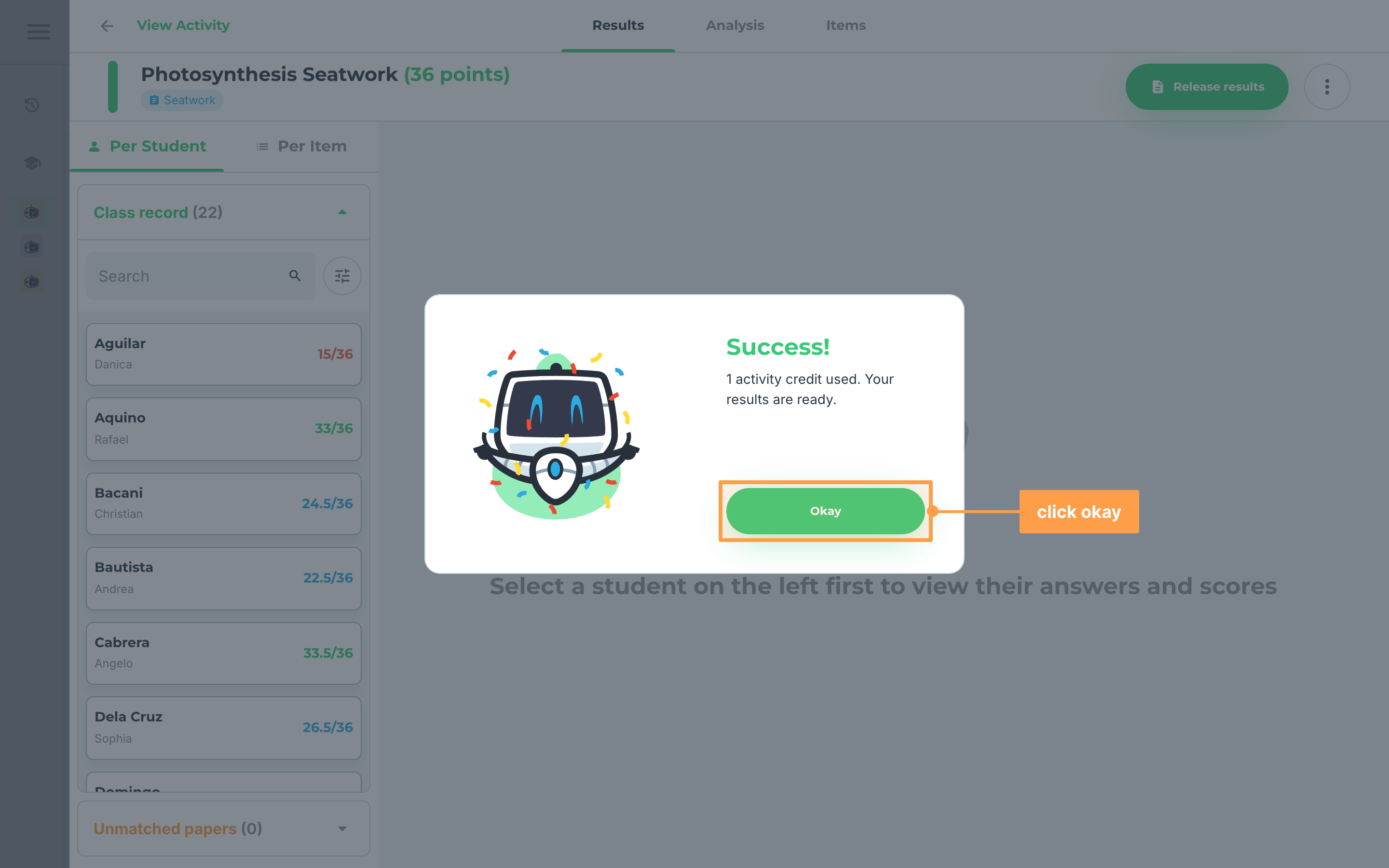
- Click View results. For a 1-credit activity, the credit is used at once and Success! says "1 activity credit used. Your results are ready." Click Okay to see the results.
- For a 2-credit activity, the Unlocks 6 days from now modal names the date your results open. Click Use 2 credits to unlock, or Cancel to keep your credits.
- Finally, Success! says "2 activity credits used. Results will be unlocked on" that date. Click Okay. Until then, the lock card says "Results will be unlocked on" the date, and the results open on their own that day.
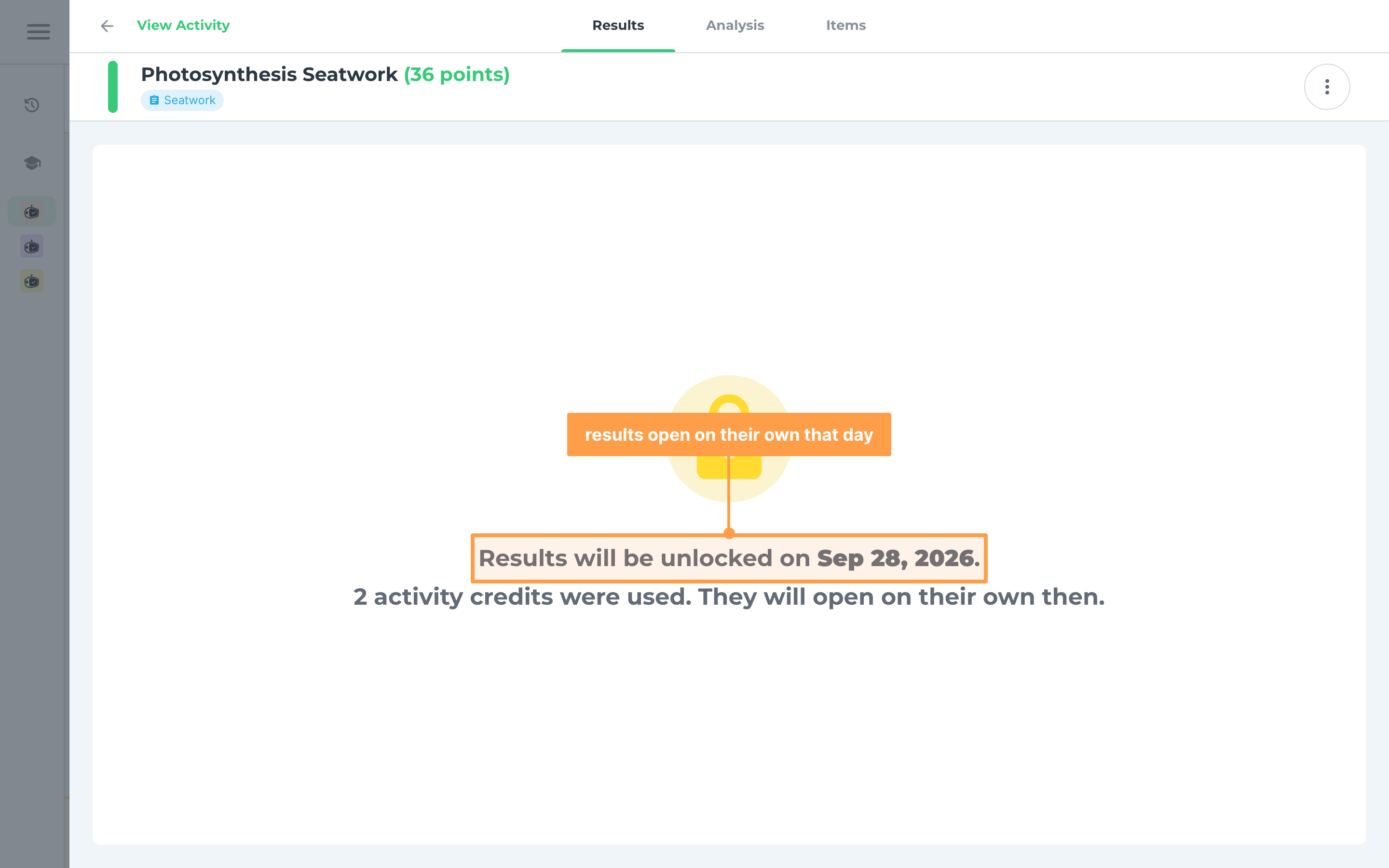
c. Unlock from the activity's menu
- On the Activities tab, click the ⋮ button on the activity card. A locked Edit, Export results or Discuss with students shows a yellow lock. You can also find them in the open activity's menu.
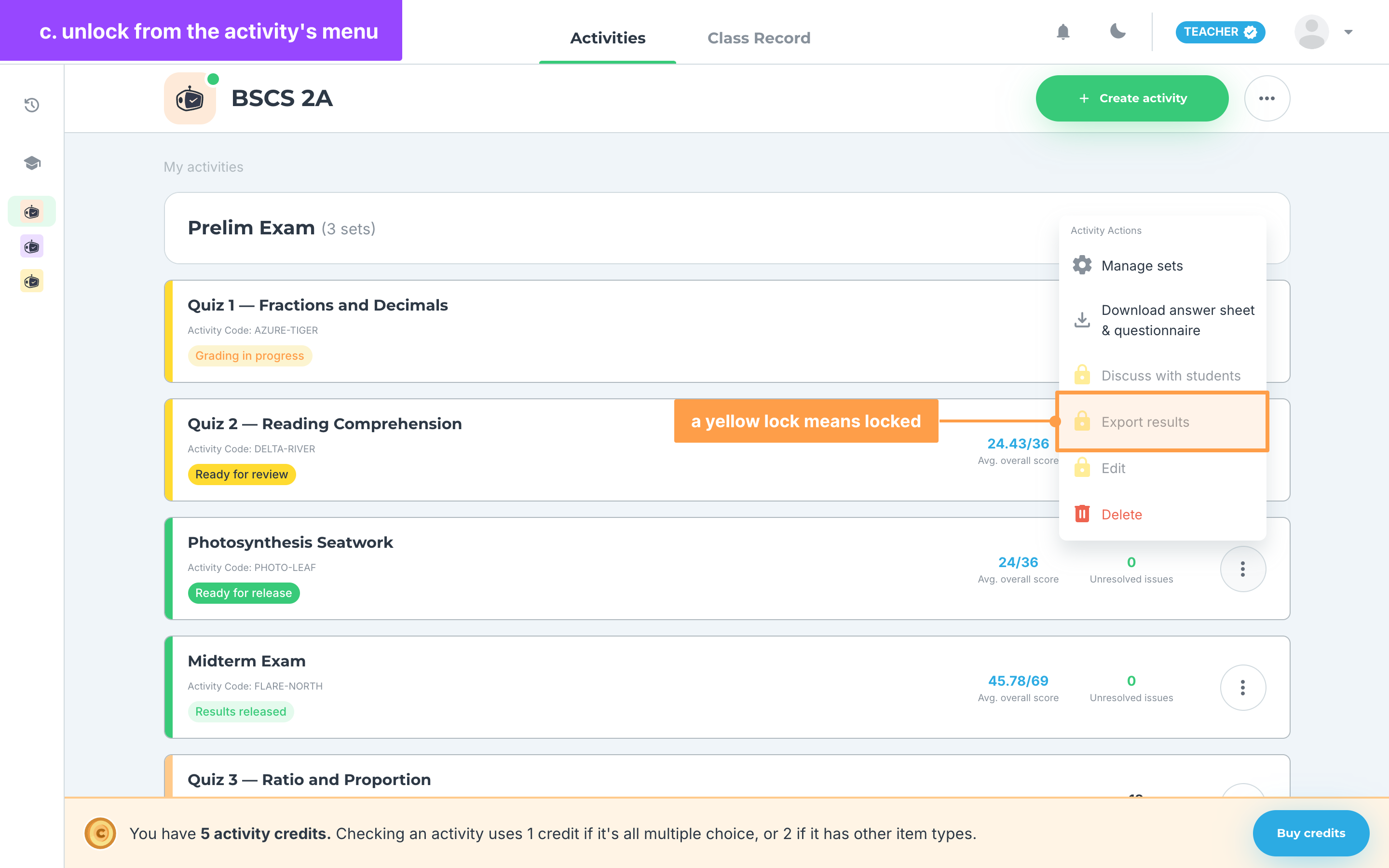
- Hover the locked item to see why it is locked and what to do:
- "Your first check is free. Open the activity's Results to upload your DepEd school ID.": click Open Results and follow part a above.
- "This option is currently unavailable because you haven't used an activity credit to unlock this activity yet.": click View results to unlock it.
- "You need 1 more activity credit.": you do not have enough credits. Click Buy credits.
- "Results will be unlocked on" a date: you already unlocked it, and the results open on their own that day.
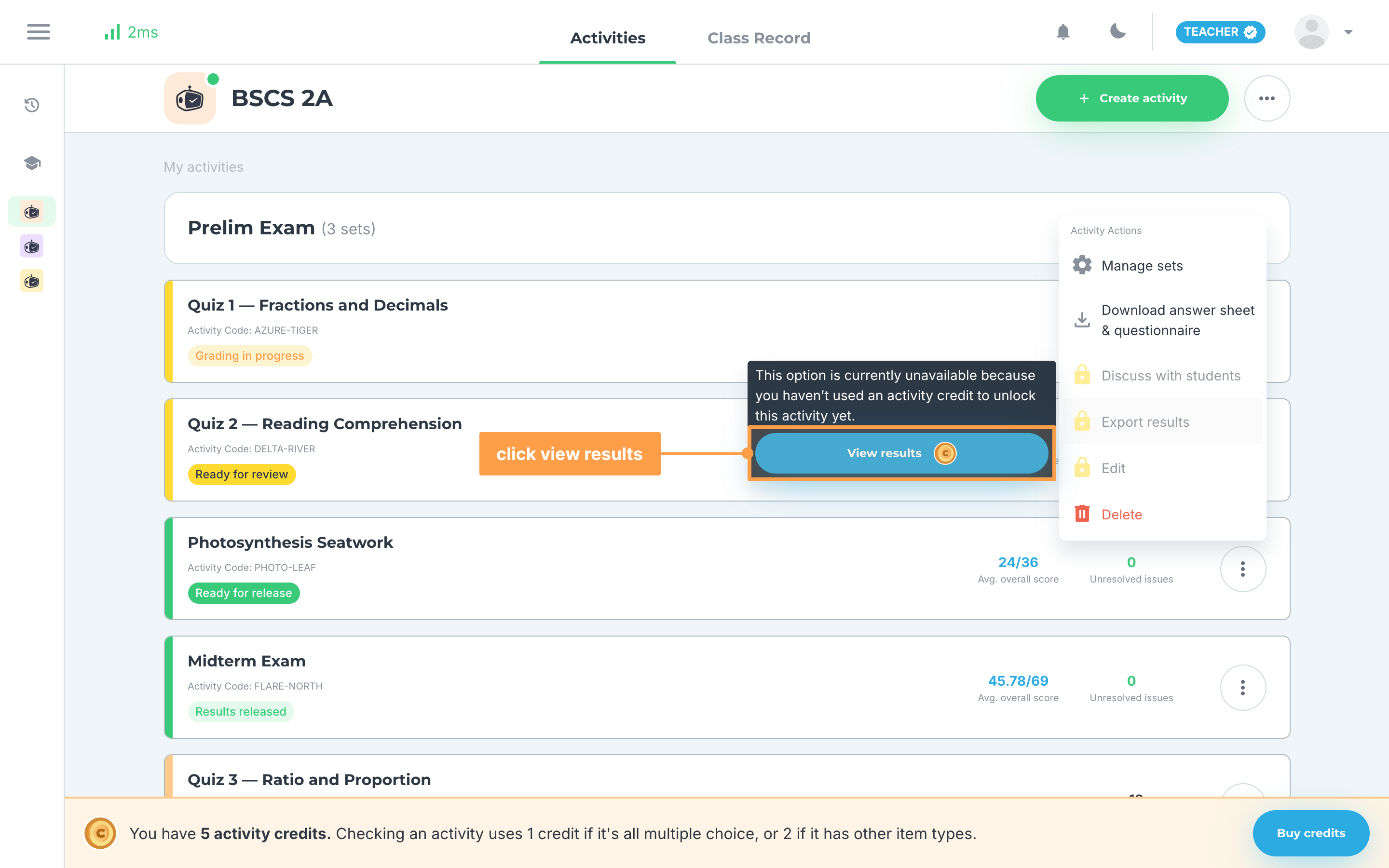
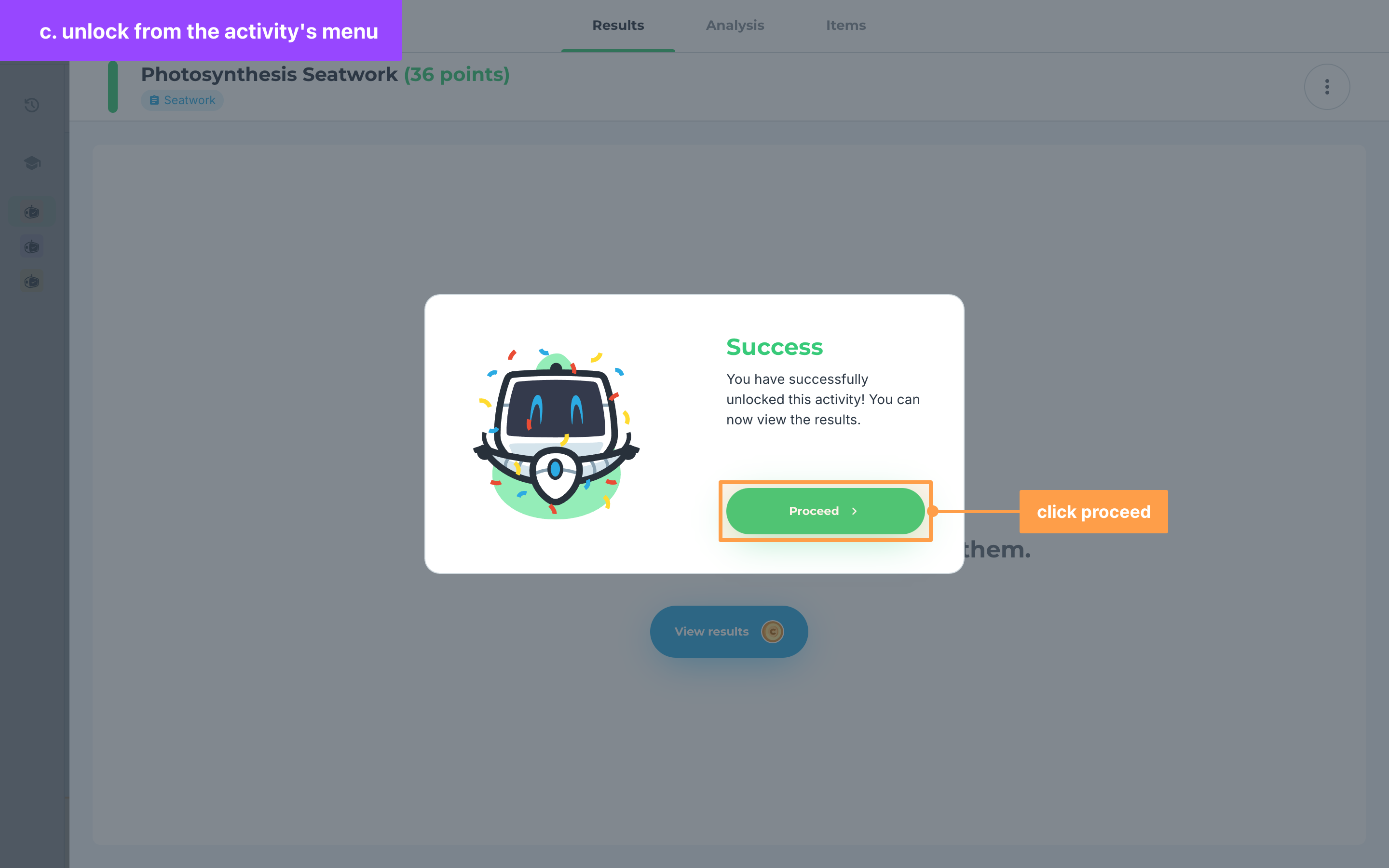
- Finally, click View results. A 1-credit activity unlocks at once, and Success says "You have successfully unlocked this activity! You can now view the results." Click Proceed. A 2-credit activity opens Unlocks 6 days from now first. After you click Use 2 credits, a message at the bottom right says when the results open.
If you do not have enough credits
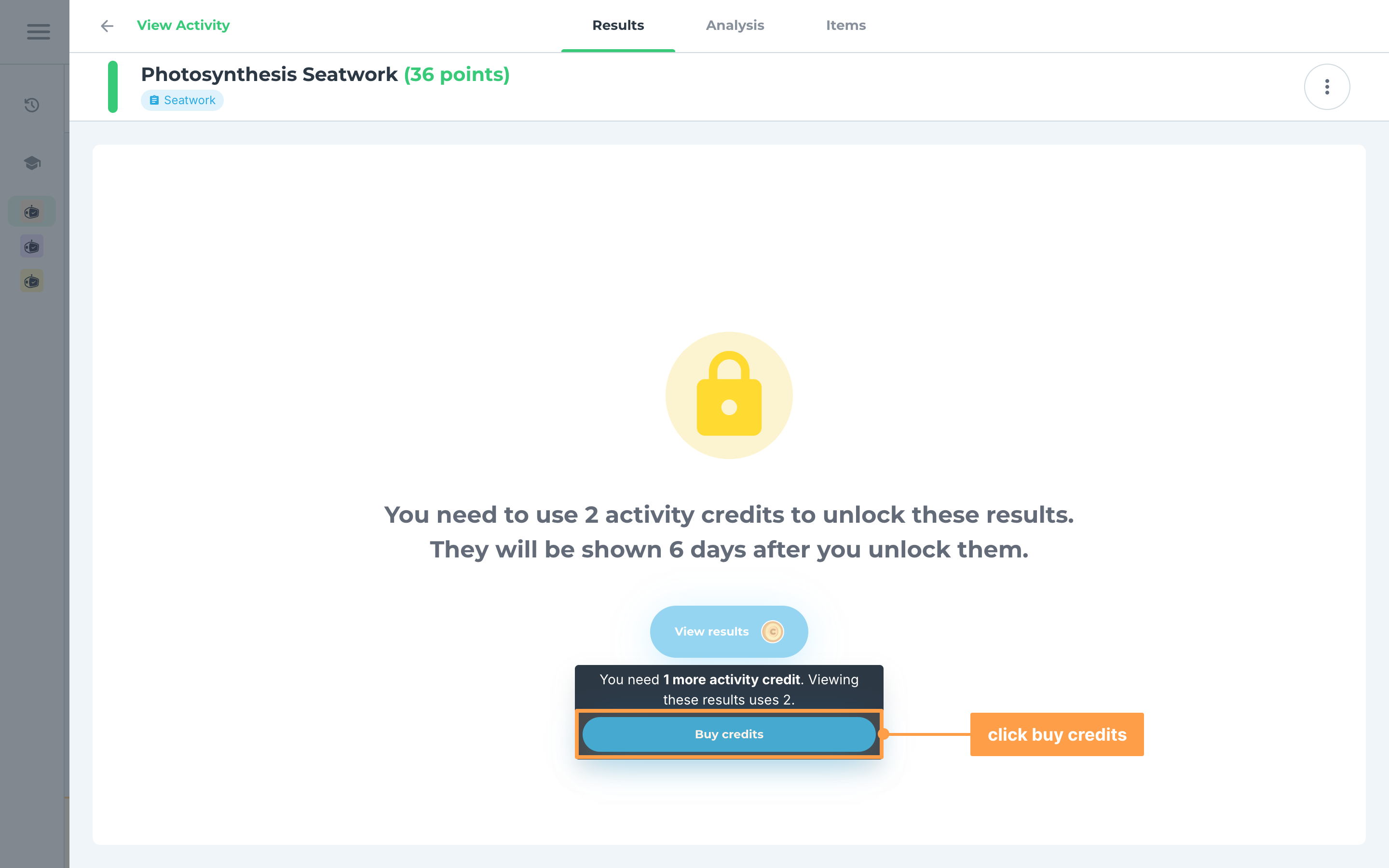
When your balance is lower than what an activity uses, View results is grayed out. Hover it to see "You need 1 more activity credit. Viewing these results uses 2." Click Buy credits to get more. See Buy activity credits.
Your activity credits
After your DepEd ID is verified, a strip at the bottom of your teacher pages shows your balance: "You have 5 activity credits. Checking an activity uses 1 credit if it's all multiple choice, or 2 if it has other item types." Click Buy credits on the strip to buy more.
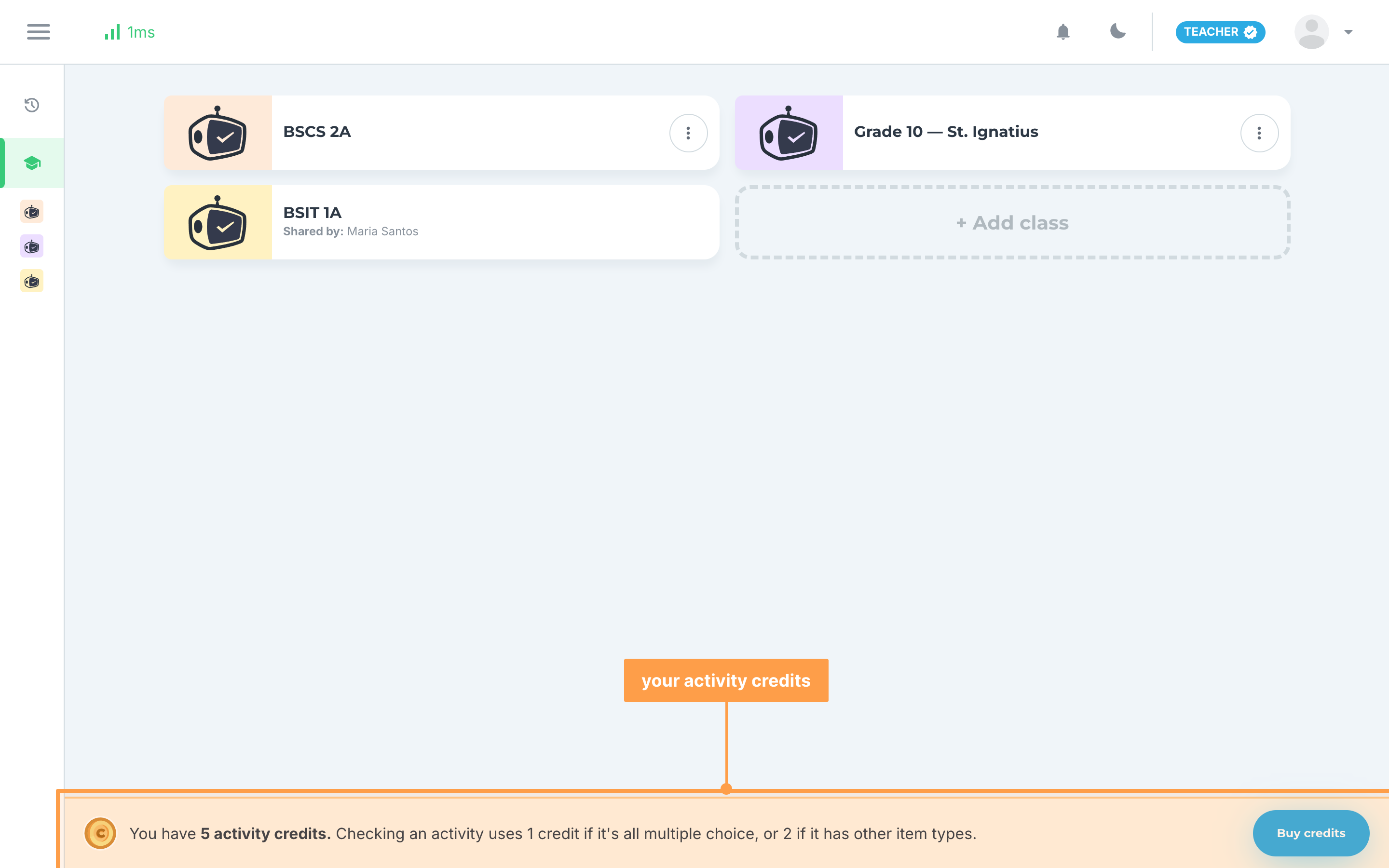
The strip hides while you view an activity whose results are open. On a phone or a small tablet, it shows only on My classes, your past classes and your account settings.
If you have more students than allowed
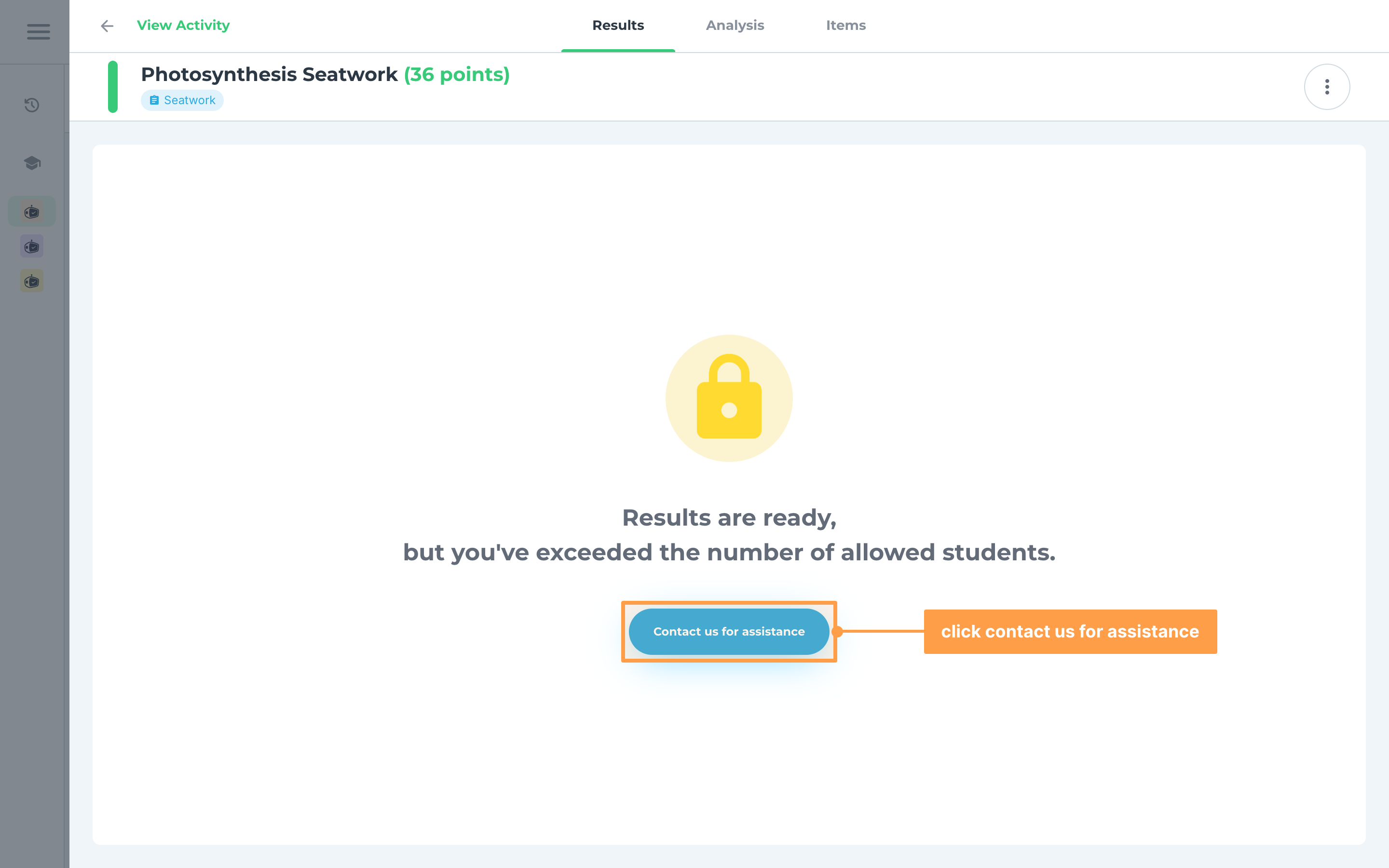
An activity allows a set number of students. When more papers than that are graded, the lock card says "Results are ready, but you've exceeded the number of allowed students." and the locked menu items say the same. Click Contact us for assistance to chat with us about it.
Unverified phone number
Until your phone number is verified, Export results on an activity, Export in the class's ⋯ menu and Export as Excel in the Class Record are locked too. Hover them to see "This option is not available for unverified teachers. Please verify your phone number first." and click Verify phone number.
School licenses
When your school has a GradeChum license that has not expired, you never see a lock card, a locked menu item, the credits strip, the DepEd ID check or a student limit. Export works without a verified phone number, and you can share your classes with other teachers. See Share a class with another teacher.
To get a license for your school, email us at info@gradechum.com. Without one, you can keep using your free first check and activity credits.
And that's how you unlock your activity results in GradeChum! Next, let's buy activity credits.