
♻️
Reuse
Introduction
If you've already created an activity for a class and want to give the same activity to another class, you can accomplish this by utilizing GradeChum's Reuse Activity feature.
In this article, we will go into detail on how to reuse an activity or a set in GradeChum.
Steps
To reuse an activity on a class in GradeChum, follow these steps:
- On the class where you want to give the same activity, under the Activities tab, click the + Create Activity > Reuse old activity. This will open a sidebar modal that lists one class at a time. Use the Class: dropdown at the top of the modal to switch to the class you want to reuse an activity from.
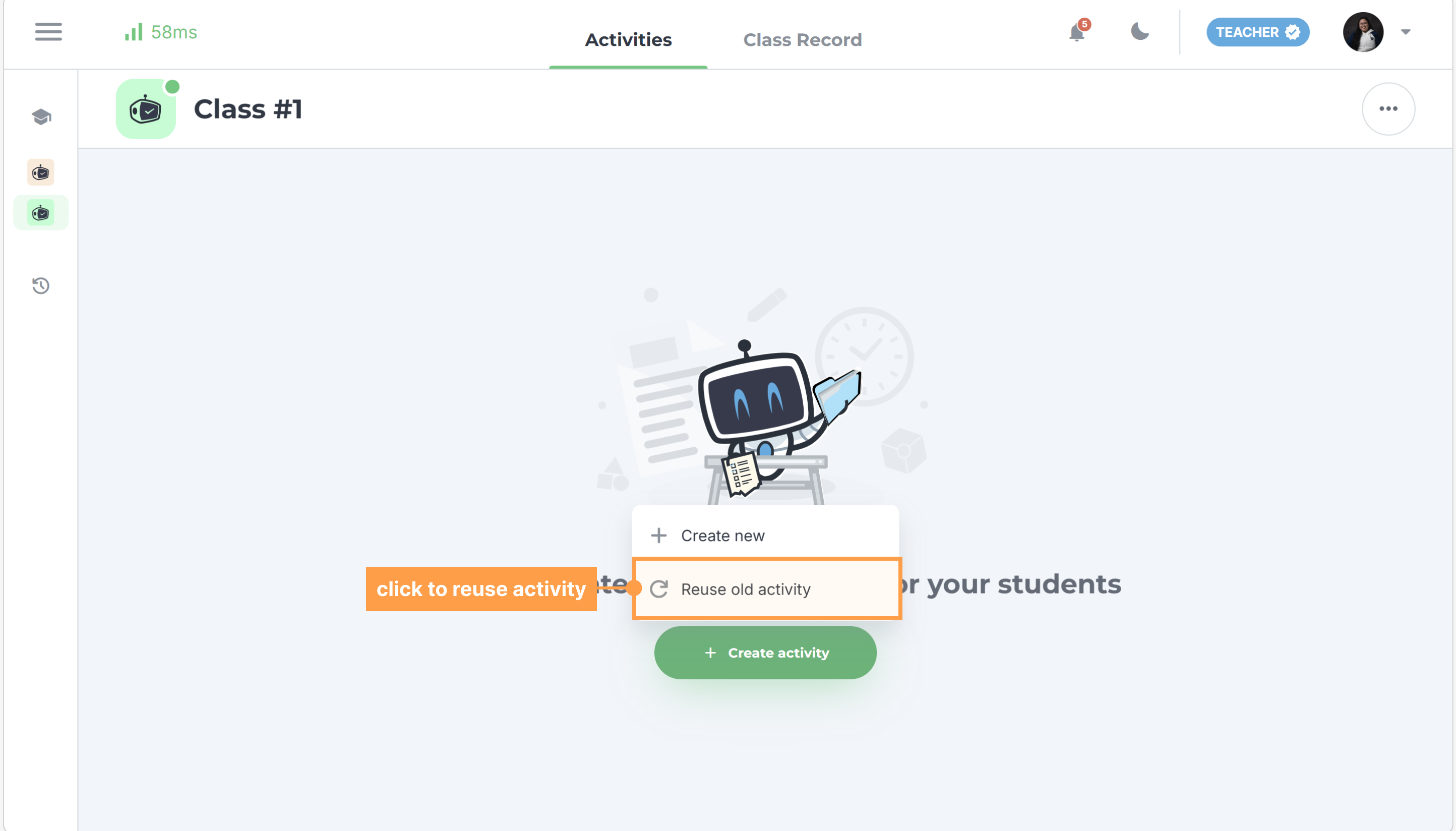
- To reuse an activity in GradeChum, there are two ways to do it:
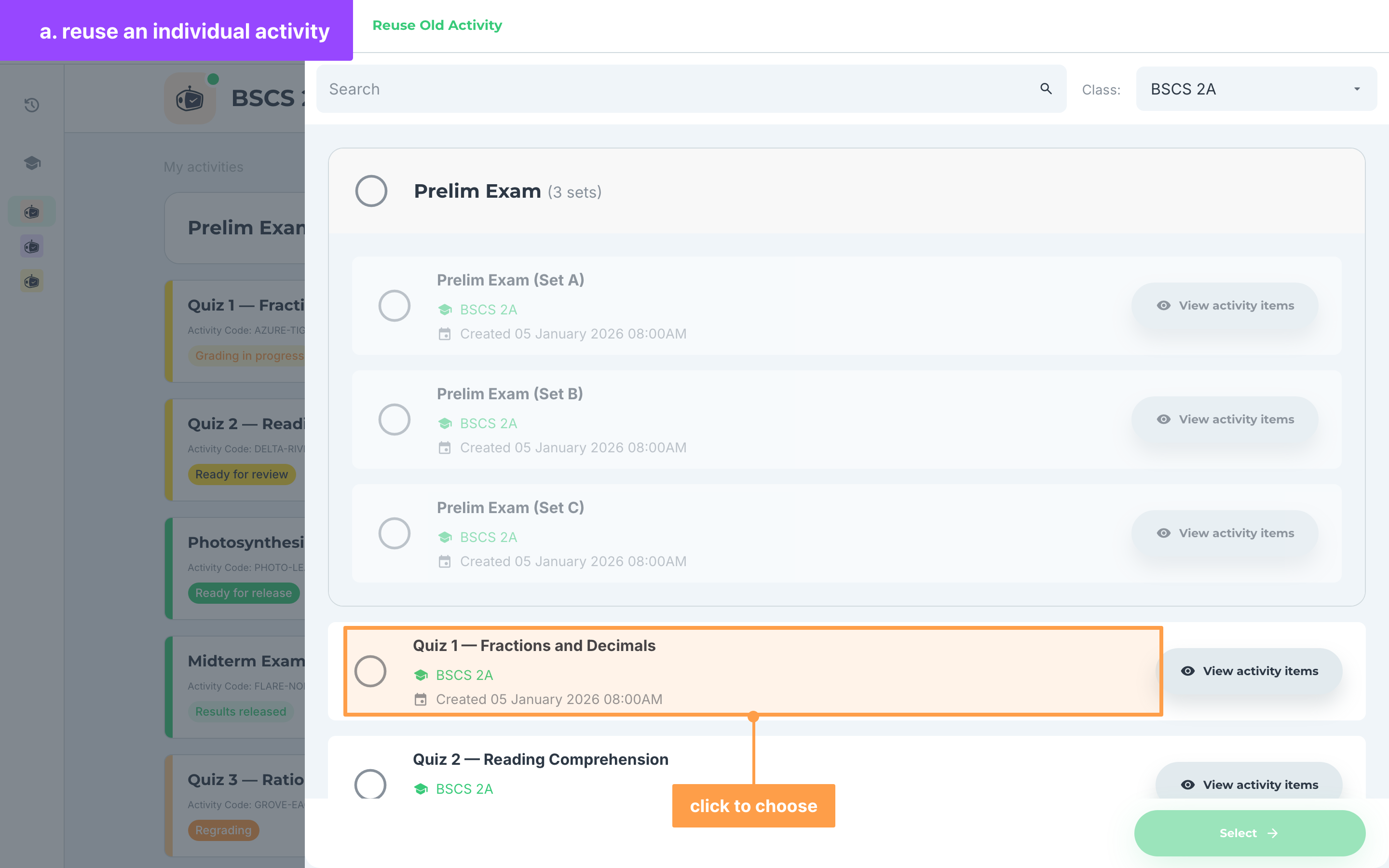
a. Reuse an individual activity
- Select an existing individual activity you wish to reuse. Activities that sit inside a set cannot be picked on their own, so select the whole set instead if that is the one you need.
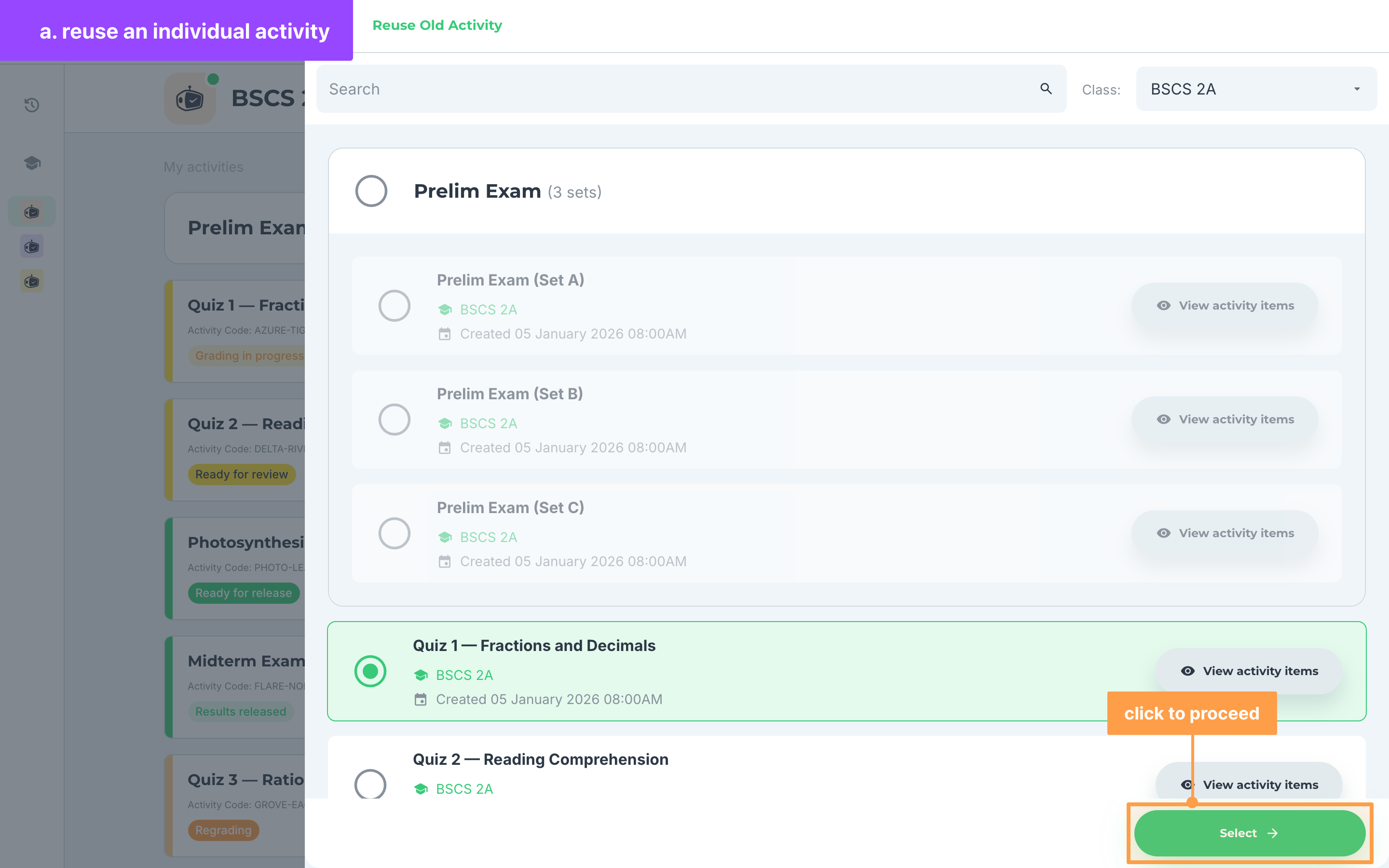
- Click the Select button to proceed. This will open the Create Activity page, but with all the information pre-filled from the activity you reused.
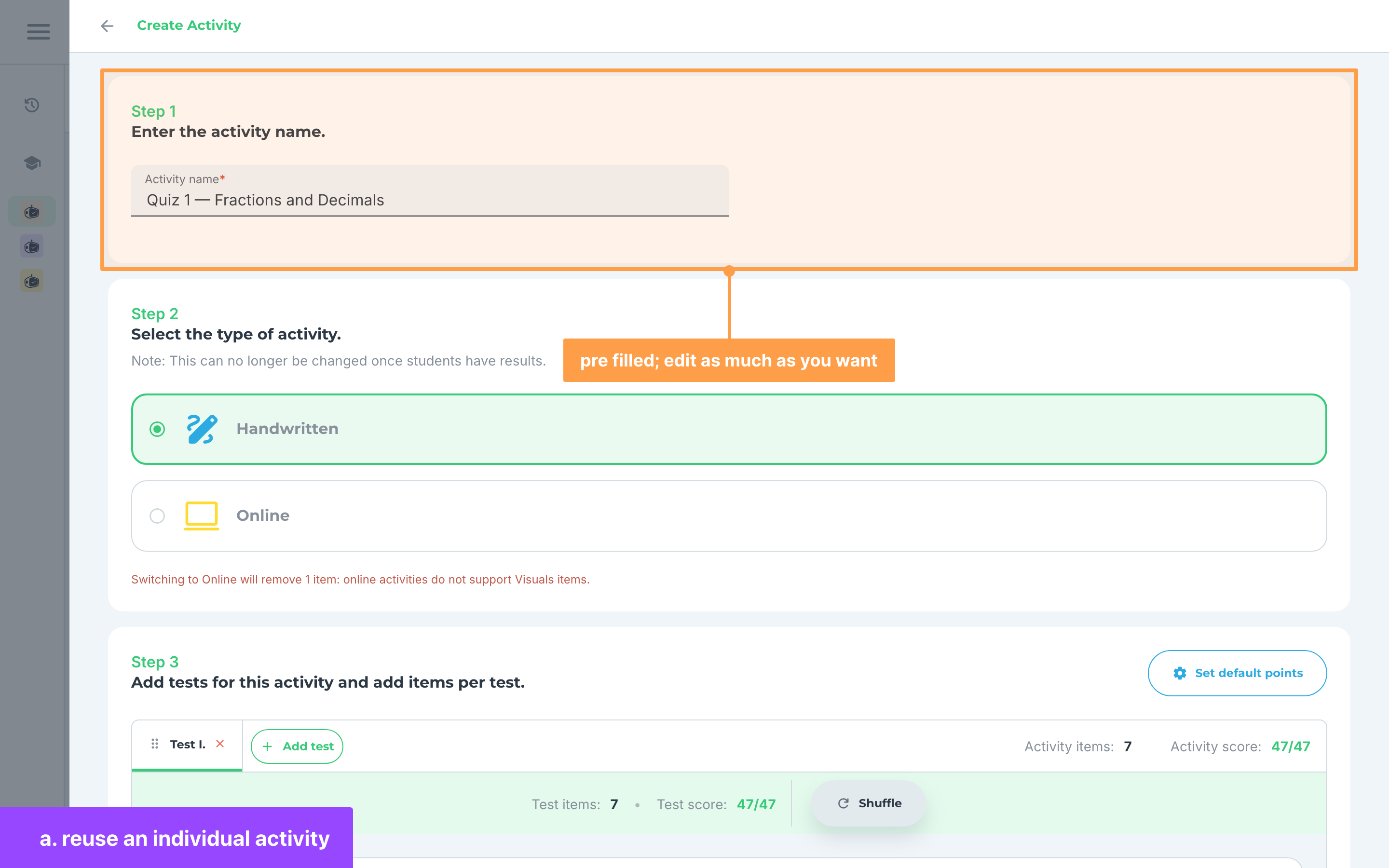
- Edit any part of the activity that you wish: the name in Step 1, the Handwritten or Online type in Step 2, or the items and rubrics in Step 3. Do not worry, this will not affect the original activity that you're reusing it from as this is an independent activity that only copied the contents.
- Once finalized, click the Create activity button at the foot of the page. You will be shown an overlay that asks whether you want to generate shuffled item sets for this activity.
Note: You may also opt to create a copy of your activity to other classes. Keep in mind that what changes you make in one section for a linked activity will be done as well to the activities in other classes.
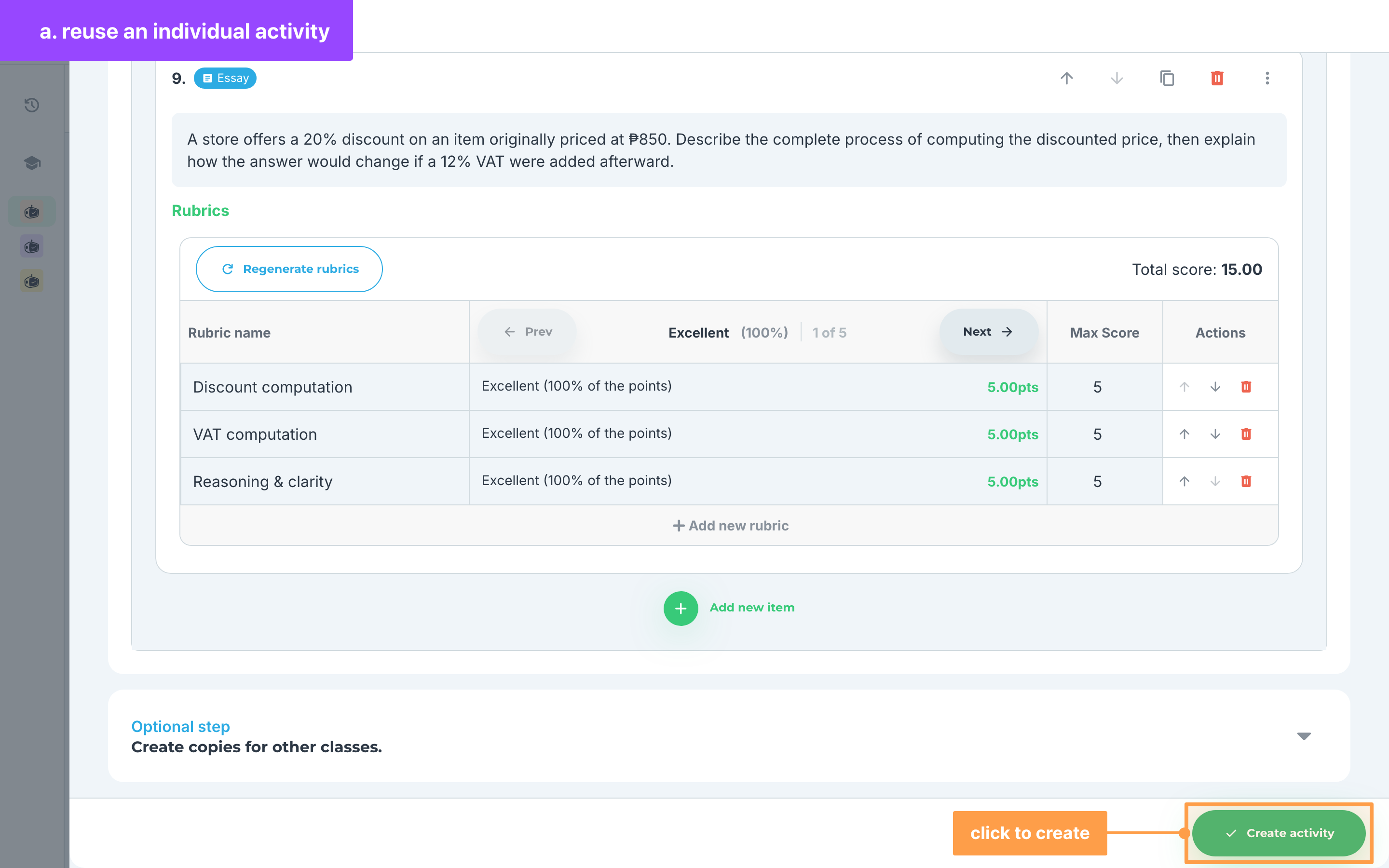
- If you wish to create sets, click Autogenerate set/s and follow this documentation. Else, click "No thanks".
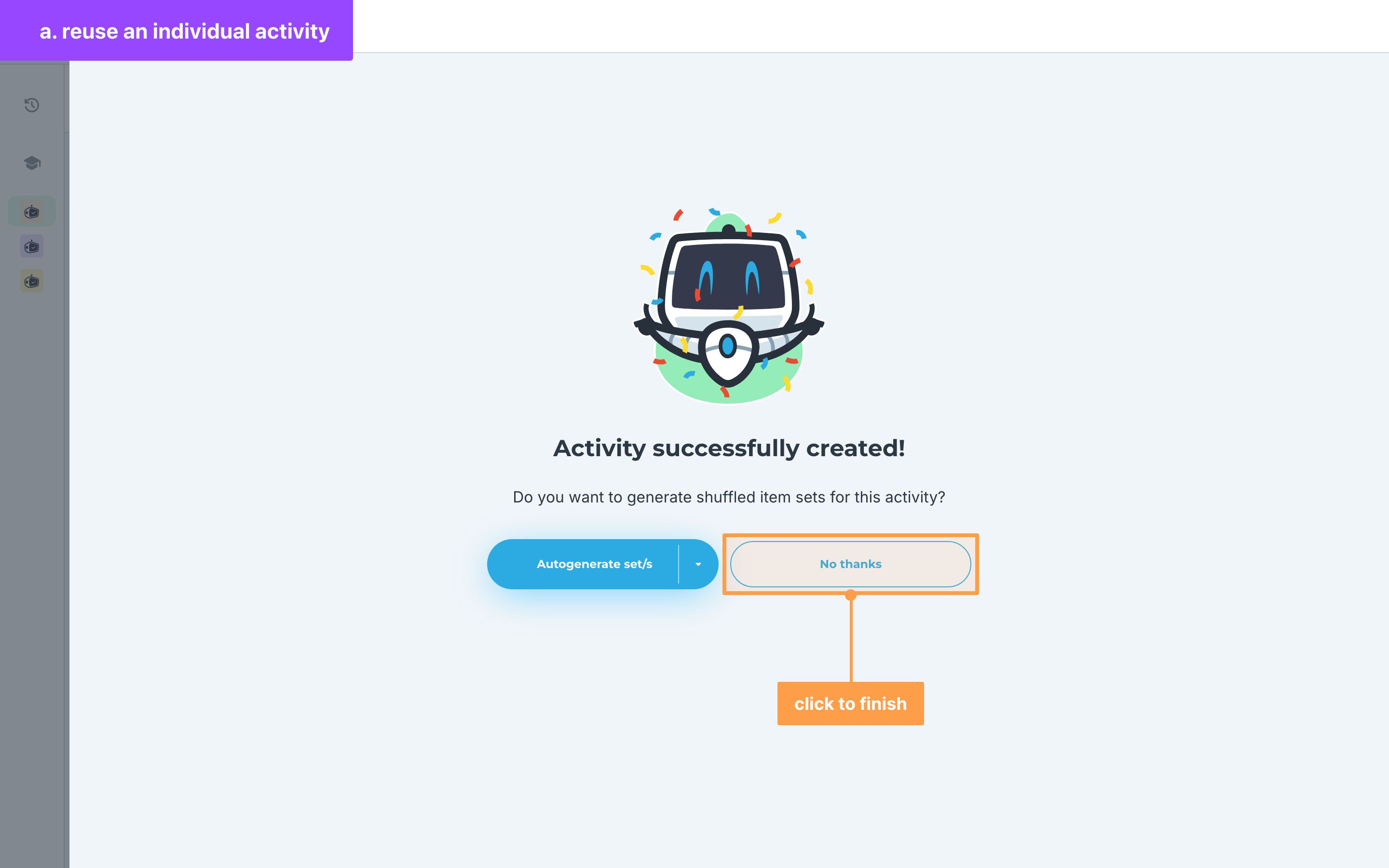
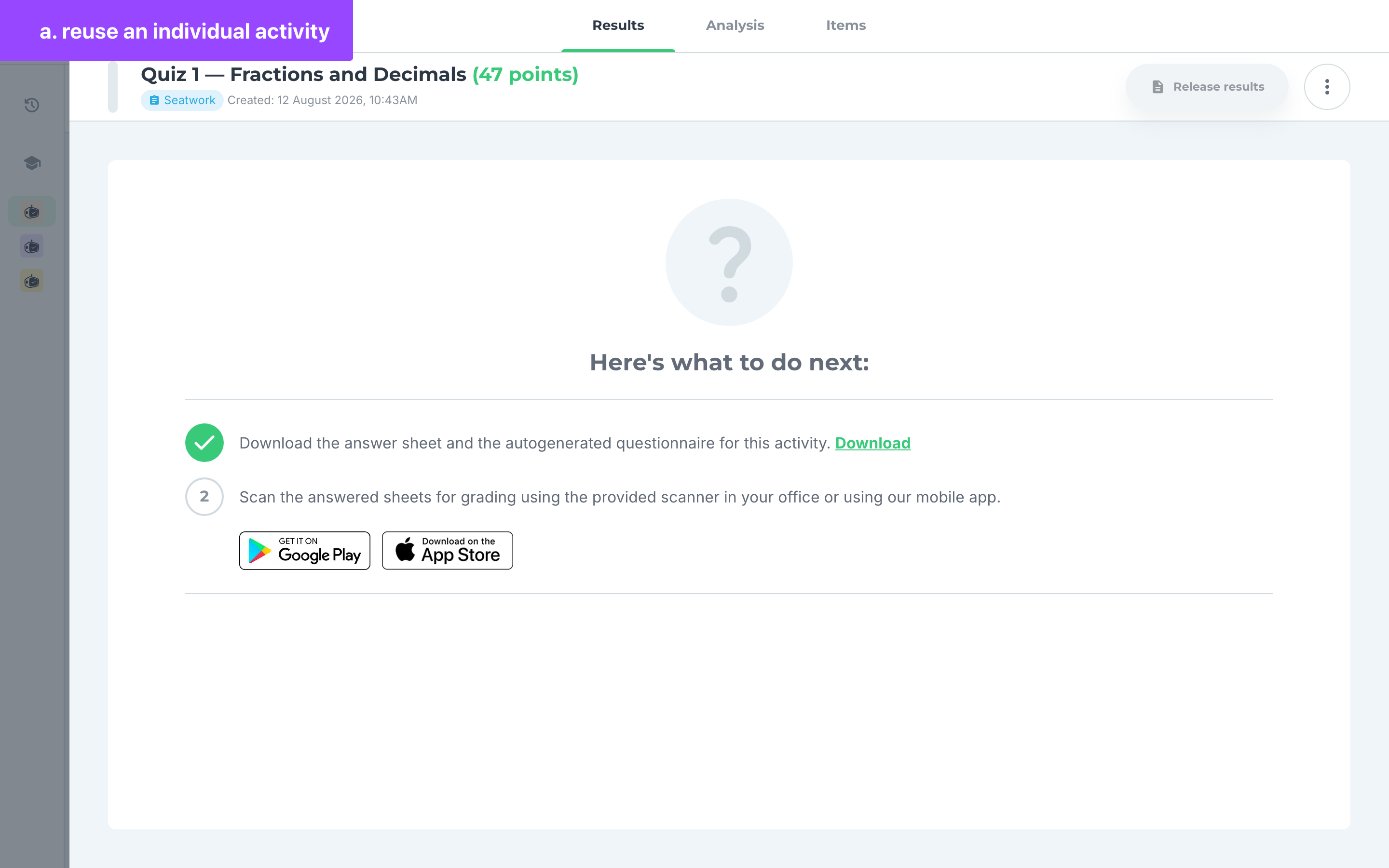
- Finally, you will be redirected to the activity you just recreated.
b. Reuse an entire activity set
- Select the entire activity set you wish to reuse. By doing so, you will be reusing the entire activity along with the sets it includes.
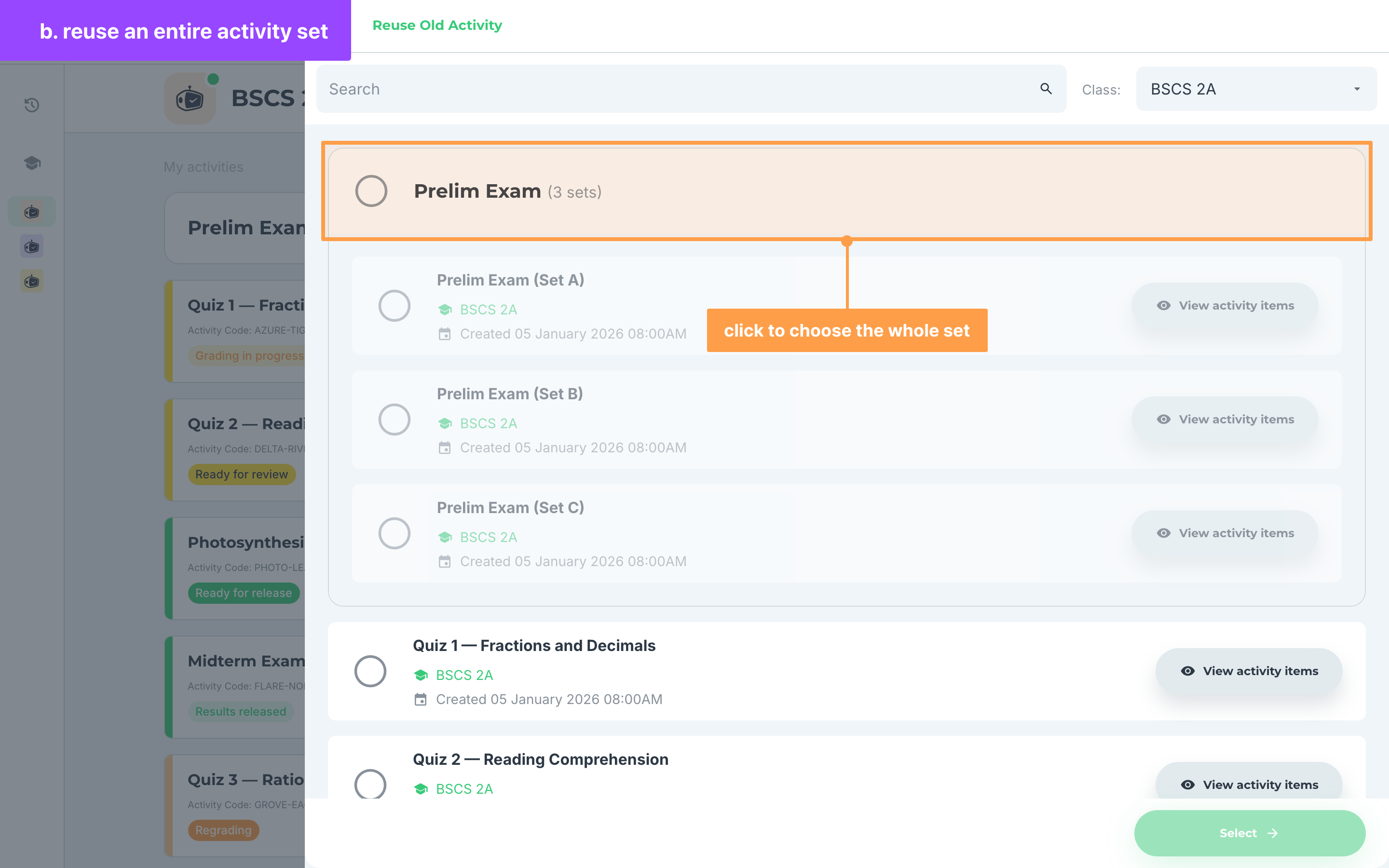
- Click the Select button to proceed. This will open the Create Activity page with the set's contents pre-filled and its name already in Step 1, which is where you type the new name.
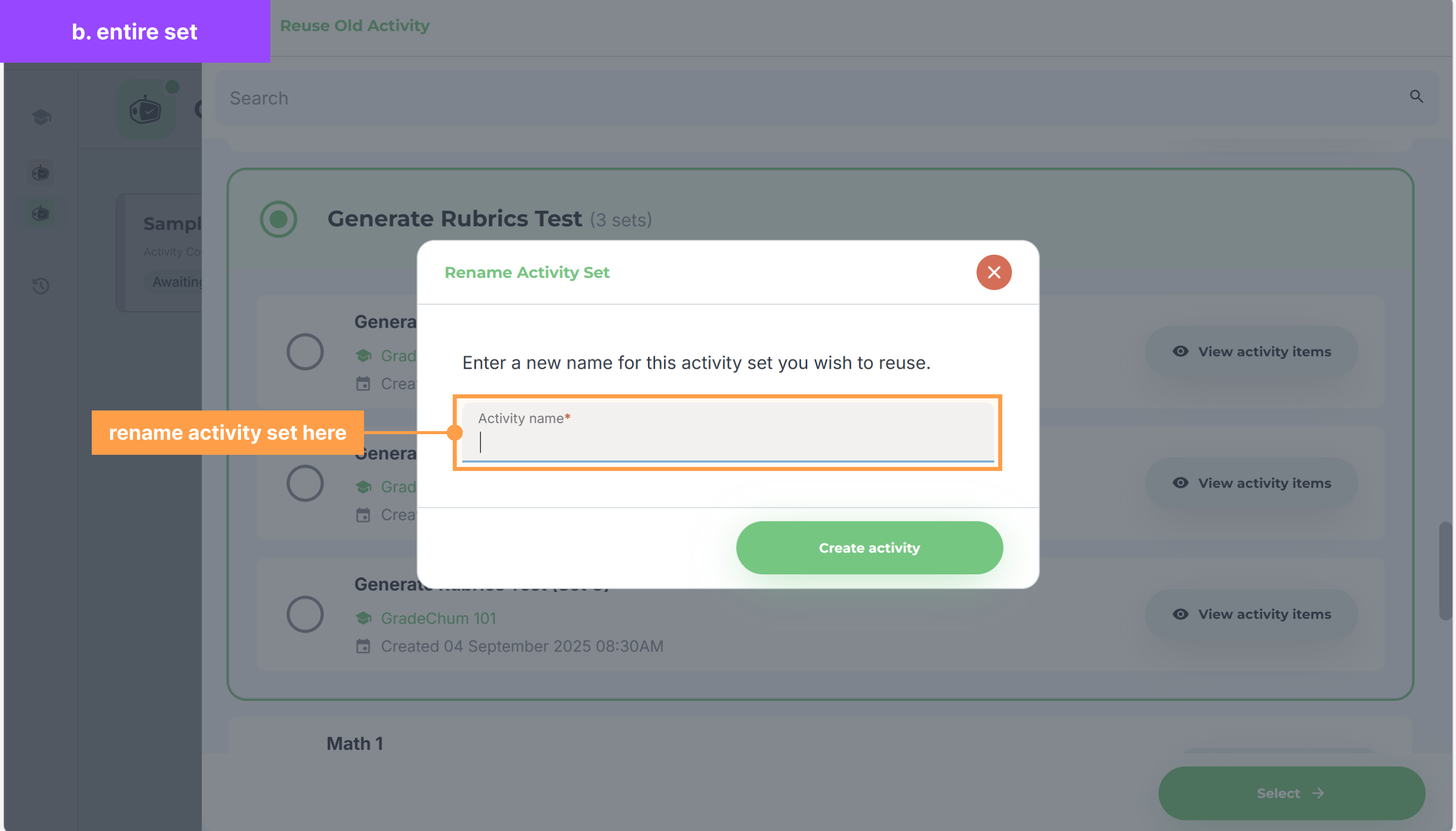
- Once you're happy with the name you've set, click the Create activity button at the foot of the page.
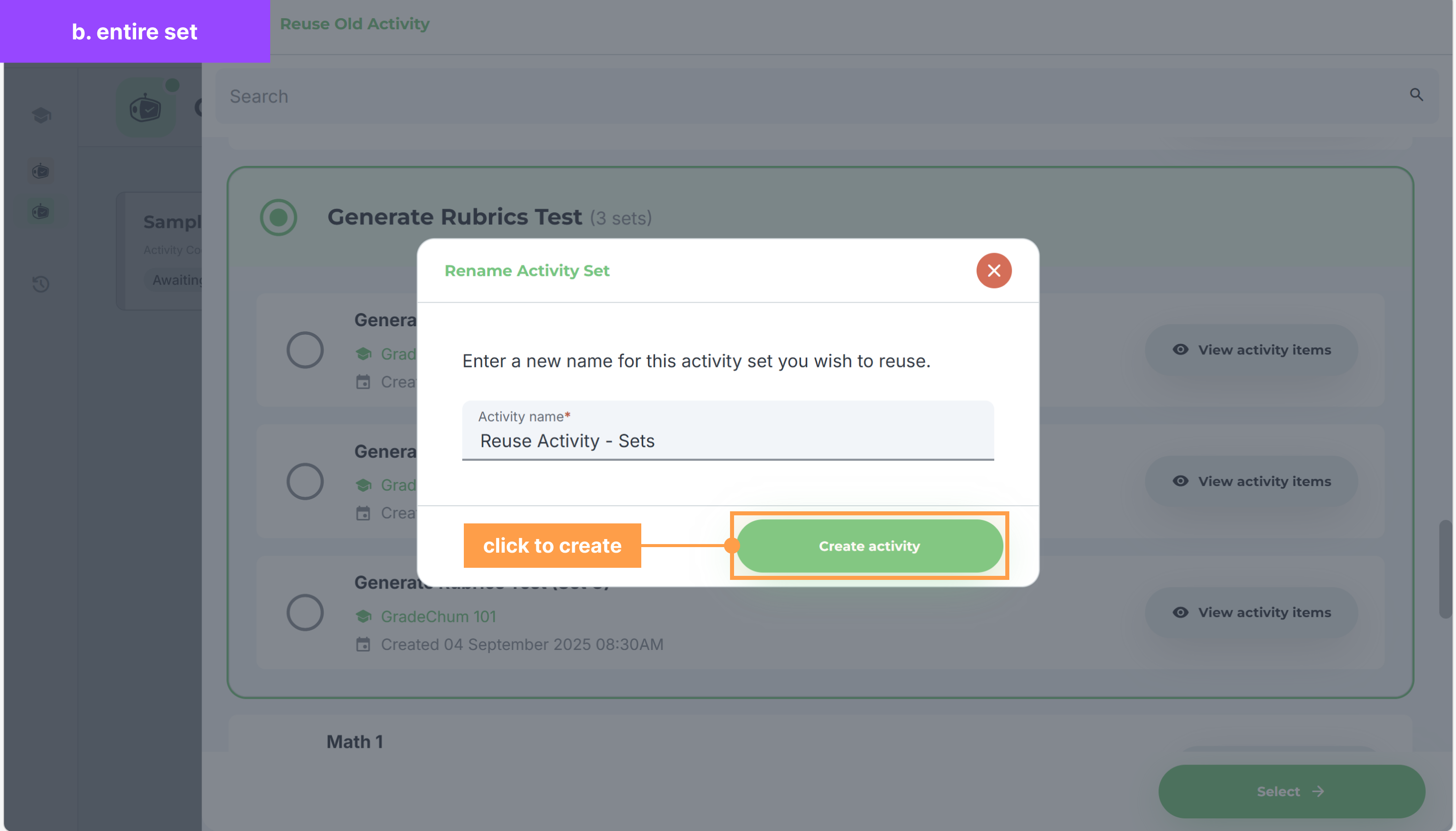
- Once done, this creates one activity under the new name you've given it. On the overlay that follows, click Autogenerate set/s if you want its shuffled sets rebuilt; the activity then appears on your Activities tab with a sets chip on its card.
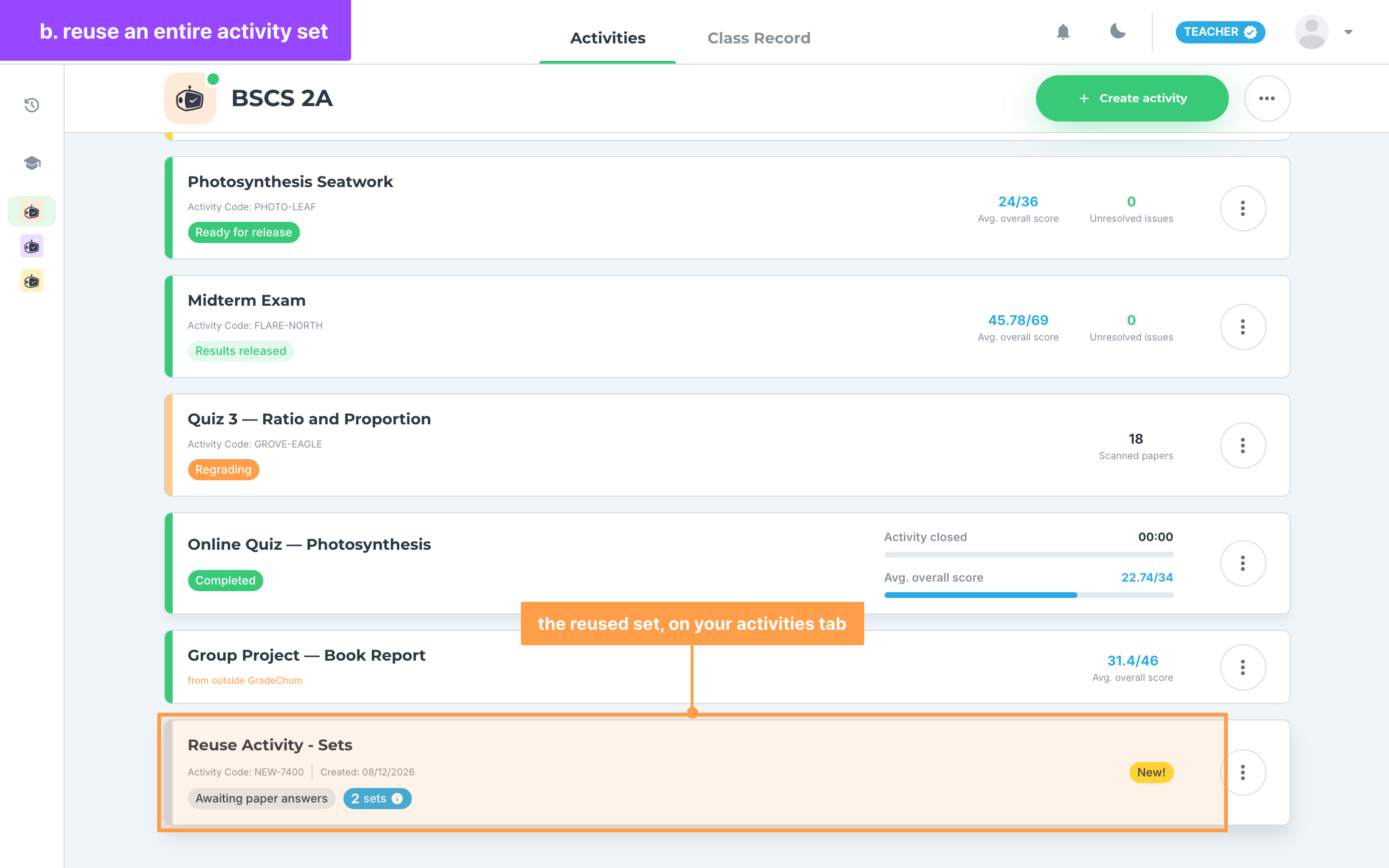
And that's how you reuse an activity in GradeChum! Now, let's explore the things you need to do to give this activity to your students.
Last updated March 17, 2026