
Edit students' grades
Introduction
While AI-powered grading systems like ours provide efficiency and consistency, they are not flawless. Educators play a crucial role in reviewing AI-generated feedback, making necessary adjustments, and providing deeper insights that technology alone cannot capture.
In GradeChum, we promote using our application as a grading assistant, so you keep full control over how your students' grades are explained and finalized.
In this article, let's explore how to edit your students' grades after the activity is checked, how GradeChum asks you to review papers before you release, and how to release, update or take back the results.
Steps
Note: The activity must already be completely checked. If its results are locked, unlock them first (see Activity credits and school licenses). A class shared with you as view-only shows the scores without any way to edit them.
To edit a student's grades, follow these steps:
- Click the activity card to open View Activity on its Results tab. With Per Student selected, click a student's name to view their answers.
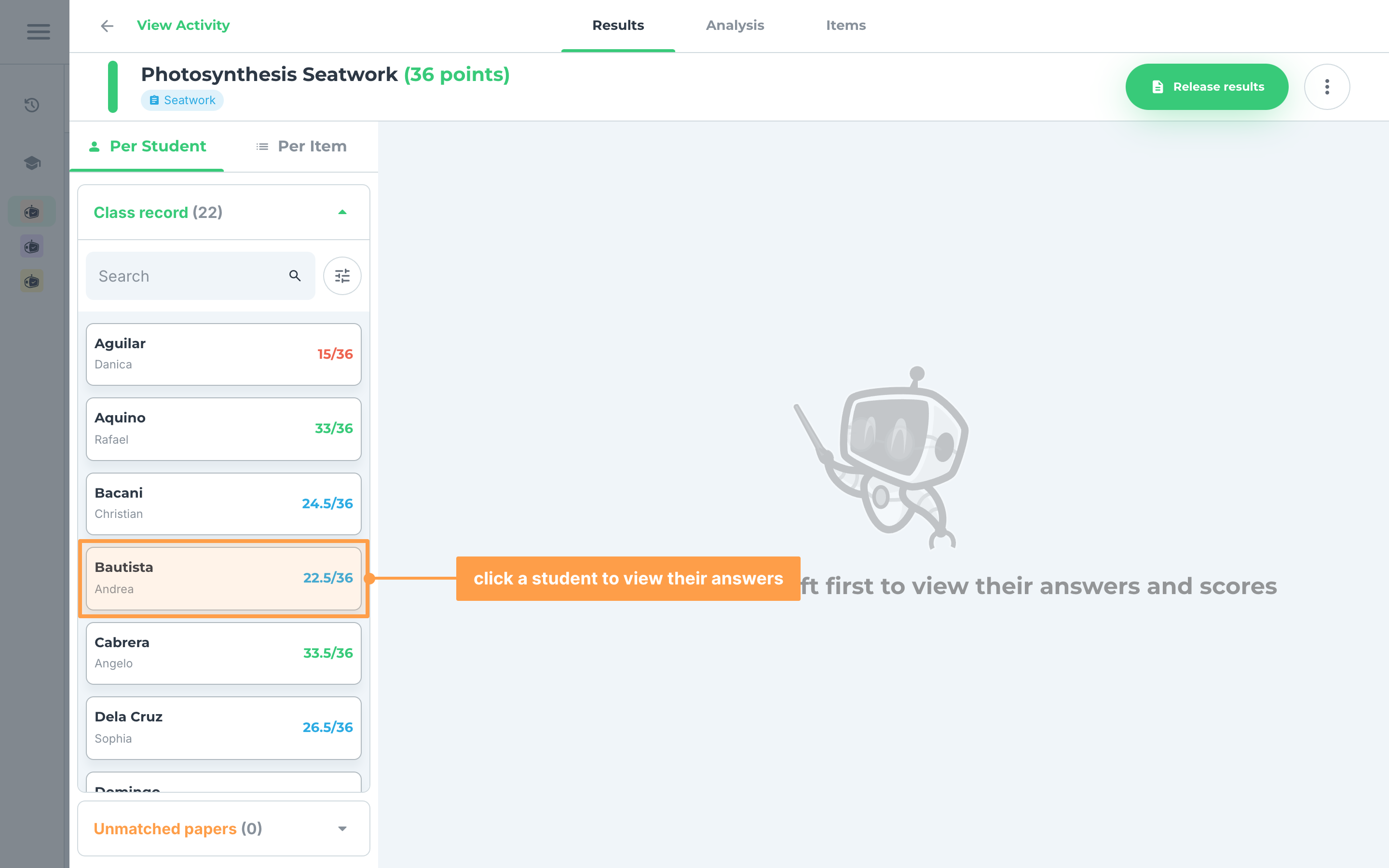
- Each item shows the student's score with a pencil (Edit score) beside it. How you change the score depends on the item type:
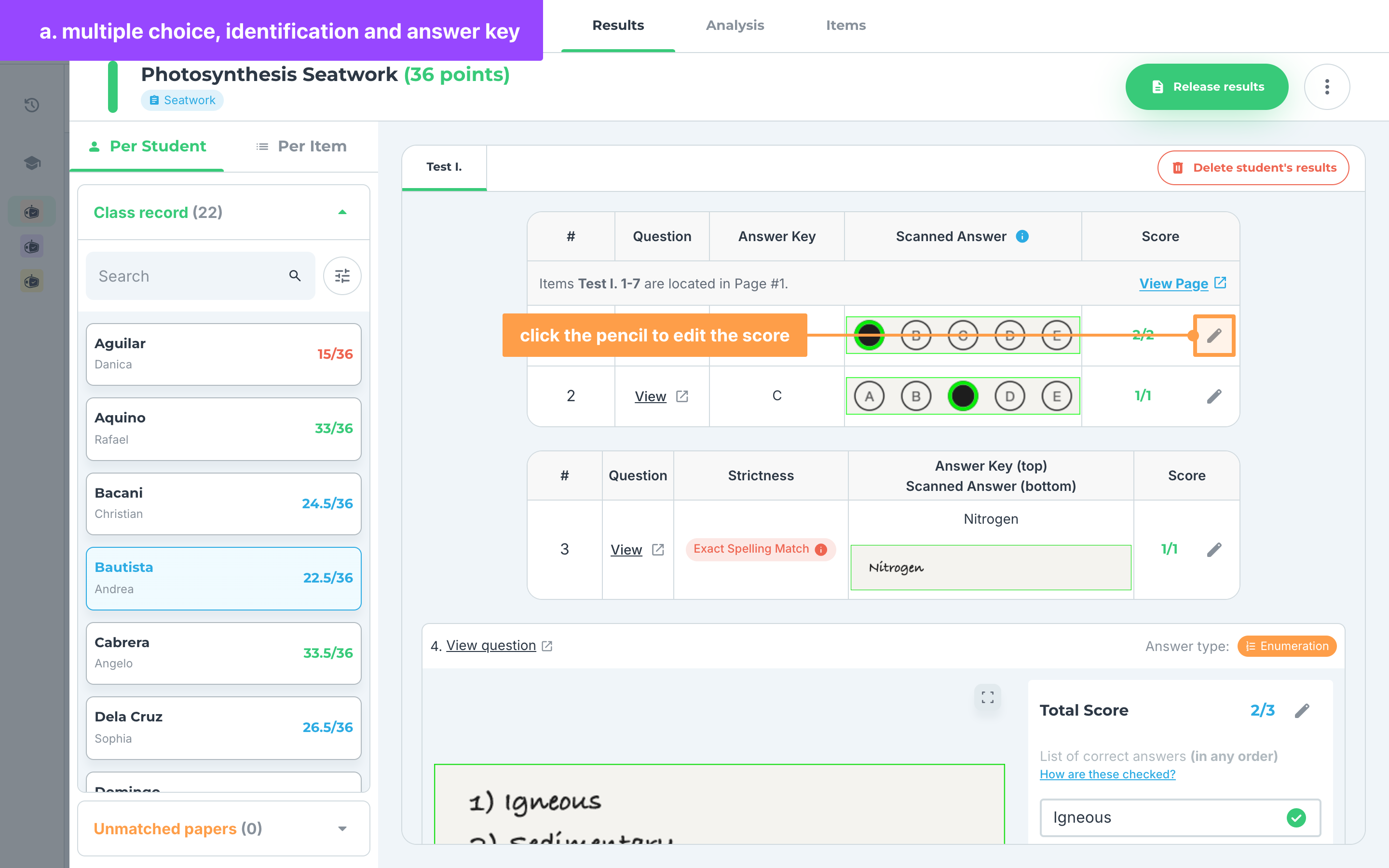
a. Multiple Choice, Multiple Answers, Identification and Answer Key
For items with Multiple Choice, Multiple Answers, Identification or Answer Key as the item type:
- Click the pencil beside the item's score.
-
Type the new score in the box. If it is above the item's points, GradeChum shows Score should not exceed max score. If it is below 0, it shows Score should not be less than 0. The check button stays disabled until you fix it.
-
Finally, click the ✅ button (Update score) to save the score, or the ❌ button (Exit edit score) to leave it as it was.
b. Items with scoring levels
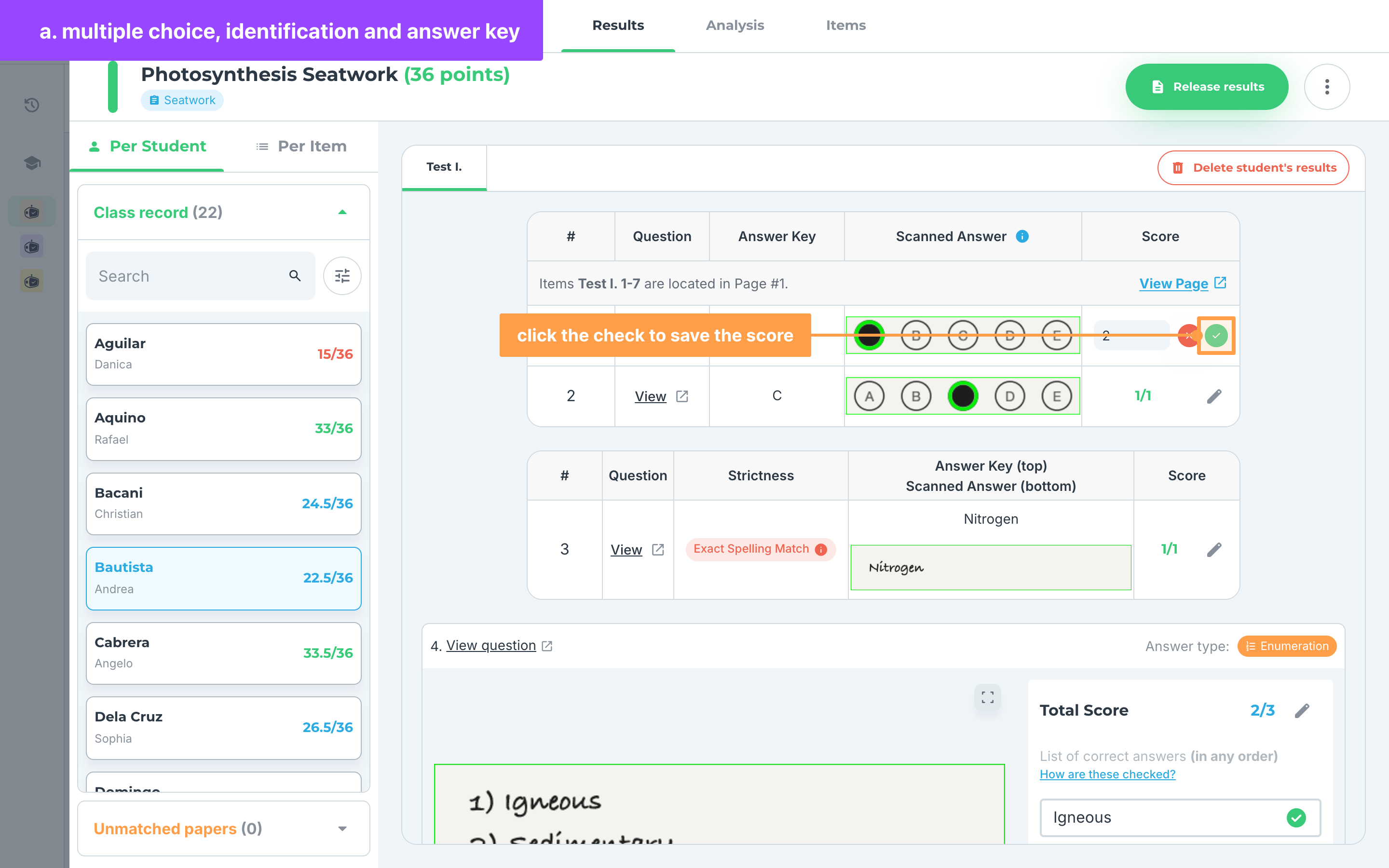
For items with Essay, Rubrics, Key Idea + Rubrics, Problem-solving, Visuals or Code on paper as the item type:
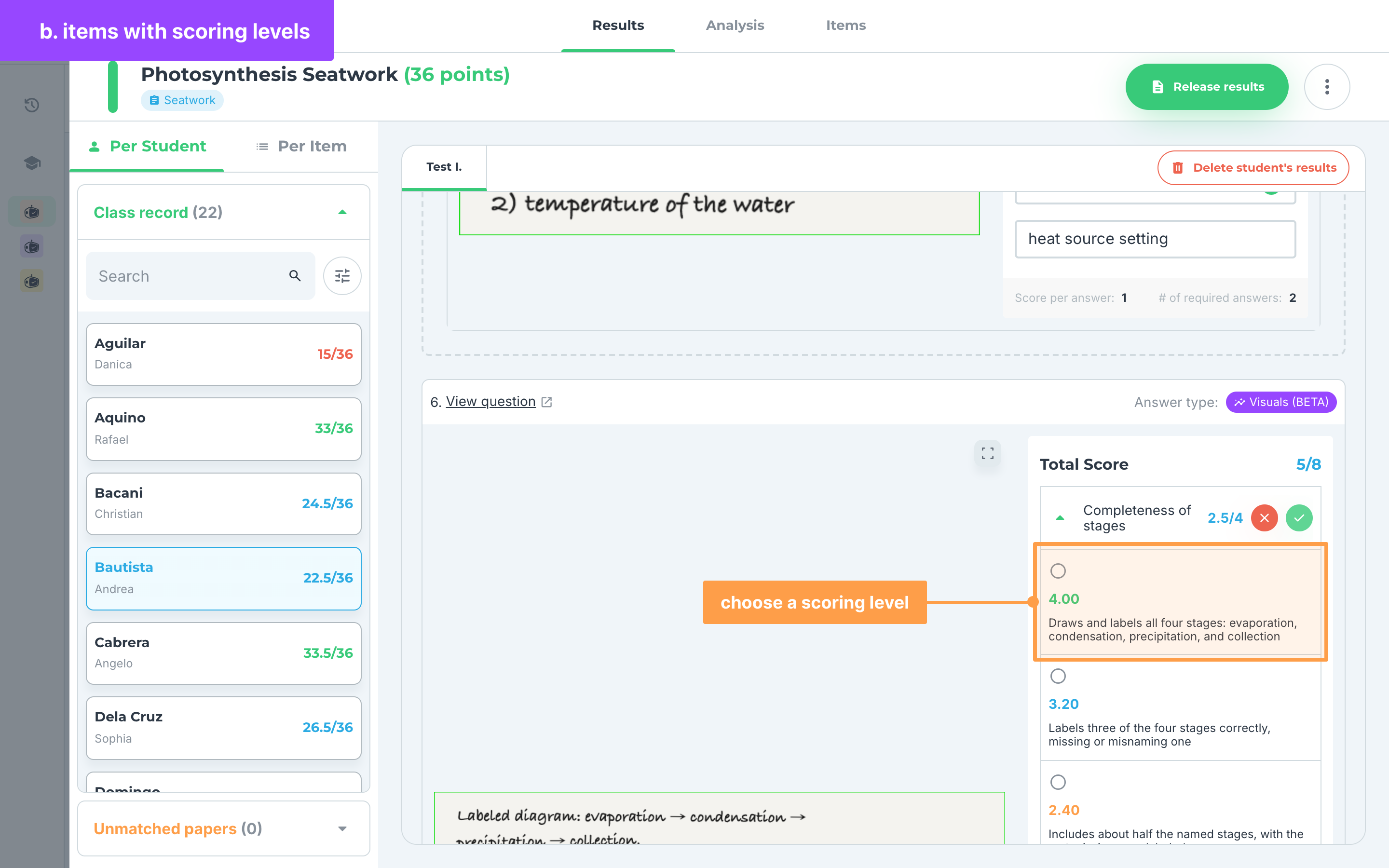
- On the right side of the scanned answer are the item's criteria and its Total Score. Click the pencil beside the criterion you want to change.
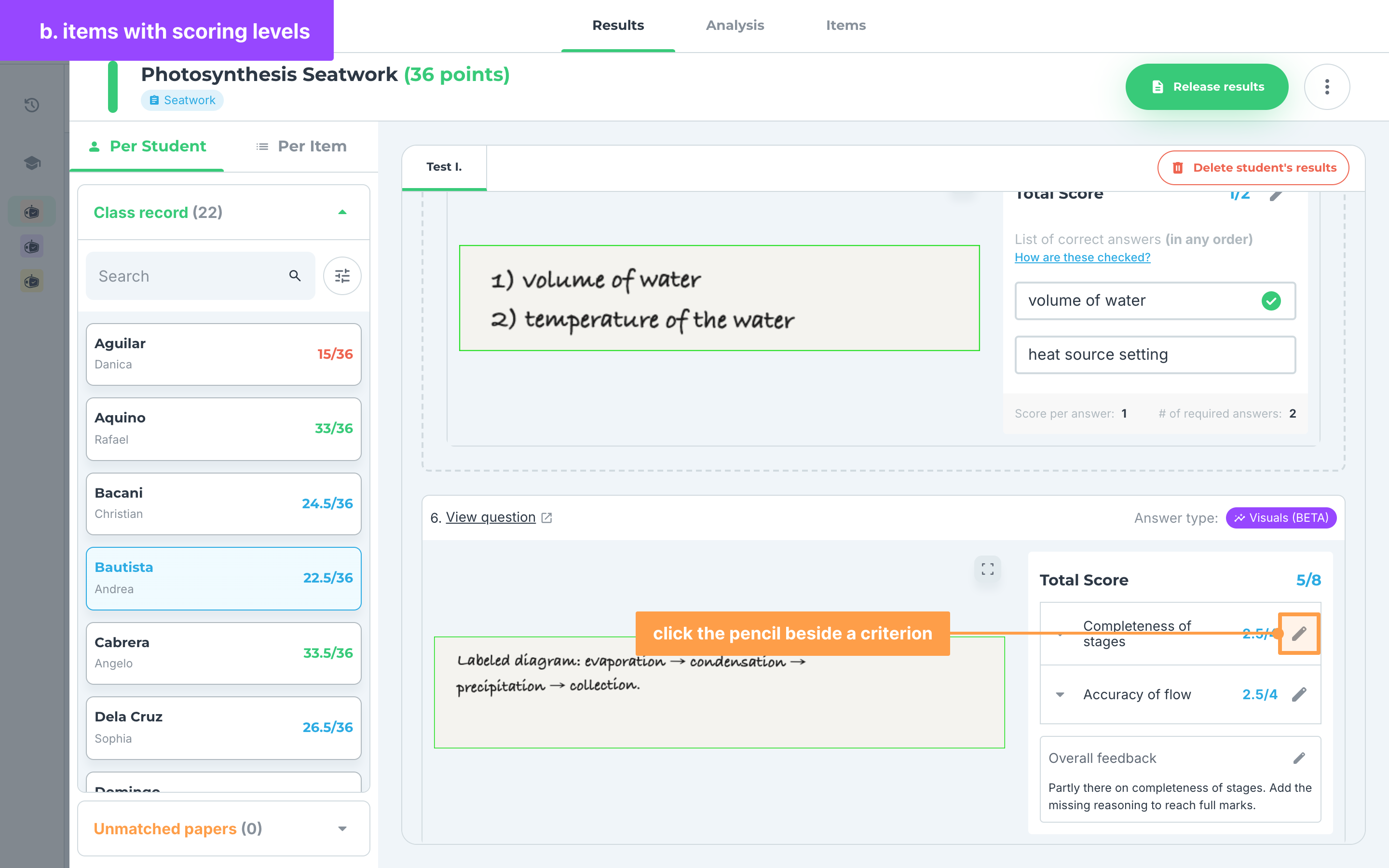
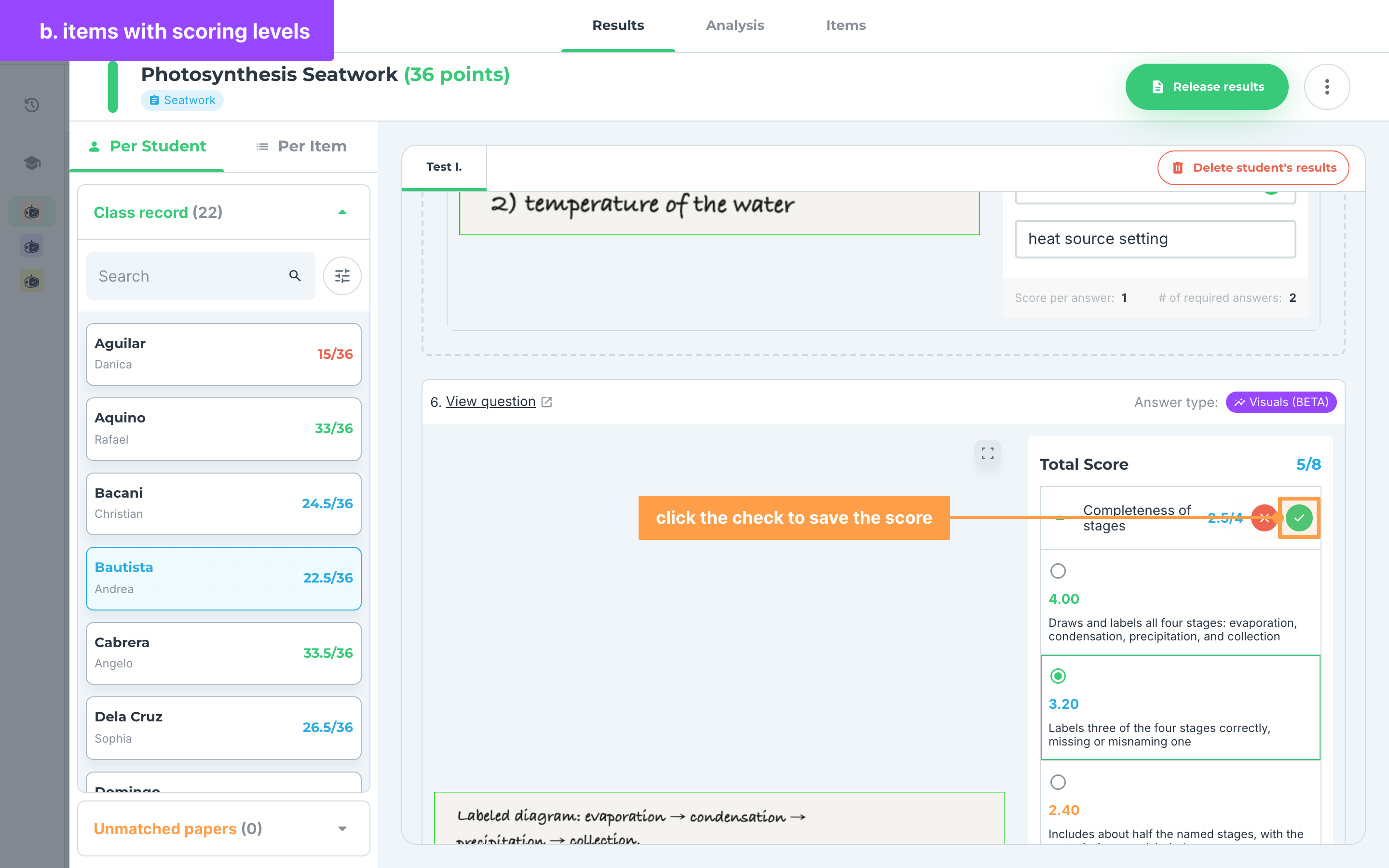
- Choose one of the scoring levels listed under the criterion. The criterion's score becomes that level's share of its points. If the student asked for a regrade, the criterion shows Regrade requested and the level they suggested shows Rating requested.
- Finally, click the ✅ button to save the score. The ❌ button puts back the saved score. If you open another criterion before saving, Changes are not saved yet shows on the one you left.
c. Answer Key + Rubrics
For items with Answer Key + Rubrics as the item type, and older Problem-solving, Visuals or Code on paper items with no scoring levels:
-
Click the pencil beside the criterion you want to change, then type the criterion's new score in the box.
-
To rewrite the explanation GradeChum gave, click the explanation text (it reads No explanation available when there is none) and edit it.
-
Finally, click the ✅ button to save both the score and the explanation. The ❌ button puts back the saved ones.
d. Enumeration
For items with Enumeration as the item type:
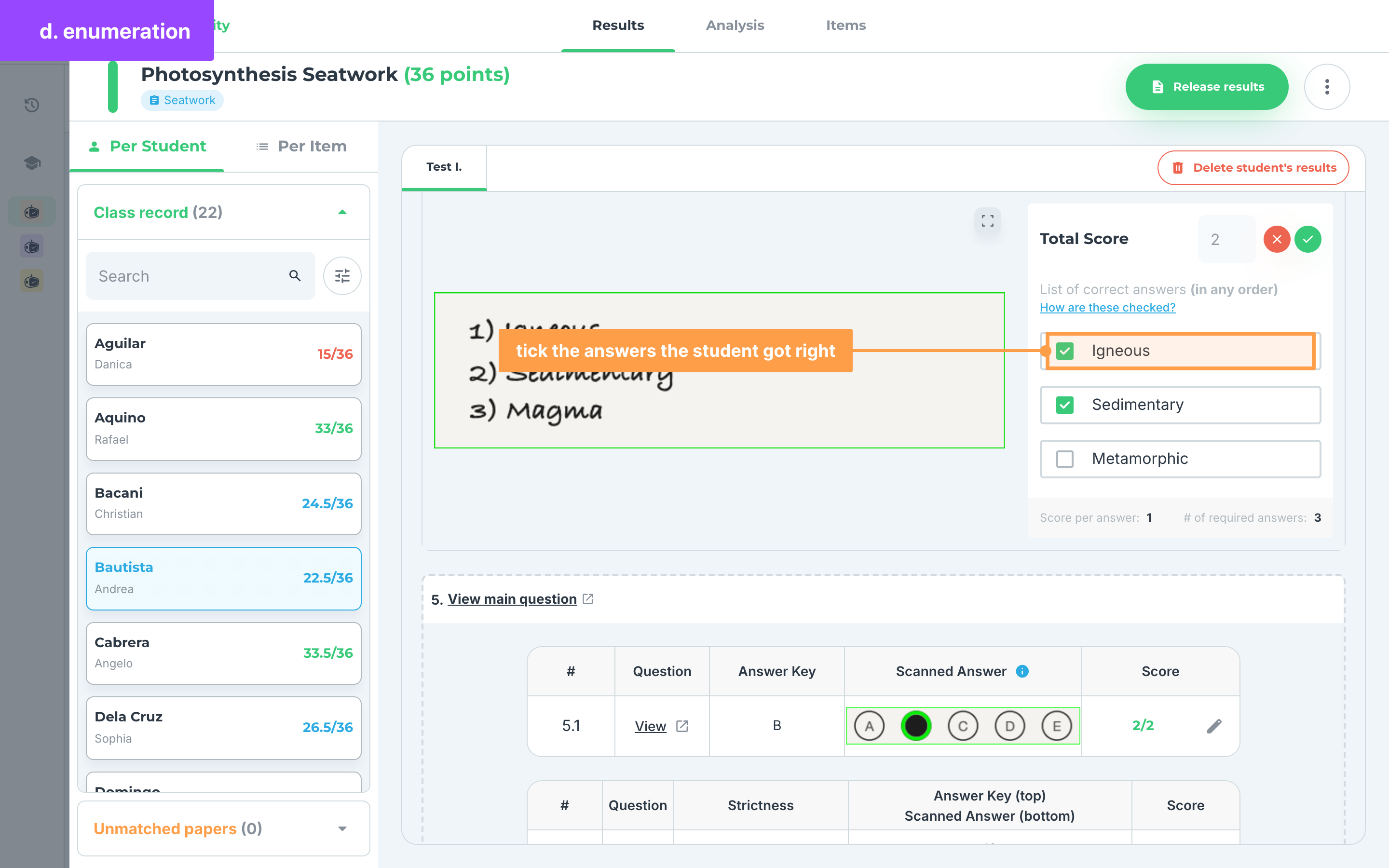
- Click the pencil beside Total Score. Hover How are these checked? to see how many of the student's first answers are checked.
-
Under List of correct answers, tick each answer the student got right and untick the ones they did not. The score is the number of ticked answers times the Score per answer, up to the item's points.
-
Finally, click the ✅ button to save the score, or the ❌ button to leave it as it was.
-
To edit another item's score, repeat step 2. An answer that is still being checked shows a loading bar instead of a score, so wait for it to finish first. While an online activity is still ongoing, its scores are hidden.
-
To fix one item for the whole class at once, click Per Item and select the item. Click the pencil beside a student's score, type the new score, then press Enter or click the ✅ button. Press Escape to cancel. GradeChum confirms with Score updated.
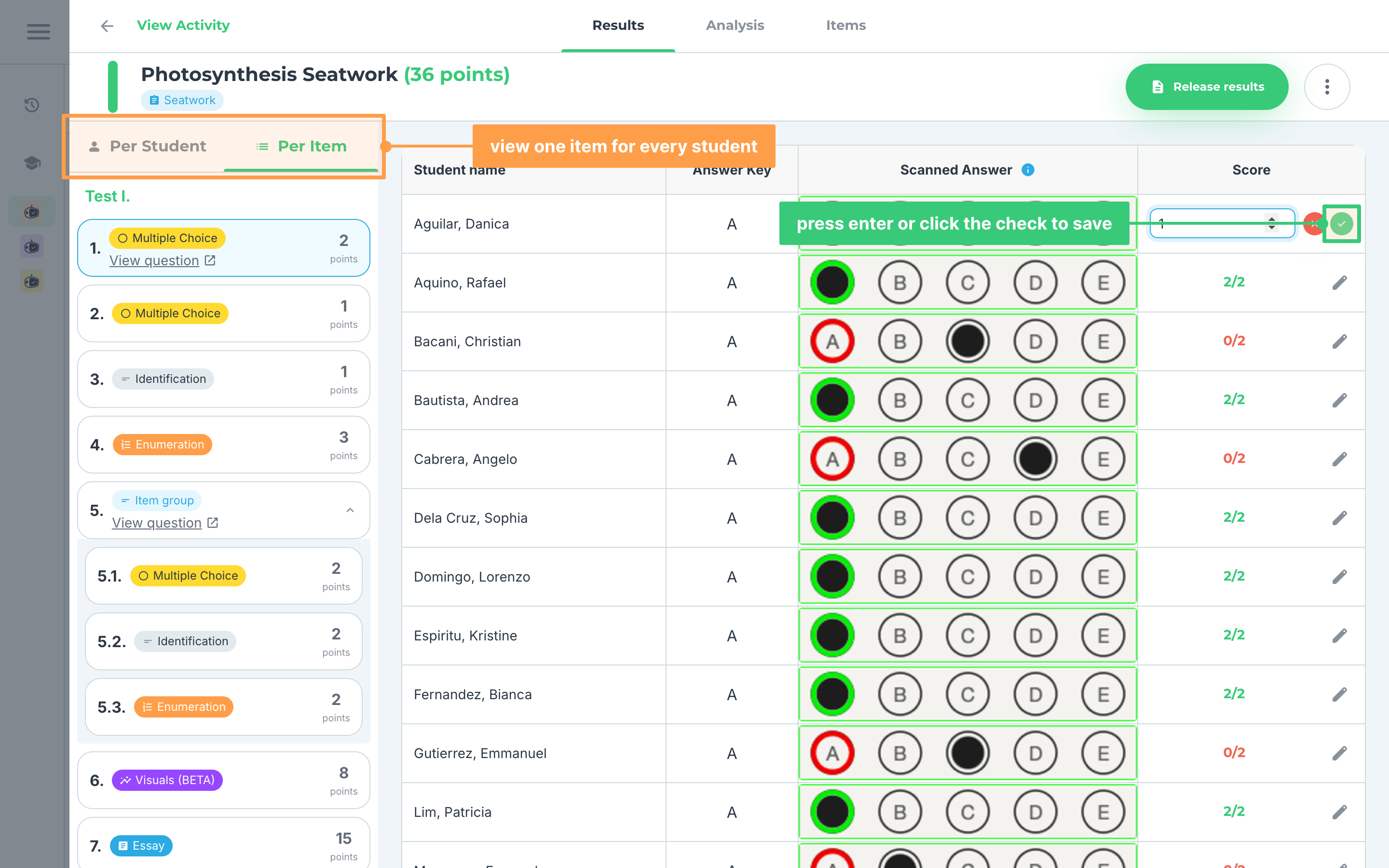
Note: In Per Item, items that are not Multiple Choice, Multiple Answers or Identification show each student's scanned answer with the same criteria or answer list as in step 2, and you edit them the same way. If a save fails, GradeChum shows Error updating score and the old score stays.
Review before you release
GradeChum asks you to open a share of the graded papers before it lets you release, so a person has checked the grading before scores reach your students.
- On the Results tab, Students reviewed at the top of the list shows how many graded students you have opened out of how many you need. Until you reach that number, the Release results button stays gray. Hover the question mark beside the count, or the gray button itself, to see why: the number comes from your school's policy for the activity's category.
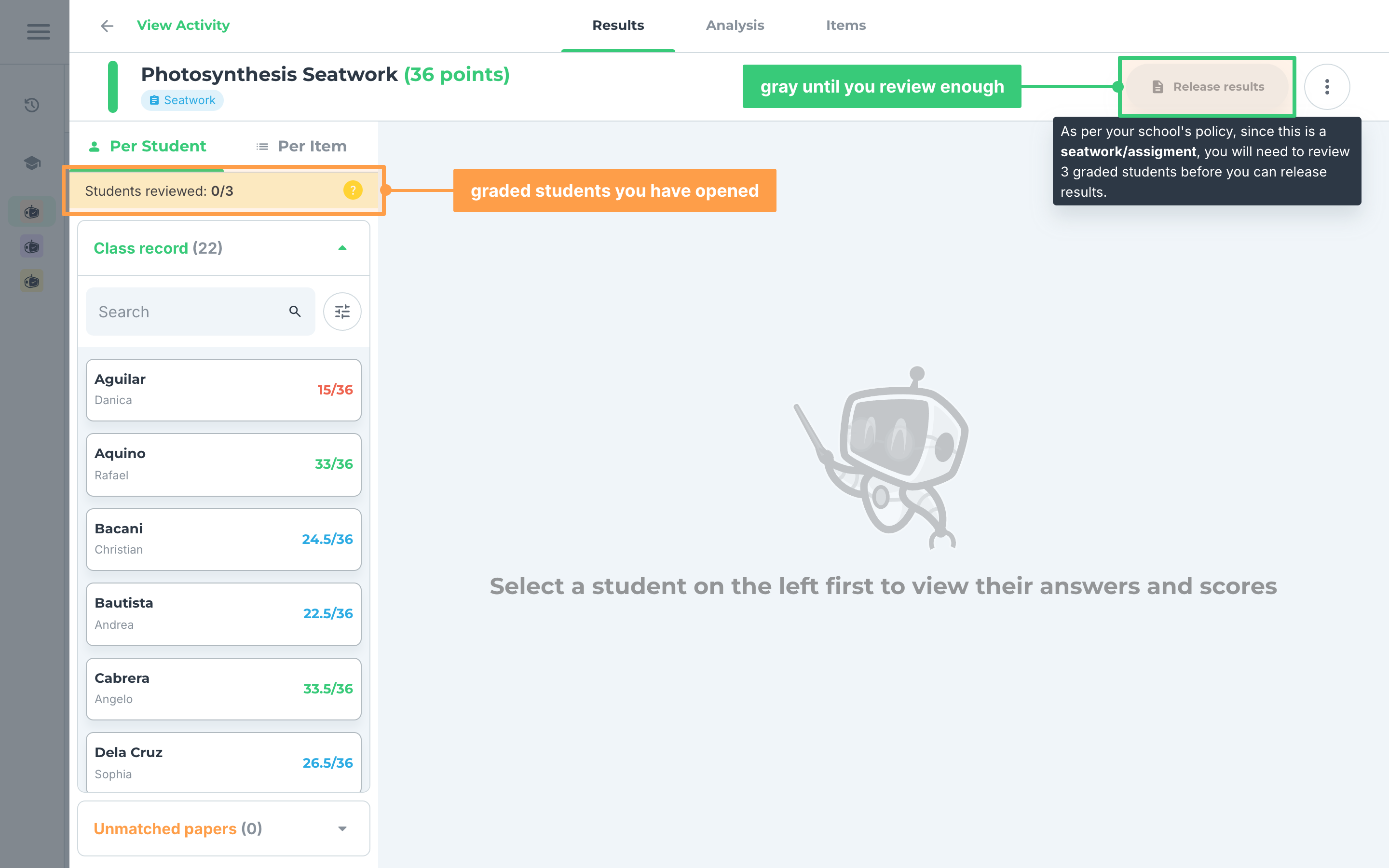
-
Click a graded student's name to count them as reviewed. A student counts once, and only when their score is shown, so opening a paper that is still being checked or regraded does not count.
-
Once you reach the number, the button turns green, GradeChum congratulates you, and the activity card moves from Ready for review to Ready for release.
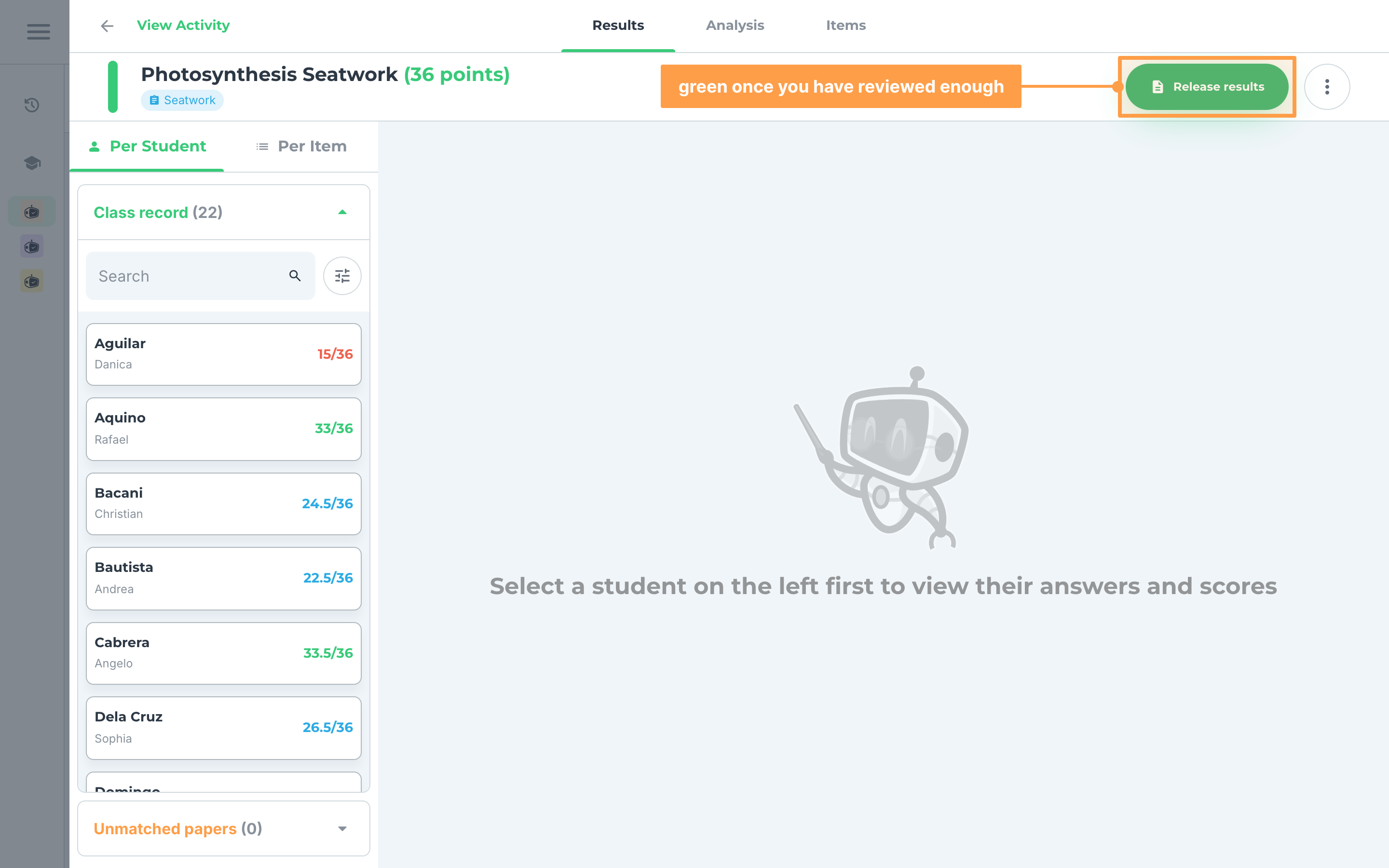
Note: An online activity needs no review, but you cannot release it until its due date passes. An activity from outside GradeChum skips the review. Unless your school sets its own policy, the number is a tenth of the graded papers for a Seatwork, a quarter for a Quiz, every paper for a Major Exam, and a tenth for an activity with no category. If your account is not linked to a school, a Quiz needs 35% of the graded papers. While there are no graded results yet, the gray button tells you whether the activity is still ongoing or still being checked.
Release the results
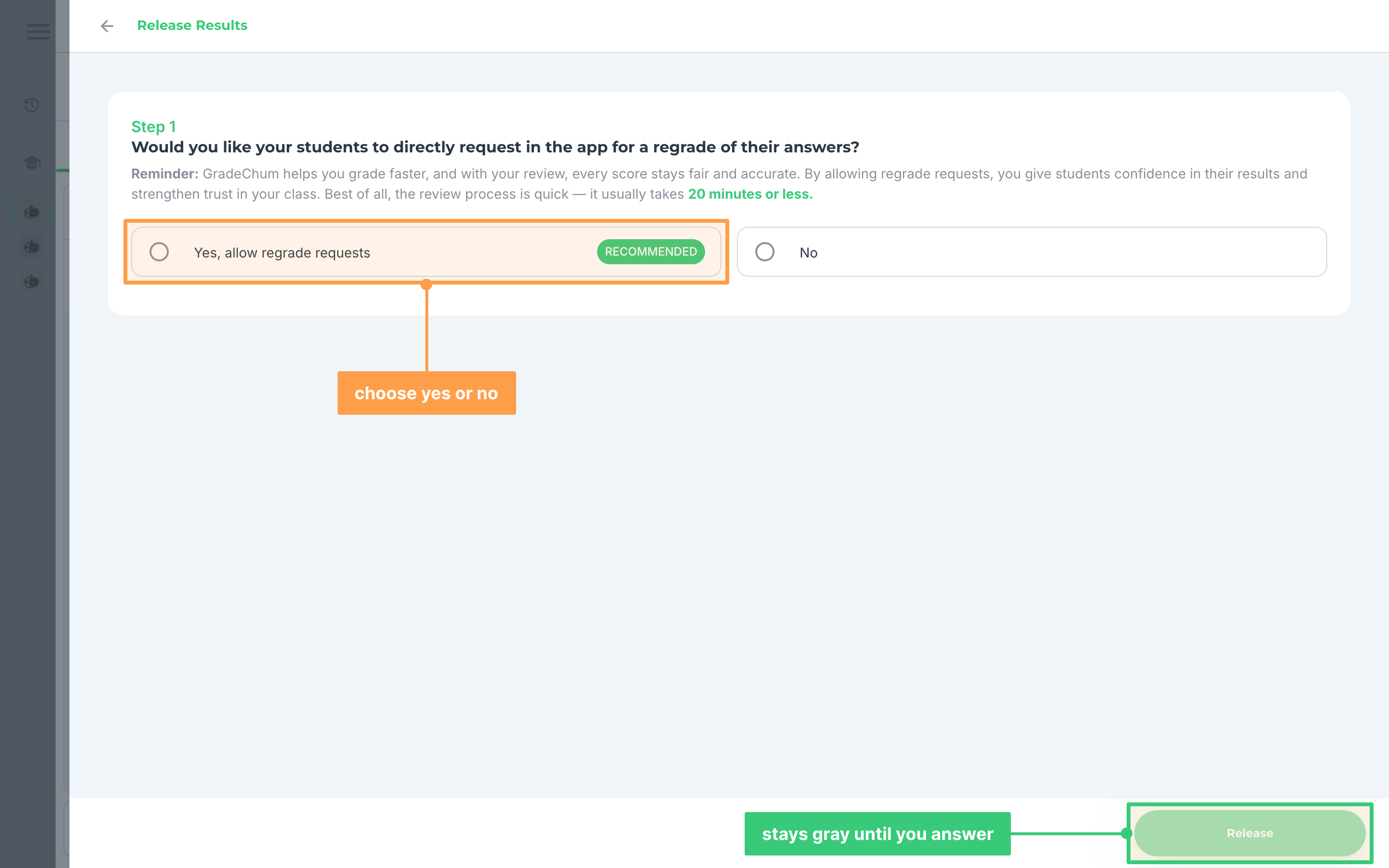
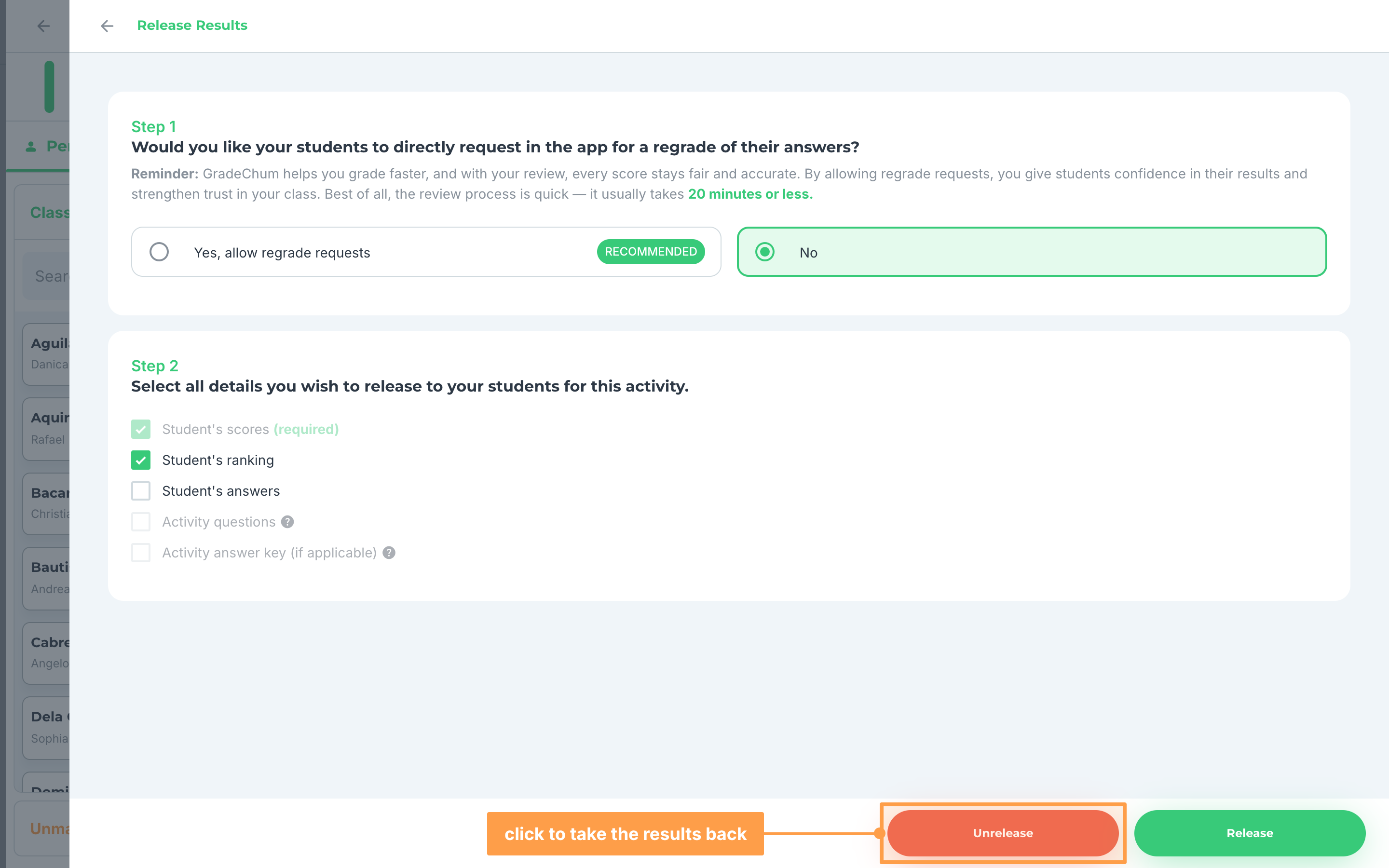
- Click Release results. The first step asks whether your students may request a regrade of their answers directly in the app. The Release button at the bottom stays gray until you choose Yes, allow regrade requests or No.
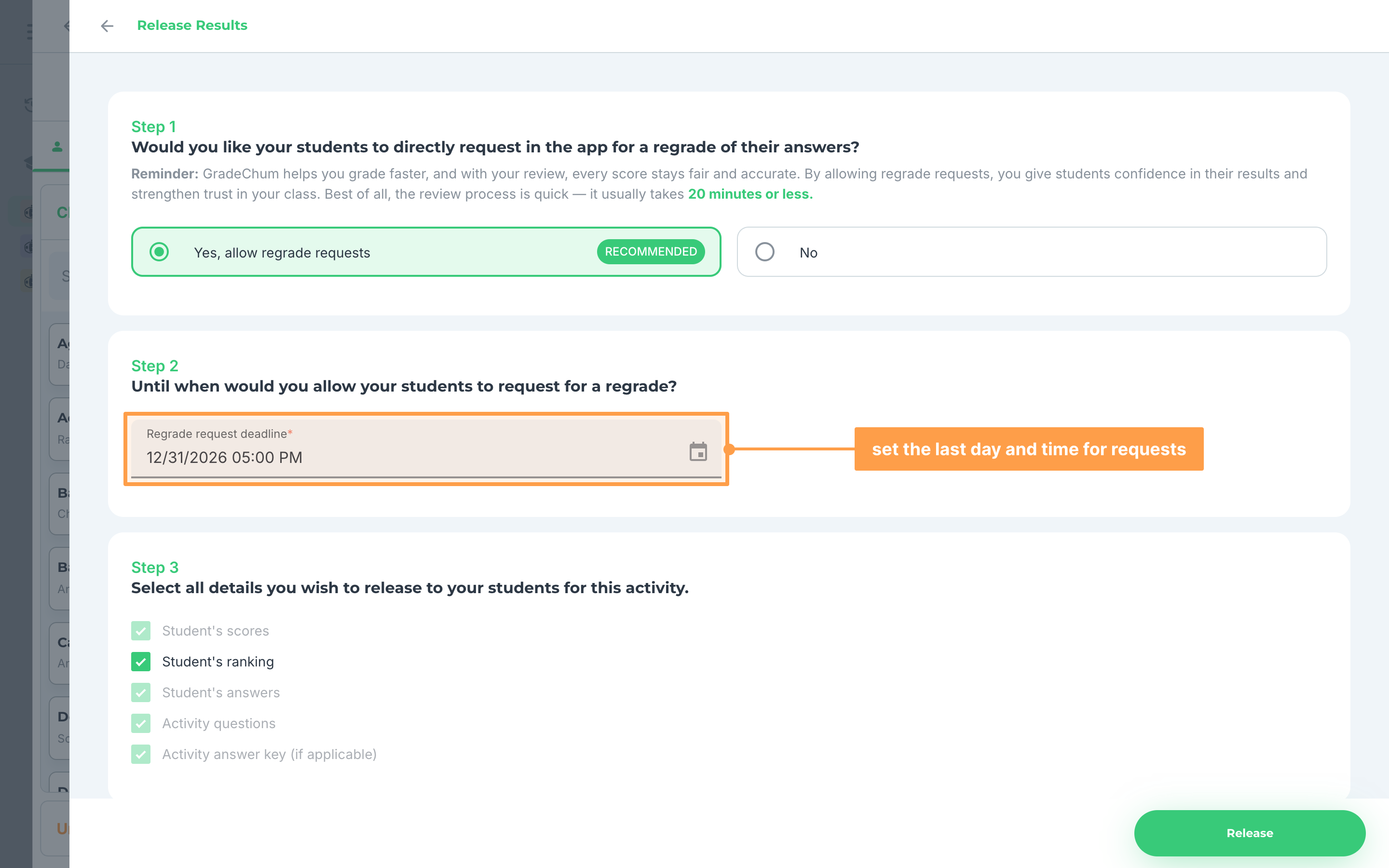
- If you choose Yes, allow regrade requests, set the Regrade request deadline: the last day and time you accept requests. It is required, and it must be in the future. Your students' scores, answers, the activity questions and the answer key all go out, and Student's ranking starts ticked as the only one you can change.
- If you choose No, there is no deadline to set. Student's scores always goes out, Student's ranking starts ticked, and the rest start unticked. Activity questions and Activity answer key (if applicable) stay grayed out until you tick Student's answers.
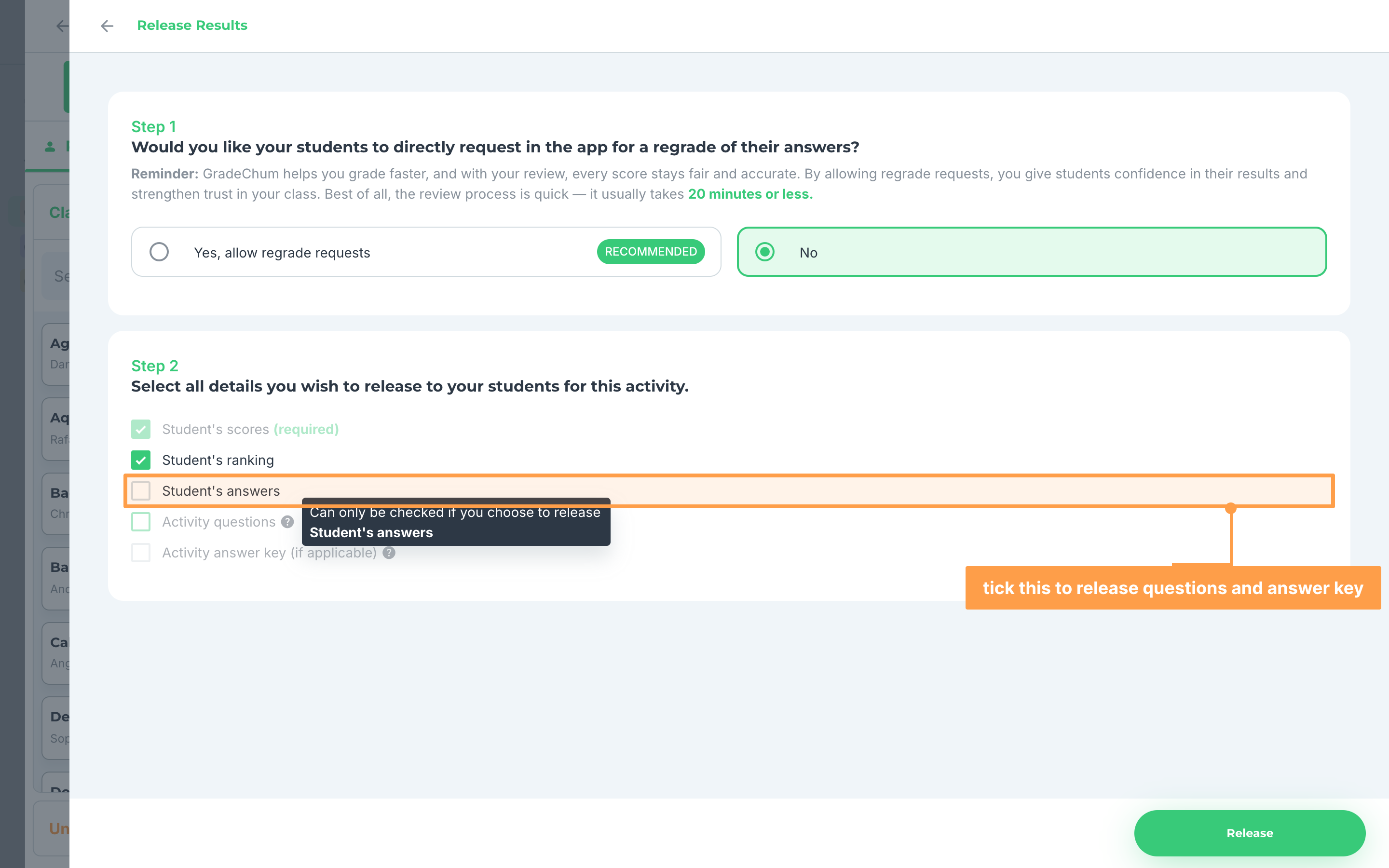
- Finally, click Release, then Finish on the Success message. To show your students where to find the results, see After.

Note: Switching between Yes, allow regrade requests and No resets the ticks and clears the deadline. If the release fails, GradeChum shows Uh oh and you can try again in a while.
Update or unrelease the results
Once the results are out, the Release results button is replaced by Released on and the date, with Update beside it.
- Click the students viewed count beside the date to see which students have opened their results. The list shows when each student viewed them, or Not yet. Type in Search a student to find one.
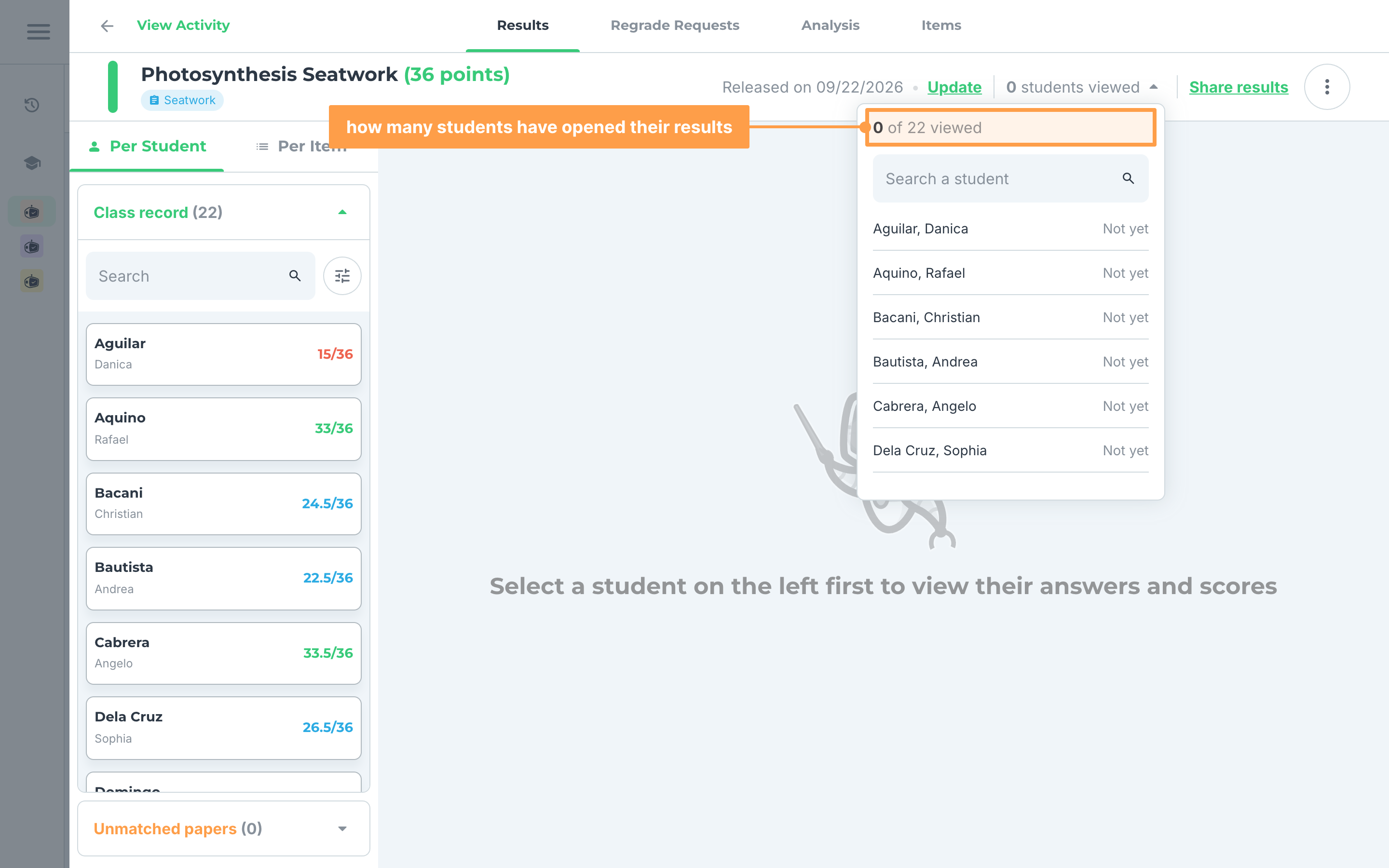
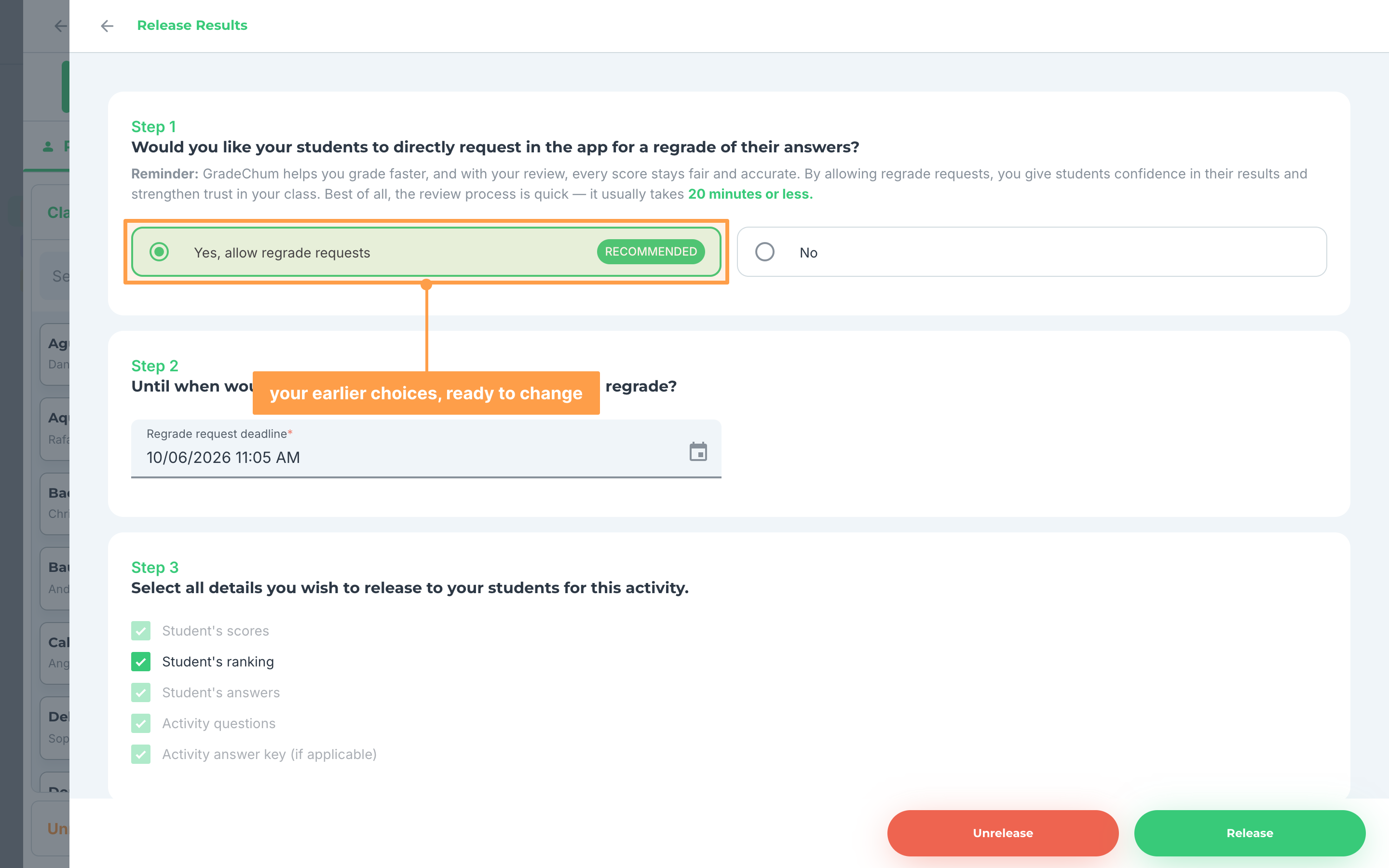
- To change what you released, click Update. The modal opens with your earlier choices, so change them and click Release again.
- If the regrade deadline you set has already passed, your students can no longer send requests, and Release shows Deadline must be in the future. Pick a new future date and time, or choose No.
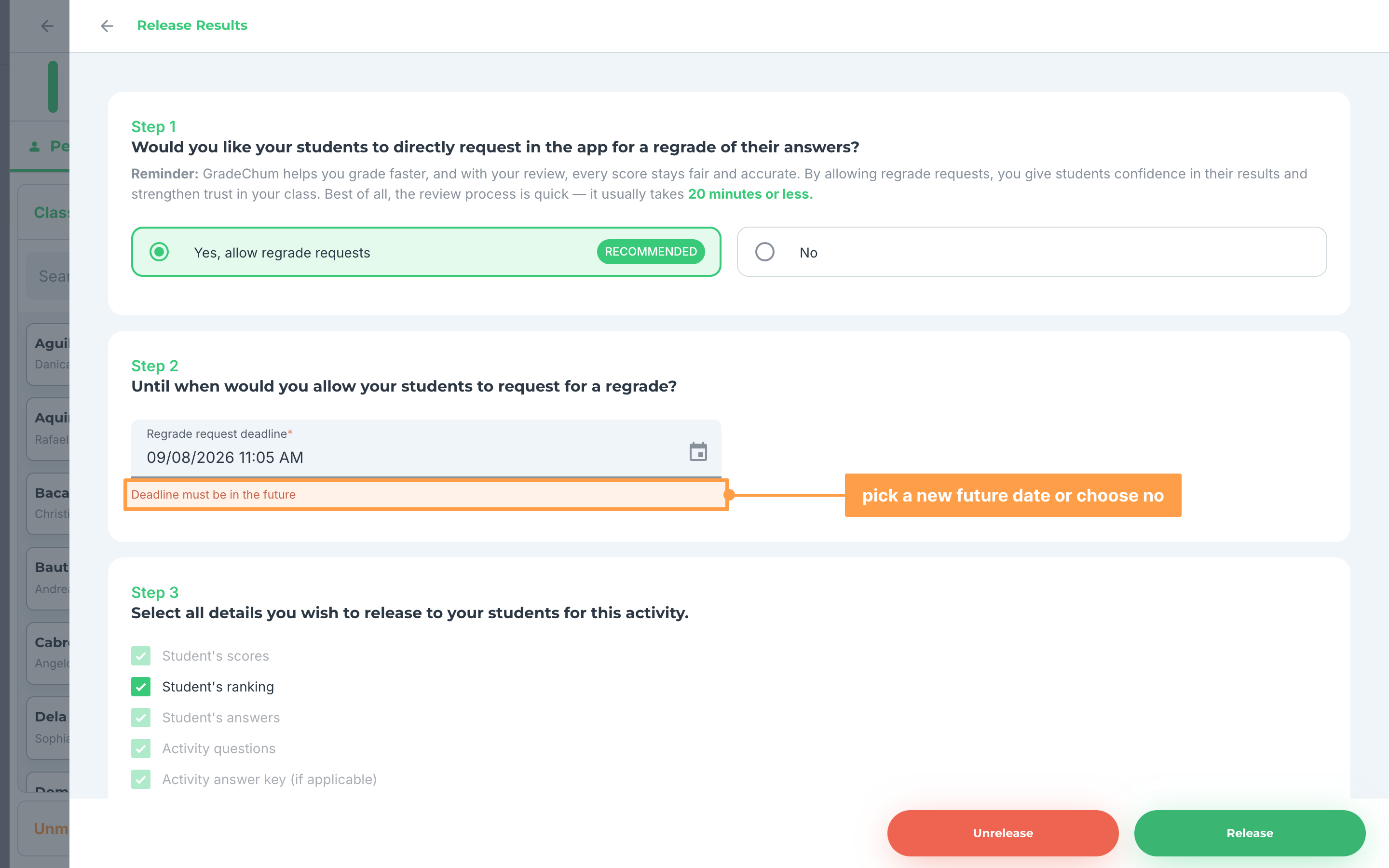
- Finally, to take the results back from your students, click Update, then the red Unrelease button. It acts at once, with no extra confirmation, and ends on Success.
Note: The students viewed count is hidden when you released only scores and ranking. In a class ordered by sex, the list groups students under Male and Female. A teacher with view-only access to a shared class sees the date and the count, but not Update. To answer the regrade requests your students send, see Review regrade request.
And those are the ways you can edit your students' grades and release them! Next, let's explore how to view the item analytics.