
🖨️
After
Introduction
Once the students are done doing the activity, it is important to know what to do with the answer sheets of the students after the activity.
In this article, let's explore what to do with the students' answer sheets and after the activity has been evaluated with GradeChum.
This article is about an activity your students answer on paper. If you chose Online as the activity type, there is nothing to print and nothing to scan: see Online activities for how results arrive without a scan.
Steps
Follow these steps, to know what to do after the activity:
Note: You must have already collected the answer sheets of your students for the activity before proceeding to these steps.
- Once the class is over and the answer sheets are complete, scan them all, either on your nearest GradeChum-provided scanner or with the GradeChum Scanner app on your phone. To ensure that the scanner reads the papers correctly, we recommend scanning only approximately 50 papers at a time, and piling them up neatly before loading them into the scanner. To ensure that the scanner reads the papers correctly, we recommend scanning only approximately 50 papers at a time, and piling them up neatly before loading them into the scanner.
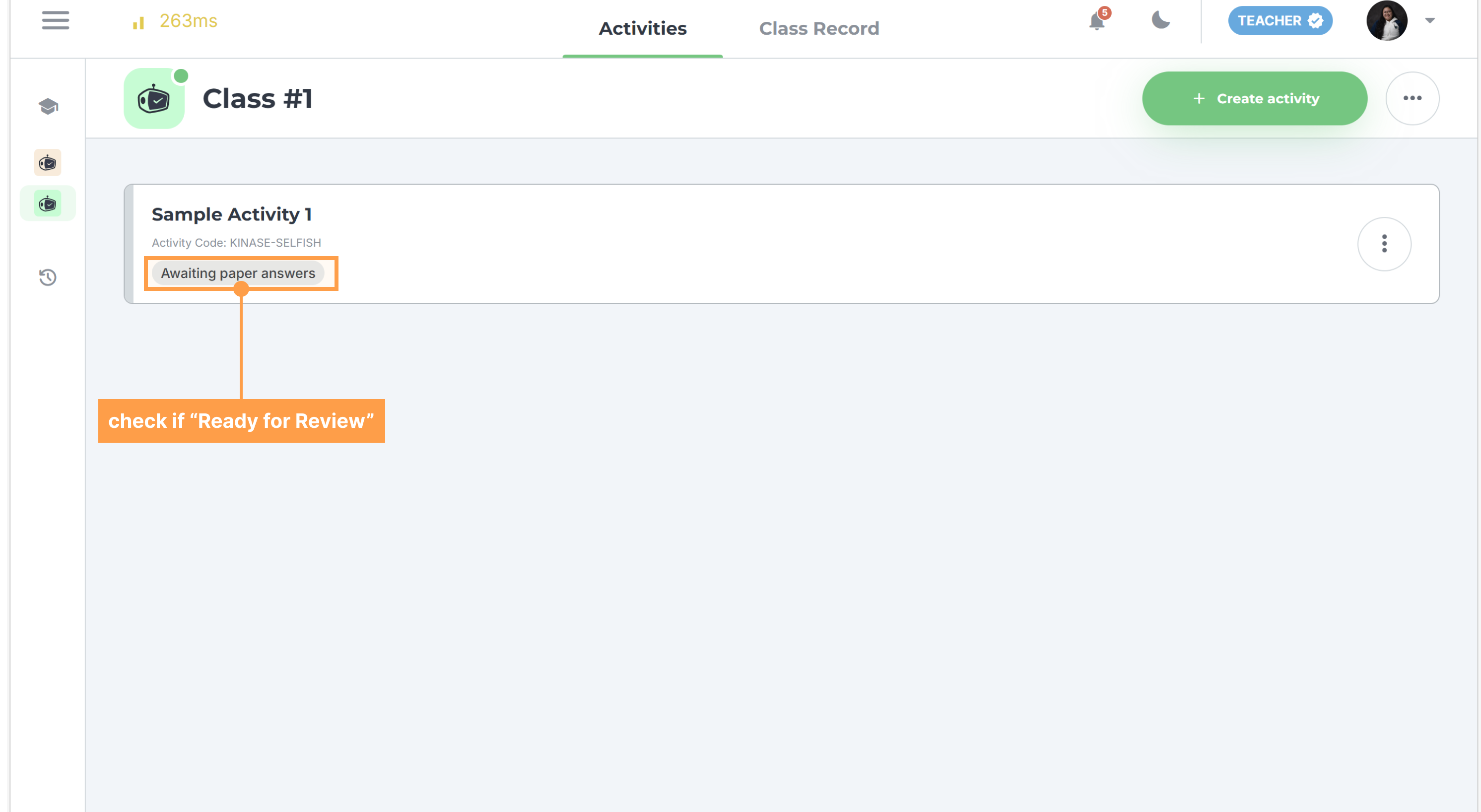
- Once scanning is finished, please wait about 3 minutes for our system to read and evaluate your students’ answers. You may check whether the results for your activity are ready for viewing by checking on the GradeChum app. A sample image below will guide you where to find it:
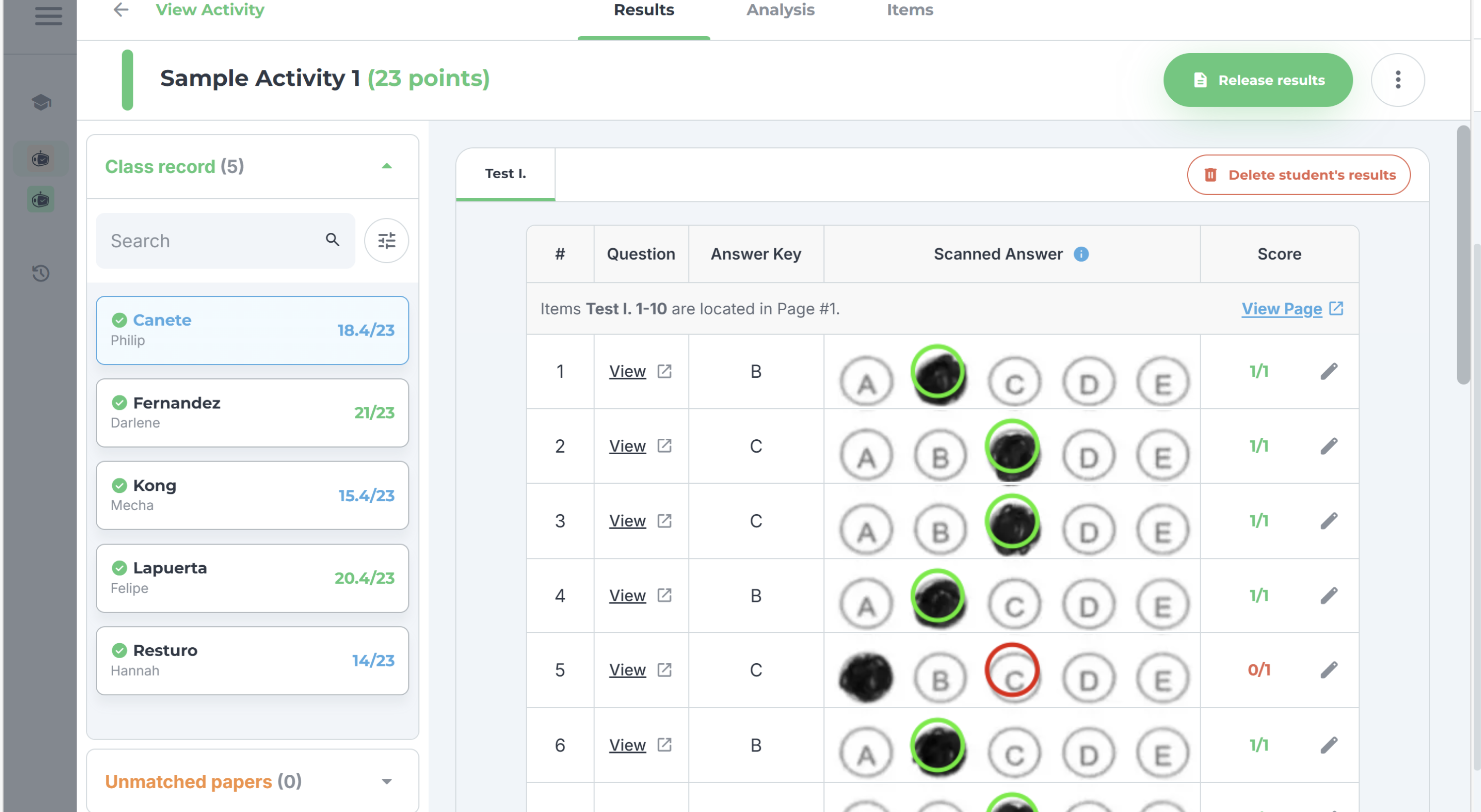
- Once evaluation is finished for your activity, you may now check your students’ results in the GradeChum app: their score, the Answer Key and the Scanned Answer for every item. Each student you open here counts toward the review GradeChum asks for before you can release.
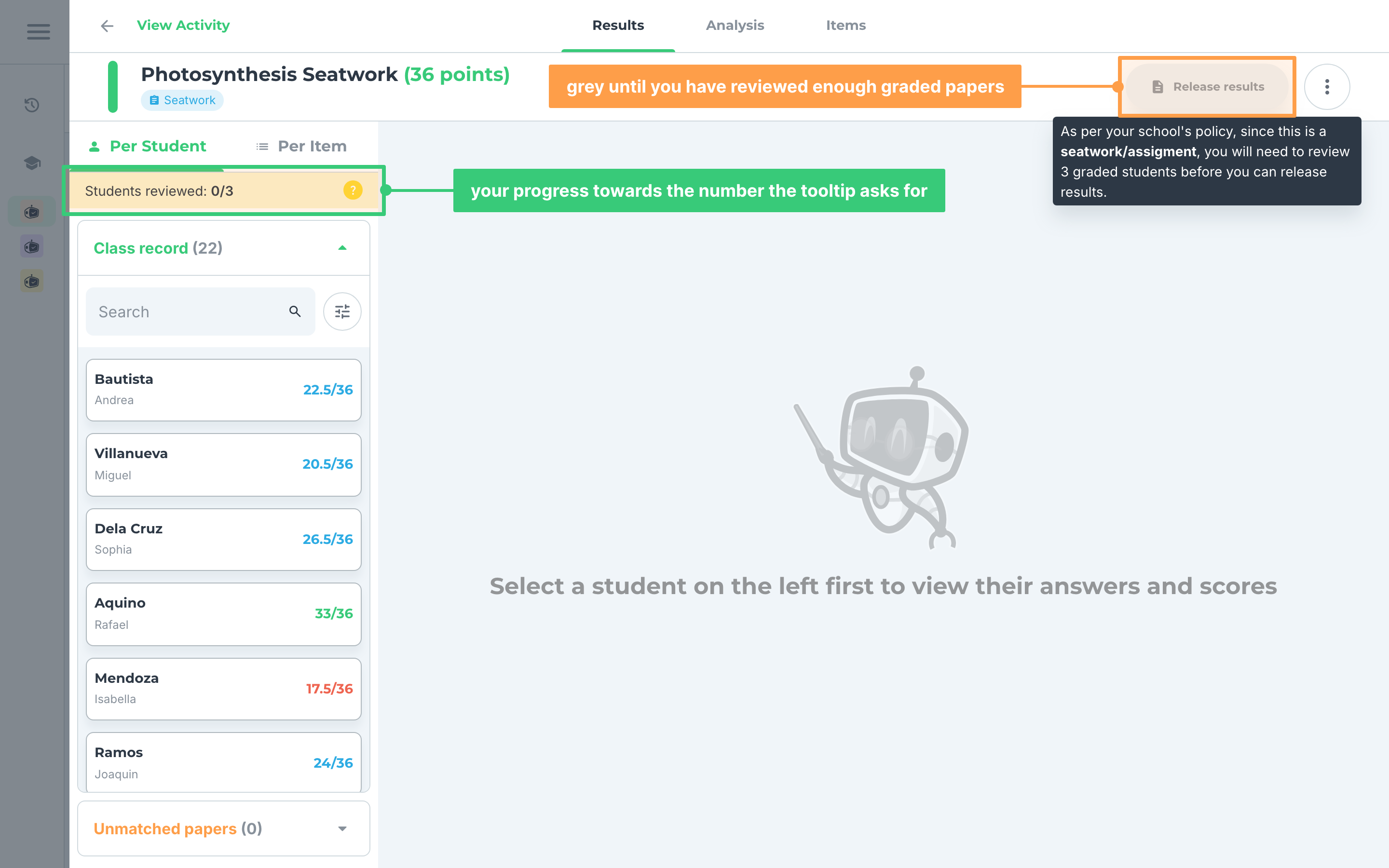
- GradeChum asks you to review a share of the graded papers before it will let you release. Until you have, the Release results button stays grey. Hover it to see how many students your school's policy asks you to open, and watch the Students reviewed count above the class record to see how far along you are.
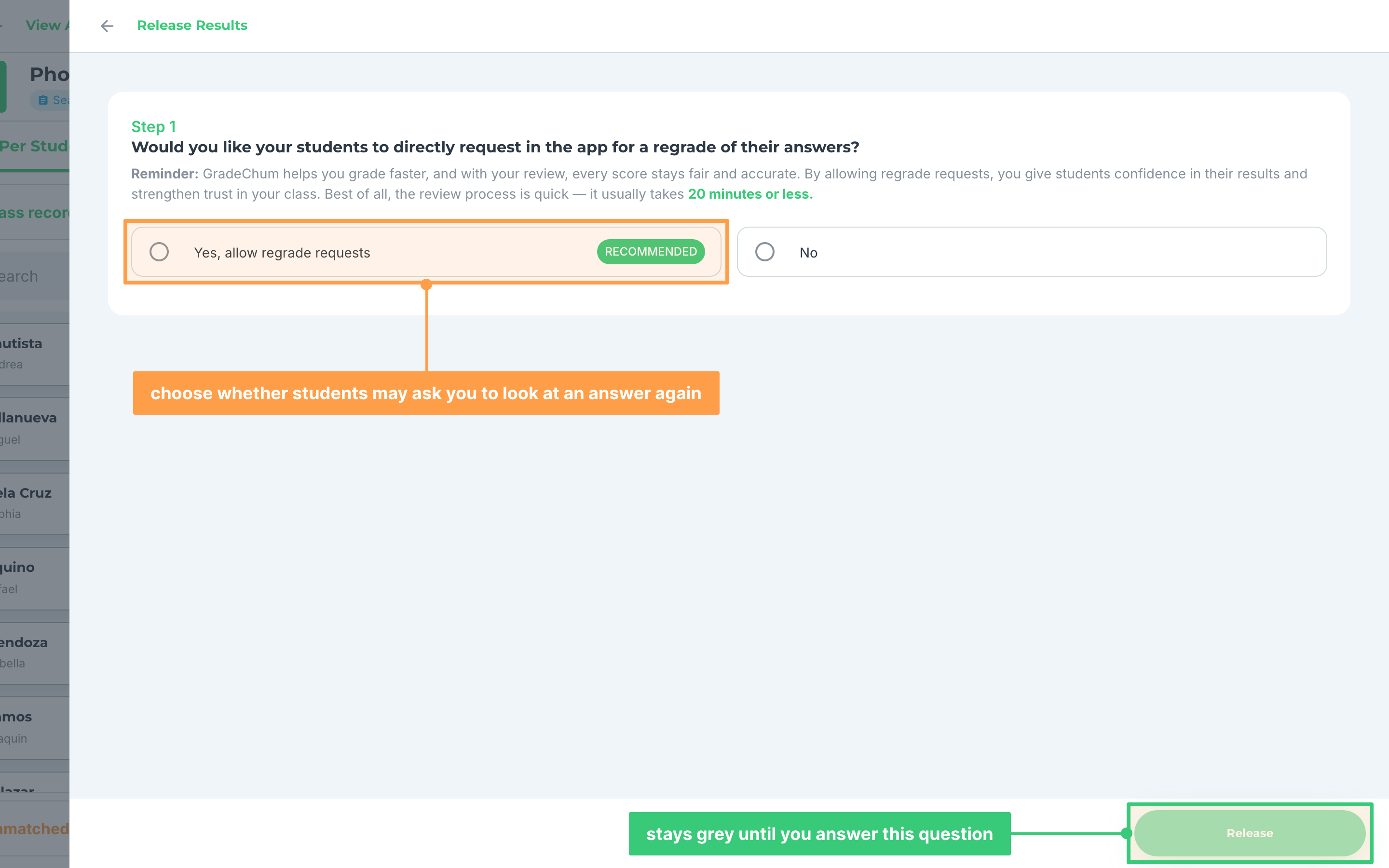
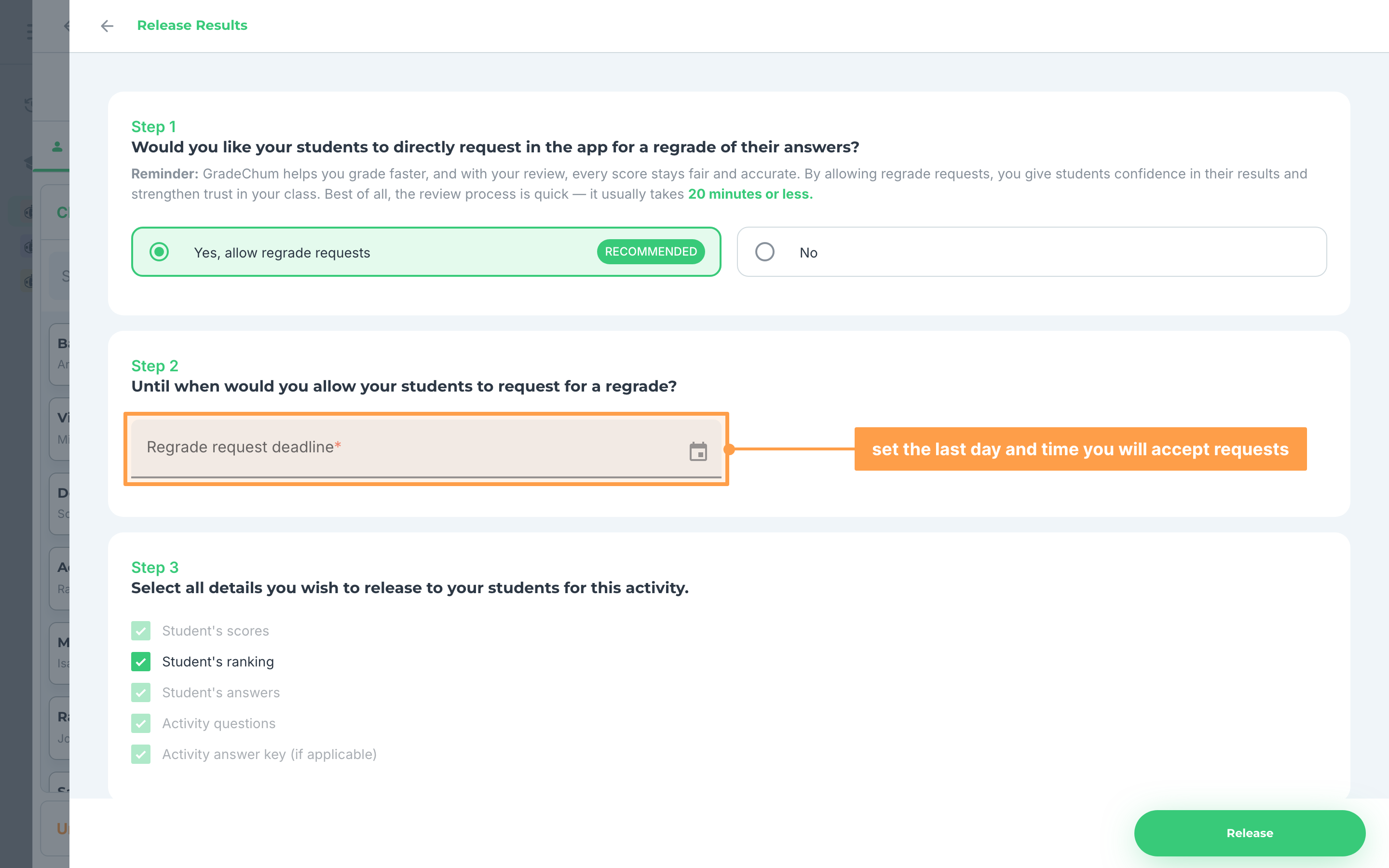
- Once you have reviewed enough, the button turns green. Click it. Step 1 asks whether your students may request a regrade of an answer directly in the app. The Release button at the bottom stays grey until you answer this question.
- If you choose Yes, allow regrade requests, Step 2 appears and asks for the last day and time you will accept those requests. The deadline is required, so the form will not release without it.
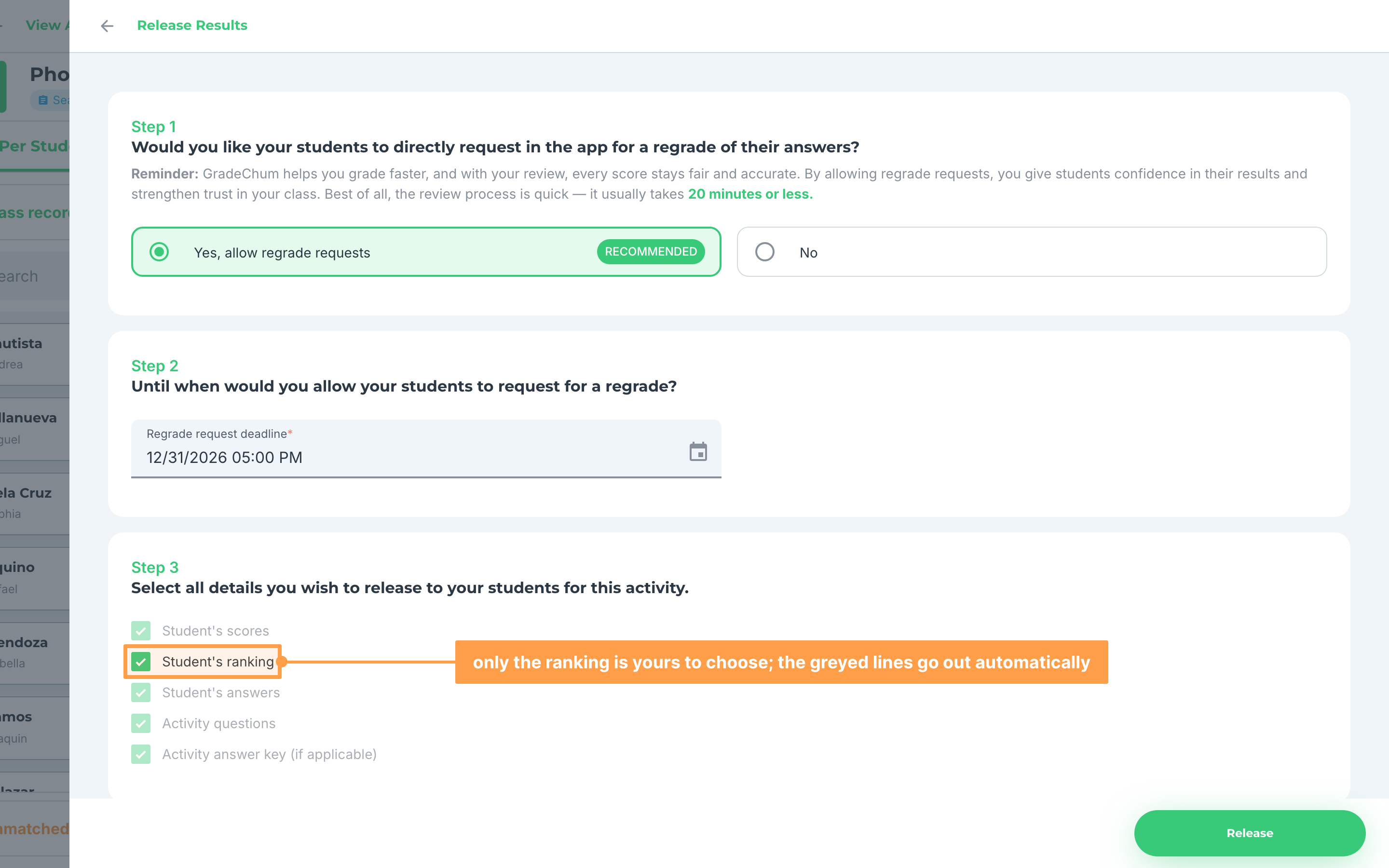
- On that branch, Step 3 decides most of the list for you. Your students' scores, their answers, the activity questions and the answer key all go out, and only Student's ranking is left for you to tick.
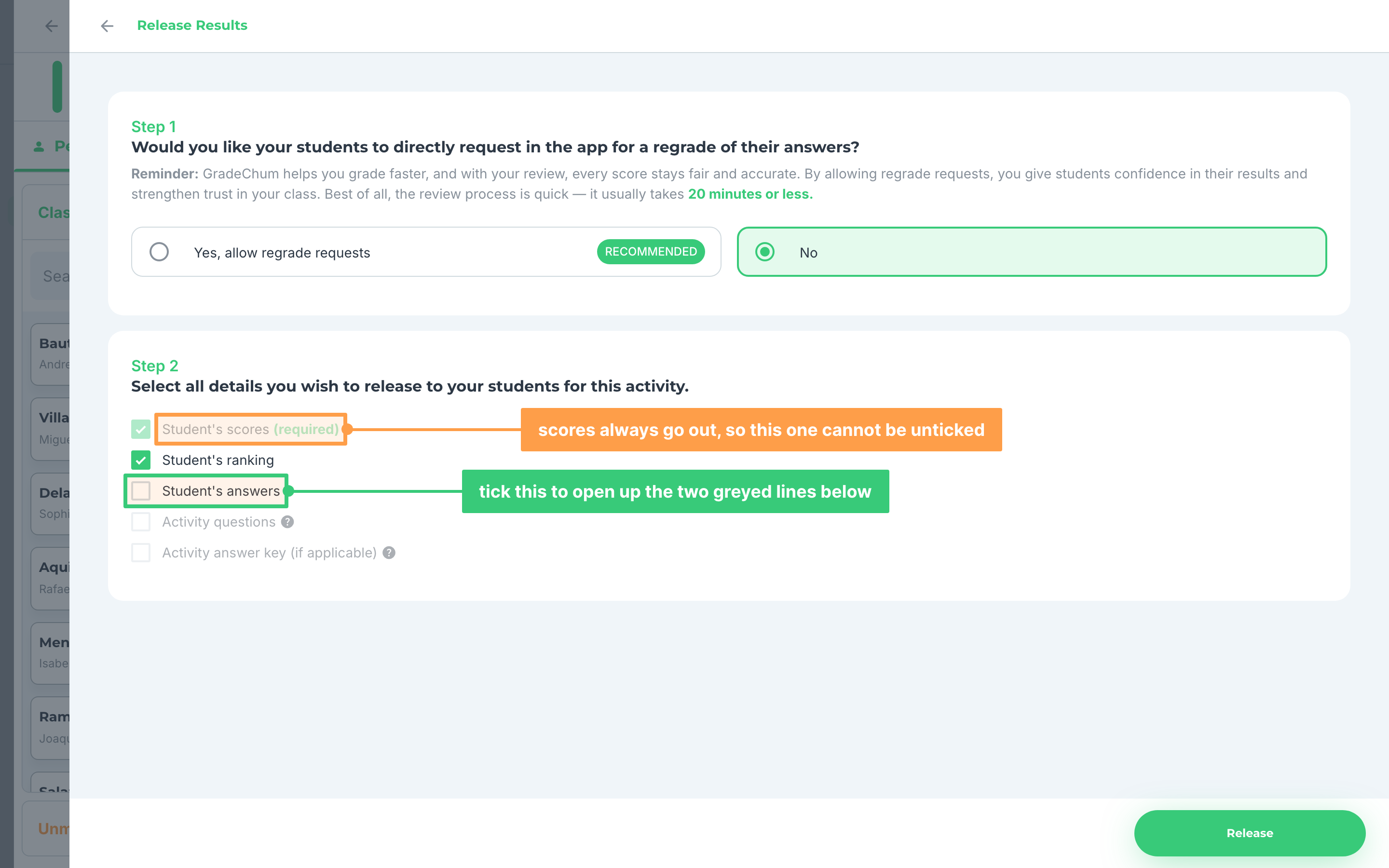
- If you choose No, there is no deadline to set and the checklist becomes Step 2. Their scores always go out, so that line cannot be unticked. Their ranking starts ticked and their answers start unticked.
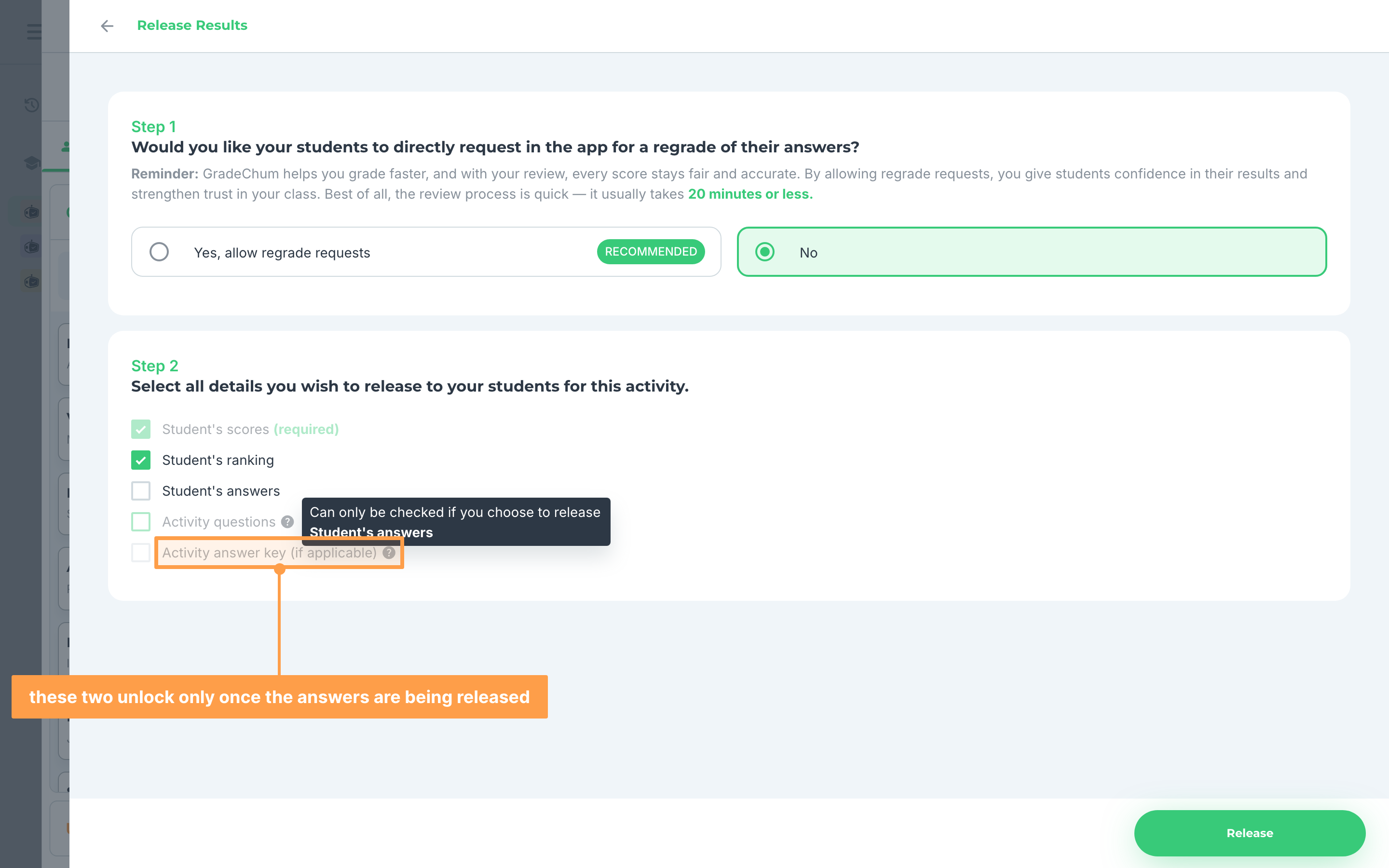
- Activity questions and Activity answer key stay greyed out until you tick Student's answers. Hover either one and GradeChum tells you the same thing.
- If you have released any results, click Share results on the activity to see how your students can view them. You can hand out your class code so they view the results in their GradeChum classes, or download and print QR result sheets they can scan without an account.
Next, let's explore the different ways to view the activity results.
Last updated March 11, 2026