
Connect to LMS
Once your school's LMS is finally set up on your end, it's now time to experience a seamless experience between GradeChum and your LMS using your teacher account.
Before we start, to use all the features available for LMS integration, you must first connect your teacher account to your existing LMS account.
There is one way to connect your teacher account to your LMS: open the Connect to LMS modal from your account settings and follow the steps inside it. The modal itself is described first, then where to find it.
a. Connect to LMS Modal
Once your school has set up its LMS configurations for GradeChum integration, a Connect to LMS modal becomes available to its users.
Nothing opens this modal for you. As a teacher, you open it from your account settings: Profile > My Account > Account Information, then click Connect beside the LMS email field.
To connect your LMS account through this modal, follow these steps:
- Select your school from the list of options. Rest assured that if your school successfully set up the integrations on their end, your school will show up on the list for sure.
- Check that the LMS named on the button, for example Connect to Canvas, matches the LMS your school is currently using. If so, click that button to proceed.
- You will be redirected to your school LMS's login portal. Provide your LMS account credentials there to successfully log in.
- If your school and campus are not set on your account yet, fill in the School and campus field. Search for your campus in the list, or if it is not there type it yourself as School Name - Campus, then proceed.
- Once done, you will be redirected back to the application with a success message stating that you have successfully connected to your LMS.
- Finally, the application will show you the rest of the things you can do when you're connected.
b. Account Settings
You can connect to an LMS at any time from your account settings in the app (profile menu > My Account > Account Information).
To connect your LMS account through here, follow these steps:
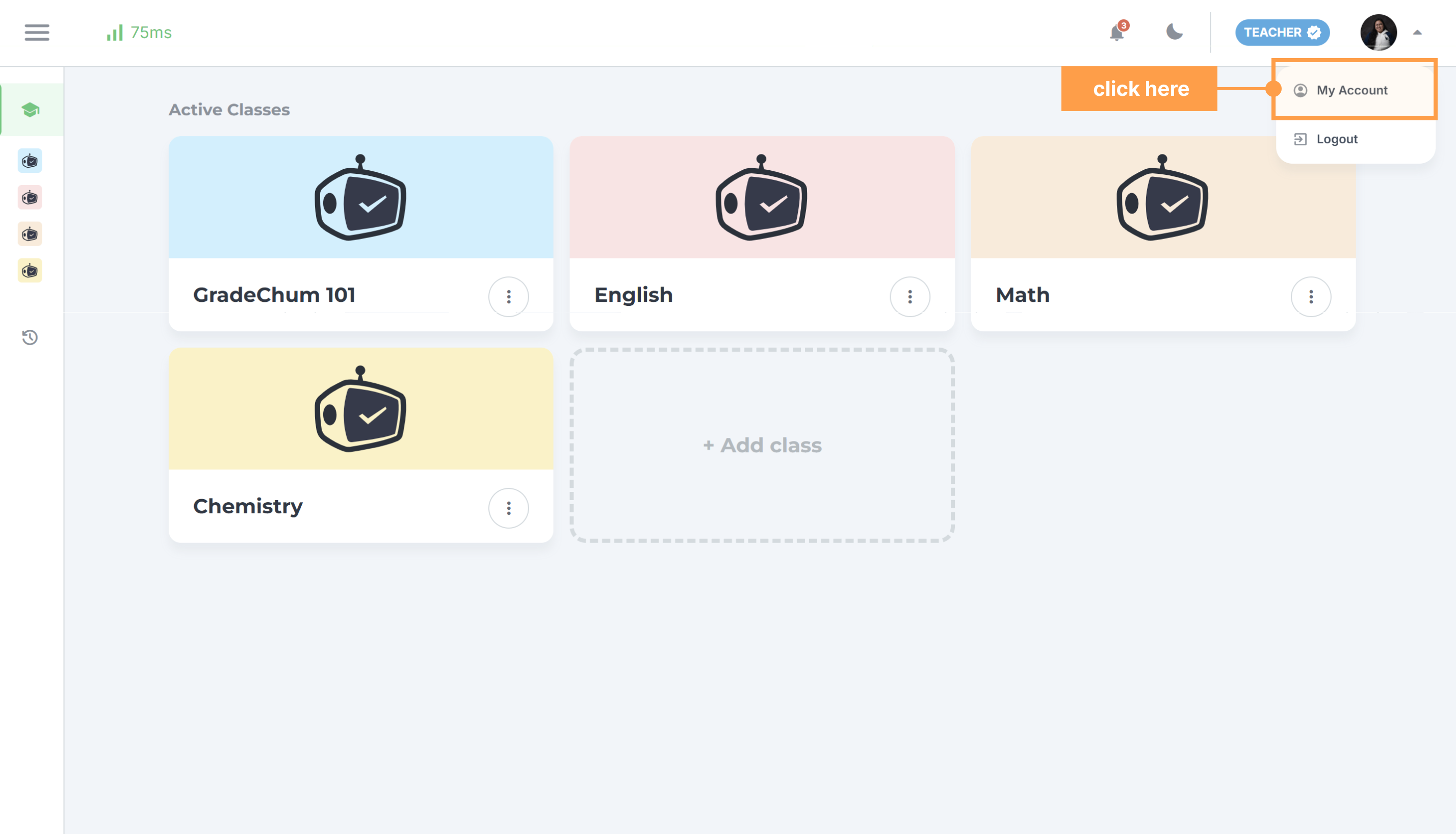
- Click your profile picture to open the menu and click My Account.
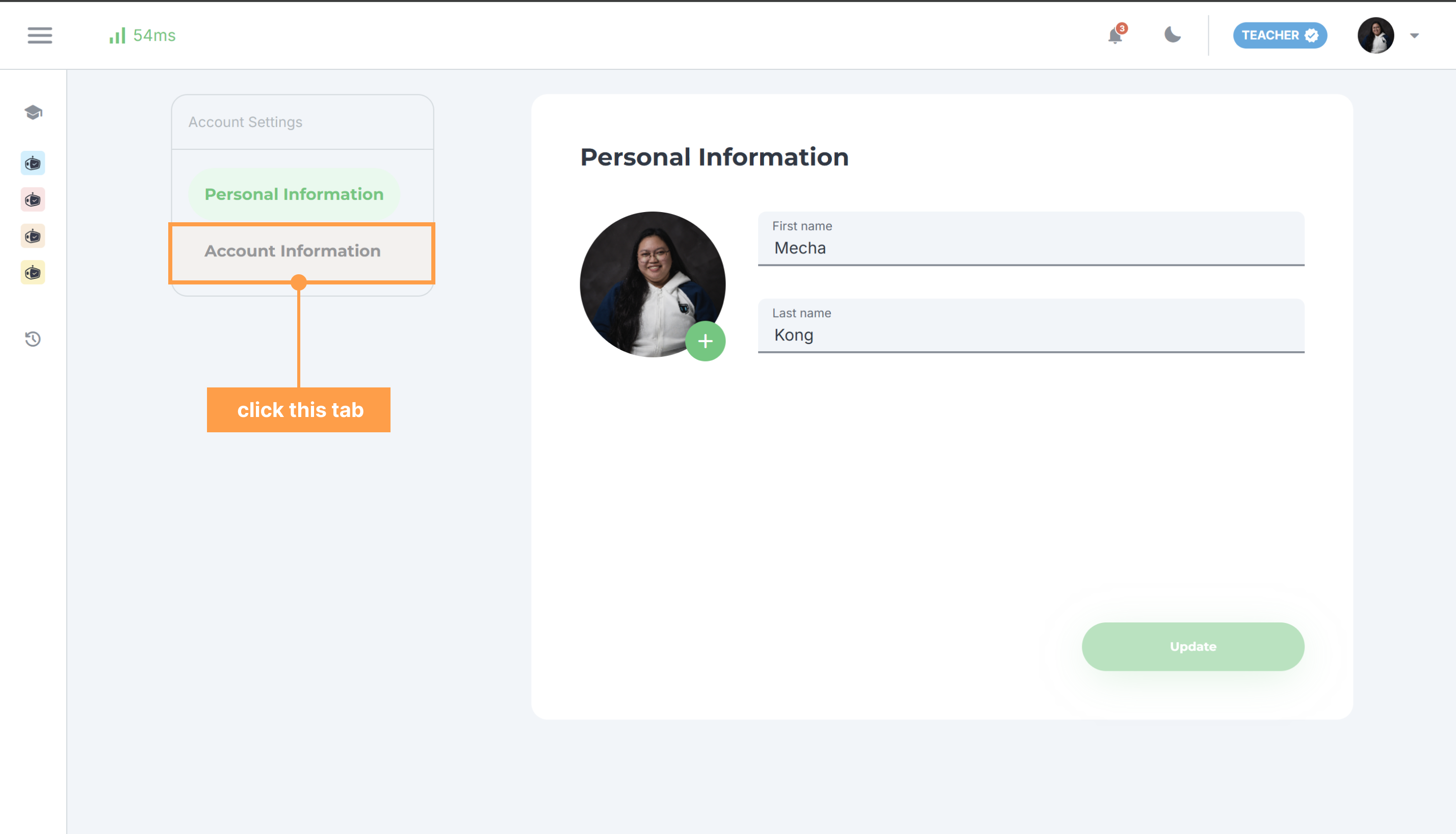
- Go to Account Information.
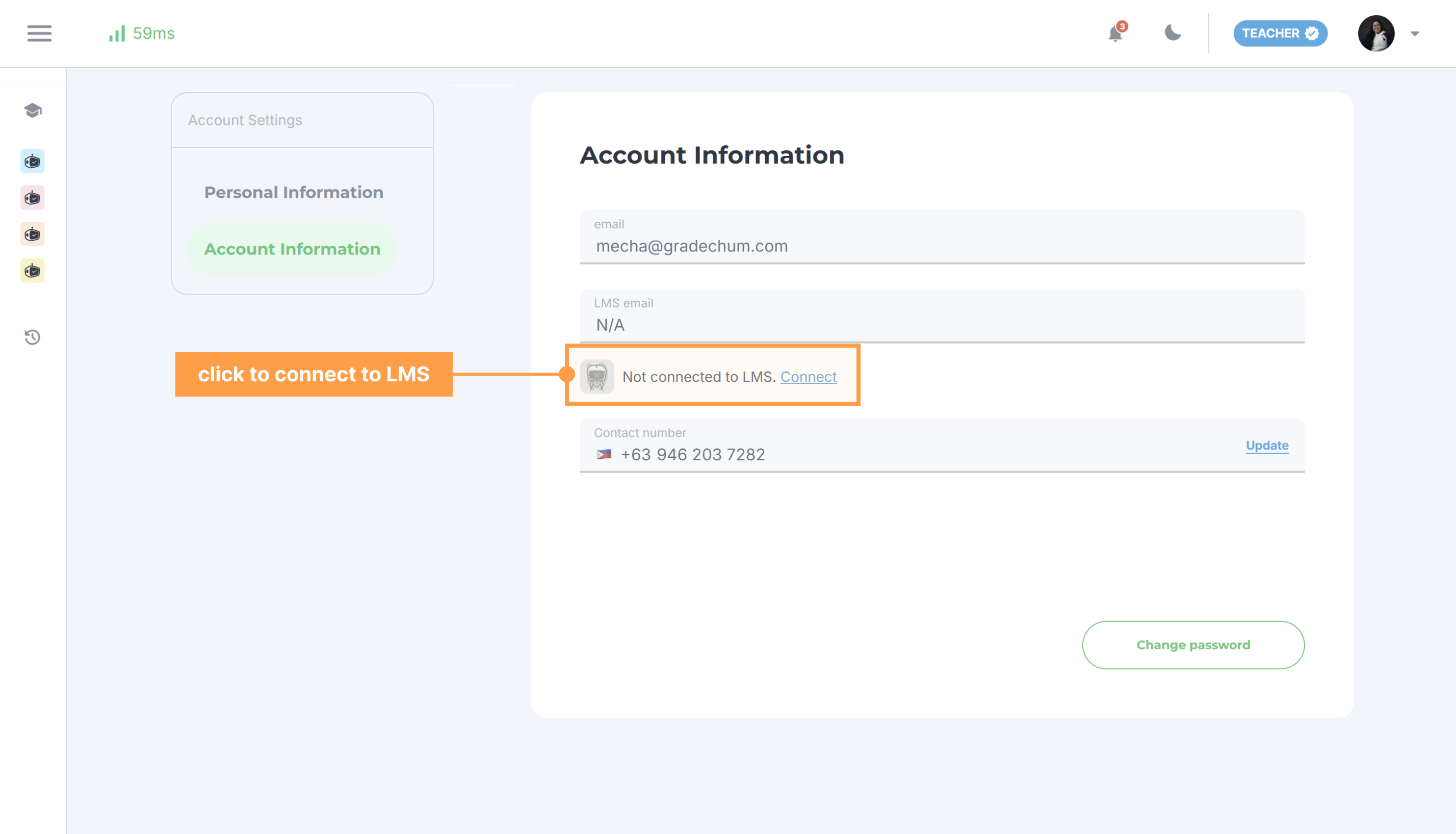
- You will see a field there for an LMS email. Under that is an indicator if your account is already connected to an LMS. If not, it will show a Connect button link. Click that to open a modal.
- Follow the steps under the Connect to LMS modal scenario.
With that, you're one step in to a seamless GradeChum to LMS experience!