
Activities from outside GradeChum
Introduction
Not everything you grade happens inside GradeChum. A group project, an oral recitation, a laboratory practical or a performance task is judged in the room. The scores still belong in your class record, and they still count towards your course outcomes.
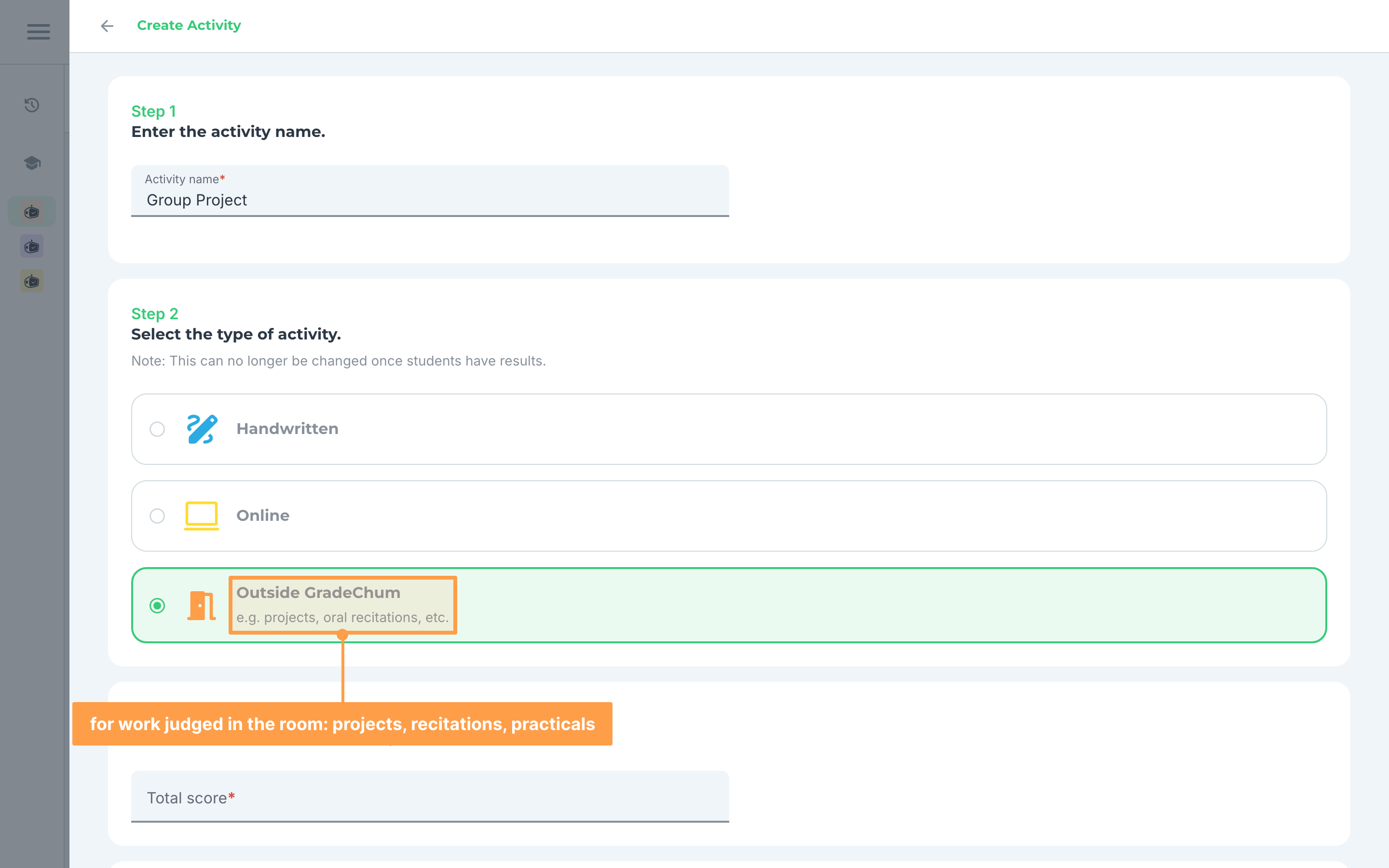
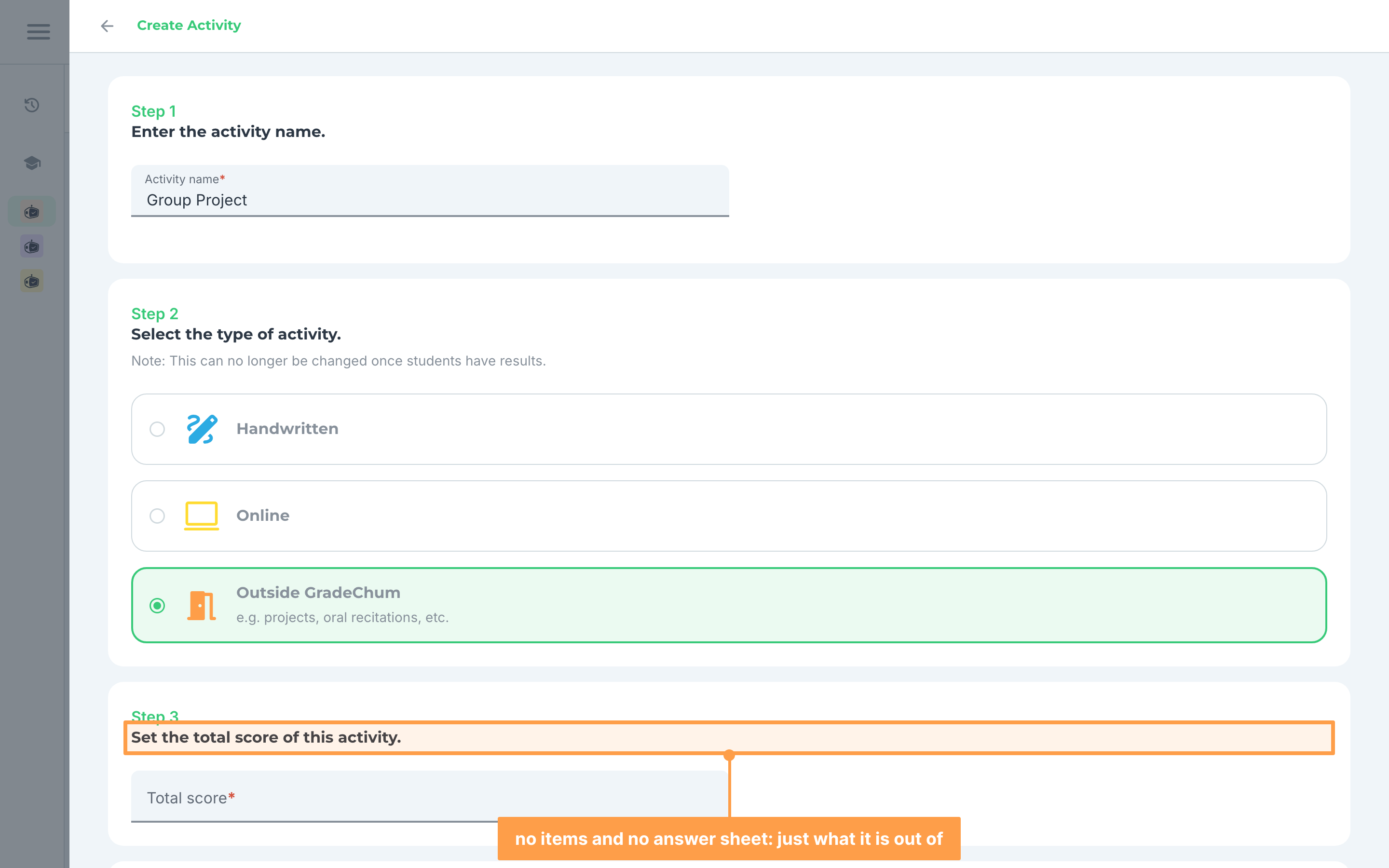
That is what the Outside GradeChum activity type is for. Its own description in the app reads "e.g. projects, oral recitations, etc." It holds a total score and the learning outcomes the work is meant to reach, and nothing else. There are no items, no answer sheet, and no answering screen. You bring the scores in yourself.
Note: The Outside GradeChum card only appears when the course linked to this class has learning outcomes. If the course has none, the activity type step shows only Handwritten and Online.
Steps
To create an activity for work done outside GradeChum, follow these instructions:
-
Under the Activities tab of your class, click + Create Activity > Create New, and give your activity a name.
-
On the step "Select the type of activity.", choose Outside GradeChum.
- On the step "Set the total score of this activity.", type the total this activity is out of. It must be a number from 0 to 1000.
- On the step "Select and set which outcomes are targeted by this activity.", tick every outcome this activity is meant to measure. The outcomes are grouped under the course learning outcome they belong to, shown as "CLO 1:", "CLO 2:" and so on.
- As you tick outcomes, GradeChum splits the contribution evenly between them. To weight them differently, change the number in the Contribution field beside each one. Each contribution is a whole percentage from 1 to 100, and the contributions must add up to exactly 100%.
Note: A normal activity carries its outcomes on each item. An outside GradeChum activity has no items, so the contribution percentages on this step are the only way its single score reaches your outcome reports.
- Finish creating the activity. There is no item step and no answer sheet step for this type, so the form is shorter than usual.
Entering the scores
Open the activity from your Activities page. Instead of the usual Results, Analysis and Items tabs, an outside GradeChum activity opens straight onto a Class record list: every student in the class, with a Score column beside their name.
There are two ways to fill that column.
a. Type each score
- Click the pencil button beside a student's score.
-
Type the score and press Enter, or click the green check. Press Escape or click the red cross to cancel.
-
The score must be a number from 0 up to the total you set for the activity. GradeChum confirms with "Score updated successfully".
b. Import them from your class record
- Click Import scores from class record at the top of the list.
-
Click Upload Excel/CSV, or drag your file onto the box. Any Excel or CSV format is supported.
-
If your file has more than one sheet, choose the sheet that holds the scores.
-
Choose which column of that sheet belongs to this activity.
-
GradeChum confirms with "Scores imported!"
Note: GradeChum does not store your class record. Only the student names are read, and only while the import is running.
Releasing the scores
- Click Release results. GradeChum asks "Release results?" with "Are you sure you want to release the results for this activity?"
-
Click Release.
-
If you need to take the scores back, open the activity again and click the button once more. This time it offers Unrelease.
Your students then see a single Overall Score, written as their score over the total with the percentage beside it. There is nothing else to open: an outside GradeChum activity has no questions, no answers and no reviewer, so the card is not clickable.
How the activity looks on your Activities page
An outside GradeChum activity's card carries an orange line reading "from outside GradeChum". It shows one statistic, the average score, which stays as N/A until at least one score has been entered. It carries no status badge, because there is no scanning or grading queue behind it.
Its actions menu holds only Export, Edit and Delete.