
Online activities
Introduction
Not every activity has to be answered on paper. In an Online activity, your students answer inside GradeChum on their own device. You set when the activity opens, when it closes, and how long each student gets once they begin. There is no answer sheet to print and nothing to scan.
You can also run an online activity like a supervised exam. Exam Mode records what each student does while answering, and you can shuffle the items, show one question at a time, or ask for a password before anyone starts. After the activity opens, you can move its schedule or let chosen students take it again.
Online is one of the activity types you choose while creating an activity, on the step named Select the type of activity.
Note: If your Create Activity form has no Select the type of activity. step, every activity you create is Handwritten. This is the case for accounts with no school, for some partner schools, and in mock board classes, which only make handwritten activities.
Steps
To create an online activity, follow these instructions:
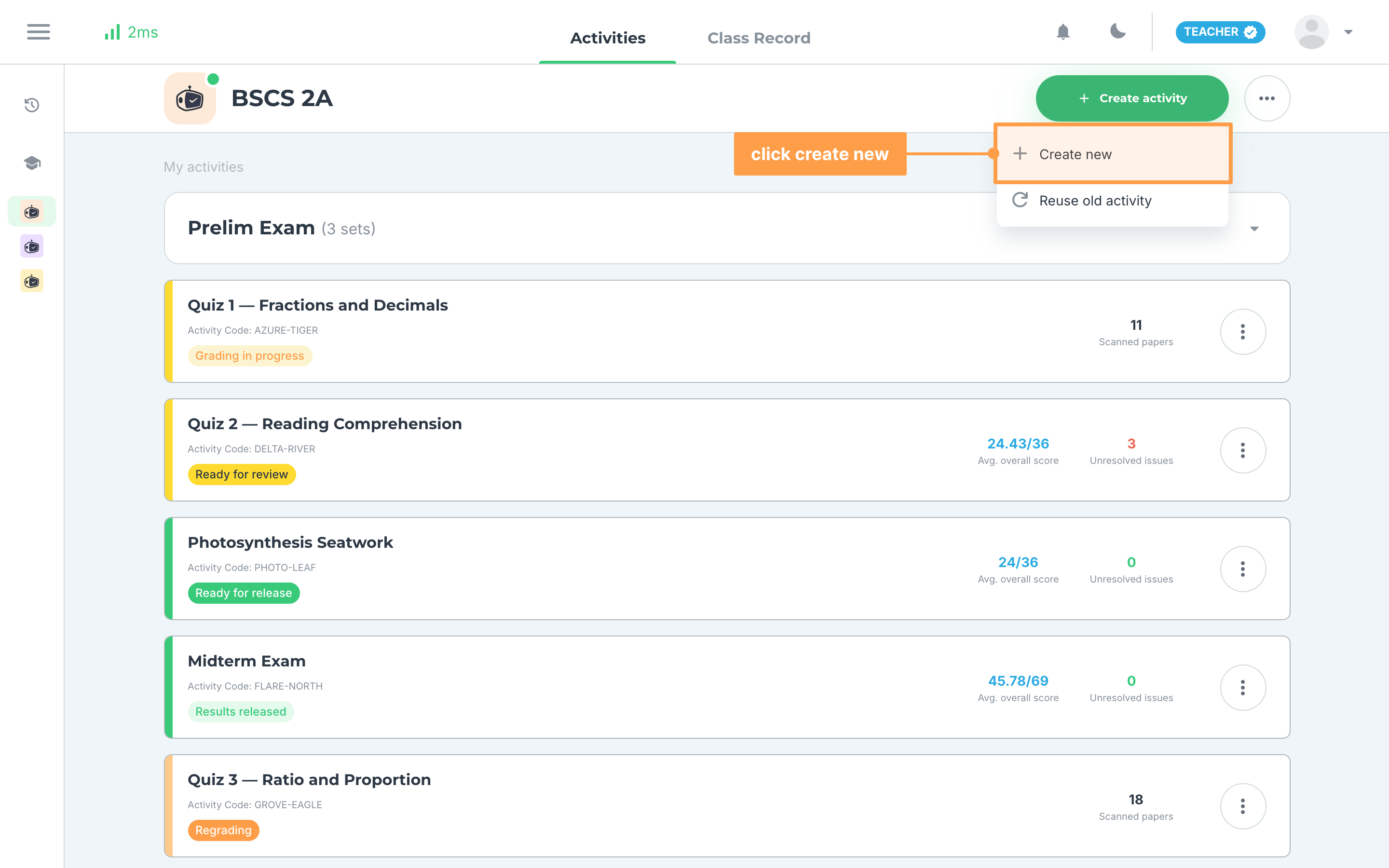
- On your class, under the Activities tab, click Create activity > Create new.
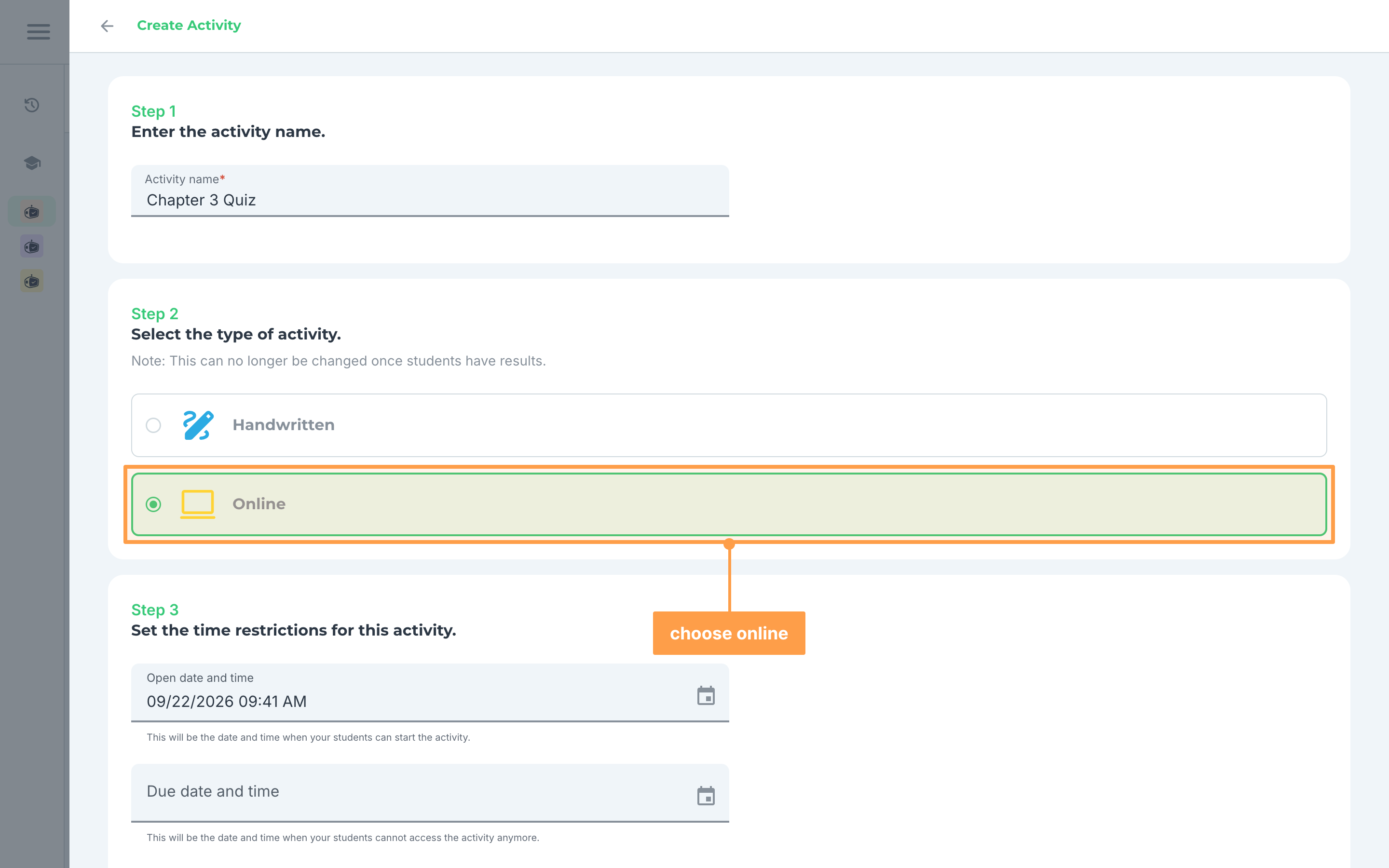
- Under Enter the activity name., give your activity a name. Then, under Select the type of activity., choose Online. Once students have results, the type can no longer be changed.
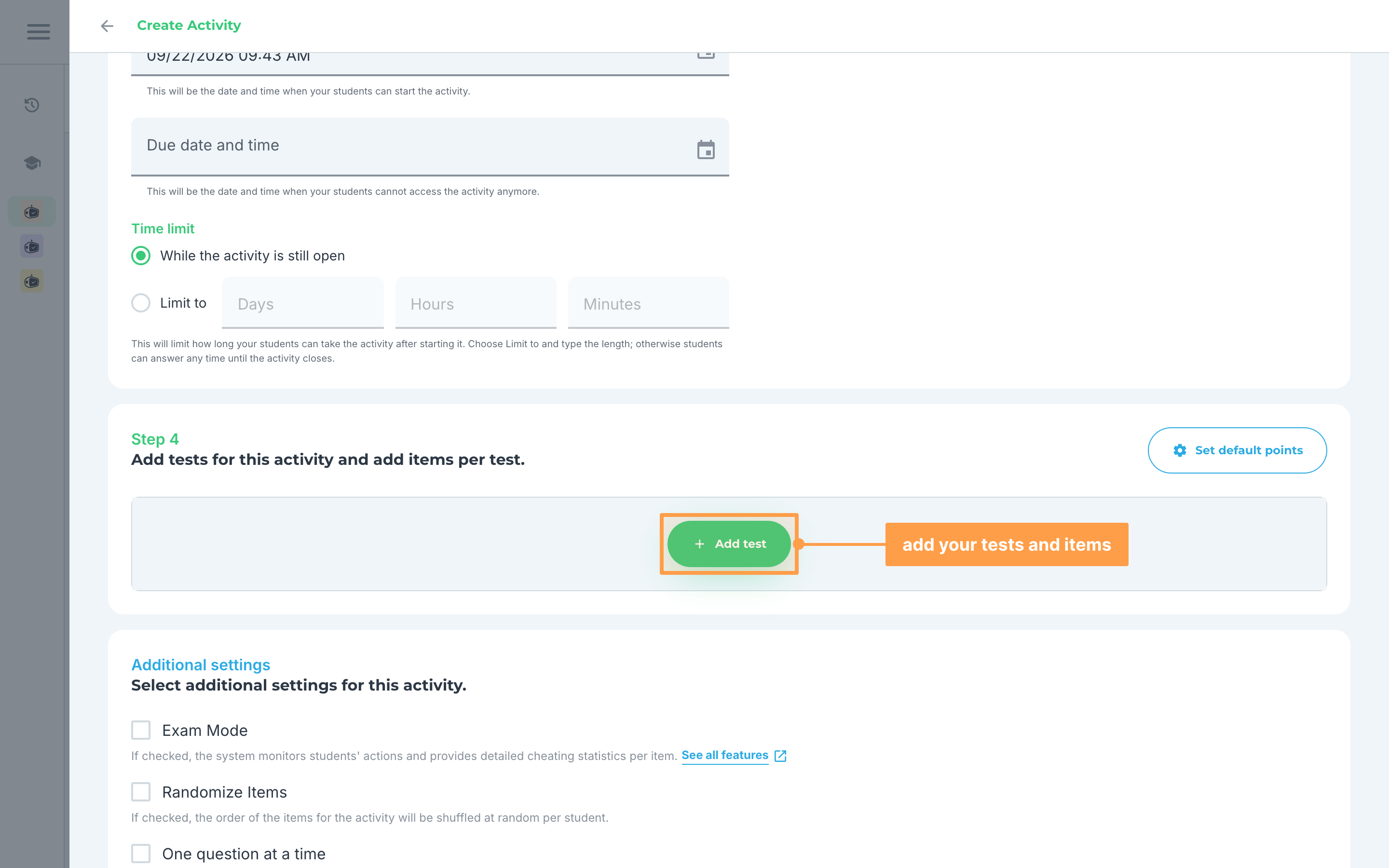
- Under Set the time restrictions for this activity., set the Open date and time, when your students can start the activity, and the Due date and time, when they cannot access it anymore. Choosing Online fills in the open date with the current time.
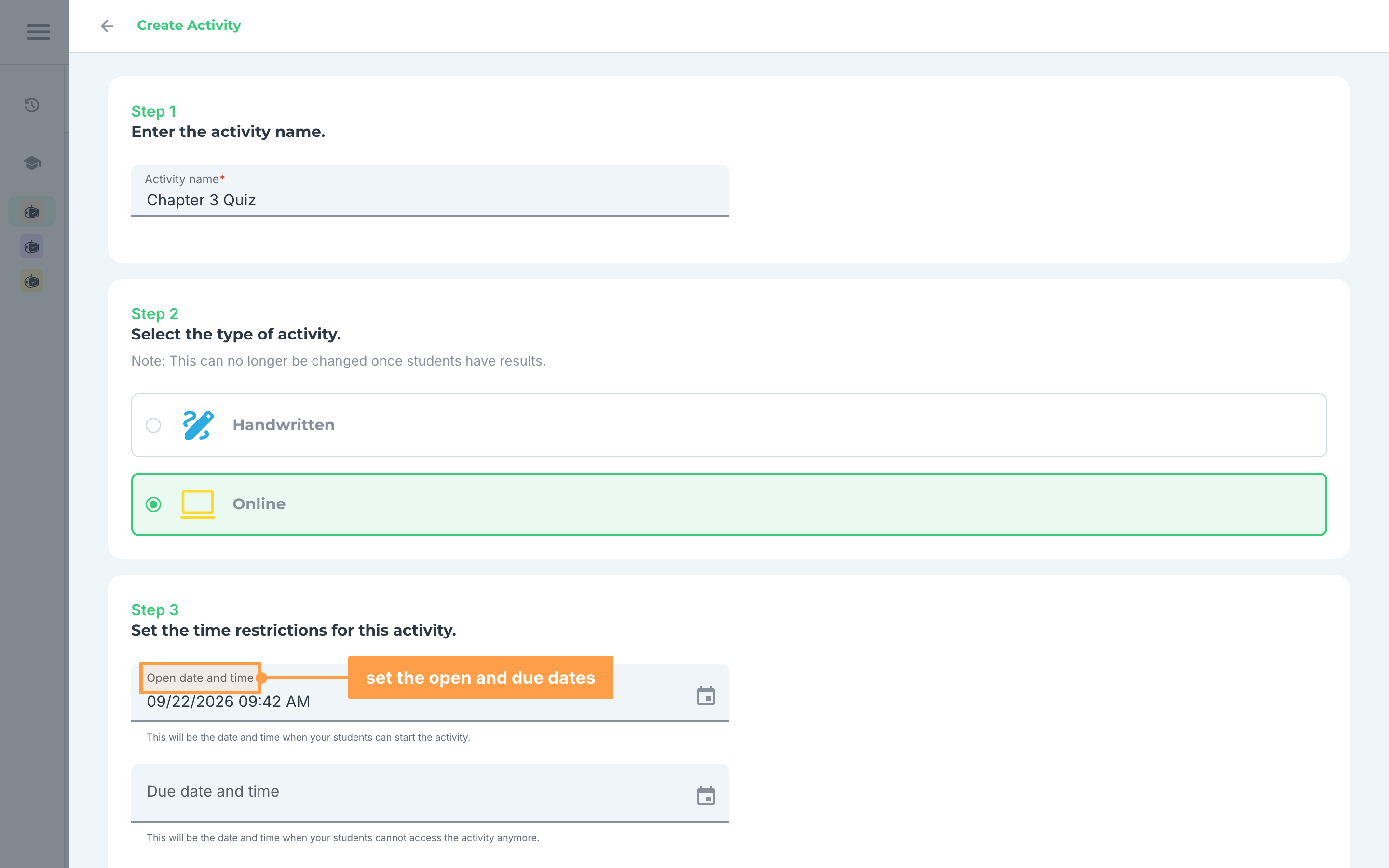
Note: Both dates are required. The due date and time must come after the open date and time, and it cannot be in the past, so the due date picker does not offer times before now or before a later open date.
- Under Time limit, choose how long each student gets once they begin. Leave it on While the activity is still open for no separate limit, or choose Limit to and type the length in the Days, Hours and Minutes boxes.
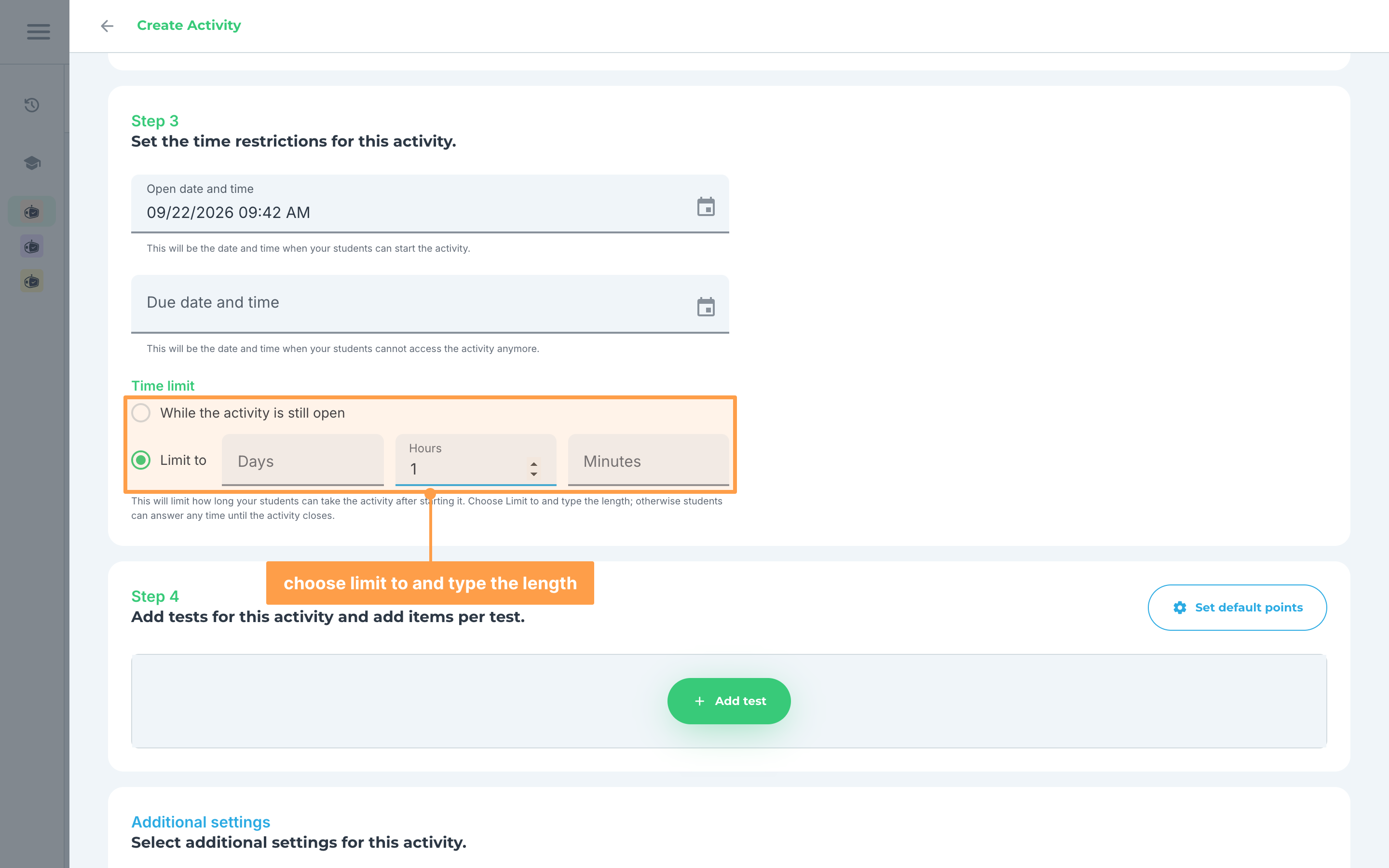
Note: Typing in a box selects Limit to for you. When you leave the boxes, GradeChum tidies the length, so 90 minutes becomes 1 hour and 30 minutes, and a total of 0 goes back to no limit. If the limit is longer than the activity is open, you see "The time limit is longer than the activity is open. Shorten it, or set a later due date." and cannot save until you fix it.
- Under Add tests for this activity and add items per test., build your tests and items as you would for any activity. See Add new test for every item type.
Note: Online activities do not support Code on paper and Visuals items. If your activity already holds some when you choose Online, red text warns you first, for example "Switching to Online will remove 3 items: online activities do not support Code on paper and Visuals items." Choosing Online removes them.
Note: An activity can hold only one Shading test. If the Shading option is grayed out with "Your administrator has disabled shading tests.", your school has turned shading tests off, so put your multiple-choice items in an Answer Box test instead.
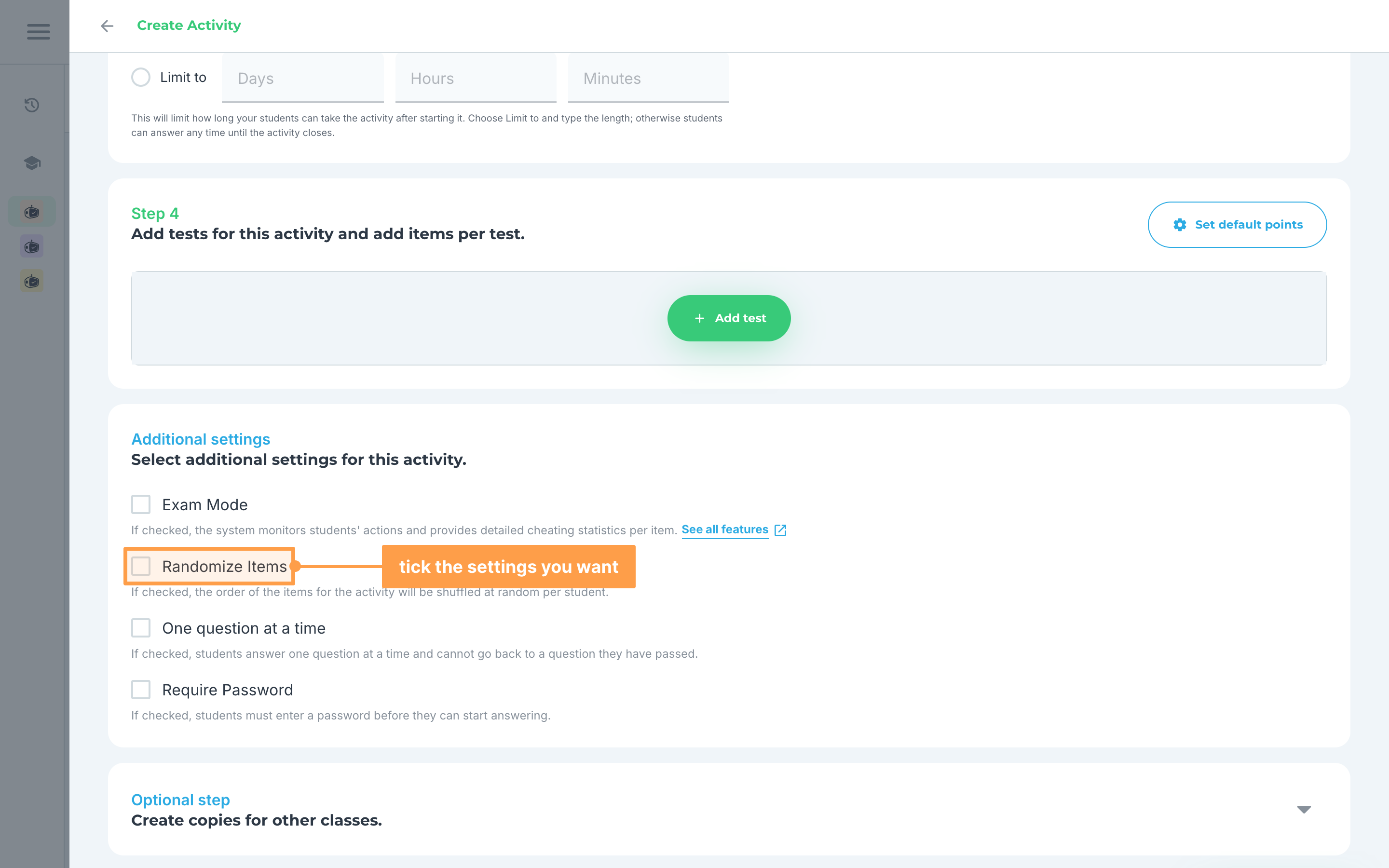
- Under Select additional settings for this activity., tick the settings you want. All four start off, and they exist only for online activities:
a. Exam Mode
For activities with Exam Mode ticked:
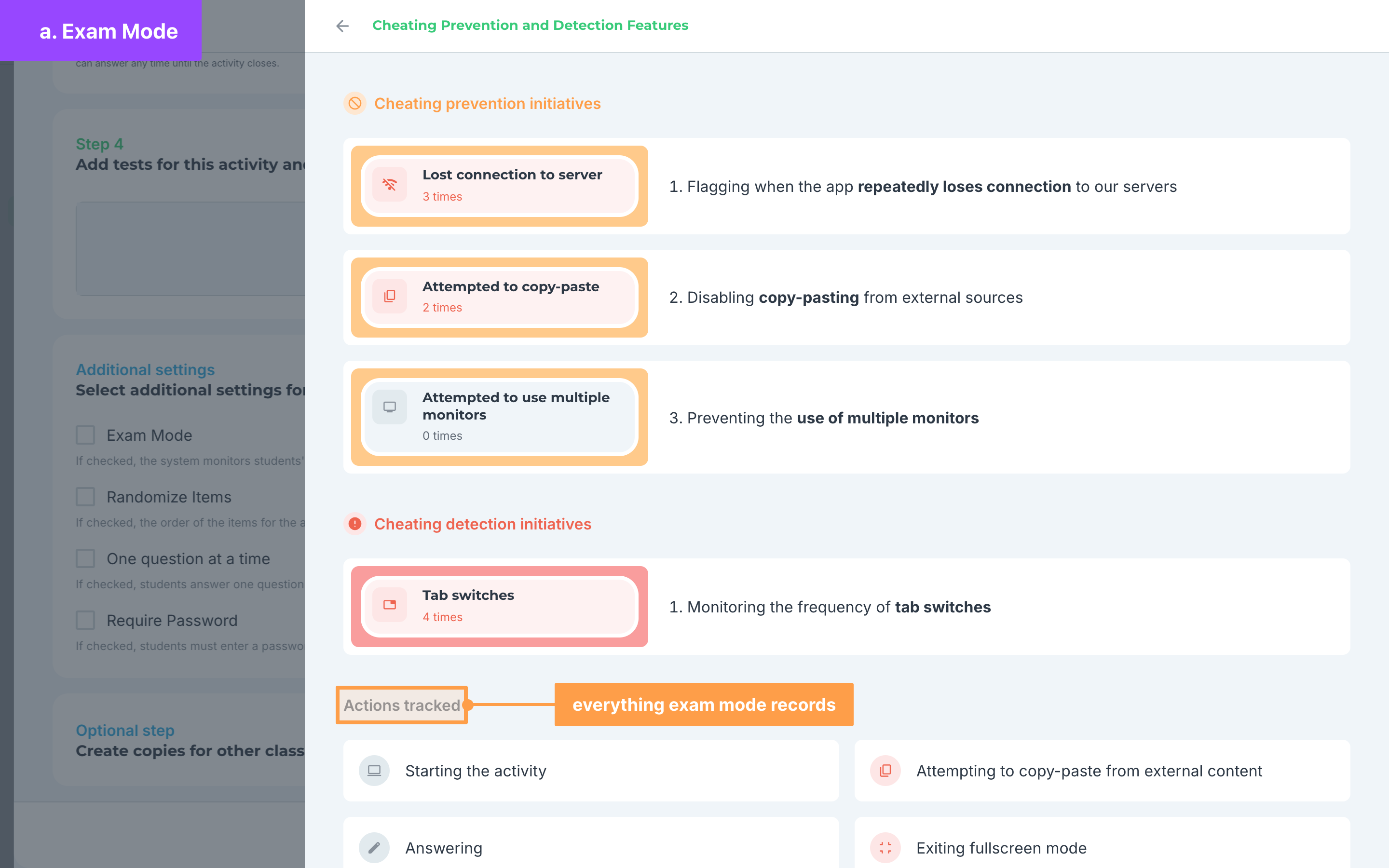
- GradeChum monitors each student's actions while they answer and gives you detailed cheating statistics per item. On a computer, students must answer in a separate window and in full screen. Students cannot paste content from outside the activity, and cannot use more than one monitor.
- Click See all features to open Cheating Prevention and Detection Features, which lists the Cheating prevention initiatives, the Cheating detection initiatives and every one of the Actions tracked.
b. Randomize Items
For activities with Randomize Items ticked:
- The order of the items is shuffled at random for each student. The form looks the same for you, because the shuffle happens when each student opens the activity.
c. One question at a time
For activities with One question at a time ticked:
- Students see one item per screen and cannot go back to an item they have passed. Each part of a grouped question, such as 4.1 and 4.2, gets its own screen with the question shown above it.
- The activity card shows a One question at a time badge, for you and for your students.
d. Require Password
For activities with Require Password ticked:
- GradeChum makes a password for the activity as soon as you tick the box. Click Copy beside it, or read it out to your class when you're ready to begin. Students cannot start until they type it.
- The password stays the same if you untick the box and tick it again. If GradeChum cannot make one just then, a message tells you that one will be set when you save the activity.
- The activity card shows a Password needed badge. Your students see the badge but never the password.
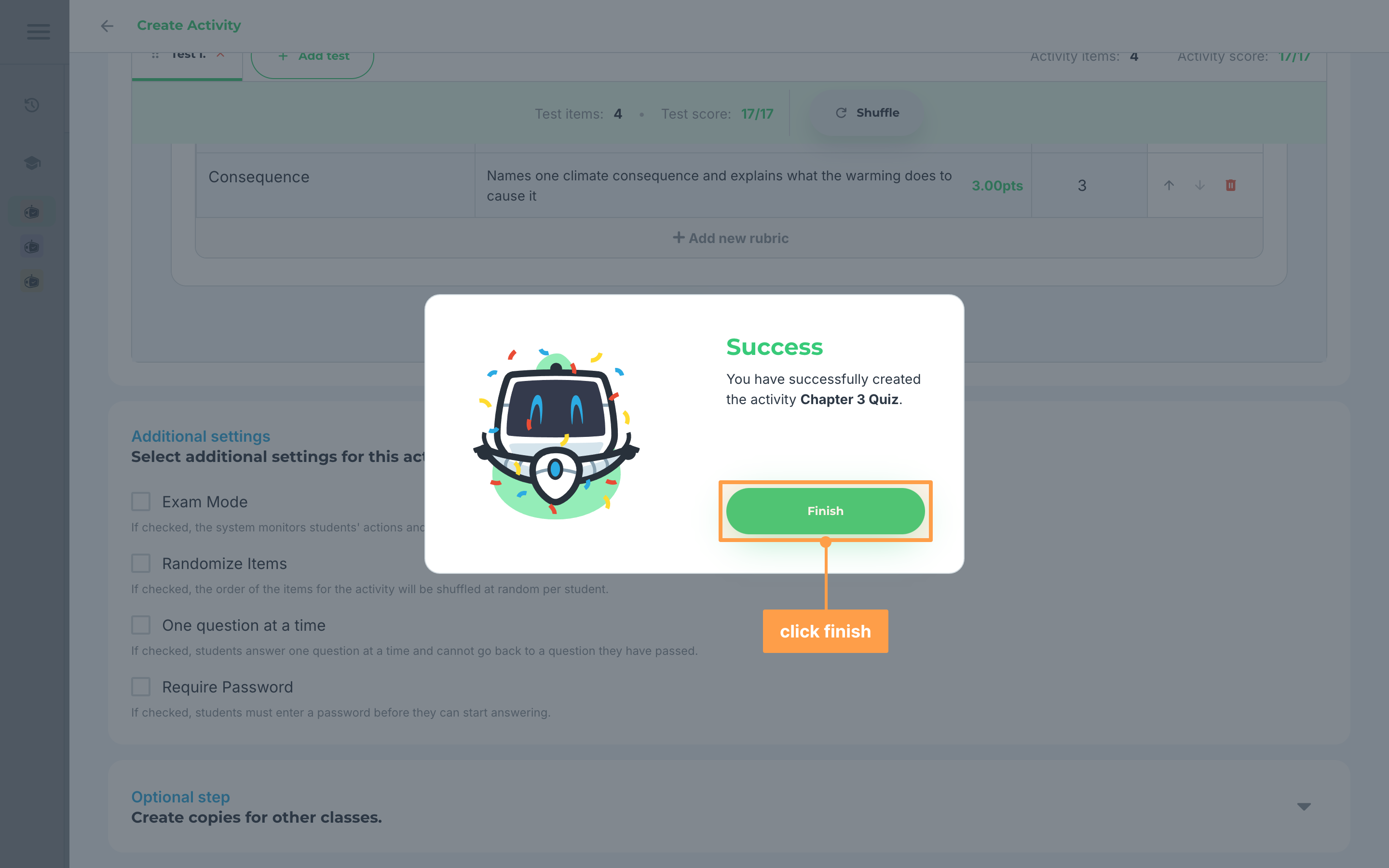
- Finally, click Create activity. If your class's course has learning outcomes and your items carry them, Activity ILO Summary opens first: read it, then click Create activity there. An online activity has no answer sheet, so there is no prompt to create sets. The Success modal confirms the activity, and you click Finish.
Giving an online activity to your students
You do not print or scan anything. The activity appears on your students' Activities page, and they can start it once the open date and time arrives.
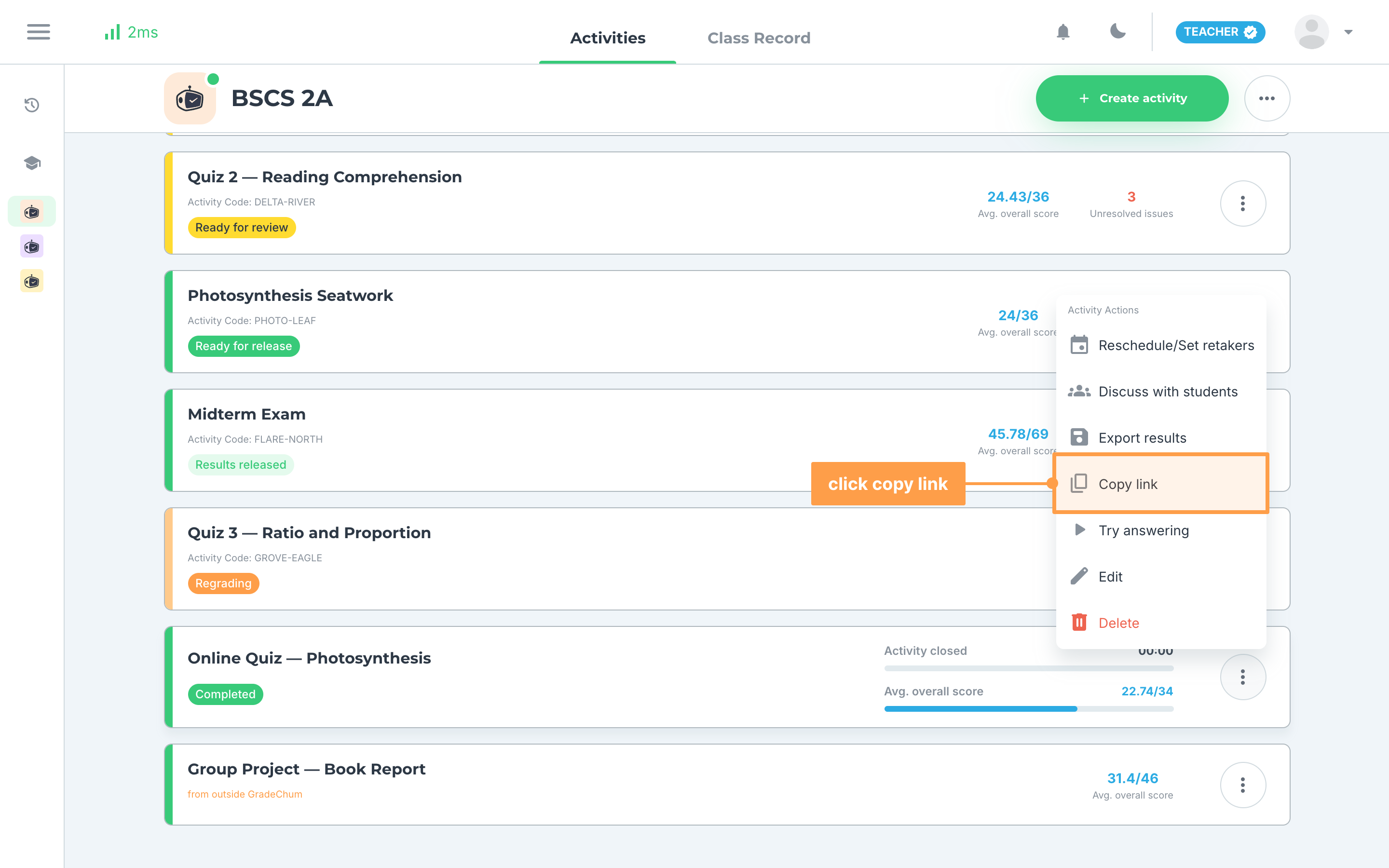
To share it or check it, open the activity's actions menu with the ⋮ button on its card. Under Activity Actions:
- Click Copy link to copy the link that takes a student straight to the answering screen. GradeChum confirms with "Link copied to clipboard." The same menu holds Try answering and Reschedule/Set retakers, which the sections below use.
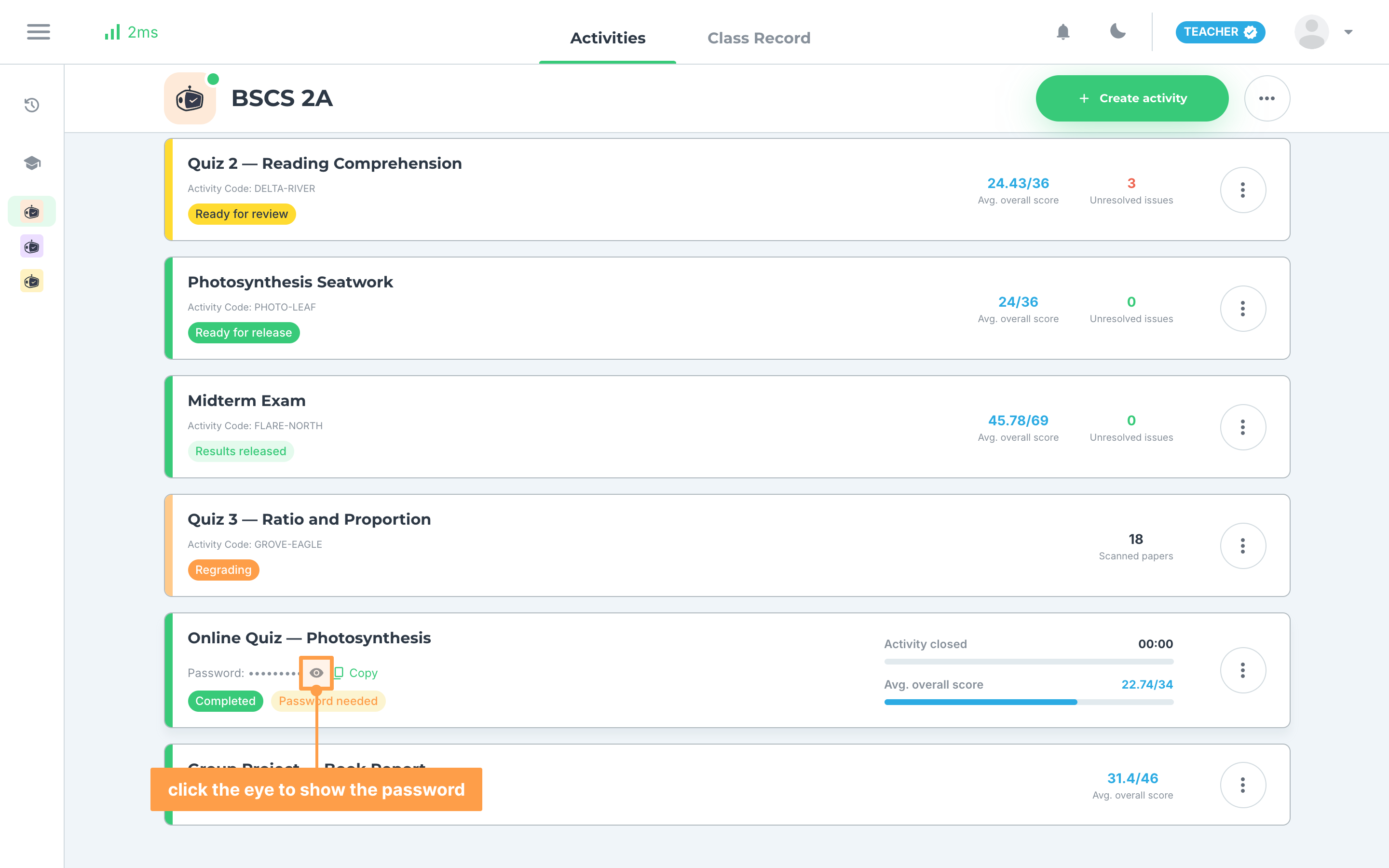
- If the activity needs a password, the card also shows Password: with the password hidden. Click the eye button (Reveal password) to show it, and Copy to copy it. The password hides again when the page reloads.
Note: For an activity with one question at a time or a password, a student who opens the copied link before starting is sent back to the class's Activities page, where they click Start as usual.
Try answering your activity
Before your class takes the activity, you can answer it yourself the way a student will, submit it, and see your score.
To try answering an online activity, follow these instructions:
- On the activity's card, open the actions menu with the ⋮ button and click Try answering. You can also open the activity and choose Try answering from its actions menu.
- Answer the items of each test. Move between tests with Prev and Next, or click an item in Item Navigation to jump to it. You can flag an item, and the info icon beside Item Navigation opens the Question legend. On a smaller screen, the item list opens from a button at the bottom.
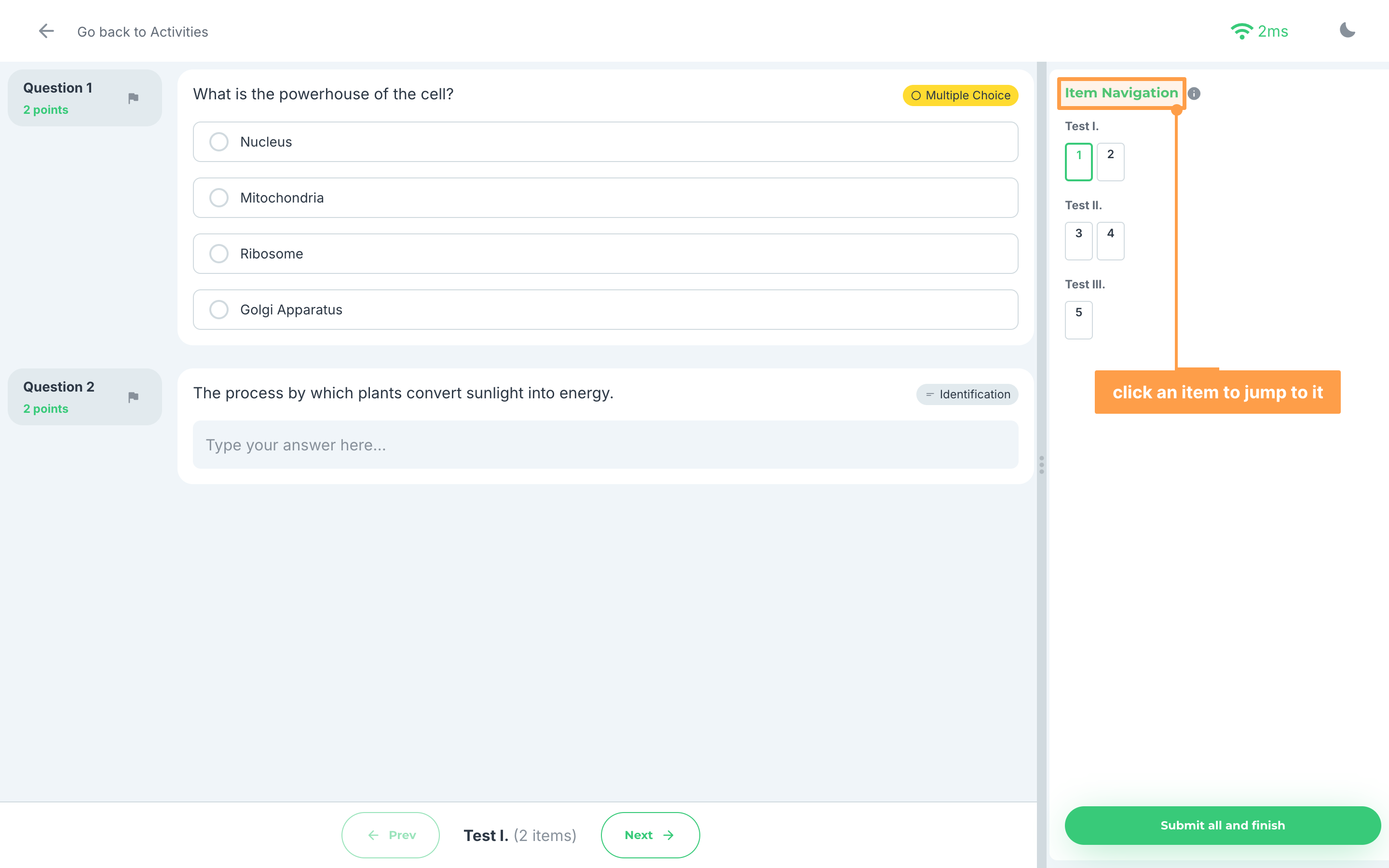
- If the activity is set to one question at a time, the preview follows it: the items in Item Navigation cannot be clicked, and Next moves you forward. The preview never asks for the activity password.
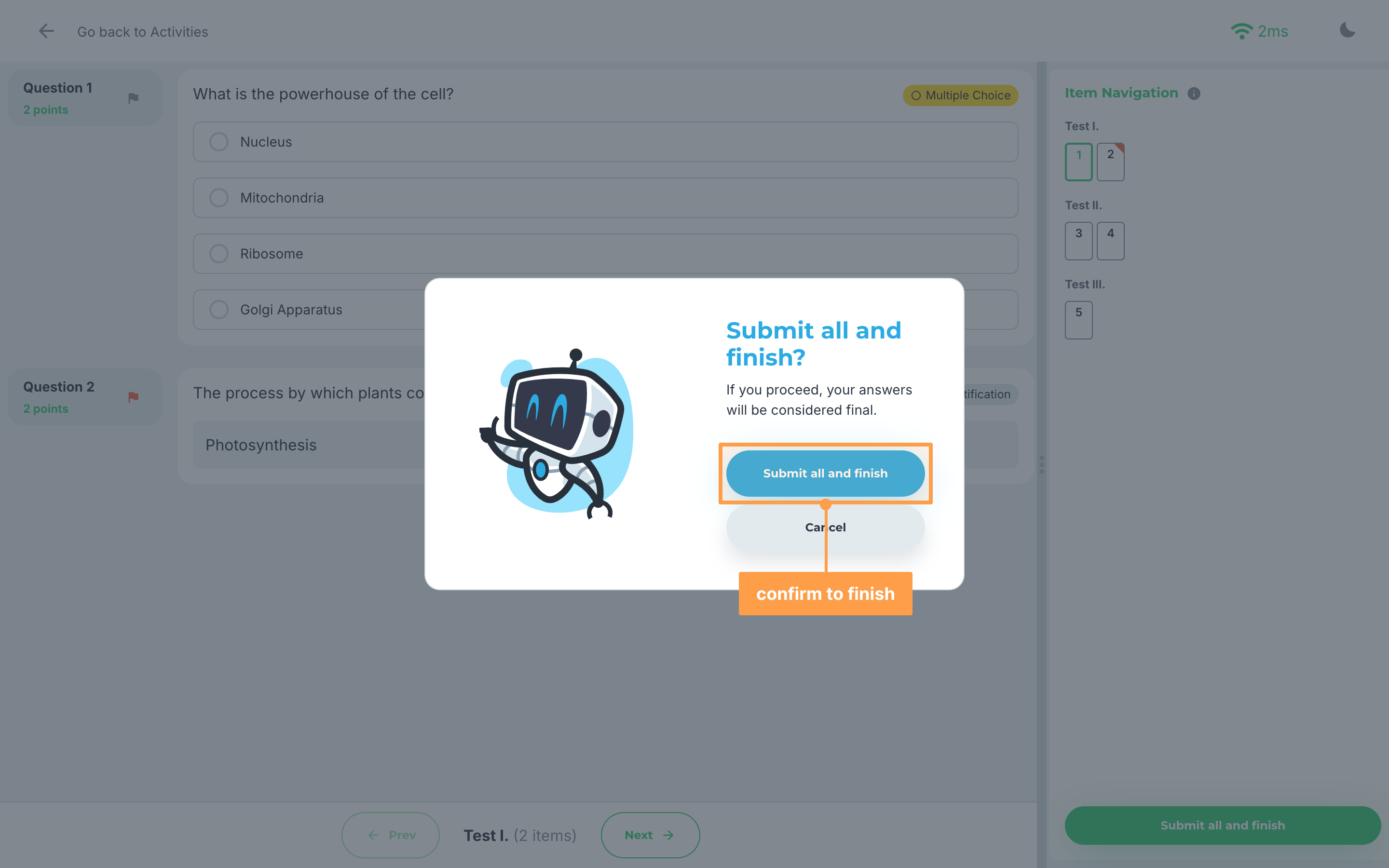
- Click Submit all and finish, then confirm in Submit all and finish? Your answers are final once you proceed.
- Finally, read your score on the result screen. It reads Perfect score! at full marks, You passed at 60% or more, and Tough luck... below that. Click Back to activities to return, or leave at any time with Go back to Activities.
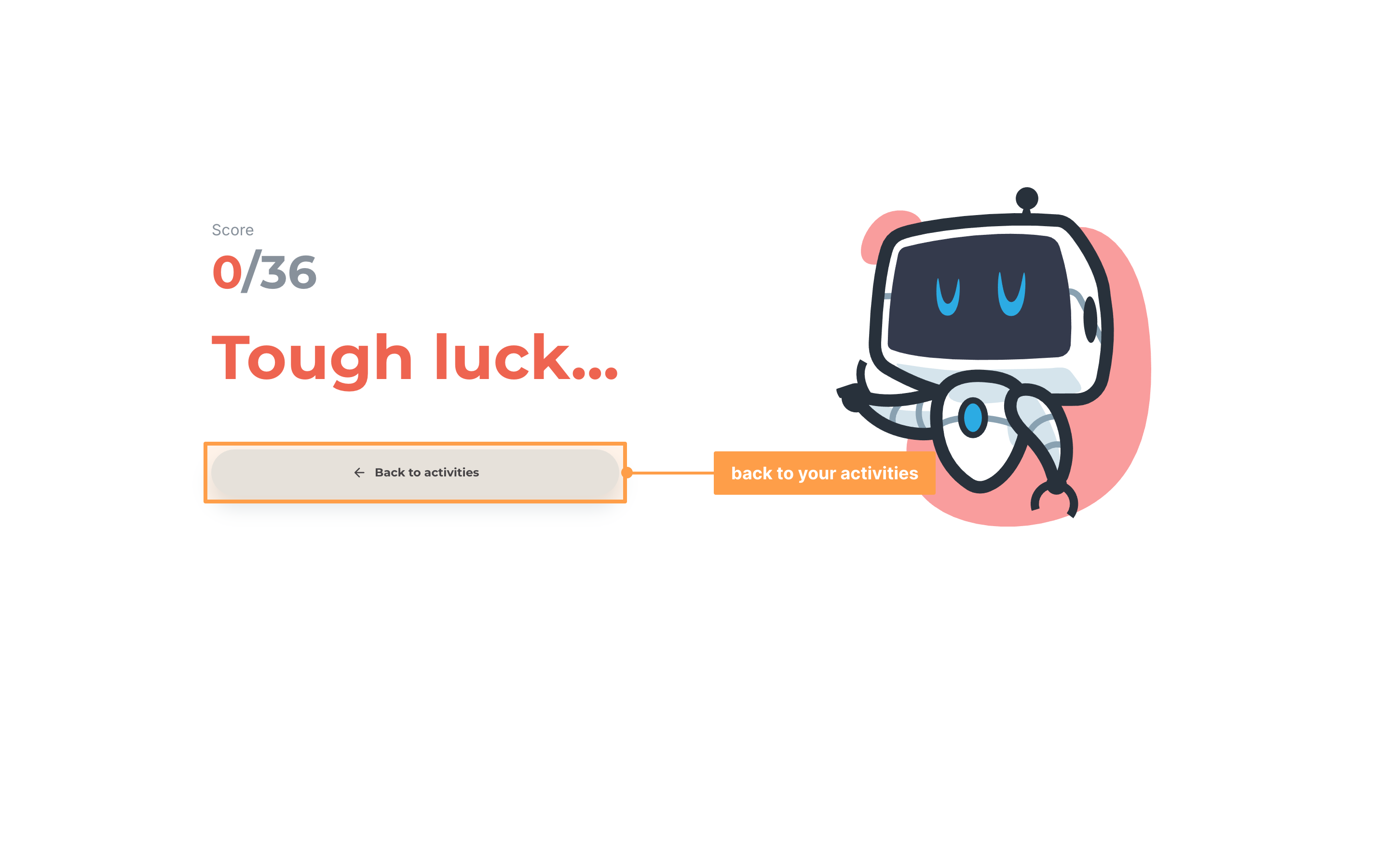
Note: Add items to the activity before trying it, because an activity with no items has nothing to show. If the preview cannot start, GradeChum shows why and takes you back to your classes. While you are offline, Submit all and finish stays disabled until you reconnect.
What your students see
On their Activities page, an online activity's badge reads Not started before the open date, Ongoing while it is open, Submitted after they submit, and Results released once you release the results. Start is disabled until the activity opens, and a student who already began sees Continue instead. Their scores stay hidden until you release the results.
The settings you ticked change what happens when they start:
a. Before you start
If the activity is one question at a time or needs a password, clicking Start opens Before you start. It tells the student "You will answer one question at a time, you can't go back." and, for a password, "Your teacher will provide the activity password." They type the password you gave and click Start, or click Cancel to leave. A wrong password shows an error under the field. Their attempt and its timer start only when Start succeeds, so waiting for your password costs them no time.
b. One question at a time
The student moves forward with Next and cannot go back. The items in Item Navigation cannot be clicked, and it reads "This activity is set to one question at a time, so you can't go back to previous items." On the last question, Next is gone and they click Submit all and finish. After a refresh, or on another device, they come back to the furthest question they reached. A retake starts again at item 1.
c. Exam Mode
Before answering, the student meets these screens, one at a time, only when each applies:
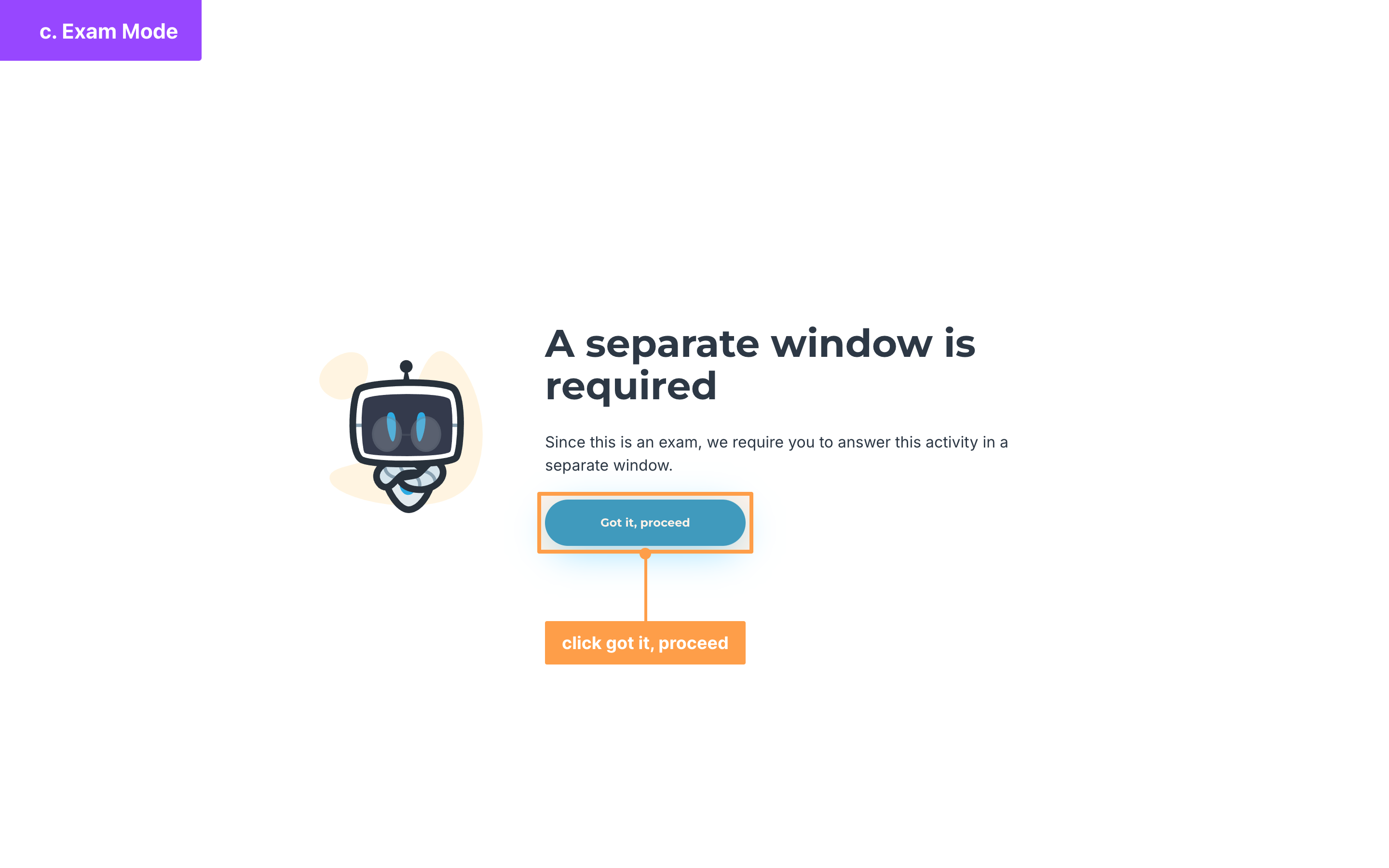
- A separate window is required: on a computer, the activity must run in its own window. They click Got it, proceed, and if no window opens, they let their browser open new windows and click again.
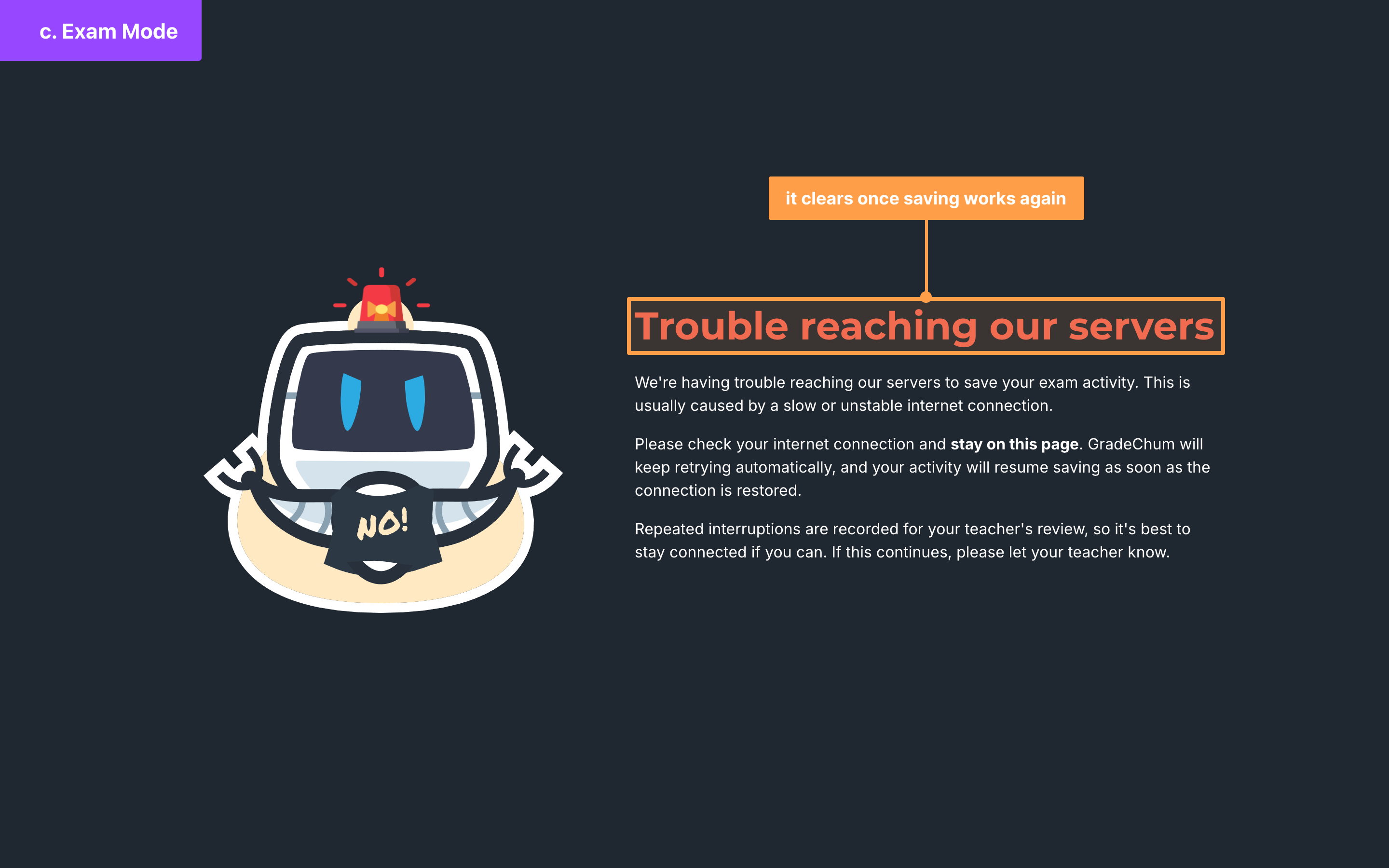
- Trouble reaching our servers: the activity could not save their activity log several times in a row. It clears on its own once saving works again.
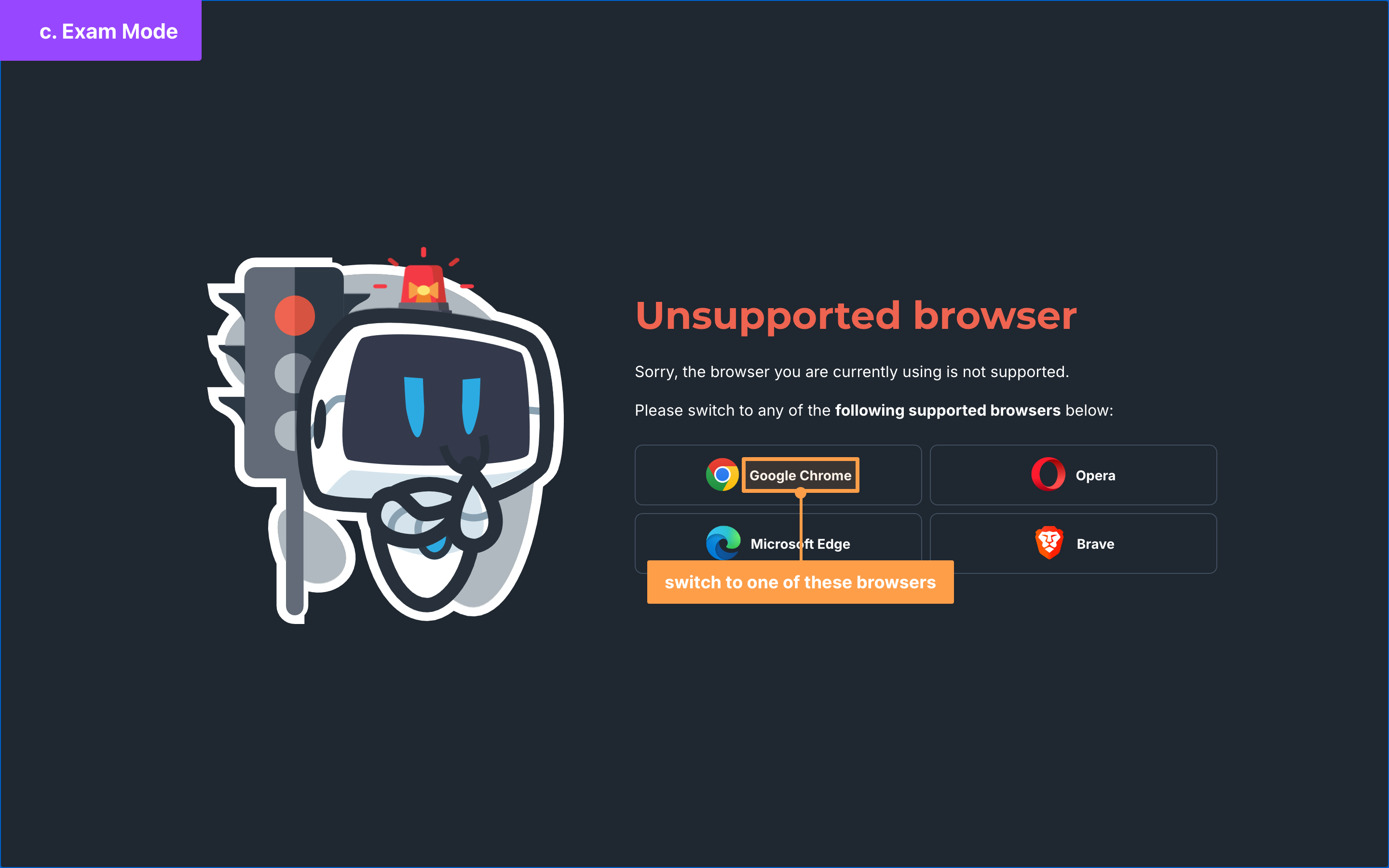
- Unsupported browser: on a computer, only Google Chrome, Microsoft Edge, Opera and Brave are supported.
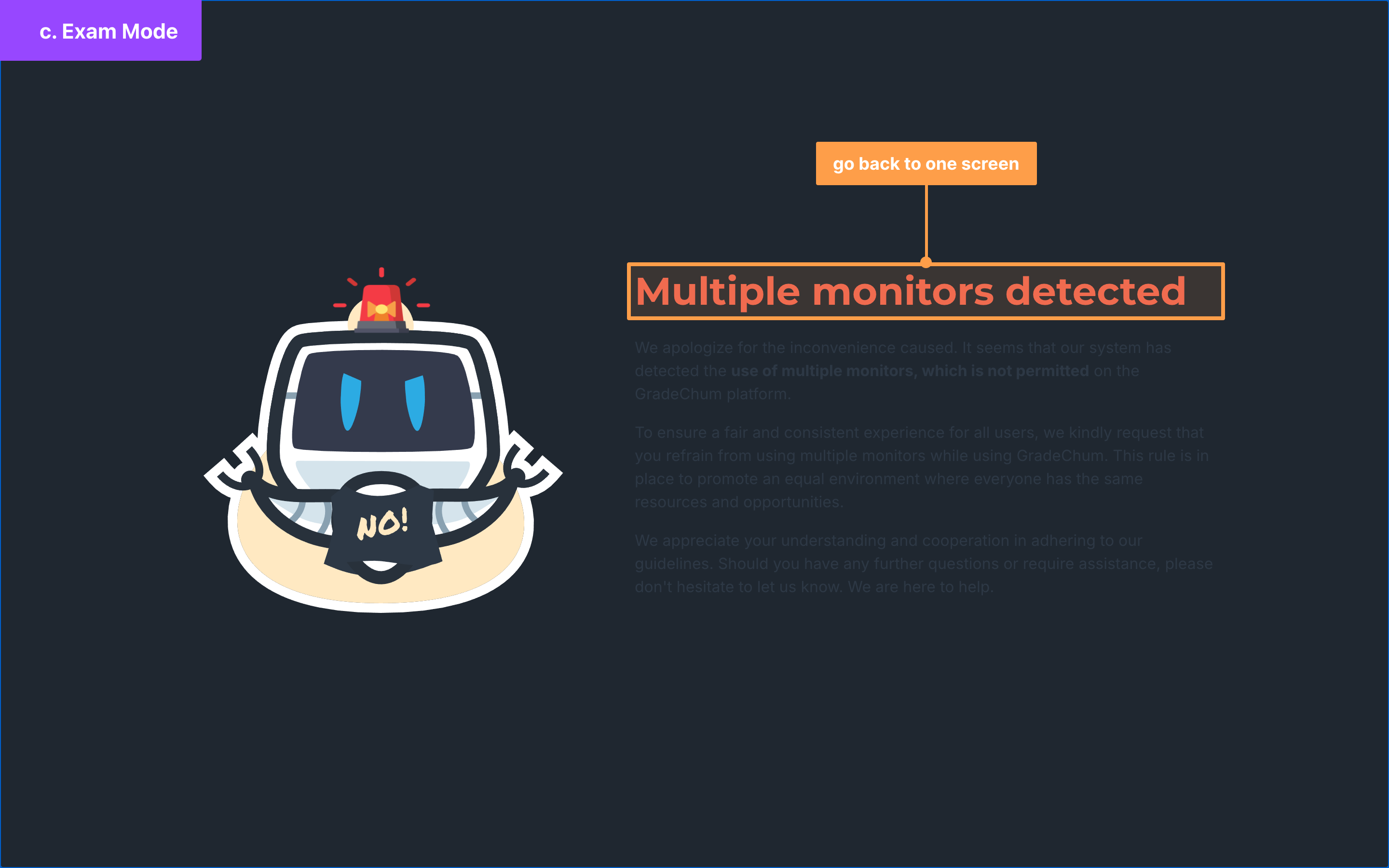
- Multiple monitors detected: the activity stays blocked until they go back to one screen.
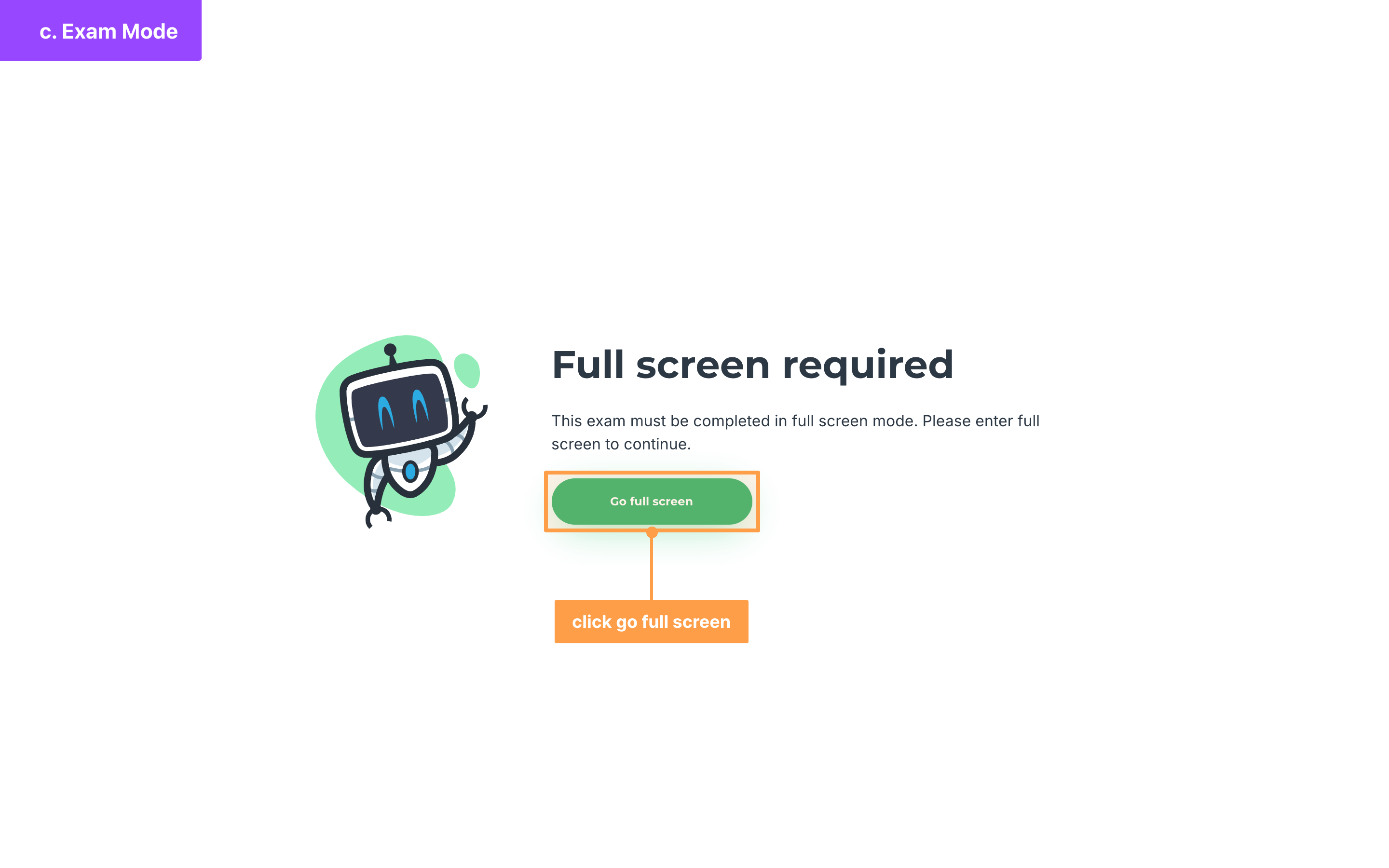
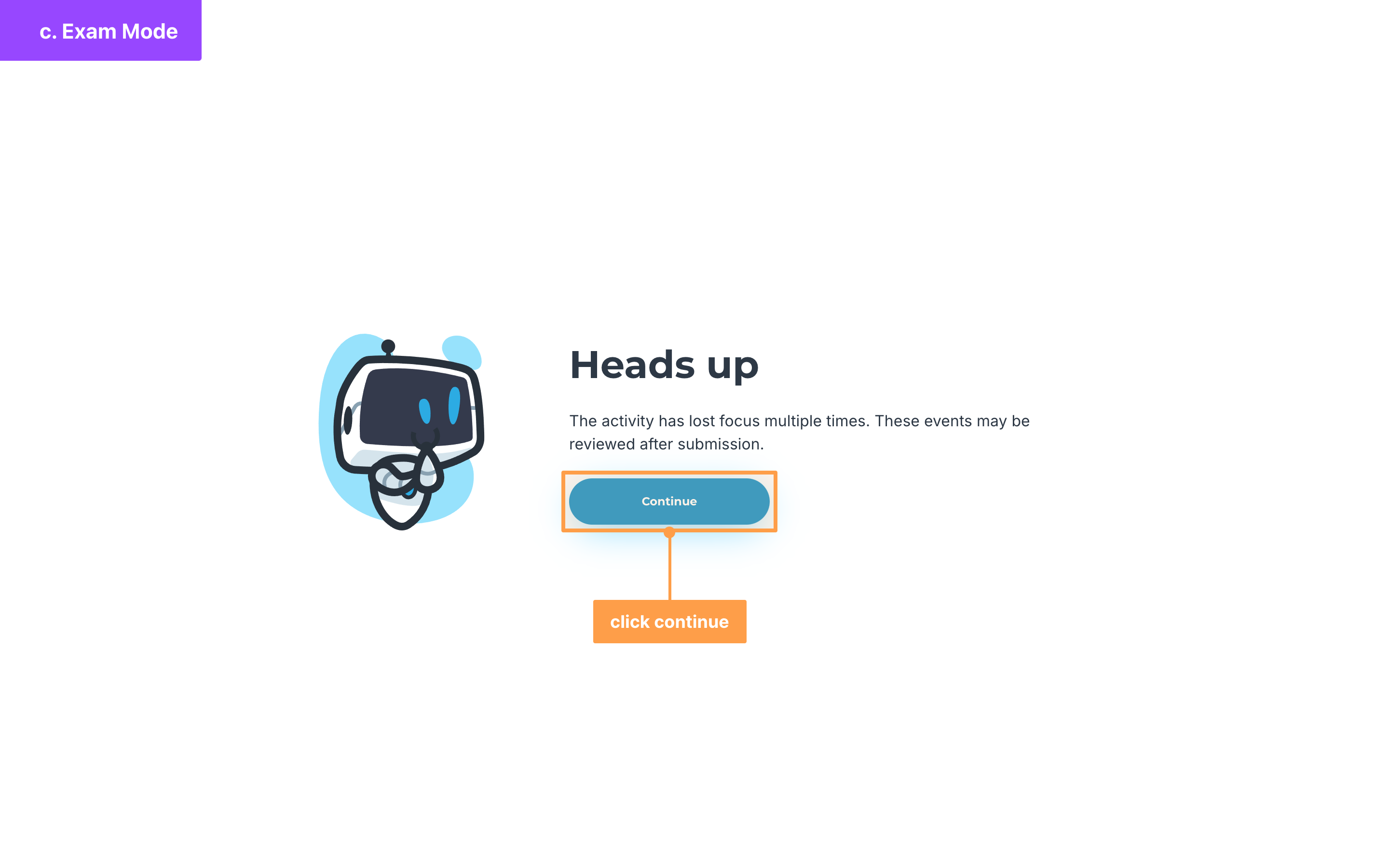
- Full screen required: on a computer, they click Go full screen. Each time they leave full screen, the warning comes back, and after three exits it reads Heads up with a Continue button.
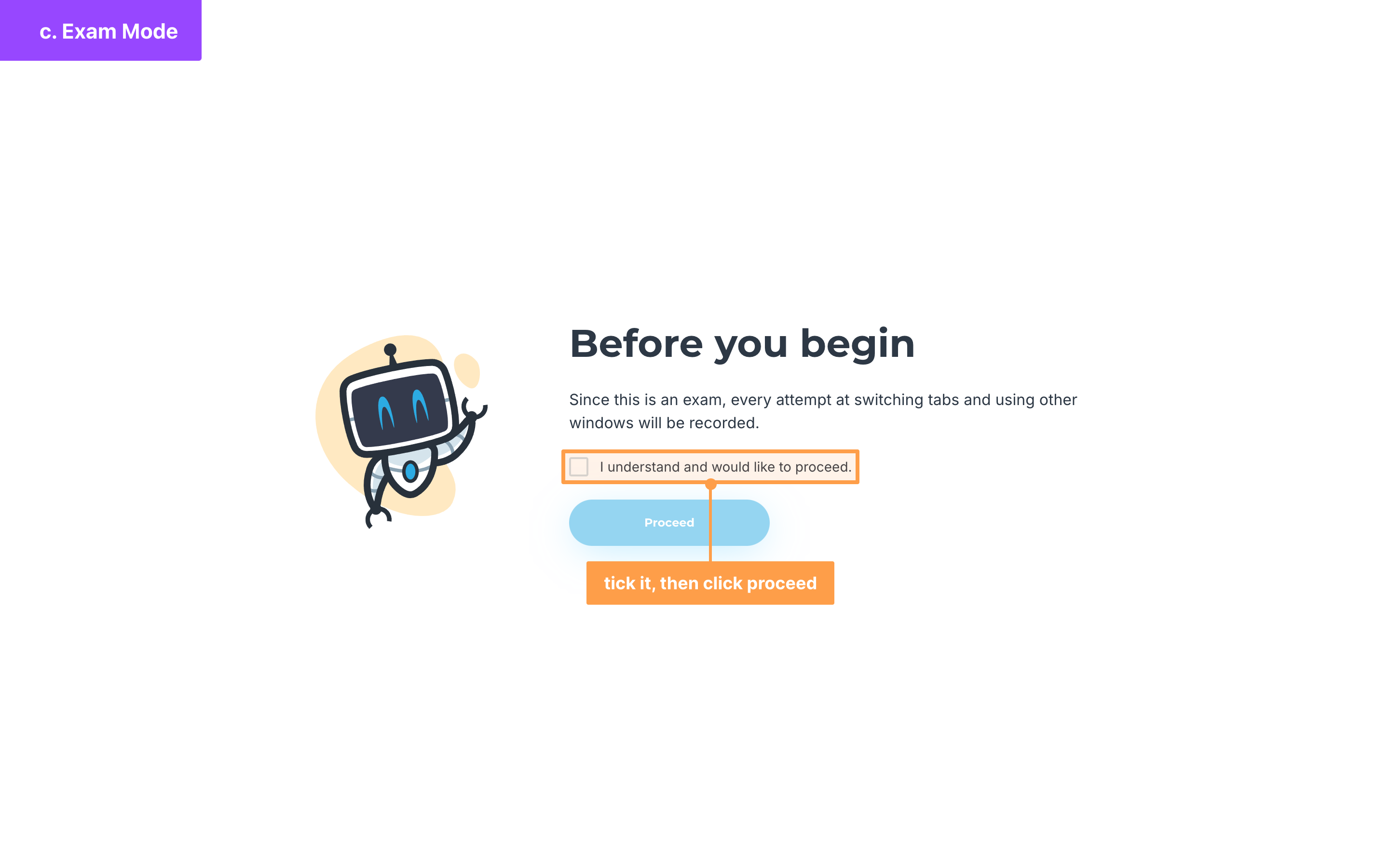
- Before you begin: they tick I understand and would like to proceed. and click Proceed.
While they answer, pasting content from outside the activity is blocked, and pasting text copied from inside it is allowed. Tab switches, lost connections, idling, time out of full screen, moving between items, submitting and logging out are all recorded for you.
For the full walkthrough from your students' side, see Answer activity online.
Following the activity as it runs
On your Activities page, an online activity's badge follows its schedule. It reads Not started before the open date, In progress while the activity is open, Completed once the due date passes, and Results released after you release the results.
In place of the class code, the card shows the open date, the due date and, if you set one, the Time limit:. A countdown reads "Activity starts in" before the activity opens, "Activity closes in" while it is open, and "Activity closed" afterward.
Reschedule or set retakers
Sometimes an online activity needs more time, or a student needs another try. From the activity's actions menu, you can give students who have not submitted a new schedule, or let chosen students take the activity again from scratch.
To reschedule an online activity or set retakers, follow these instructions:
- On the activity's card, open the actions menu with the ⋮ button and click Reschedule/Set retakers. You can also open the activity and choose it from its actions menu. The Reschedule / Set Retakers modal opens. Under What would you like to do for this activity?, choose Reschedule or Set retakers, then follow its steps below.
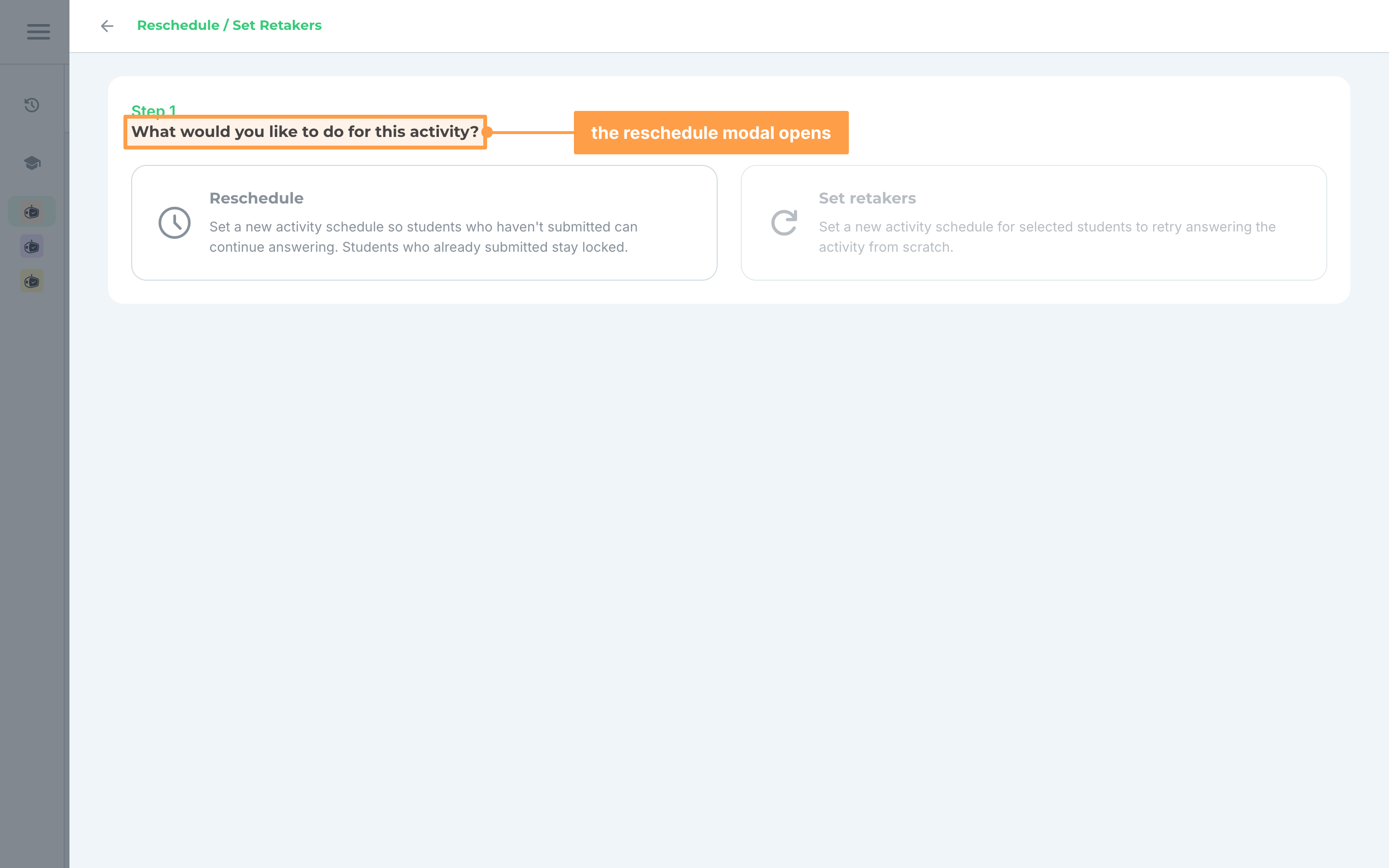
a. Reschedule
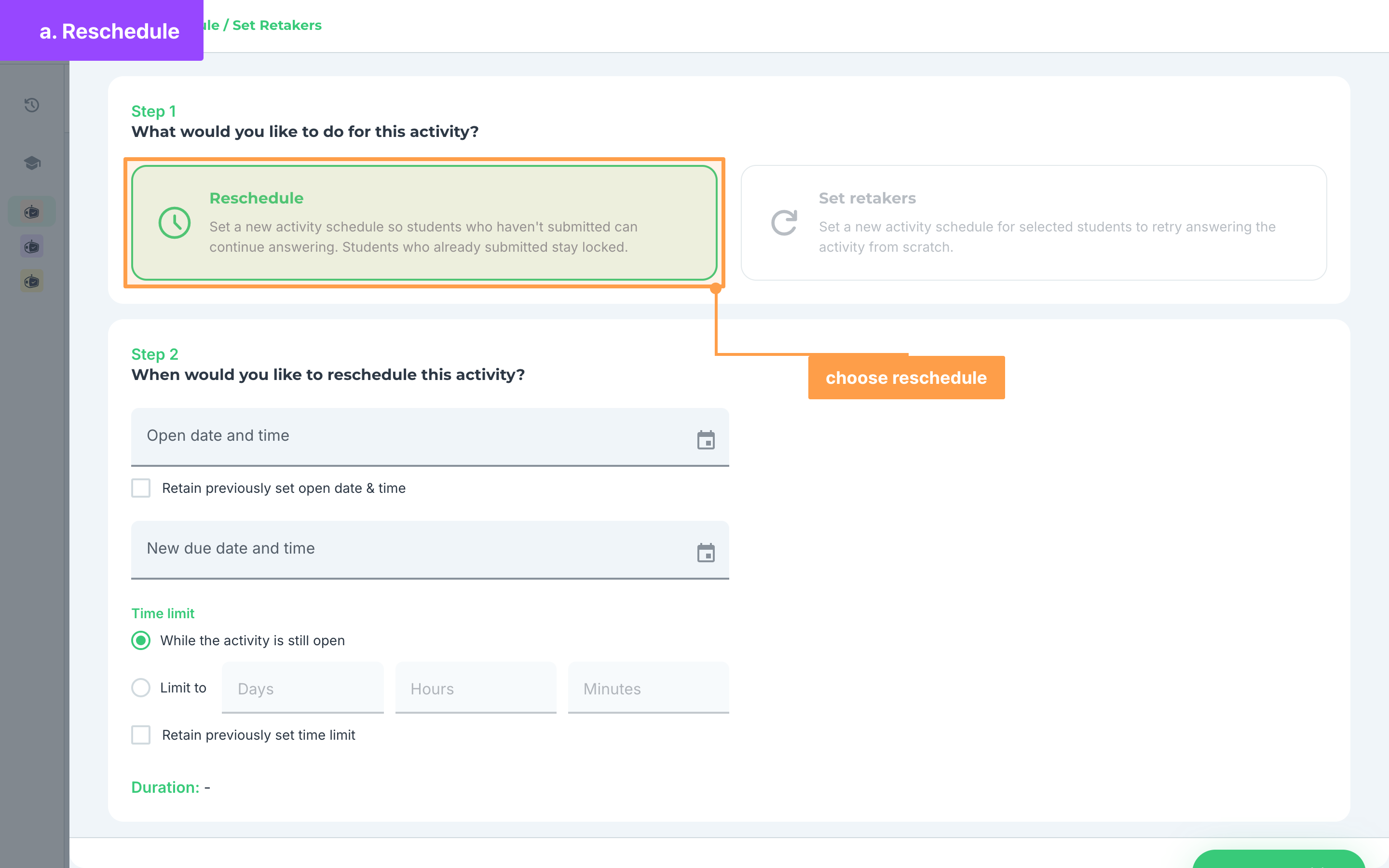
- Choose Reschedule. Students who haven't submitted can continue answering on the new schedule. Students who already submitted stay locked. The schedule opens under When would you like to reschedule this activity?:
- Set the Open date and time, or tick Retain previously set open date & time.
- Set the New due date and time. It must be later than the open date and time.
- Under Time limit, choose While the activity is still open or Limit to, or tick Retain previously set time limit. Duration: shows how long the new schedule is open.
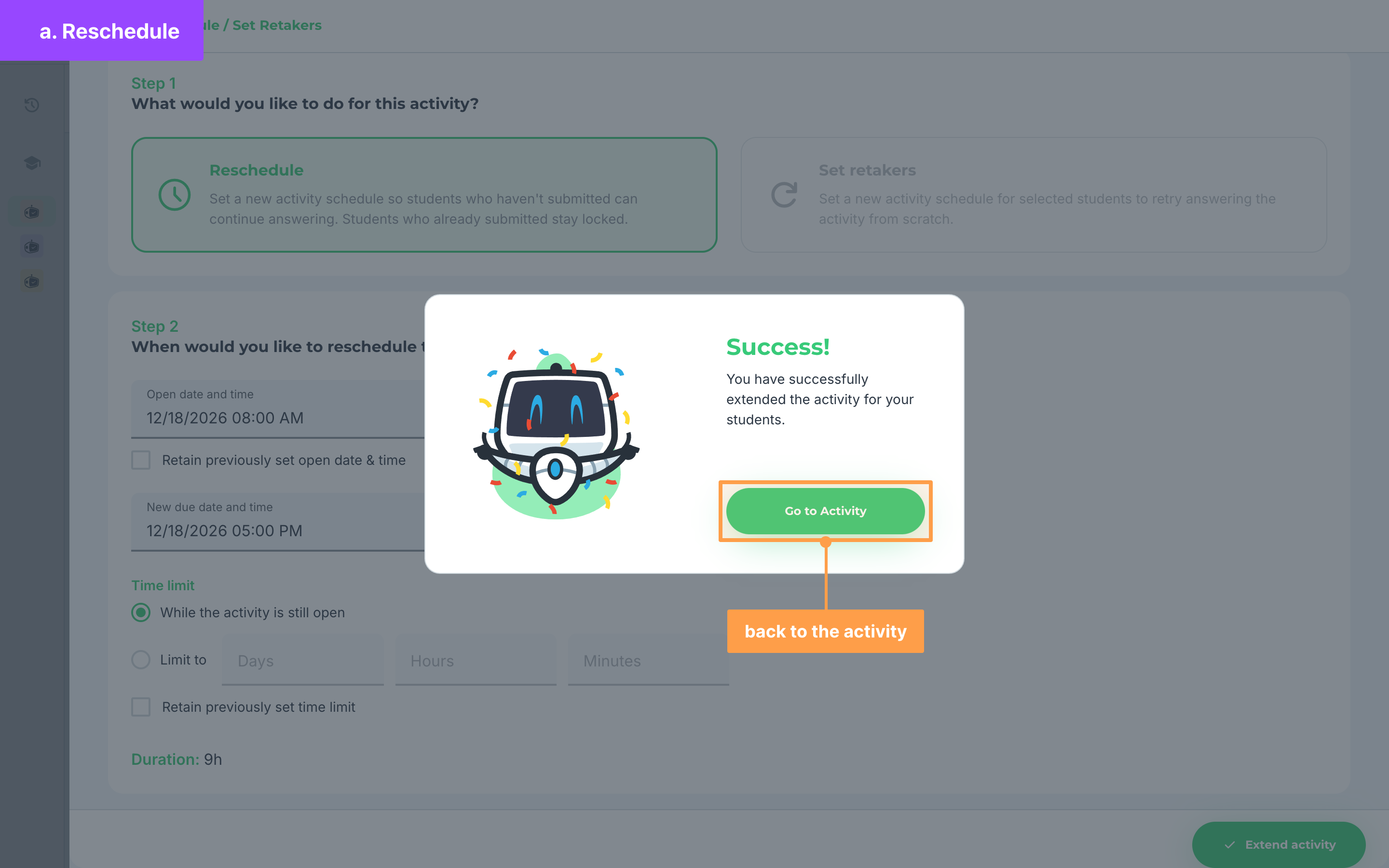
- Finally, click Extend activity. The Success! modal confirms that you have extended the activity for your students. Click Go to Activity to return.
b. Set retakers
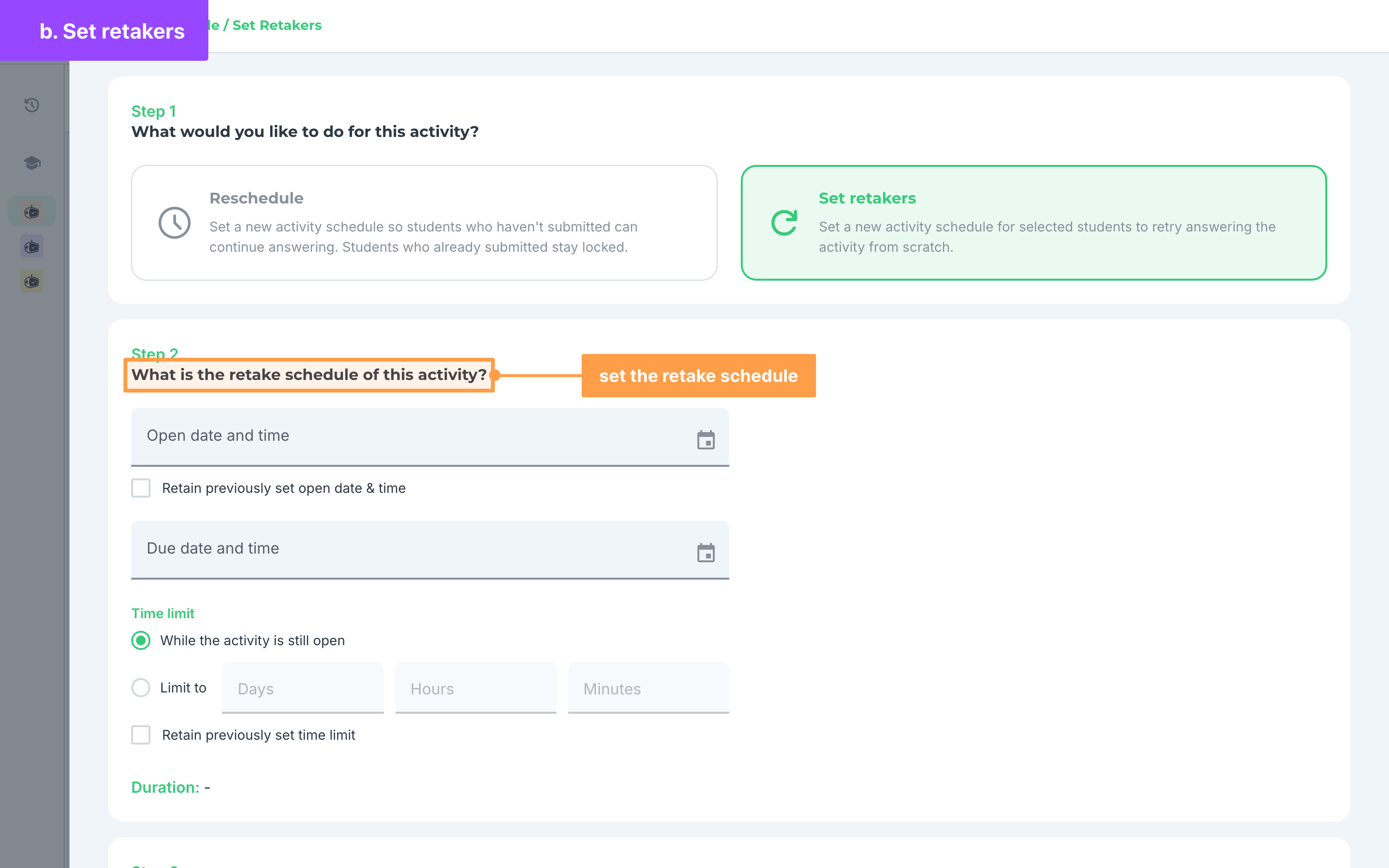
- Choose Set retakers. The students you pick retry the activity from scratch on a new schedule. This option is grayed out until the activity has started, because no one can retake an activity that has not opened yet. The schedule opens under What is the retake schedule of this activity?:
- Set the Open date and time, or tick Retain previously set open date & time.
- Set the Due date and time.
- Under Time limit, choose While the activity is still open or Limit to, or tick Retain previously set time limit. Duration: shows how long the retake is open.
- Under Which students would you like to retake the activity?, tick the students who will retake it, or tick Select all. Each row shows the student's Score and Time finished. Use Search for a student... to find someone.
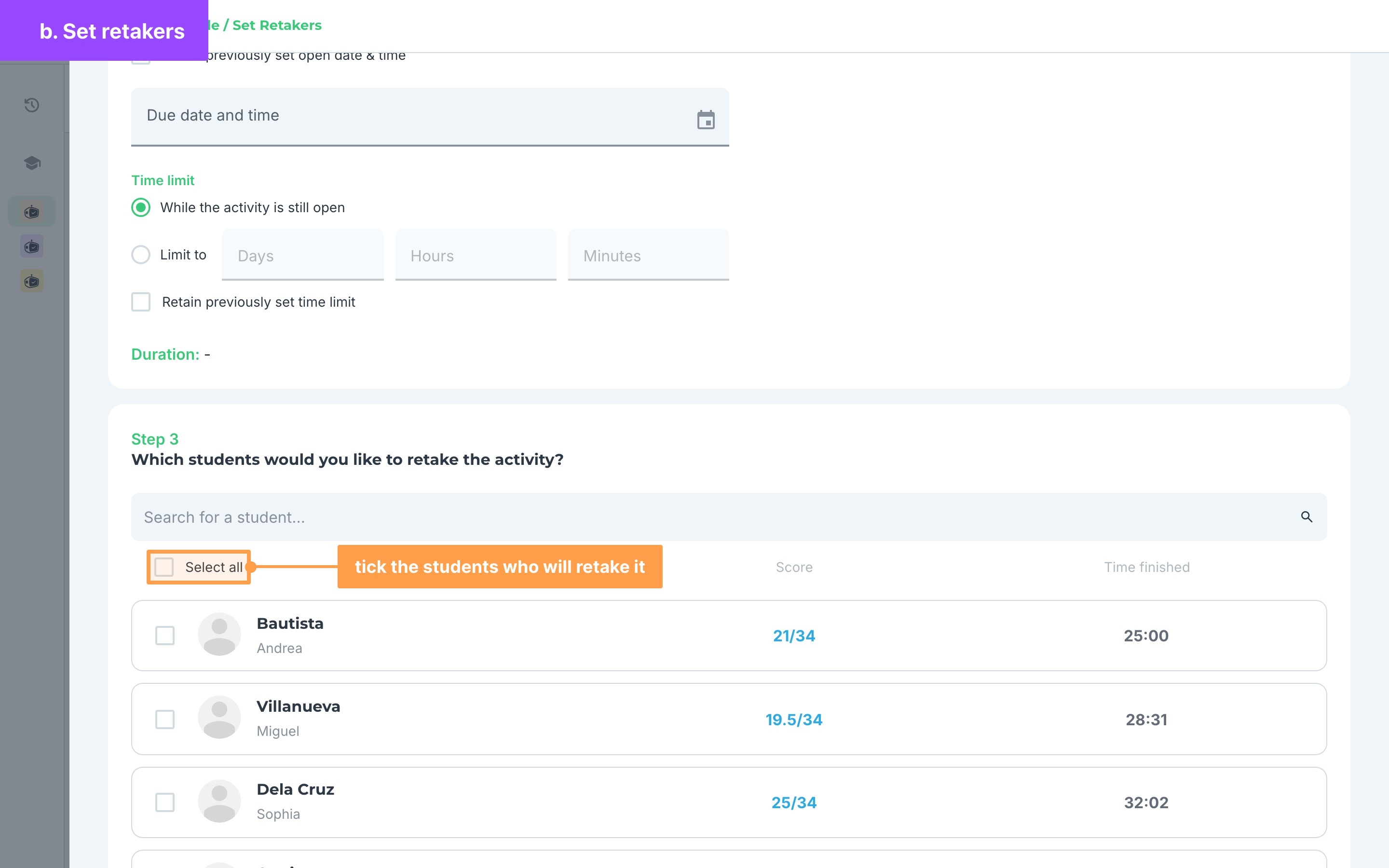
- Finally, click Extend activity. The Success! modal confirms that your selected students can retake the activity from scratch. Their results may take a few minutes to update. Click Go to Activity to return.
Note: If the list reads "No students found.", no student matches your search, or nobody has taken the activity yet, so there is no one to set as a retaker.
Note: A missing date shows "This field is required", a due date that is not after the open date shows "Due date and time should be later than open date and time", and a retake with nobody ticked shows "Please select at least one student". In a class shared with you with view-only access, you cannot reschedule or set retakers.
Check Exam Mode results
When an activity has Exam Mode on, each student's result also shows what they did while answering.
To check a student's Exam Mode results, follow these instructions:
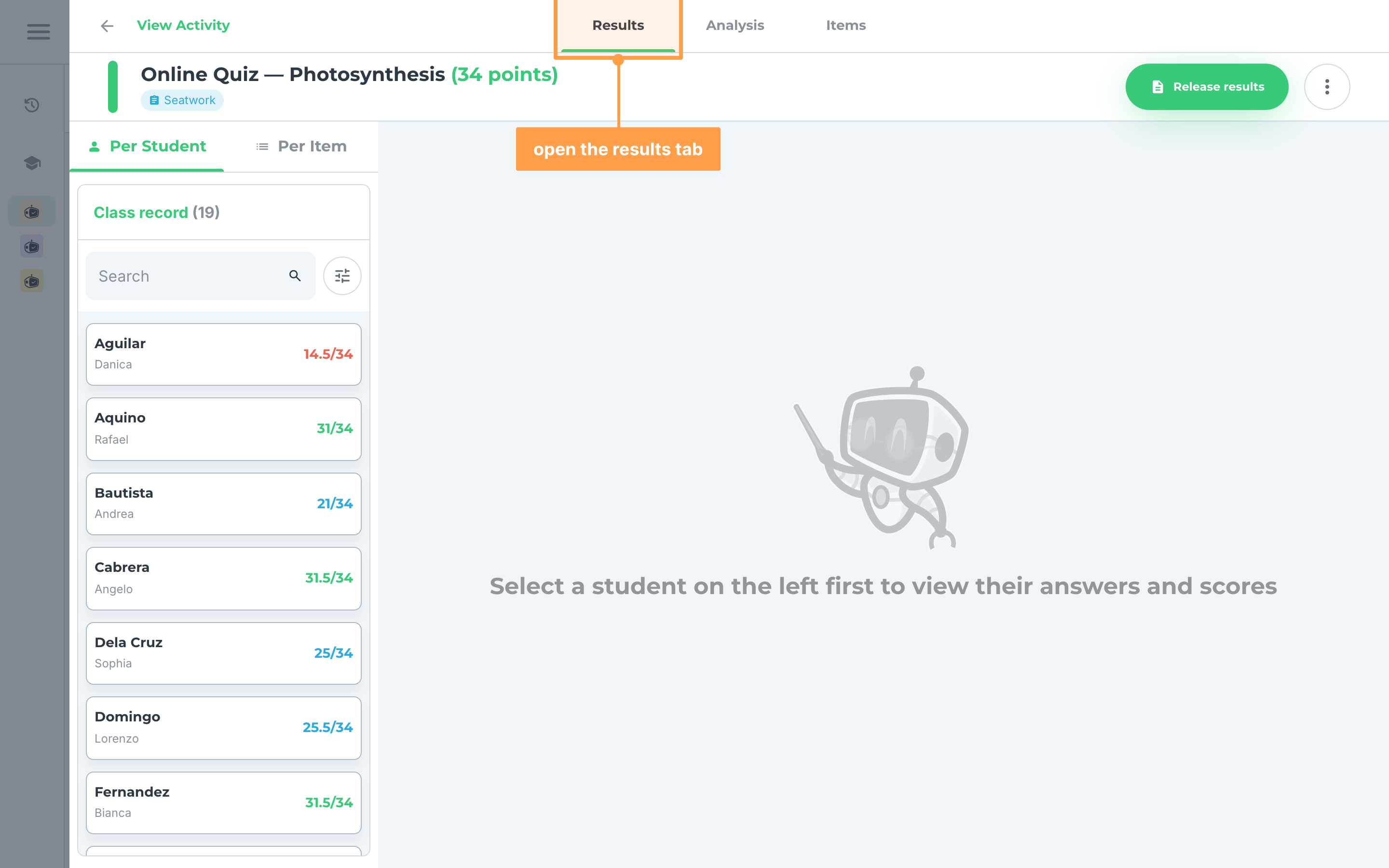
- Open the activity from its card and go to the Results tab.
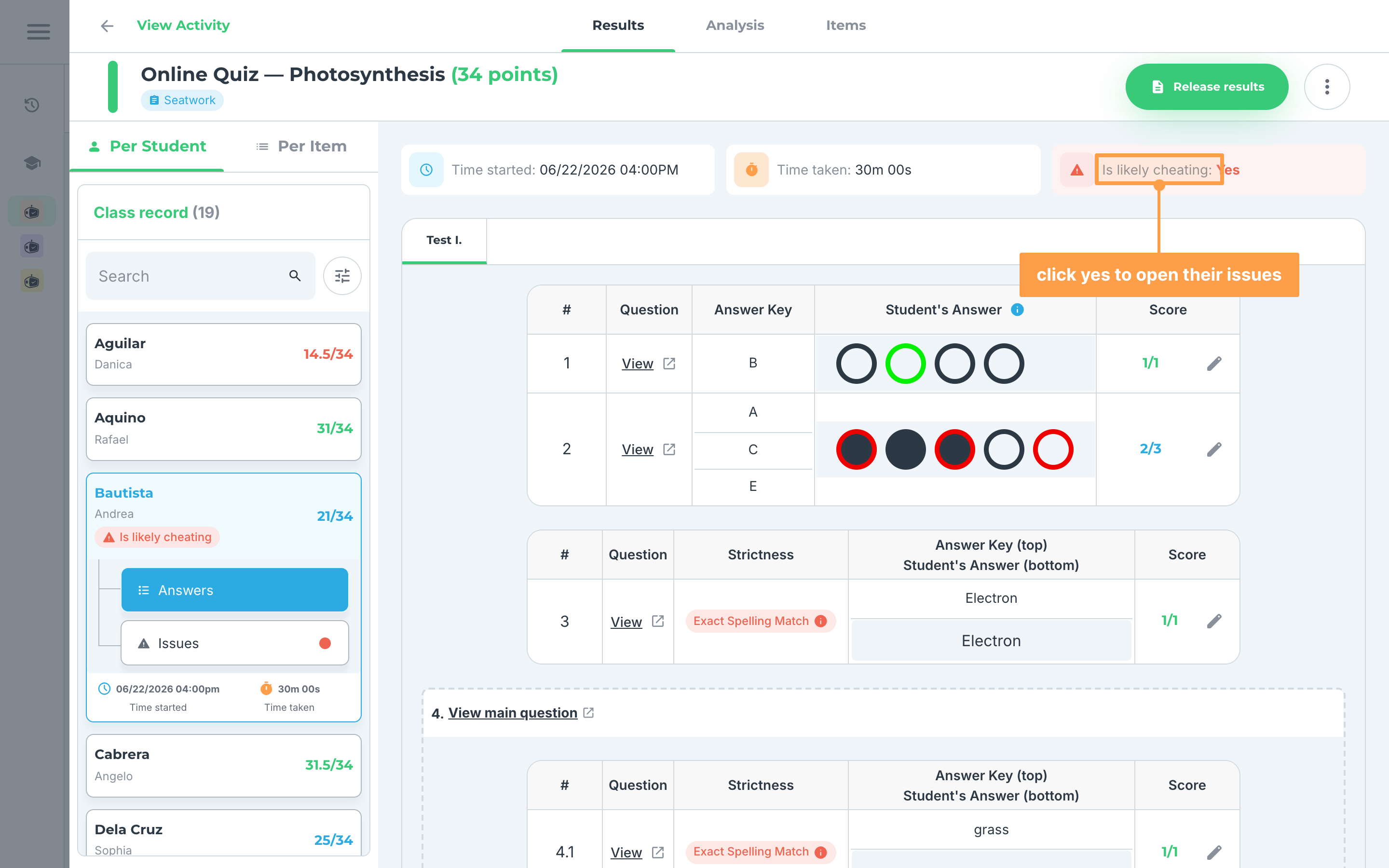
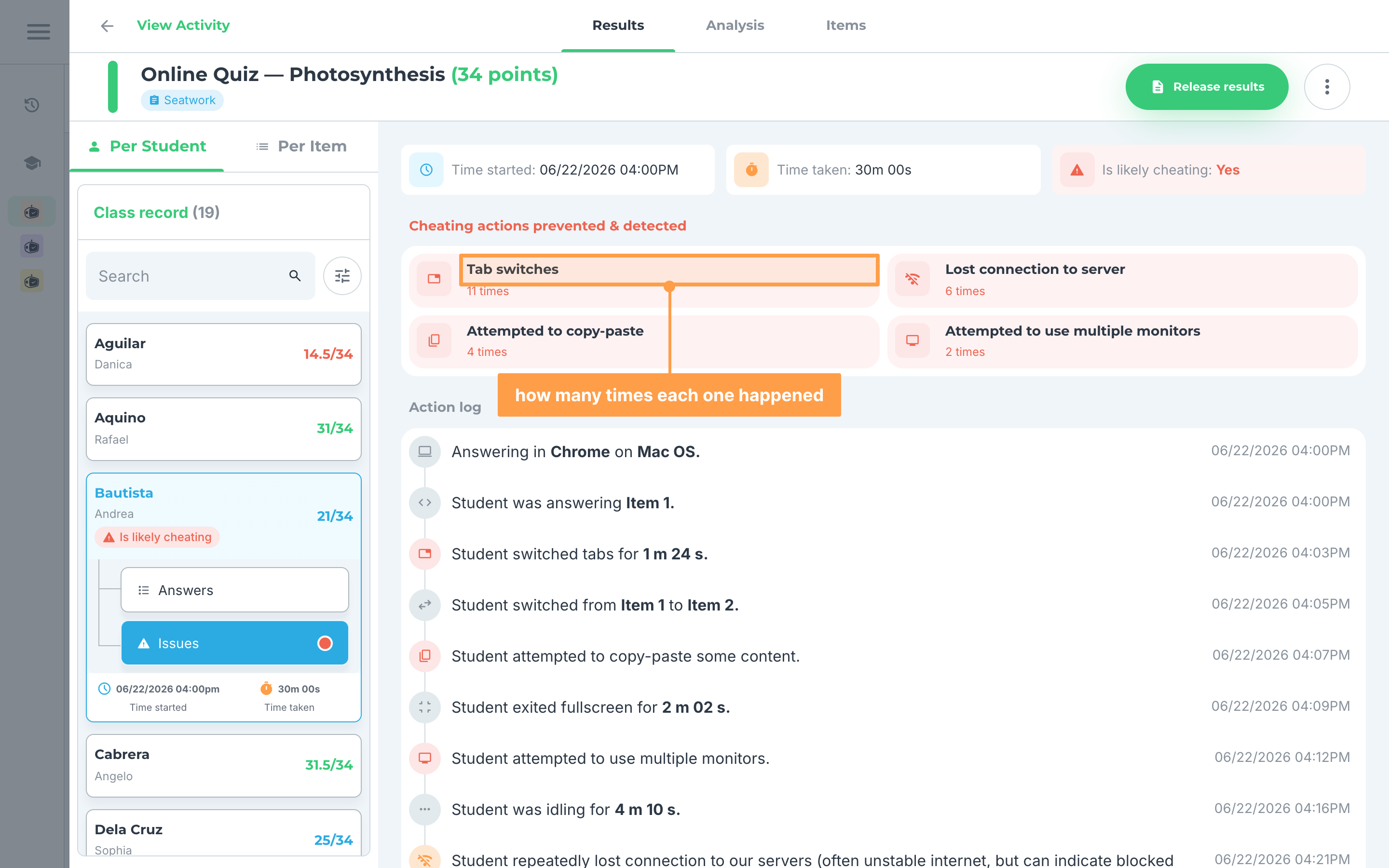
- Select a student. You see Time started, Time taken and Is likely cheating, which reads Yes only when our system flags the student's attempt. If it reads Yes, click it to open their issues.
- Click the Issues tab under the student's card. On a smaller screen, the student opens in a modal with Answers and Issues tabs at the bottom, and a dot marks Issues when the student is flagged.
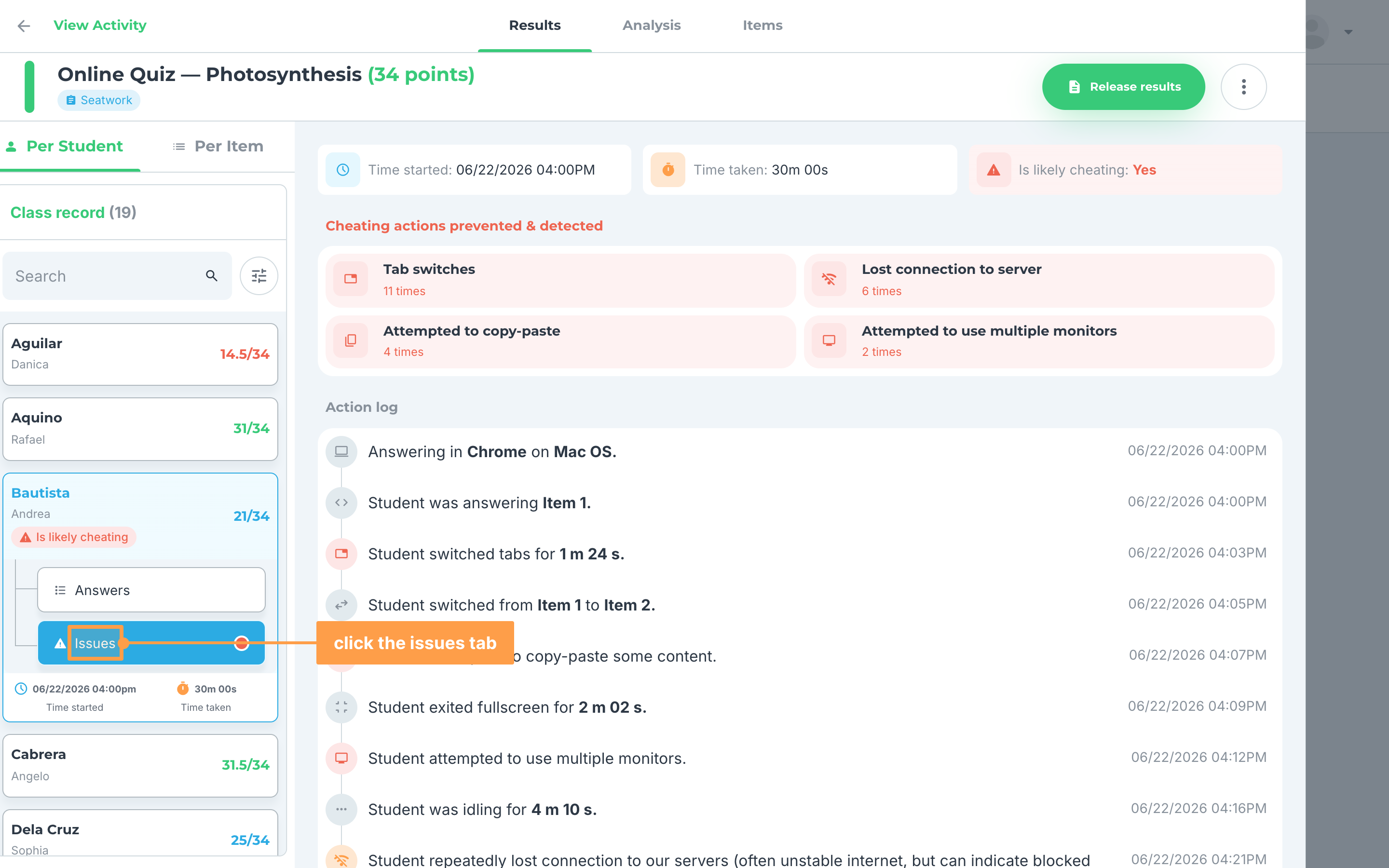
- Read the counts for Tab switches, Lost connection to server, Attempted to copy-paste and Attempted to use multiple monitors. A count turns red once it is worth your attention.
- Finally, read the Action log below them, a timeline of every recorded action with its time. In the Answers tab, multiple choice and identification answers, and flagged answers of other items, also show Is likely cheating.
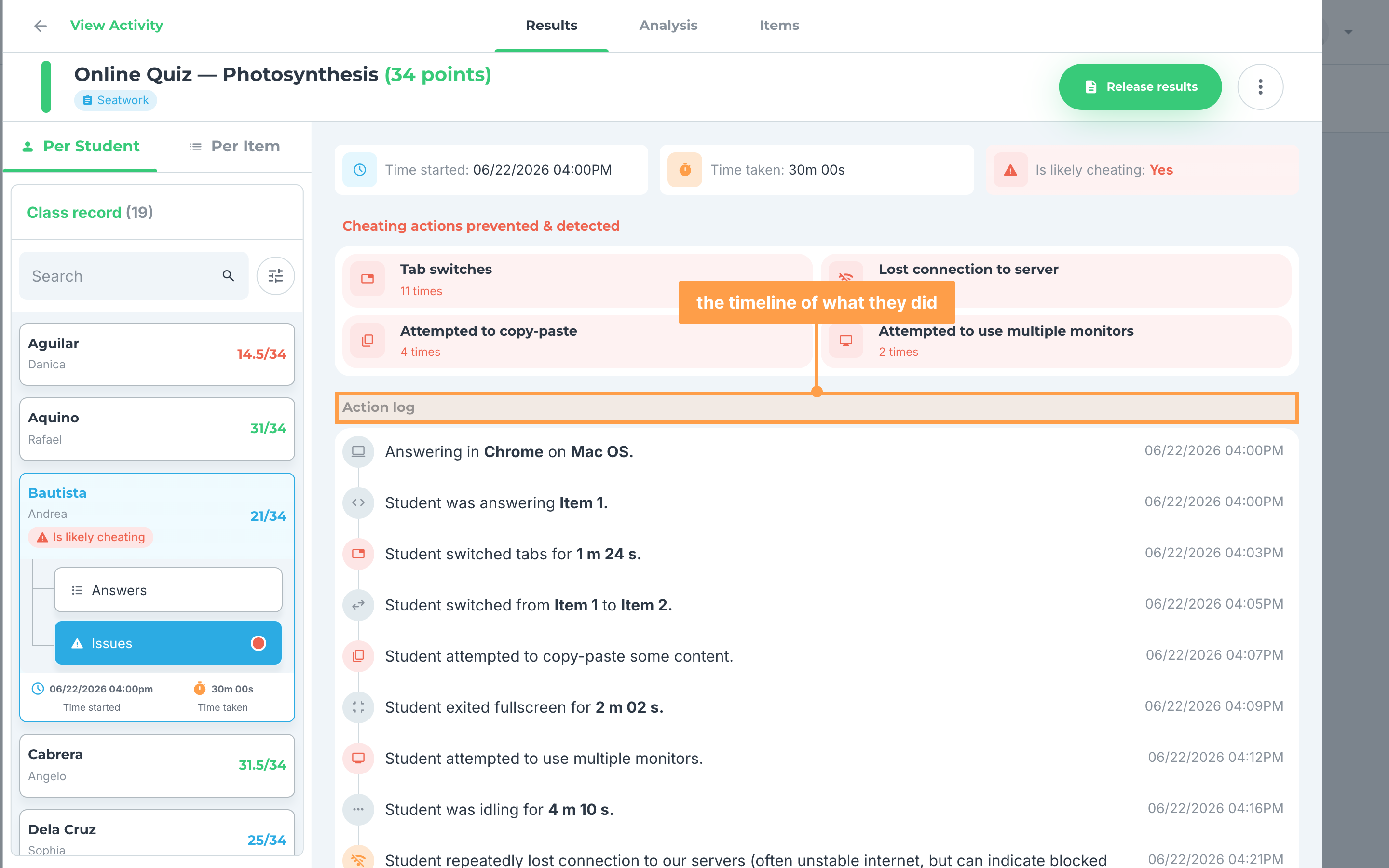
Note: GradeChum filters out very brief, incidental focus changes, so ordinary use is not flagged. The exact timing rules are not published, and the Action log is the record to read rather than the counts alone.
Edit an online activity
To change an online activity after creating it, open its actions menu and click Edit. You can change its type and its schedule until students have results.
Once students have results, the type step reads "This activity already has results, so its type cannot be changed anymore." and the schedule step reads "This activity already has results, so its schedule can no longer be changed." Both are grayed out. You can still edit an activity whose due date has passed without picking a new one. To give students more time after that, use Reschedule/Set retakers instead.
If you switch an activity from Online to another type, Exam Mode and Randomize Items are turned off, and One question at a time and the password are dropped when you save.
And that's how you create and run an online activity in GradeChum! Next, let's explore activities from outside GradeChum.