
Successfully Processed
Introduction
Once your students' papers are checked, you can review every answer they gave. GradeChum puts each scanned answer next to the answer key, together with the score it earned, so you can see how a student did and why.
In this article, let's explore the ways you can view the answers GradeChum successfully processed: one student at a time, one item across the whole class, and what the Results tab shows before any results come in.
Steps
Note: The activity must already be checked. If its results show a lock card instead, unlock them first (see Activity credits and school licenses). Papers GradeChum could not match to a student, or pages it could not find, are handled in Pages Missing.
To view your students' answers, follow the steps below:
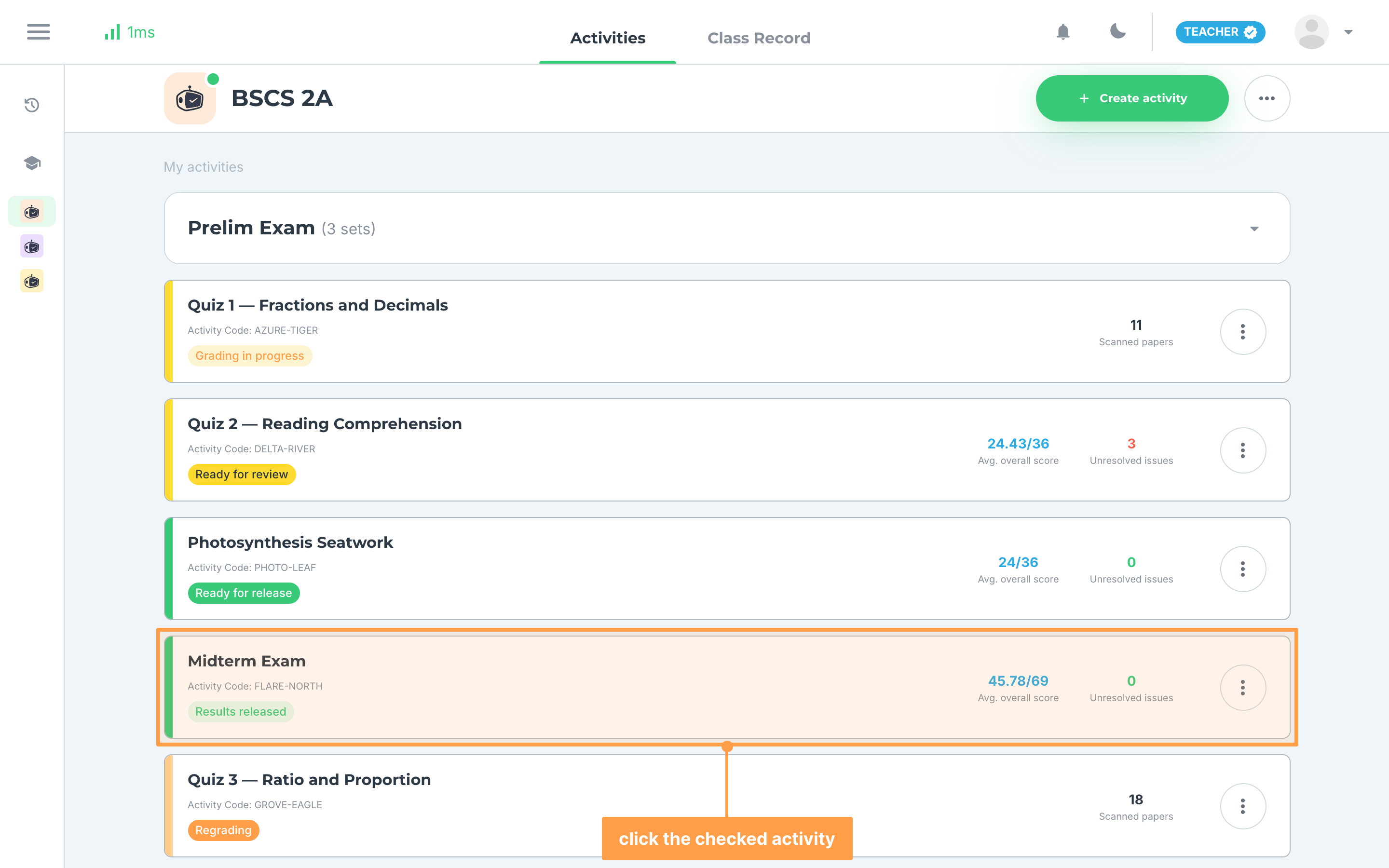
- Open your class and, on the Activities tab, click the card of the checked activity. View Activity opens on its Results tab.
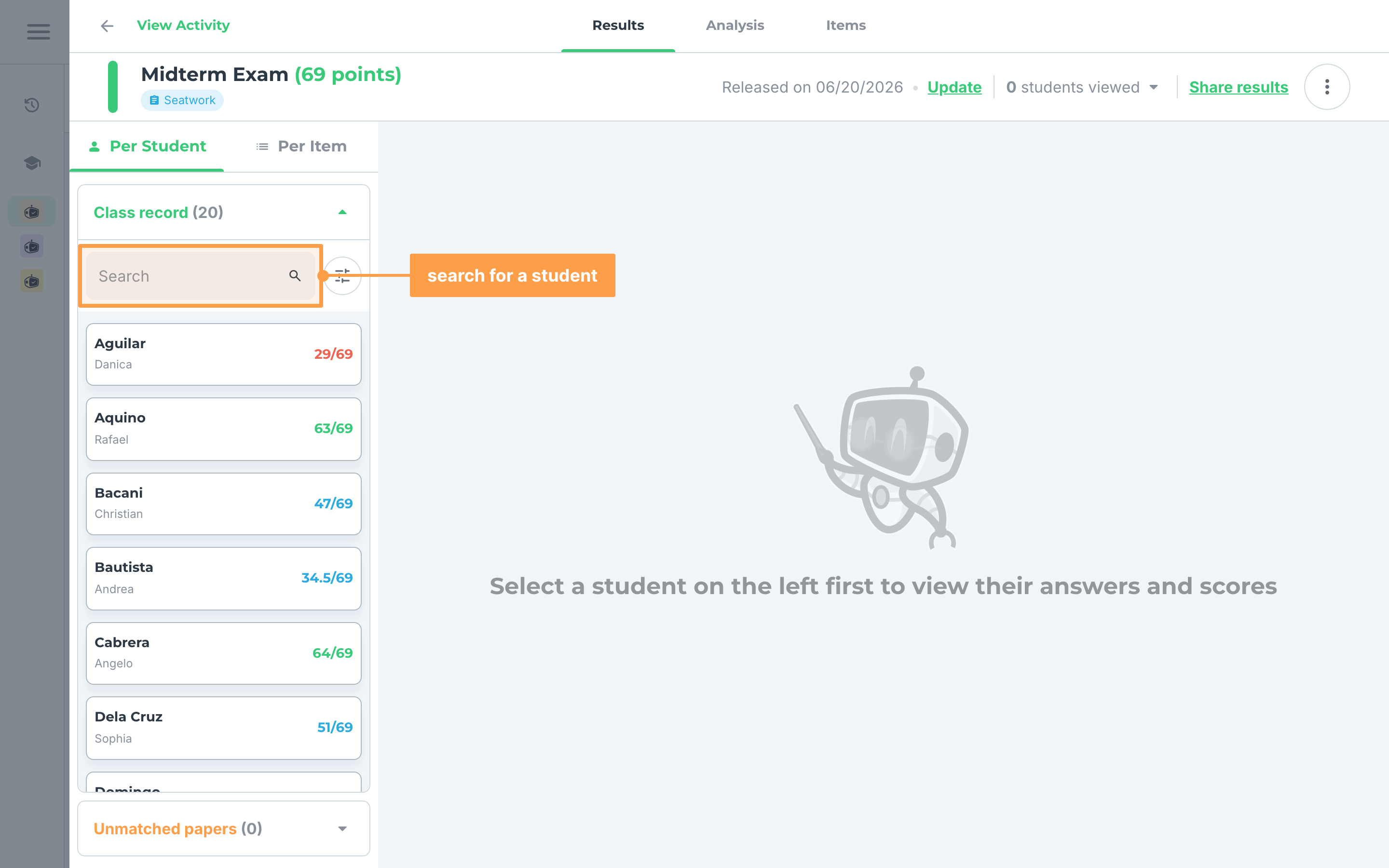
- The results open on Per Student, with your students listed under Class record on the left. Type a name in Search to find a student. If no one matches, the list reads No students found.
- To change the order of the list, click the tune icon beside Search and pick an option under Sort by:. Choose Name (A to Z), Name (Z to A), Rank (High to Low) or Rank (Low to High). Medals and rank numbers show on the cards only while you sort by rank.
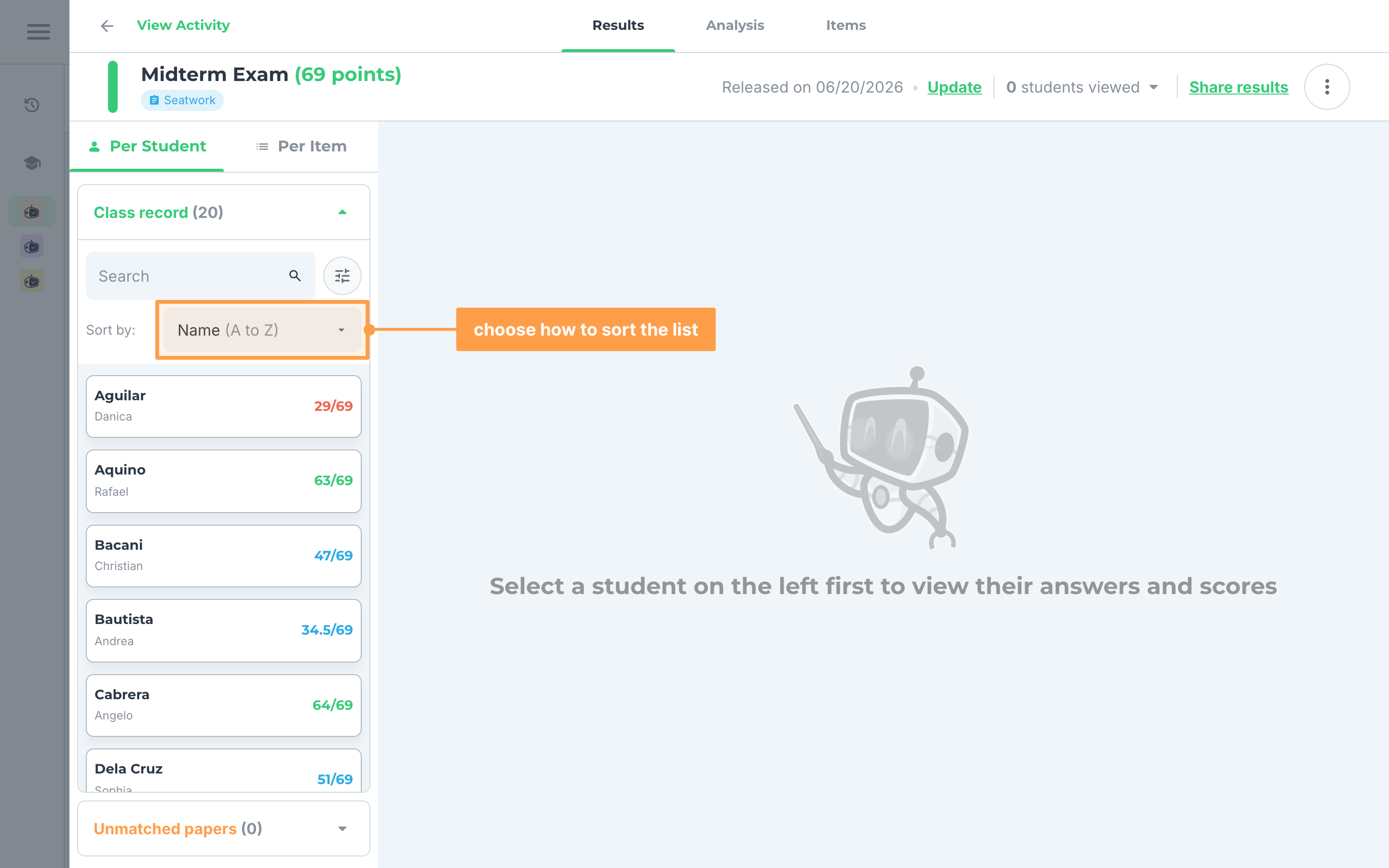
Note: For an activity with sets, a View: filter appears under Sort by:, so you can show All sets or only one set. While GradeChum is still regrading items you edited, sorting by rank is disabled. If your class is ordered by sex, the list groups your students under Male and Female.
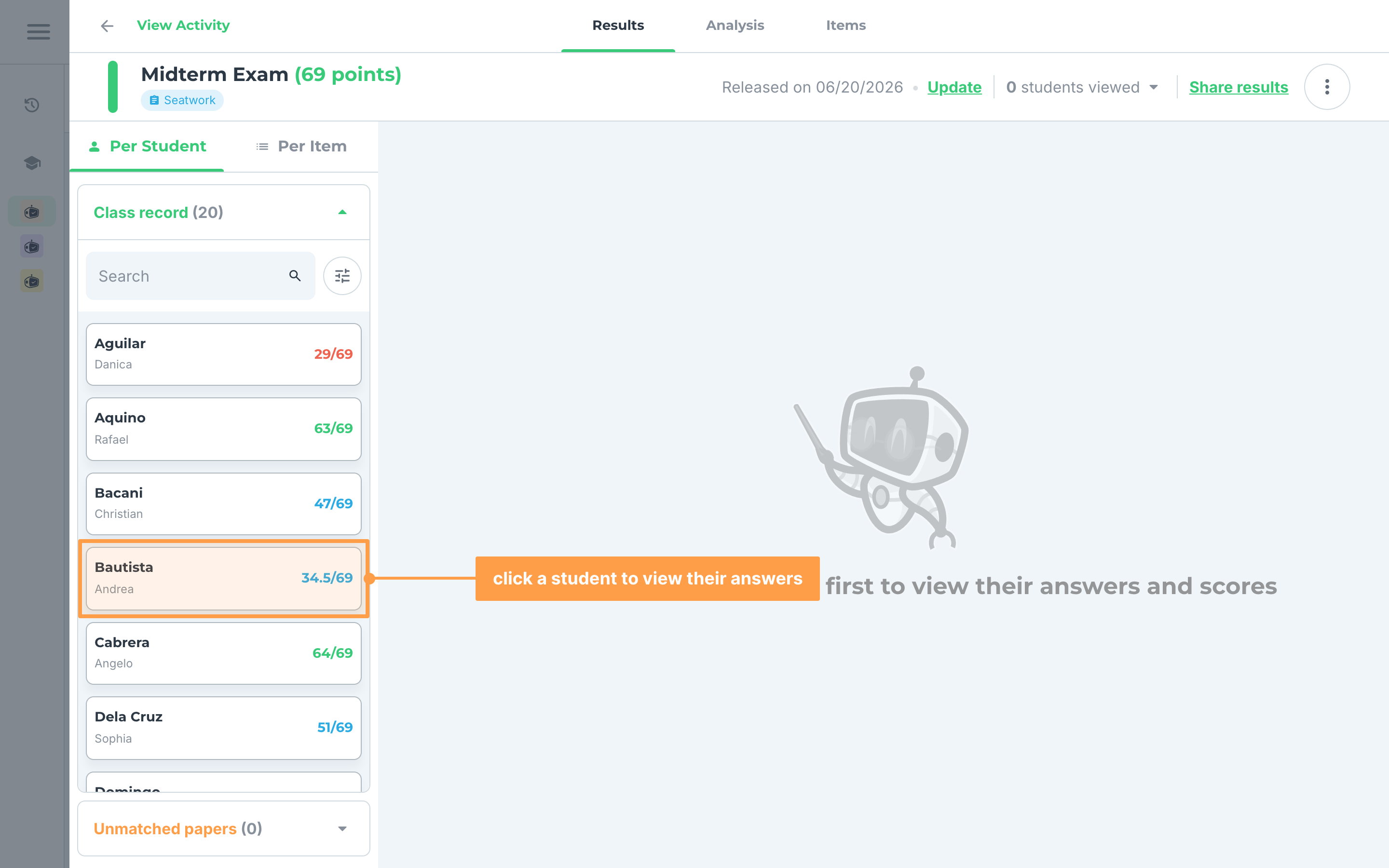
- Click a student's card to see their answers. The card shows the student's score. A green check beside a name means you have already reviewed that student, and an hourglass in place of the score means their paper is still being regraded.
- The answers are split into tabs, one per test (Test I., Test II., and so on). Each group of items is headed by a banner naming the page they were scanned from, for example "Items Test I. 1-13 are located in Page #1." Click View Page on that banner to see the student's scanned page in full.
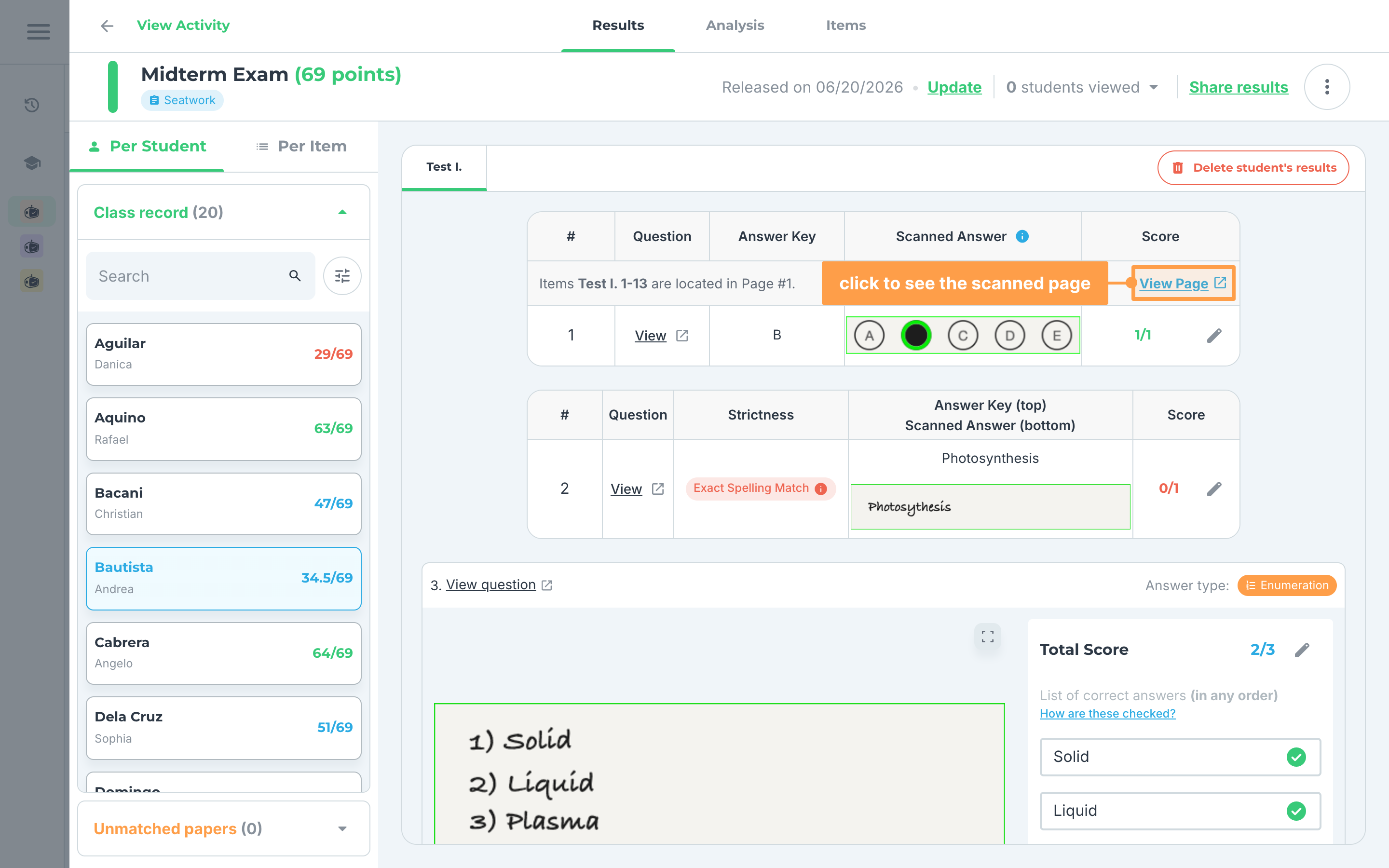
- How the answers are laid out depends on the item type. See below:
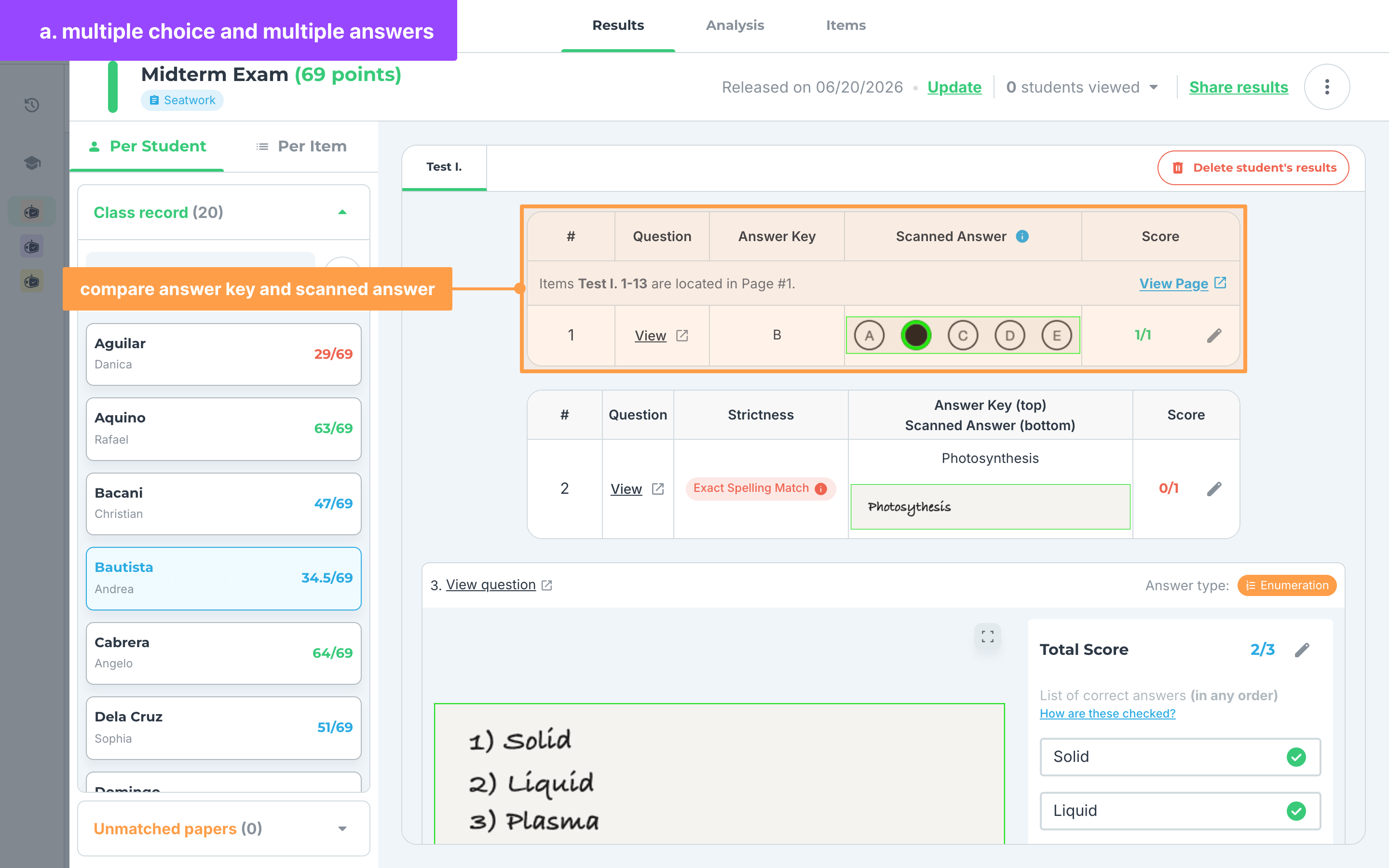
a. Multiple Choice and Multiple Answers
For items with Multiple Choice or Multiple Answers as the item type:
- Compare the Answer Key to the student's Scanned Answer and their Score. Hover the info icon beside Scanned Answer for what the rings mean: green is correctly answered, red is incorrectly answered, and green dashed is a correct option the student was not penalized for missing.
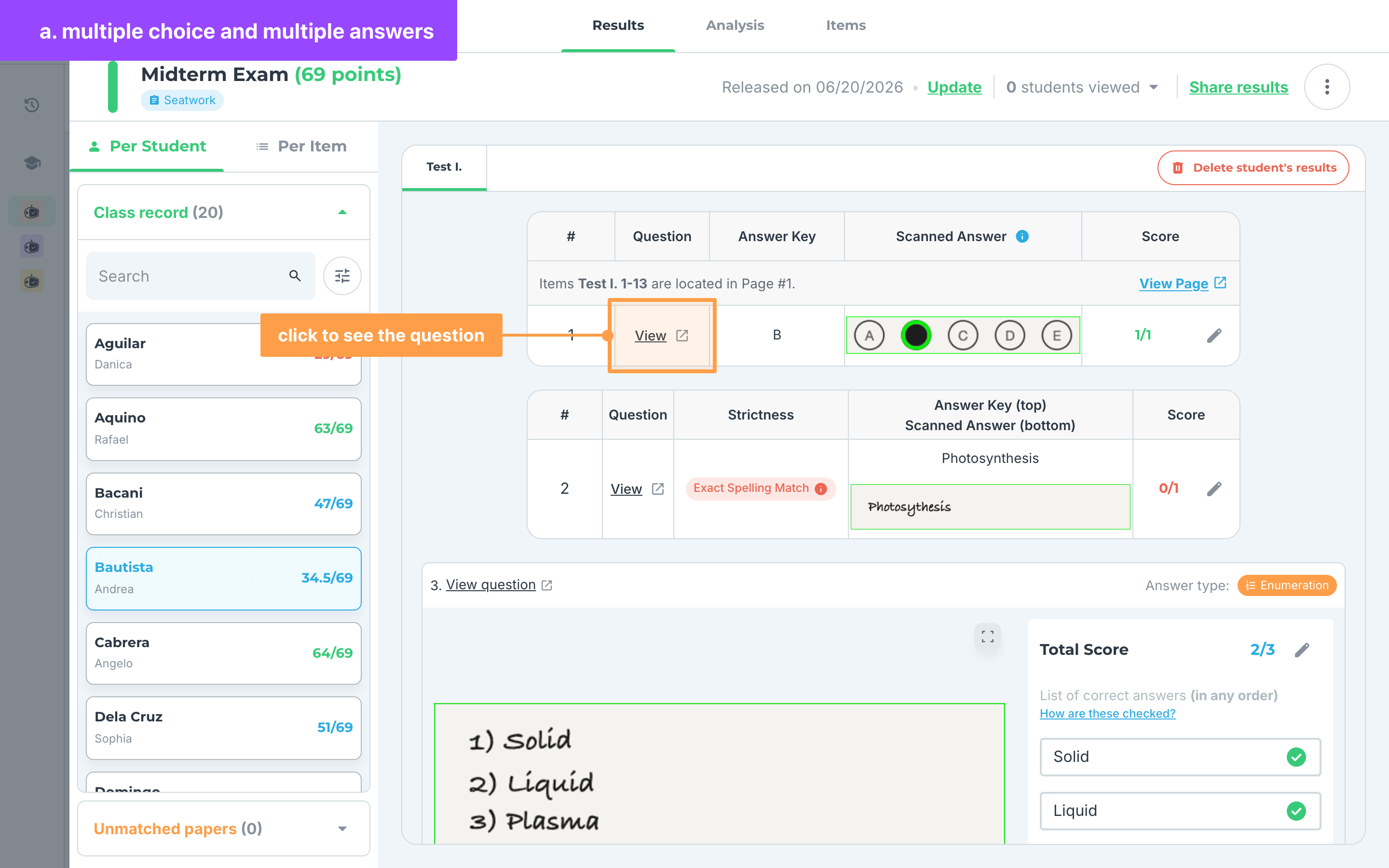
- Finally, click View in the Question column to read the question for that item.
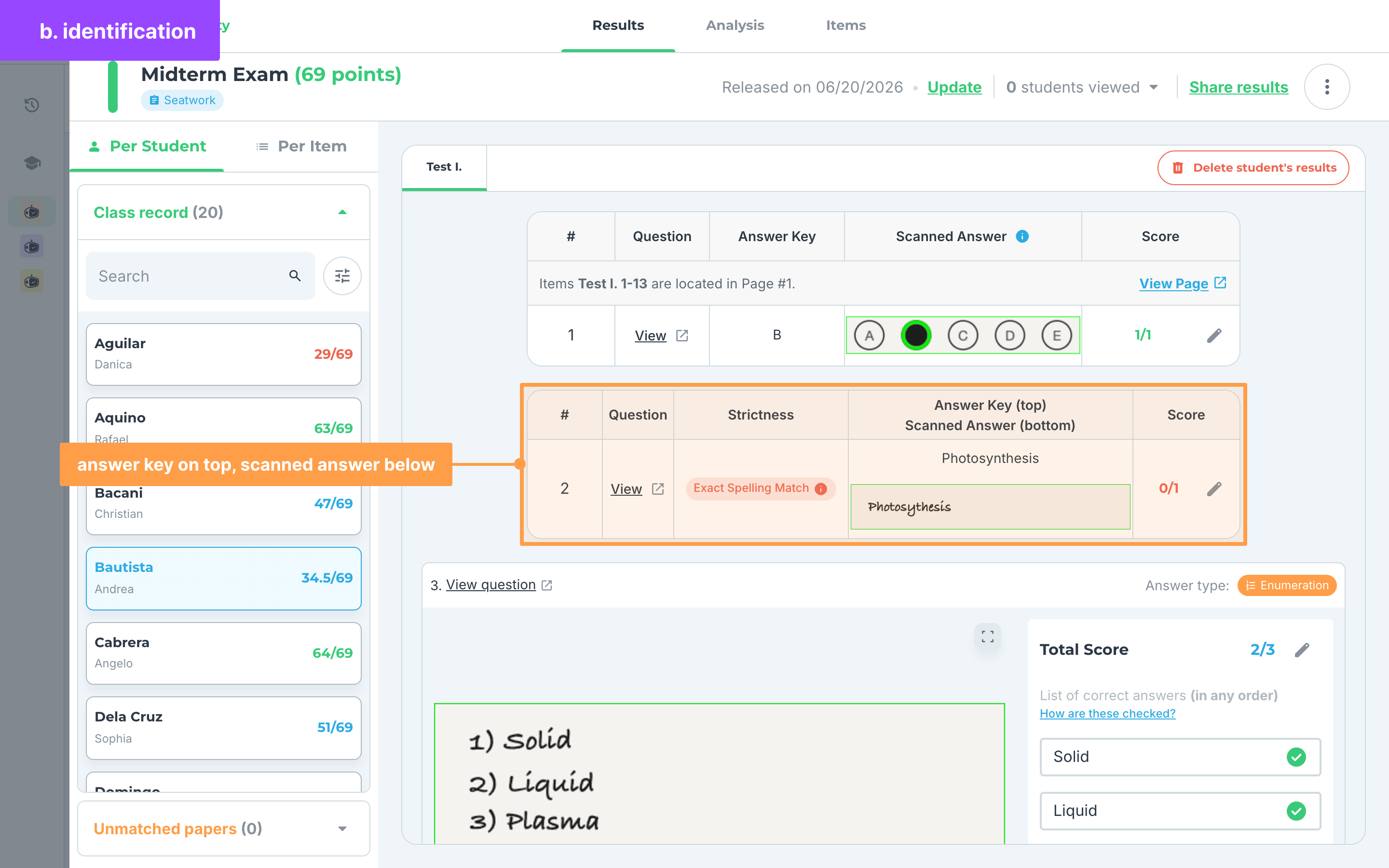
b. Identification
For items with Identification as the item type:
- Compare the answer key on top to the student's scanned answer below it, and their Score. The Strictness column shows how strictly GradeChum checked the answer against the key.
- Finally, click View in the Question column to read the question for that item.
c. Enumeration and items with rubrics
For items with Enumeration, Essay, Problem-solving, Code on paper or Visuals as the item type, and the older Rubrics, Answer Key + Rubrics and Key Idea + Rubrics types:
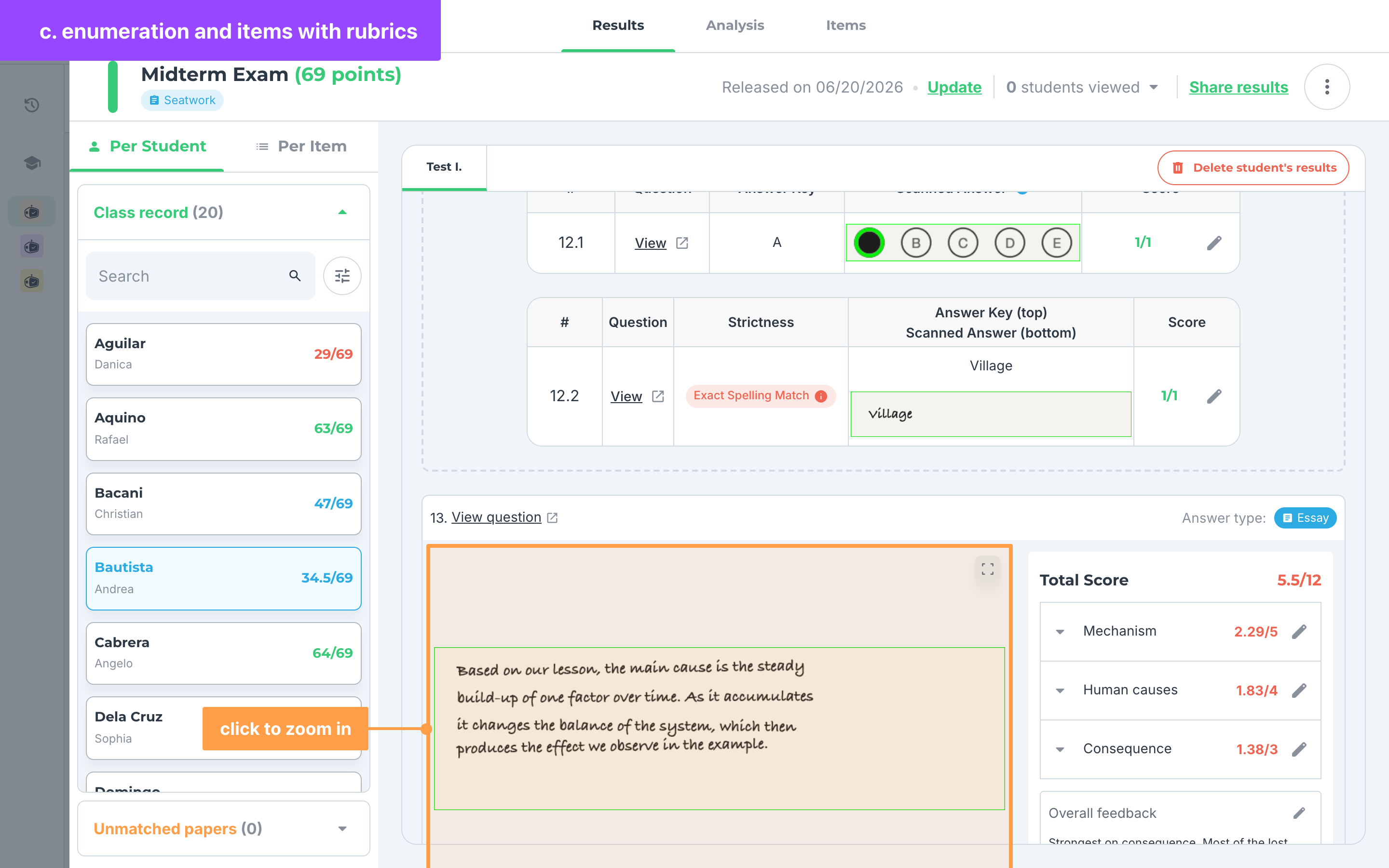
- Each item is its own card. Click the student's scanned answer to zoom in on it.
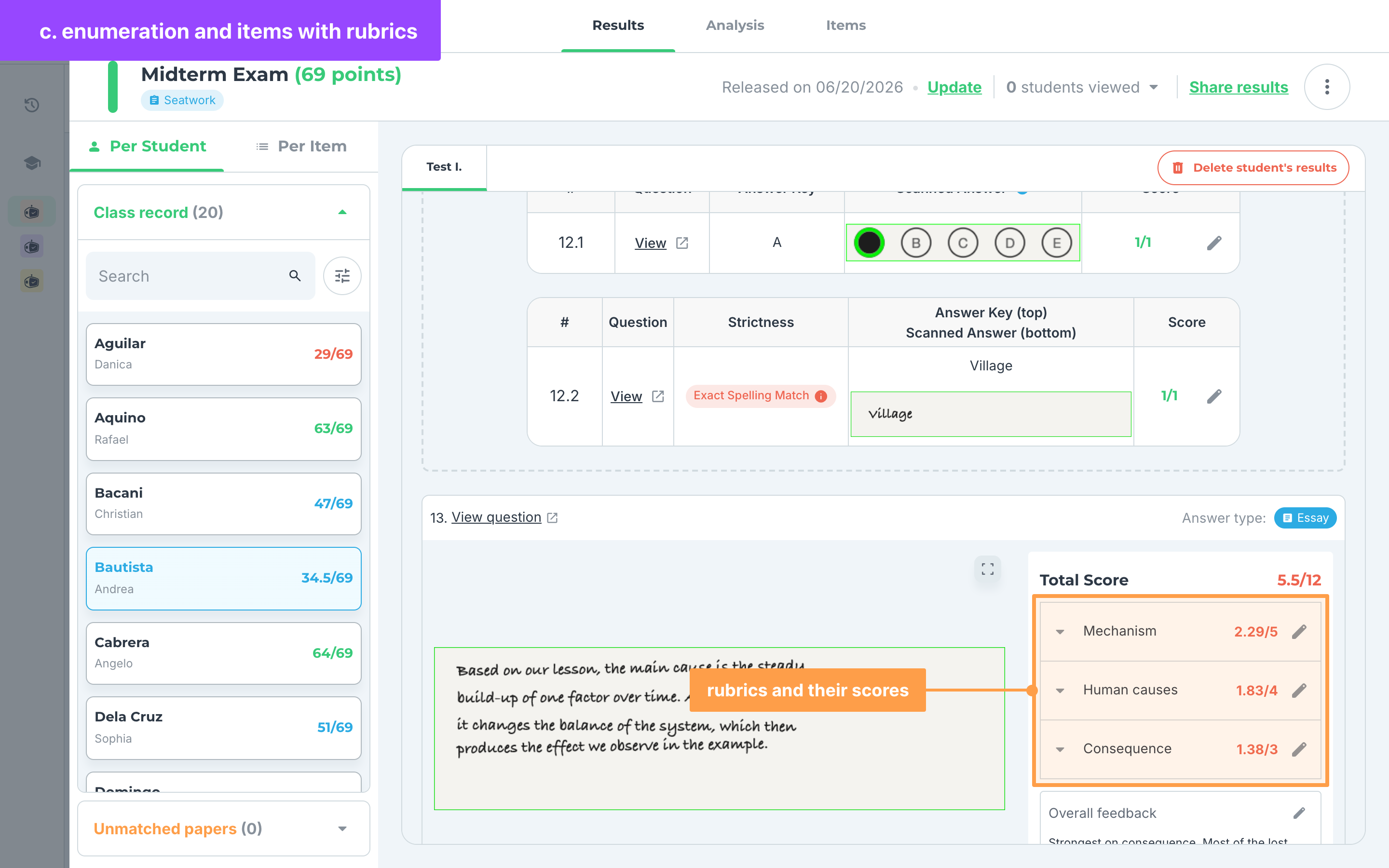
- Beside the scanned answer are the item's rubrics and the score for each one. For an Enumeration item, you see the List of correct answers instead.
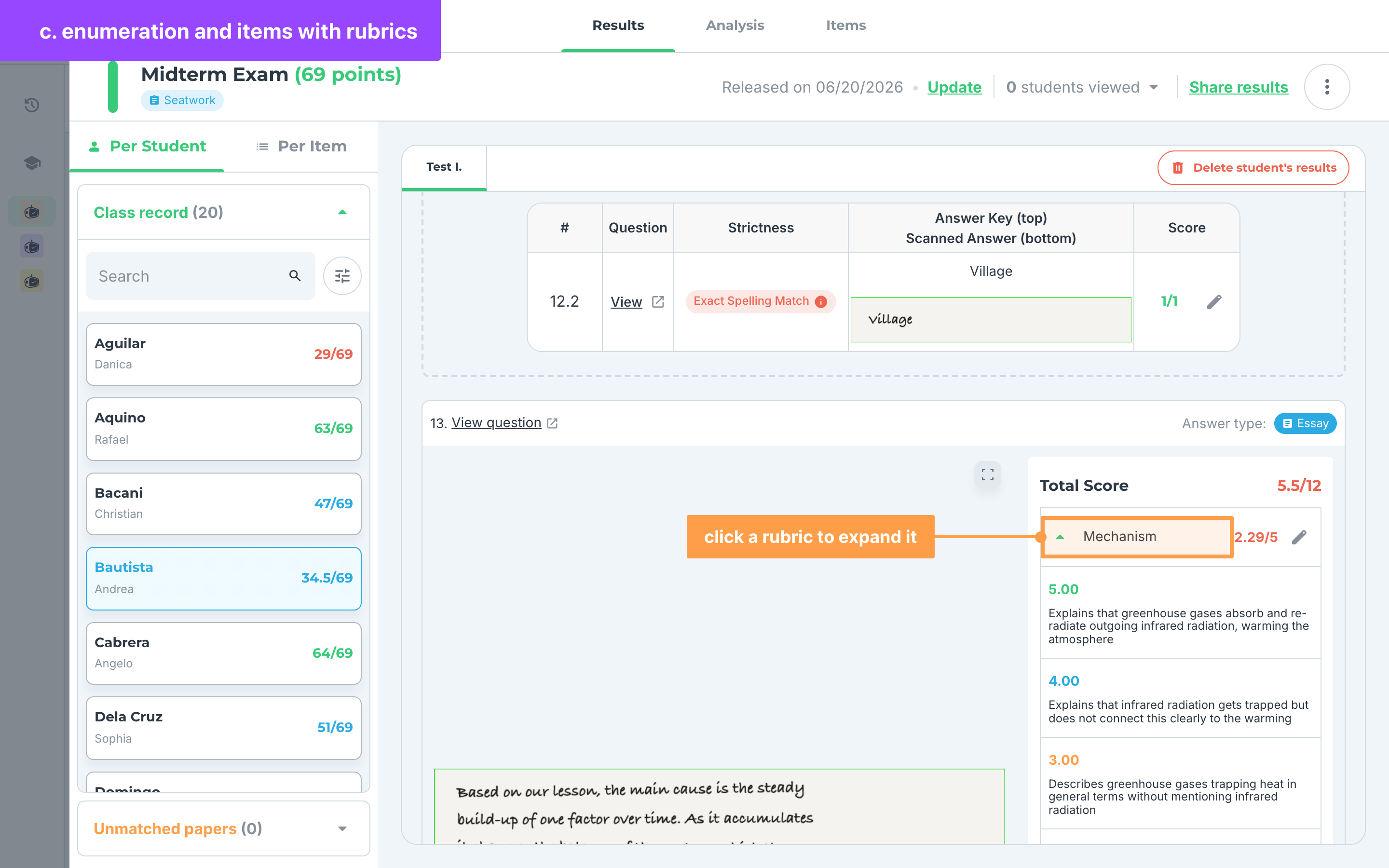
- Click a rubric to expand it and read its details or the feedback GradeChum wrote for the student.
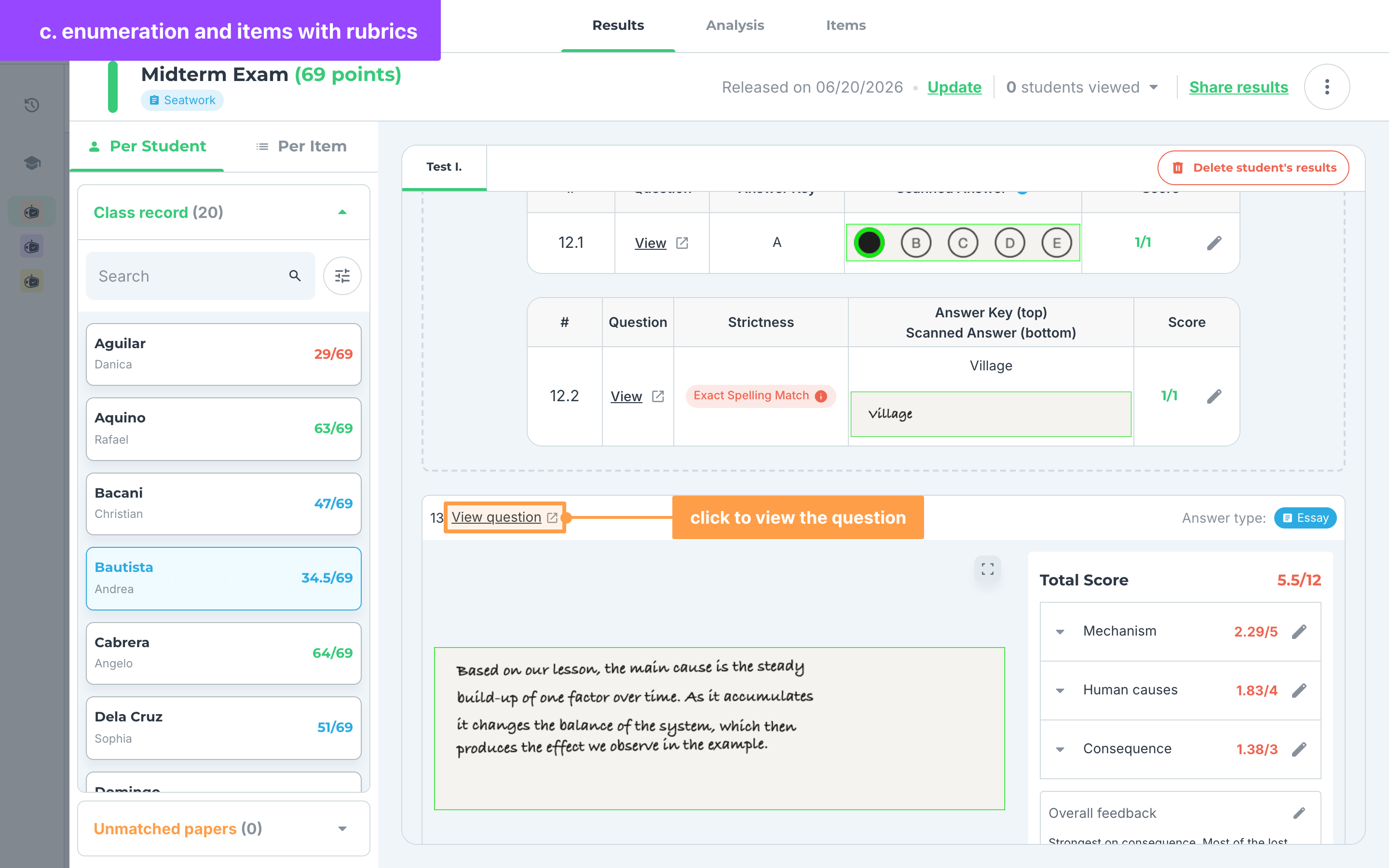
- Finally, click View question on the card to read the question for that answer.
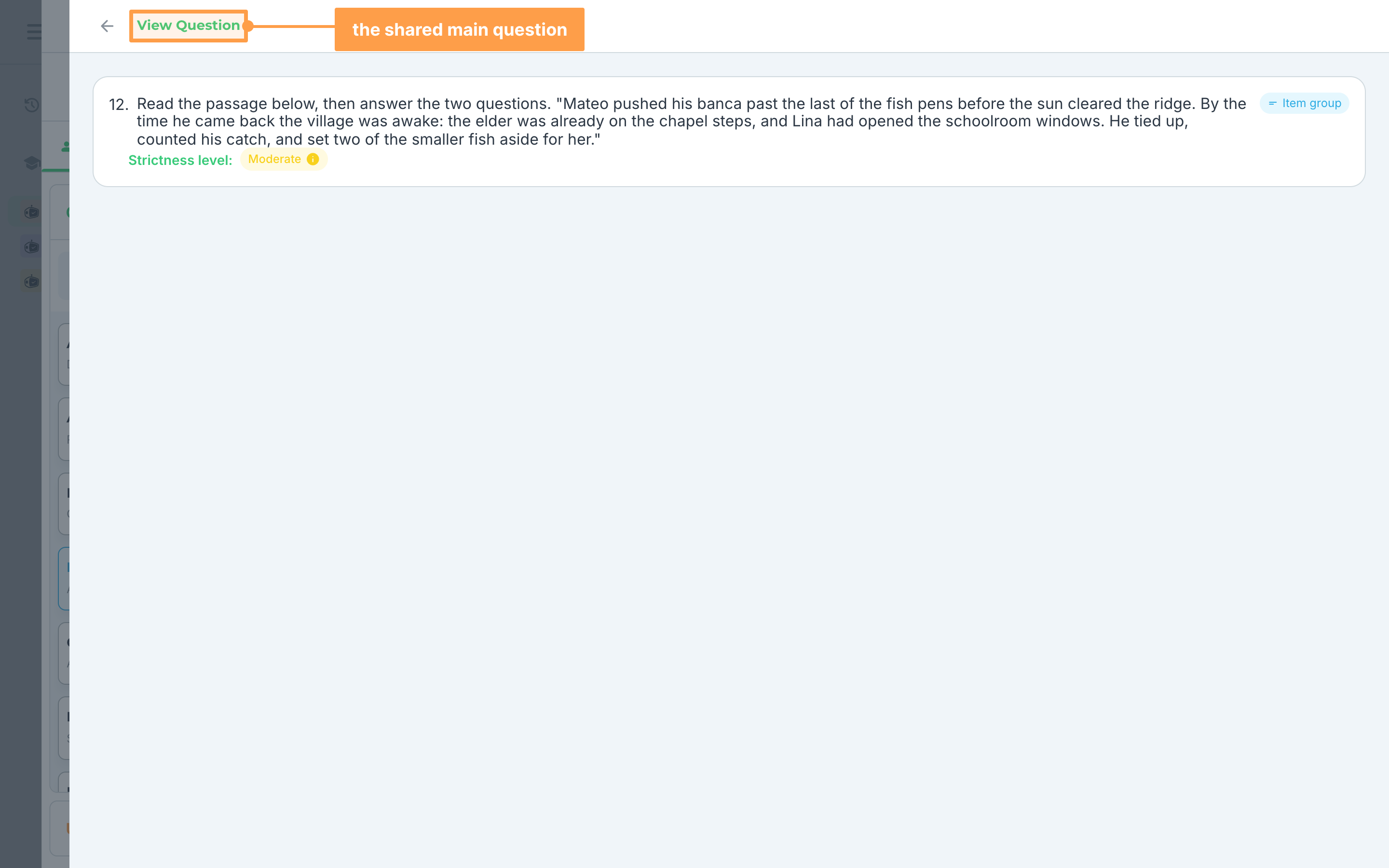
- When items share a passage or a main question, click View main question above them to read it.
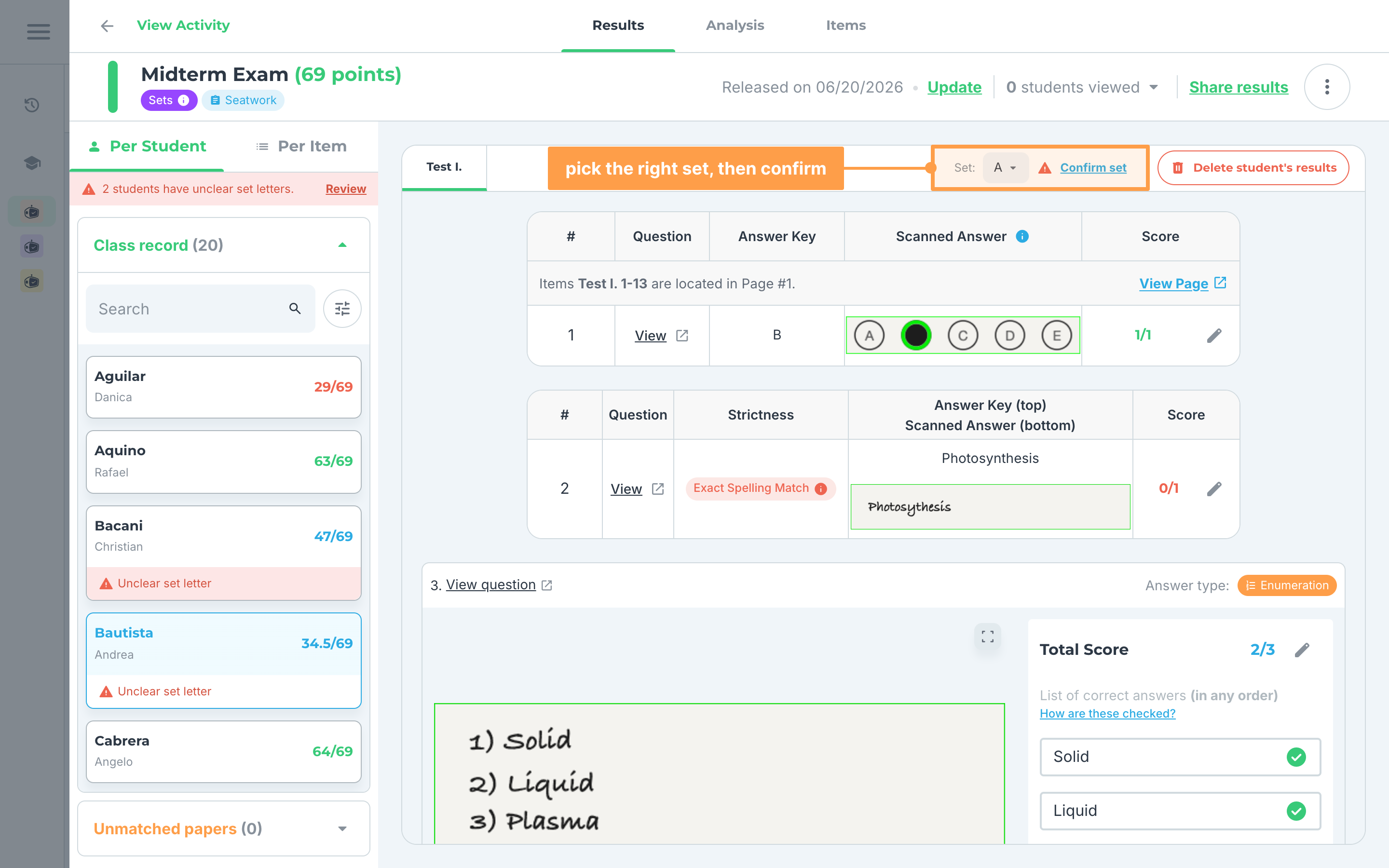
- If the activity has sets and GradeChum could not read the set letter a student shaded, their card shows Unclear set letter. Pick the right set in Set:, or click Confirm set to keep the one shown. GradeChum asks first: click Yes, proceed and it regrades that student. A banner such as "2 students have unclear set letters." links you to the first one with Review.
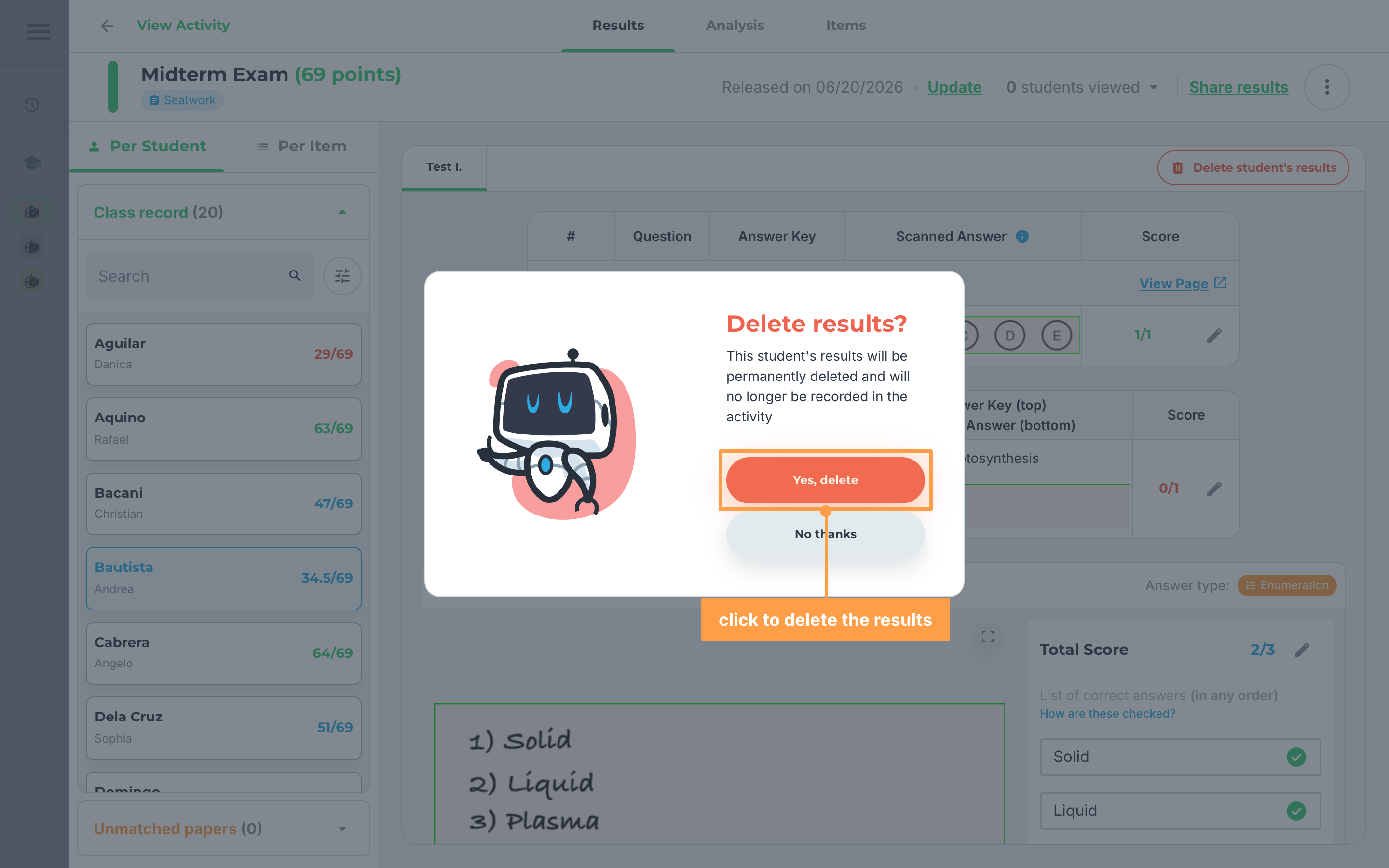
- Finally, to remove a paper that should not count, click Delete student's results above the answers. In the Delete results? modal, click Yes, delete, or No thanks to keep it.
Note: If another teacher shared the class with you as view-only, you can read every answer but cannot delete results, confirm sets or look for missing pages. To change a score, see Edit students' grades.
View one item across the whole class
To see how every student answered the same item, switch the results to Per Item:
- At the top of the left sidebar, click Per Item. The items are listed under each test, and the first item opens. Items that share a main question sit in a group that you click to expand or collapse. A voided item shows Marked as void and cannot be opened.
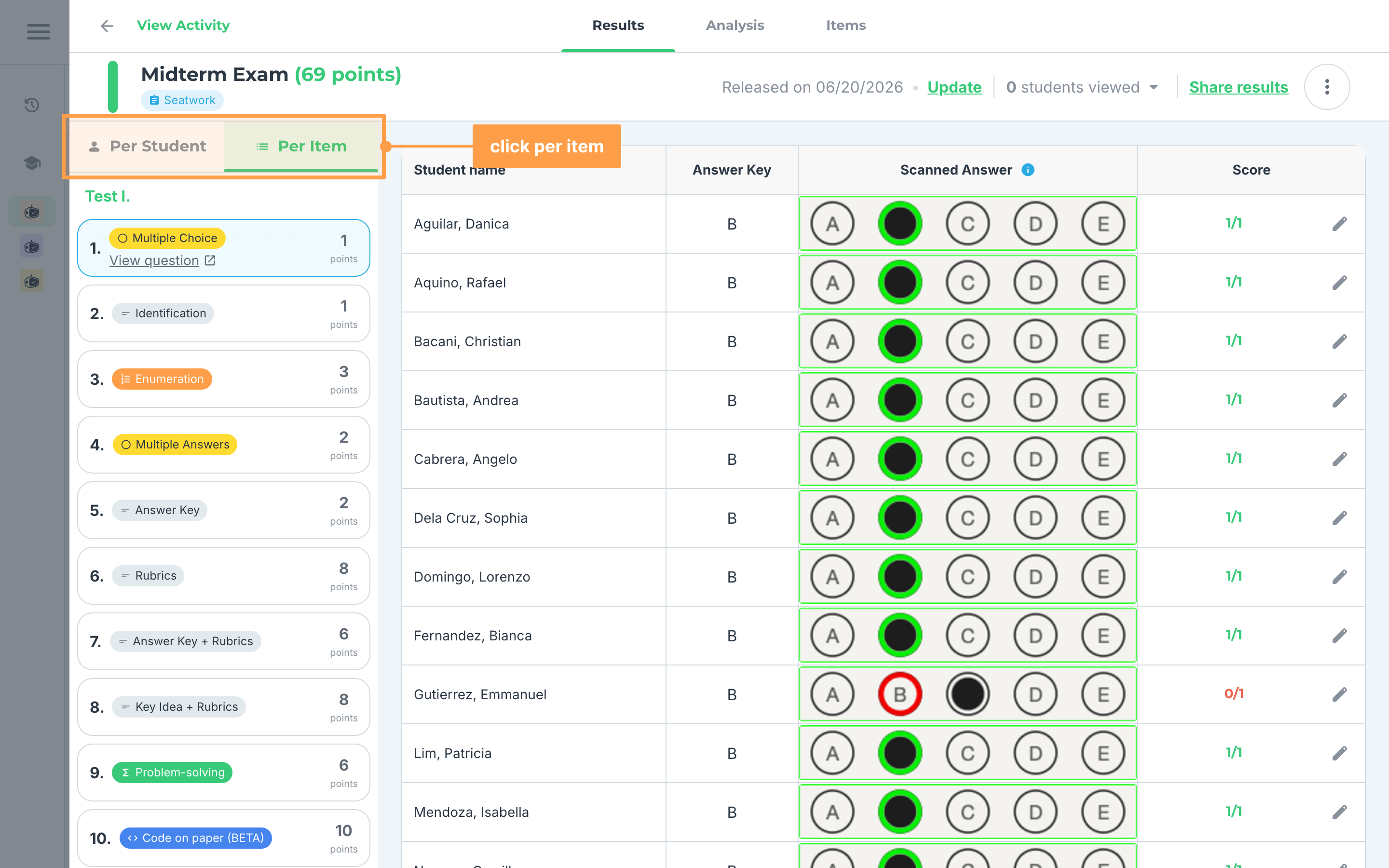
- Click an item to see every student's answer to it. Multiple Choice, Multiple Answers and Identification items show a table of Student name, Answer Key, Scanned Answer and Score. Other item types show one card per student, with the rubrics.
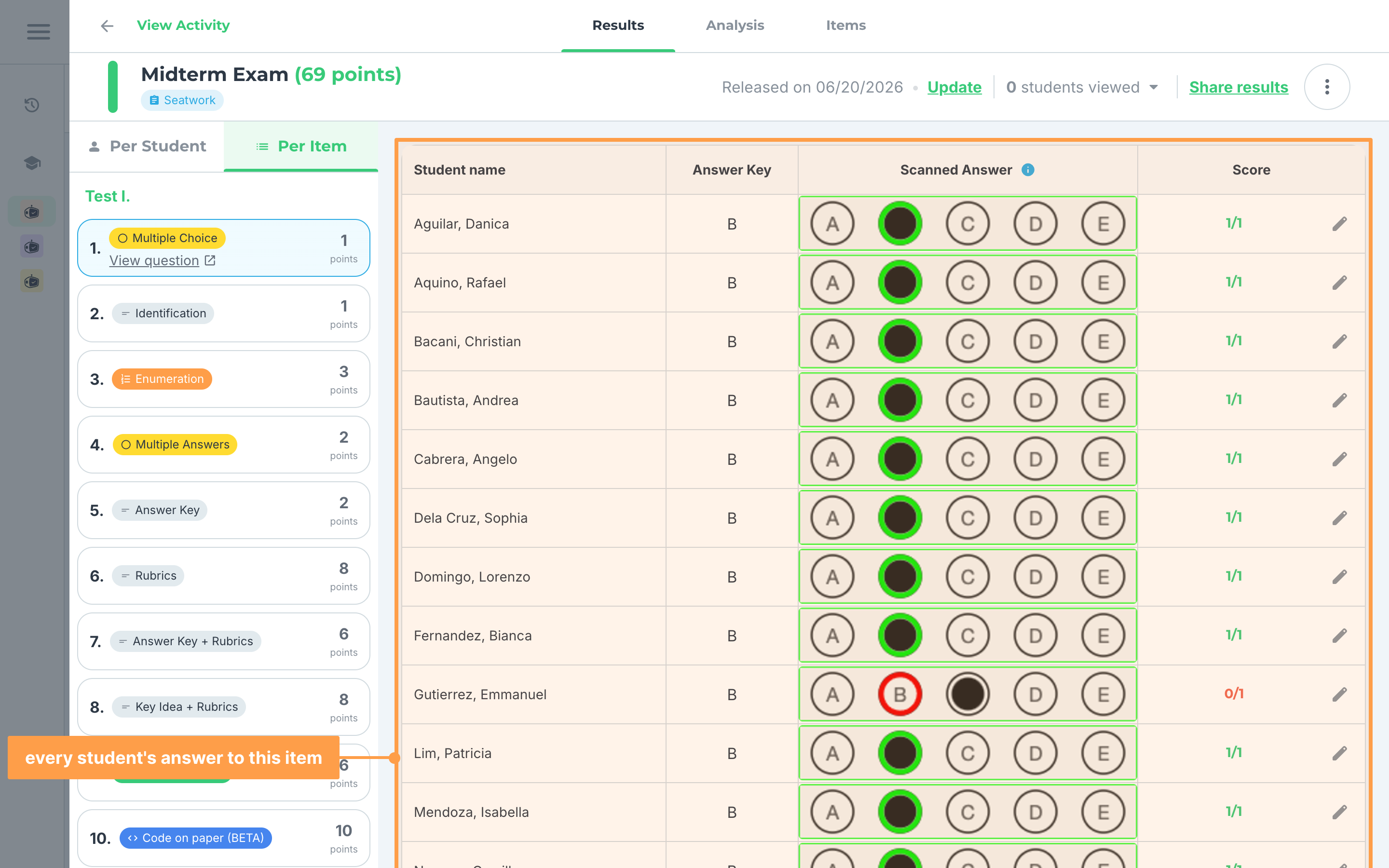
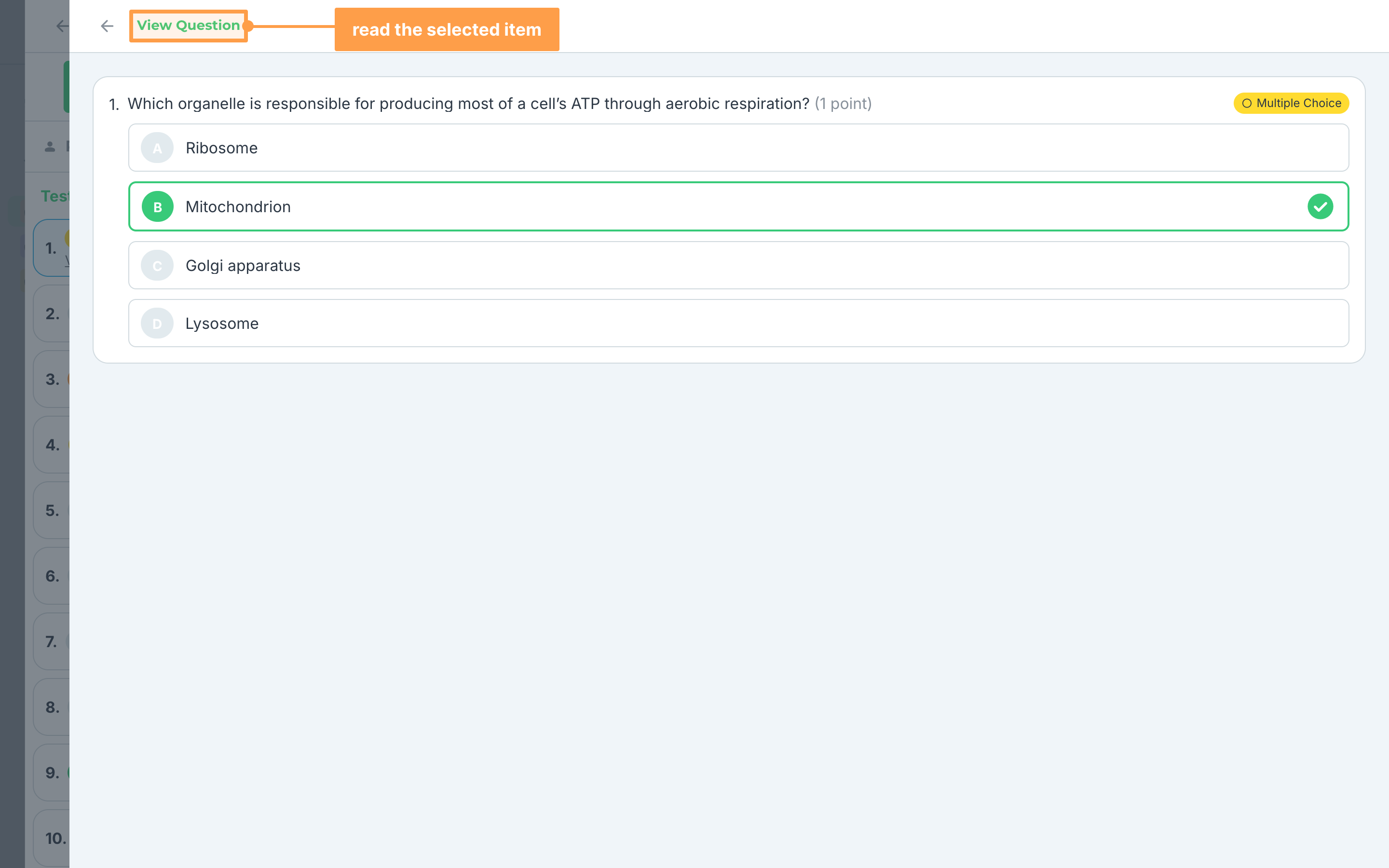
- Finally, click View question on the selected item to read it. A student whose page could not be found shows Missing page with a Find Page link, and a student with no paper shows a dash.
Note: Switching to Per Item clears the View: set filter. If your class has no students yet, the list reads No students enrolled in this section yet. To change a score from this view, see Edit students' grades.
Before any results come in
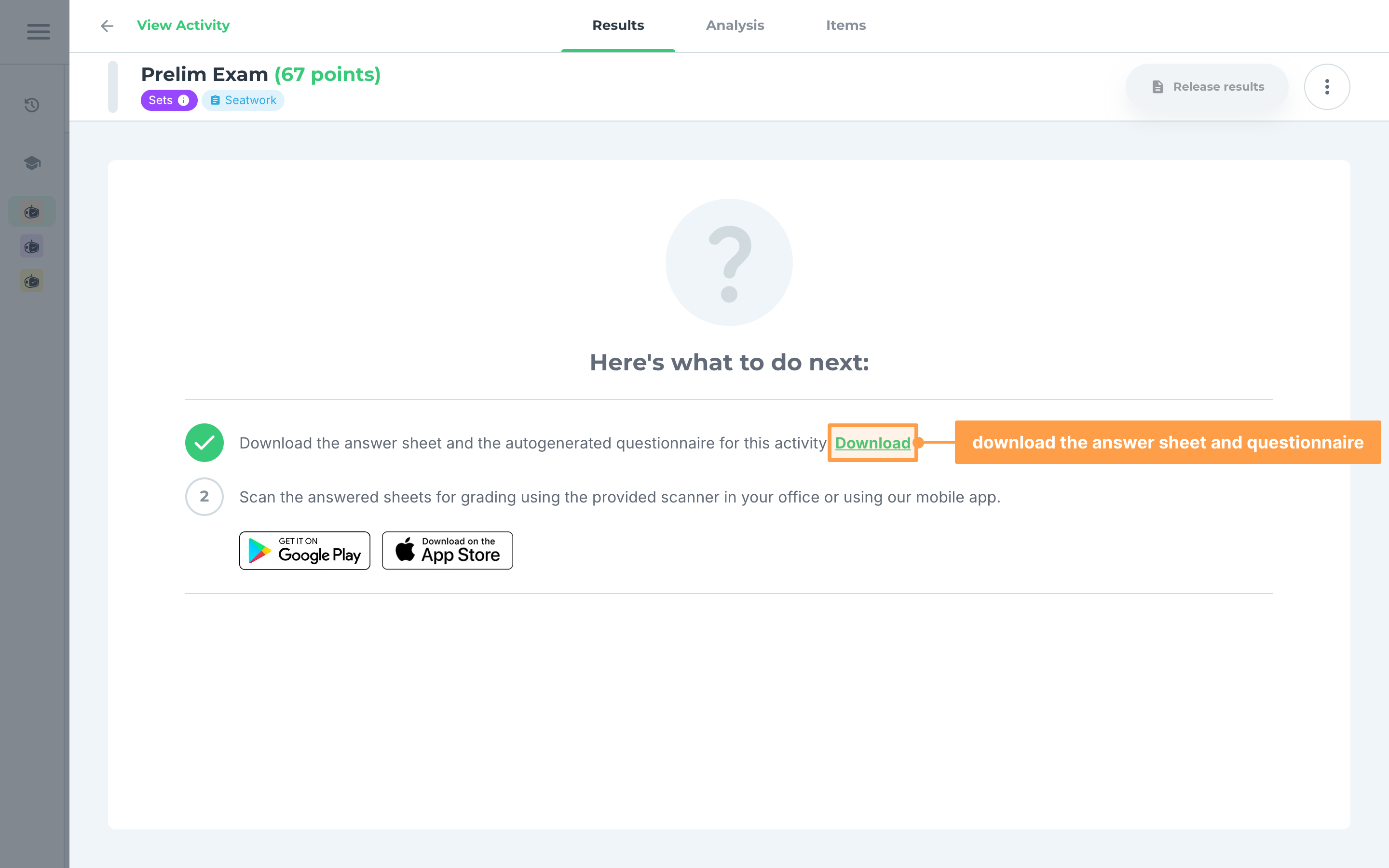
Until papers are scanned or students answer, the Results tab shows Here's what to do next: instead of a class record:
- For a handwritten activity, click Download. Download Answer Sheet & Questionnaire opens, and its own Download saves both files. Scan the answered sheets with GradeChum Scanner, using the Play Store or App Store link to get it (see GradeChum Scanner). Step 1 gets a check once the questionnaire is downloaded.
-
For an online activity, click Upload class record if your class has no students yet (see Invite students to class). Then share the class code shown under "Invite your students to this class." by clicking Copy.
-
For an activity from outside GradeChum in a class with no students, click Upload class record, then import the scores (see Activities from outside GradeChum).
-
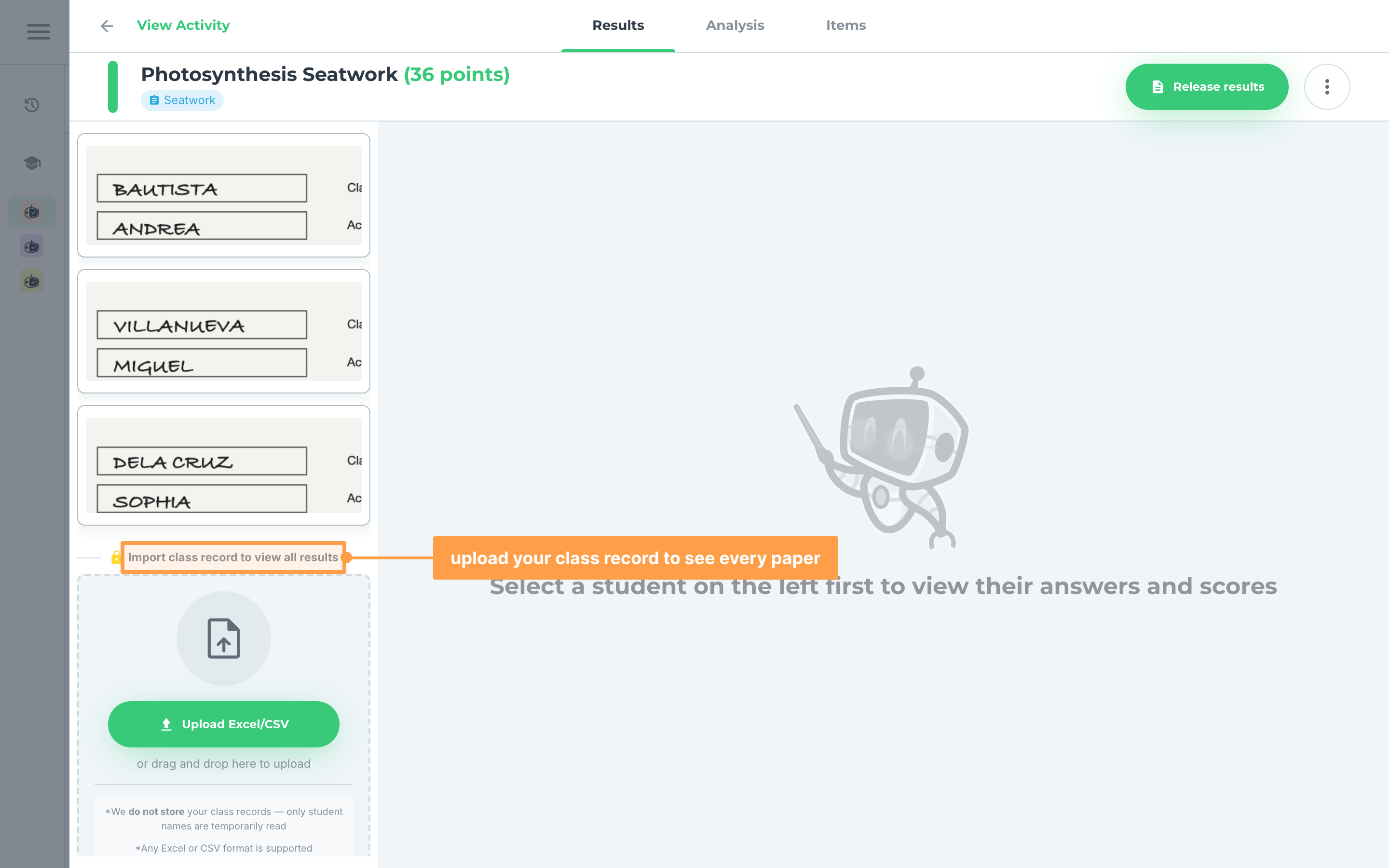
Finally, if your class has no students when papers are scanned, only the first 3 papers show, and the list ends with a lock and Import class record to view all results. Drop your class record file there, or click the box to choose it, and every paper opens.
Note: If the activity already has an activity reviewer, a banner above these steps offers Review activity reviewer, or View activity reviewer once you released it (see Release activity reviewer). A teacher with view-only access to a shared class sees The results are not available yet. instead of the steps.
Online, Exam Mode and mock board activities
Some kinds of activities show their results a little differently:
a. Online activities
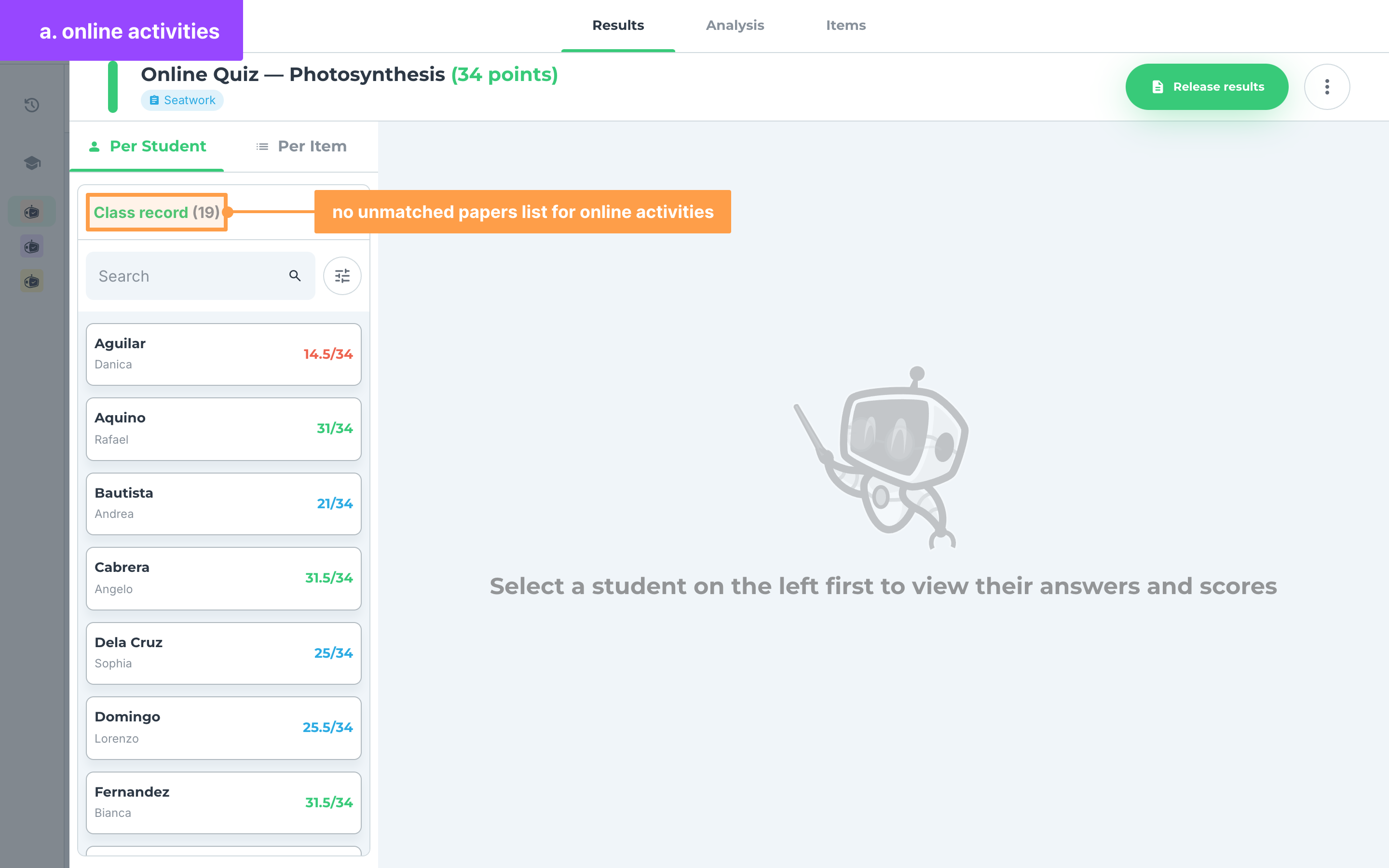
An online activity has no Unmatched papers list, no scanned pages to find and no Delete student's results button. The answers refresh on their own while students are still answering. Until a student submits, their Score column and the correct and incorrect marks stay hidden. The selected student's card also shows Time started and Time taken.
b. Exam Mode activities
An activity with Exam Mode on shows Time started, Time taken and Is likely cheating above each student's answers, and a red Is likely cheating badge on the student's card. Click a selected student's Answers or Issues to switch between their answers and what GradeChum flagged. In Per Item, the table adds an Is likely cheating column. See Online activities to turn Exam Mode on.
c. Mock board activities
A mock board activity shows The results are not available yet. until papers are scanned. Its class record is a plain list that can also be sorted by examinee ID, and it has no Unmatched papers list. Click View information sheet above the answers, or View Answer Sheet on the banner, to see the student's sheets. A card that reads No information sheet associated or No answer sheet associated needs that sheet found. See Mock board classes.
Note: You do not need to reload the page. The activities list, the class record and the open student's answers update on their own as papers are checked and students submit, and everything refreshes again when your connection comes back. If the activity cannot load, View Activity shows There was an error loading the activity.
And that's how you view your students' answers in an activity! Next, let's explore how to handle papers with missing pages.