
🌲
Create sets
Introduction
Creating different sets of a test offers several advantages, making assessments more effective and fair. It enhances test security and integrity which prevents students from cheating and accommodates different learning styles.
In this article, we will explore how to create sets of an activity in GradeChum.
Steps
To create sets of an activity, follow these steps:
- Once you have successfully created an activity, GradeChum asks straight away whether you want shuffled sets for it. If you only decided later on, you can also do that by clicking the three vertical ellipses on the right side of your activity.
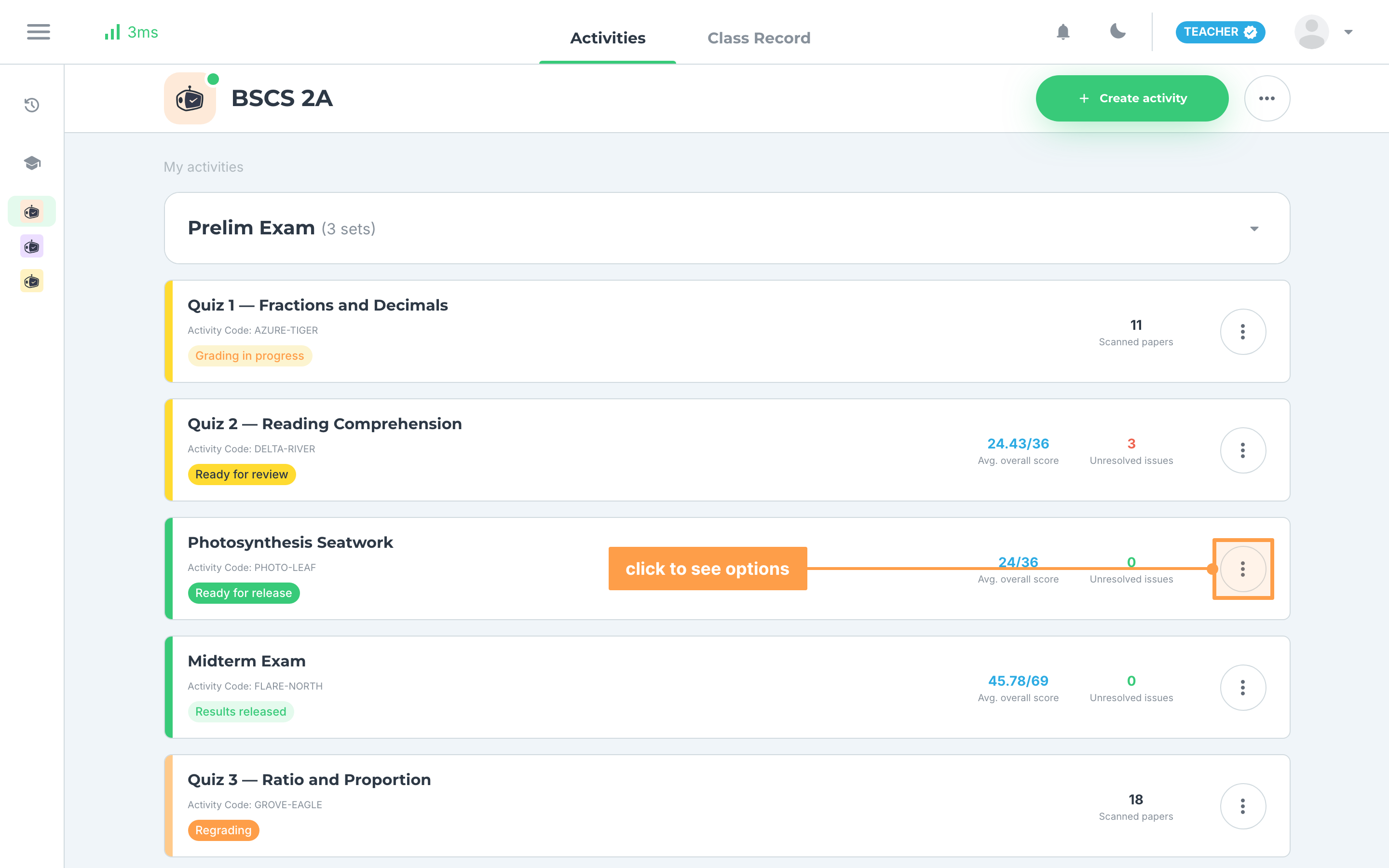
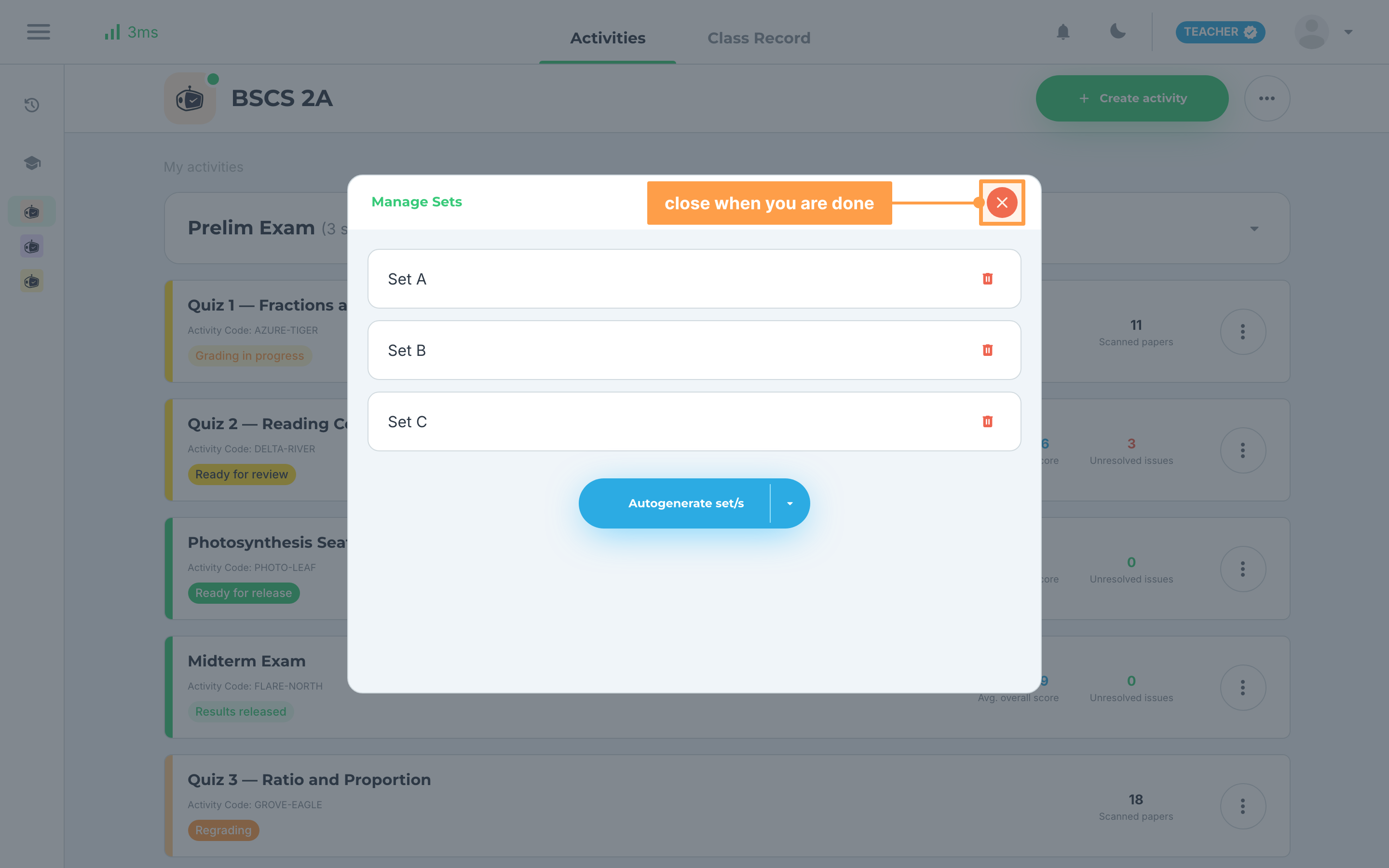
- Click Manage sets.
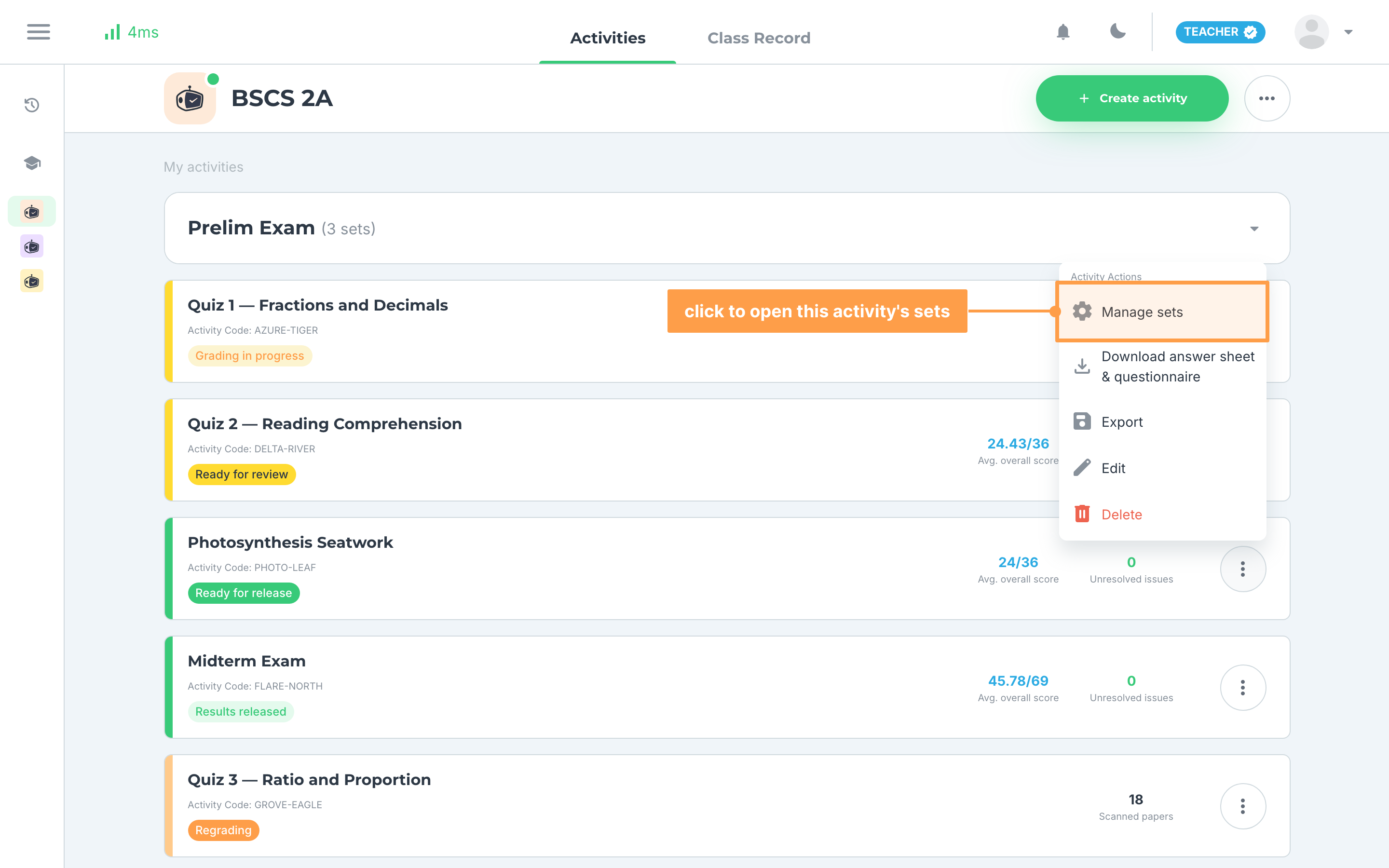
- Open the Autogenerate set/s dropdown and choose how many additional shuffled sets you want. Each new set holds the same items in a different order.
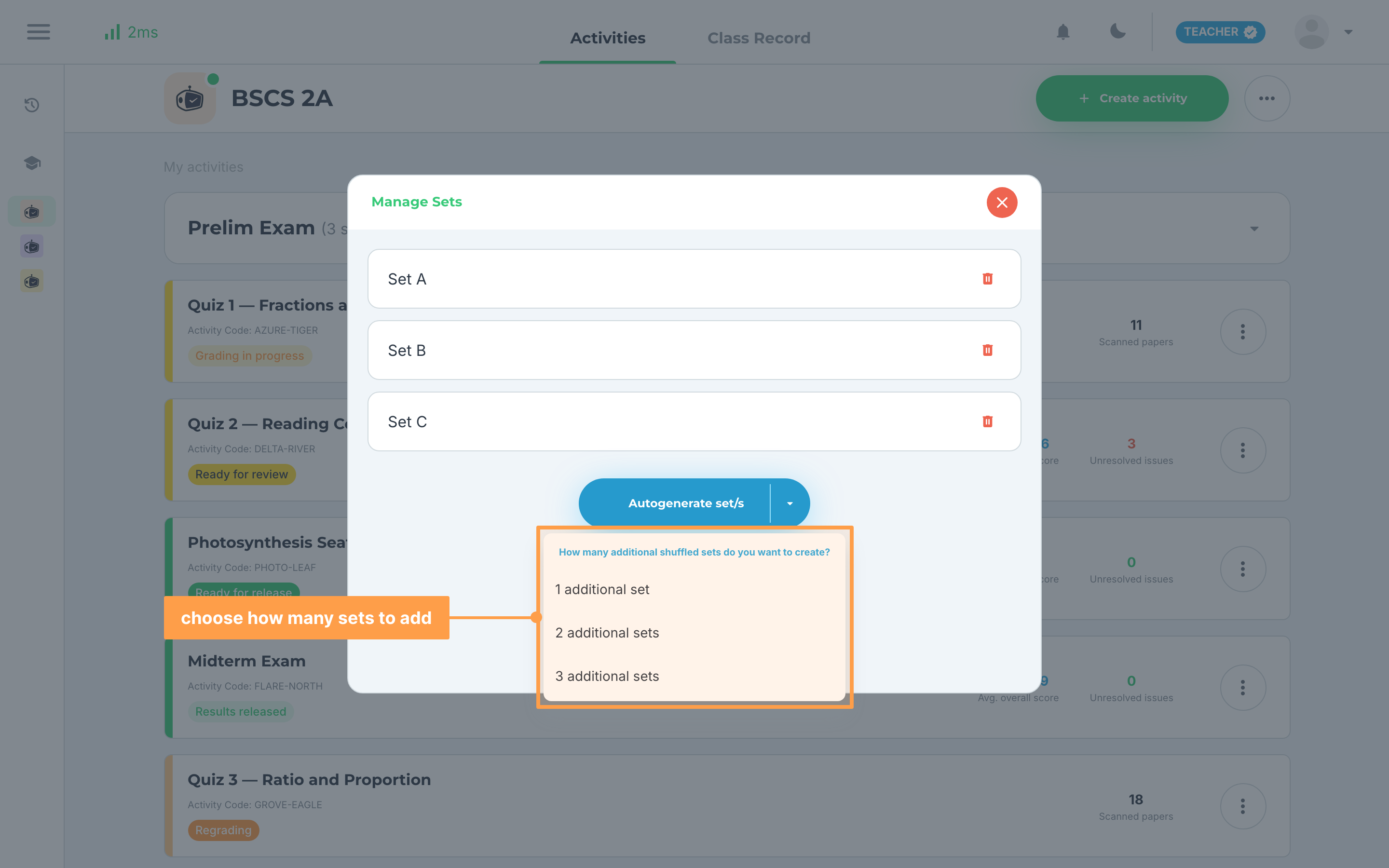
- The new set appears as a row in the Manage Sets window (Set A, Set B, Set C) and is saved the moment you choose a number. Your activity keeps its name and stays one card in the activities list. Each row carries a red trash icon if you want to remove that set; GradeChum asks you to confirm, and an activity must keep at least one set.
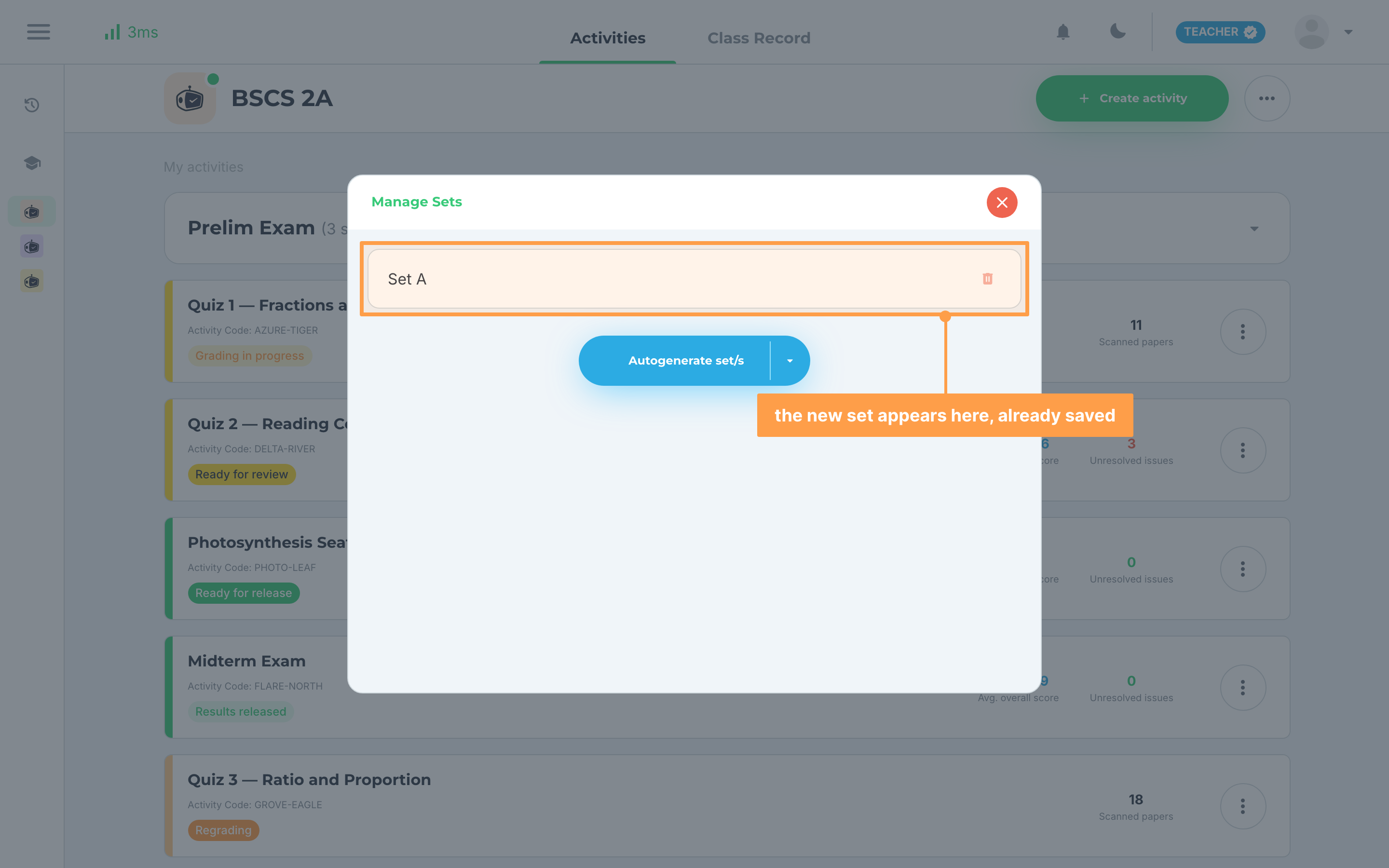
- Finally, close the Manage Sets window. Your sets are already saved. GradeChum confirms each time with a message such as "1 set added successfully."
- If you want more sets, open Autogenerate set/s again. An activity can hold up to six sets (A to F), or four (A to D) for a board exam activity, and sets you have deleted still count toward that limit.
And that's how you create sets of an activity! Next, let's explore other options to create activities in GradeChum.
Last updated March 13, 2026