
Past classes
Introduction
A class you have finished teaching does not have to stay on My classes. When the term is over, you can deactivate the class: your students can no longer open it, and it moves to Past classes, where you can still open it and read everything in it.
Nothing is deleted, so a class you deactivated by mistake, or a class you teach again, goes back to My classes whenever you want. In this article, let's explore how to deactivate a class, find it in Past classes, and activate it again.
Steps
Note: Only the teacher who created the class can deactivate or activate it. A class another teacher shared with you shows Shared by: and their name, and its card has no menu. See Share a class with another teacher.
To move a class to your past classes and back, follow the steps below:
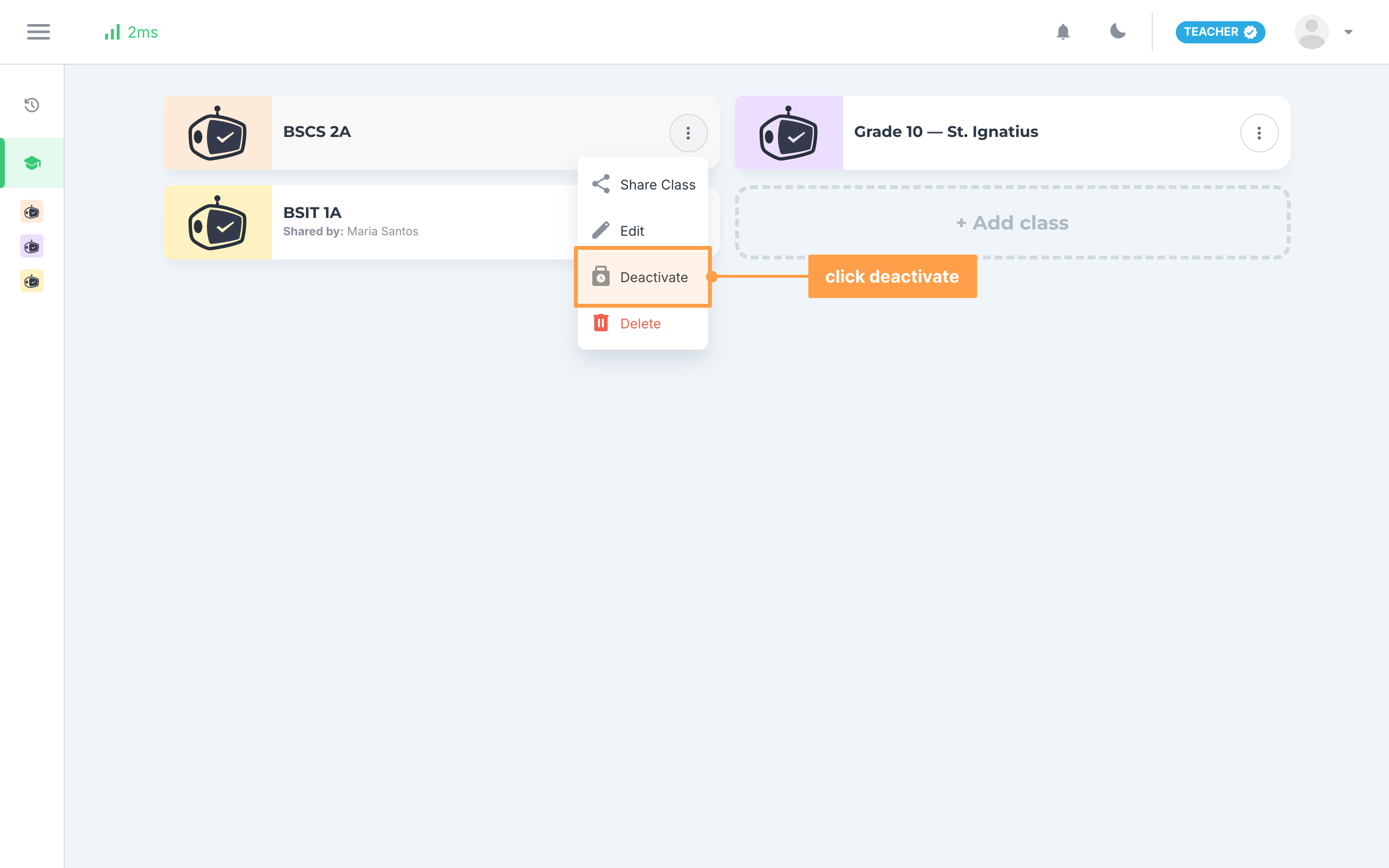
- On My classes, click the three-dot button (Toggle additional actions) on the class card, then click Deactivate. You can also open the class, click the three-dot button in the class header, and click Deactivate under Class actions.
- The Deactivate? modal says that once deactivated, your students will not be able to access the class anymore, but you can still access and reactivate it anytime in the Past Classes screen. Click Confirm, or Cancel to keep the class as it is.
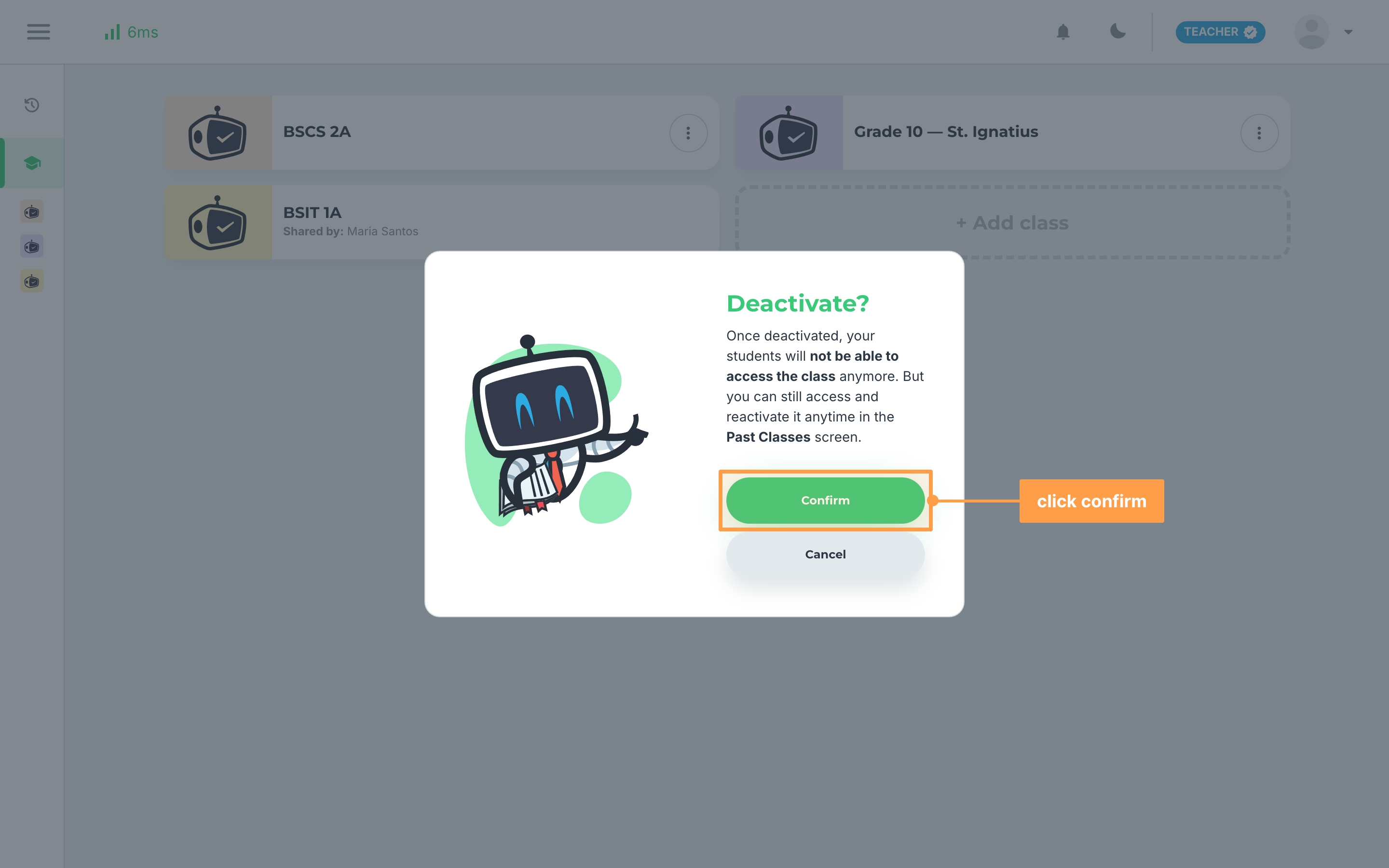
Note: While GradeChum saves the change, Confirm reads Updating and Cancel cannot be clicked. The class then leaves My classes and the sidebar.
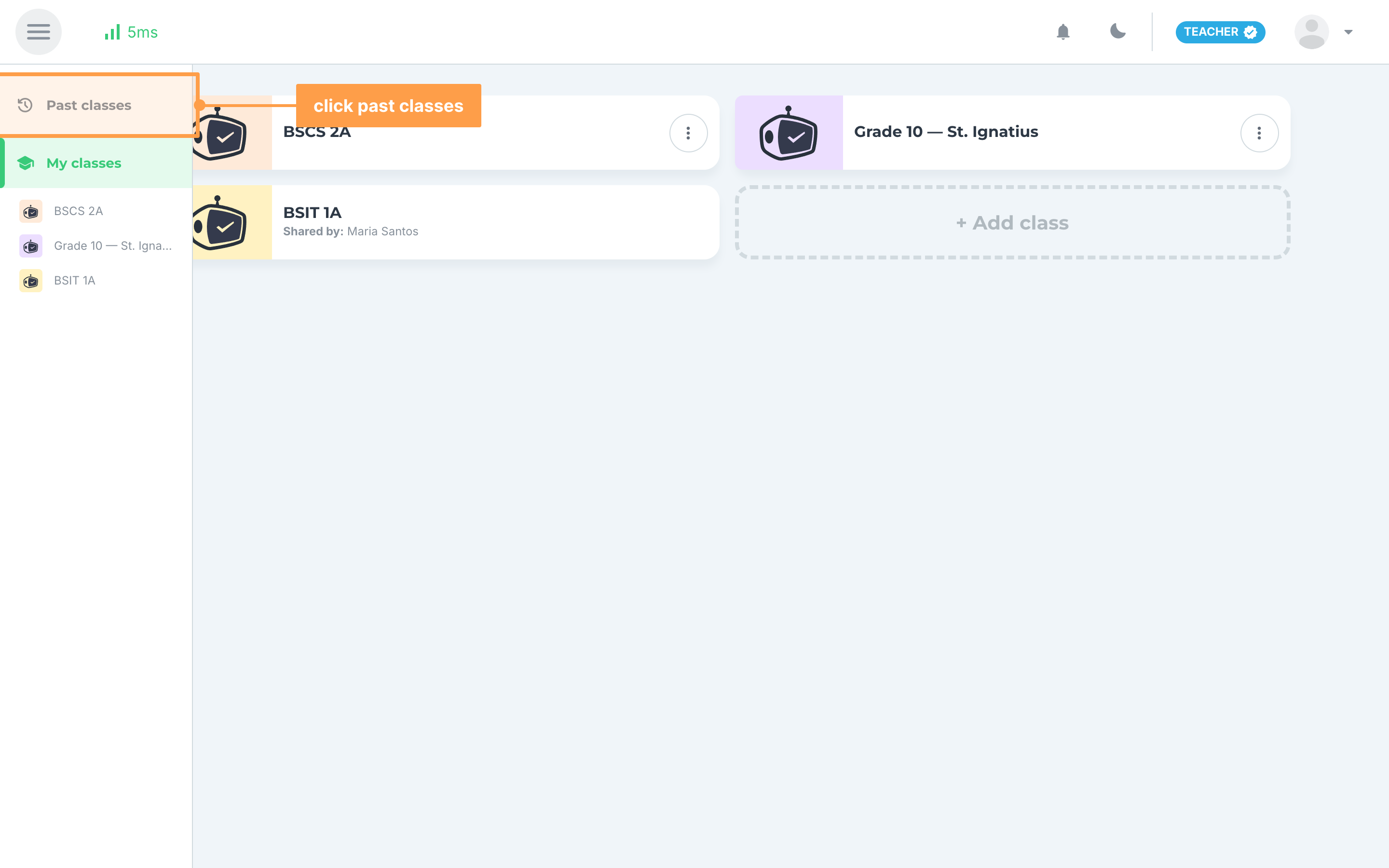
- To find the class again, click the menu button at the top left to open the sidebar, then click Past classes.
- Your past classes are grouped under the month and year each class was created, such as August 2025, with the newest group first. Six classes load at a time, and more load as you scroll down.
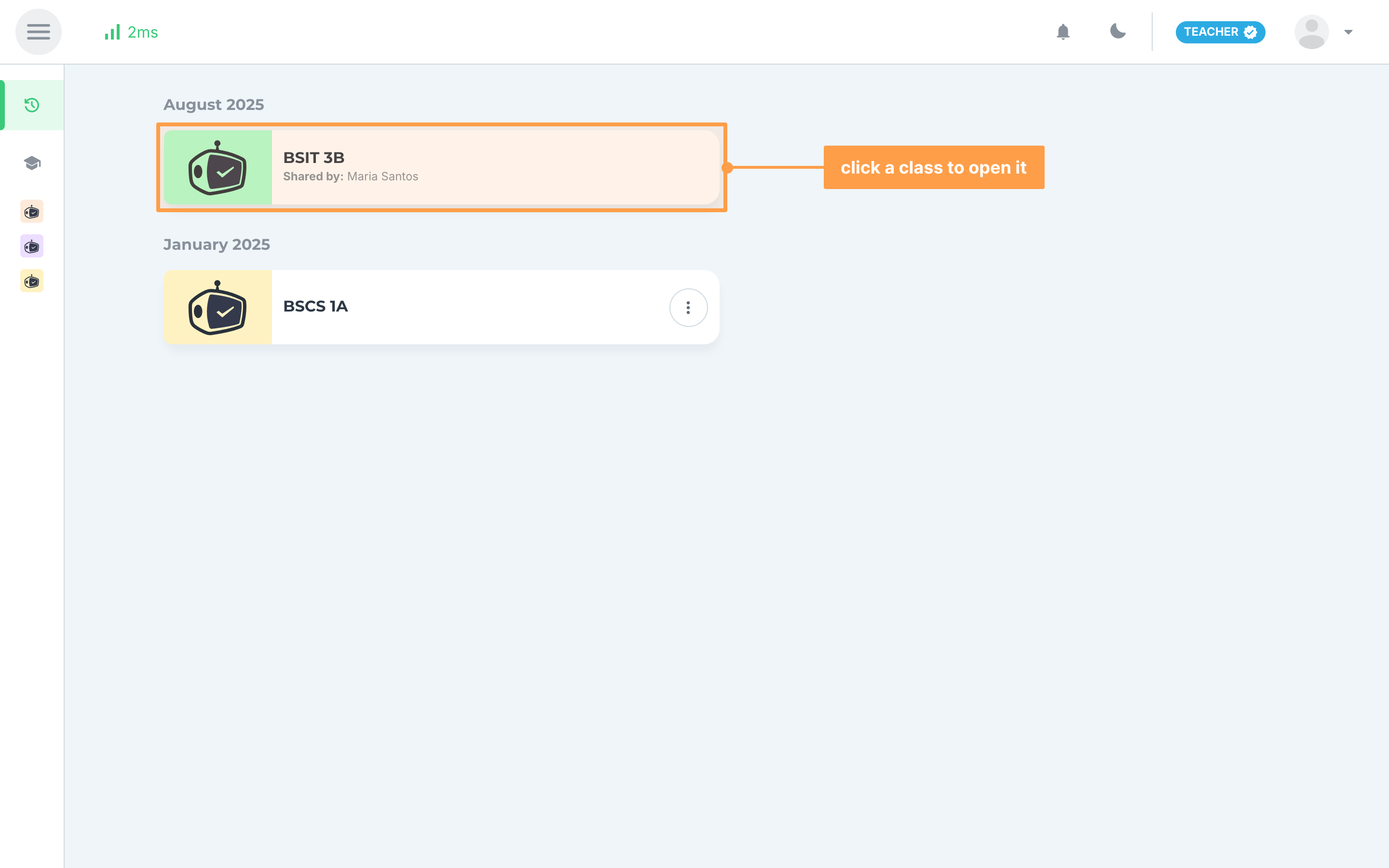
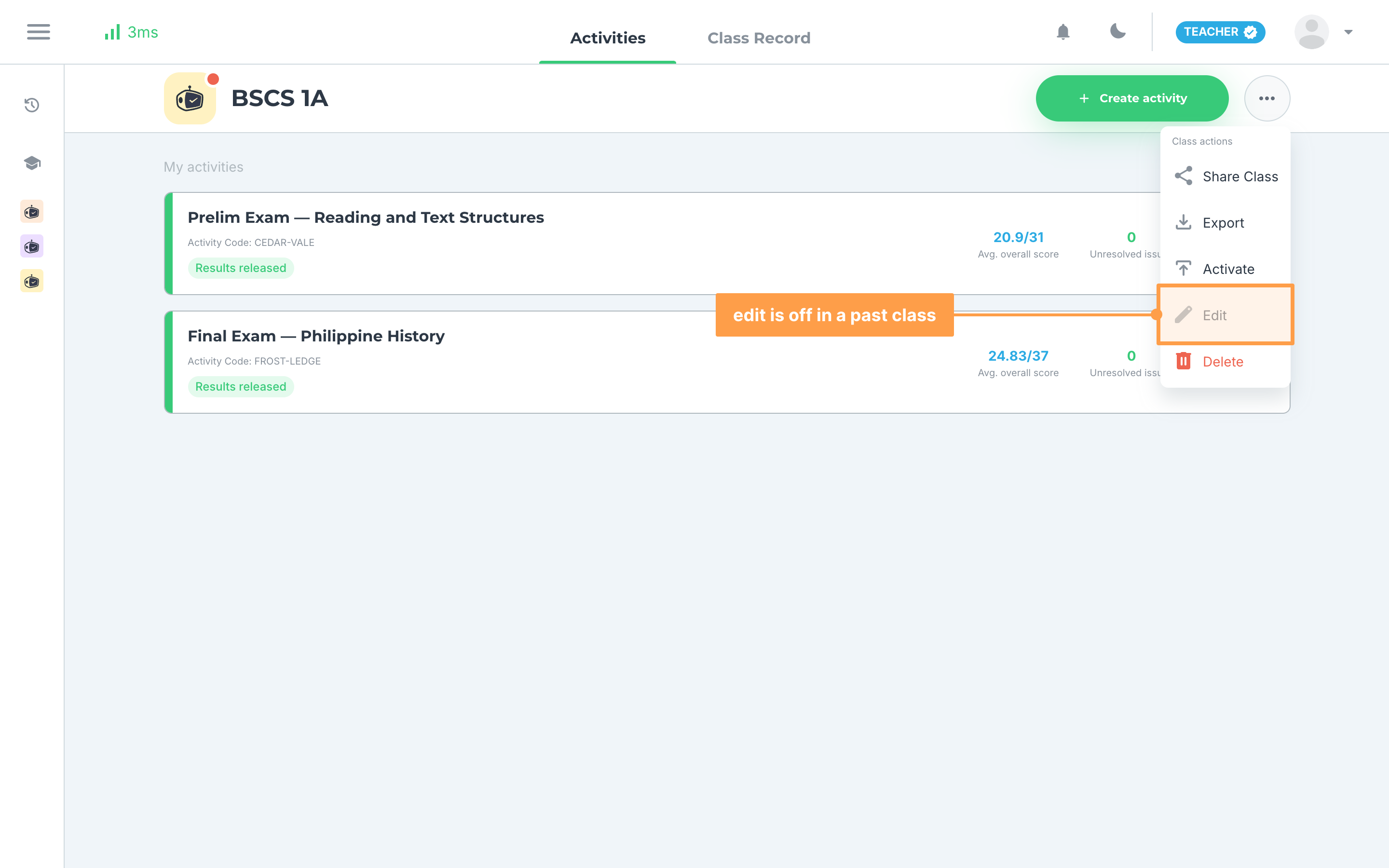
- Click a past class card to open it. You can still read its Activities and its Class Record, but Edit is disabled in Class actions while the class is deactivated.
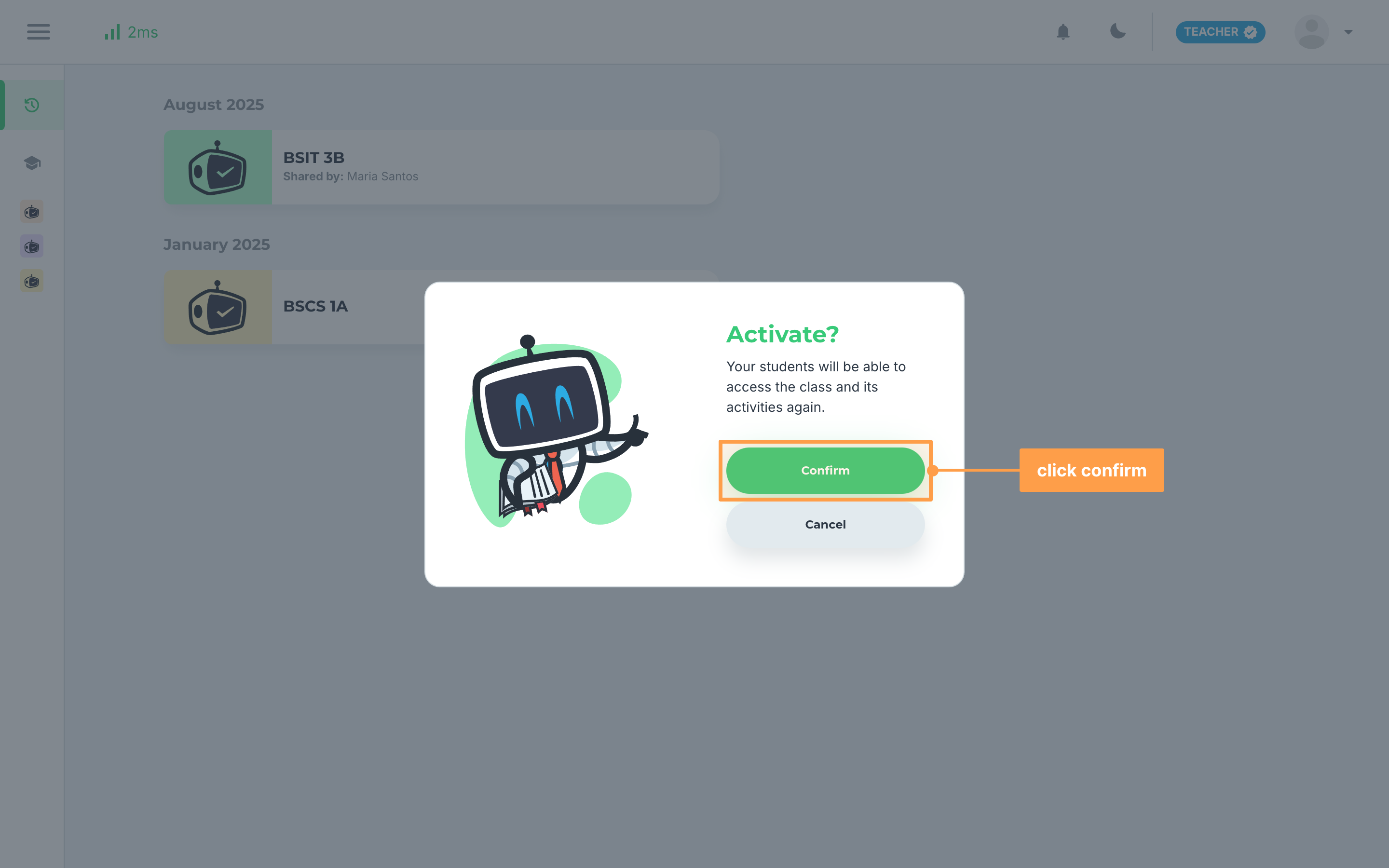
- Finally, to bring the class back, click the three-dot button on its card in Past classes and click Activate. The Activate? modal says "Your students will be able to access the class and its activities again." Click Confirm, and the class returns to My classes.
What you can do with a past class
- Activate puts the class back on My classes, and your students can open it and its activities again.
- Delete removes the class for good. See Edit or delete a class.
- Opening the class shows its activities and results as you left them.
A past class card has no Edit and no Share Class: activate the class first to change it. You can still open the class and use Share Class in Class actions, where only Edit is disabled. Classes another teacher shared with you also show up here once they are no longer active, marked Shared by: and their name, and they have no menu at all.
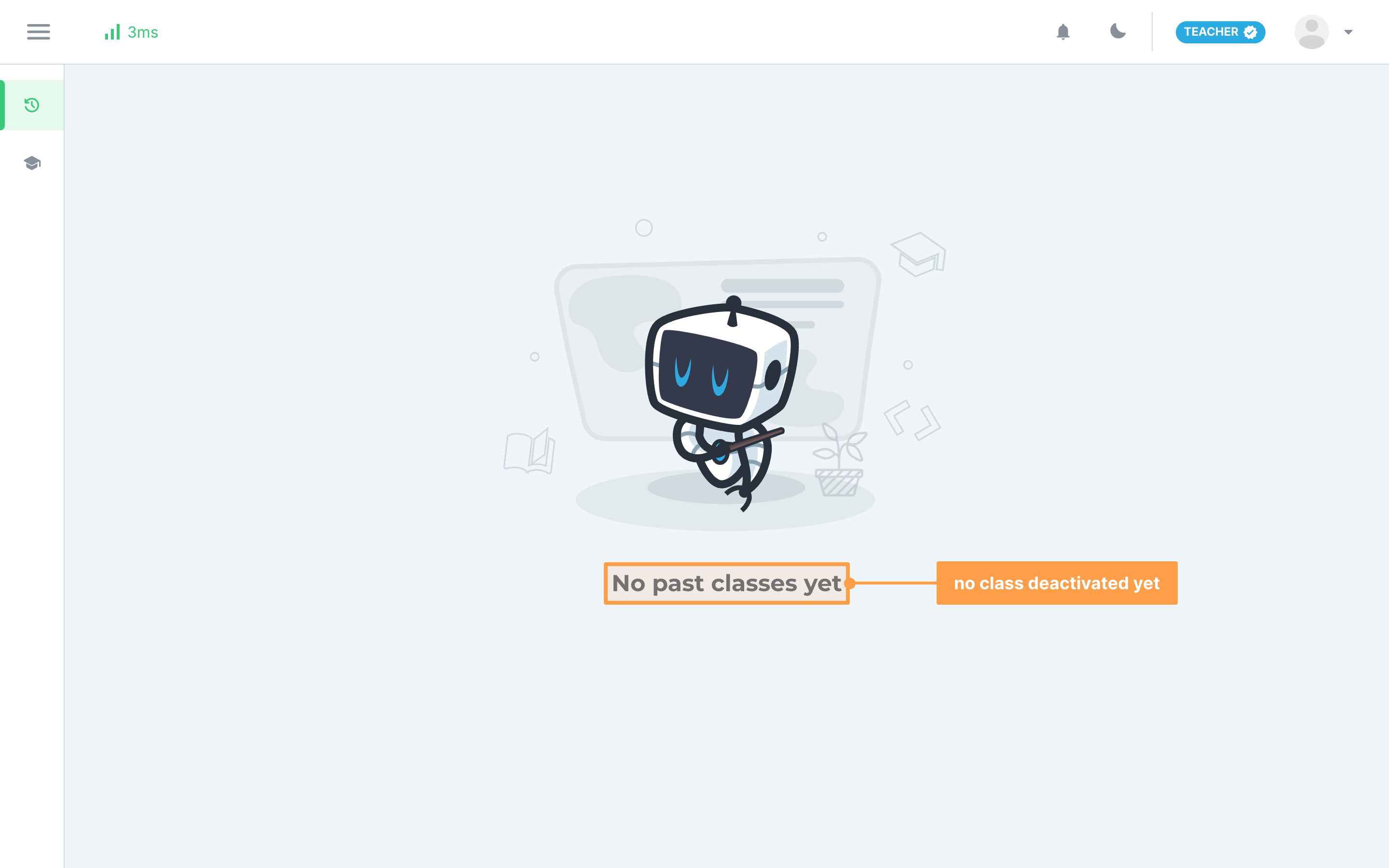
Note: If Past classes says No past classes yet, you have not deactivated any class. Past classes is a teacher page, so your students have no list of past classes: a class you deactivated disappears from their My classes.
And that's how you deactivate a class and bring it back! Next, let's explore how to share a class with another teacher.