
⚠️
Pages Missing
Introduction
Occasionally a scanned paper cannot be matched to a student, or one of a student's pages cannot be found. GradeChum flags both cases for teacher review, so that every paper can be associated with an enrolled student and be successfully processed.
This section explains how to manage students' papers requiring teacher review.
Steps
To manage papers that need review from teachers, these are the steps:
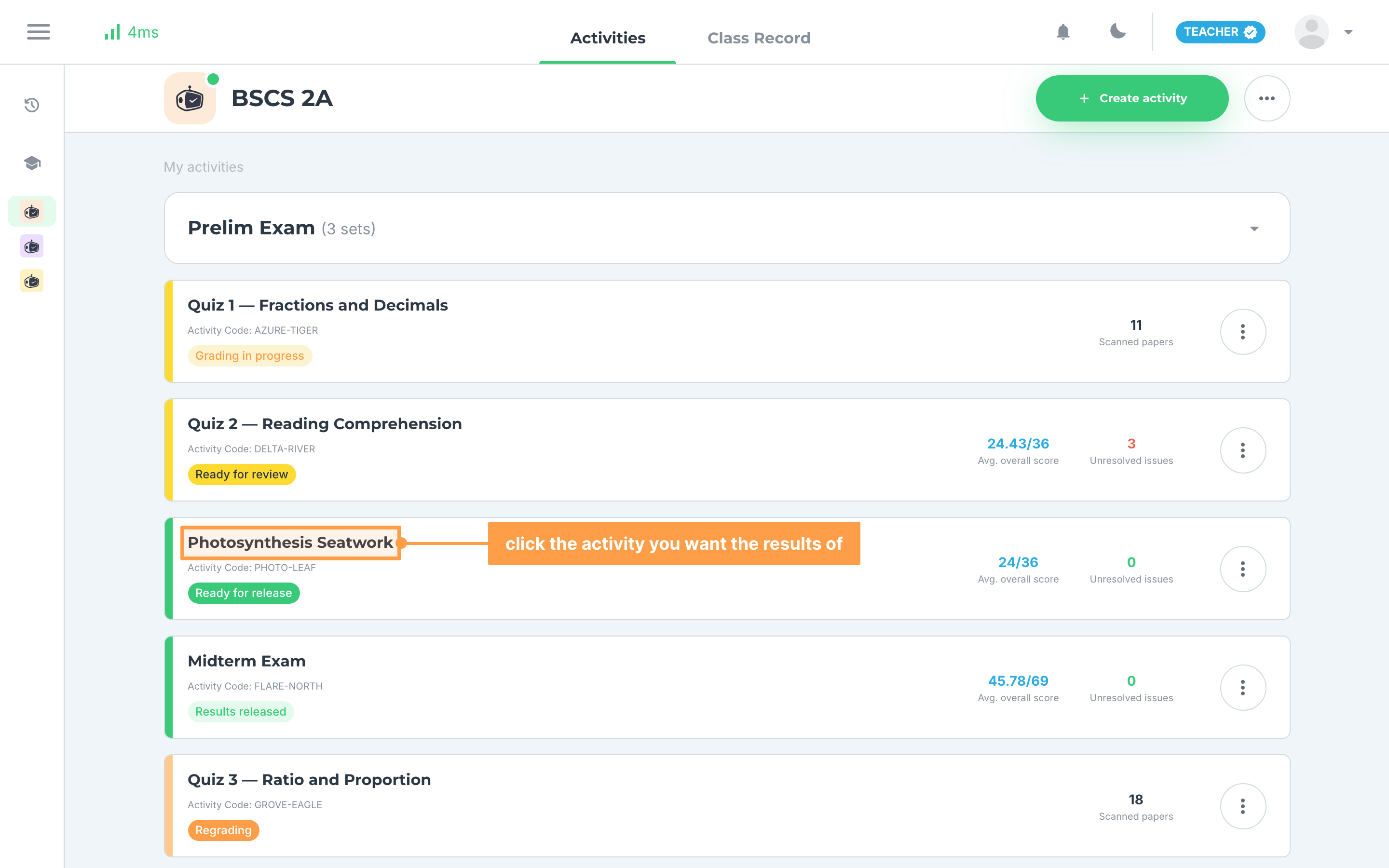
- Click on the activity you want to see the results of. An activity that has papers needing your review shows an Unresolved issues count on its card.
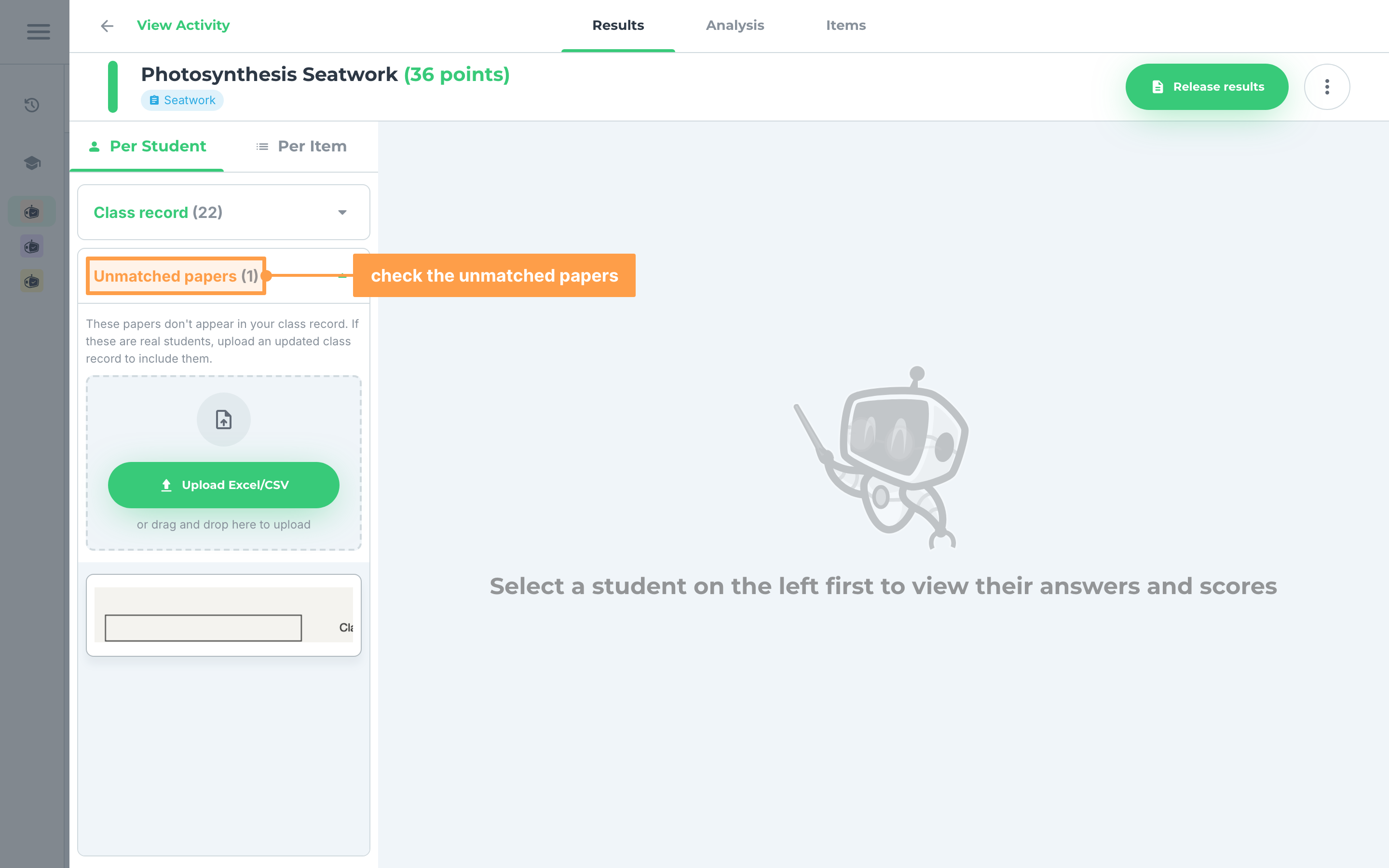
- In the left sidebar, under Per Student, click Unmatched papers to open it. The scanned papers listed there could not be matched to anyone in your class record, usually because the student didn't write their name or their name was unreadable.
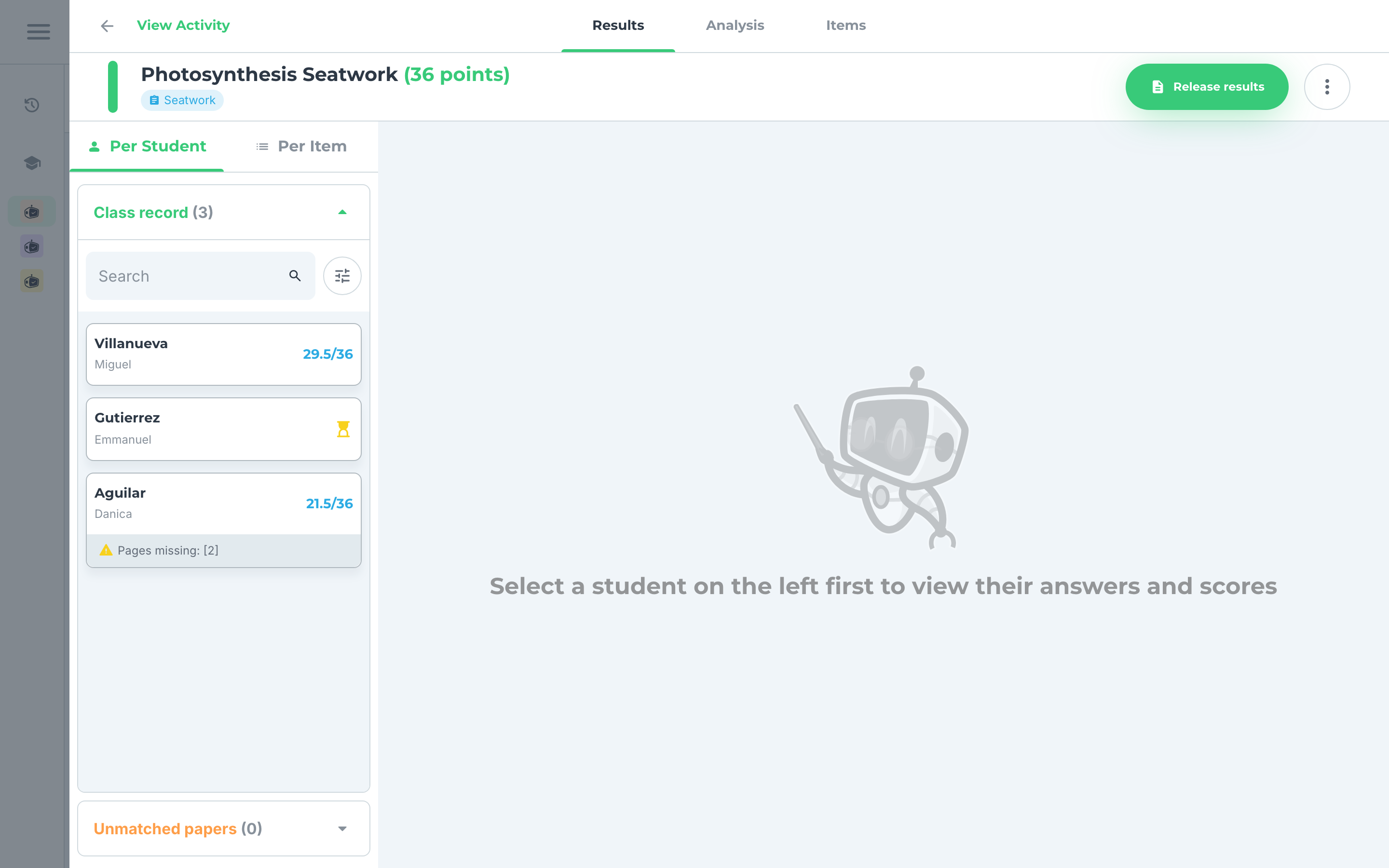
- Determine the owner of the scanned paper first, then open the Class record list under Per Student and find their name. Click on the student's card.
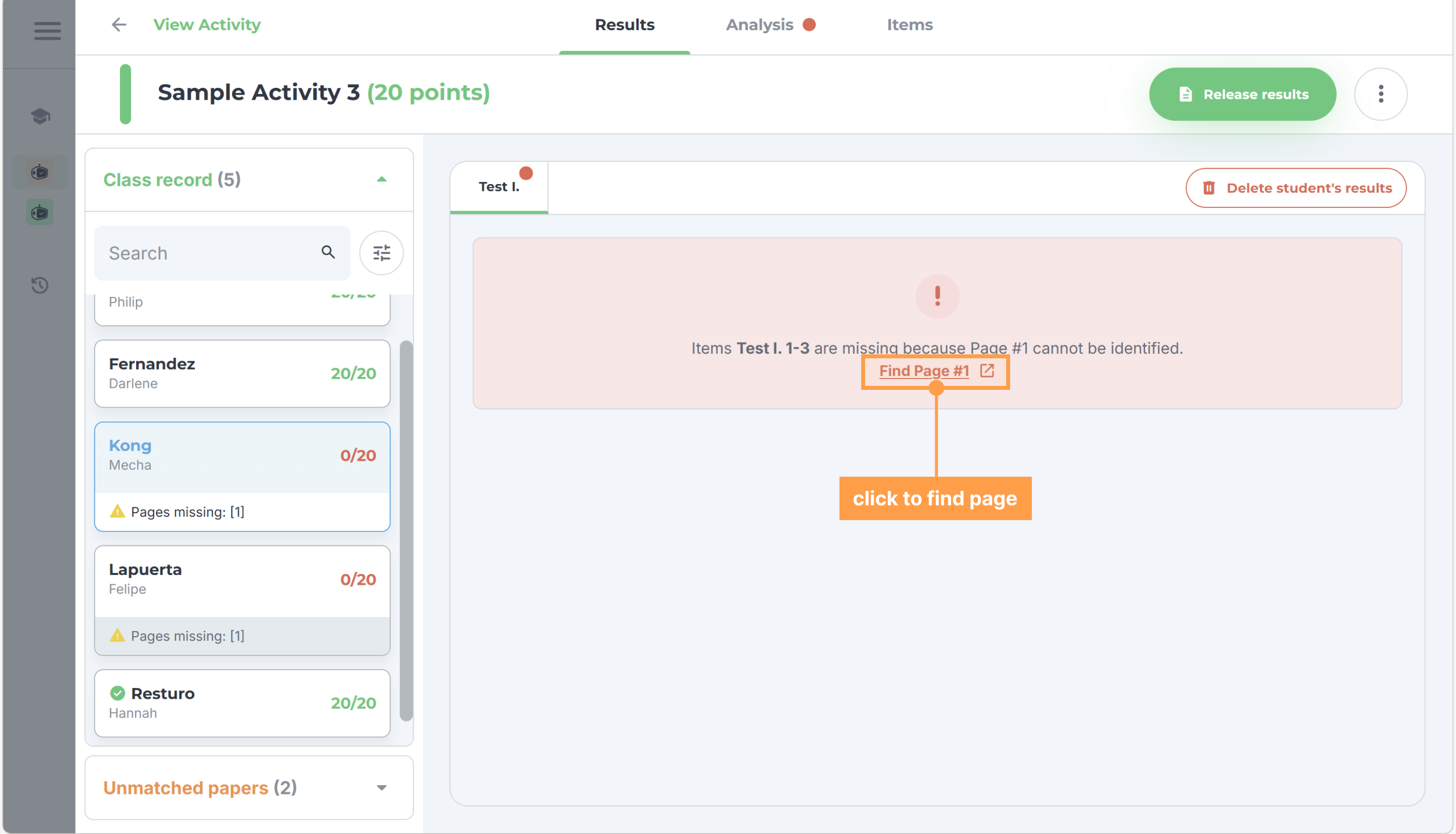
- Click on the Find Page # text button. The number after it is the page GradeChum could not identify.
- Look for the student's paper among the scanned papers under the activity then click Assign as Page # once you found their paper.
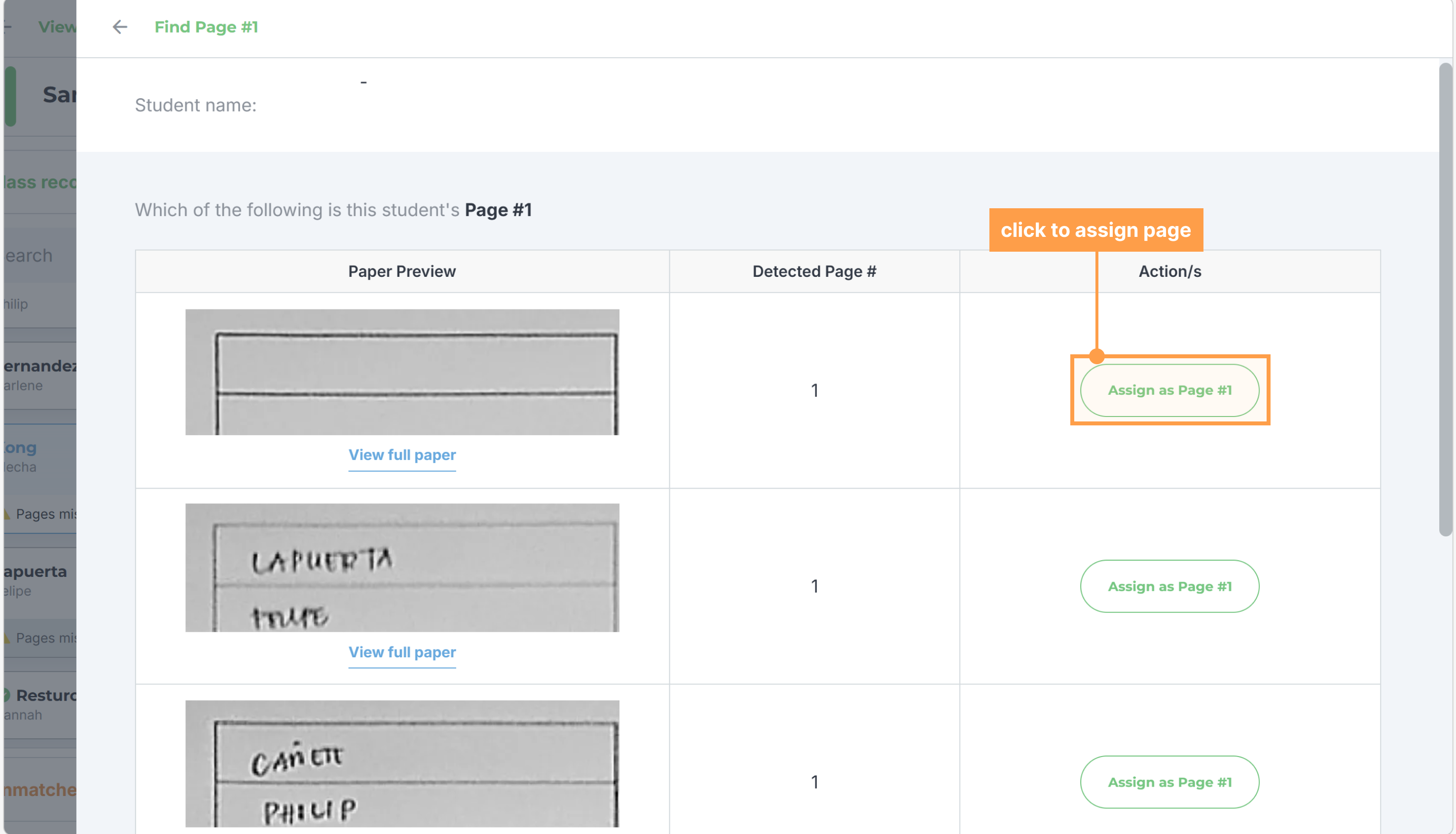
- After assigning the answer sheet, you may then review the answers of the student.
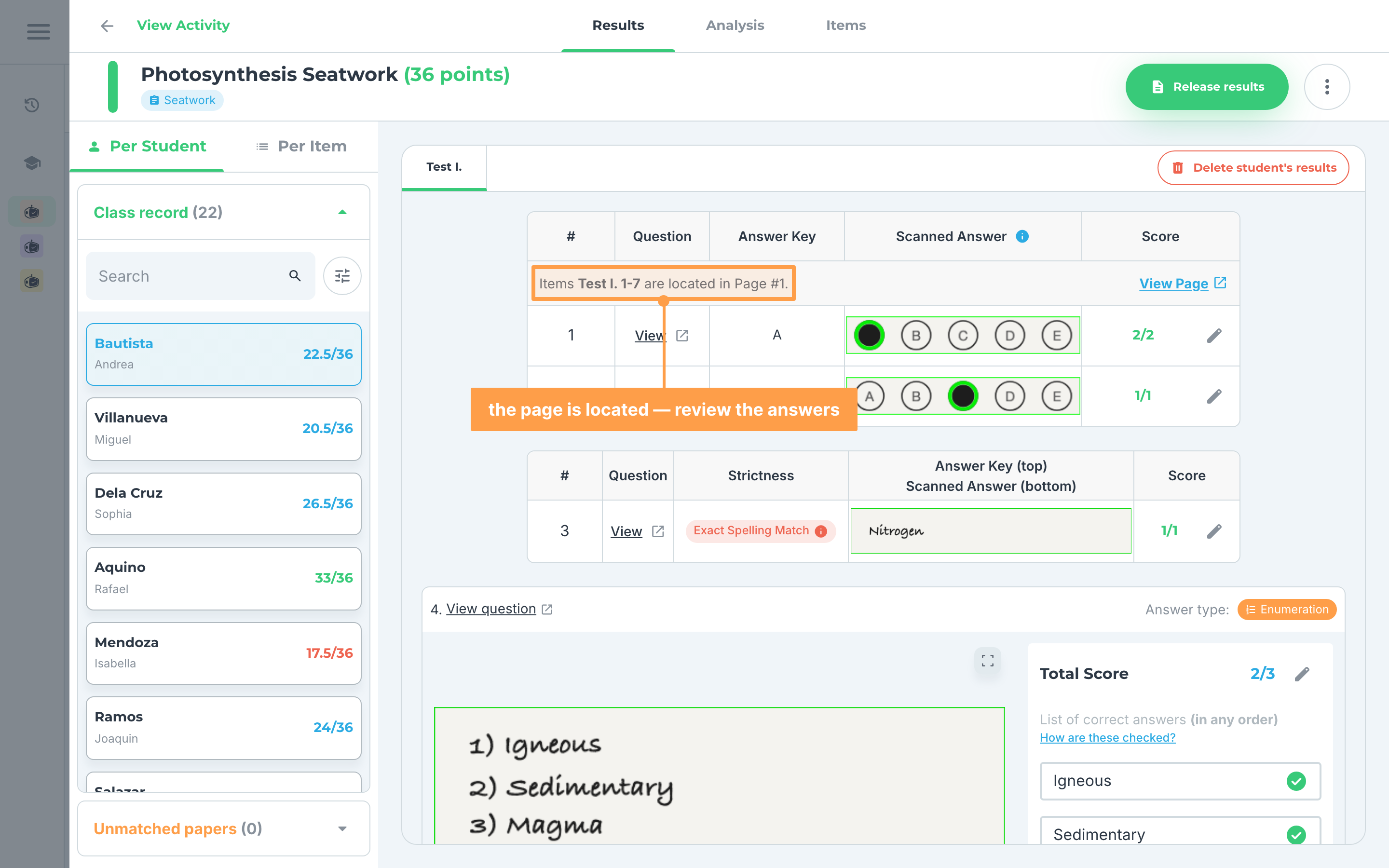
And now you know how to manage papers that has issues! Next, let's explore other ways to view activity results.
Last updated March 18, 2026