
Verify your email and phone number
Introduction
GradeChum asks you to confirm that the email address and mobile number on your account belong to you. This helps us confirm your identity and reach you with important announcements.
Your email is confirmed with a 6-digit code that GradeChum sends to your inbox. As a teacher, your phone number is confirmed with a code sent to you by text message. If you do not have a school license, some options stay locked until your phone number is verified, such as exporting your class record and viewing the results of an activity.
In this guide, you will verify your email and phone number.
Steps
Note: You must have already created your GradeChum account before proceeding. See Sign up and log in.
To verify your account details in GradeChum, follow the instructions for each:
a. Verify your email
Note: GradeChum also opens Verify your email for you right after you click Sign up on Just a few more things..., when you log in with an email that is not yet verified, and on every 15th page you visit until you verify it. If you are already on that page, skip to step 3.
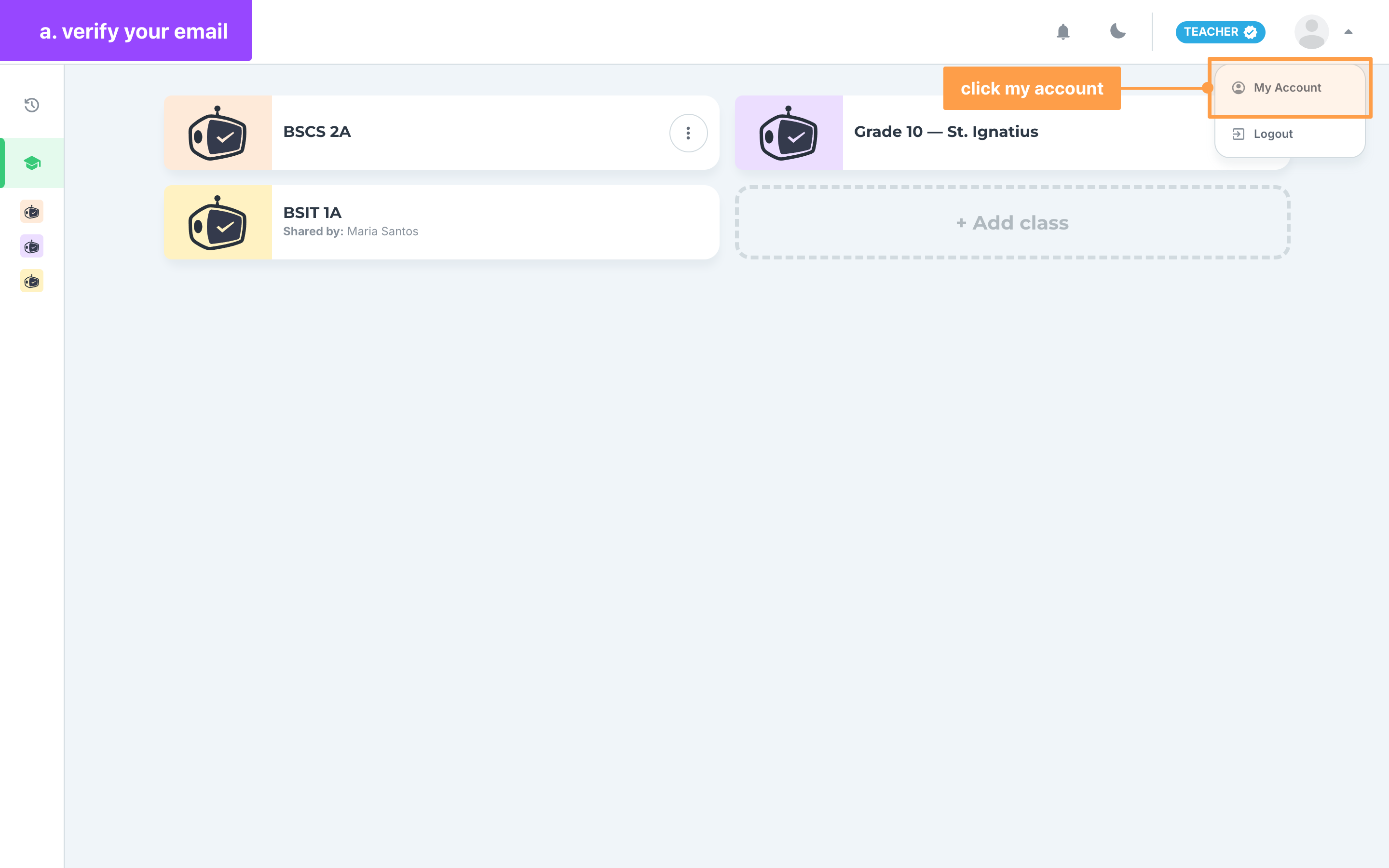
- After logging in, click your profile picture in the navigation bar, then click My Account.
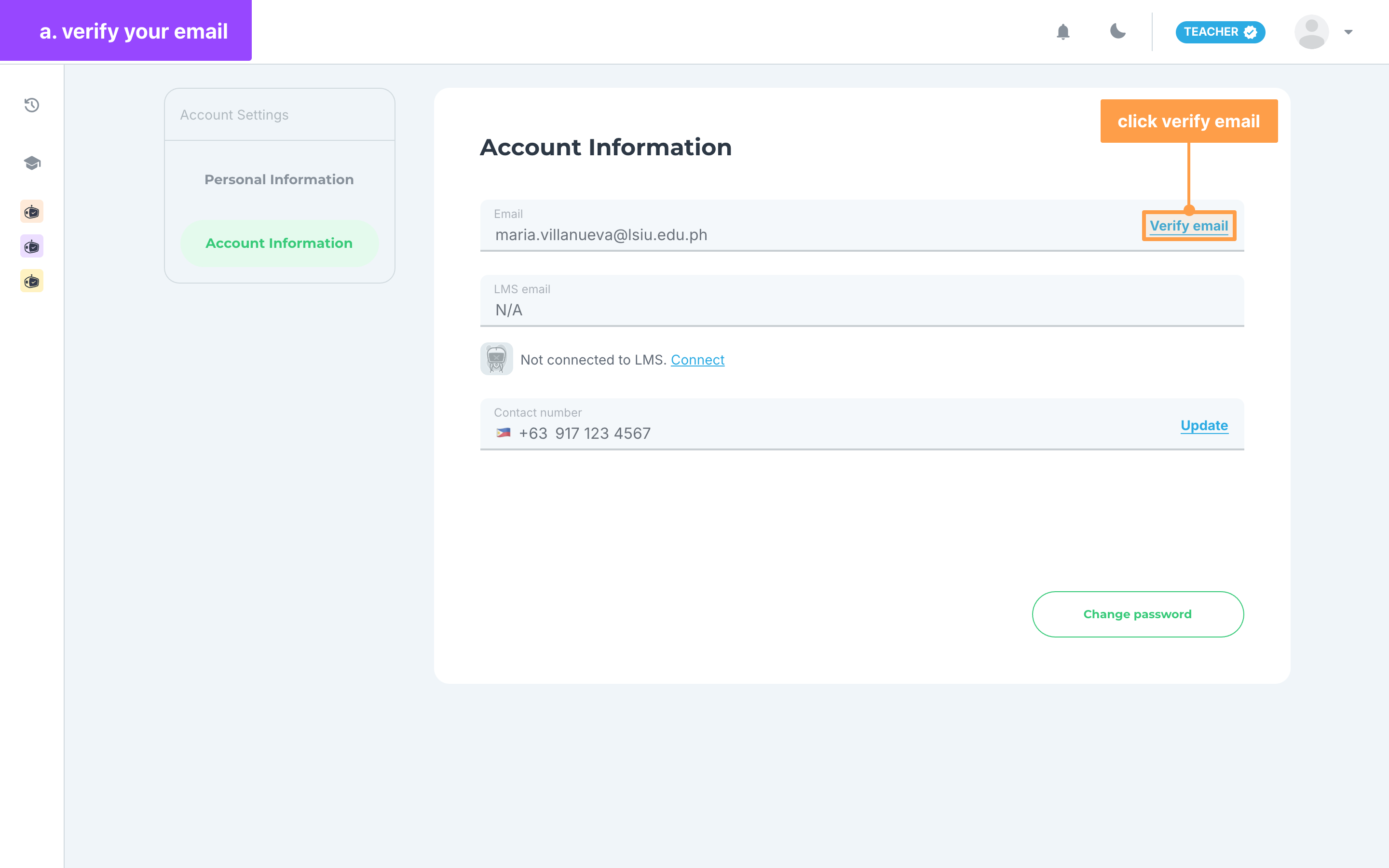
- Click Account Information. Beside Email, a green Verified mark means your email is already confirmed. If you see a Verify email button instead, click it.
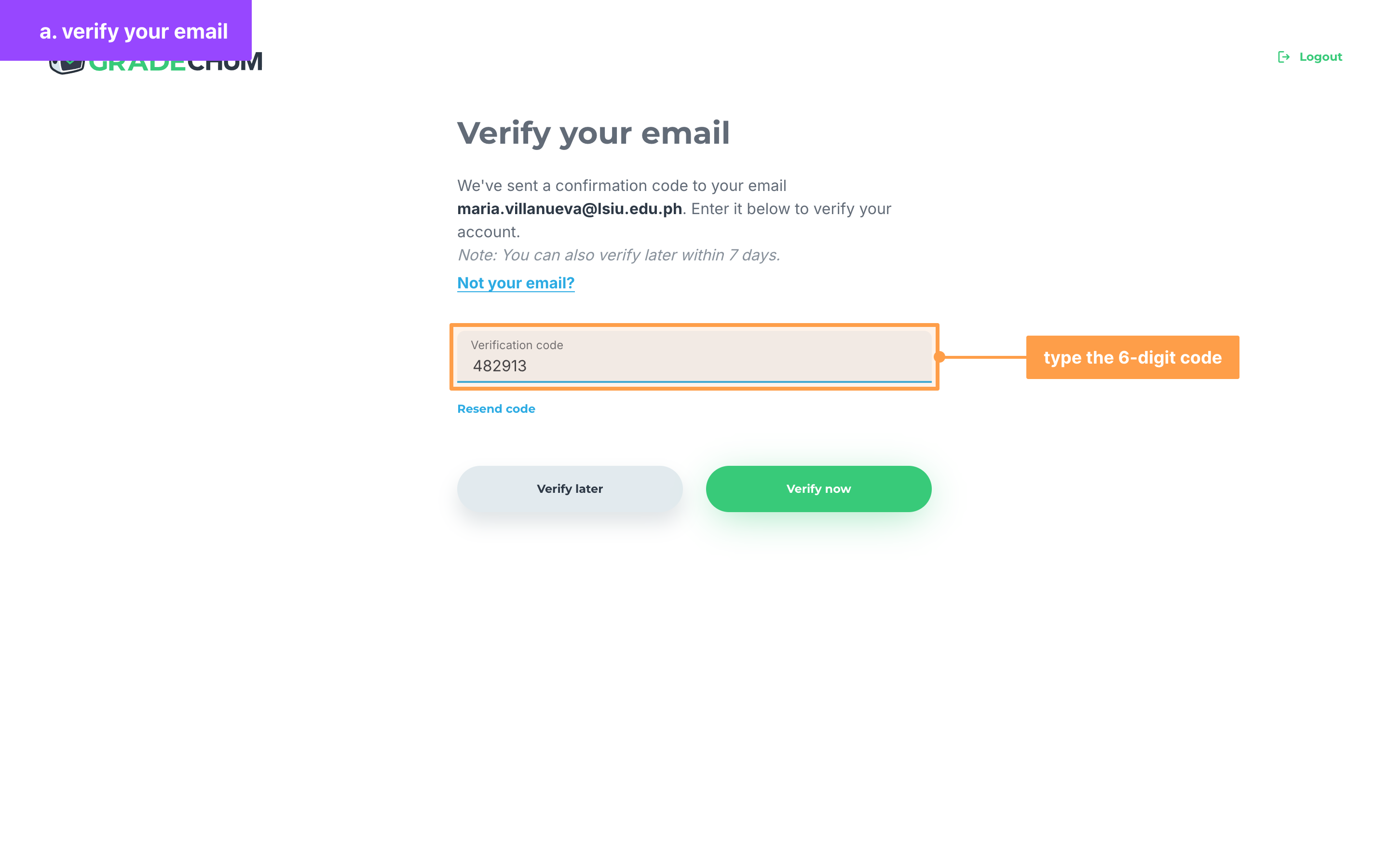
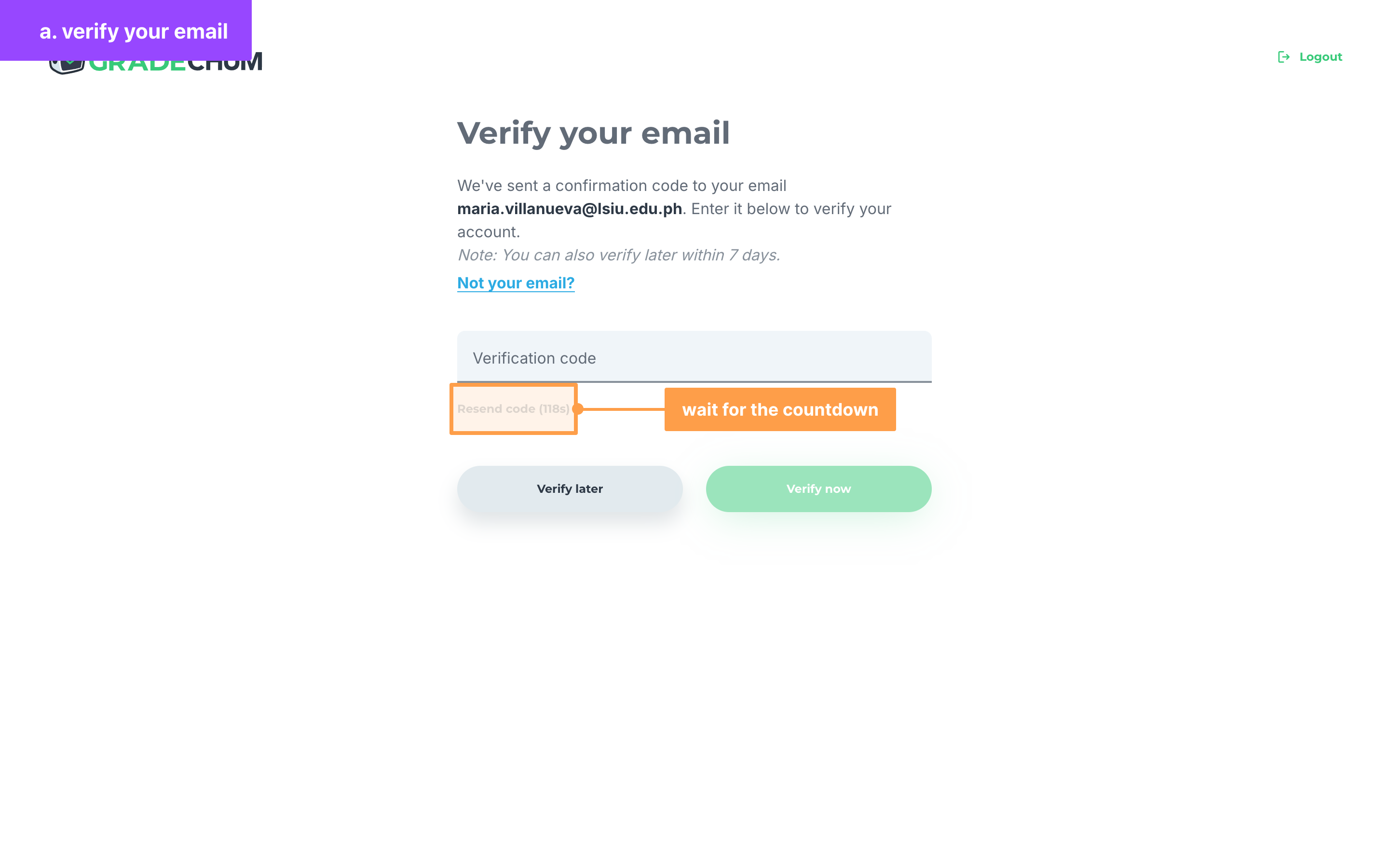
- Open the email GradeChum sent to the address shown on the page, then type the 6-digit code in the Verification code field.
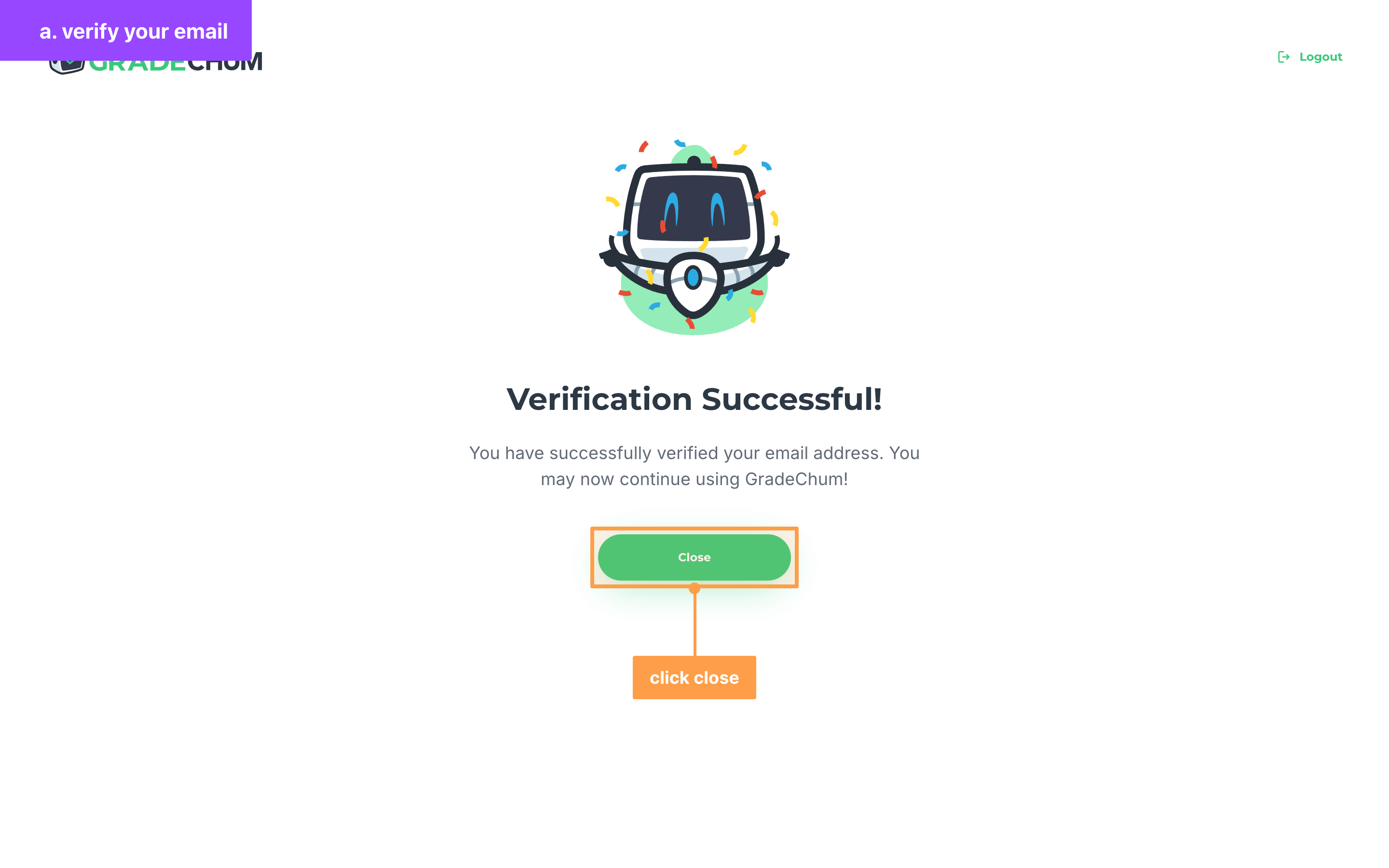
- Finally, click Verify now. The button stays disabled until the code is exactly 6 digits. Once Verification Successful! shows, click Close to go back to the page you came from. Your email now shows Verified on Account Information.
After signing up or logging in, the button reads Proceed instead. Teachers who just signed up then go on to How did you hear about GradeChum?, and anyone who just logged in goes to their home page.
If the code did not arrive
Click Resend code under the Verification code field to get a new code by email. After a code is sent, the button turns gray and counts down, for example Resend code (118s). Wait for the countdown to finish before you ask for another code, and always type the code from the latest email.
If the email address is wrong
- Click Not your email? under the page description.
- Type the correct address in the Email field of the Not your email? modal, then click Submit.
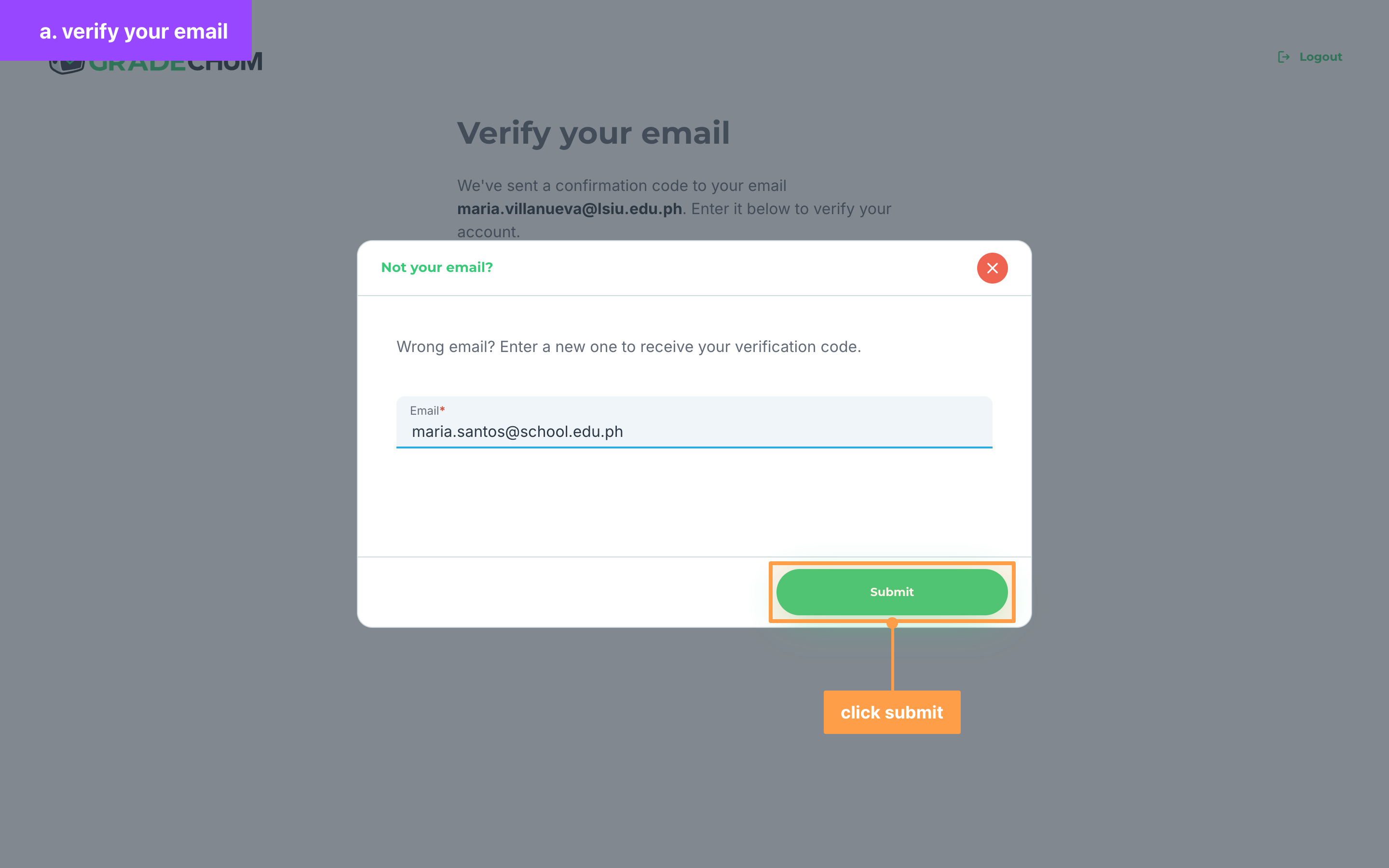
- Once Email updated! shows, click Close, then type the code GradeChum sent to the new address.
If the modal says "Please enter a valid email address", check the address for typos. If it says the email is already in use, that address belongs to another GradeChum account, so enter a different one.
If the code is not accepted
"Invalid or expired code." means the code was mistyped or is no longer valid. Check that you typed the code from the latest email, or click Resend code to get a new one.
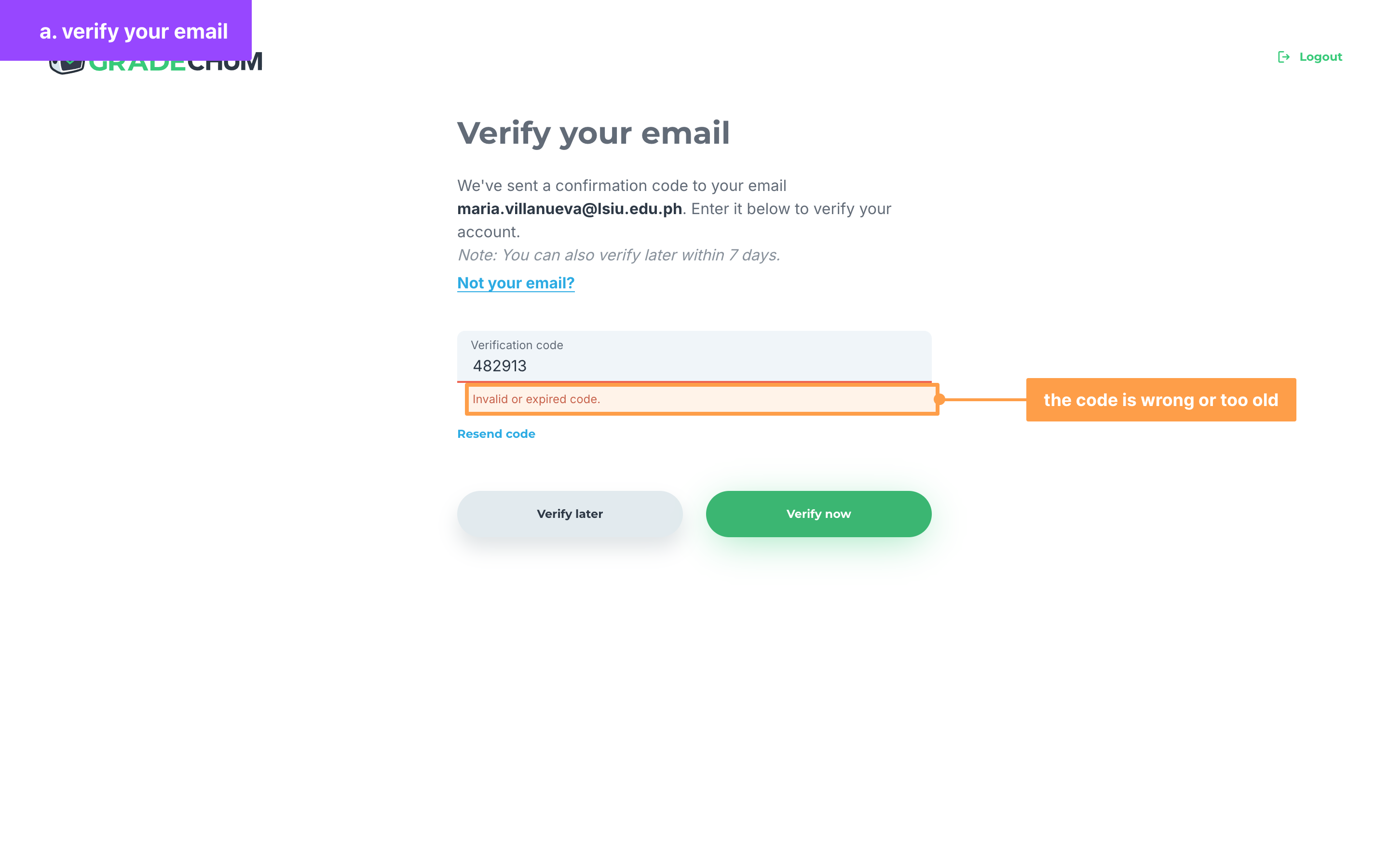
"Code must be 6 digits." and "Code must contain digits only." mean the code you typed has too few or too many characters, or has a letter or a space in it.
If you want to verify later
Click Verify later to keep using GradeChum and verify another time. You go back to the page you were on. While "Note: You can also verify later within 7 days." shows on the page, you can still put it off.
After those 7 days, Verify later no longer shows: you have to verify your email to continue, or click Logout at the top of the page.
b. Verify your phone number
Note: Only teacher accounts verify a phone number.
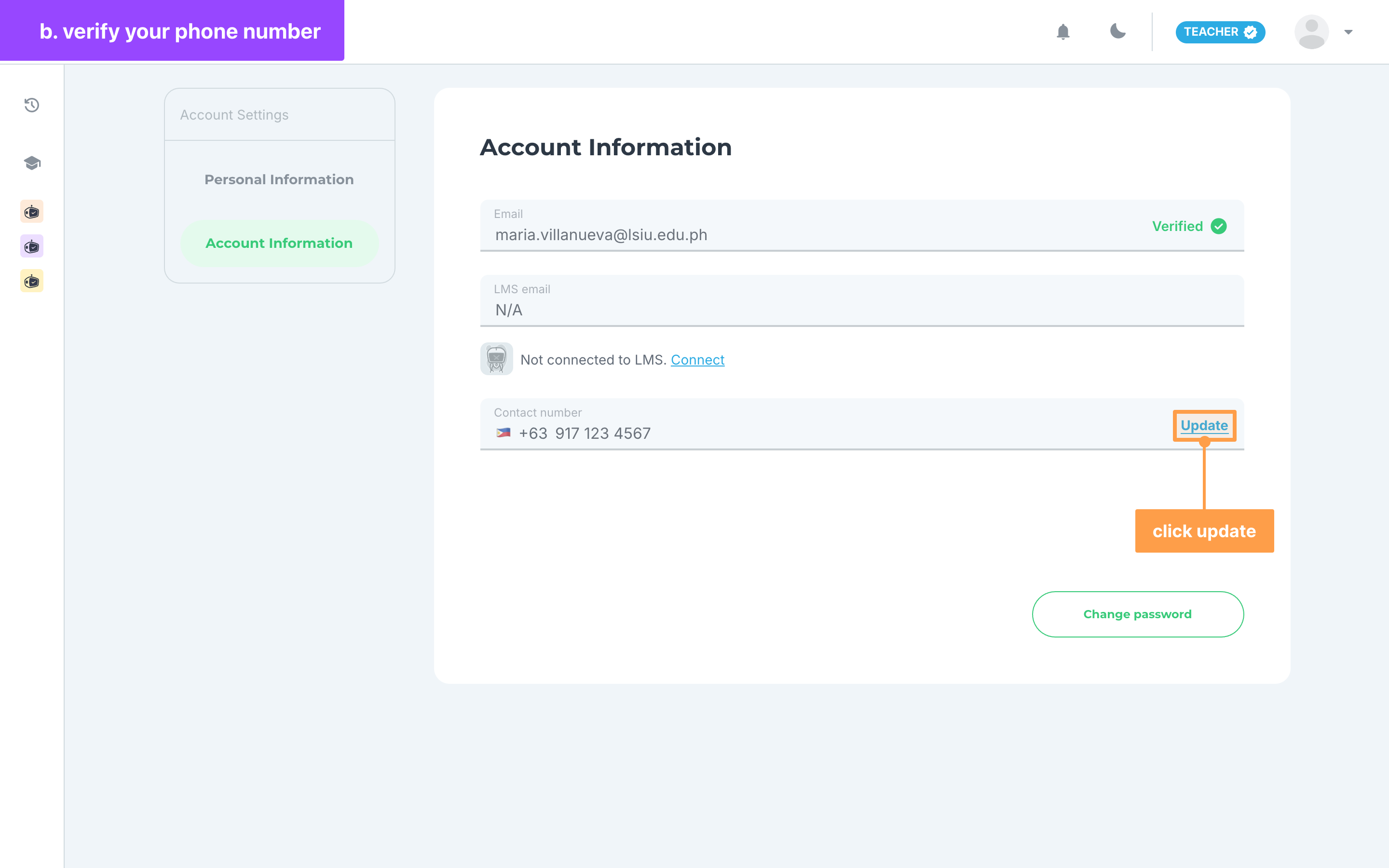
- After logging in, click your profile picture in the navigation bar, click My Account, then click Account Information. Beside Contact number, click Update.
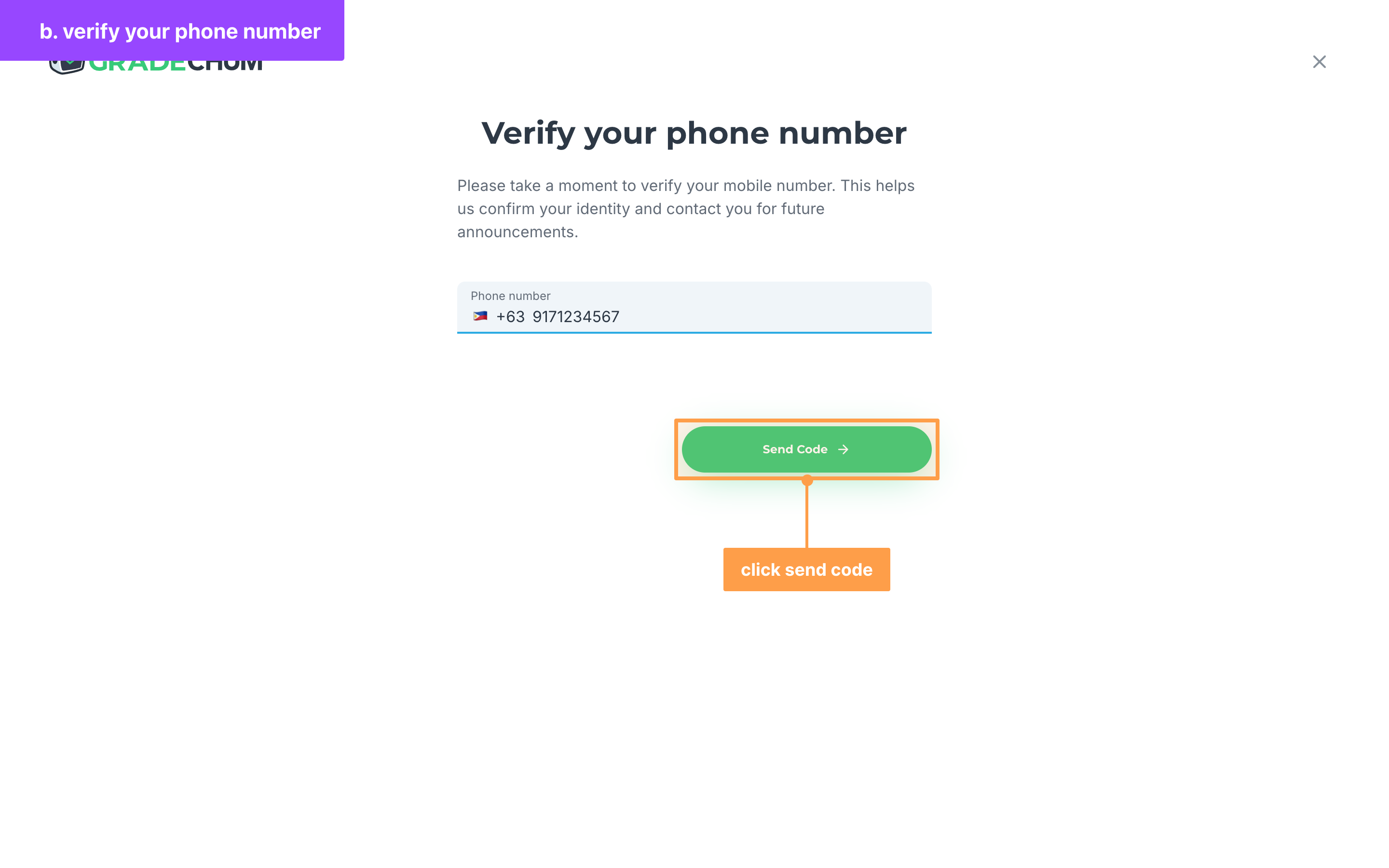
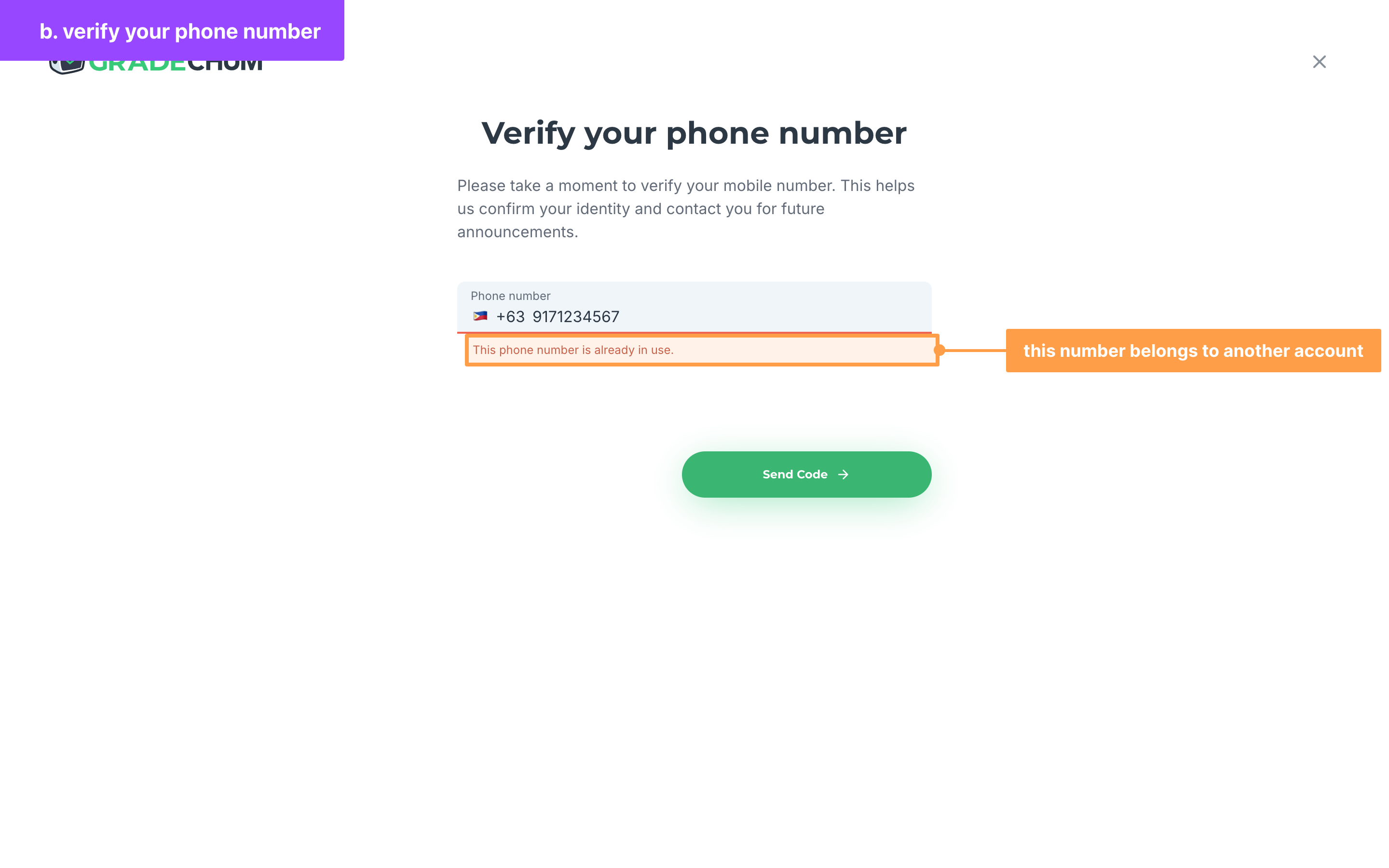
- On Verify your phone number, type your mobile number in the Phone number field, then click Send Code.
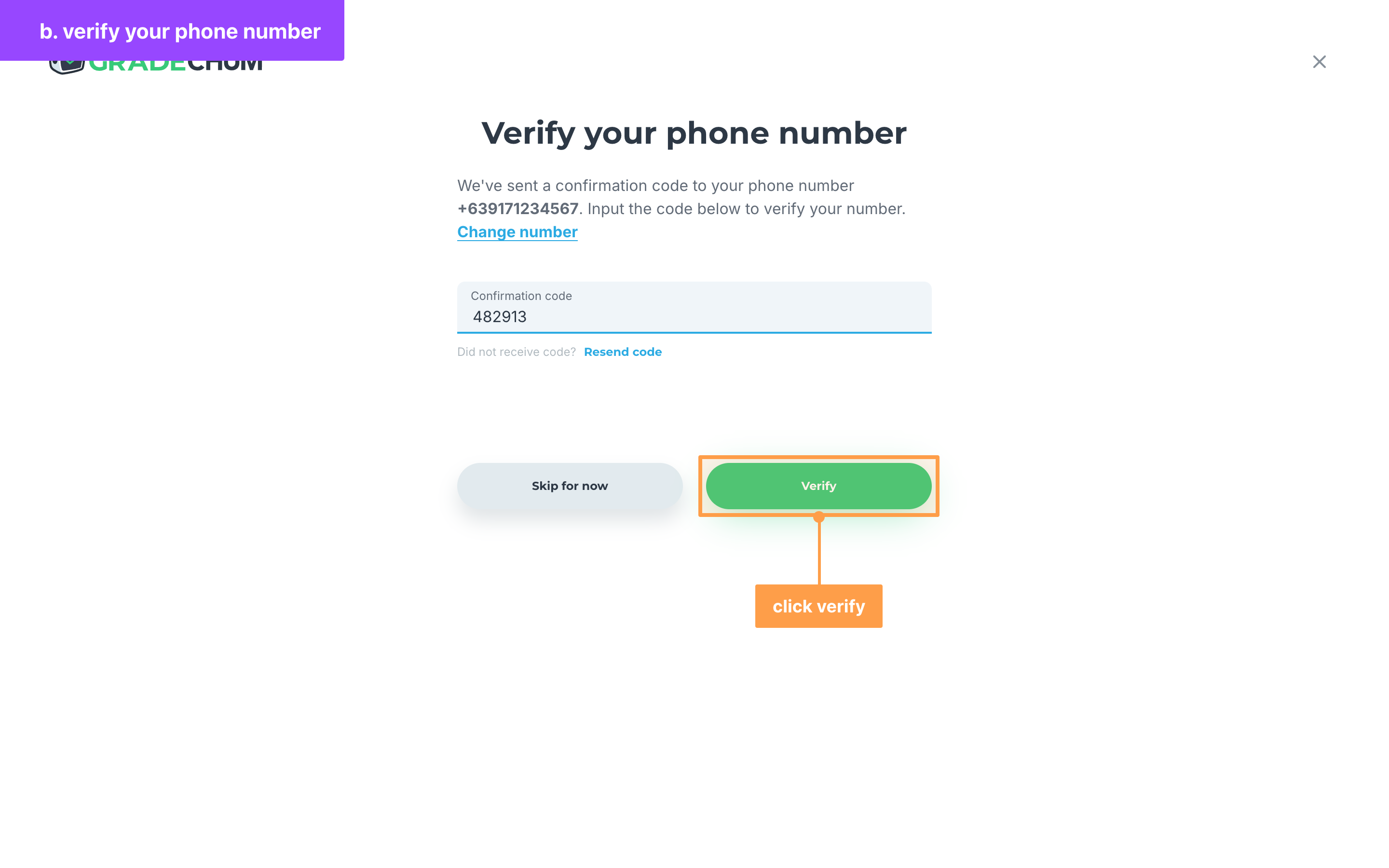
- Type the code from the text message you received in the Confirmation code field, then click Verify. The button stays disabled until you type at least 4 characters.
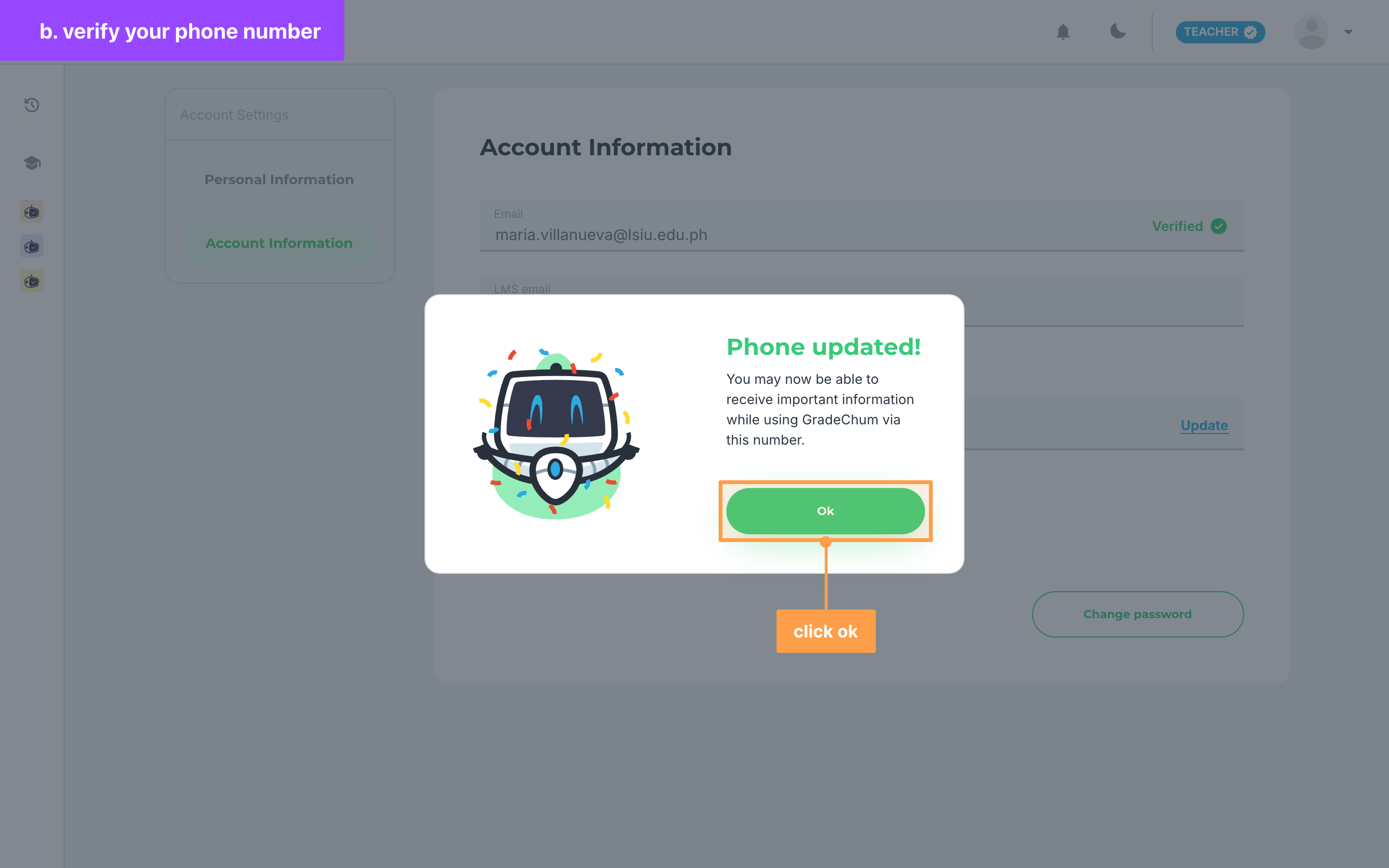
- Finally, once Phone updated! shows, click Ok. Your new number now shows on Account Information.
If an option is locked until you verify
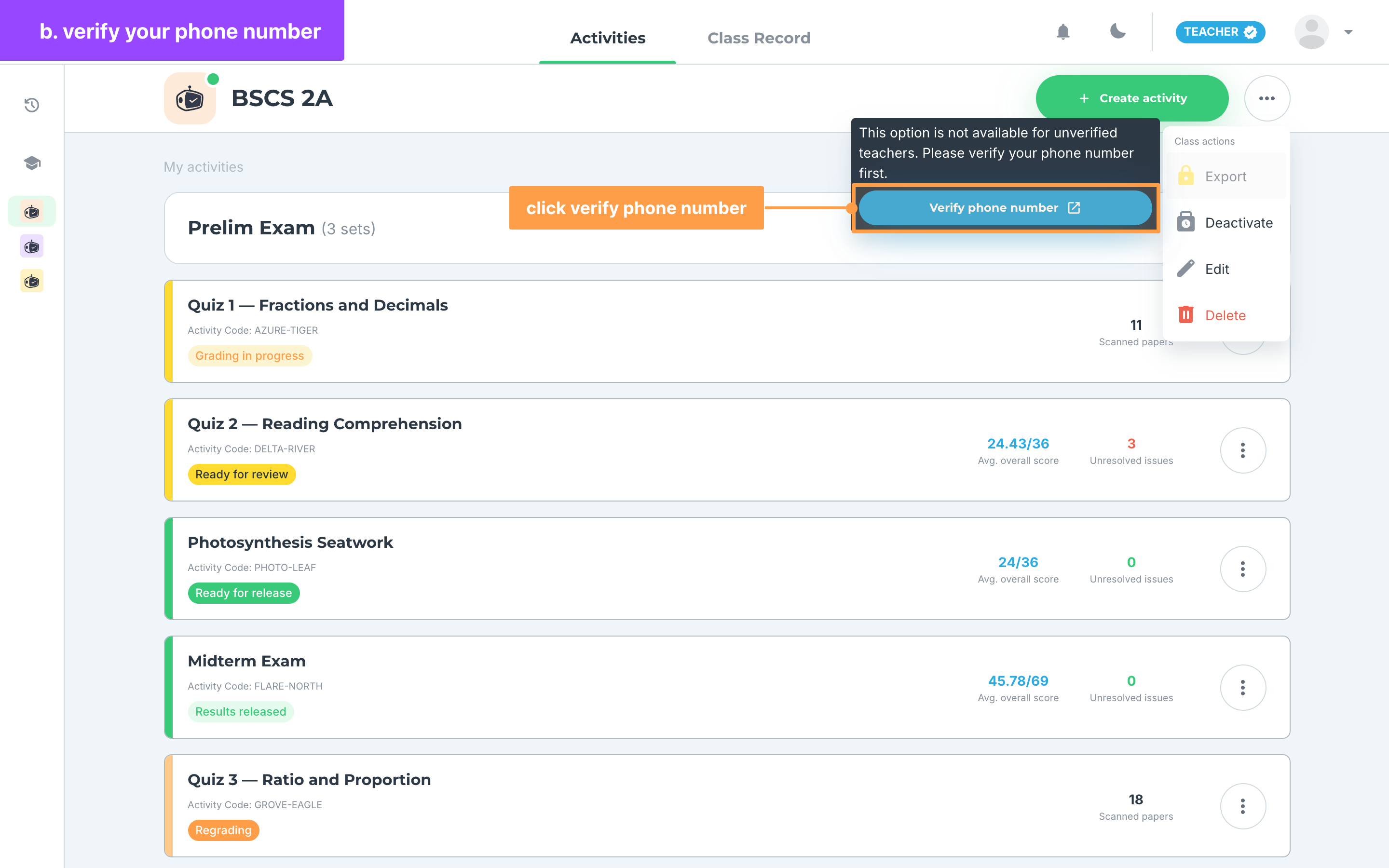
If you do not have a school license, these options show a yellow lock until your phone number is verified: Export in your class's Class actions menu, Export as Excel on your Class Record (Export on small screens), and Export results on an activity. The results of a checked activity also stay hidden behind the message "Results are ready, but you need to verify your phone number first to view the results."
- Hover over the locked option. Its tooltip reads "This option is not available for unverified teachers. Please verify your phone number first."
- Click Verify phone number in the tooltip.
- Follow steps 2-3 above. Once your number is verified, GradeChum takes you straight back to the page you were on, and the lock is gone.
An activity can also be locked for another reason, such as an activity credit not yet used on it or too many students in the class. Its tooltip then explains that reason, but its button still reads Verify phone number until your phone is verified. See Activity credits and school licenses for those locks.
If the code did not arrive
Under Did not receive code?, click Resend code (Resend on a phone). After a code is sent, the button turns gray and counts down, for example Resend code (in 60 sec), and you can ask again when the countdown ends. "A confirmation code has already been sent to you." means a code is already on its way, so check your messages first.
If you typed the wrong number, click Change number to go back and enter a different one. When you open Verify your phone number while a code is still waiting for you, the page opens on the code step: click Change number there too.
If the number or the code is not accepted
- "The phone number cannot be empty." means you clicked Send Code with no number. Type your mobile number first.
- "Please enter a valid phone number." means the number is incomplete or not a mobile number. Check it and try again.
- If the message under the field says the number is already in use, it belongs to another GradeChum account. Enter a different number, or log in to the account that already uses it.
- "Invalid code" means the code was mistyped. Type the code from the latest text message.
- "Code has expired" means the code is too old. Wait for the countdown to end, click Resend code, and type the new code.
- "This number has already been verified. Please use a different number." means another account has already verified this number. Resend code is disabled, so click Change number and enter a different number.
If you want to verify later
On the code step, click Skip for now to leave without verifying. You can also click the close (X) button at the top of the page. Either way, you go back to Account Information, or to the page with the locked option you came from, and your phone number stays unverified.
And that's how you verify your email and phone number in GradeChum! Next, let's manage your account.