
Link GradeChum class to LMS
Introduction
Once you have connected your teacher account to your LMS, you can link each of your GradeChum classes to its class in Canvas, Blackboard or Moodle.
A linked class keeps the two in step. The students enrolled in the LMS class join your GradeChum class, the activities you create in GradeChum show up in the LMS class, and you can sync your GradeChum grades to your LMS in one go. Here is how you link a GradeChum class to your LMS class.
Steps
Note: Your teacher account must already be connected to your LMS, and the class must already exist in your LMS with its students enrolled. Only the teacher who owns the GradeChum class can link it. A class shared with you does not show the option.
To link a GradeChum class to your LMS class, follow these instructions:
- After logging in, click the card of the class you want to link. In the class header, beside the class name, you will see "Not connected to an existing LMS class."
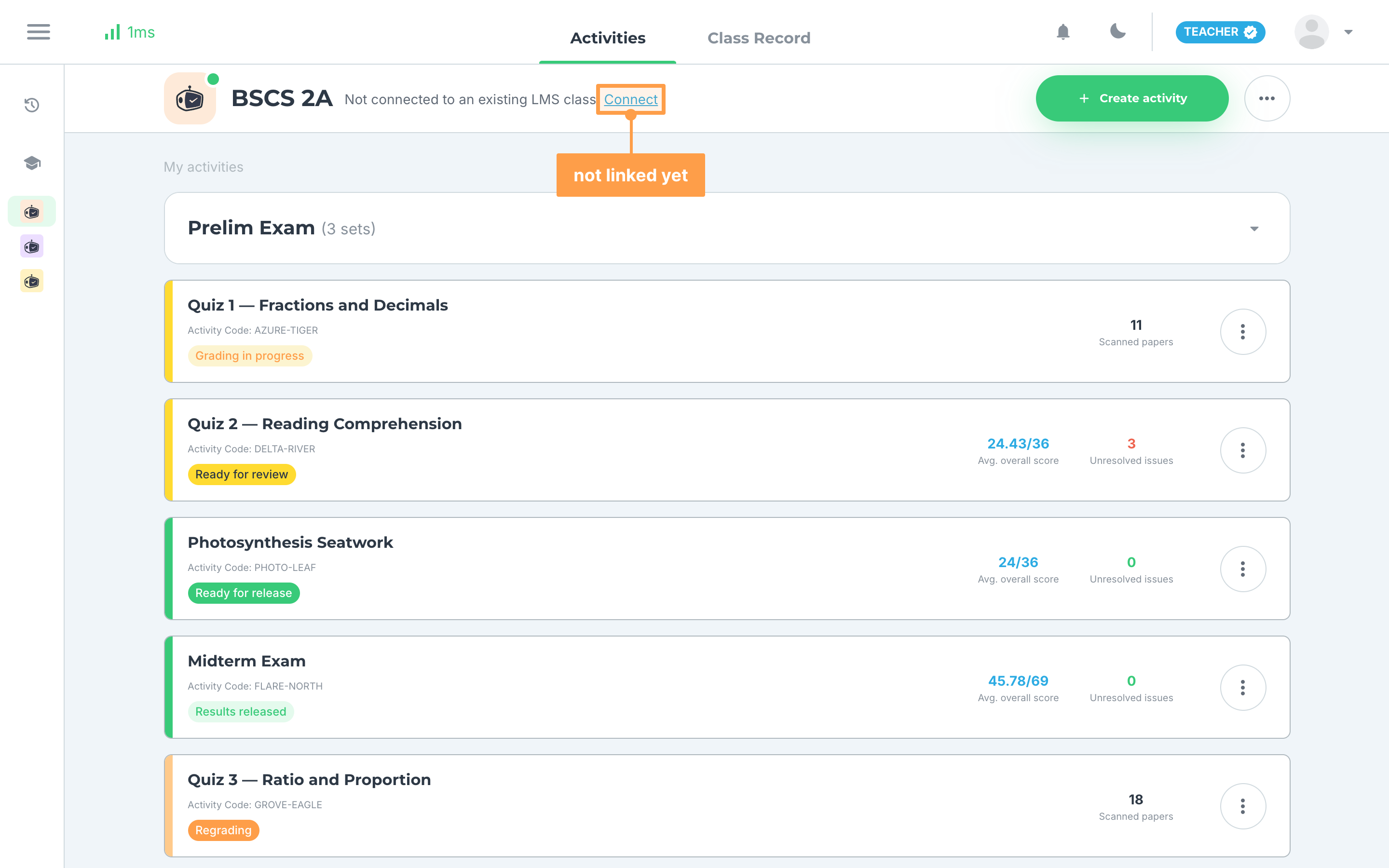
- Click Connect. The Link to LMS class modal opens and lists the classes you have in your LMS.
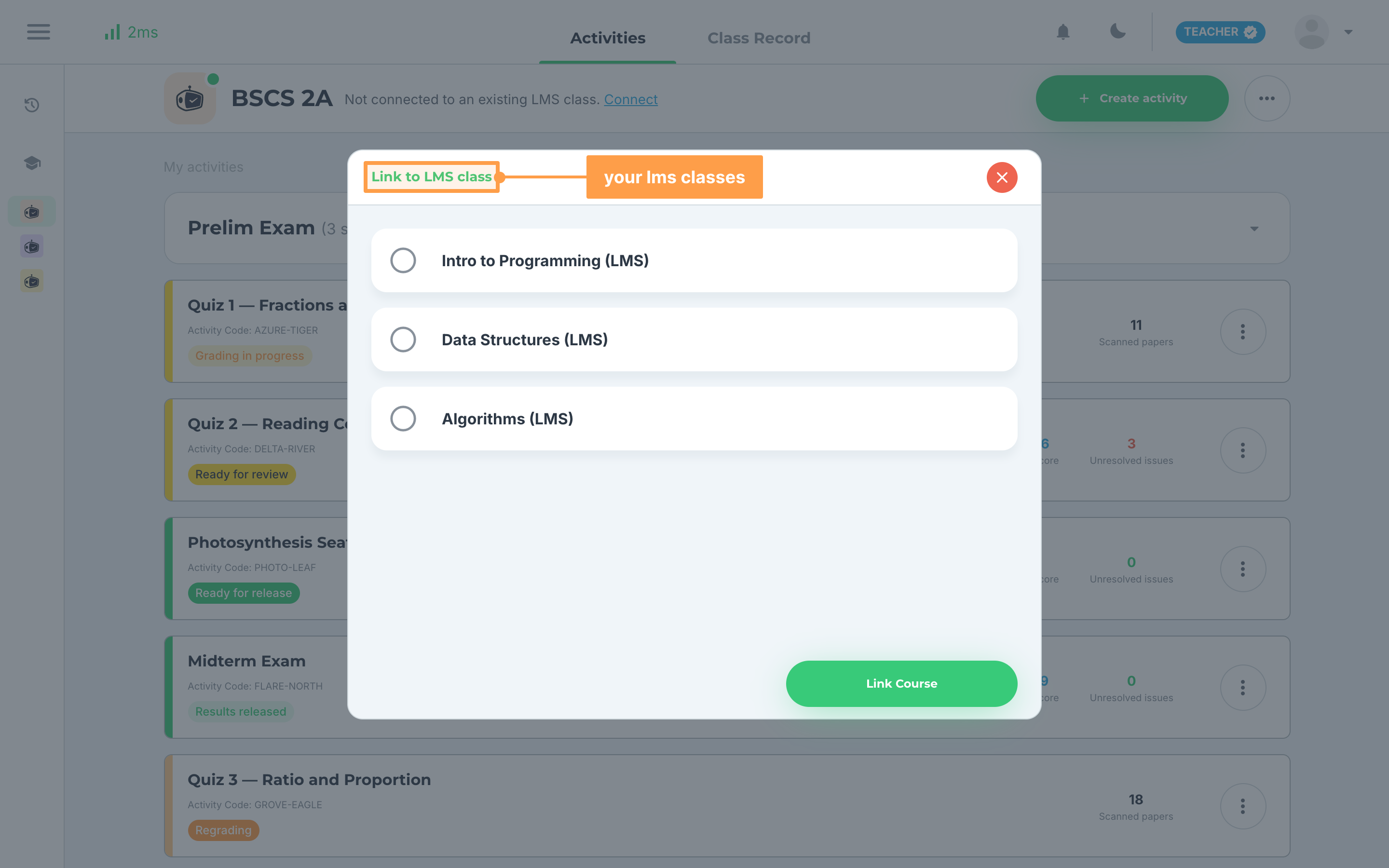
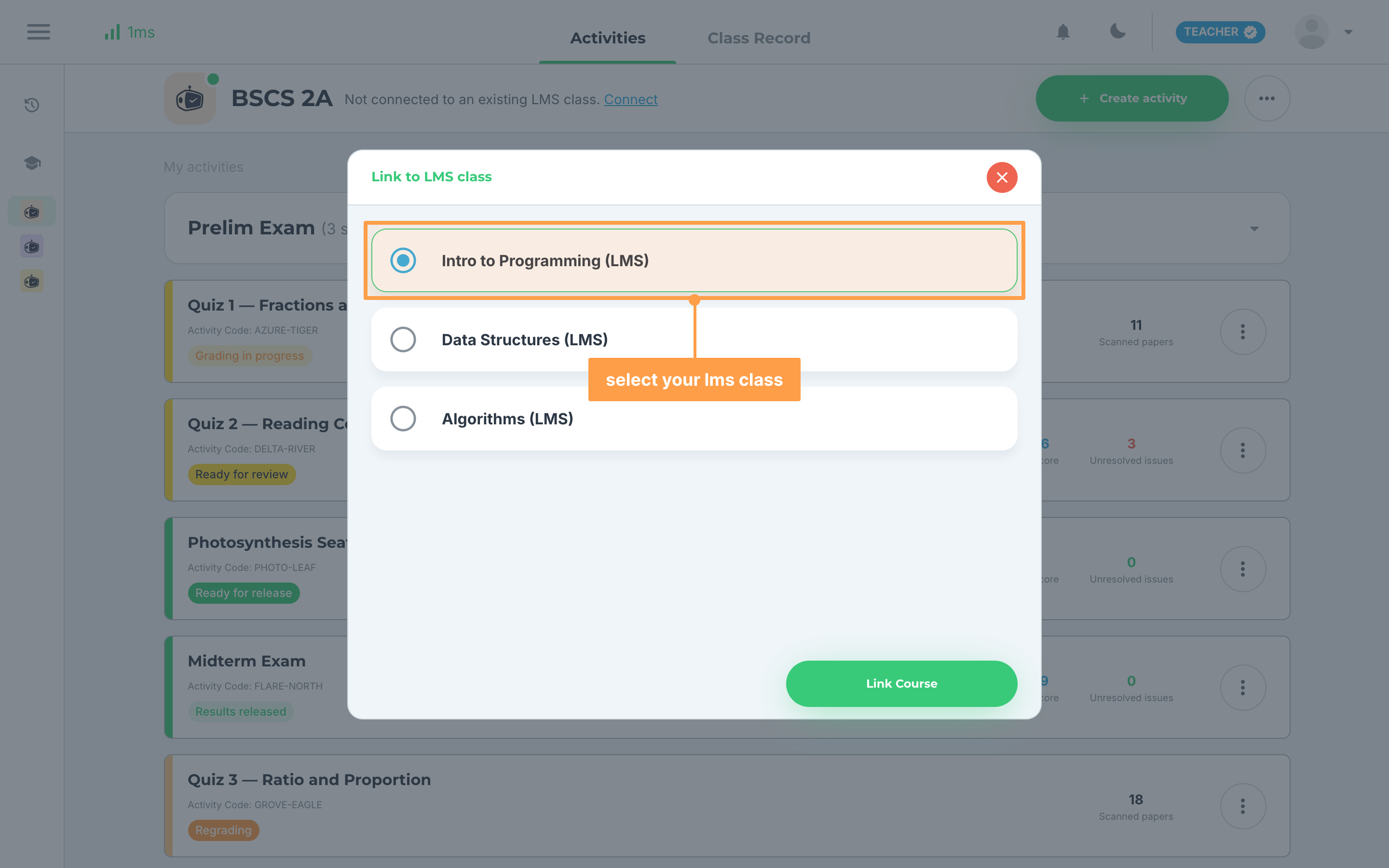
- Select the LMS class you want this class linked to. What you can select depends on your LMS:
a. Blackboard or Moodle
Click the card of the LMS class. Its circle fills in to show it is selected. To change your choice, click another card, or click the selected card again to clear it.
b. Canvas
Click the card of the Canvas course. Its sections then load under it. Keep the course selected to link the whole course, or click one of its sections to link only that section. Click a selected card again to clear it.
- Finally, click Link Course. The modal closes, and GradeChum starts adding the students enrolled in your LMS class to this class.
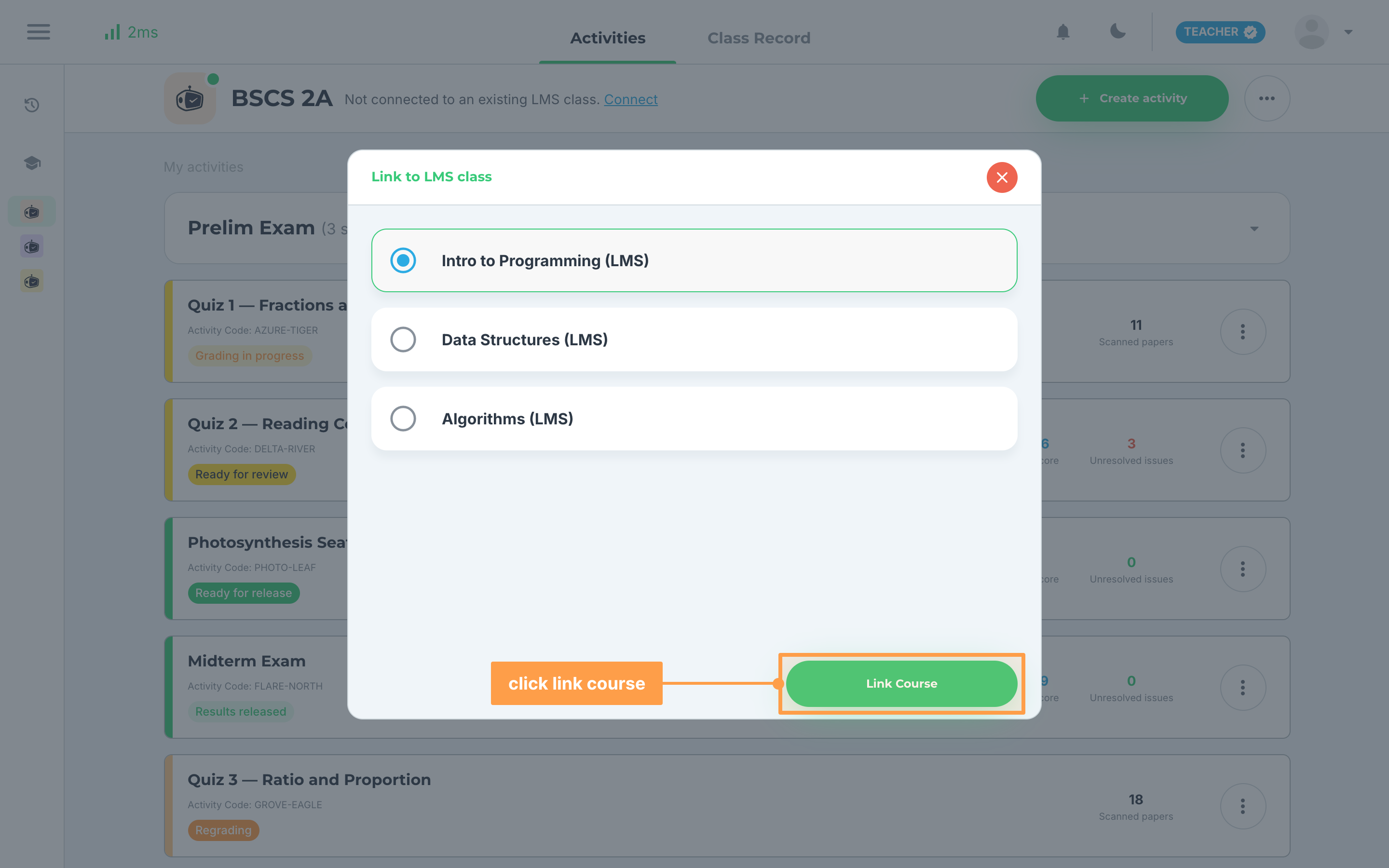
Note: If the modal stays open after you click Link Course, your class was not linked. Click Link Course again, and if the class still does not link, contact us at info@gradechum.com.
If no LMS classes are found
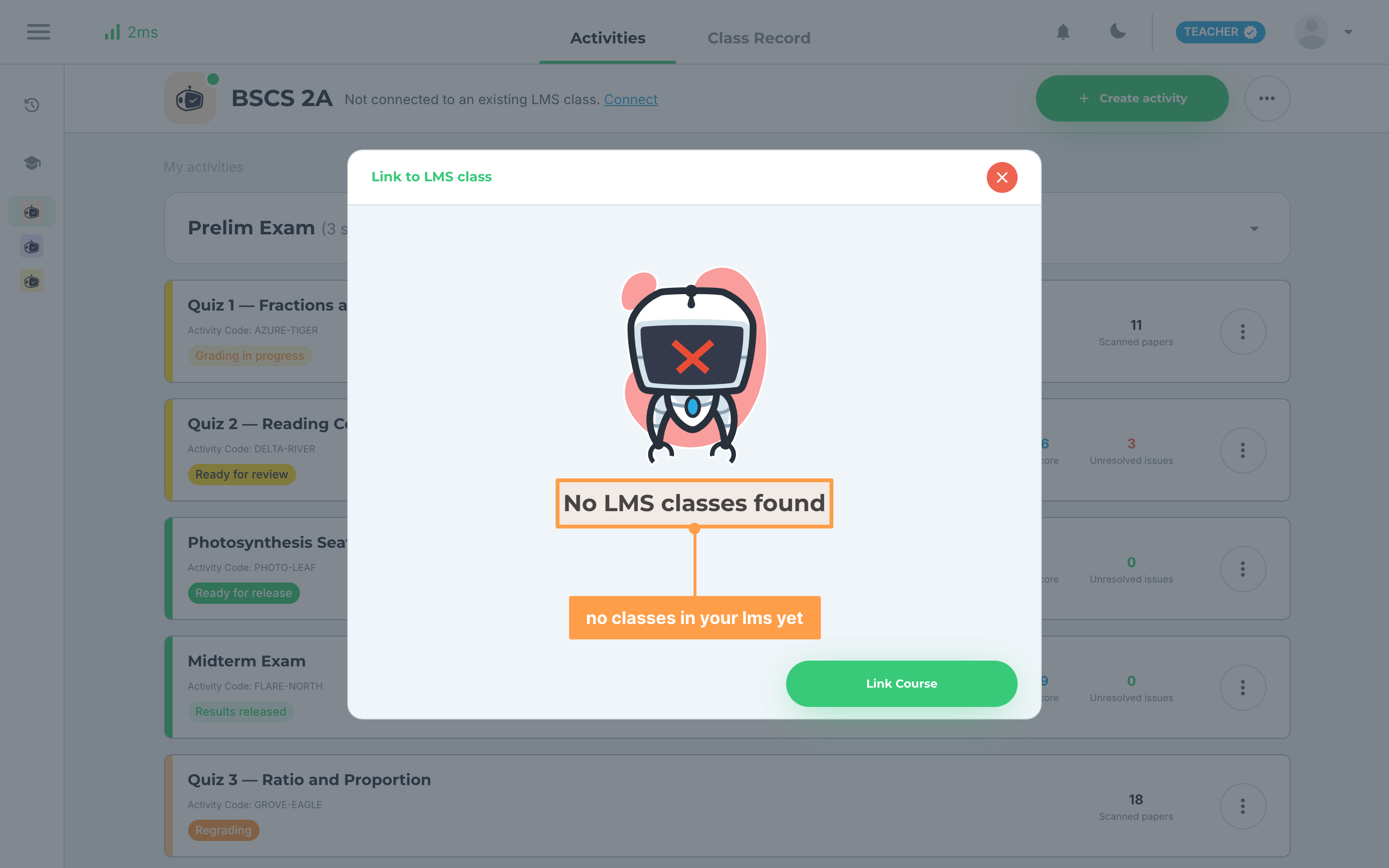
If the modal shows "No LMS classes found", the LMS account you connected has no classes that you teach yet. Create the class in your LMS and enroll your students there first, then open the class in GradeChum and click Connect again.
How to know if linked
Here is how you can check that your class is linked to your LMS class:
- In the class header, "Not connected to an existing LMS class." is replaced by a link icon and "linked to" followed by the name of your LMS class. Click the name to open that class in your LMS. A linked class cannot be unlinked from GradeChum.
- On the Activities tab, every activity card shows its LMS status. A green LMS status: Linked means the activity is in your LMS class. A red LMS status: Link failed. means it did not reach your LMS.
- In your LMS class, the list of assignments shows the activities you created in GradeChum.

If an activity shows LMS status: Link failed., click Retry beside it. GradeChum shows "Successfully linked activity to the LMS." and the status turns to LMS status: Linked. If it shows "Failed to link activity to the LMS. Please contact support if the issue persists." instead, try again later or contact us at info@gradechum.com.
Note: Deleting a linked class in GradeChum does not remove the LMS class or its activities. Delete them in your LMS as well. See Edit or delete a class.
And that's how you link your GradeChum class to your LMS! Next, let's invite your students to your LMS-linked class.