
View your class record
Introduction
A class record is where a teacher keeps every student's name next to their scores. In GradeChum, the Class Record tab of a class does this for you: it lists every student from the class record you uploaded, shows whether they have joined the class, and fills in their score on each activity as papers are checked.
From the same tab you can see your class code and average grade, look up one student or one activity, split an exam's score into its tests, and download the grades. In this article, let's explore how to view your class record.
Steps
Note: You must have already uploaded your class record. If you have not, follow Invite students to class first.
To view your class record in GradeChum, follow these instructions:
- Go to your class by clicking its class card, then click the Class Record tab.
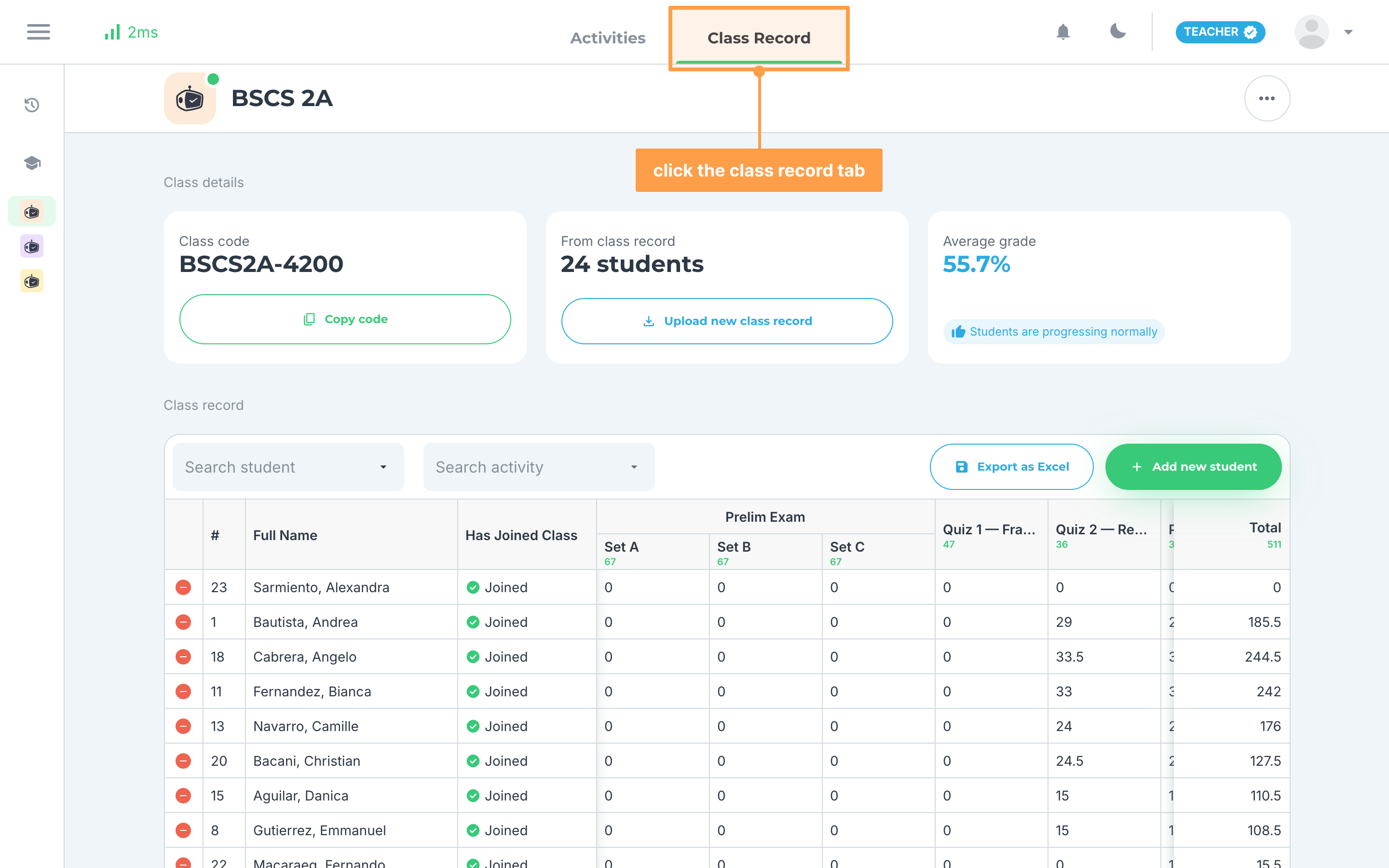
Note: If the class has no students yet, the tab shows Import your class record here with an upload area instead of the table. If GradeChum says "You do not have permission to view this class.", the class is not yours and is not shared with you, or its owner stopped sharing it. Ask the owner to share it again, or click Back to home.
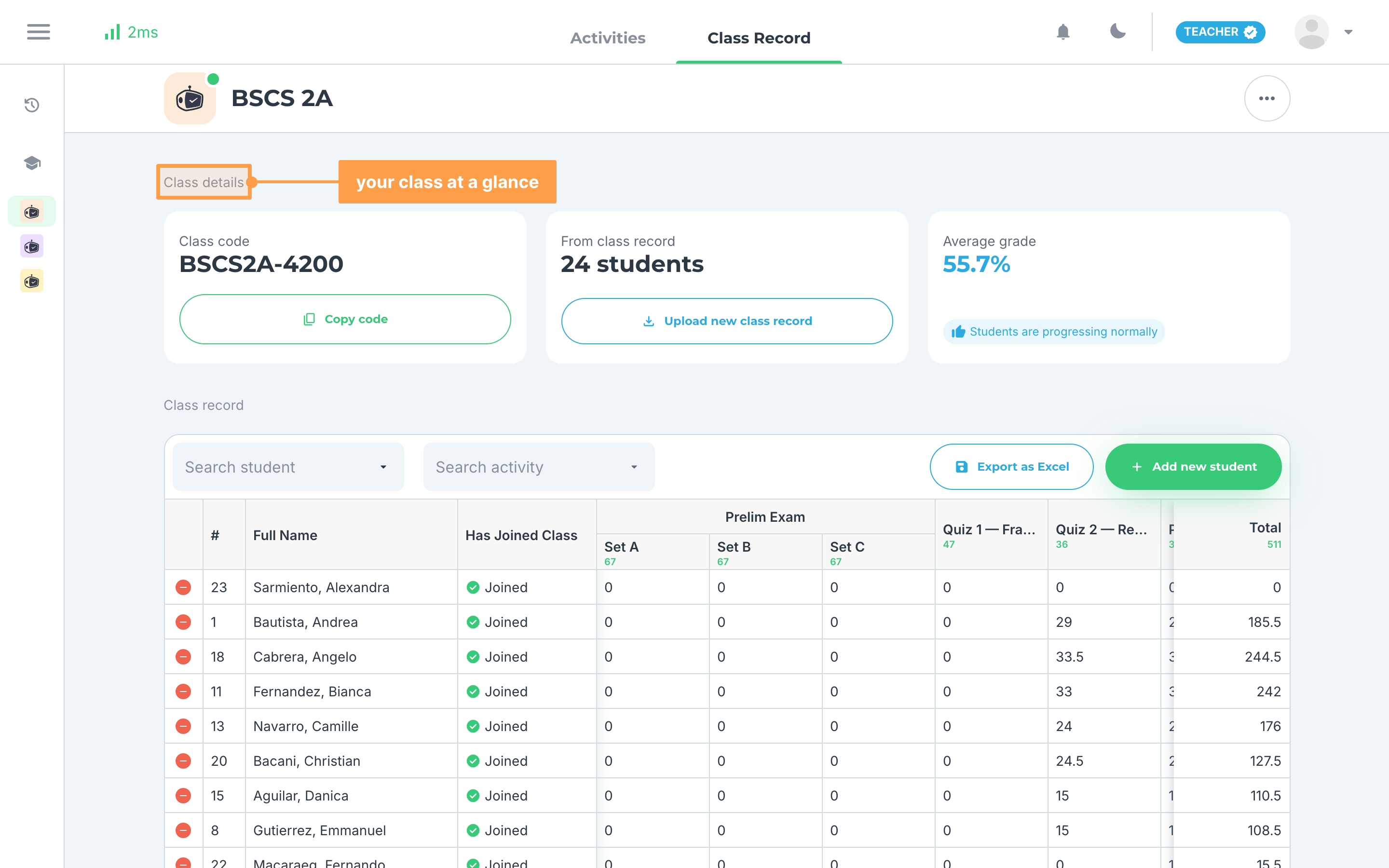
- Under Class details, check your class at a glance: * Class code is the code your students enter to join the class. Click Copy code to copy it. * From class record shows how many students are in your class record. Click Upload new class record to replace it with an updated file. * Average grade shows the class average with a badge: Students are doing well at 85% or more, Students are progressing normally at 50% or more, and Students may be struggling below 50%. It shows N/A until there is an average to show.
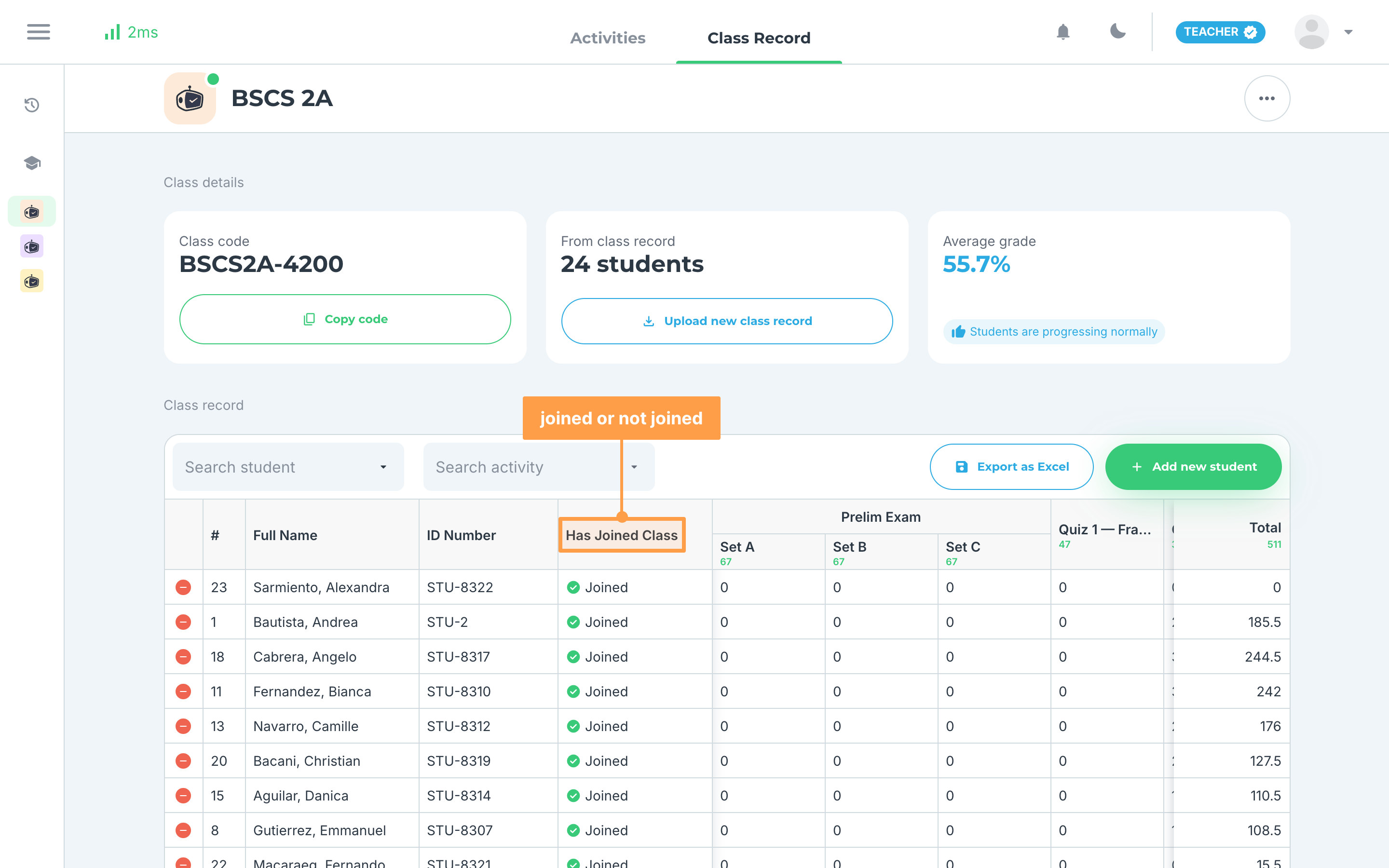
- Under Class record, each row is one student, with their #, Full Name, ID Number and Has Joined Class, which reads Joined or Not Joined. The ID Number column only shows when your class record has school ID numbers. If your class record lists students by sex, they are grouped under Male and Female.
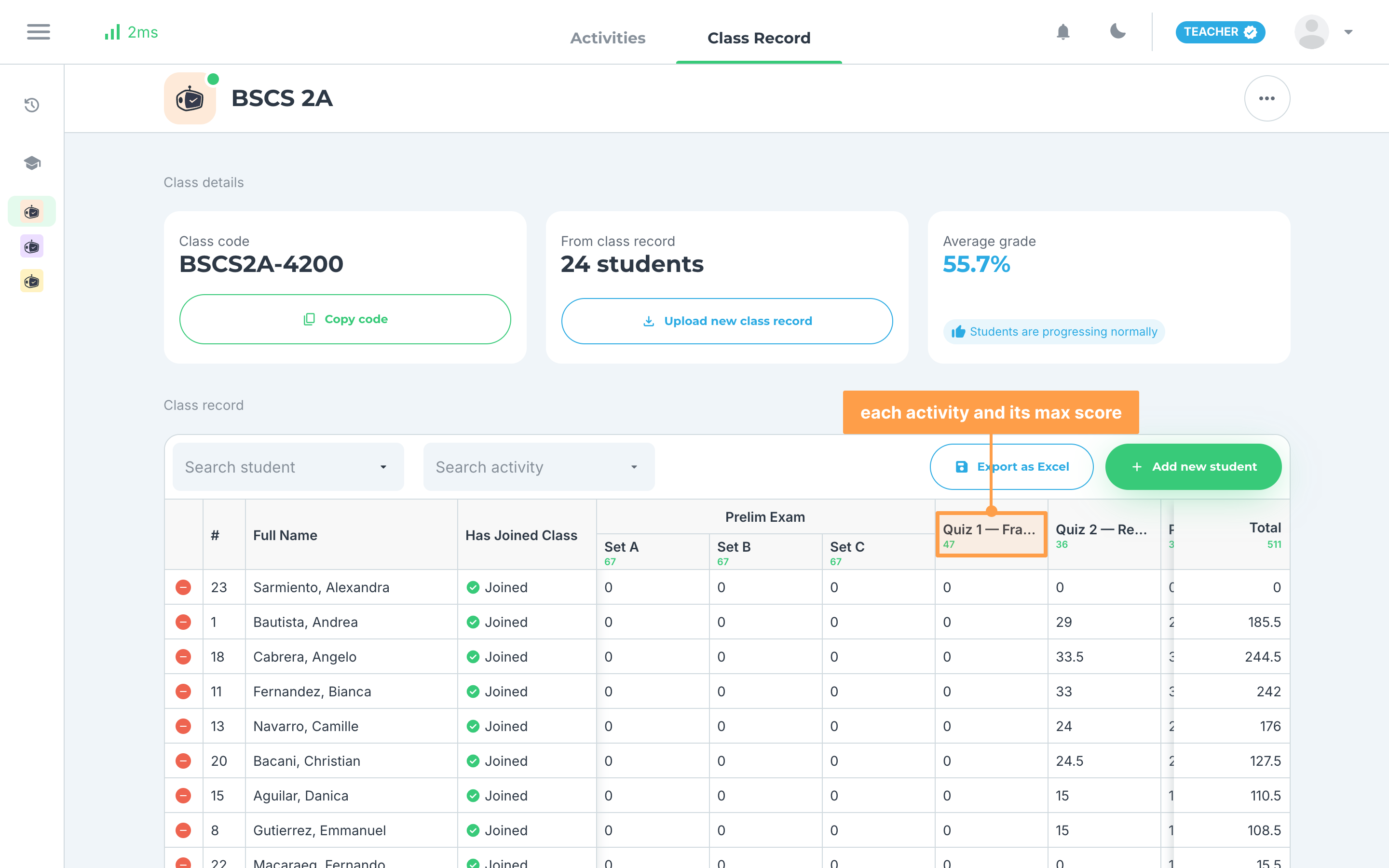
- Each activity has its own column with its maximum score under its name, and Total adds up each student's scores. An activity with sets has a column for each set under the activity's name. A "-" means the student has no score for that activity yet, for example because their paper has not been checked. Scroll down to load more students, and scroll right to load more activities.
Note: If your class has no activities yet, the table reads No records yet. Create your first activity for your students. Click Create activity to make one.
-
Click an activity's name to open that activity, or click a student's score to open their result in that activity.
-
To look up one student, click Search student, type their name and pick them from the list. Click the x in the field to show everyone again. To show only one activity, pick it from Search activity.
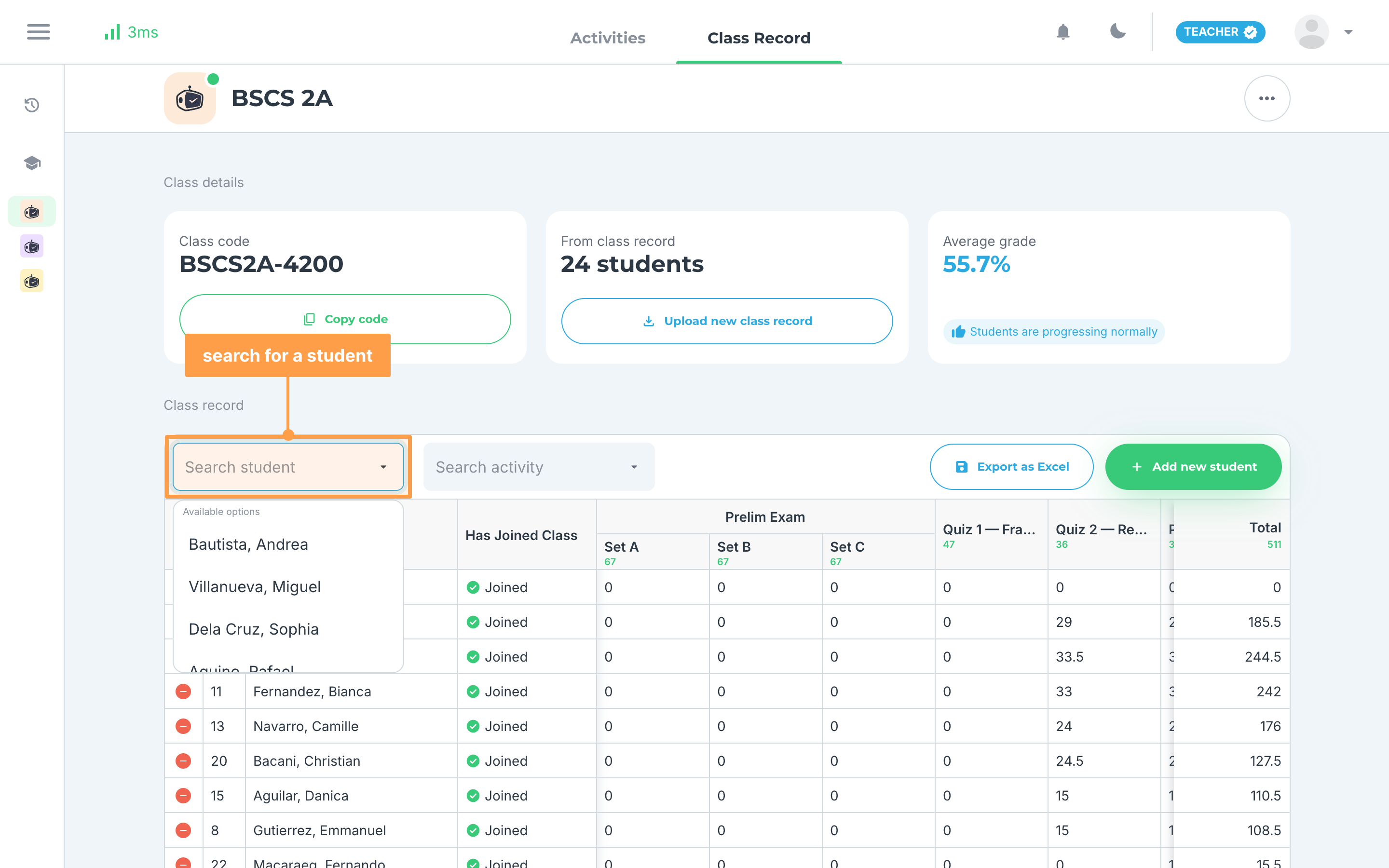
Note: If the table reads "No student records found.", no student matches your search. Clear the filter to bring the list back.
- If an activity has more than one test, turn on Show score breakdown per test at the top right of the Class record section. That activity then shows a column for each test (Test I., Test II.) with the test's maximum score, followed by its Total. For an activity with sets, the columns read Set A · Test I. and Set A · Total.
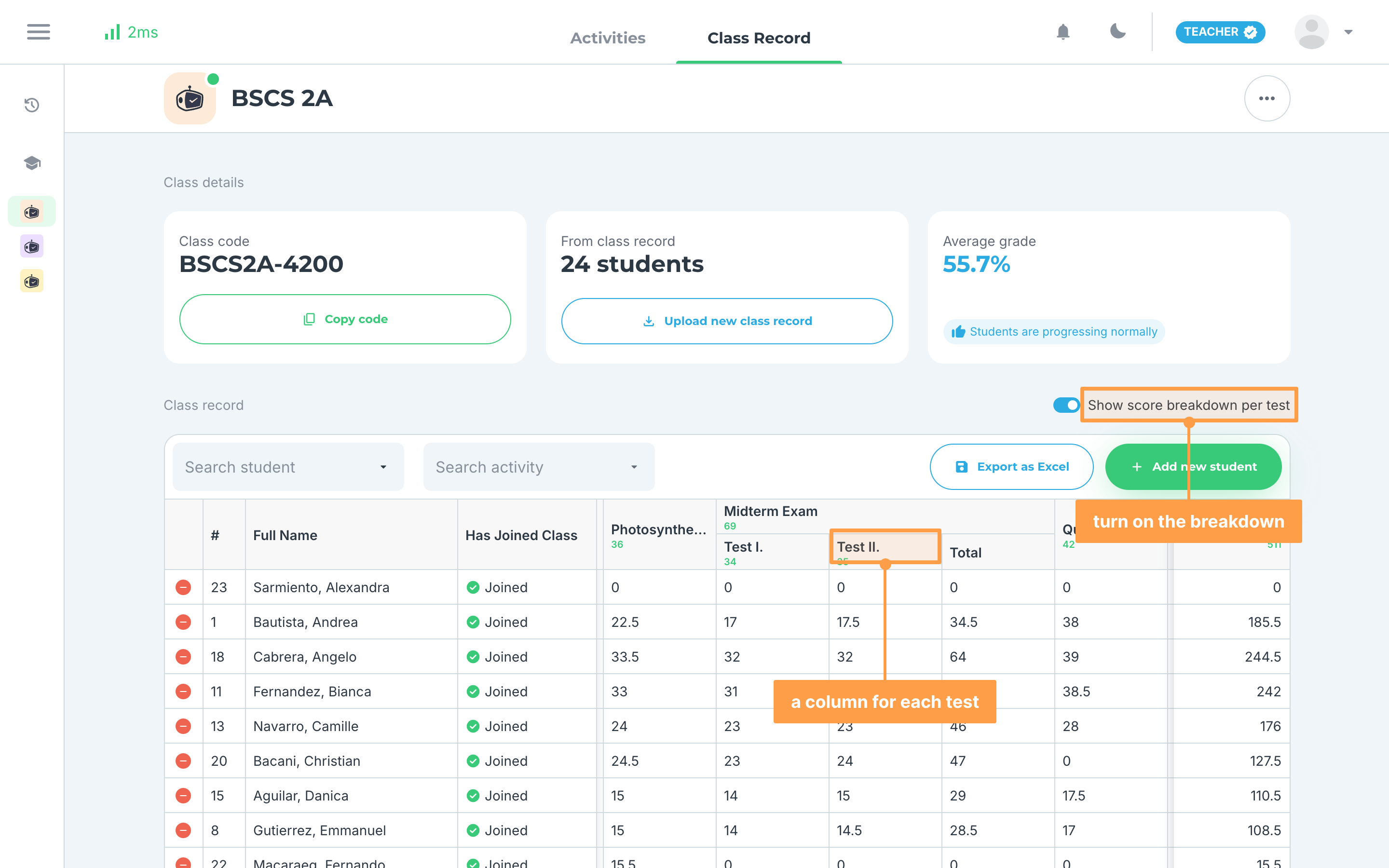
Note: The switch only shows when your class has students and at least one activity with more than one test. It is off each time you open the tab.
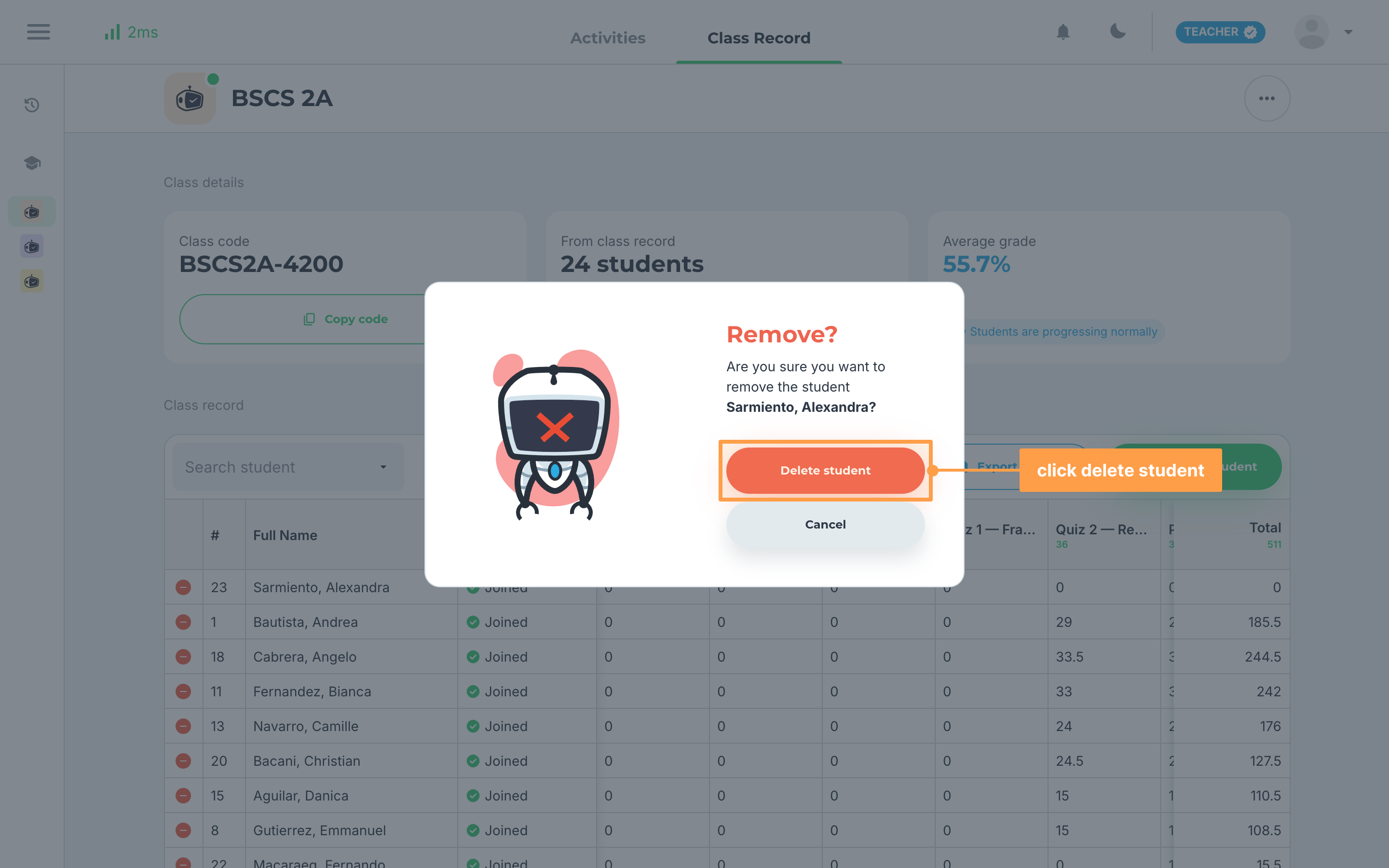
- If a student is missing from your class record, click Add new student. To remove a student, click the red remove button at the start of their row, then click Delete student on the Remove? modal.
- To download your class grades as a spreadsheet, click Export as Excel. Learn more in Export grades.
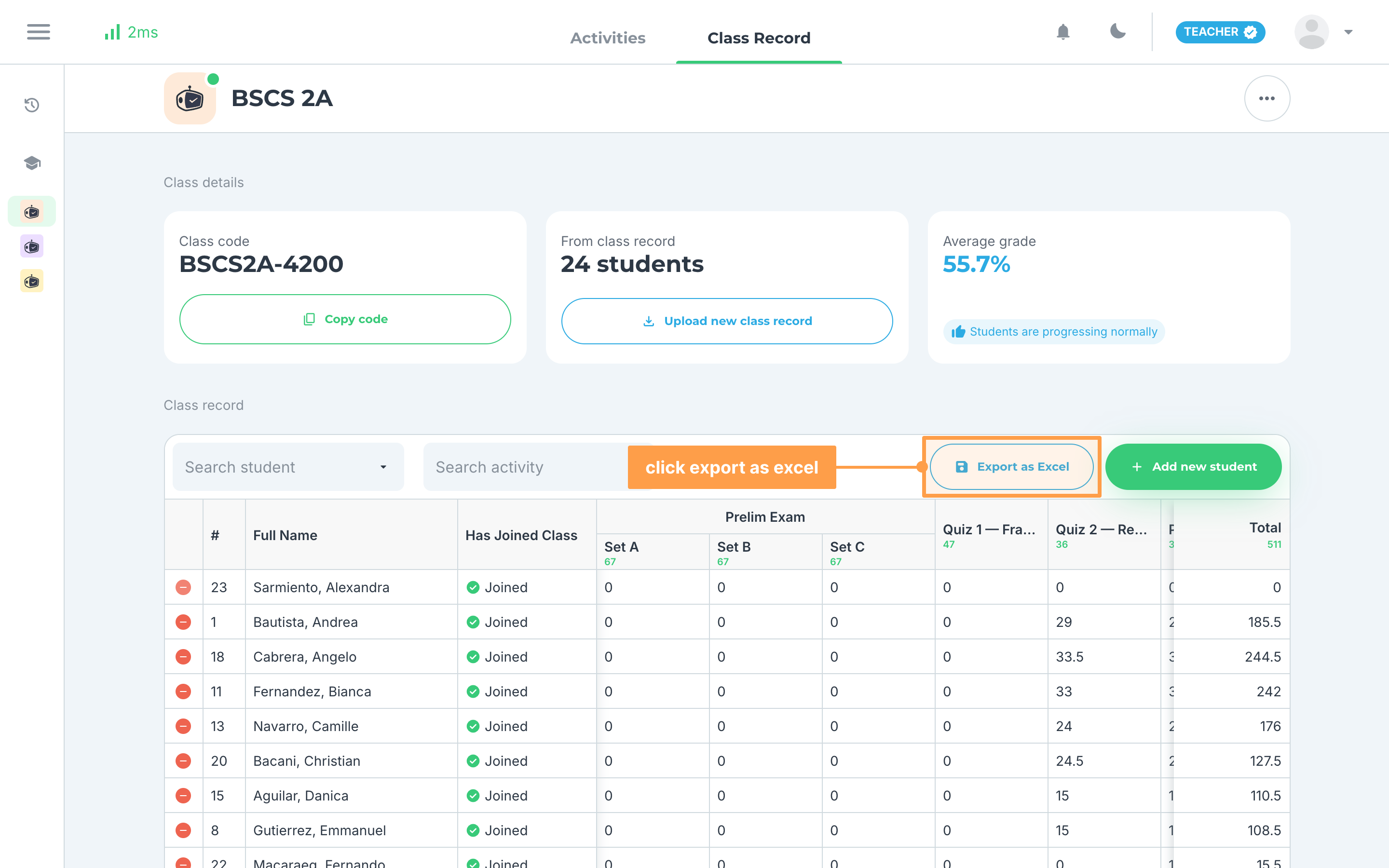
Note: If you have no school license and have not verified your phone number, Export as Excel shows a yellow lock with "This option is not available for unverified teachers. Please verify your phone number first." Click Verify phone number to verify it, as shown in Verify your email and phone number.
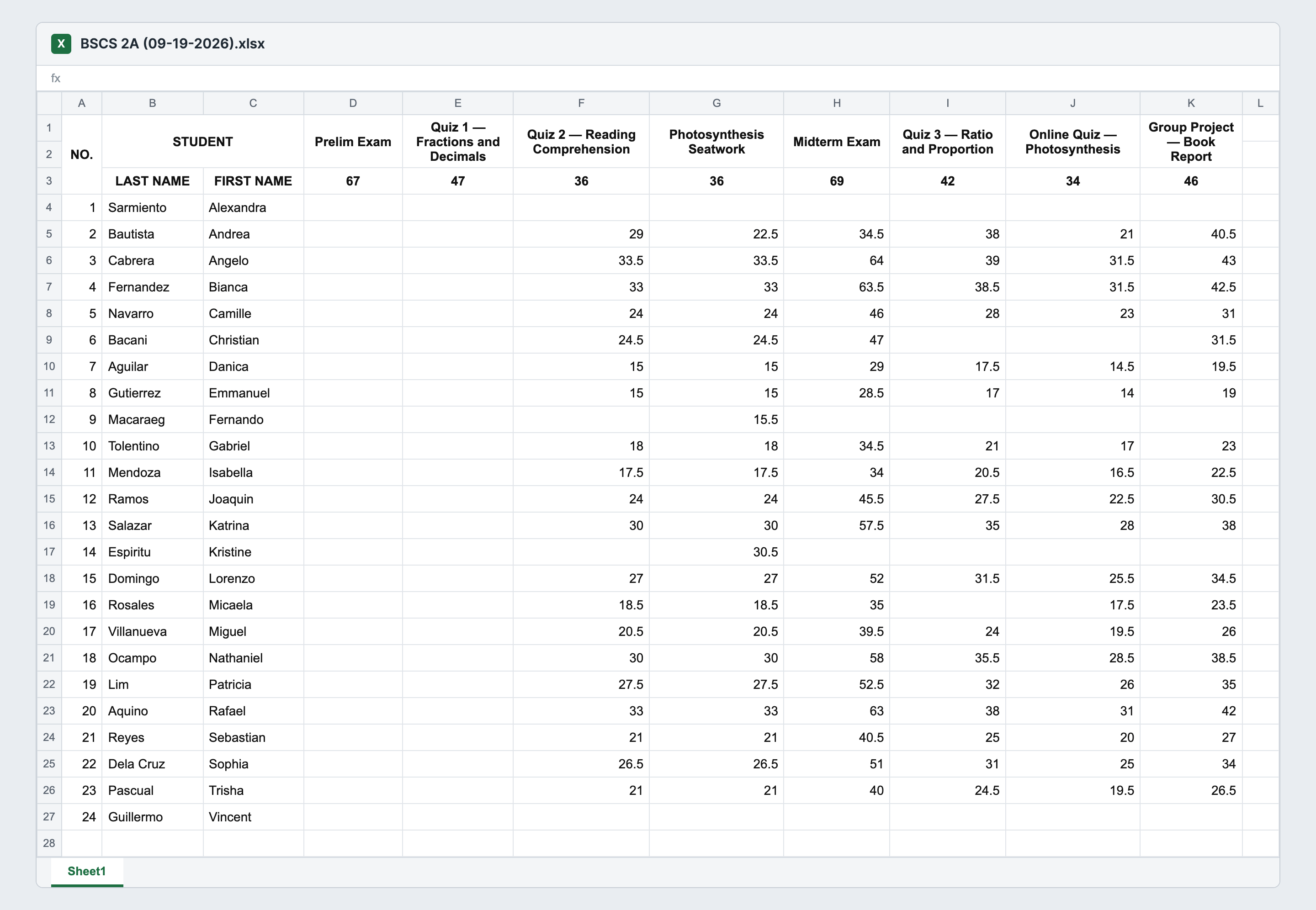
- Finally, open the downloaded Excel file. It is the same table away from GradeChum: one row per student and one column per activity, each activity's total points under its name, and a blank cell wherever GradeChum has not checked that student's paper yet.
What changes in some classes
- If the class is linked to an LMS: a Sync grades bar shows above the table. See Sync Grades to LMS.
- If the class is shared with you to view only: Add new student, Upload new class record and the remove buttons are hidden, so you can read the class record but not change it. A shared class with no students shows No class records yet. See Share a class with another teacher.
- If your school is a government partner: the Class code card and the Has Joined Class column are not shown.
On a phone
On a small screen, the class record lists each student as a card that shows whether they have joined. Click a card to see their ID Number, their score on each activity (with a Test I. row for each test when the breakdown is on) and their Total Score. Use Sort by: to list students Alphabetical (A to Z) or Alphabetical (Z to A). The buttons read Export, Add student and Reupload.
And that's how you view your class record in GradeChum! Next, let's explore how to export grades.