
Edit or delete a class
Introduction
Classes change over a school term. A class name gets a typo, a section is renamed, or your school starts linking classes to courses after you have already made yours. And once a term is over, some classes are no longer needed.
In GradeChum, you can fix a class's details without making it again, and you can remove a class you no longer use. In this article, let's explore how to edit or delete a class.
Steps
Note: Only the teacher who created the class can edit or delete it. A class another teacher shared with you shows Shared by: on its card and has no Edit or Delete. See Share a class with another teacher.
a. Edit a class
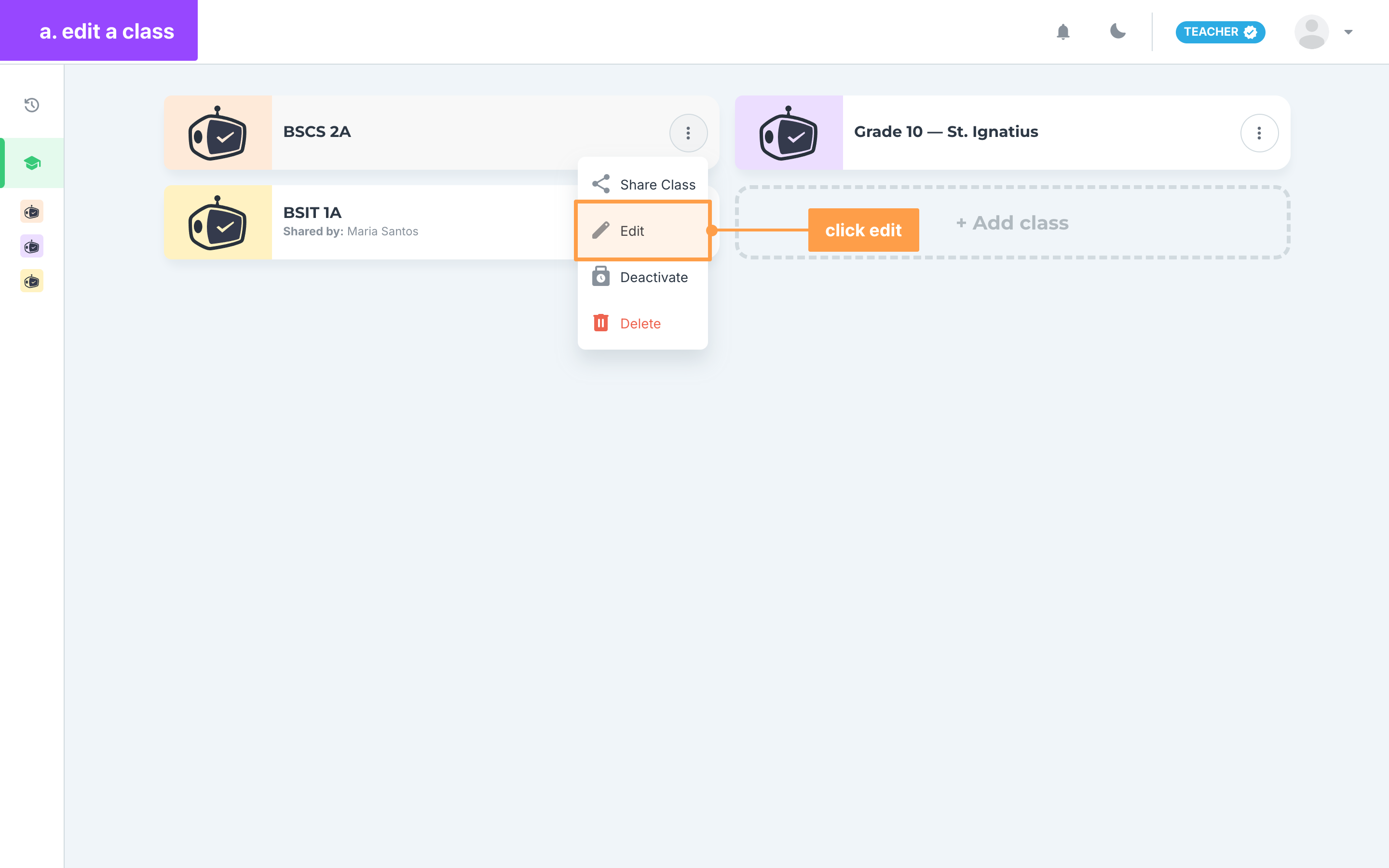
- On My classes, click the three-dot button (Toggle additional actions) on the class card, then click Edit. You can also open the class, click the three-dot button in the class header and click Edit under Class actions.
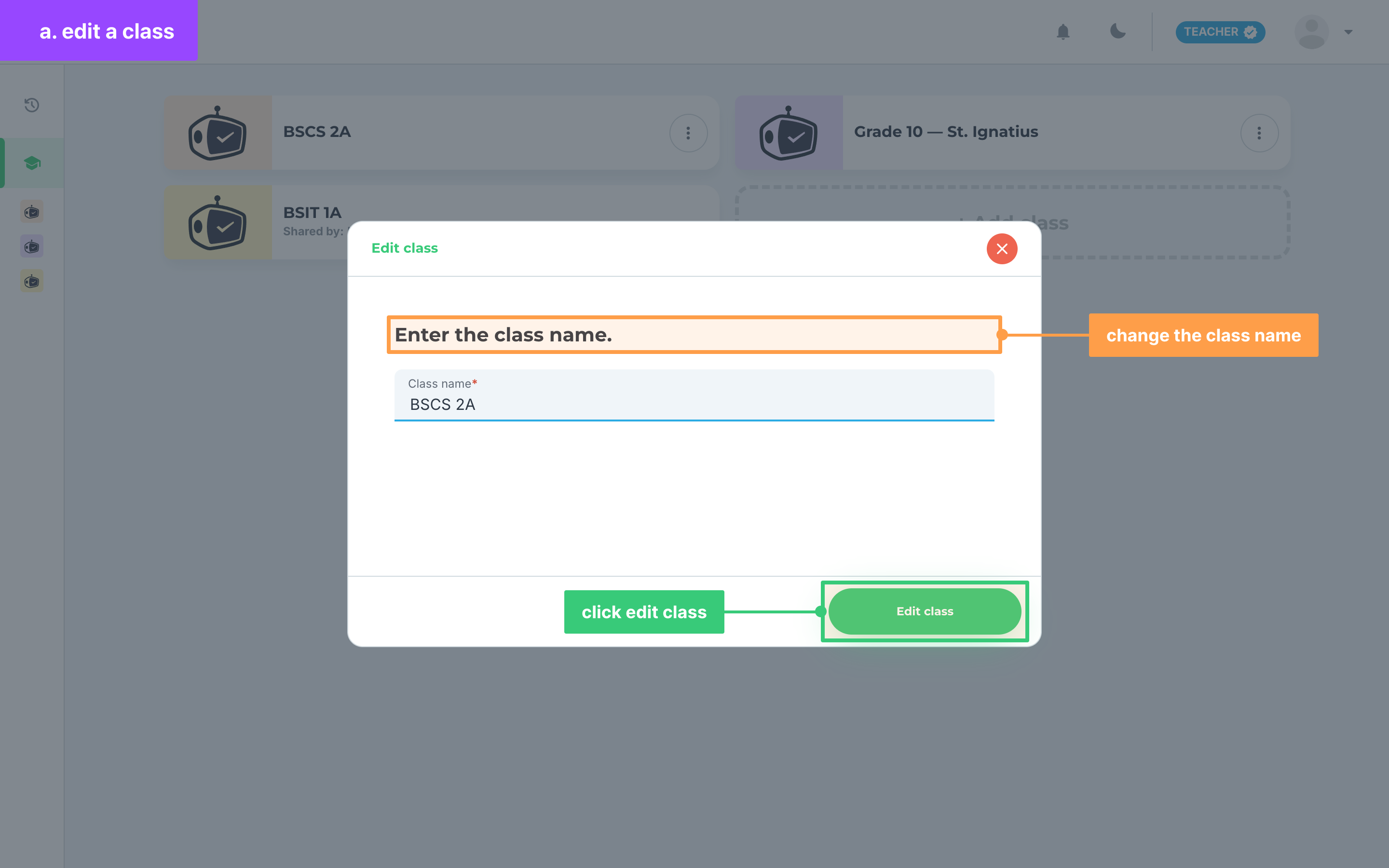
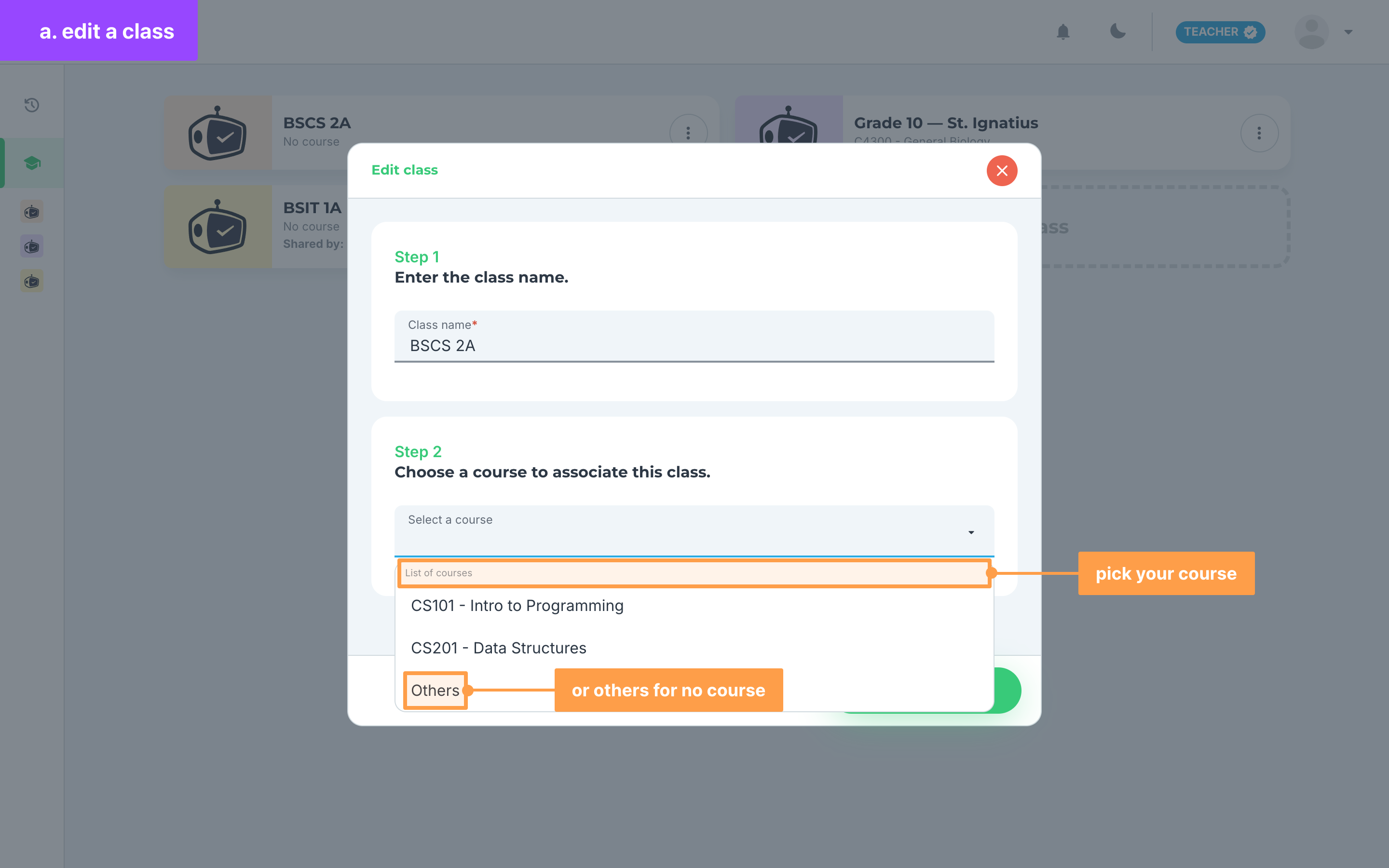
- The Edit class modal opens with the current class name filled in. Under Enter the class name., change the name. It is required and can be up to 100 characters, and Edit class stays disabled while the name is empty.
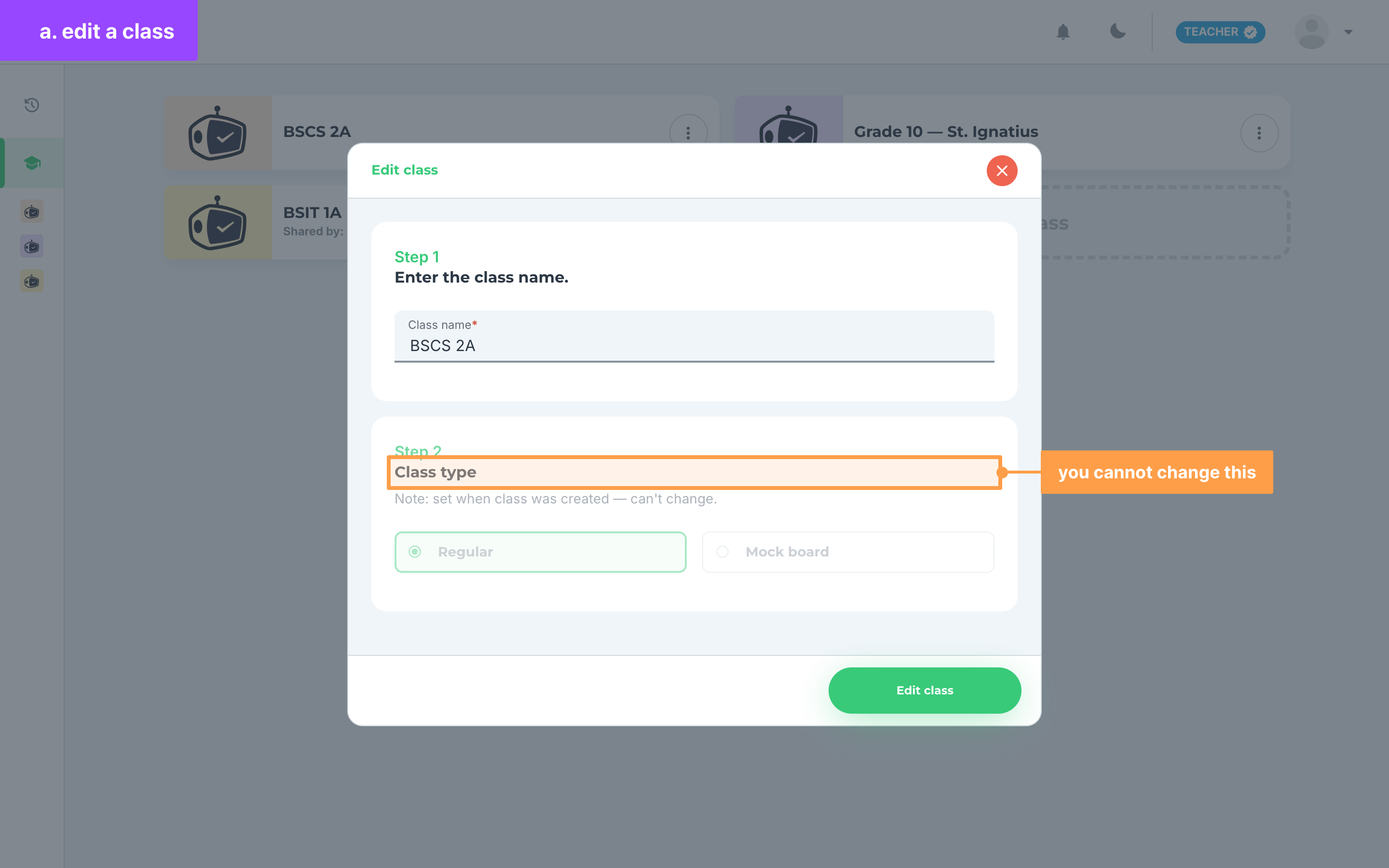
- If your school allows mock board classes, Class type shows whether the class is Regular or Mock board. It is locked, because the class type is set when the class is created and cannot change.
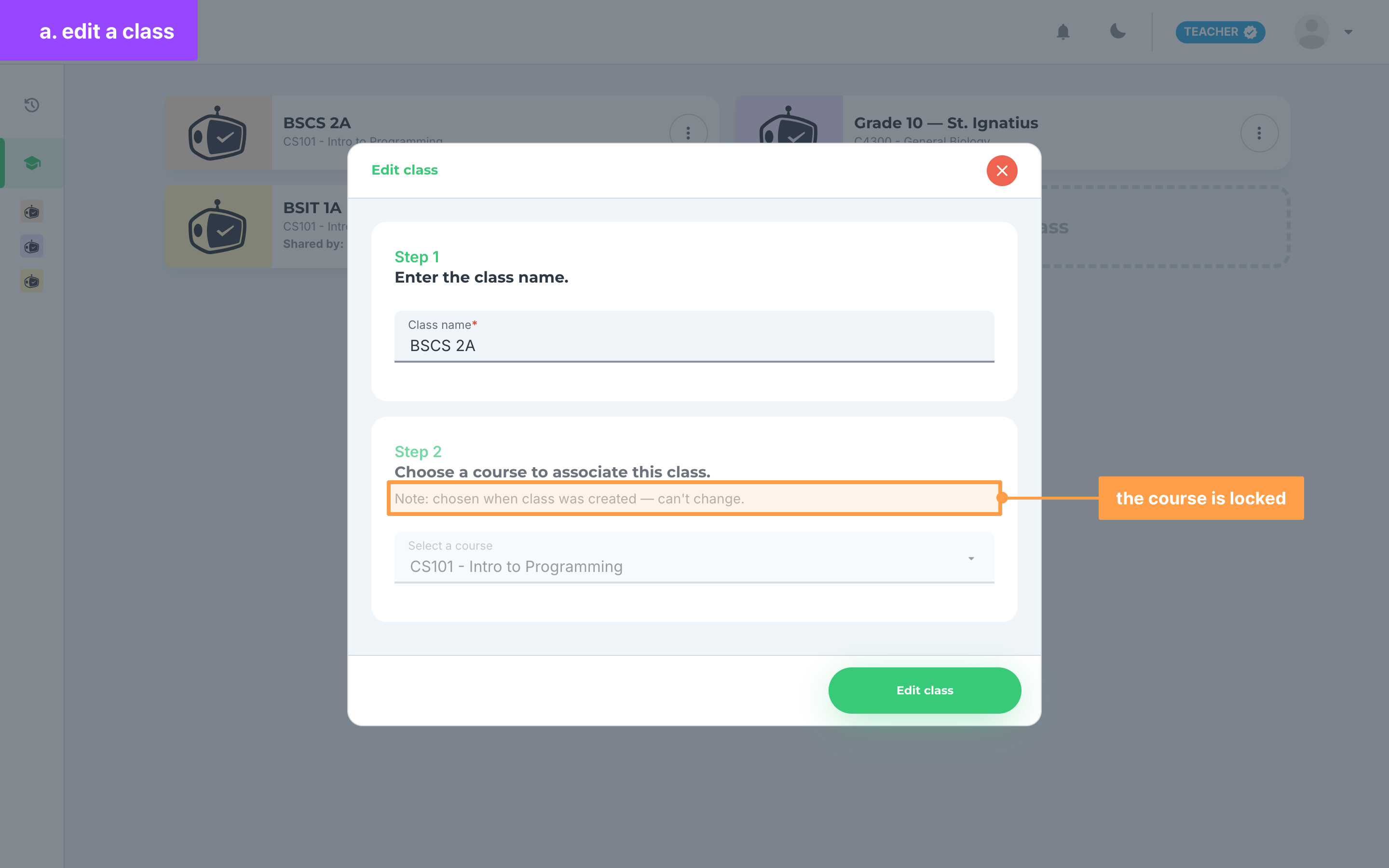
- If your school links classes to courses, Choose a course to associate this class. also shows. A class that already has a course shows it locked. If your class has no course yet, click Select a course, search for the course and pick it, or pick Others for no course. Choosing a course here is optional.
-
Click Edit class.
-
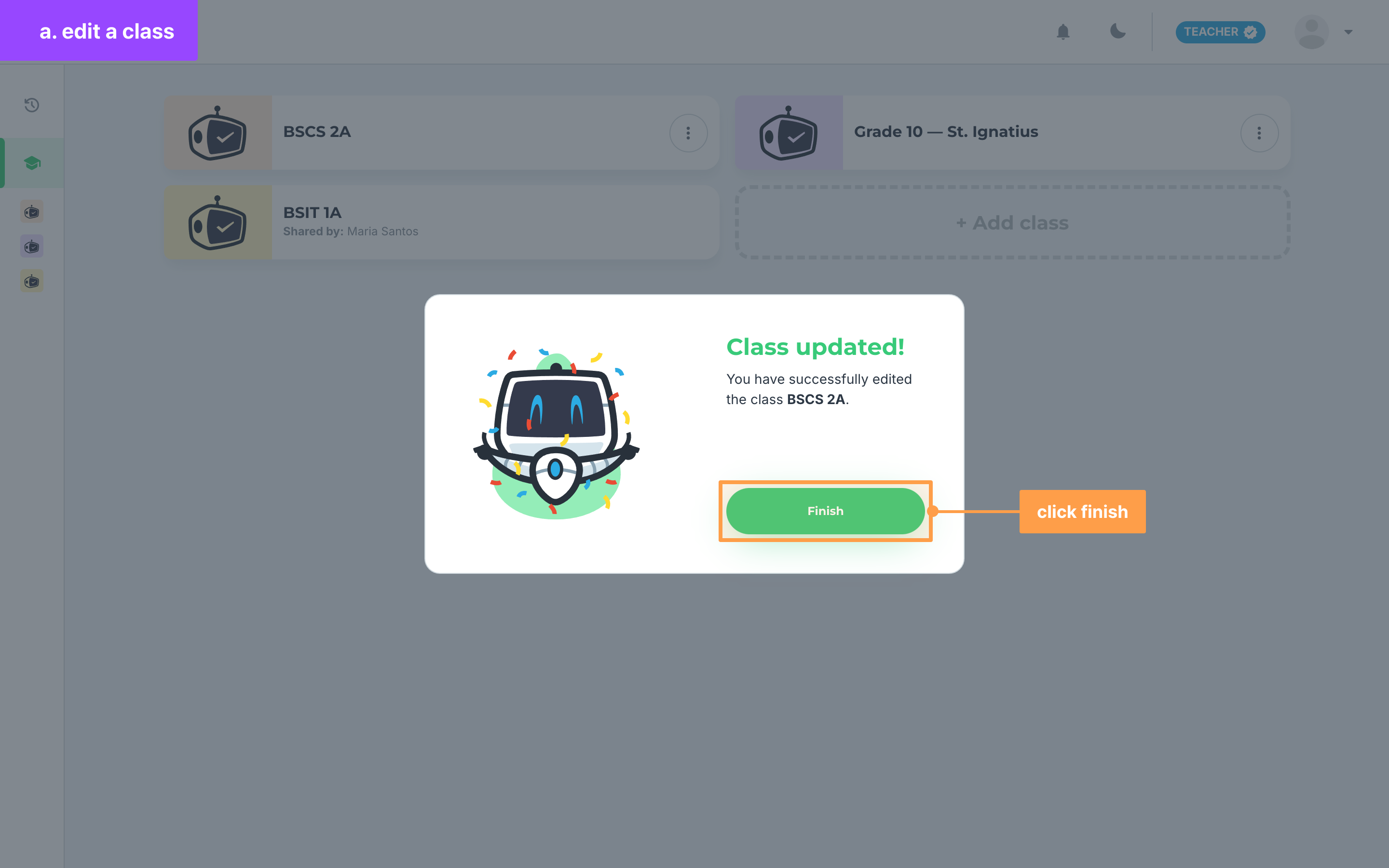
Finally, GradeChum confirms with Class updated!. Click Finish to close the modal.
Note: If no course matches your search, the list shows No courses found. The course step does not show for a mock board class, or when your school has no courses to pick from. In the class header, Edit is disabled while the class is deactivated, and cards on Past classes have no Edit. If saving fails, GradeChum shows Uh oh, so try again in a while.
b. Delete a class
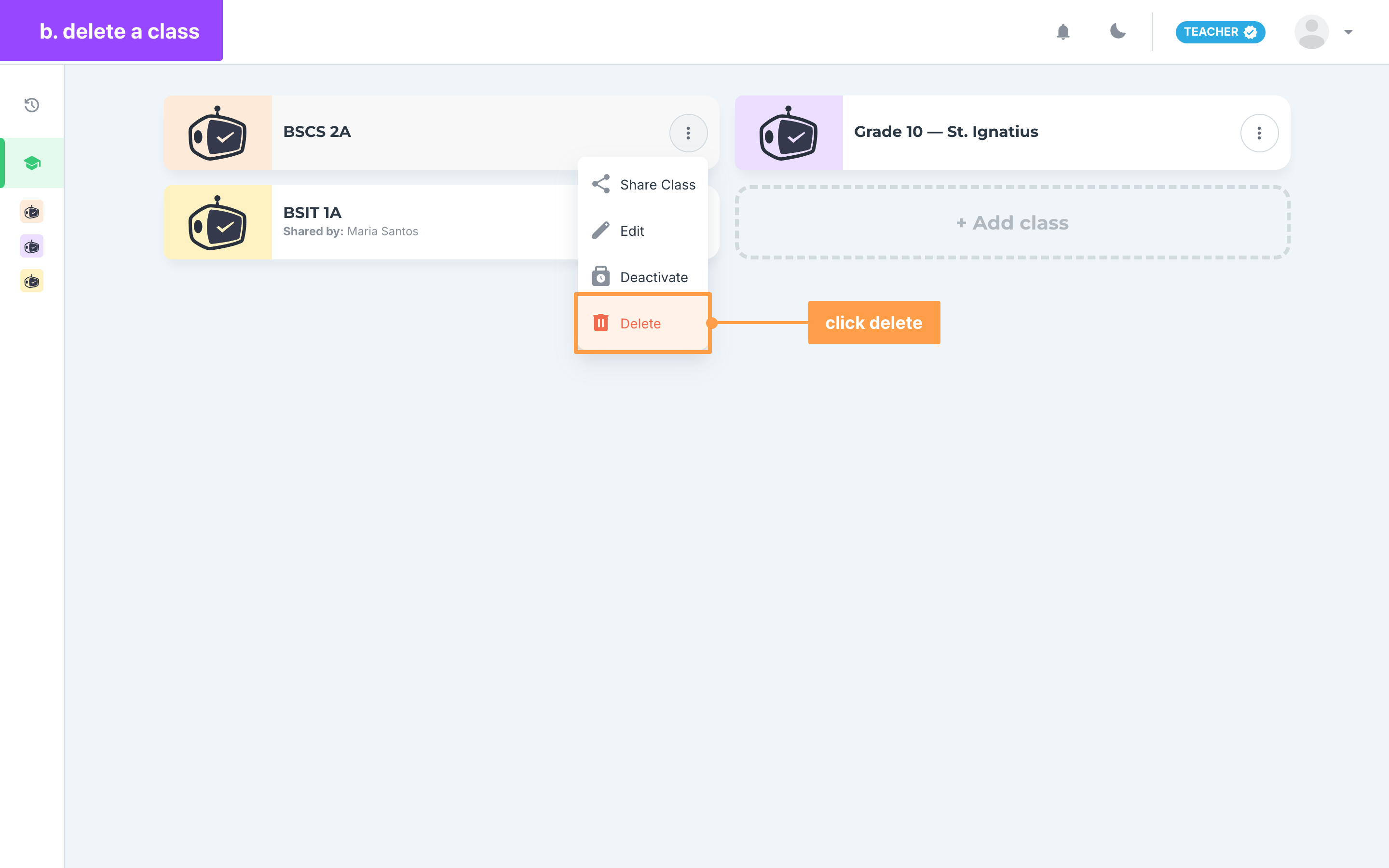
- On My classes or Past classes, click the three-dot button on the class card, then click Delete. You can also open the class, click the three-dot button in the class header and click Delete under Class actions.
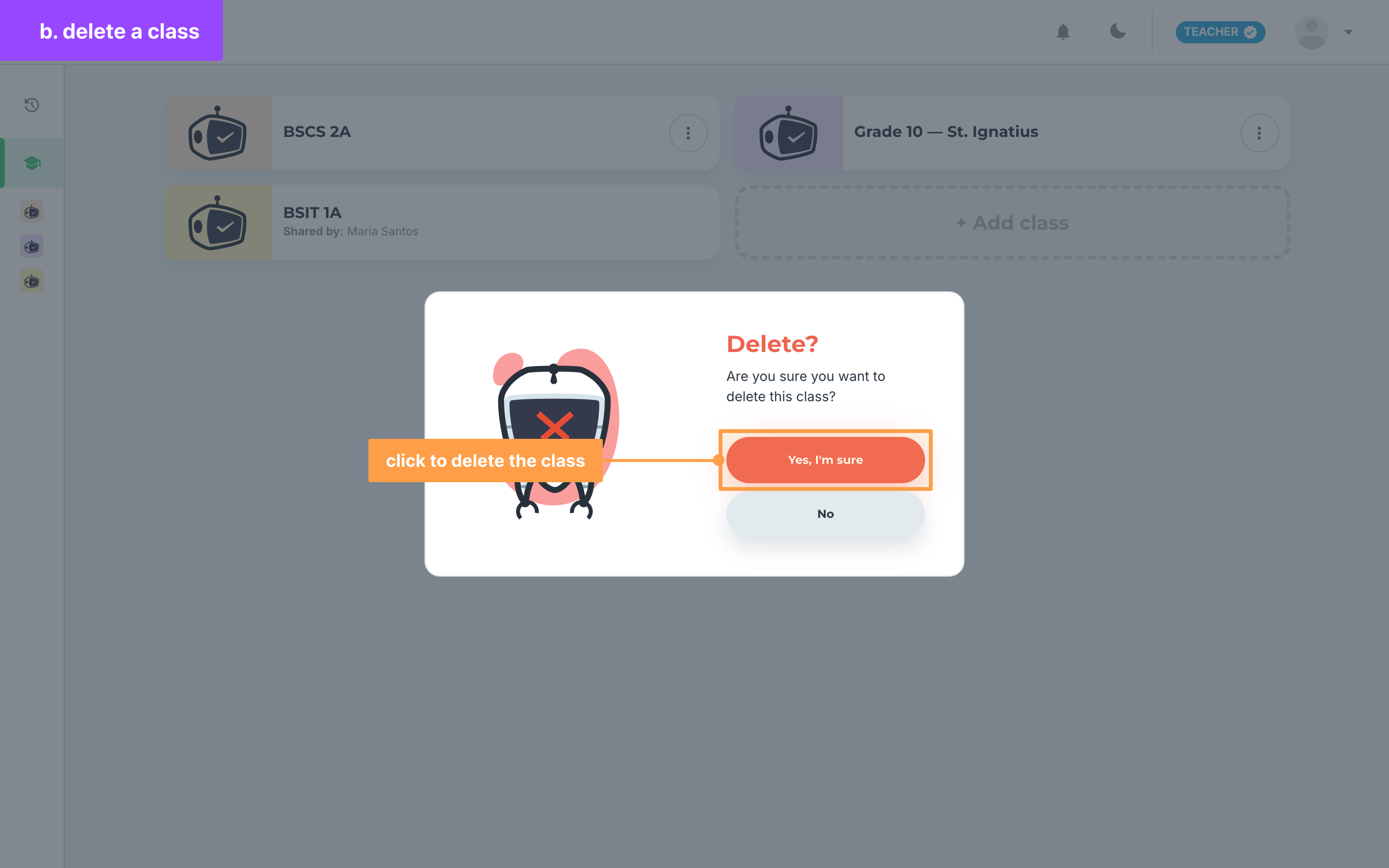
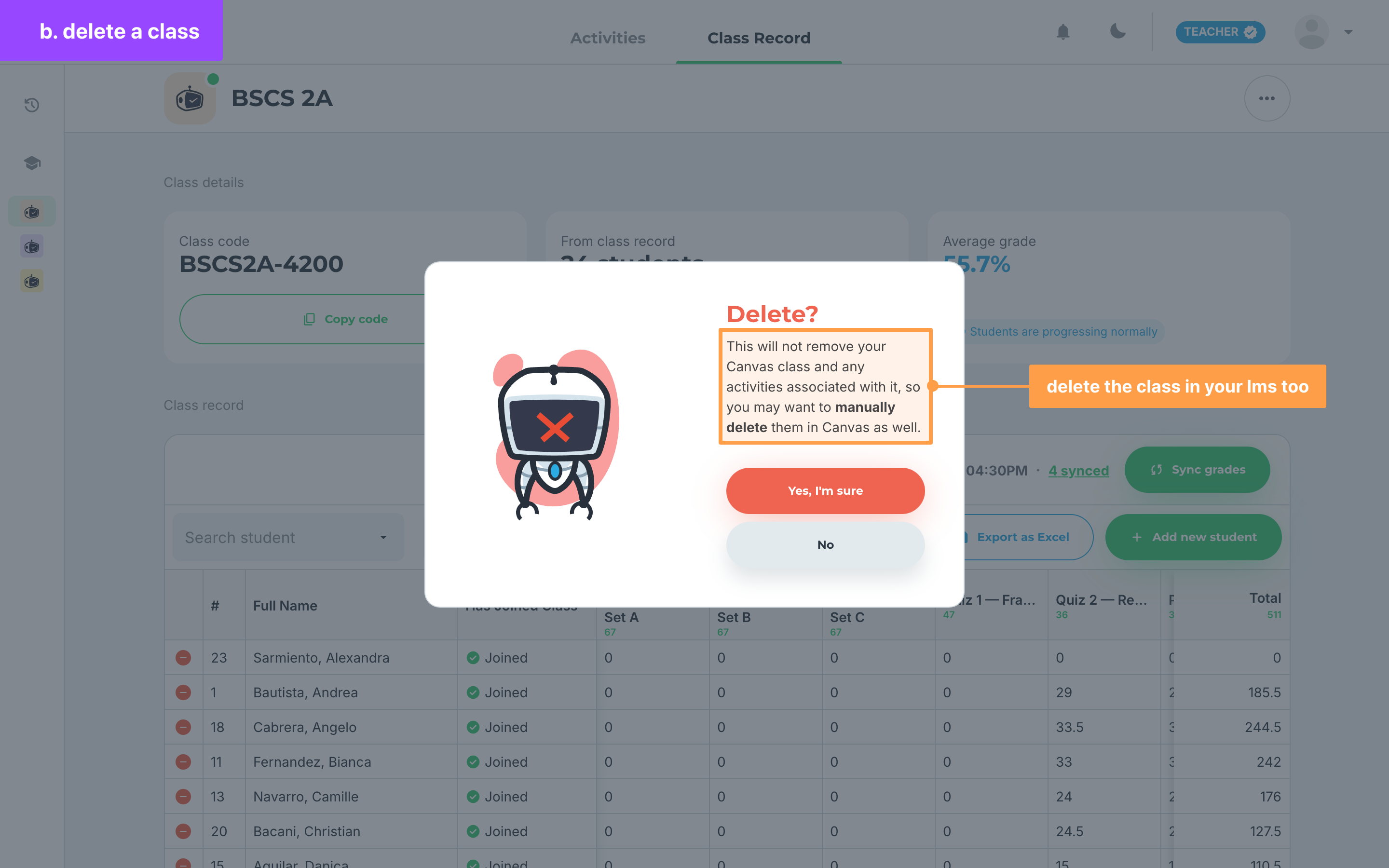
- The Delete? modal asks "Are you sure you want to delete this class?". Click Yes, I'm sure to delete the class, or No to keep it.
- If the class is linked to Canvas, Moodle or Blackboard, the modal tells you instead that deleting it will not remove your class and its activities in that LMS. Delete them in your LMS as well if you no longer need them.
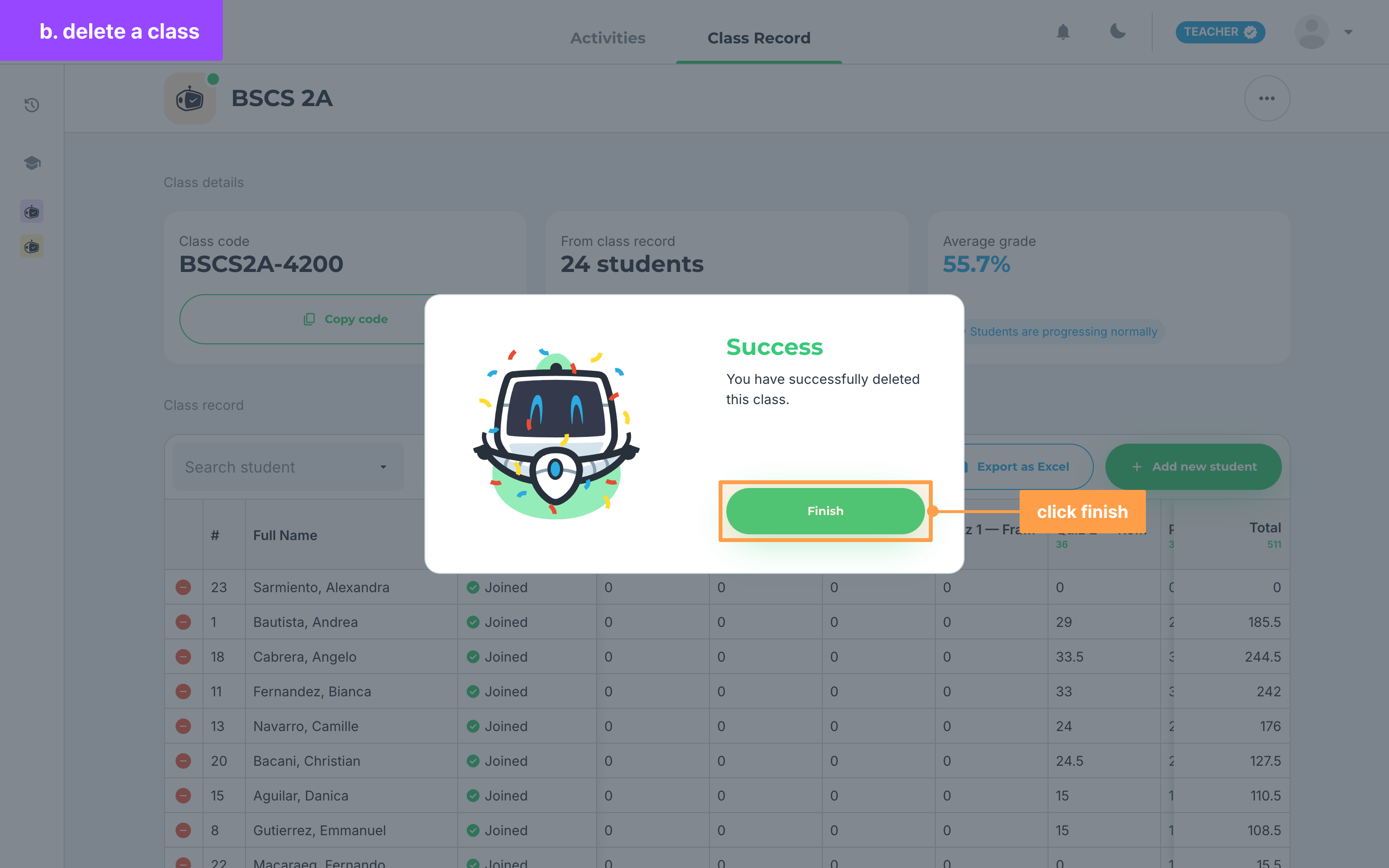
- Finally, if you deleted the class from its card, the modal closes and the class leaves your list. If you deleted it from the class header, GradeChum shows Success. Click Finish to go back to My classes.
And that's how you edit or delete a class in GradeChum! Next, let's look at your past classes.