
Share a class with another teacher
Introduction
Some classes are handled by more than one person: a co-teacher who helps check papers, or a coordinator who follows the class's results. Instead of sharing your account, you can give another GradeChum teacher their own access to your class.
When you share a class, you choose what the other teacher can do. A teacher who can view sees the class without changing it, while a teacher who can edit can also work on its activities and students. In this section, let's explore how to share a class and manage Who has access.
Steps
Note: Only the owner of a class can share it, and only with a school license. Share Class does not show on a class someone else shared with you, or when your account has no school license. See Activity credits and school licenses.
To share a class with another teacher, follow these steps:
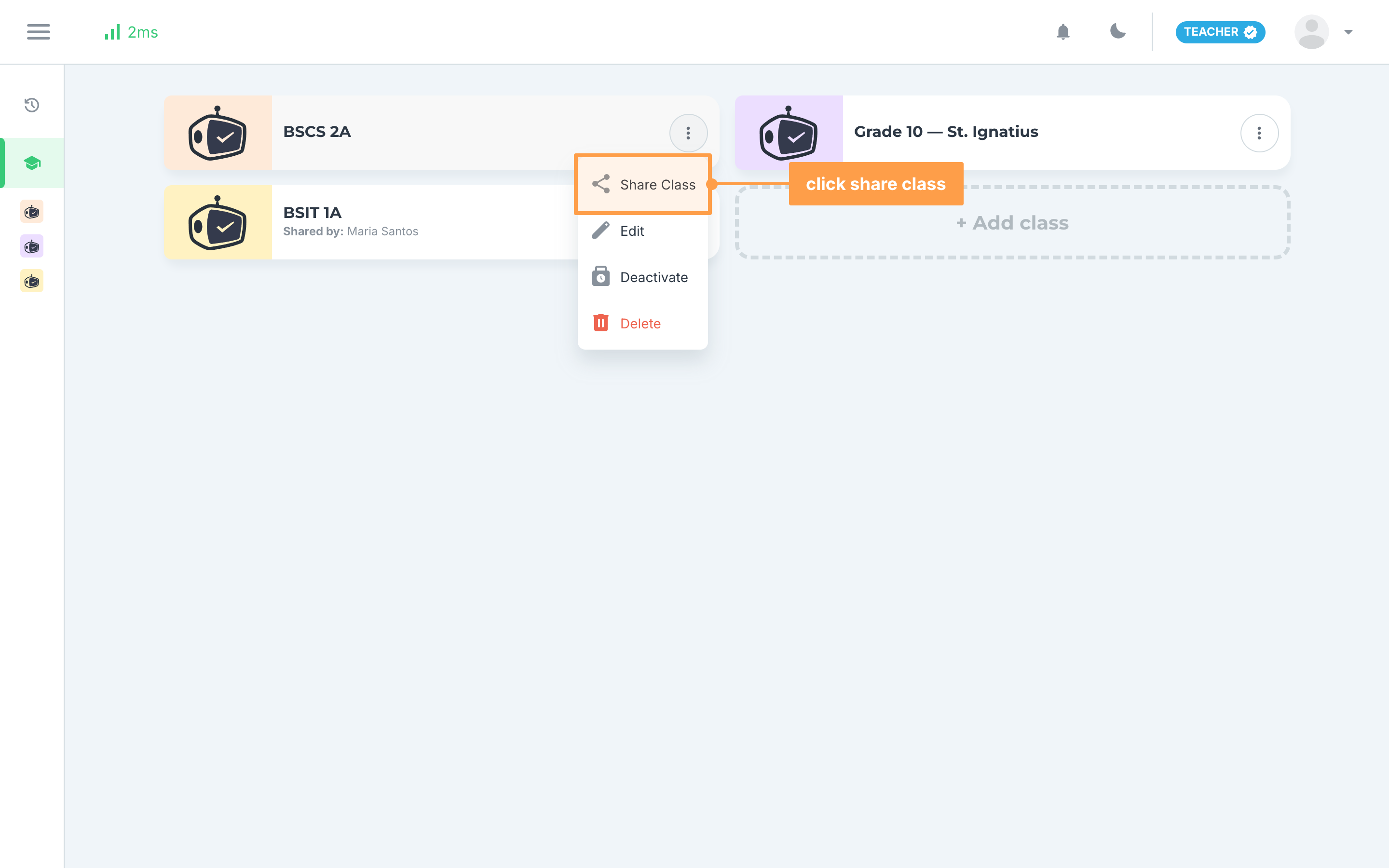
- On My classes, click the ⋮ button on the class card, then click Share Class. You can also open the class, click the ⋯ button at the top right, and click Share Class under Class actions.
- The Share this class modal opens. Click the Add name of teacher to share class field and type the teacher's name or email, then click the teacher under Available teachers.
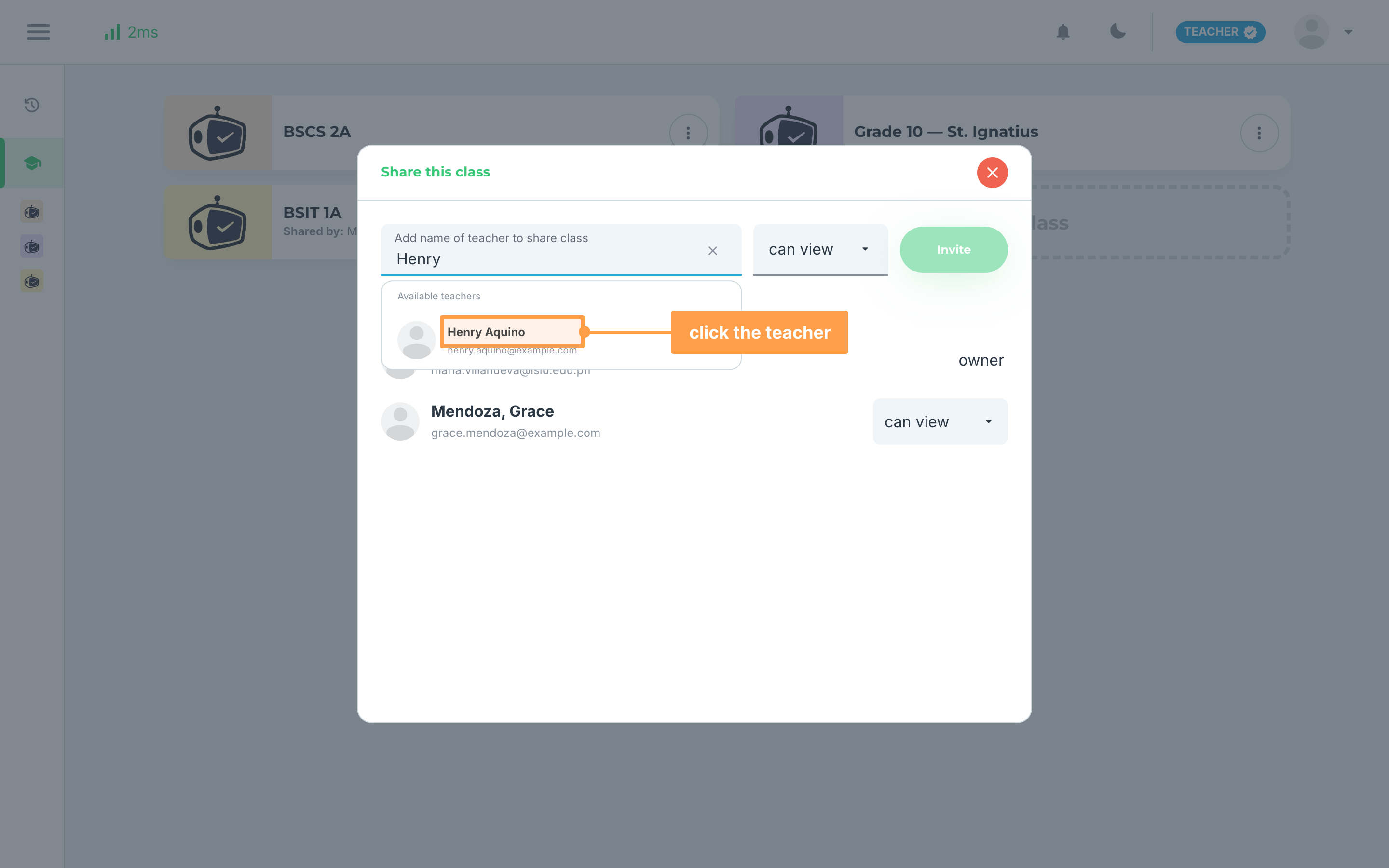
Note: No teachers found means no teacher you can share this class with matches your search. Check the spelling or search by email instead. The other teacher needs their own GradeChum teacher account before you can share a class with them.
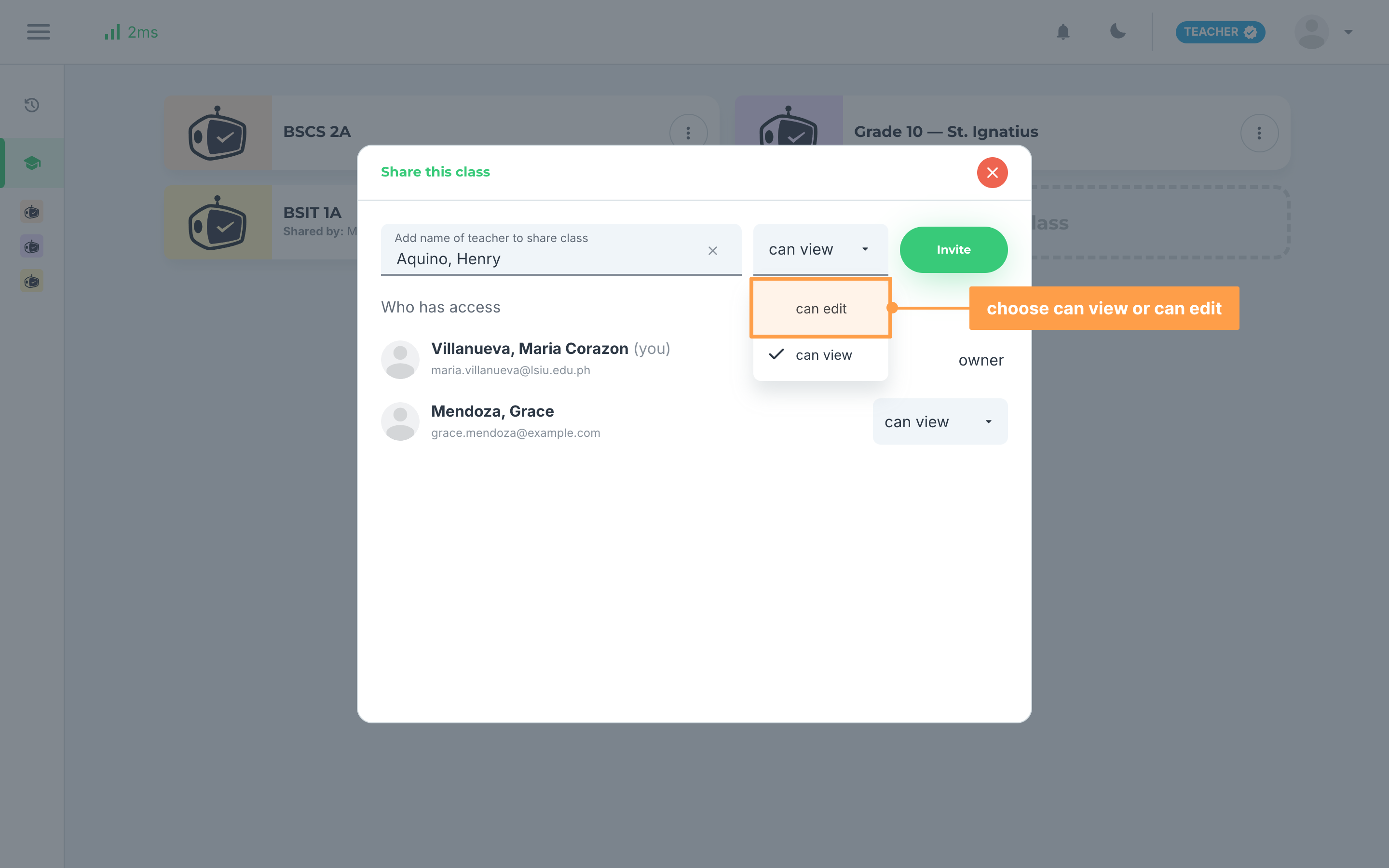
- Click the dropdown next to the field and choose the access to give. It starts at can view every time:
- can view: they see the class, its students and its activities, but cannot create activities, import or upload a class record, remove students, or edit, delete or reschedule activities.
- can edit: they can also do all of these, but still cannot share, edit, activate, deactivate or delete the class itself.
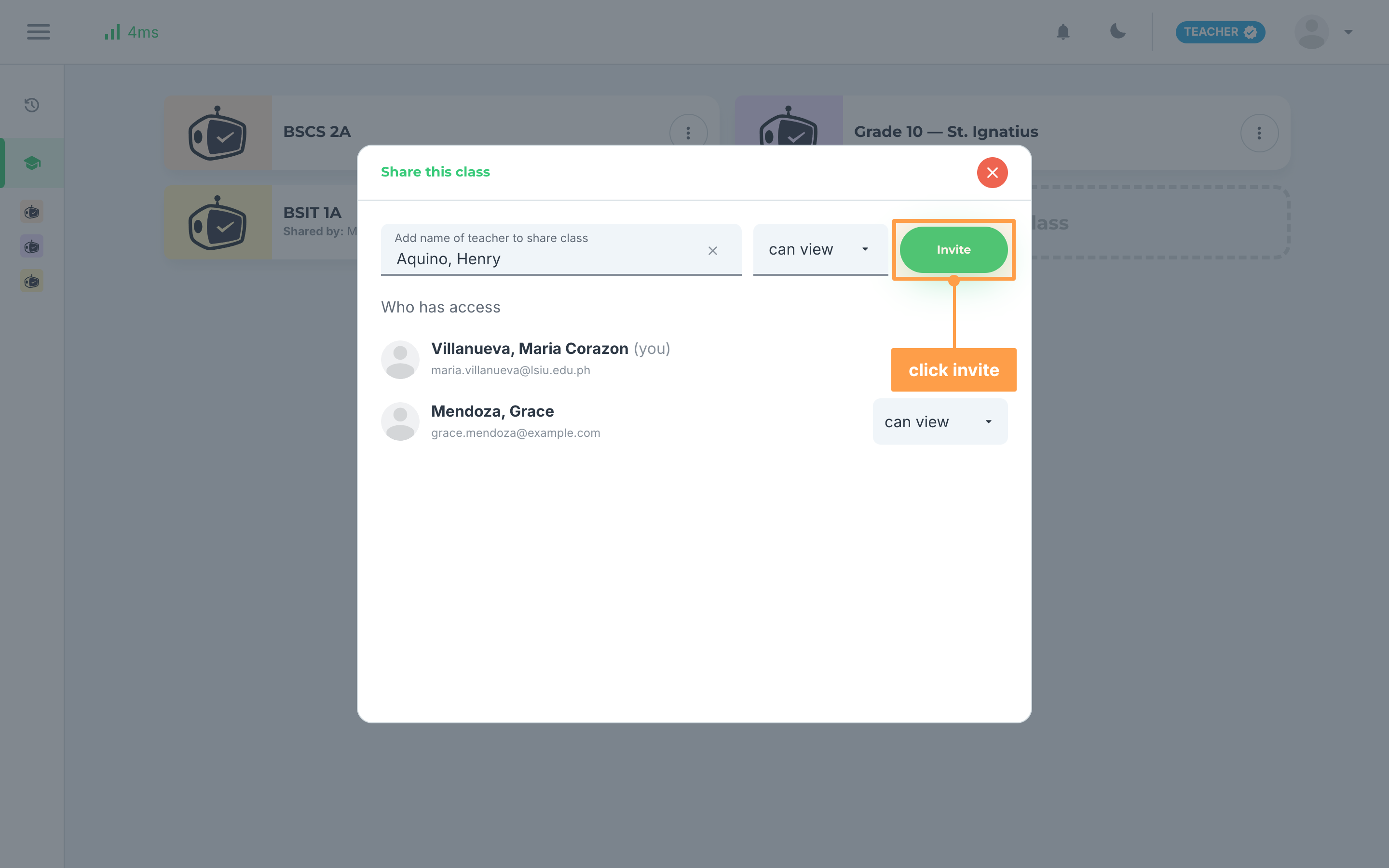
- Finally, click Invite. The button stays disabled until you pick a teacher from the list, and typing in the field again clears your pick. The teacher now appears under Who has access.
Change or remove a teacher's access
You can change what a teacher can do, or take their access away, at any time:
- Open Share this class again with Share Class. Who has access lists you first, marked (you) and owner, then every teacher you shared the class with and what they can do. If only you are listed, the class is not shared with anyone yet.
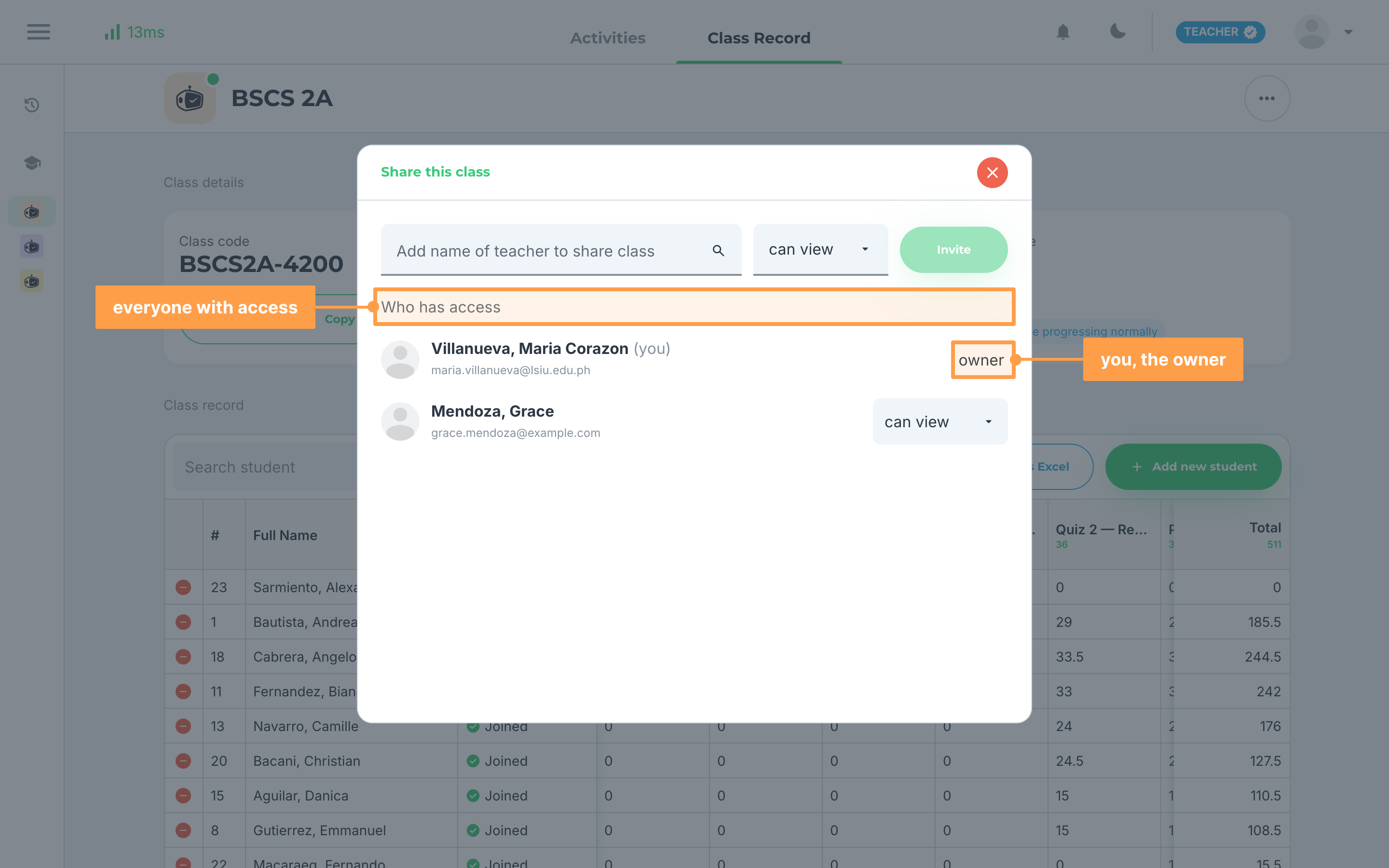
- Click the dropdown beside a teacher's name and choose can edit or can view. The teacher's row is grayed out while the change saves.
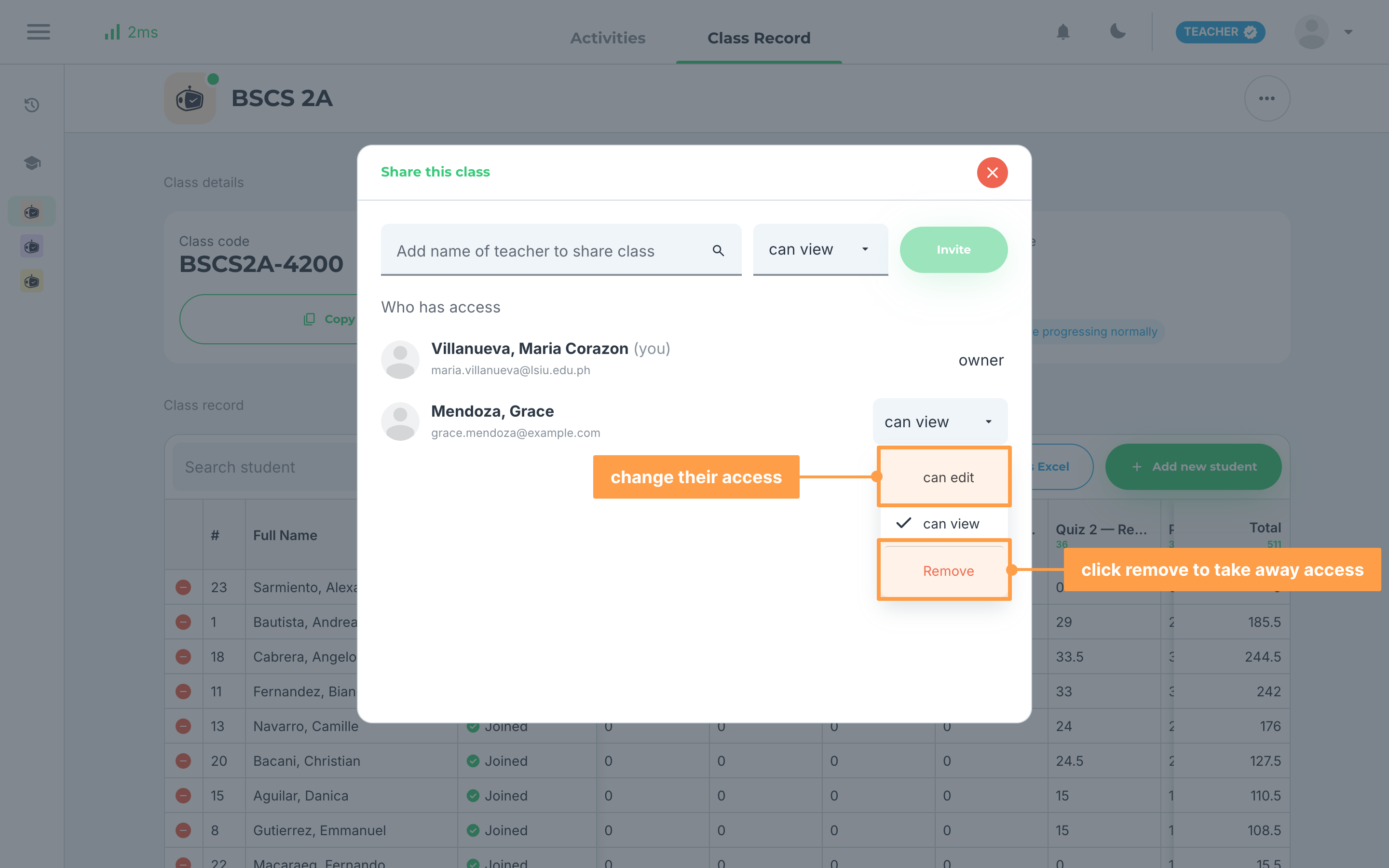
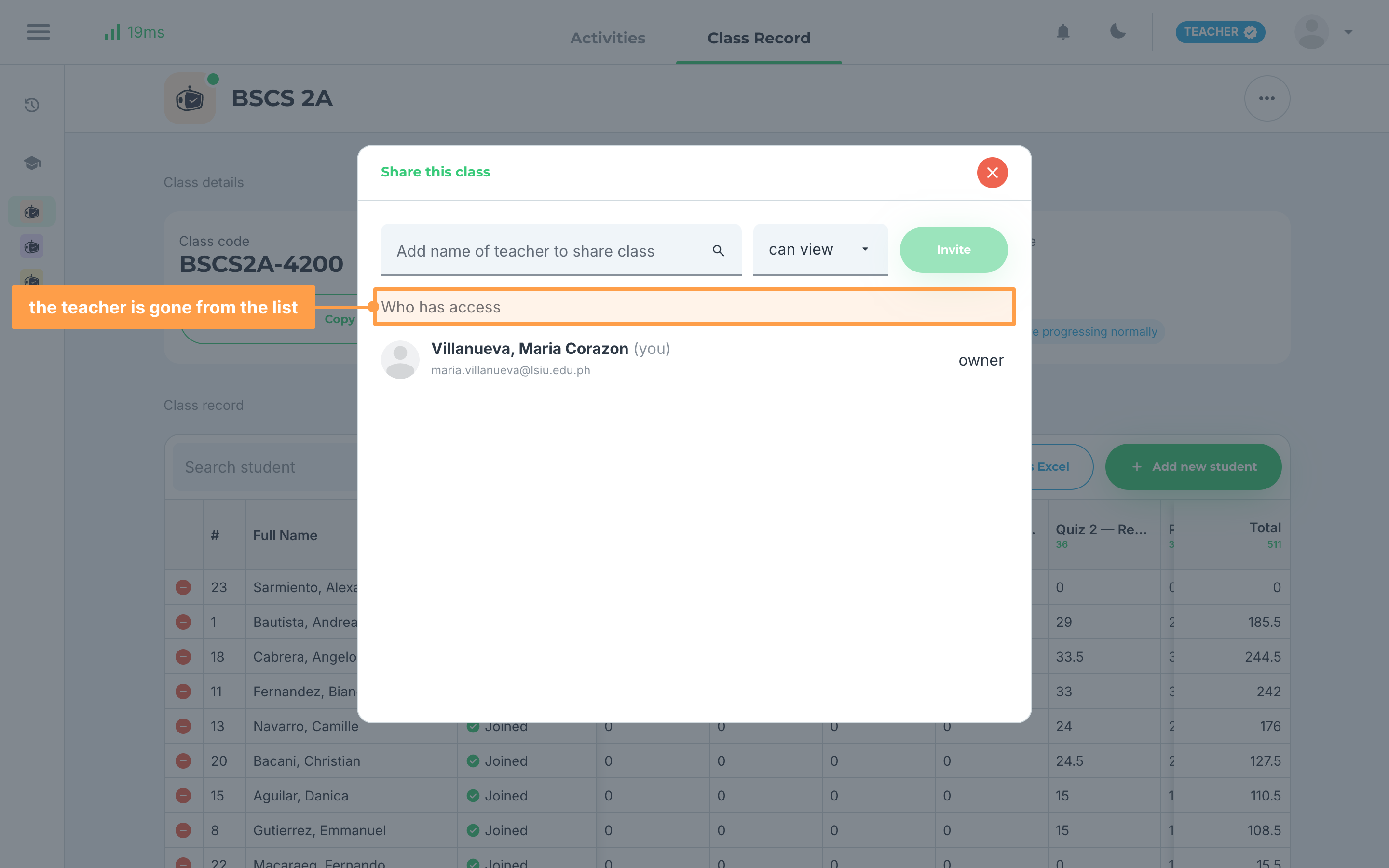
- To take away a teacher's access, click Remove in the same dropdown. The teacher leaves the Who has access list.
What the other teacher sees
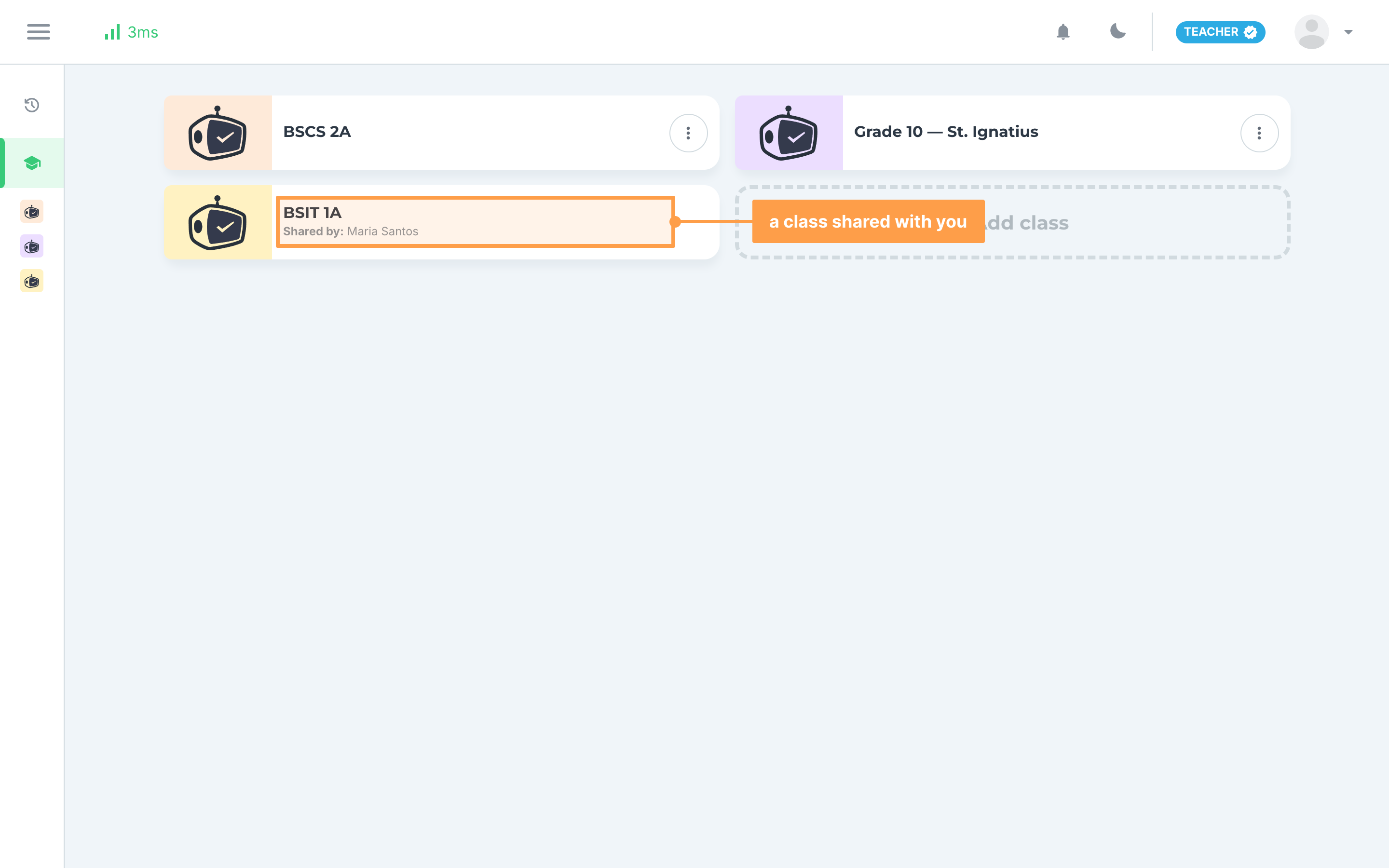
The class appears in the other teacher's My classes, or in their past classes once it is no longer active, marked Shared by: with your name. The card has no ⋮ button, and inside the class the ⋯ button offers Export but not Share Class, Edit, Deactivate or Delete.
A teacher who can view the class sees No activities in this class yet when there are none, The results are not available yet. on an activity with no results, and The owner of this class has not generated an activity reviewer yet. where you would set up the reviewer.
And that's how you share a class with another teacher in GradeChum! Next, let's view your class record.