
🌱
Create new
Introduction
Creating a test for your students can take many forms, depending on the skills and knowledge you want to measure. Just as there are different ways to design a test, GradeChum gives you three ways to build the tests inside an activity:
- Upload questionnaire – quickly bring in existing materials by uploading your own questionnaire. This usually takes 1 to 5 minutes.
- Auto-generate test/s with AI – let our AI instantly create a test for you, saving time while ensuring quality and variety. This usually takes 1 to 3 minutes.
- Add new test – manually build a test from scratch, tailoring every question to your lesson objectives. This one takes longer.
In this section, we'll explore how to create new activity in GradeChum.
Steps
To create a new activity, follow these instructions:
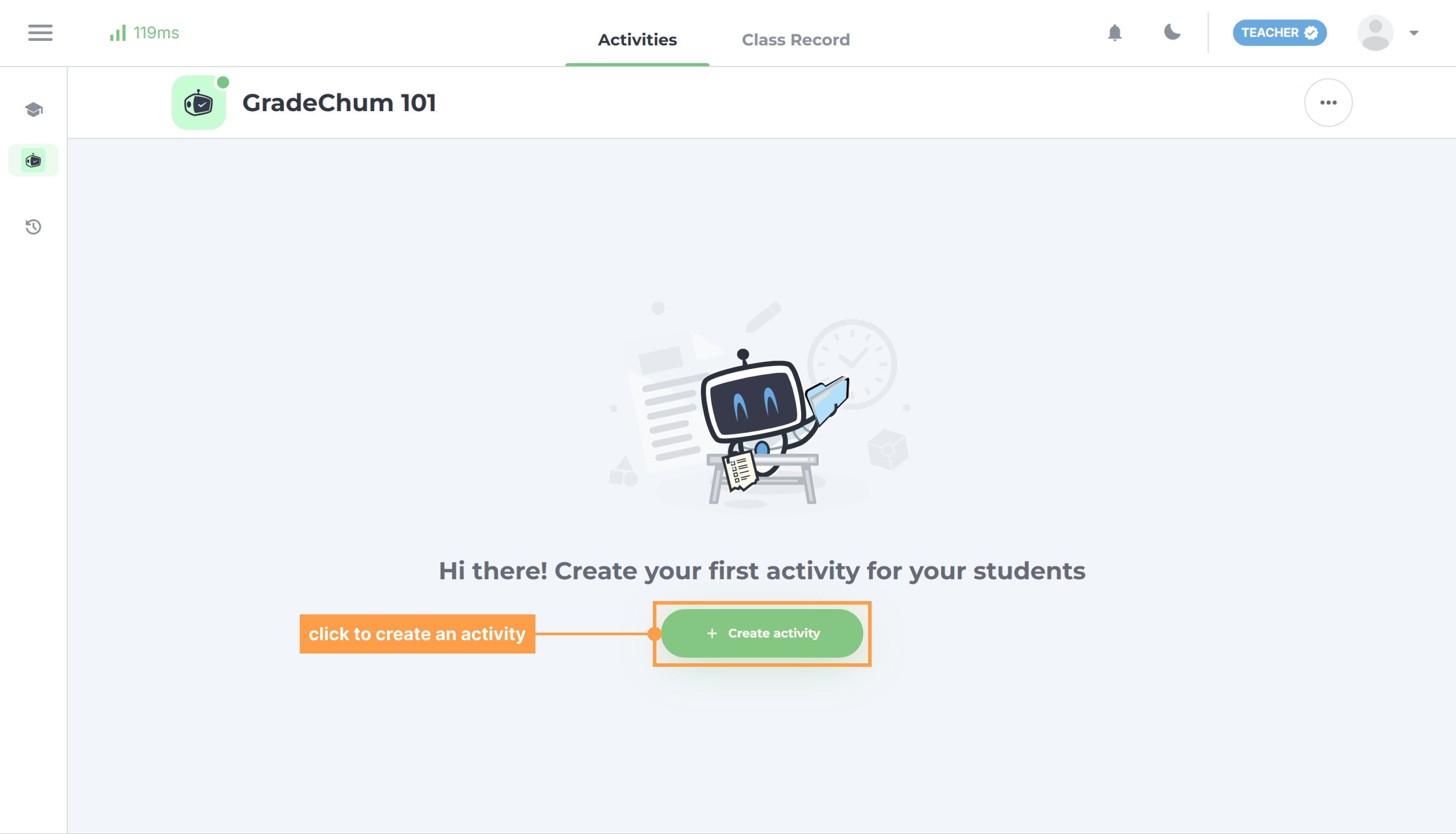
- On your class, under the Activities tab, click + Create activity > Create new. This will open a sidebar modal.
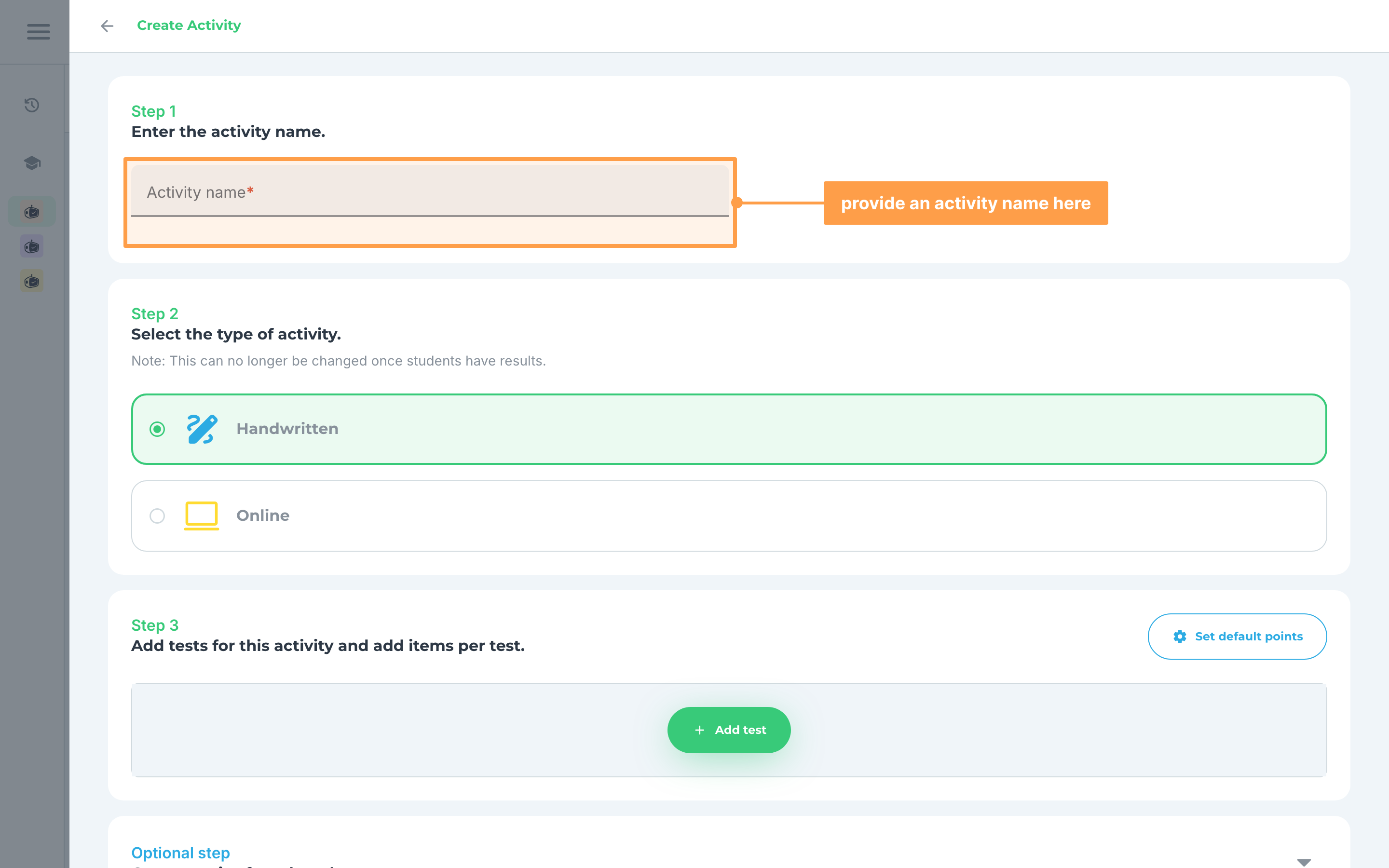
- Give your activity a name.
-
Select the type of activity. Choose Handwritten if your students will answer on paper that you scan, or Online if they will answer in GradeChum. This can no longer be changed once students have results.
-
Under Add tests for this activity and add items per test., click + Add test and choose how you want to build this test:
Last updated March 16, 2026