
Autogenerate test with AI
Introduction
One of the most powerful ways to create an activity in GradeChum is by using the Autogenerate Test with AI feature. With just a few clicks, teachers can instantly generate a complete test tailored to their subject area, saving valuable preparation time.
In this article, let's explore how to create an activity by using generating it with AI.
Steps
To create an activity by autogenerating it with AI, follow the steps below:
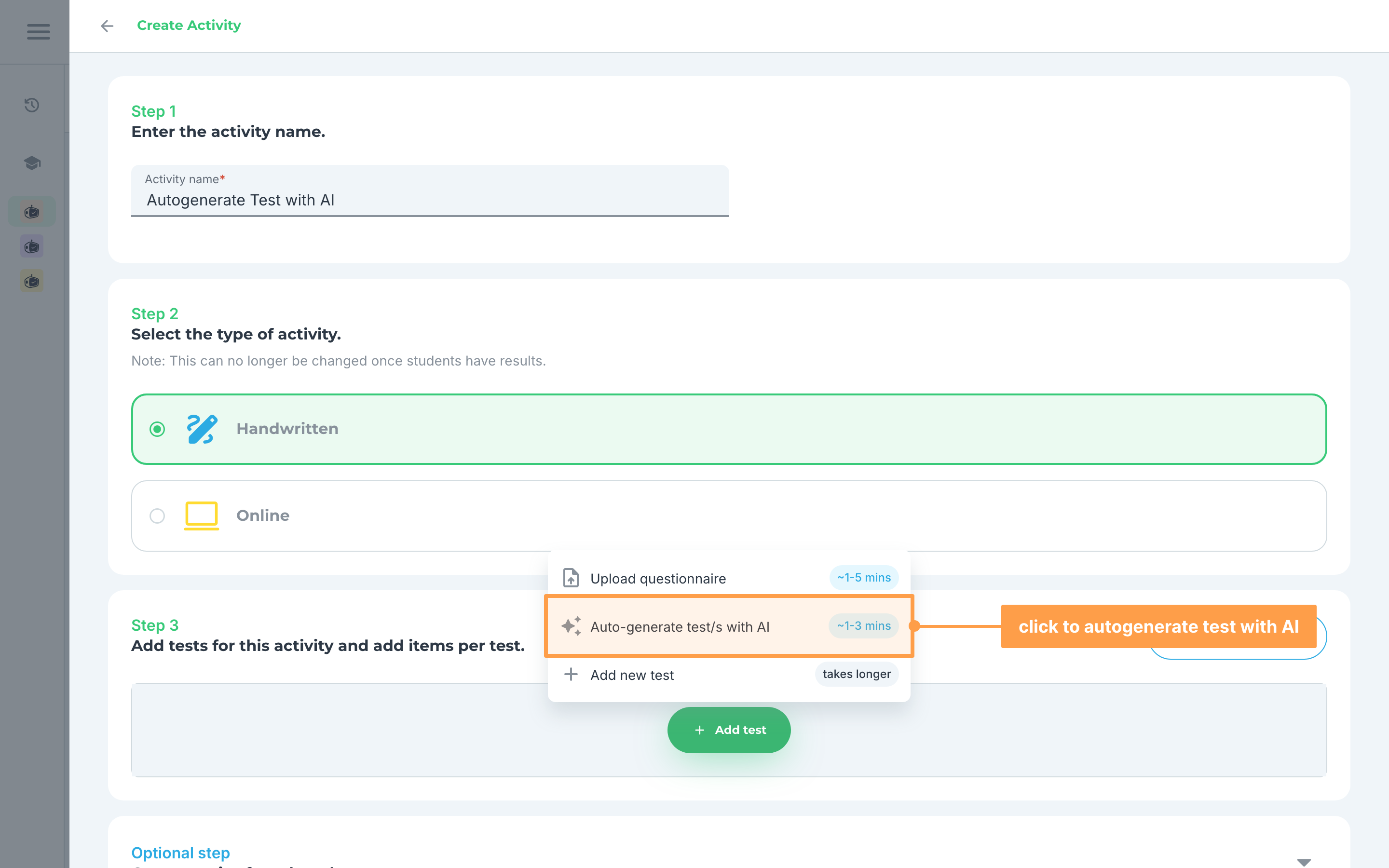
- Add a test by clicking the green + Add test button, then select "Auto-generate test/s with AI".
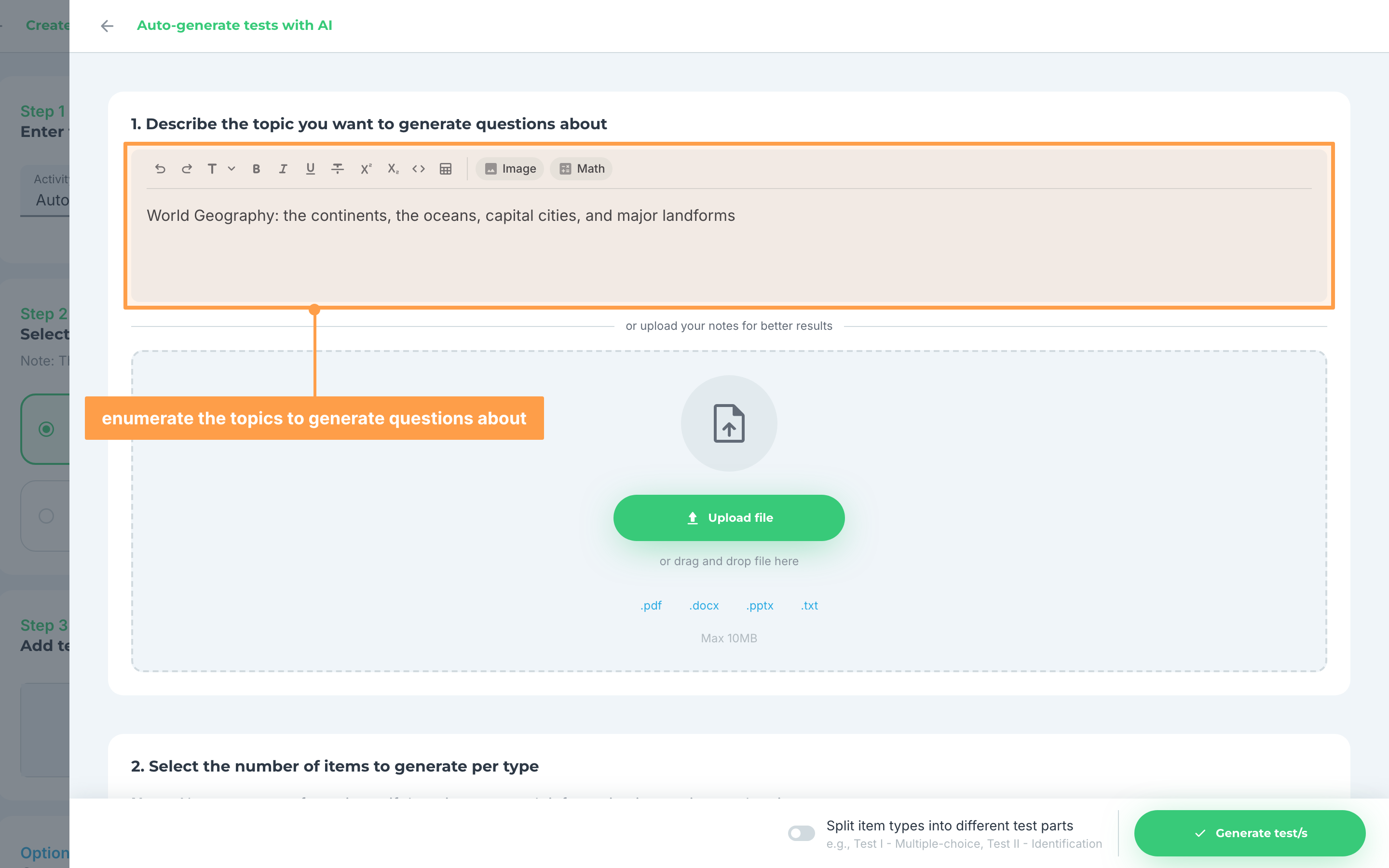
- Enumerate the topics you want to generate questions about for your activity. If you already have lecture notes, you can upload them instead under "or upload your notes for better results" - a .pdf, .docx, .pptx or .txt file up to 10MB.
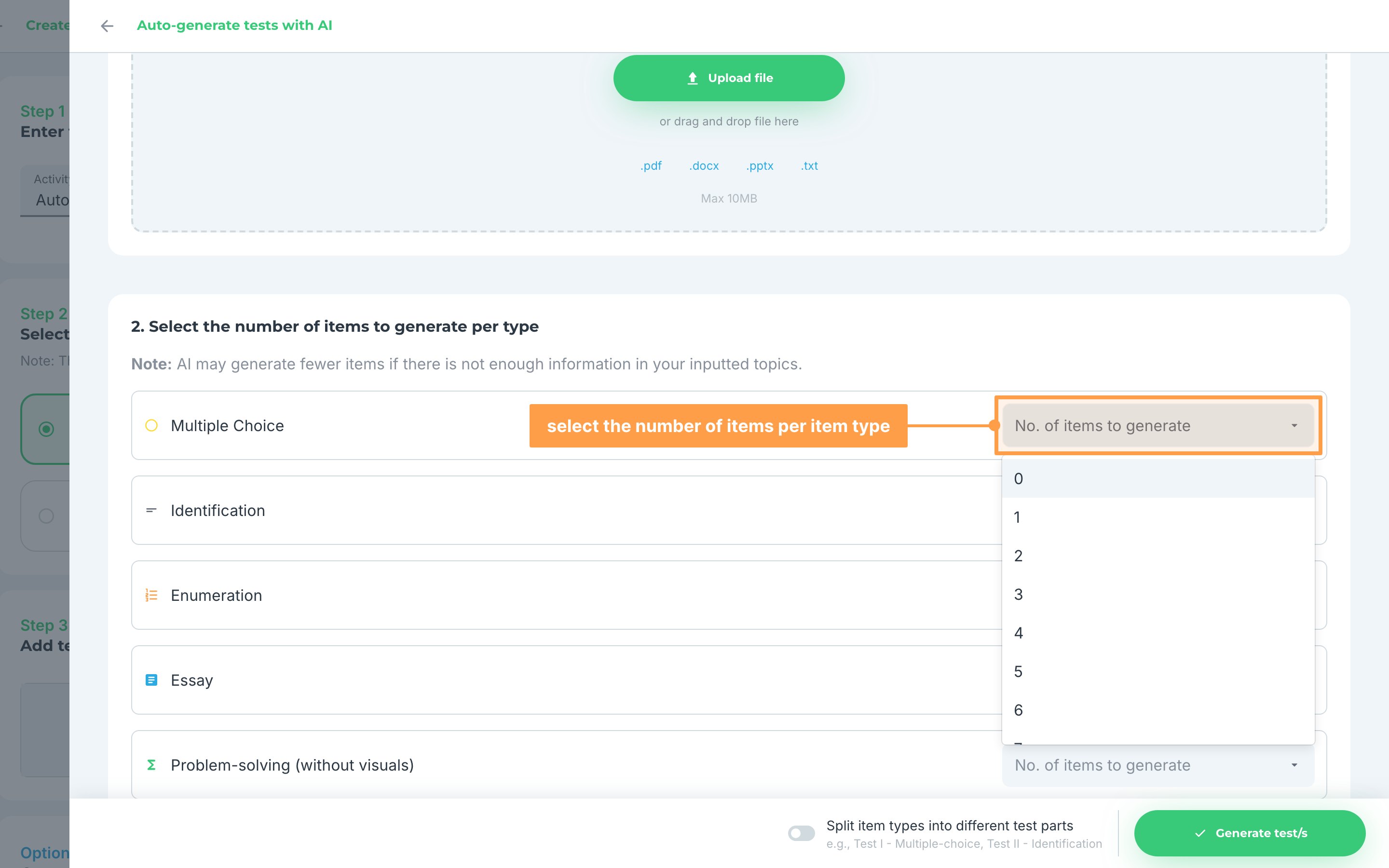
- Then, select the number of items per item type that are supported that you want to have for your activity.
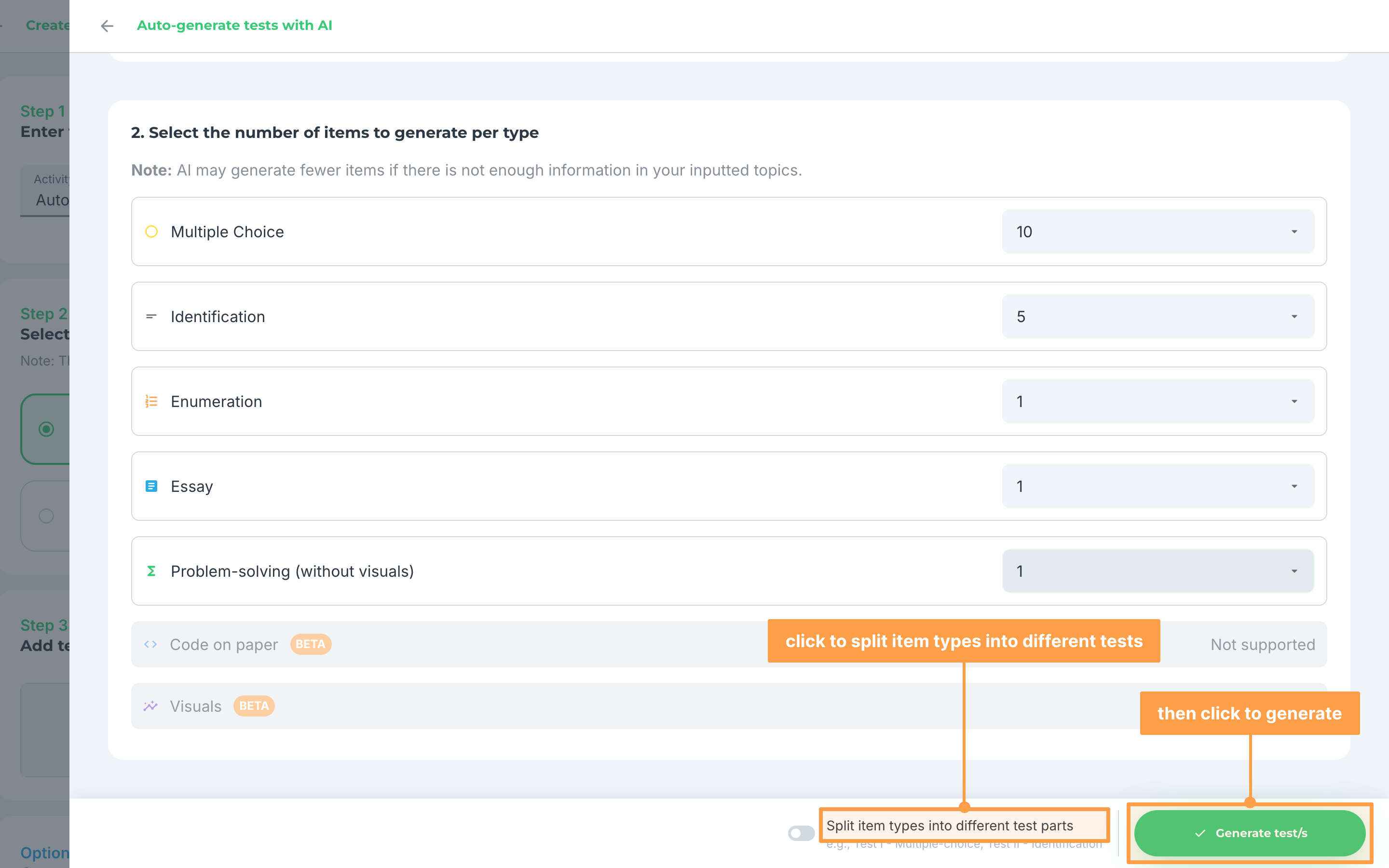
- If you wish to separate each item types per test, turn on the "Split item types into different test parts" switch in the bottom bar, then click Generate test/s.
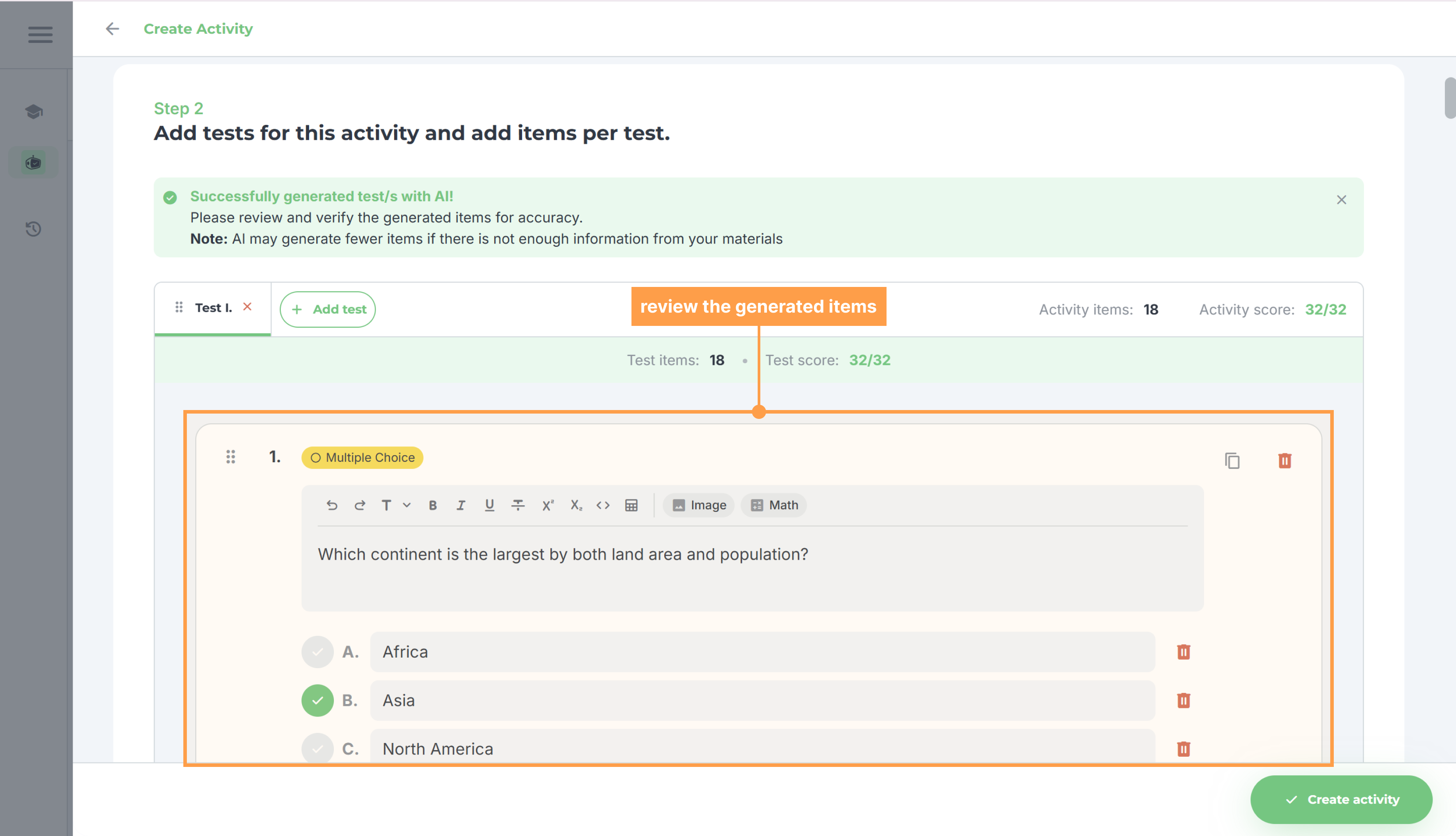
- Review the generated items of your activity and edit any items you want to change.
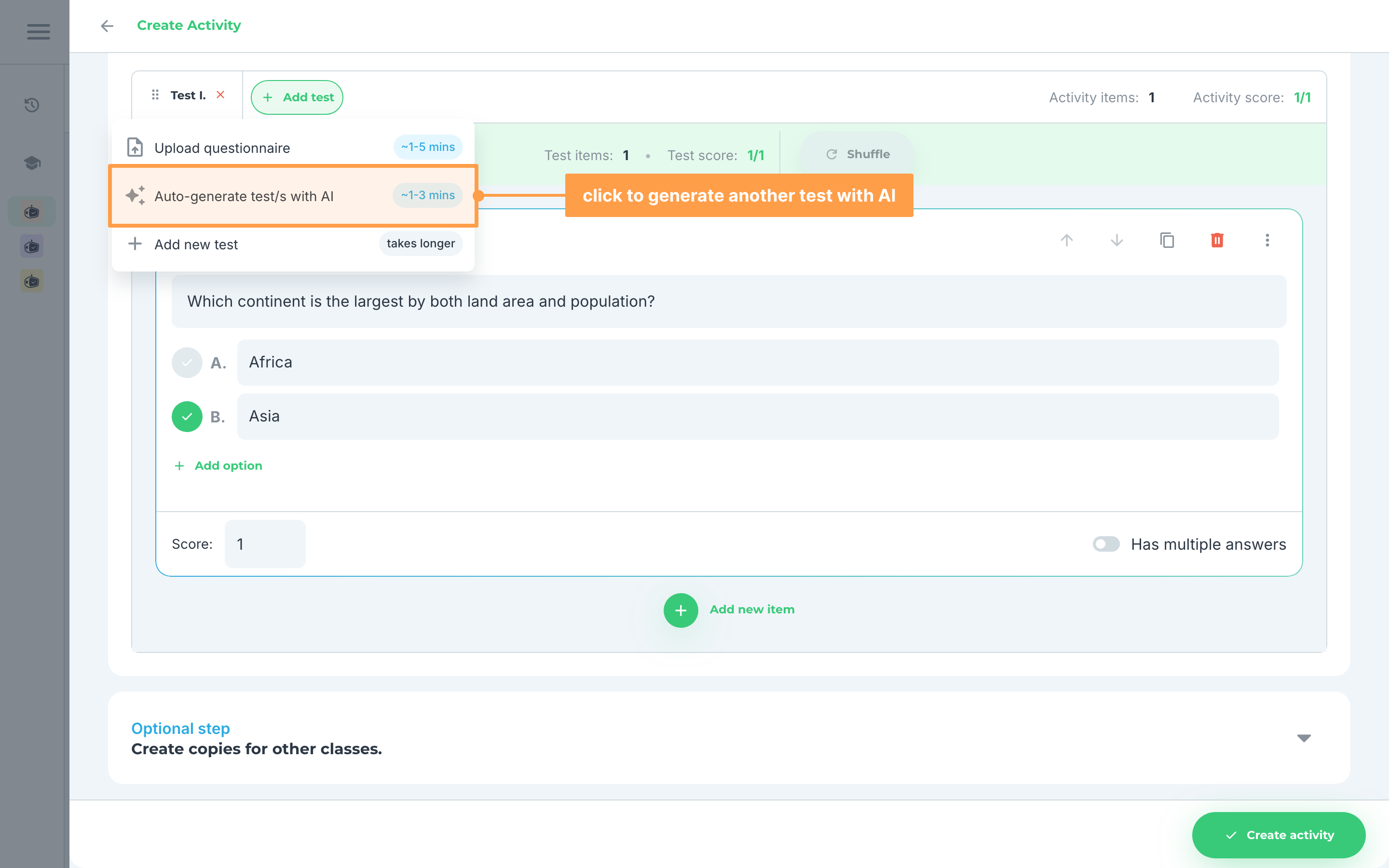
- If you want to autogenerate on top of the items you already have, just click on + Add test > Auto-generate test/s with AI and repeat steps 2-5.
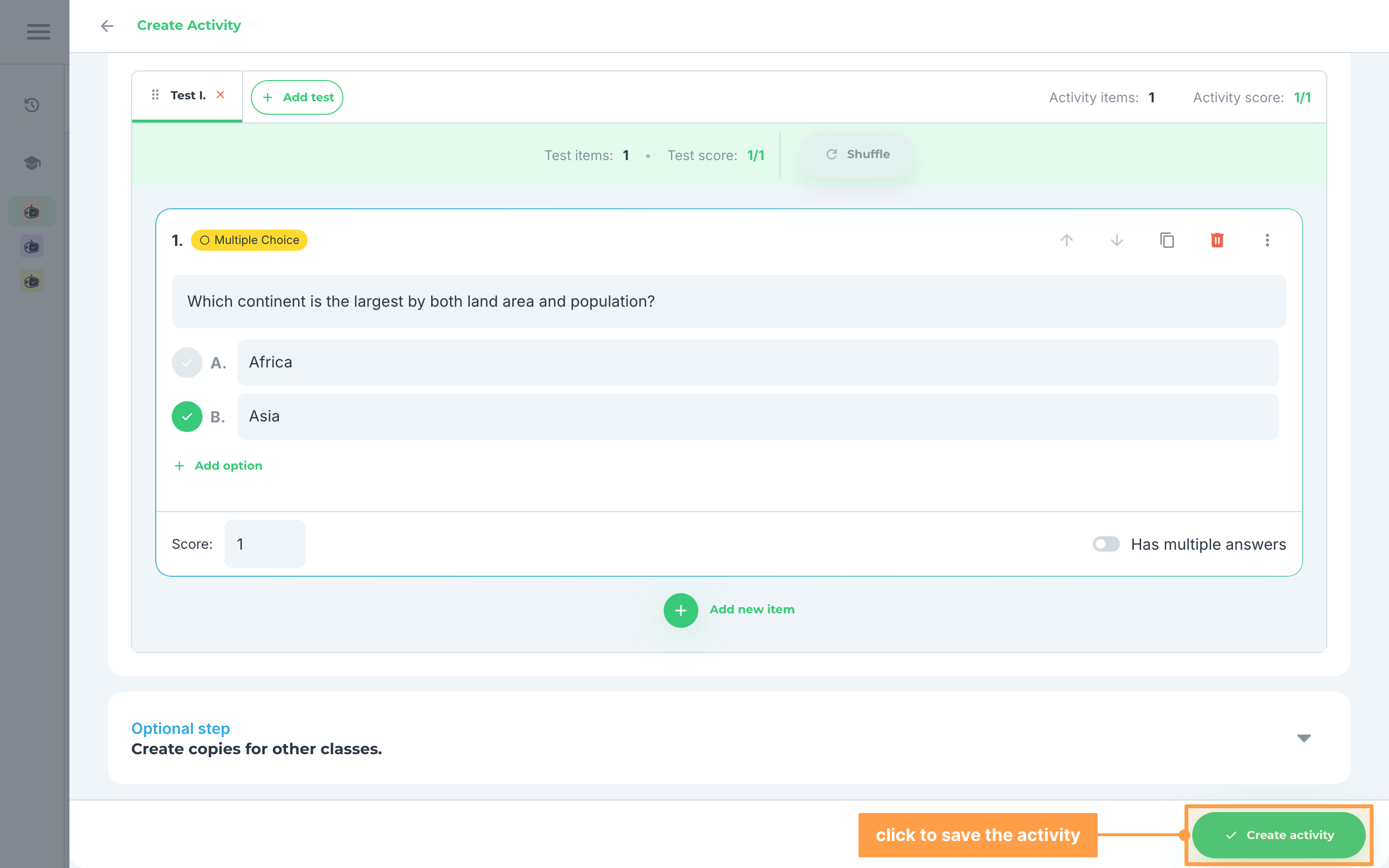
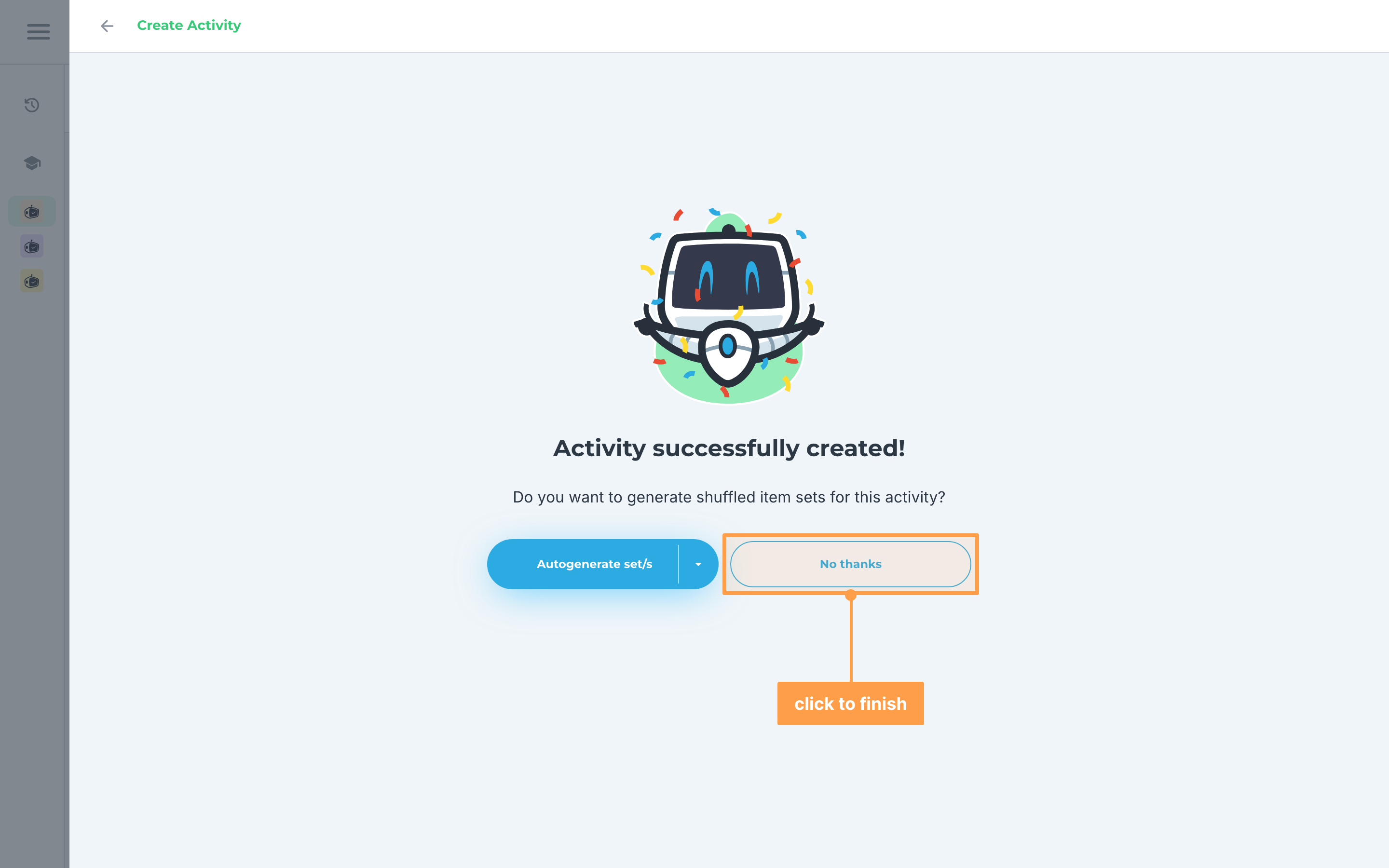
- Once done, review the activity you created. Then, click Create activity to save it. You will be shown an overlay that asks whether you want to generate shuffled item sets for this activity.
Note: You may also opt to create a copy of your activity to other classes. Keep in mind that what changes you make in one section for a linked activity will be done as well to the activities in other classes.
- If you wish to create sets, click Autogenerate set/s and follow this documentation. Else, click No thanks.
- Finally, you will be redirected to view the activity you just created.
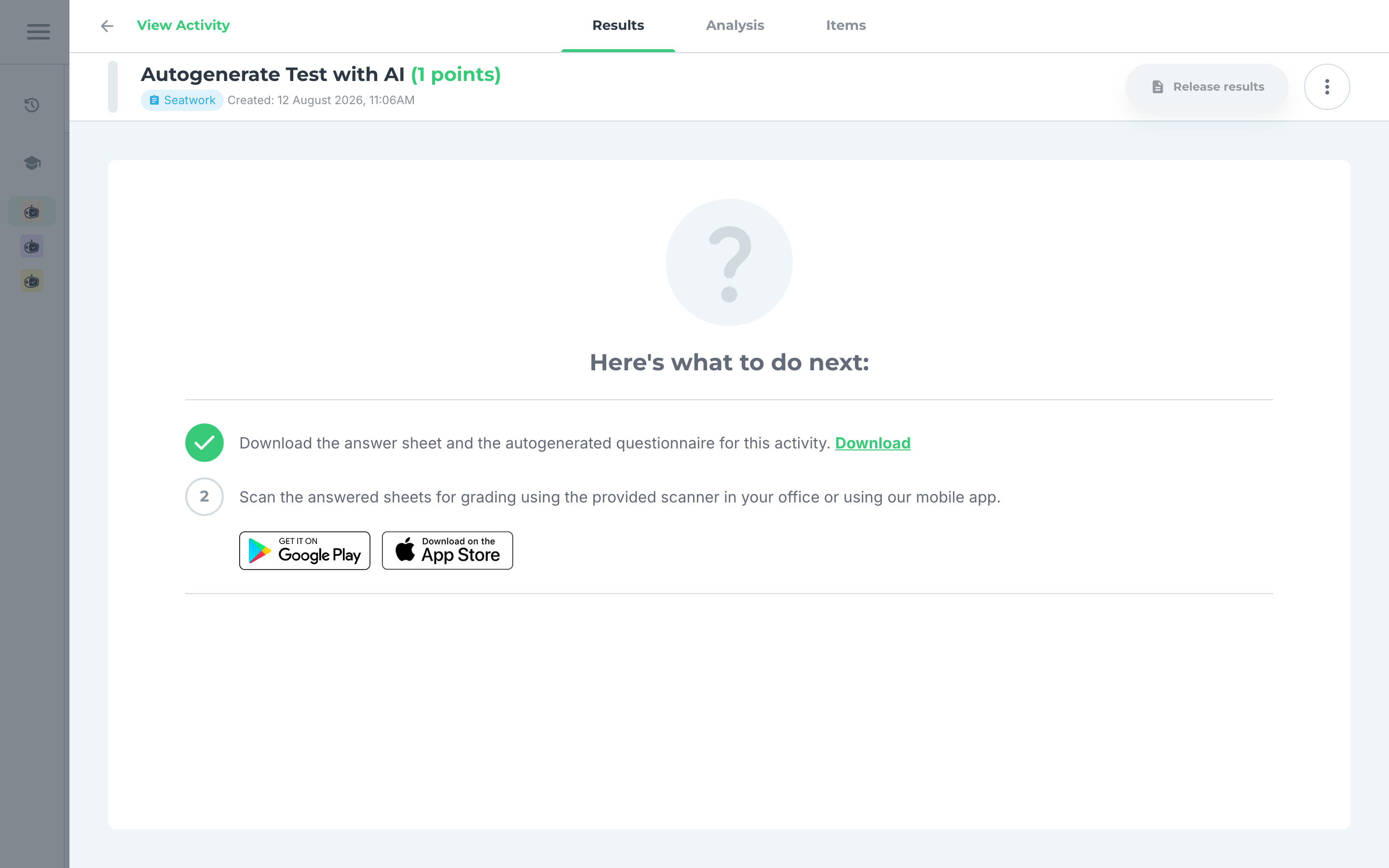
And that's how you create an activity by autogenerating test with AI! Next, let's explore other options to create new activities in GradeChum.