
Online activities
Introduction
Not every activity has to be answered on paper. In an Online activity, your students answer inside GradeChum on their own device. You set when the activity opens, when it closes, and how long each student gets once they begin. There is no answer sheet to print and nothing to scan.
Online is one of the three activity types you choose while creating an activity, on the step named "Select the type of activity."
Note: If your Create Activity form has no step named "Select the type of activity.", your account does not have this step, and every activity you create is Handwritten.
Steps
To create an online activity, follow these instructions:
-
Start creating an activity the usual way, under the Activities tab of your class: + Create Activity > Create New. Give your activity a name.
-
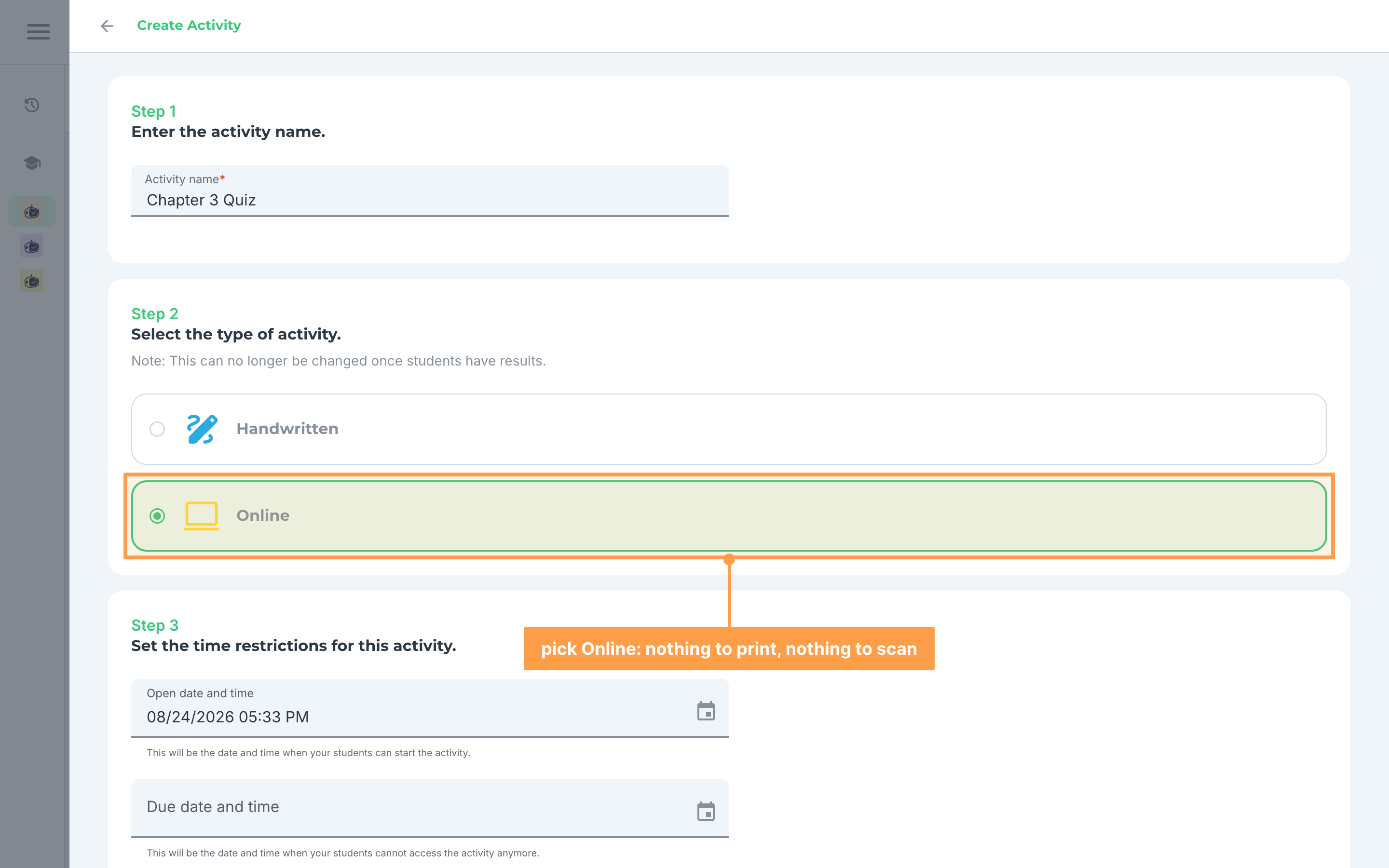
On the step "Select the type of activity.", choose Online.
- On the step "Set the time restrictions for this activity.", fill in the schedule. All three fields sit on this one step:
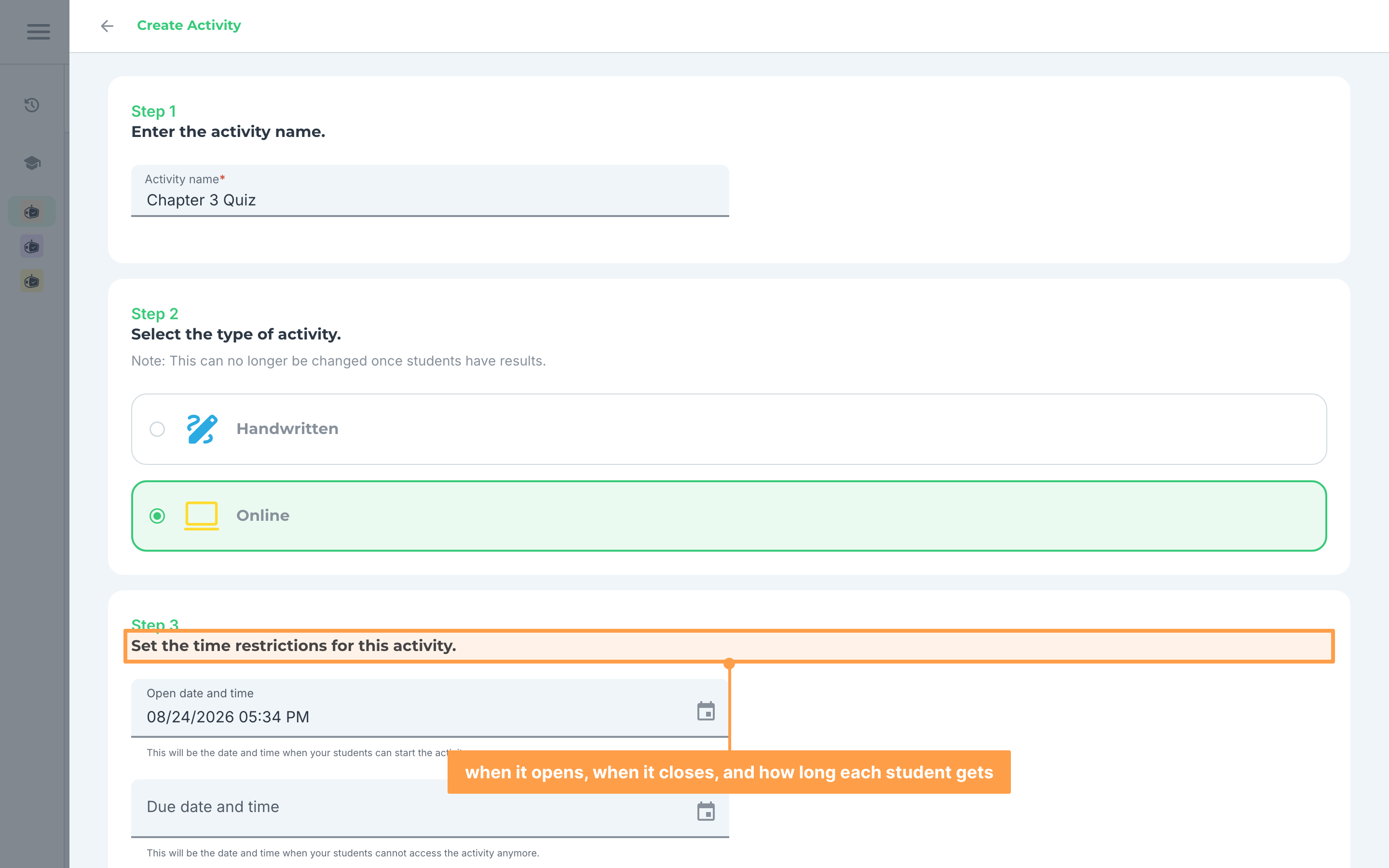
- Open date and time is when your students can start the activity. It is required.
- Due date and time is when your students cannot access the activity anymore. It is required, it must come after the open date and time, and it cannot be in the past.
- Time limit is how long each student gets once they begin. Leave it on While the activity is still open if you do not want a per-student limit, or choose Limit to and type the length yourself in the Days, Hours and Minutes boxes. If the length you type is longer than the activity is open for, GradeChum puts the setting back to While the activity is still open and tells you why: "That's longer than the activity is open, so students have no separate time limit."
- On the step "Add tests for this activity and add items per test.", build your items as you would for any activity.
Note: Two item types cannot be answered online: Code on Paper and Visuals. If your activity already contains them when you switch it to Online, GradeChum removes them and warns you first, for example "Switching to Online will remove 3 items: online activities do not support Code on Paper and Visuals items."
- On the step "Select additional settings for this activity.", decide on four options. All are off unless you tick them, and all exist only for online activities.
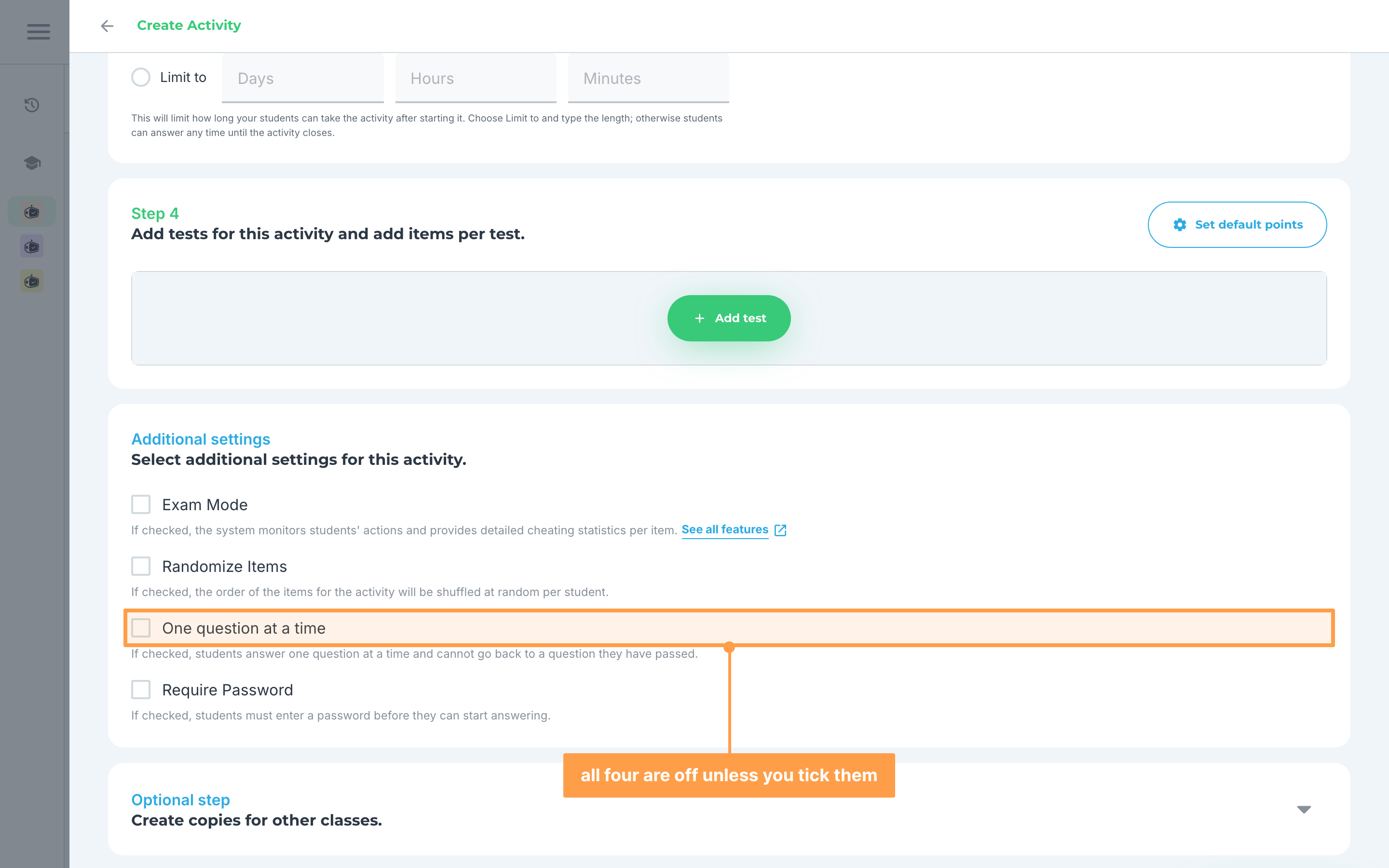
- Exam Mode: "If checked, the system monitors students' actions and provides detailed cheating statistics per item." Click View all features to see the full list of what is prevented and what is tracked.
- Randomize Items: "If checked, the order of the items for the activity will be shuffled at random per student."
- One question at a time: "If checked, students answer one question at a time and cannot go back to a question they have passed." Reading ahead and working backwards stop being possible.
- Require Password: "If checked, students must enter a password before they can start answering." The activity comes with the password, and you hand it out when the room is ready, so the activity only starts when you say it starts.
- Finish creating the activity. An online activity has no answer sheet, so GradeChum does not show you an answer sheet preview and does not offer to create sets afterwards.
Giving an online activity to your students
You do not print or scan anything. The activity appears on your students' Activities page as soon as you create it, and it becomes answerable on its own.
You can also hand out a direct link, or check the activity yourself first. Open the activity's actions menu on its card:
- Copy link copies the link that takes a student straight to the answering screen.
- Try answering opens the activity the way a student will see it, so you can walk through it before your class does.
- Reschedule/Set retakers lets you change the schedule or let a student take it again.
What your students see
On their Activities page, an online activity looks different depending on where it is in its schedule:
a. Before the open date and time
The card shows the open and due dates, the time limit if you set one, and a countdown reading "Activity starts in …". The badge reads Not started, and the Start button is there but disabled.
b. While the activity is open
The countdown changes to "Activity closes in …", the badge reads Ongoing, and the Start button becomes clickable. A student who has already begun sees Continue instead.
c. After the due date and time
The card reads "Activity closed". A student who never submitted gets no button at all.
d. After submitting
The badge reads Submitted and the score shows as a question mark over the total, for example ?/50. The Review button is disabled, with the tooltip "Your results have not been released yet." until you release the results.
While your students are answering
The answering screen shows all the items of the current test in one scrolling list, with a numbered item list beside it that a student can click to jump around. Answers save on their own as they are typed, and a "Saving…" indicator appears in the top bar while that is happening.
If you set a time limit, a countdown runs in the item list on desktop, and as "Time left: …" on mobile. When it reaches zero, GradeChum submits the student's answers for them and shows "Your time is up! Your answers have been automatically submitted."
When a student finishes on their own, they click Submit all and finish and confirm. The confirmation reads "If you proceed, your answers will be considered final and will be graded." After submitting, they see "Answers submitted" with their score hidden as ?/total.
Note: If a student loses their connection, their answers are kept on their device and sync when they reconnect. They see the message "You're offline. Your answers will sync when you reconnect.", and the Submit button stays disabled until they are back online.
Following the activity as it runs
On your Activities page, an online activity's badge follows the schedule rather than the paper-grading queue. It reads Not started before the open date, In progress while the activity is open, Completed once the due date passes, and Results released after you release the results.
The card also shows the open date, the due date and the time limit, instead of the class code that a handwritten activity shows.
Your students' scores stay hidden from them until you release the results, exactly as they do for a handwritten activity.
5View activity results