
Release Activity Reviewer
Introduction
Students study better for an activity when they know which concepts it covers and can test themselves before it counts. For activities that have one, the activity reviewer is a ready-made study tool built for you ahead of time: notes on the key concepts, and a multiple-choice practice test your students can retake as many times as they want. Practice scores never count toward their grade.
The reviewer stays hidden from your students until you release it. In this section, let's learn how to check the activity reviewer, release it, and see how your students use it.
Steps
Note: Your activity must already have a reviewer, and your class must have at least 3 students. If the activity has no reviewer, you see no way to open one.
To release the activity reviewer to your students, follow the steps below:
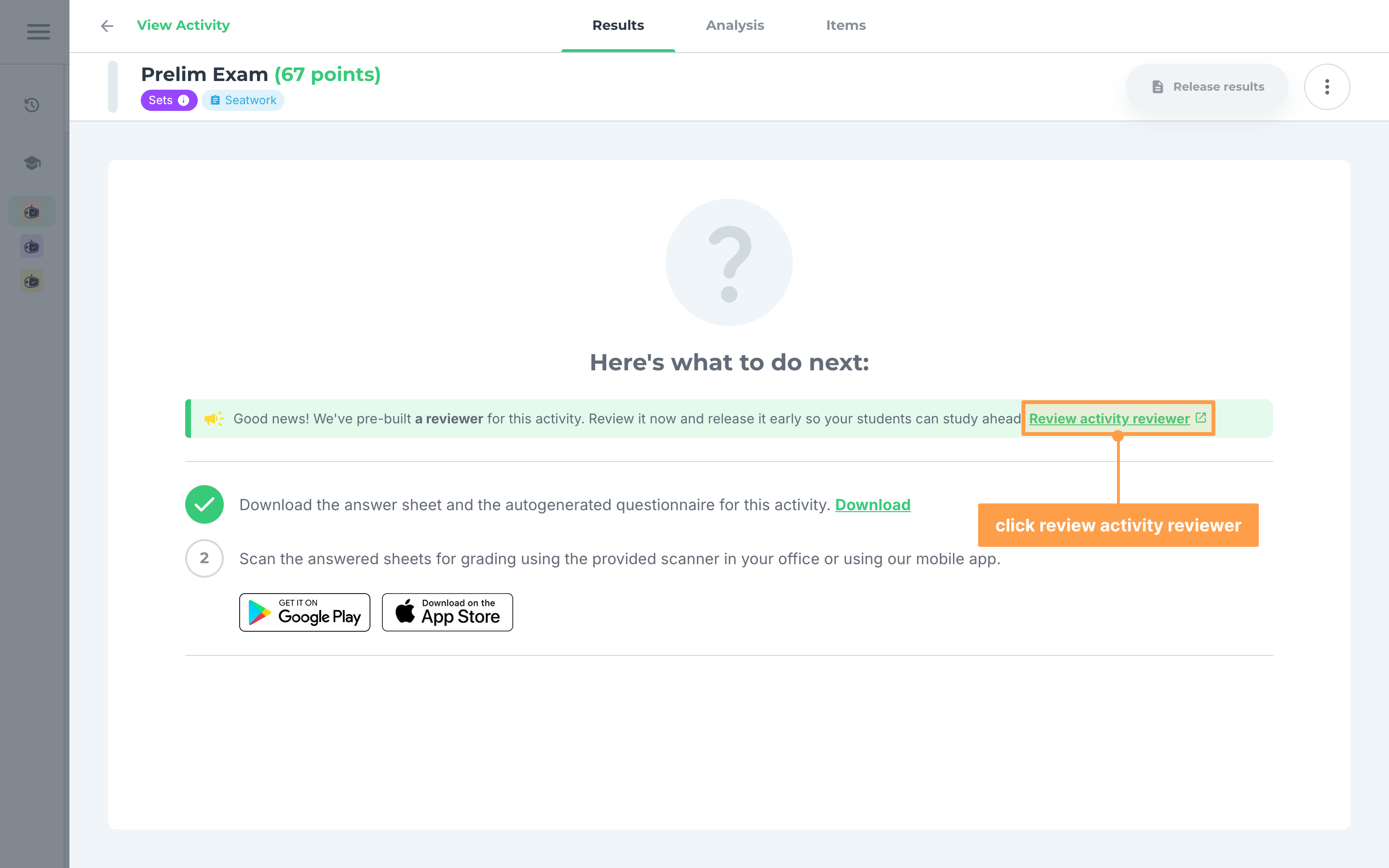
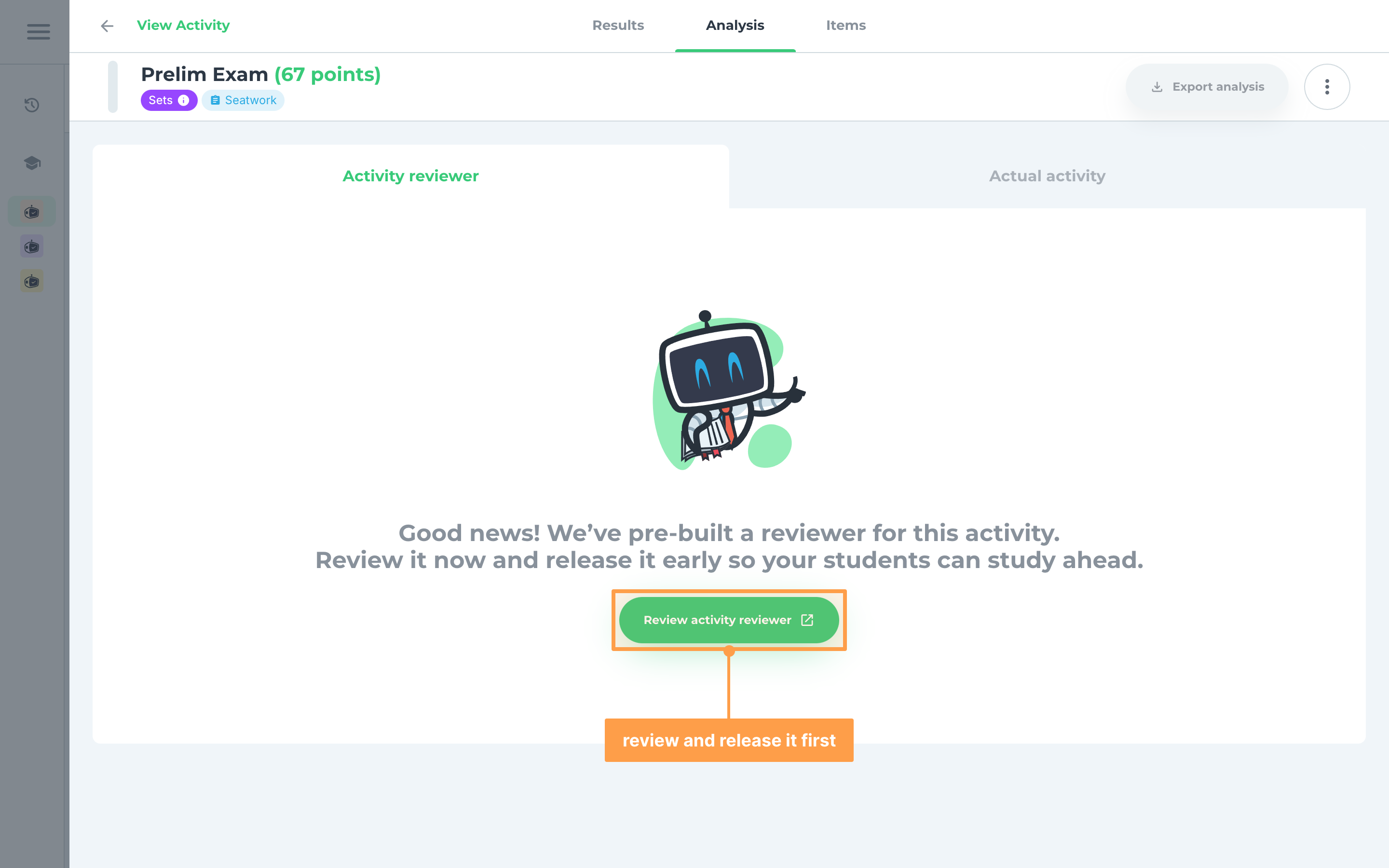
- Click the activity you want to release the reviewer of to open View Activity. While the activity has no results yet, its Results tab says "Good news! We've pre-built a reviewer for this activity." Click Review activity reviewer.
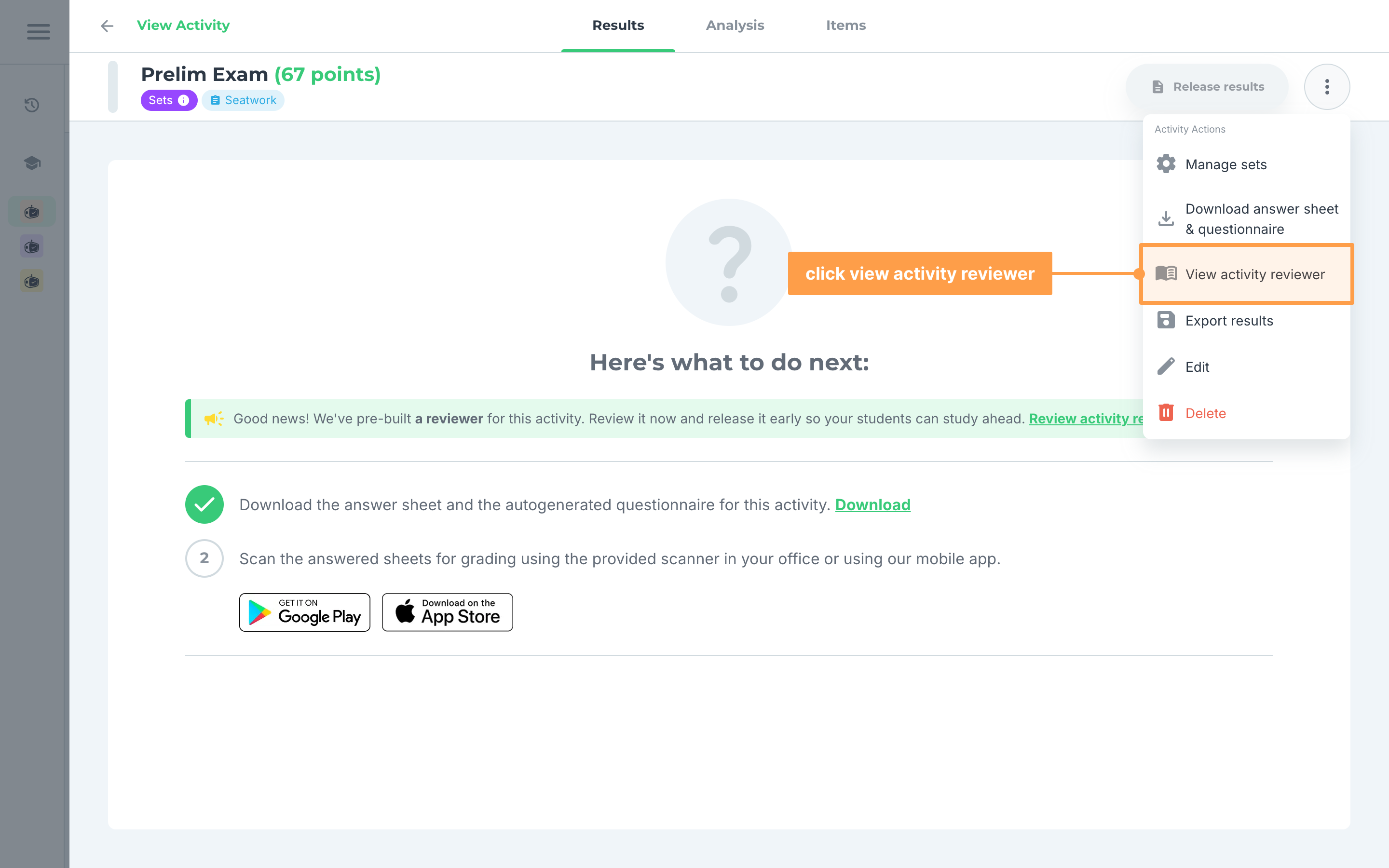
- You can also click the three-dot button at the top right of View Activity, then click View activity reviewer.
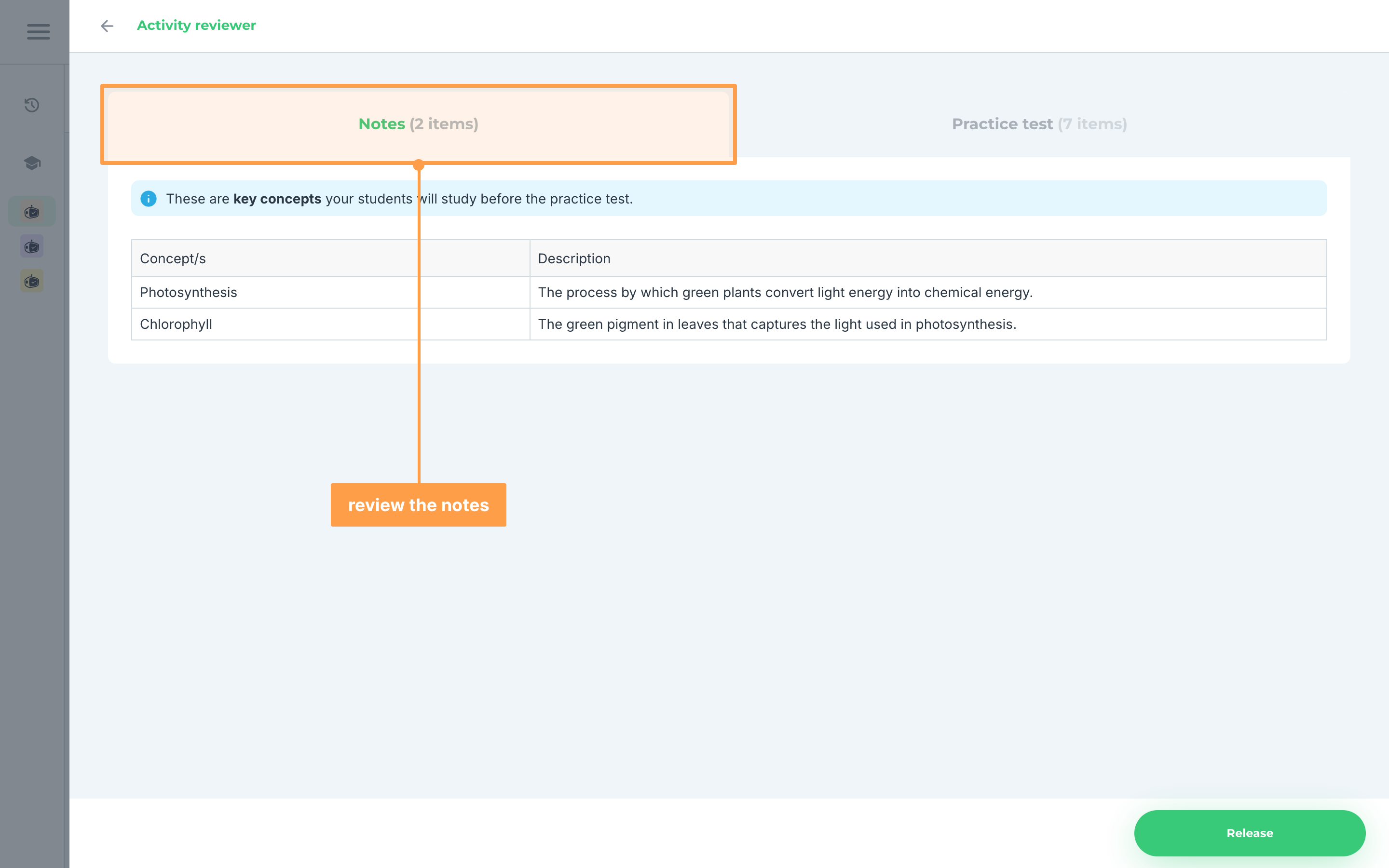
- The Activity reviewer modal opens on the Notes tab. Read the table of key concepts your students will study before the practice test: each Concept/s with its Description. The tab shows how many notes there are, such as Notes (2 items).
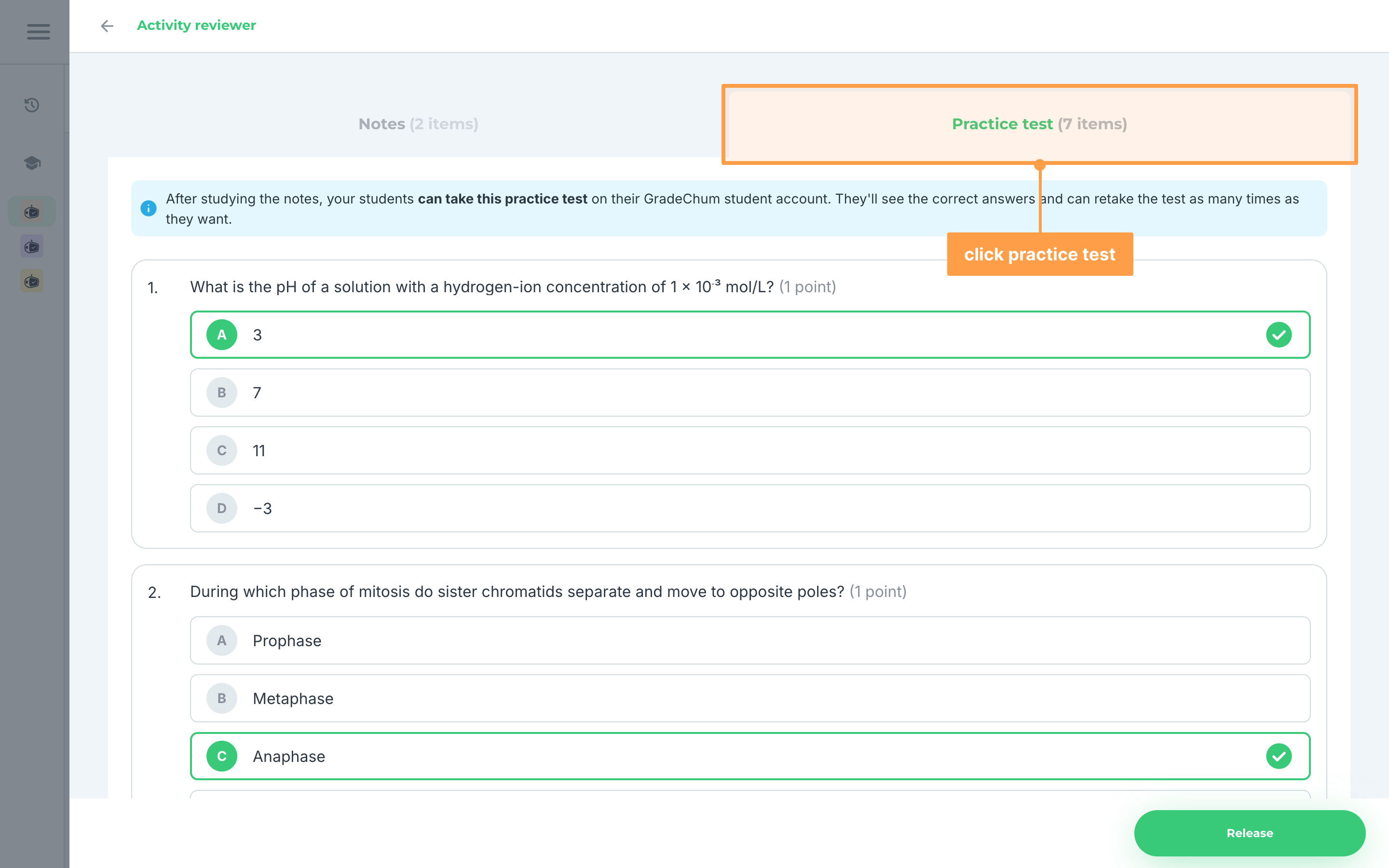
- Click the Practice test tab to check the practice test that is released together with the notes. Every item is multiple choice, with its correct option marked. Your students see the correct answers after they submit, and can retake the test as many times as they want.
Note: If the tab reads Practice test (0 items), the reviewer has notes only, and your students get no practice test when you release it. On a phone, the tabs show only the number, such as Notes (2).
- Finally, after reviewing the notes and the practice test, click Release. GradeChum confirms with Success! and "The activity reviewer has been released successfully". Click Finish.
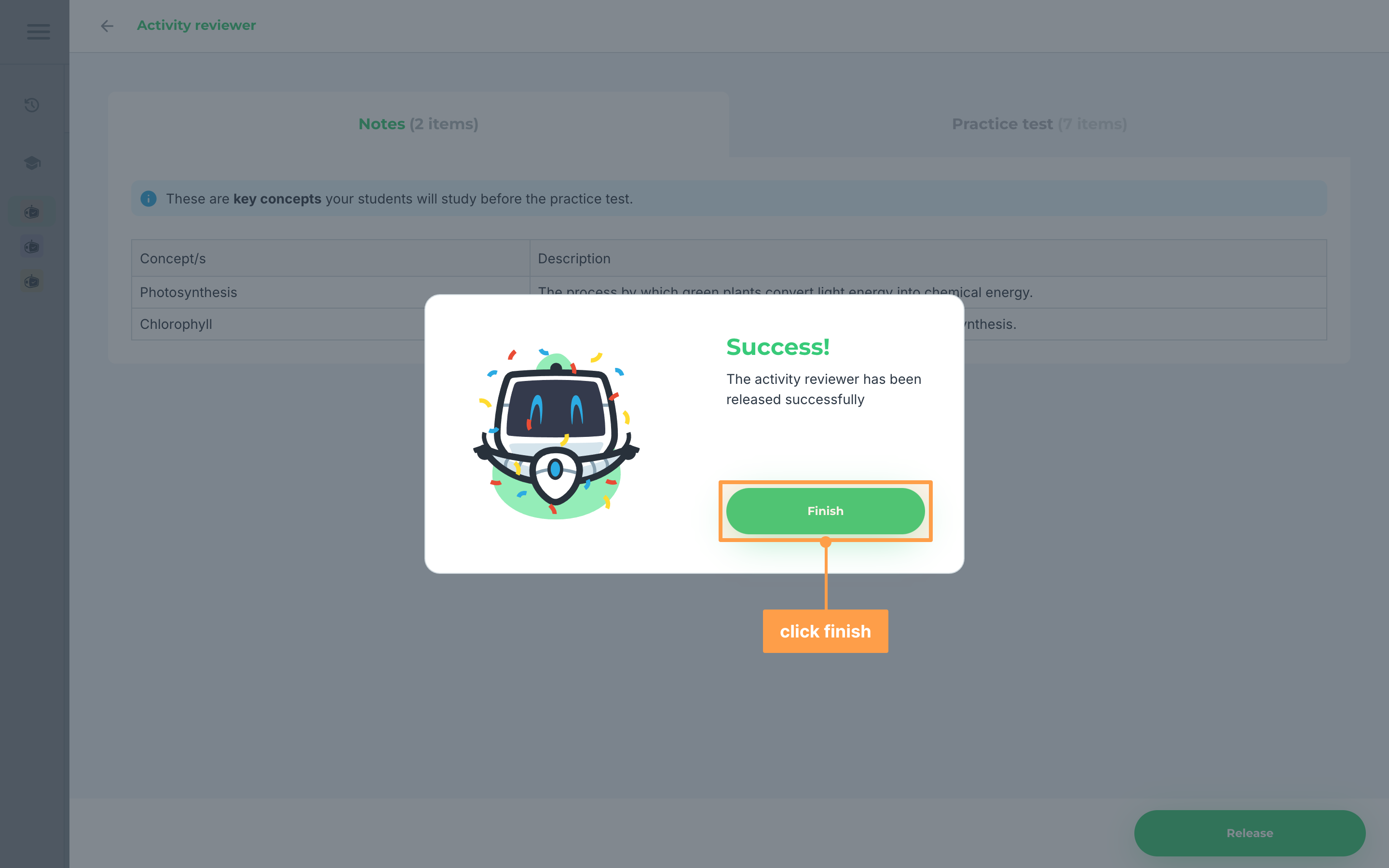
Once released, your students see Start reviewing on the activity in their class (see View activity reviewer). While the activity has no results, its Results tab now says "Reviewer released. Your reviewer is now available for students to study." with View activity reviewer, and View activity reviewer also appears in the activity card's three-dot menu.
Note: The reviewer belongs to the activity, so releasing it releases it in every class the activity is linked to. See Linked classes.
If the reviewer does not show
- If the modal says "Finalizing your activity reviewer... this takes around a minute.", GradeChum is still building the reviewer. Wait for it to finish.
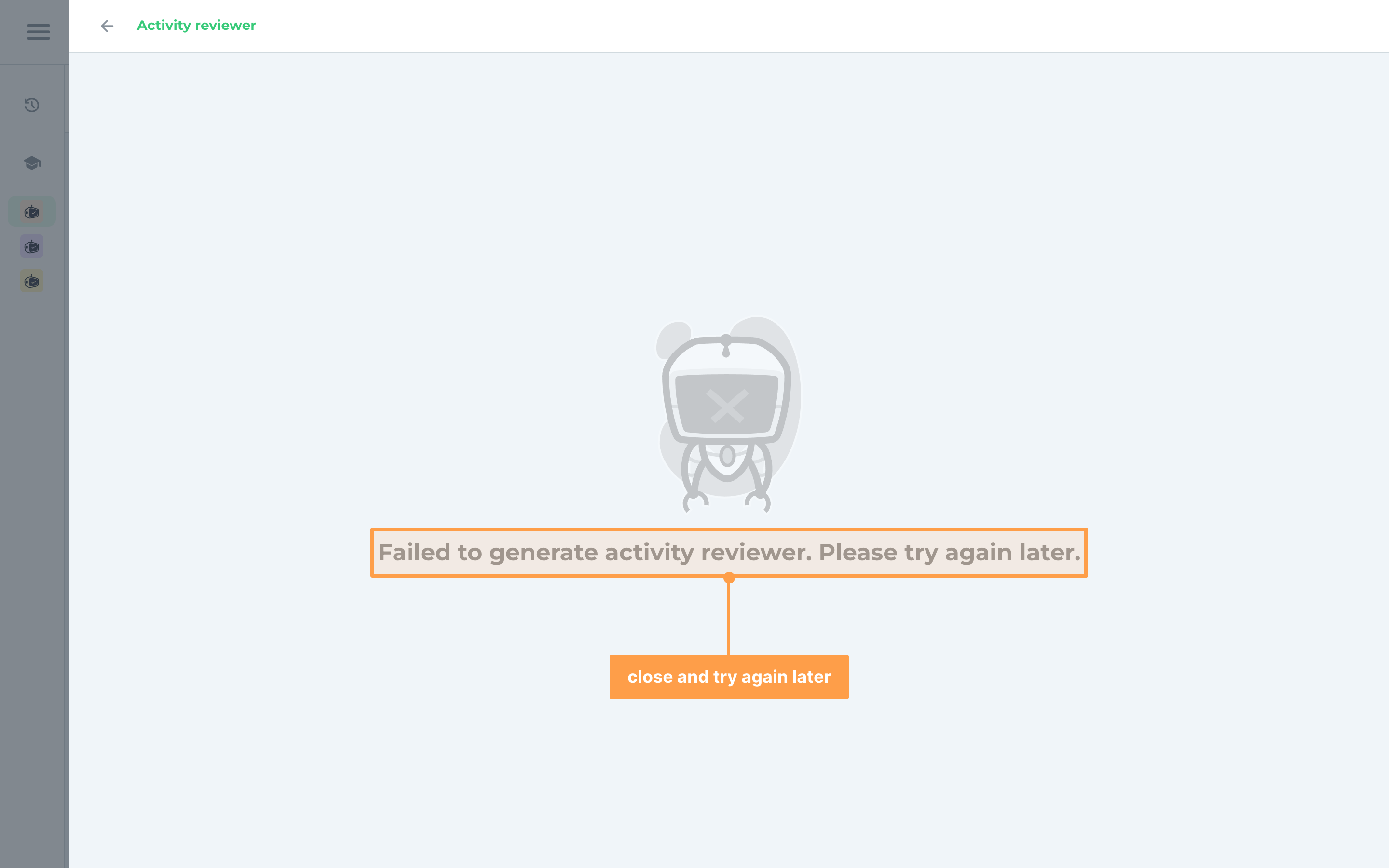
- If the modal says "Failed to generate activity reviewer. Please try again later.", close the modal and open View activity reviewer again later.
- In a mock board class, the three-dot menu of a paper activity in View Activity has no View activity reviewer.
If the class was shared with you
If another teacher shared the class with you as view-only, you can read the notes and the practice test but have no Release or Unrelease button, and View Activity has no View activity reviewer in its menu. If the owner's activity has no reviewer, the modal says "The owner of this class has not generated an activity reviewer yet." A teacher the class was shared with who can edit it releases and unreleases the reviewer like the owner.
Take back a released reviewer
- Open the activity reviewer again with View activity reviewer. A released reviewer shows a red Unrelease button instead of Release.
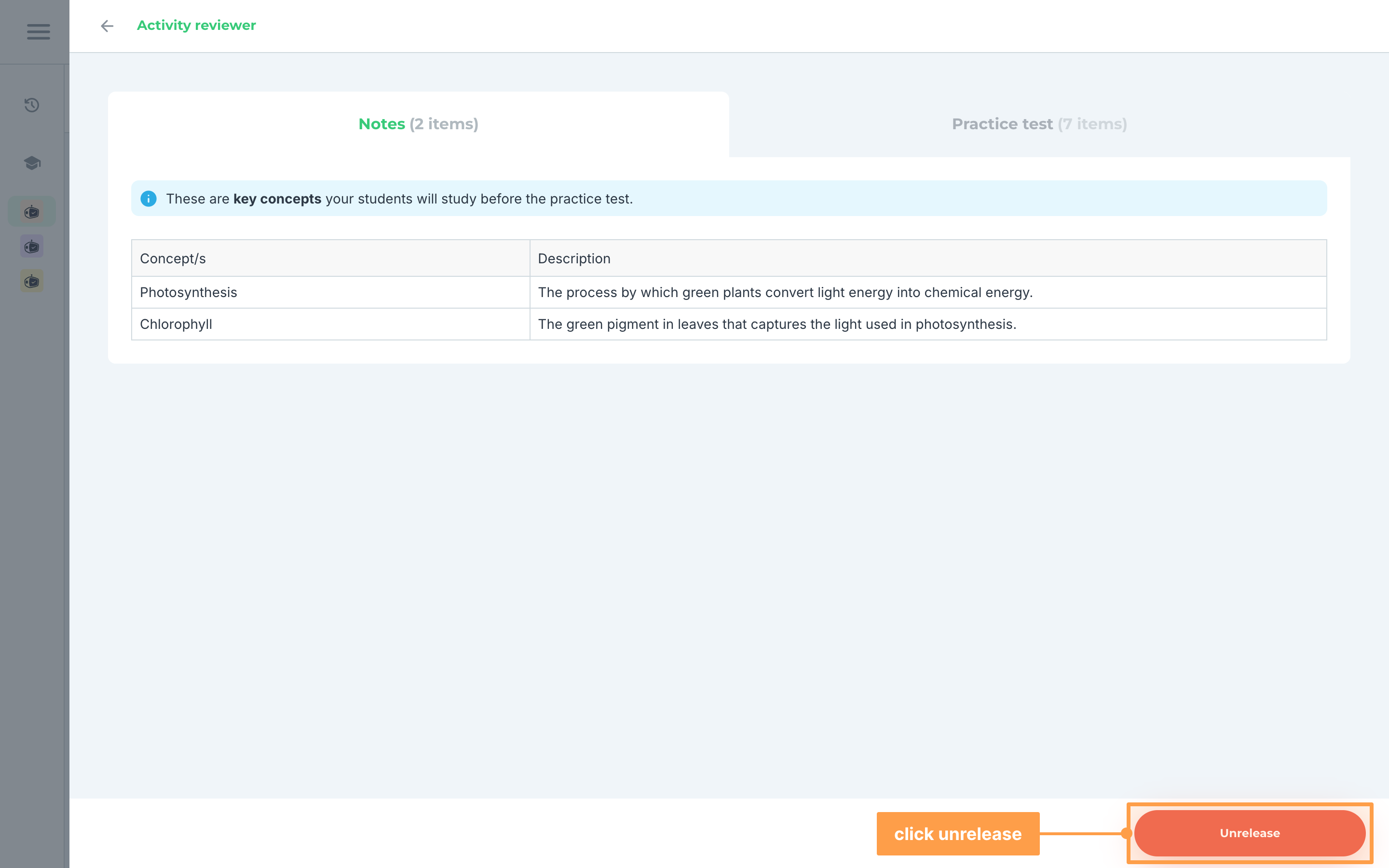
- Finally, click Unrelease. GradeChum confirms with Success! and "The activity reviewer has been unreleased successfully", and your students can no longer open it. Click Finish.
See how your students use the reviewer
Once the reviewer is released, you can check who has studied it and how they did on the practice test.
- Open the activity and click the Analysis tab, then click Activity reviewer. For an activity with sets, the tabs read Activity reviewer (All Sets) and Actual activity (Set A). Click Actual activity to go back to the item statistics.
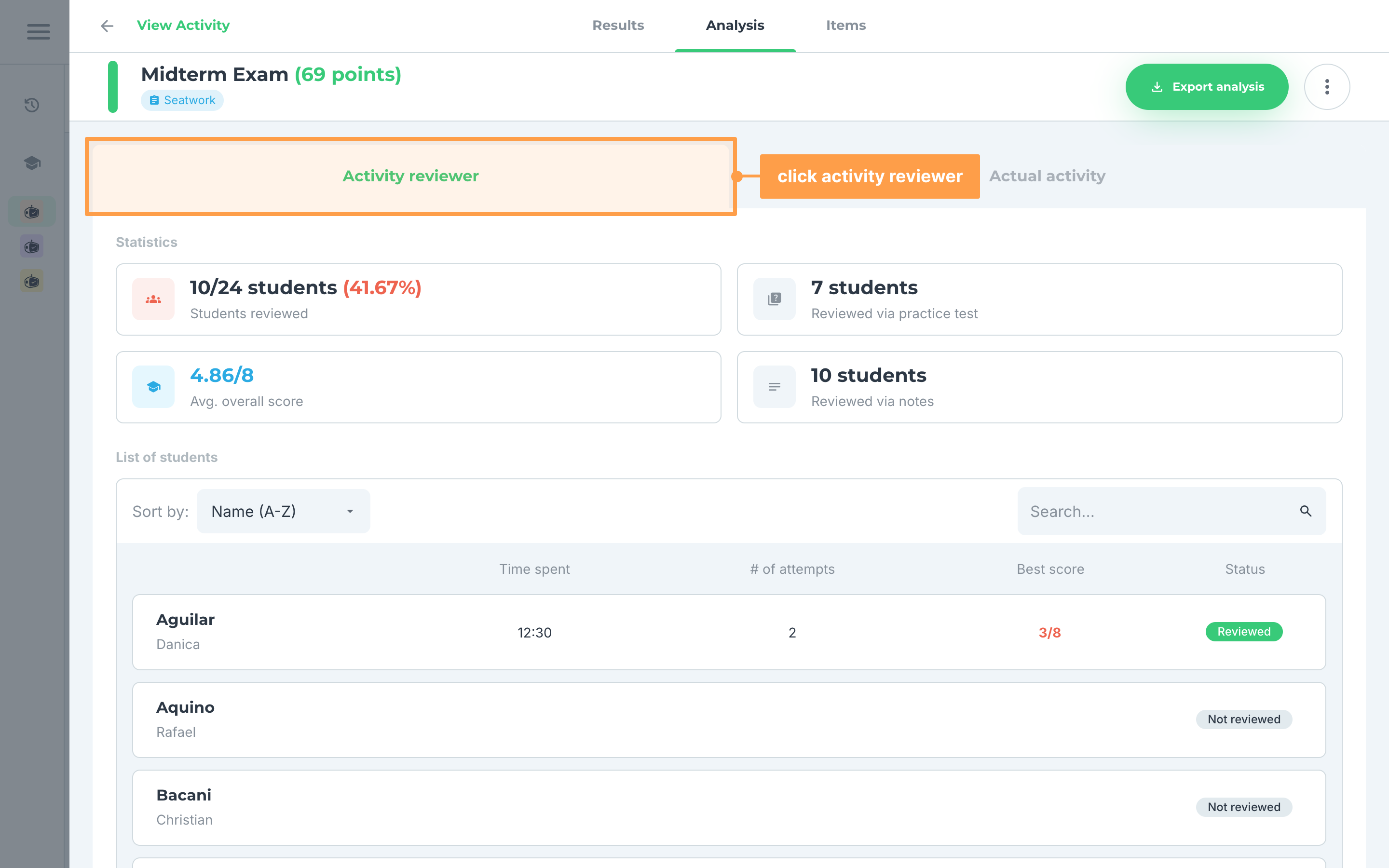
Under Statistics, read how the class used the reviewer:
- Students reviewed: how many of your students opened the reviewer, out of all your students, with the percentage.
- Reviewed via practice test: how many students took the practice test.
- Avg. overall score: the class's average practice test score. It reads N/A until there is an average, such as when no student has taken the practice test yet.
- Reviewed via notes: how many students studied the notes.
- Under List of students, each student shows their Time spent on the reviewer, their # of attempts at the practice test, their Best score, and a Status of Reviewed or Not reviewed. A student who has not reviewed shows blank numbers, and Best score shows "-" when the student has no practice score yet.
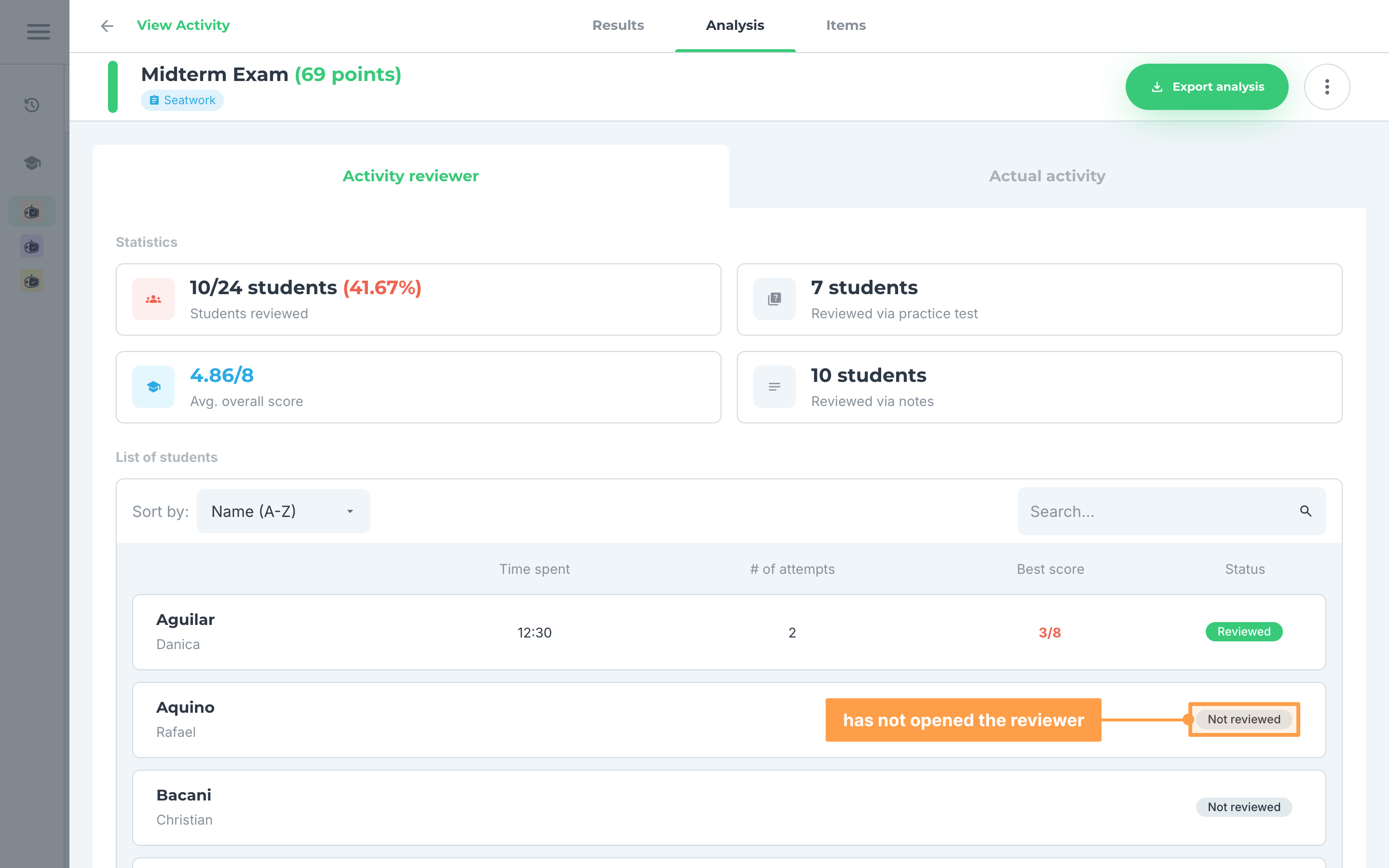
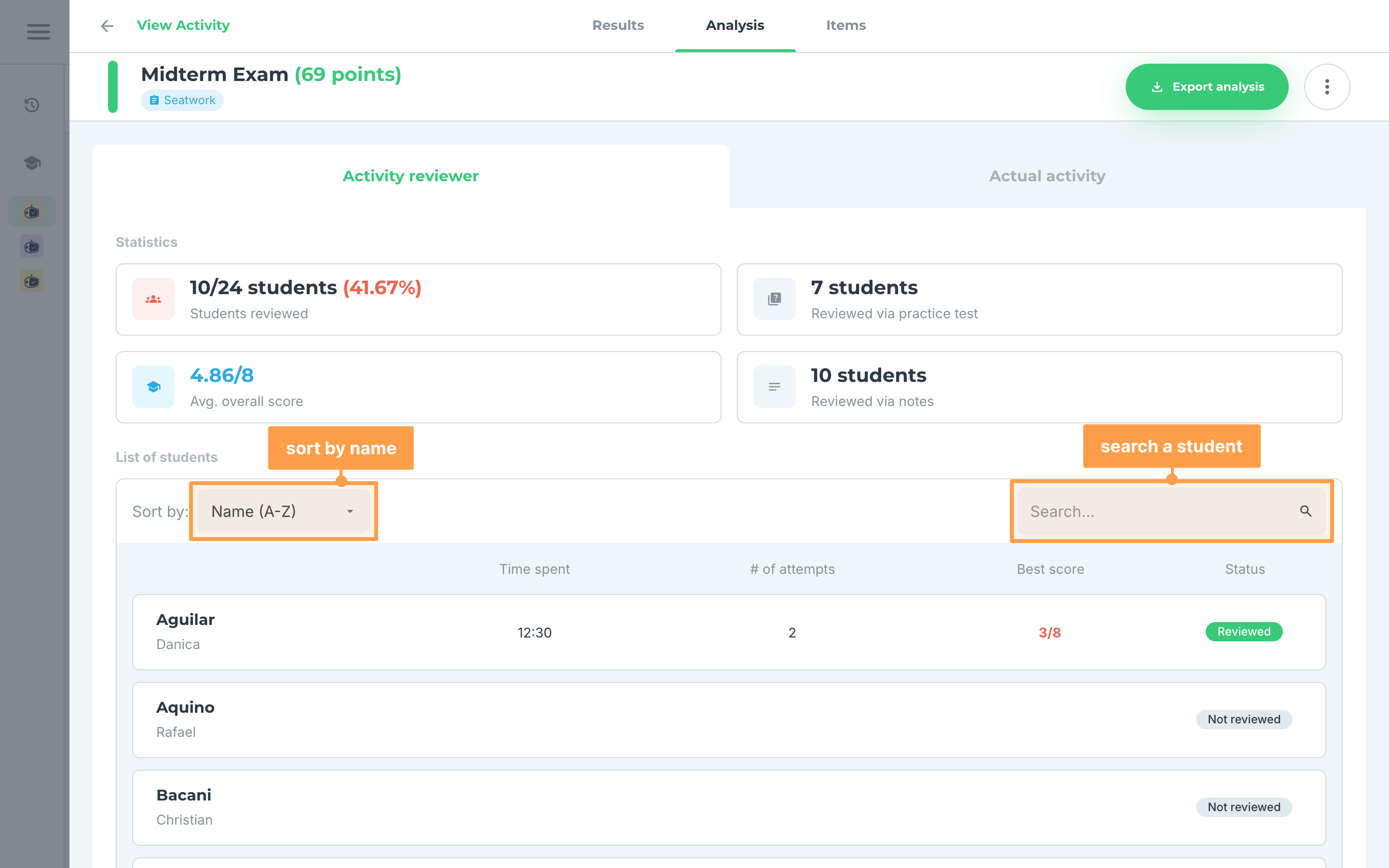
- Finally, to find a student, choose Name (A-Z) or Name (Z-A) beside Sort by: (Sort: on a smaller screen), or type a name in Search.... More students load as you scroll down. If the list says No students found, no student matches your search.
Note: The Activity reviewer tab shows only when the activity has a reviewer and your class has students. Once the activity has results, it also needs the reviewer to be released, so before release the Analysis tab shows only the item statistics (see View item analytics). While the activity has no results, the tab opens on Activity reviewer instead, with Review activity reviewer if the reviewer is not released yet. That button is disabled until you enroll at least 3 students.
And that's how you review, release and follow the activity reviewer of your activity! Next, let's explore how to export your grades.