
Discuss with students
Introduction
Going over a checked activity with your class is one of the best ways to turn a score into learning. Students see which questions tripped them up, and you see which topics need another look.
Discuss with students turns your screen into a walk-through you can project in class. It shows one question at a time with its answer hidden, so your students can think about it first. When you are ready, you reveal the answer together with how the whole class answered. GradeChum remembers which items you already discussed, so you can pick up where you left off in your next meeting.
Steps
Note: The activity must already have results. An online activity needs at least one graded result, and a handwritten activity must be done checking. Activities from outside GradeChum do not offer it.
To discuss an activity with your students, follow these steps:
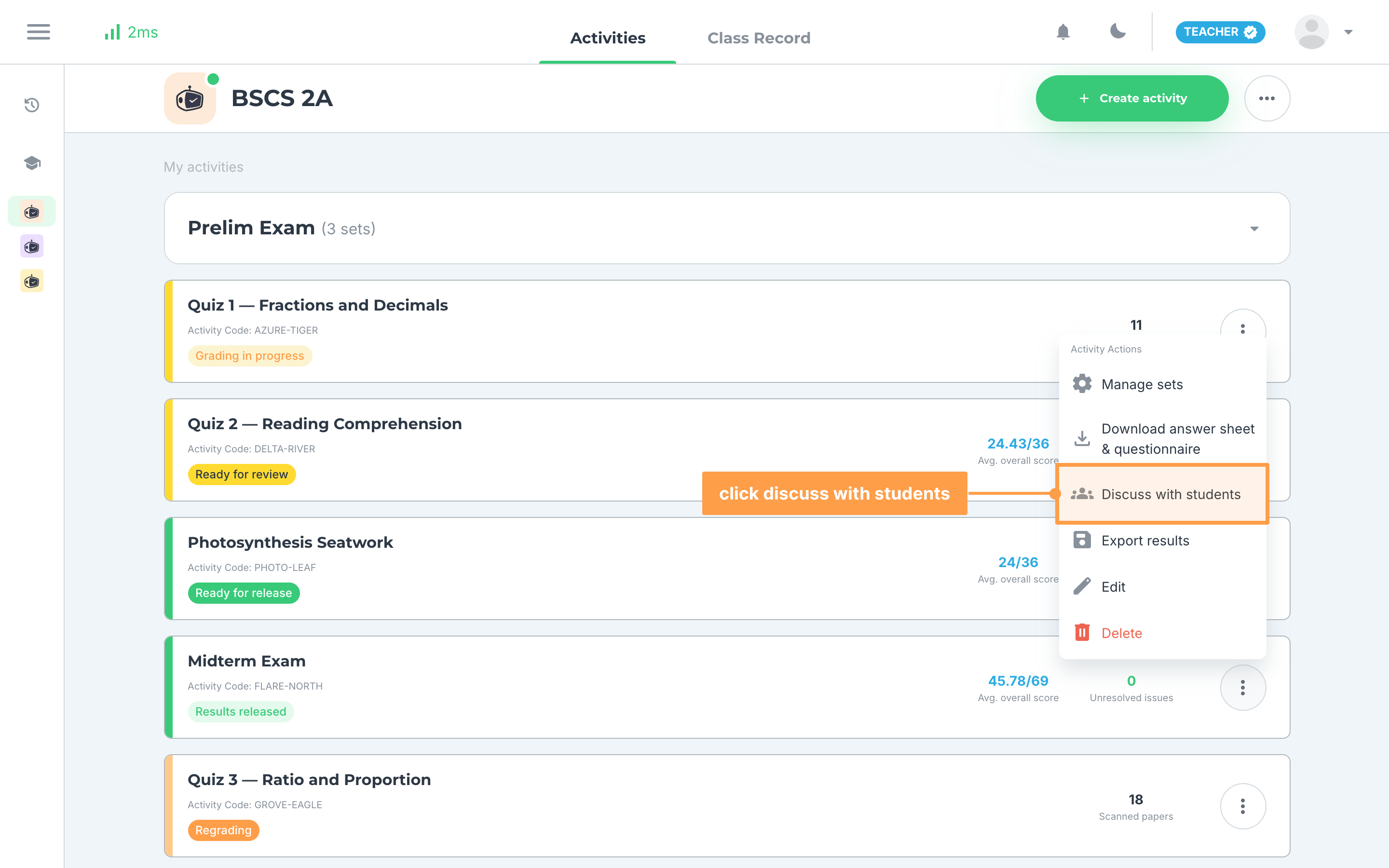
- Open your class and, on the Activities tab, click the three dots on the activity's card, then click Discuss with students. The Discuss with Students panel opens over the activity.
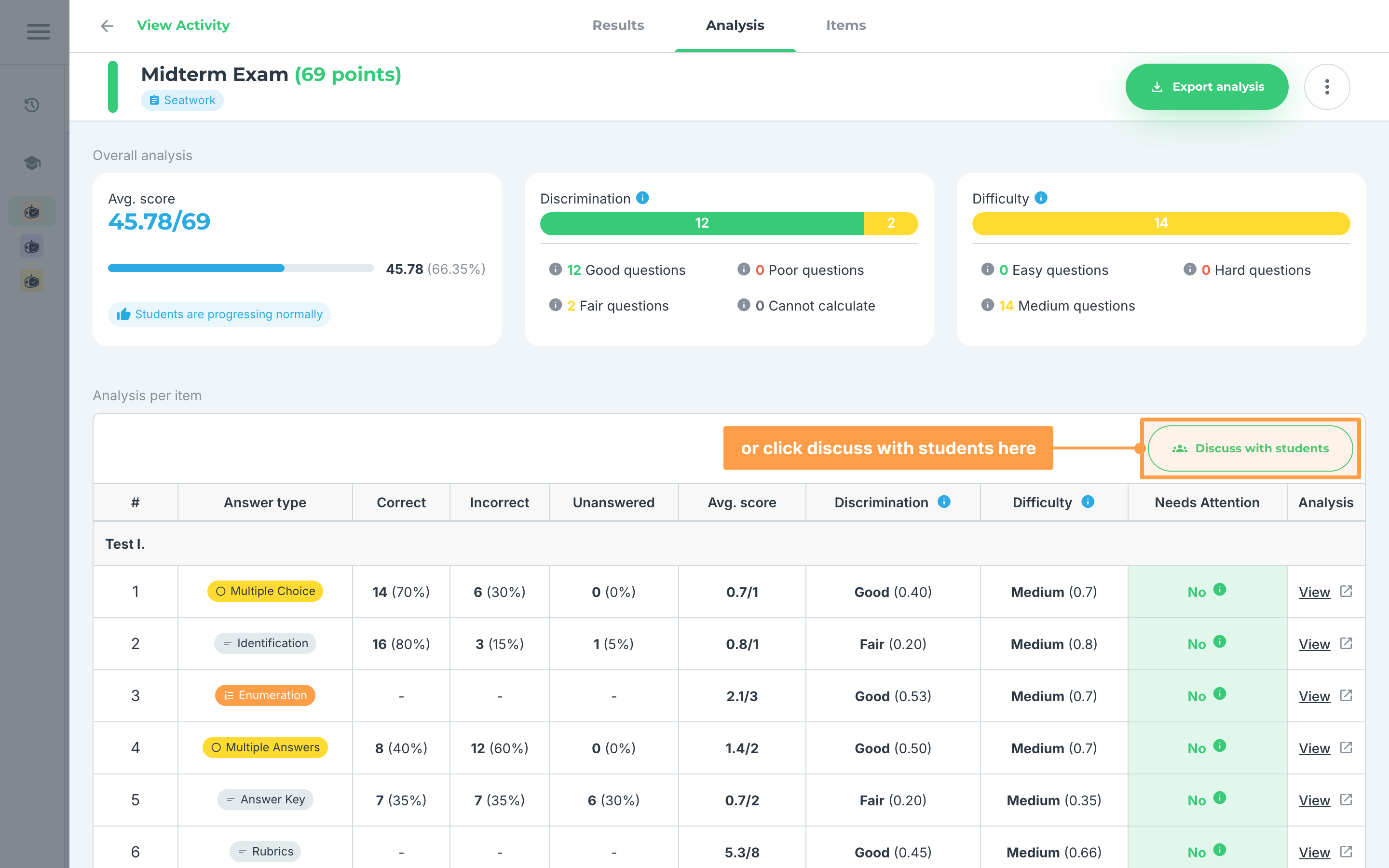
- You can also open it from inside the activity. In View Activity, click the three dots beside the activity's name and choose Discuss with students, or open the Analysis tab and click Discuss with students at the top of the Analysis per item table.
Note: If the option shows a lock and cannot be clicked, the activity's results are locked for your account. Hover it to see why, and see Activity credits and school licenses to unlock them.
- The panel shows the current question with its choices, but without the answer. Correct-answer marks, solutions, key ideas, the expected answer and the rubrics stay hidden. If the item belongs to a group, its passage shows under Main question and the item is labeled Sub-Question.
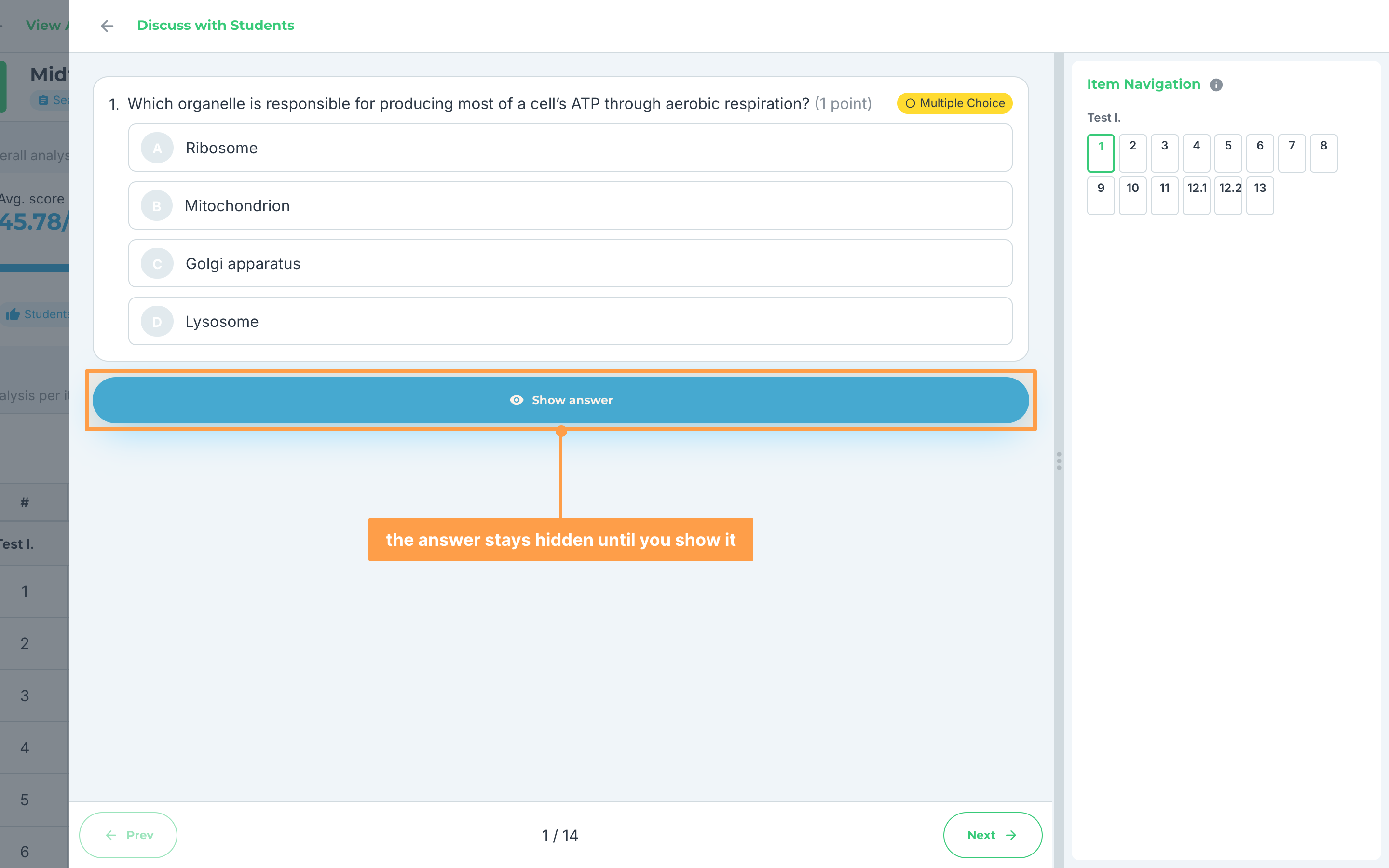
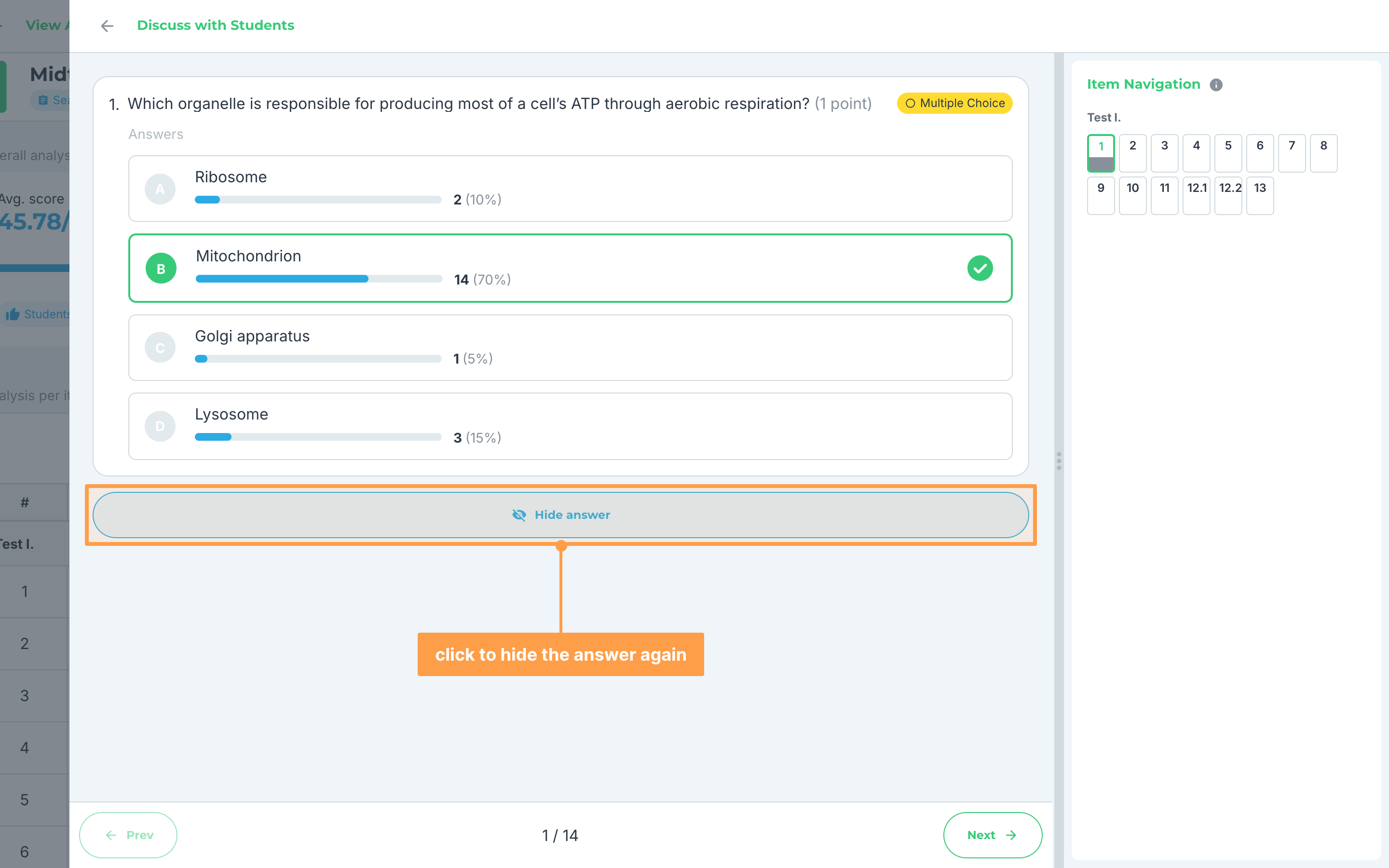
- When your class is ready, click Show answer. The answer appears together with how the class answered it: Answers for choice items, the matched, near-matched and did-not-match counts for Identification, the List of answers for Enumeration, and Avg. rubric scores for items with rubrics.
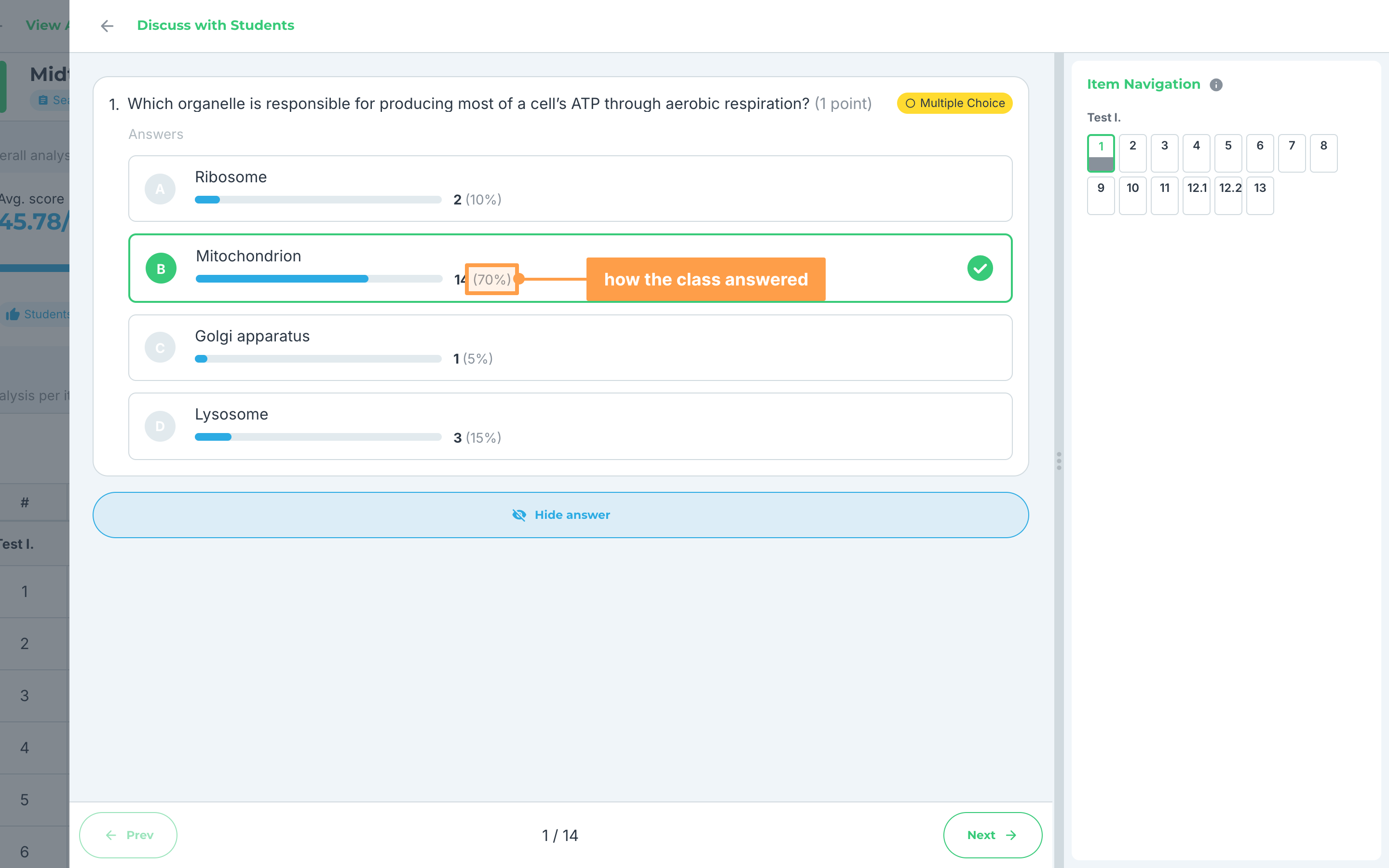
- Showing an answer marks the item as discussed. To hide it again, click Hide answer. This also marks the item as not yet discussed.
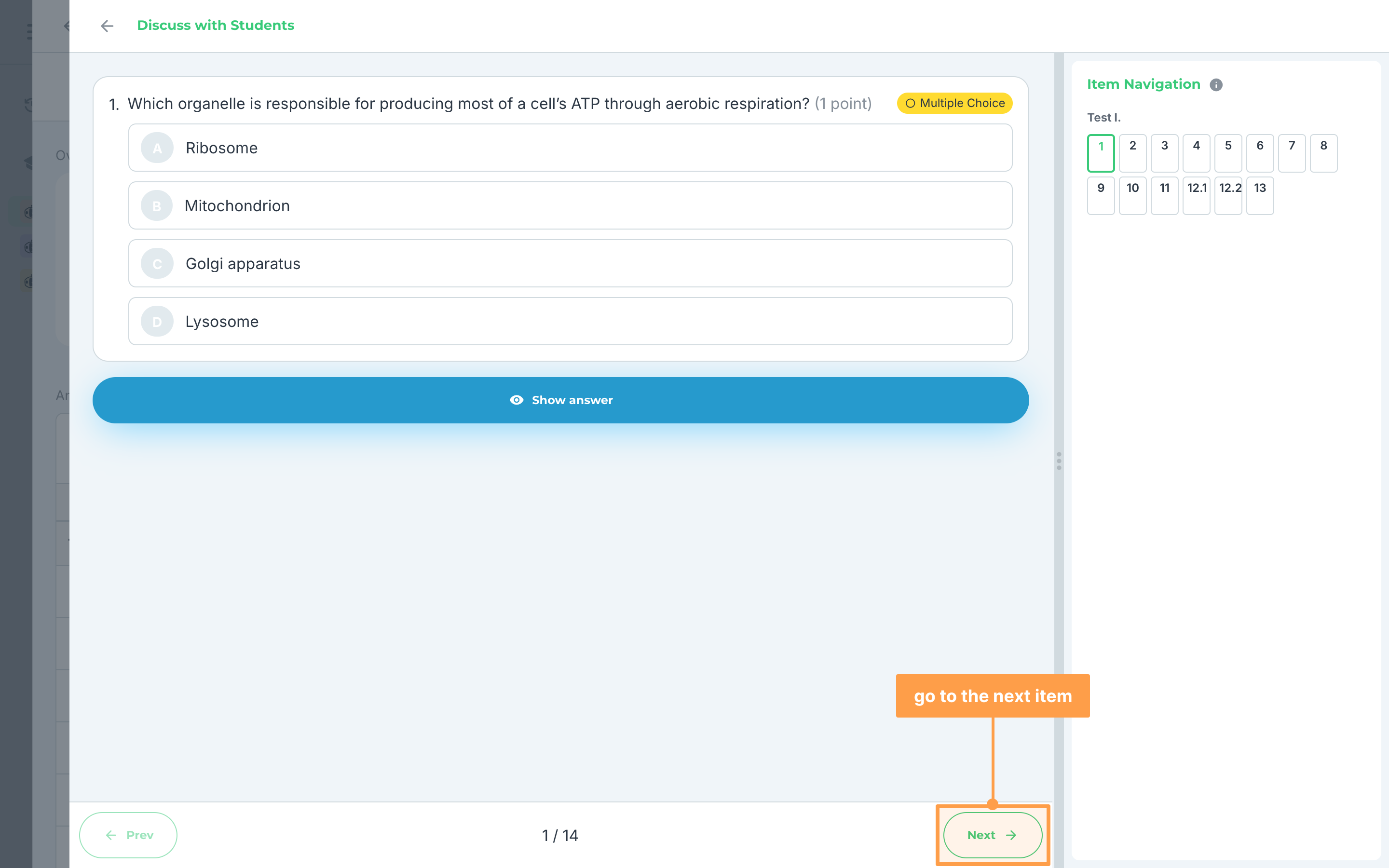
- Click Next to go to the next item, or Prev to go back. The count between them, "1 / 14" here, shows which item you are on out of how many. Prev is disabled on the first item and Next on the last.
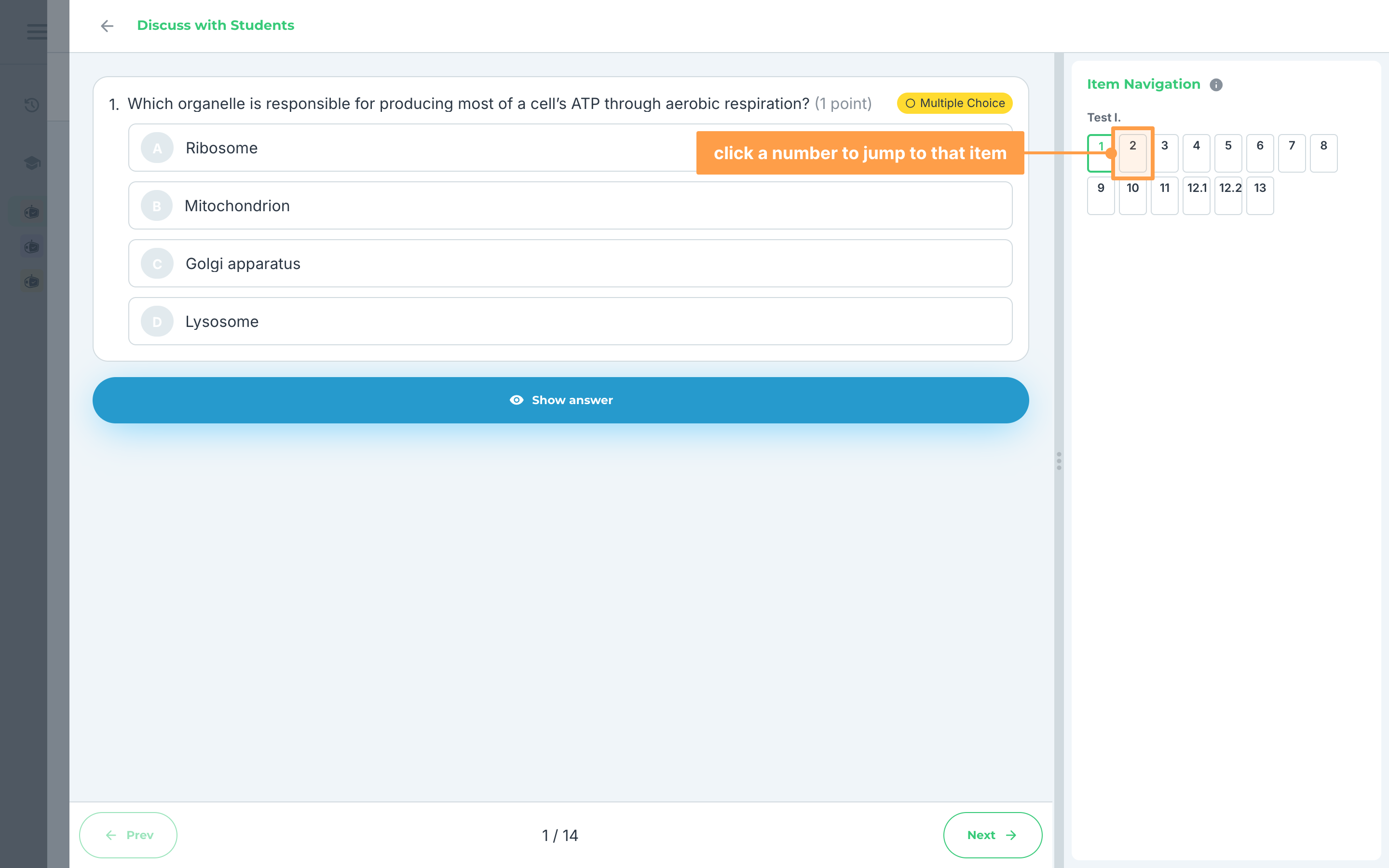
- To jump to any item, click its number under Item Navigation, where the items are grouped by test (Test I., Test II., and so on). Hover the info icon beside Item Navigation for what each square means: On screen now, Not yet discussed and Already discussed. You can drag the panel's edge to make it wider or narrower.
Note: On a phone, click the list button at the bottom of the panel (Show item navigation) to slide the item list in, and use the arrow buttons to move between items.
- Finally, when you are done, close the panel with the close button at its top. The next time you open it, it lands on the first item you have not discussed yet. Once every item is discussed, it opens on the last item.
Note: A voided item has no Show answer button and its answer never shows. Reaching it in order marks it as discussed. Your progress is saved for this activity in this class. Switching tabs in View Activity or closing the activity also closes the panel. The item you are on and whether its answer is shown are kept in the page link, so refreshing the page opens the same item.
And that's how you discuss an activity with your students! Next, let's explore how to review regrade requests.