
Edit students' grades
Introduction
While AI-powered grading systems like ours provide efficiency and consistency, they are not flawless. Educators play a crucial role in reviewing AI-generated feedback, making necessary adjustments, and providing deeper insights that technology alone cannot capture.
In GradeChum, we promote using our application as a grading assistant to ensure that teachers are still able to have full control over how students' grades are explained and finalized.
In this article, we will explore how we can edit students' grades after the activity was evaluated in GradeChum.
Steps
To edit a student's grades, follow these steps:
Note: The activity should have already been completely evaluated before proceeding to the steps below.
- Click on the activity name then click a student's name to view their answers.
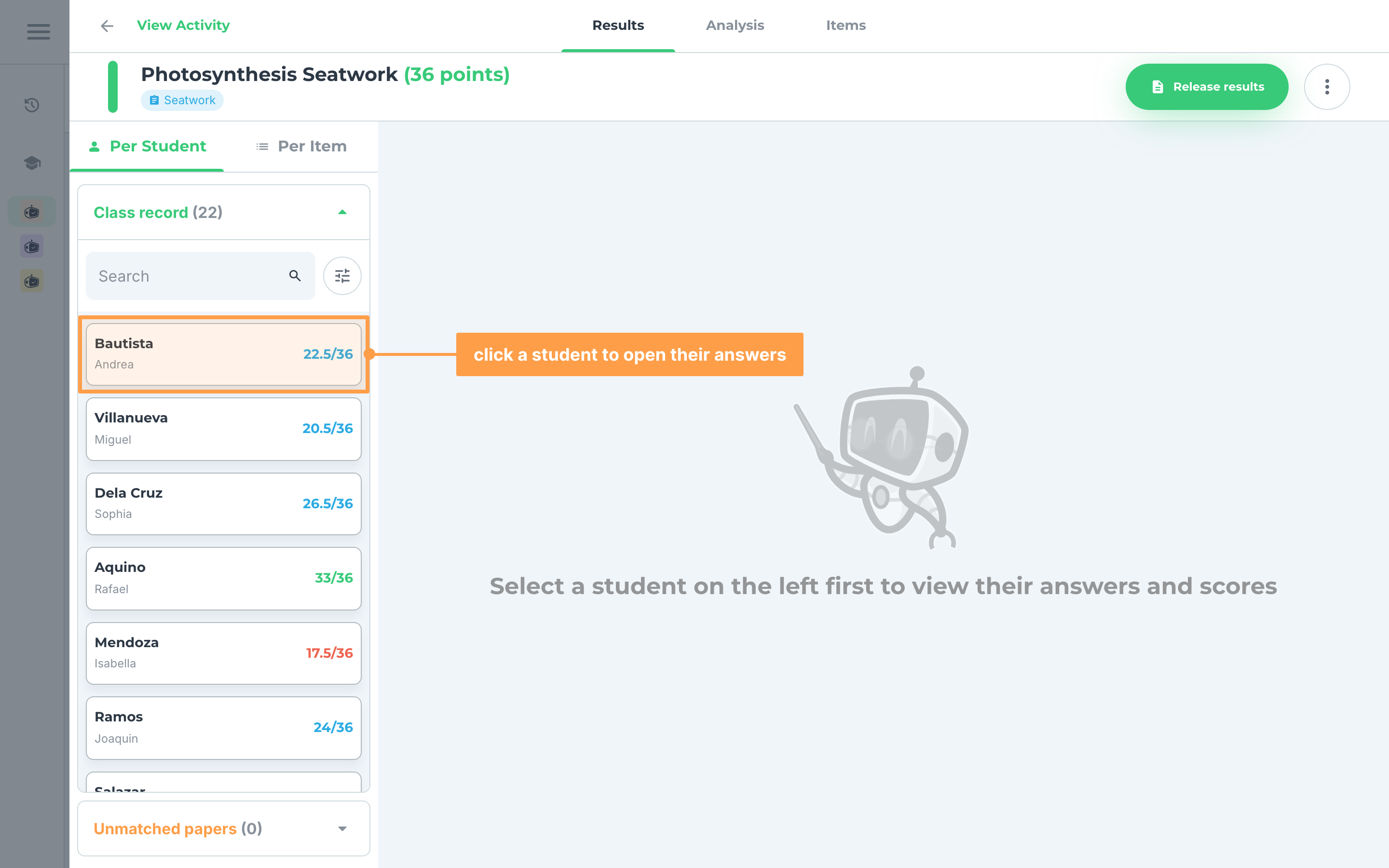
- There are three ways to edit the answers of your students depending on the item type. See below:
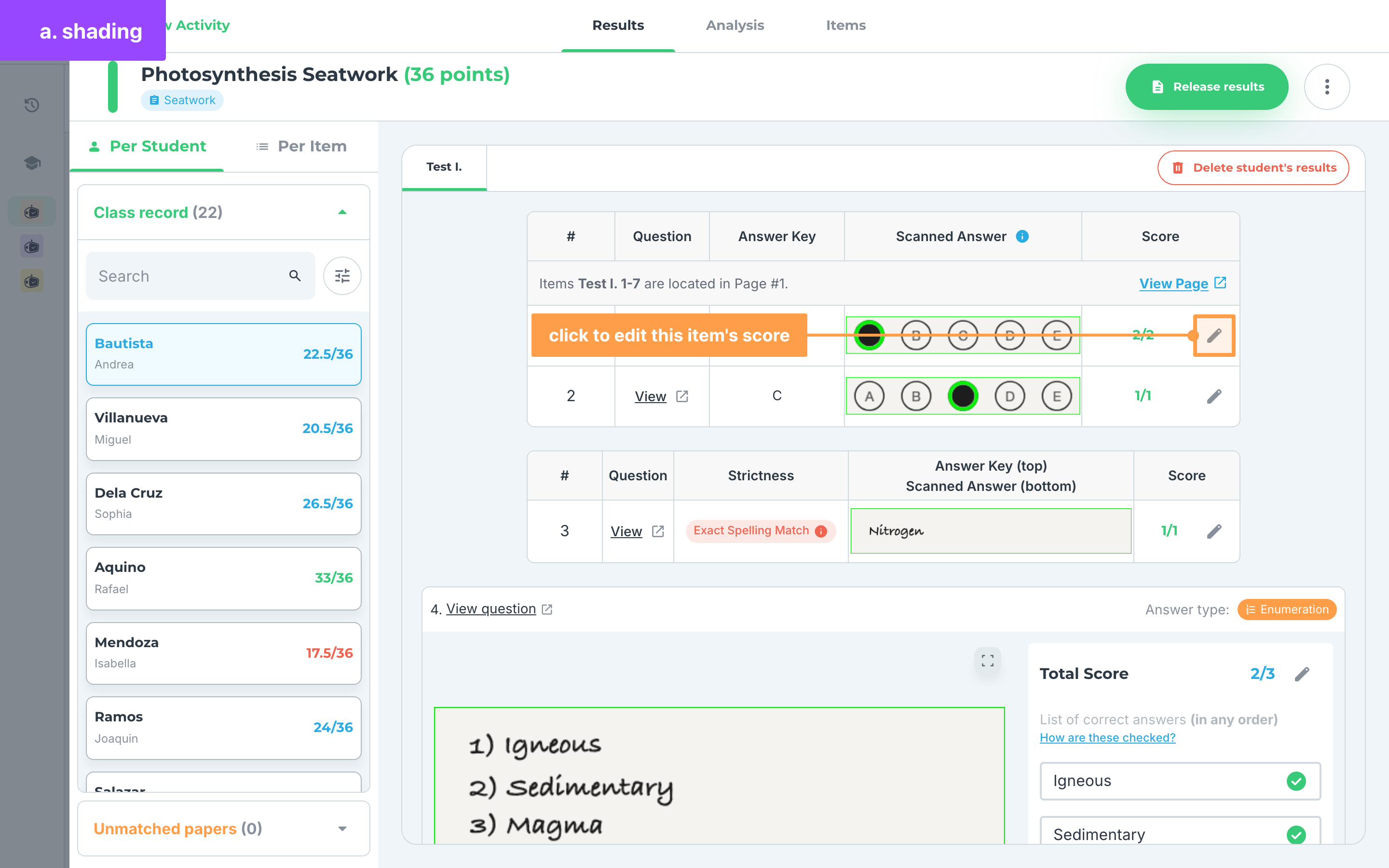
a. Shading
For items with multiple choice as item type:
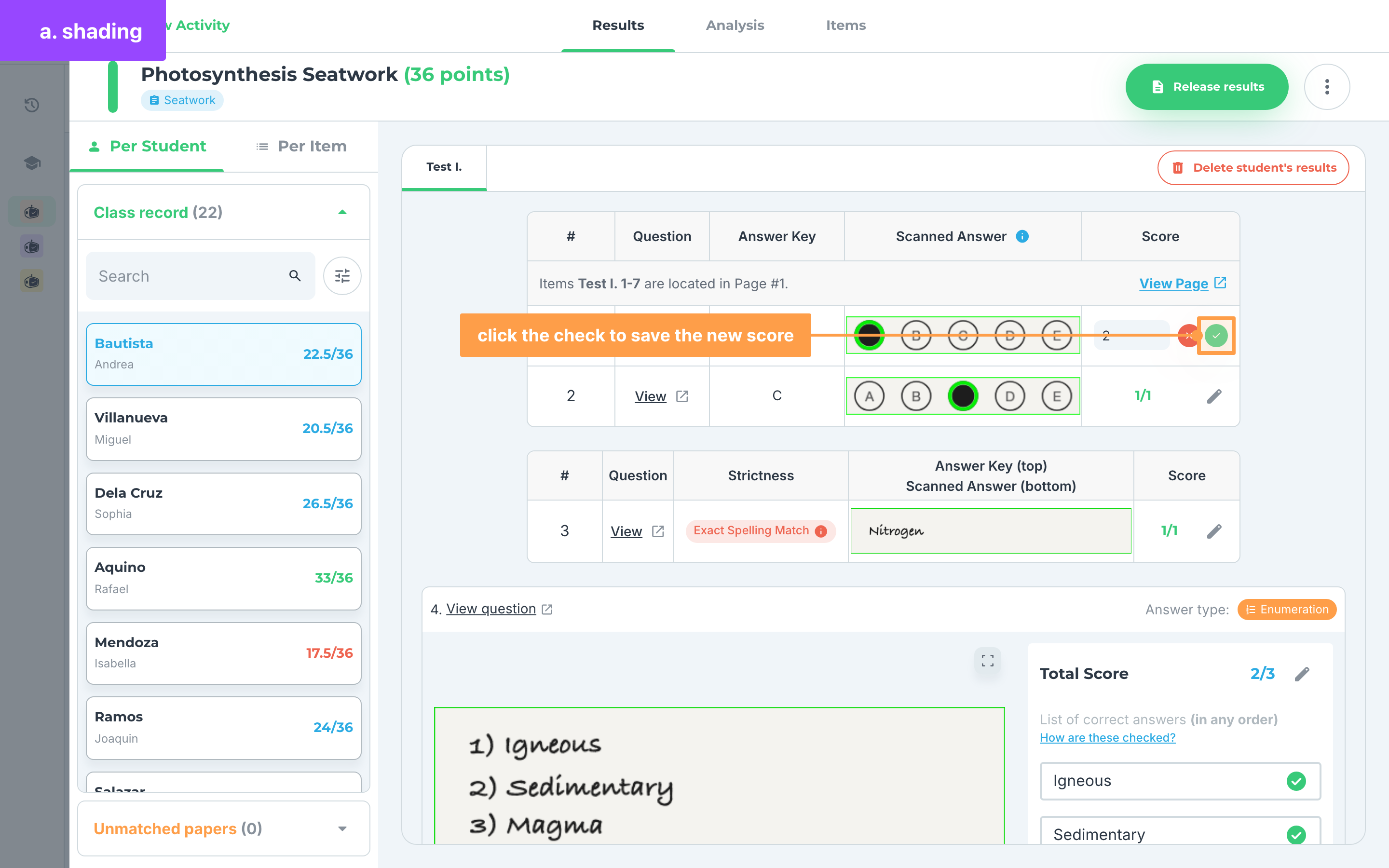
- Then, click on the “pencil” icon beside the score to edit the grade of the student.
- Change the score of the student for that item. Finally, click the ✅ button to successfully edit the student’s score.
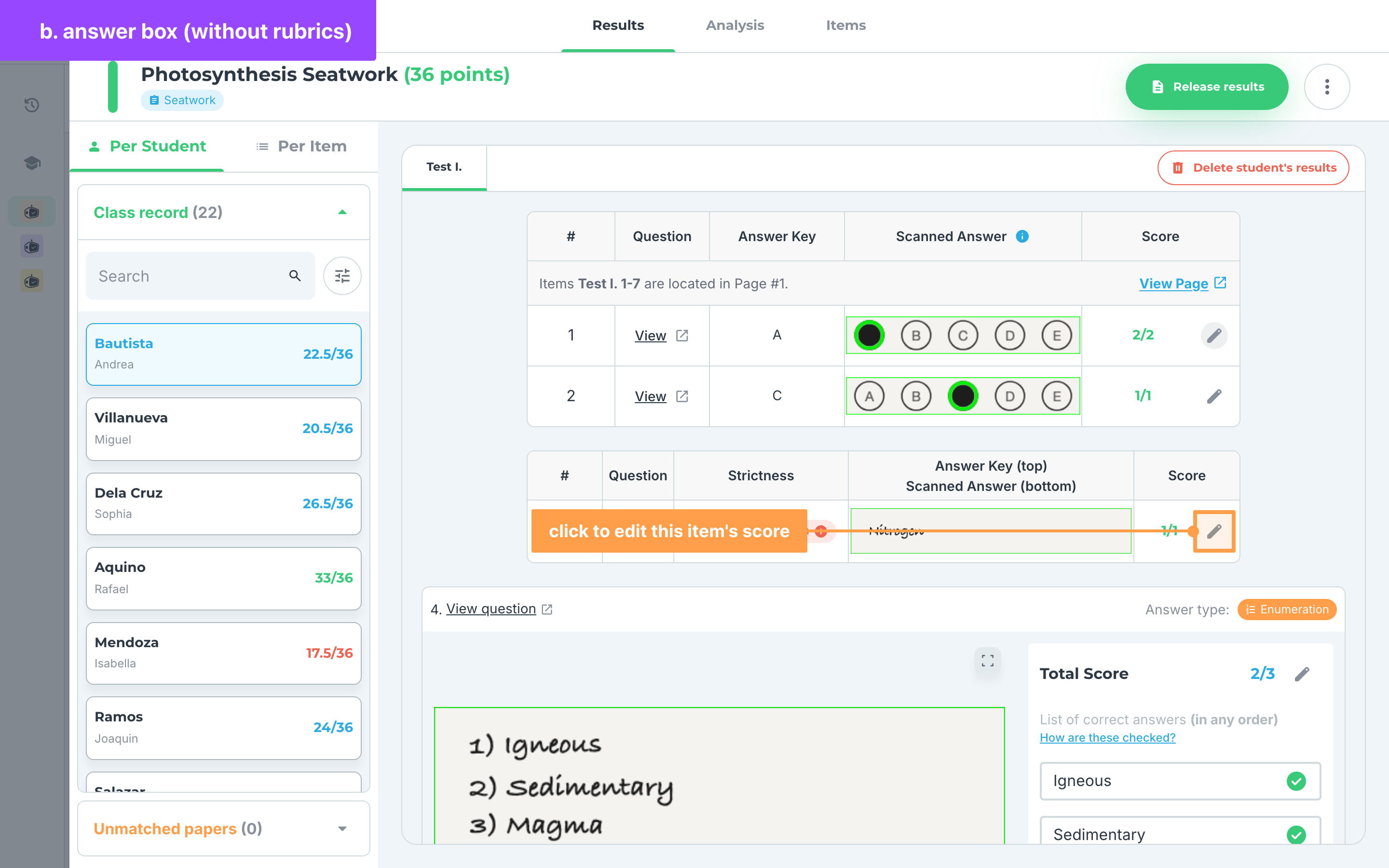
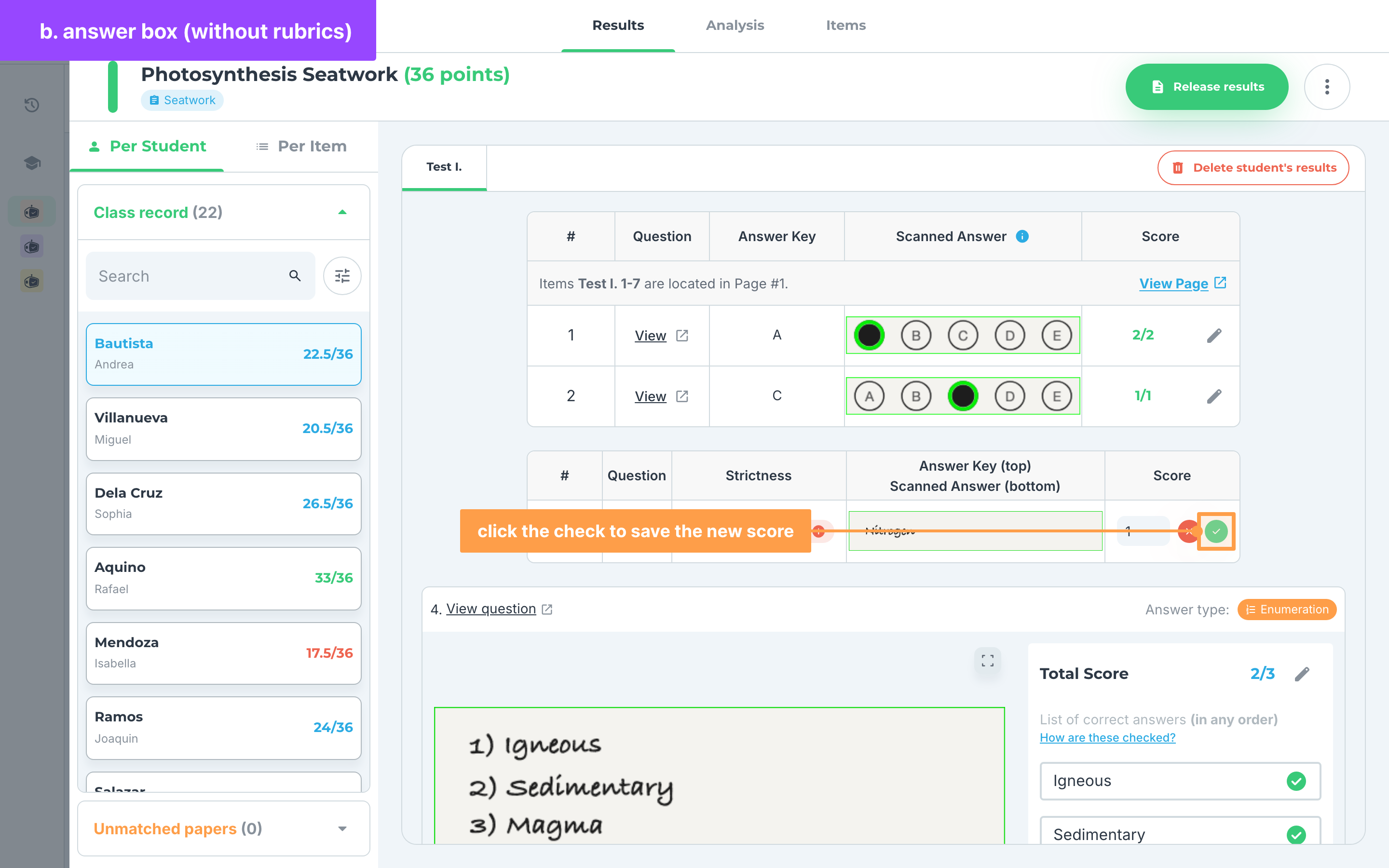
b. Answer Box (without rubrics)
For items with identification as the item type:
- Then, click on the “pencil” icon beside the score to edit the grade of the student.
- Change the score of the student for that item. Finally, click the ✅ button to successfully edit the student’s score.
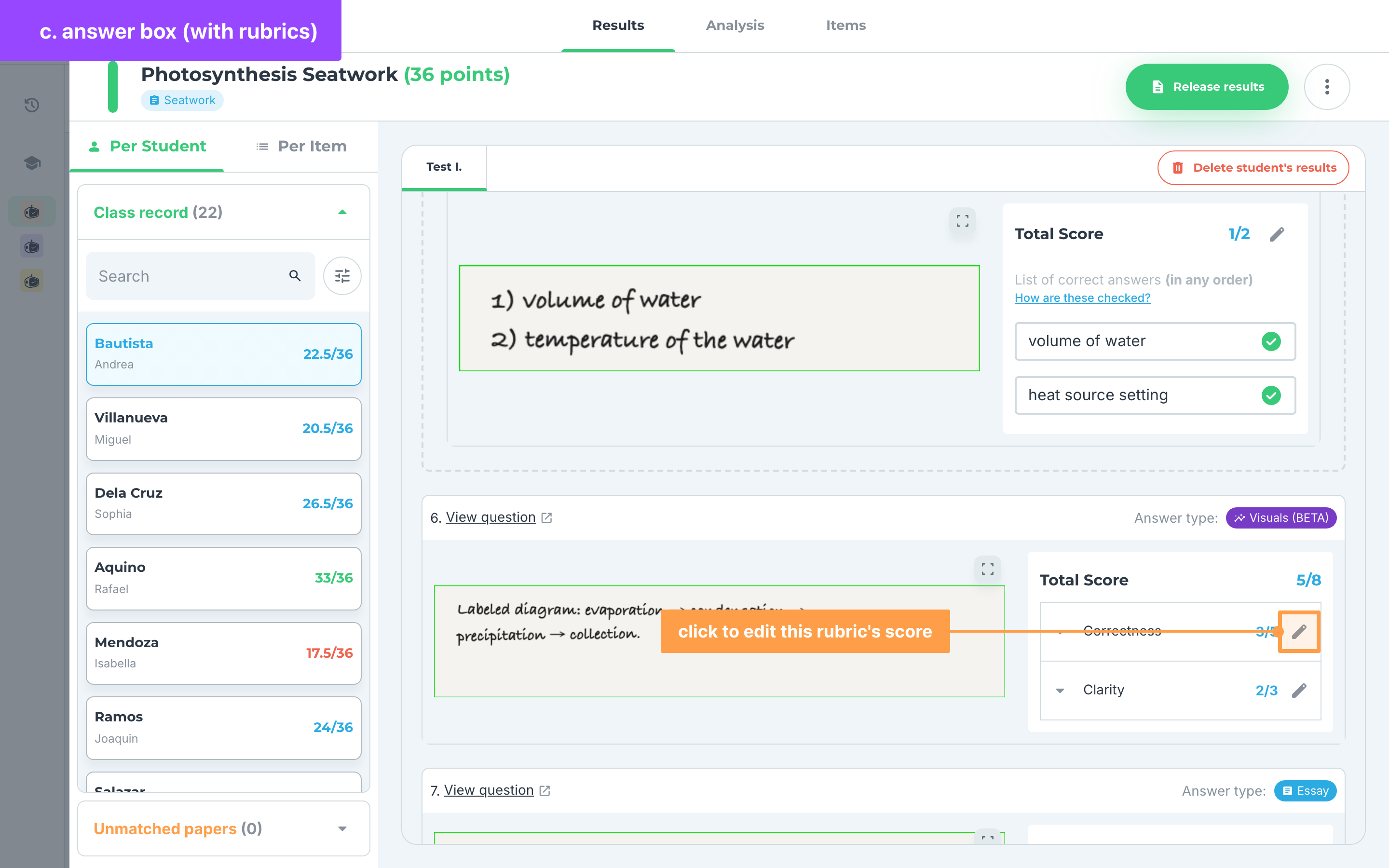
c. Answer Box (with rubrics)
For items with essay, problem-solving, code on paper and visuals item types:
- On the right side of the scanned answer are the rubrics for the item. Click on the “pencil” icon beside the rubric you want to change the score of.
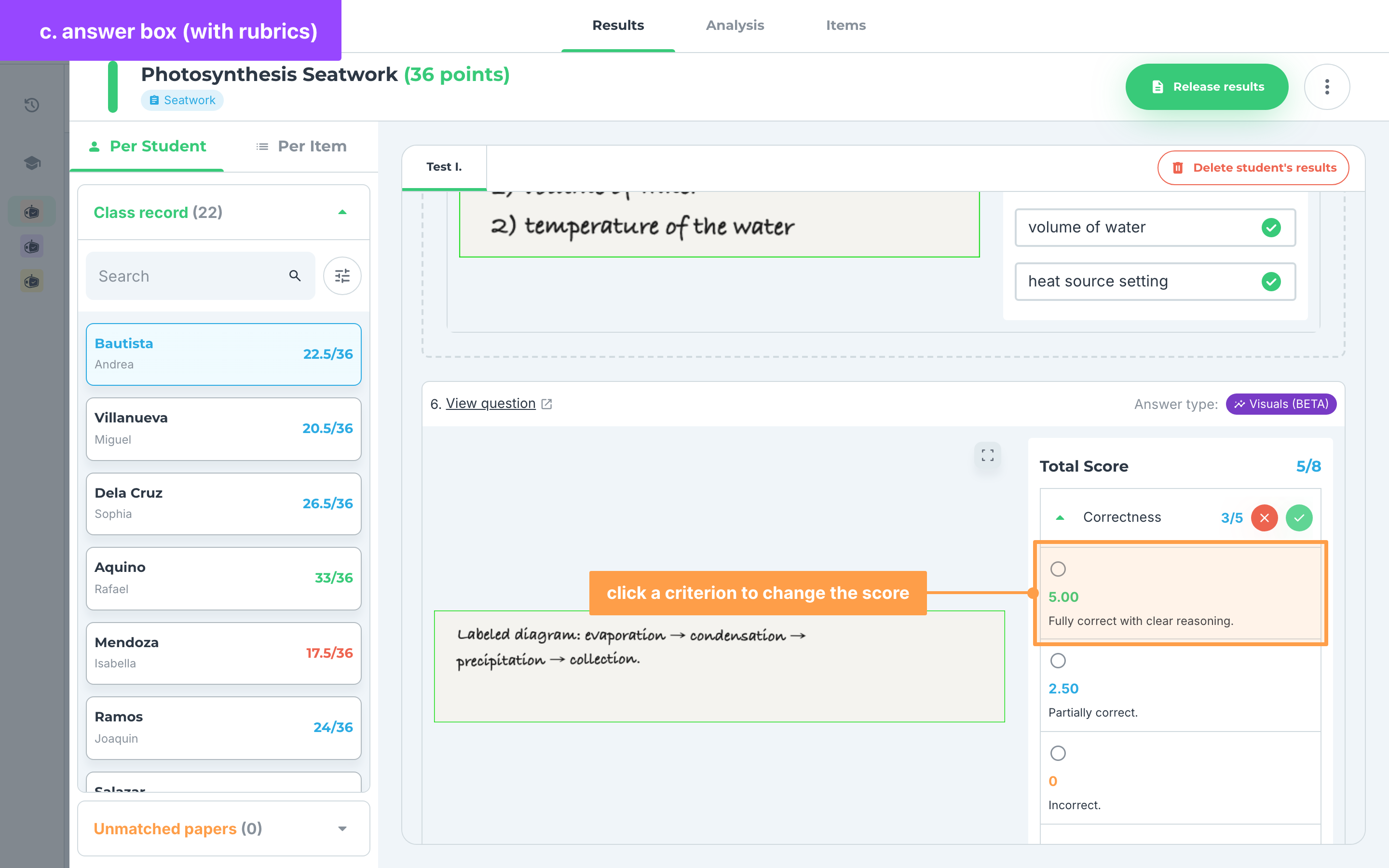
- Change the score of the student for that item by choosing one of the scoring levels listed under the criterion.
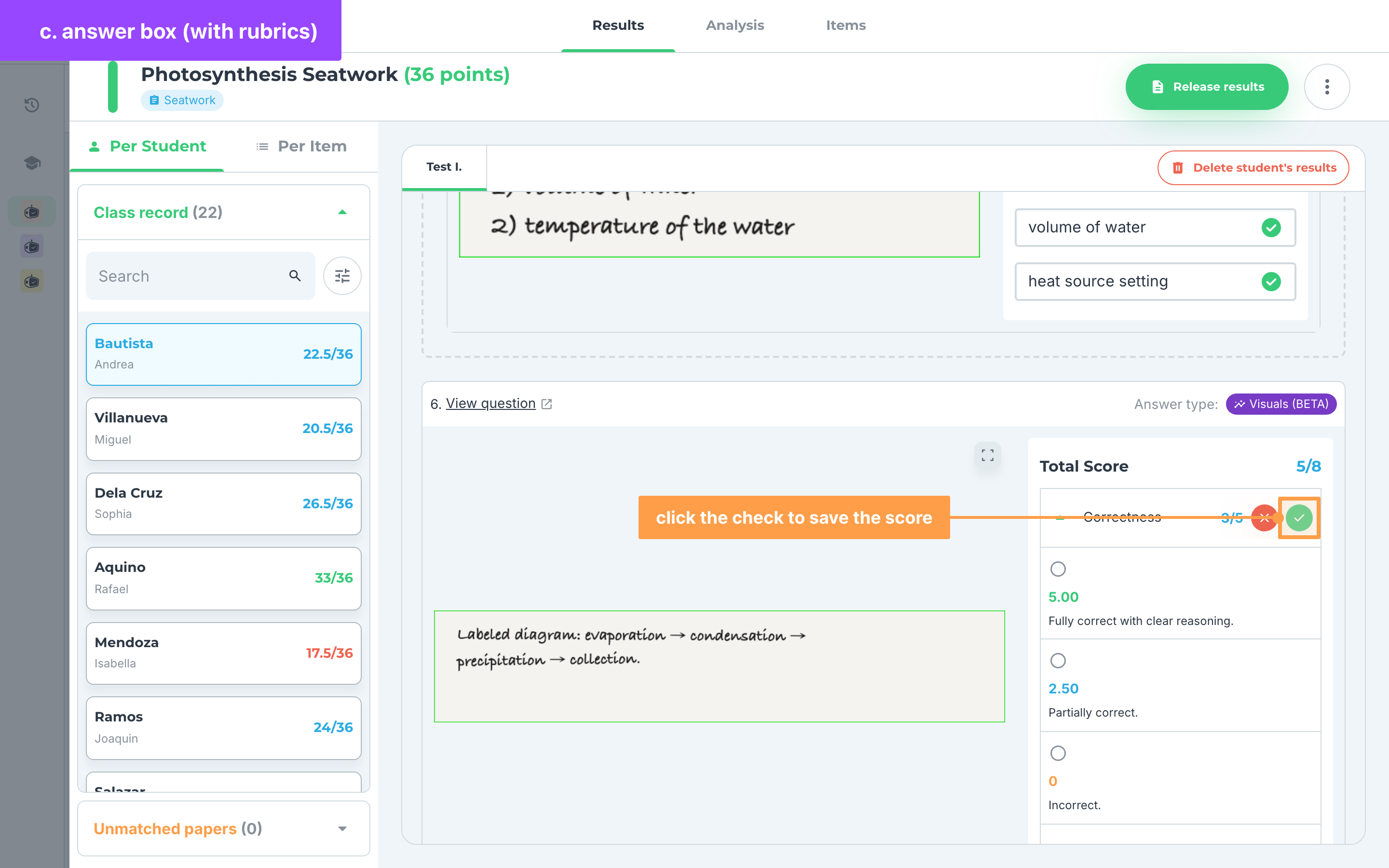
- Finally, click the ✅ button to successfully edit the student’s score.
-
To edit another item score, repeat steps 2 until you are satisfied with the changes.
-
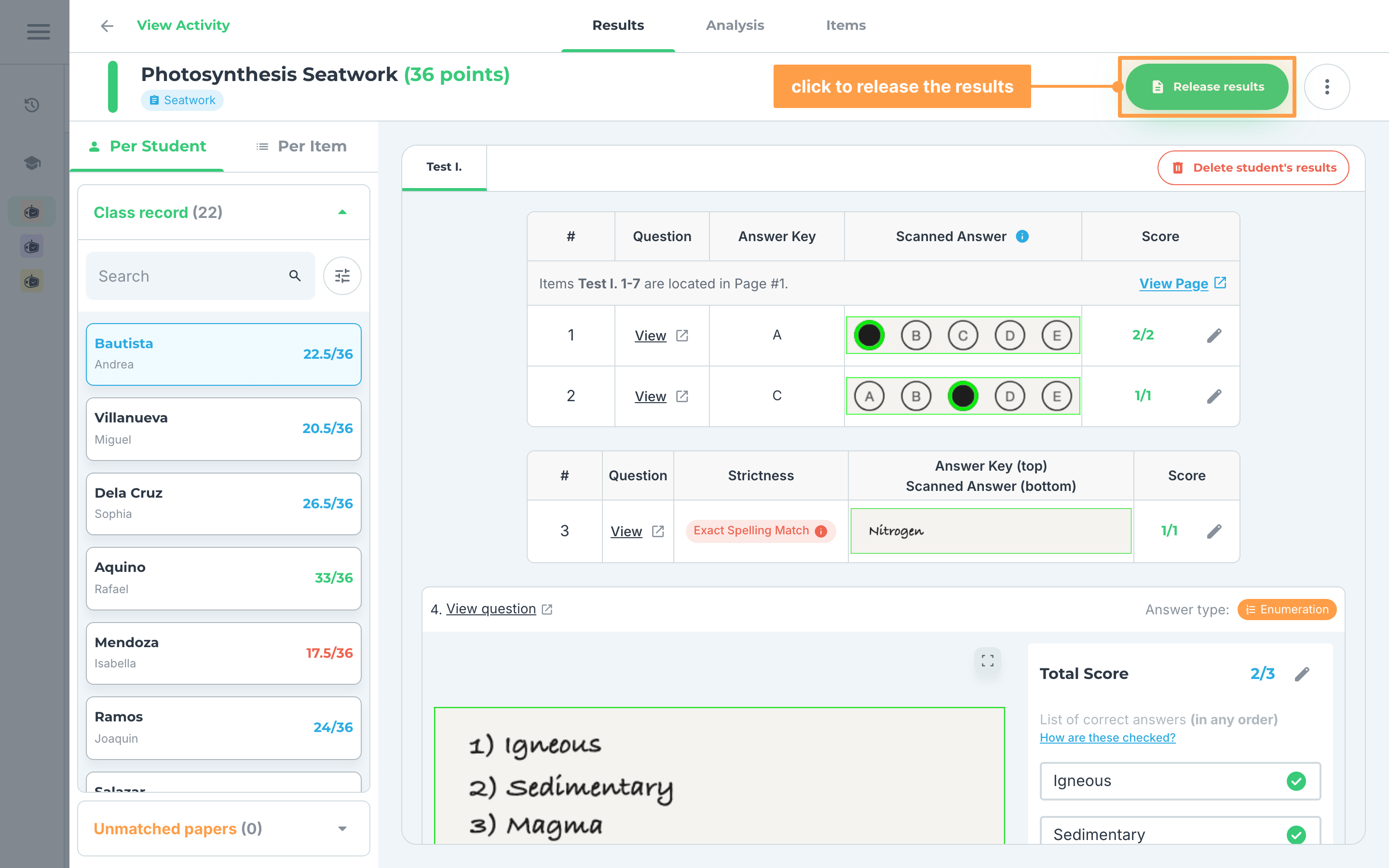
Finally, after reviewing the papers of your students, click the Release results button on your activity. Once the results are out, that button is replaced by Released on
, with an Update link if you want to change what you released.
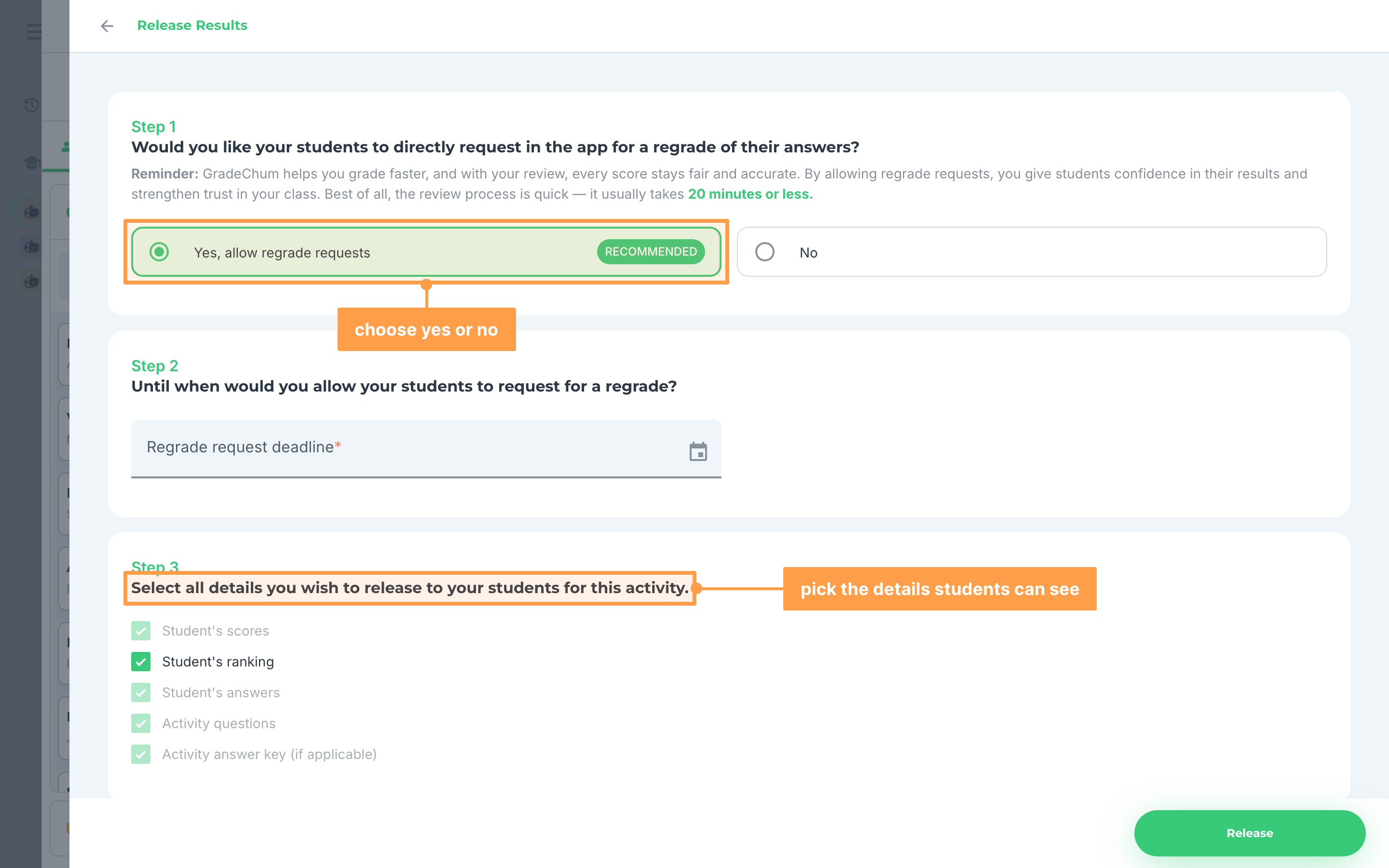
- You may also opt to let your students request a regrade in the app: choose Yes, allow regrade requests or No. Choosing Yes adds a Regrade request deadline step. The last step, Select all details you wish to release to your students for this activity, lists Student's scores, Student's ranking, Student's answers, Activity questions and Activity answer key. If you allowed regrade requests, all of these except Student's ranking are released automatically.
And those are the ways you can edit students' grades! Next, let's explore how to view the item analytics.