
View learning outcomes
Introduction
If your school works with outcomes-based education, your course carries course learning outcomes (CLOs), and each CLO carries the intended learning outcomes (ILOs) under it. GradeChum measures those outcomes from the work your students already do: every activity item you tag with an ILO feeds the scores behind it.
The Learning Outcomes panel sits beside your activities and answers one question for the whole class: how many of your students reached each outcome. From it you can open the class summary, then one student, then the very items that made up their score.
Note: The panel only appears when the class is linked to a course that has at least one learning outcome. Learning outcomes are set up for the course by your school, so if your class shows no panel and no Outcomes tab, ask your school administrator whether the course has outcomes yet.
Steps
To read your class's learning outcomes, follow these instructions:
- After logging in, click your class, then open the Activities tab. The Learning Outcomes panel sits beside your activity list. On a phone, it is the Outcomes tab of the class instead.
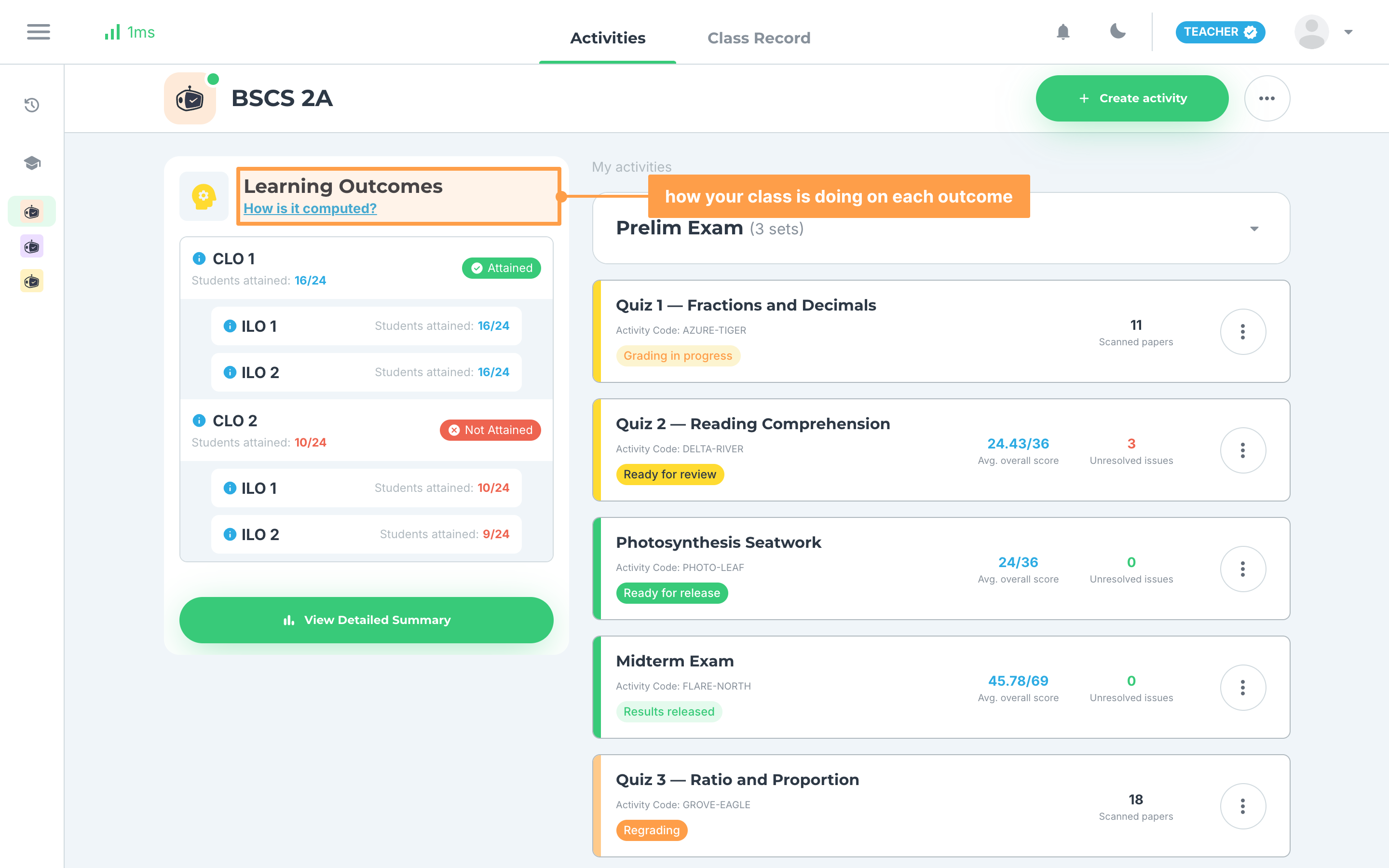
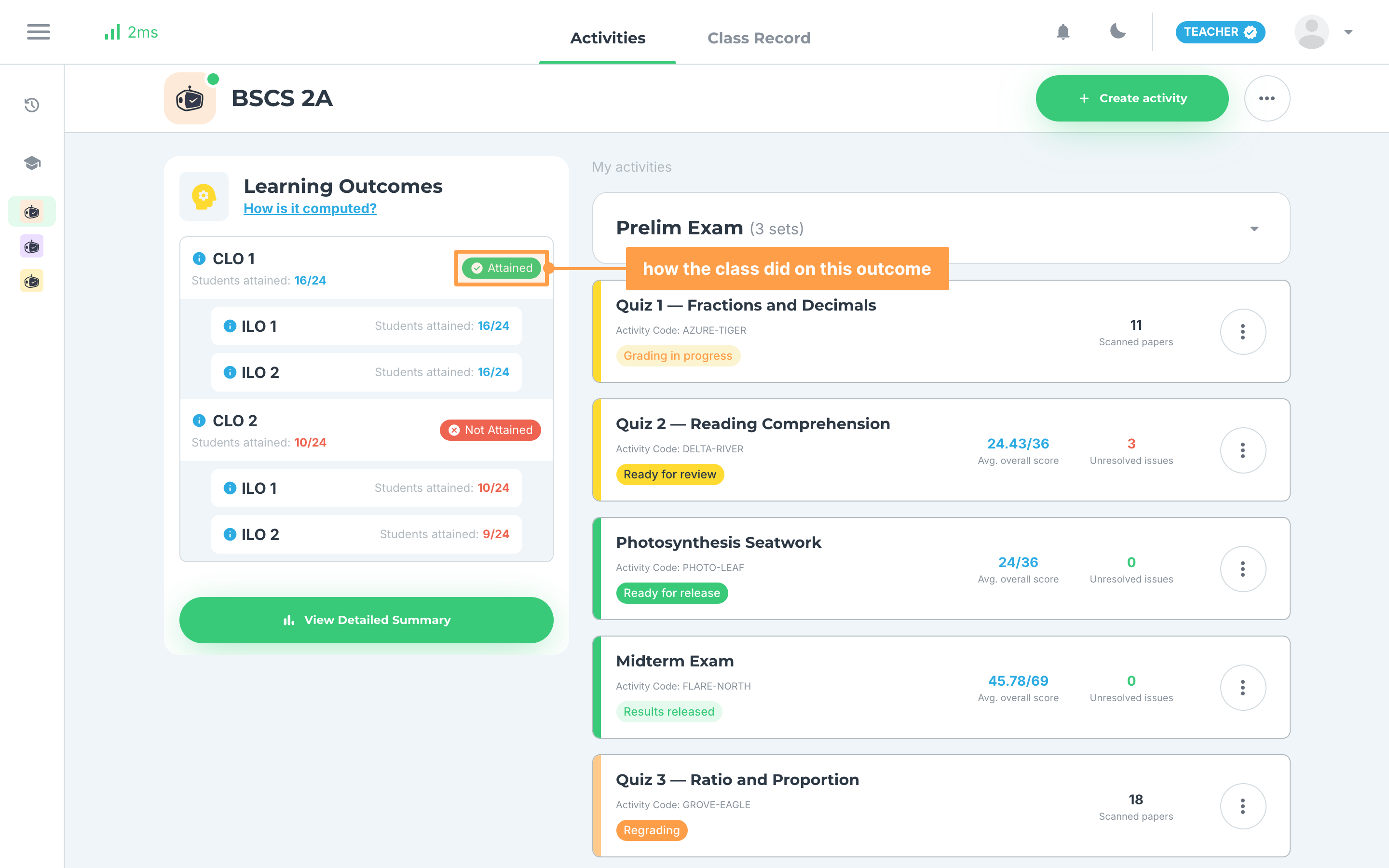
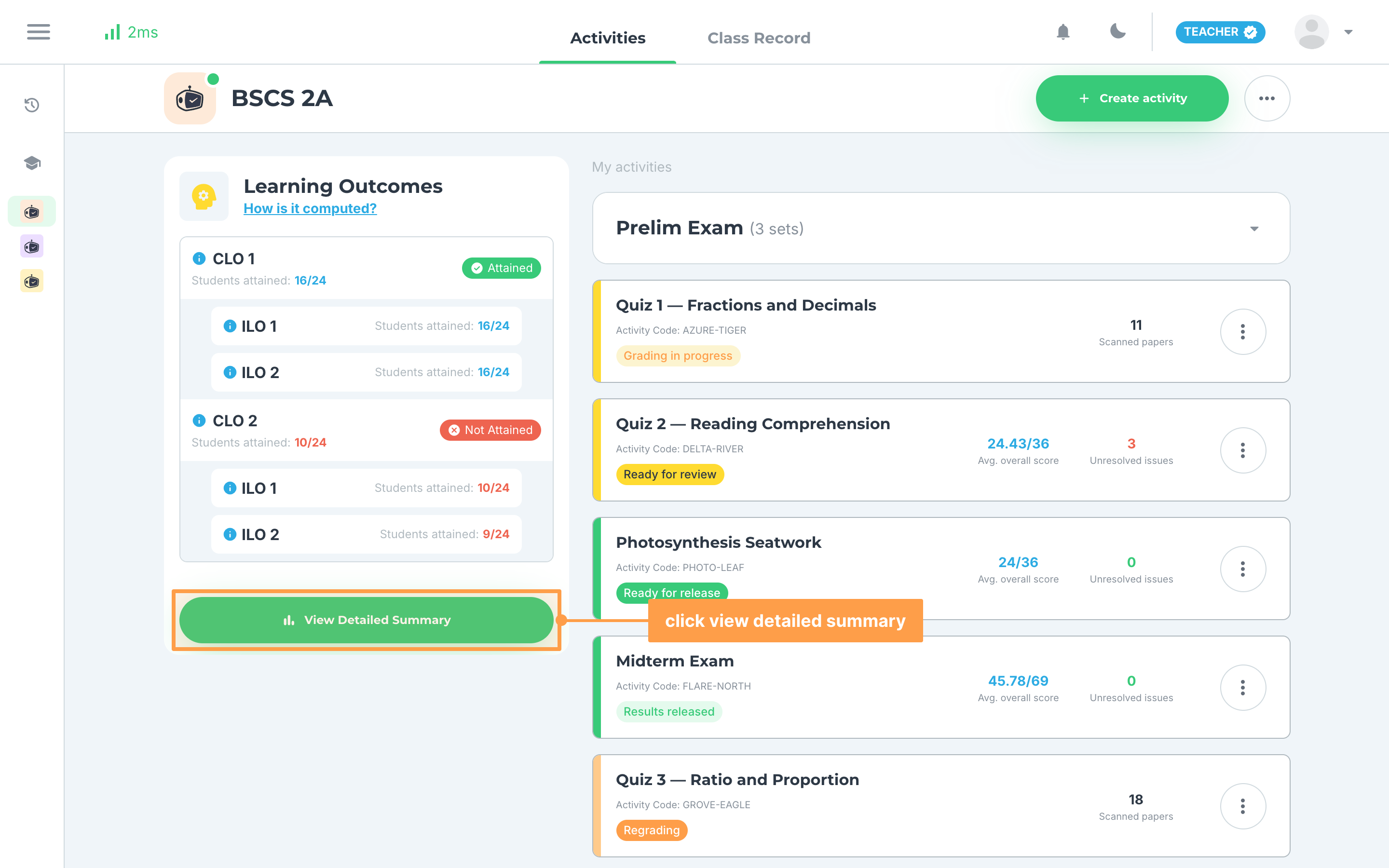
- Read each course learning outcome: CLO 1, CLO 2 and so on, each with "Students attained:" and a count out of every student in the class, and a badge saying how the class did. Hover the information icon beside a CLO to read it in full.
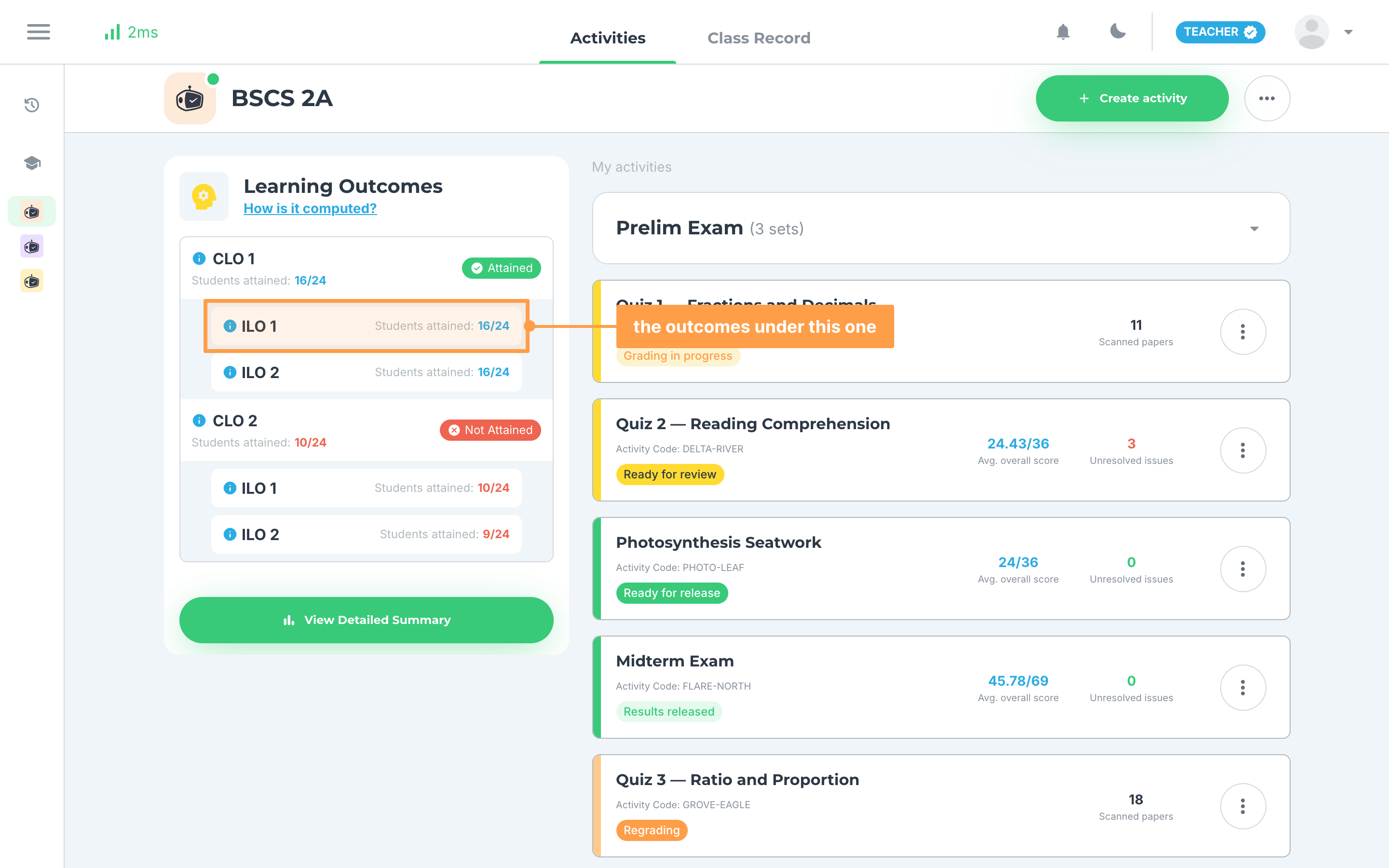
- Under each course learning outcome sits every intended learning outcome it carries, ILO 1, ILO 2 and so on, each with its own "Students attained:" count. Hover the information icon on an ILO to read it in full.
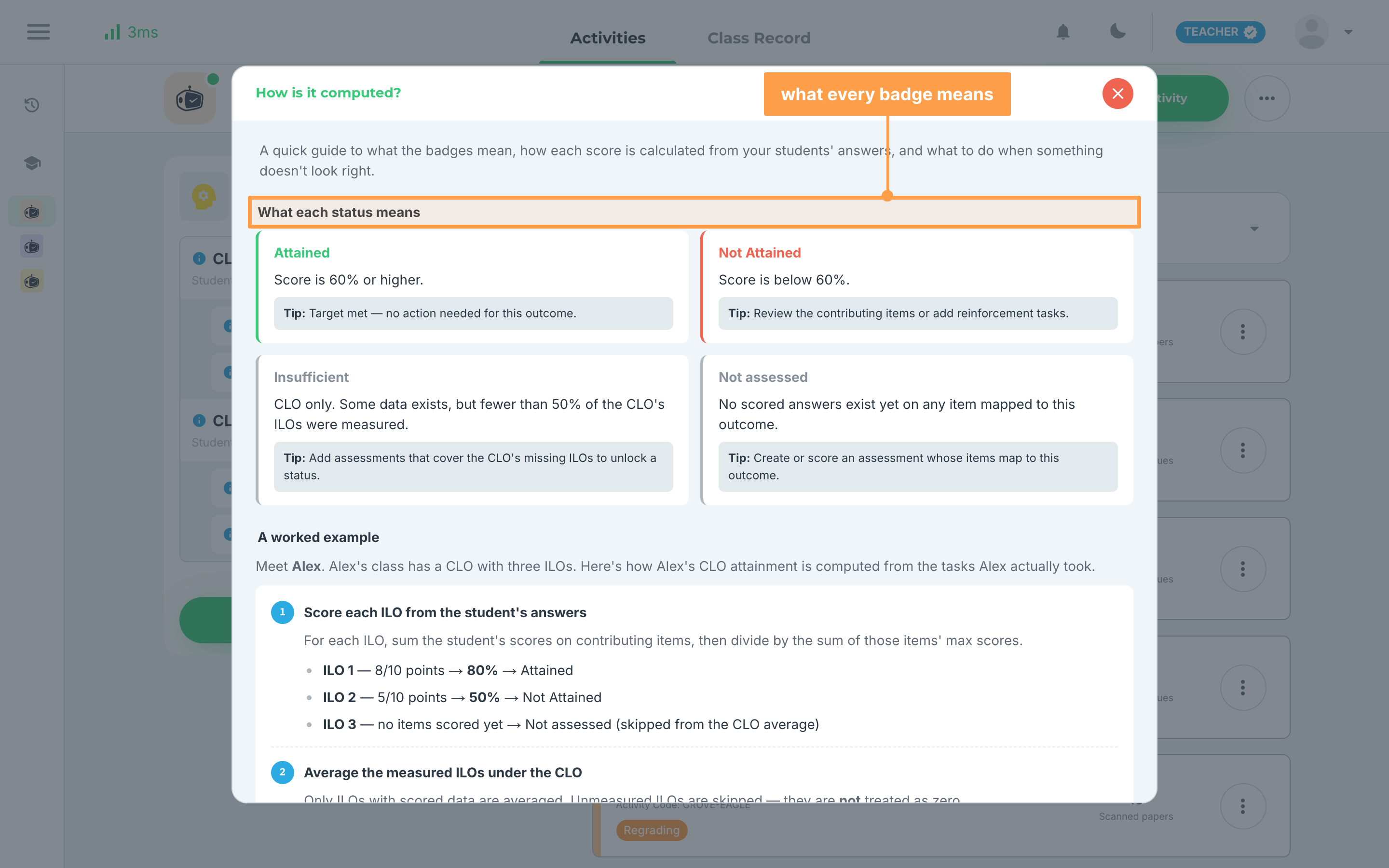
- Click How is it computed? to read what each status means, a worked example of one student's CLO, the key terms, and the formulas GradeChum uses.
- Finally, click View Detailed Summary to open the whole class, outcome by outcome and student by student.
Note: The counts in the panel refresh by themselves every few seconds, so a class being checked fills in while you watch.
What each badge means
a. Attained
Enough of your students reached the passing level on the items tagged to that outcome. For a CLO in the panel, that is 60% or more of the students enrolled in the class. In a class of 24 students, 16 attained is Attained and 10 attained is Not Attained.
b. Not Attained
Too few students reached the passing level on that outcome's items. A single student attains an outcome when their score on its items is 60% or more, and a CLO averages the ILOs under it that have scores.
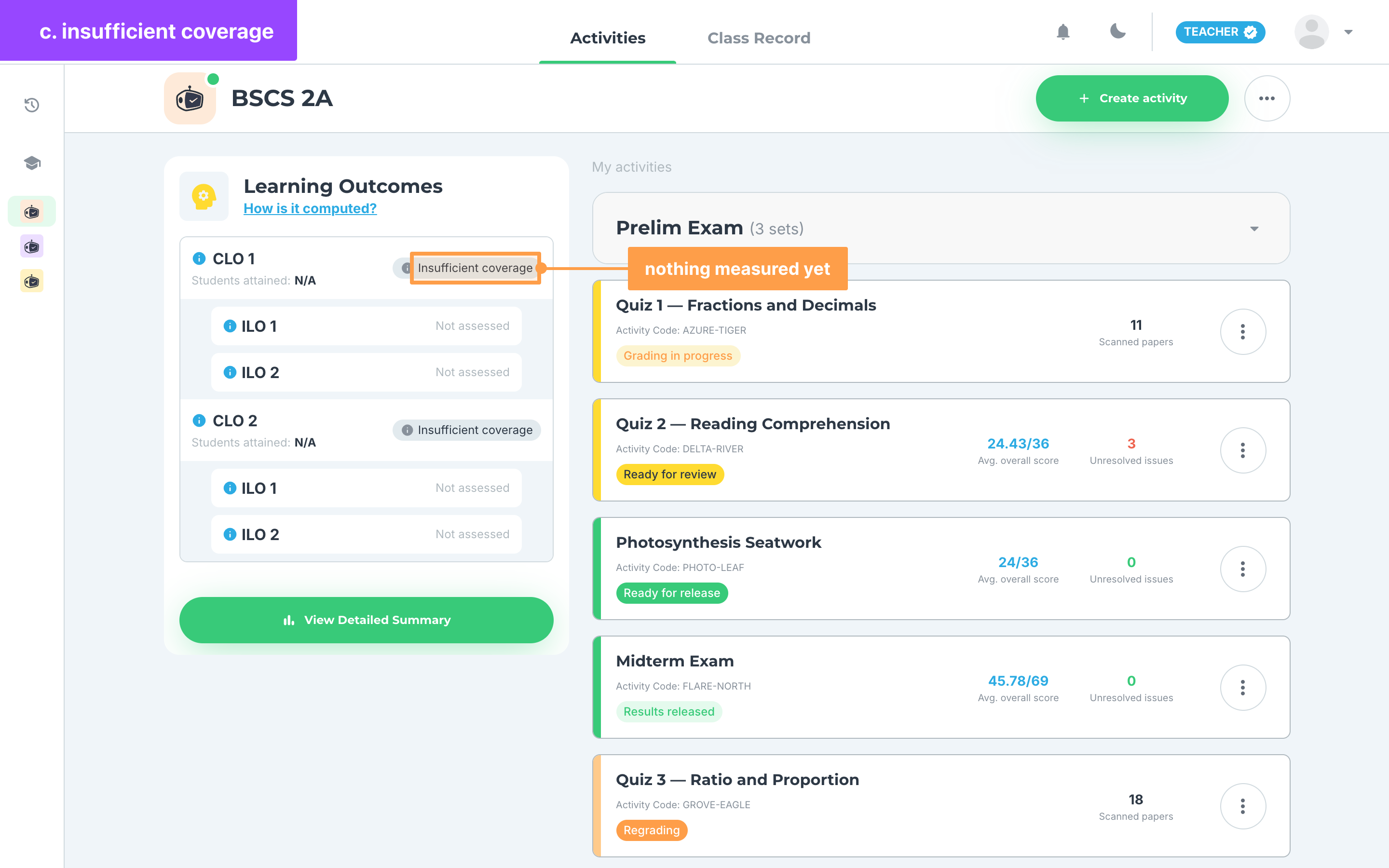
c. Insufficient coverage
Not enough of the outcome has been measured to judge it, so the count reads "N/A" instead. This is what you see when no scored item is tagged to that CLO yet. Tag more of your activity items to the outcome, or give an activity that covers it, and the badge turns into a result.
d. Not assessed
No scored item targets that intended learning outcome yet. It appears on an ILO, not on a CLO.
The detailed summary
View Detailed Summary opens two parts.
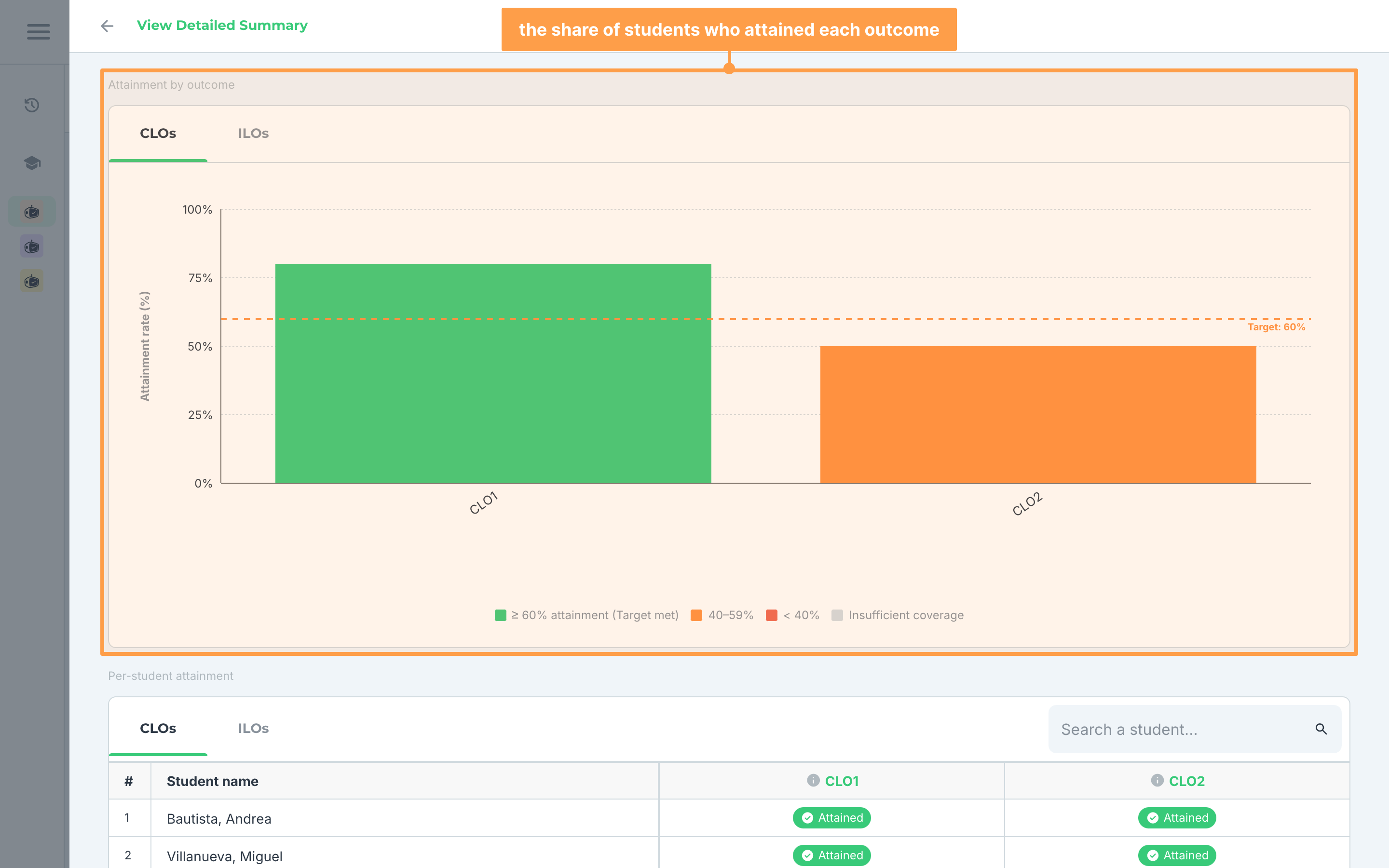
Attainment by outcome charts the share of measured students who attained each outcome. Switch it between CLOs and ILOs. A bar is green at 60% or more, orange between 40 and 59% and red below 40%, with a Target: 60% line across it, and gray for an outcome with Insufficient coverage. Hover a bar to read "16 of 20 attained (80%)", or "Insufficient coverage — no measurable data".
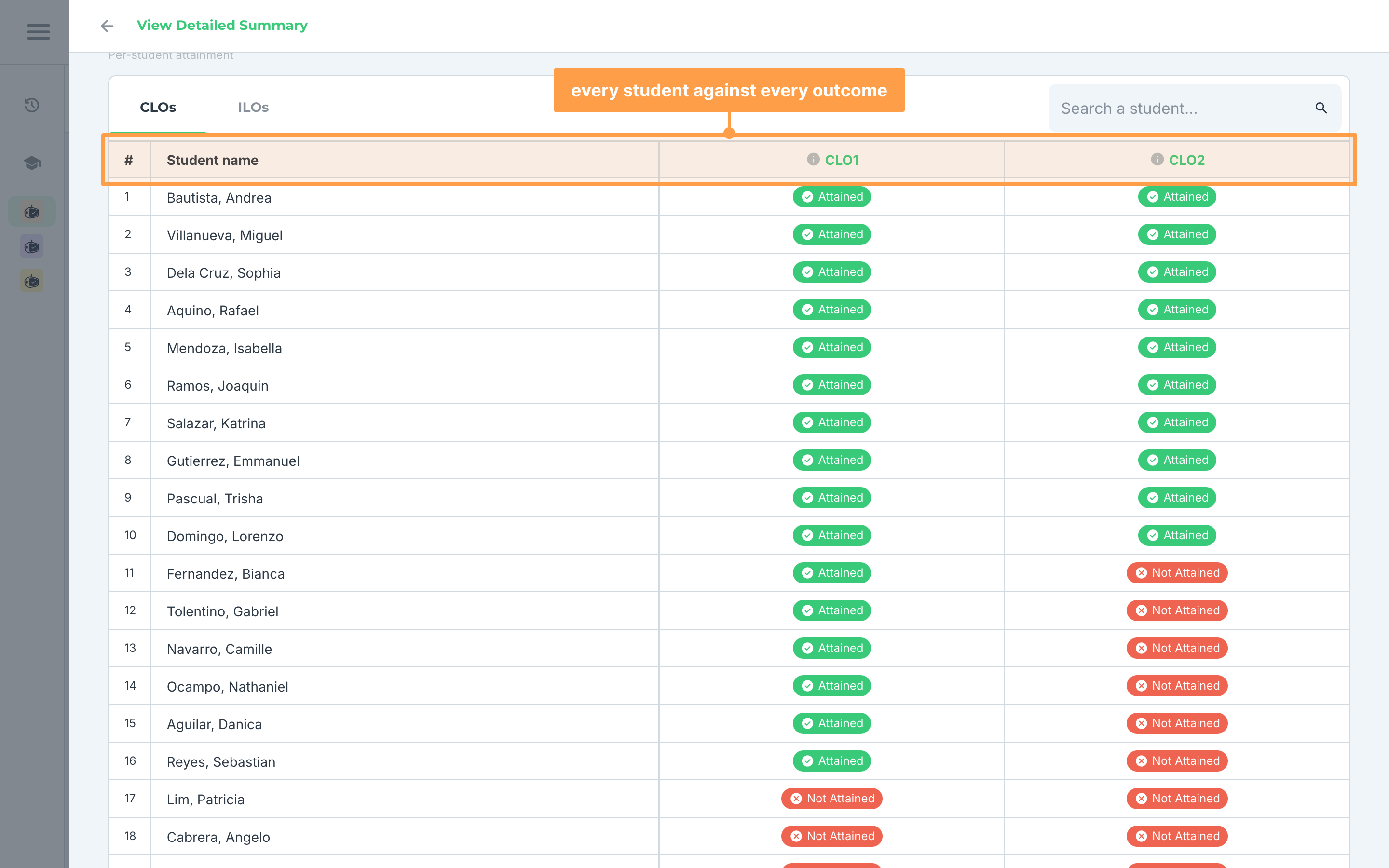
Per-student attainment puts one student on each row and one outcome in each column, with the same badges in the cells. Switch it between CLOs and ILOs, and use Search a student... to find one student. Hover a cell to read that student's percentage, or, when a CLO is short of coverage, how many of its ILOs were measured.
Note: A class with nobody scored yet reads "No student data available.", and a search that matches nobody reads "No students found." If the summary says "Failed to load summary data.", close it and open it again.
One student, item by item
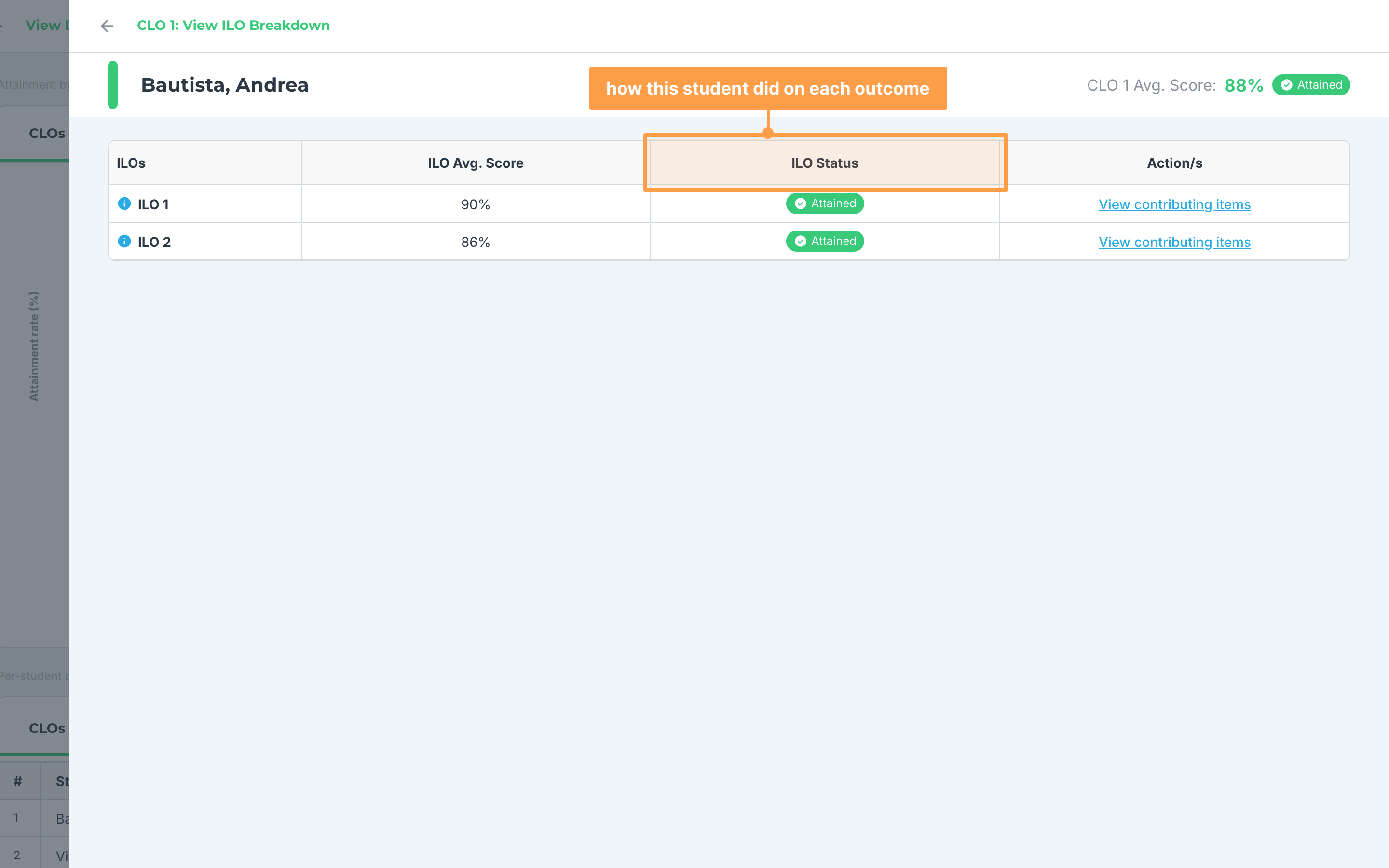
- On the CLOs tab of Per-student attainment, click a student's cell. View ILO Breakdown opens for that course outcome, with every ILO under it, each with its ILO Avg. Score and ILO Status for that student. A score GradeChum could not measure reads "N/A".
- Finally, click View contributing items on an ILO row. View Contributing Items lists the items behind that score, grouped by the activity and the test they belong to, with the student's score on each one. Clicking a student's cell on the ILOs tab opens the same window in one step.
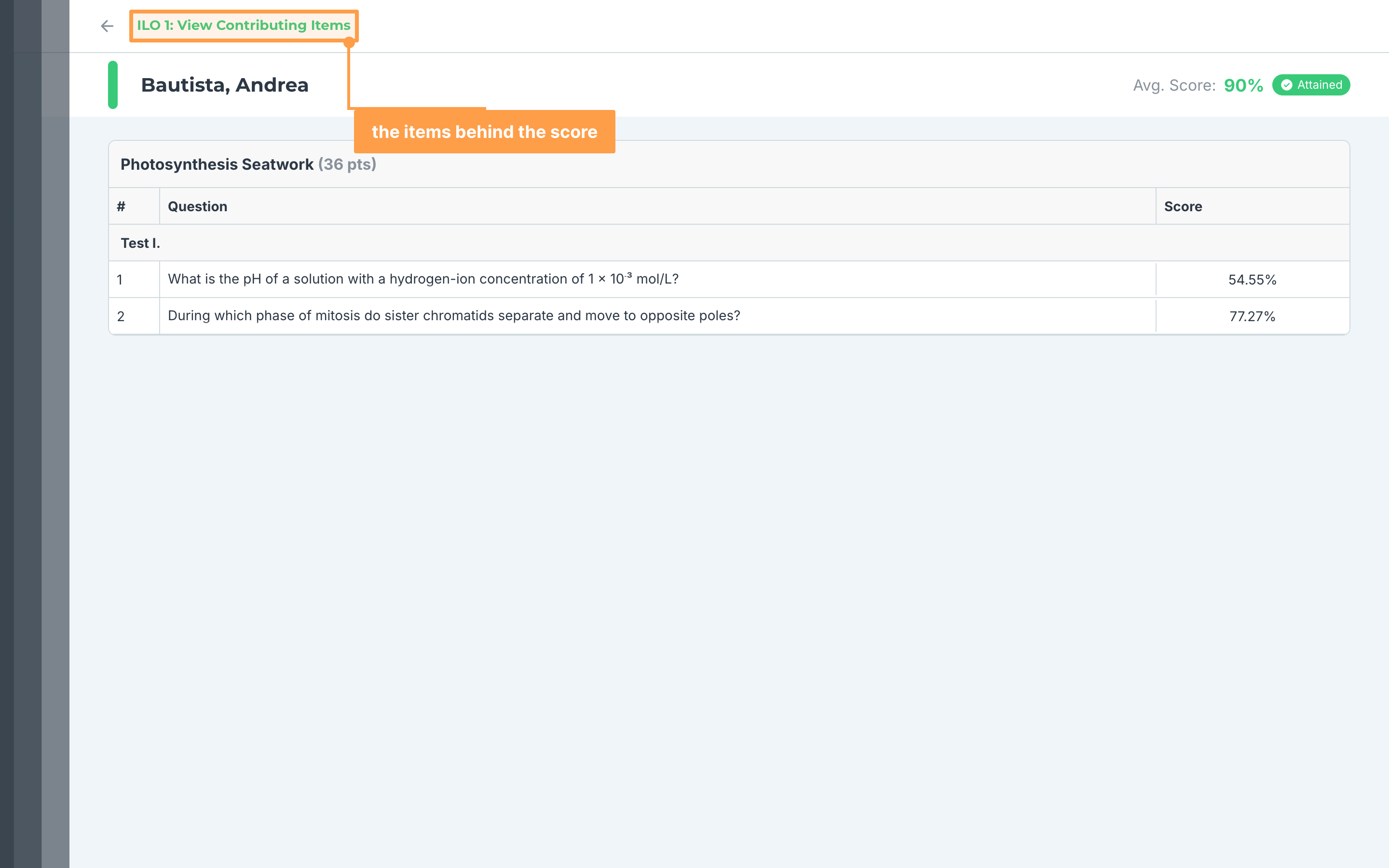
Note: An activity from outside GradeChum has no items, so it contributes one Score instead of a list of questions. "No contributing items found." means no item in this class is tagged to that outcome yet.
Tagging your items to outcomes
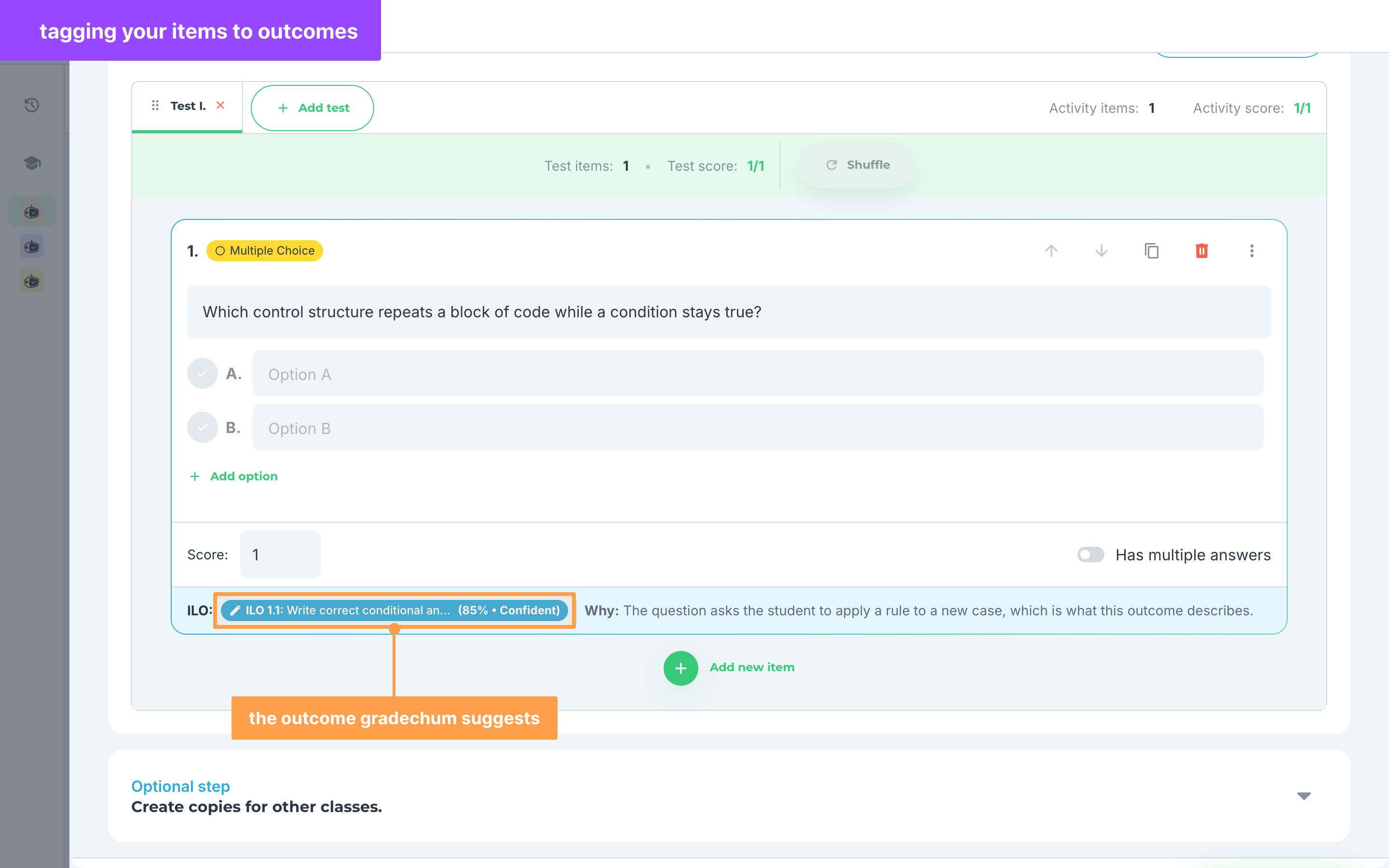
The outcomes above are only as good as the tags on your items. While you write an activity, every item carries an ILO: footer, and GradeChum suggests the outcome the item measures. After you save, each tagged item shows its outcome under View Activity > Items, where you can hover it to read the outcome in full.
- Write the item. A moment after you stop typing, the footer reads Generating the ILO…, then shows the suggested outcome with how sure GradeChum is: Confident, or Needs Review below 70%. Why: beside it gives the reason.
- An item of fewer than about six words, or one no outcome matches, shows Set ILO manually instead, with the reason "No ILO yet — needs ~6+ words with a clear task." or "No ILO matched this question yet. Set one manually."
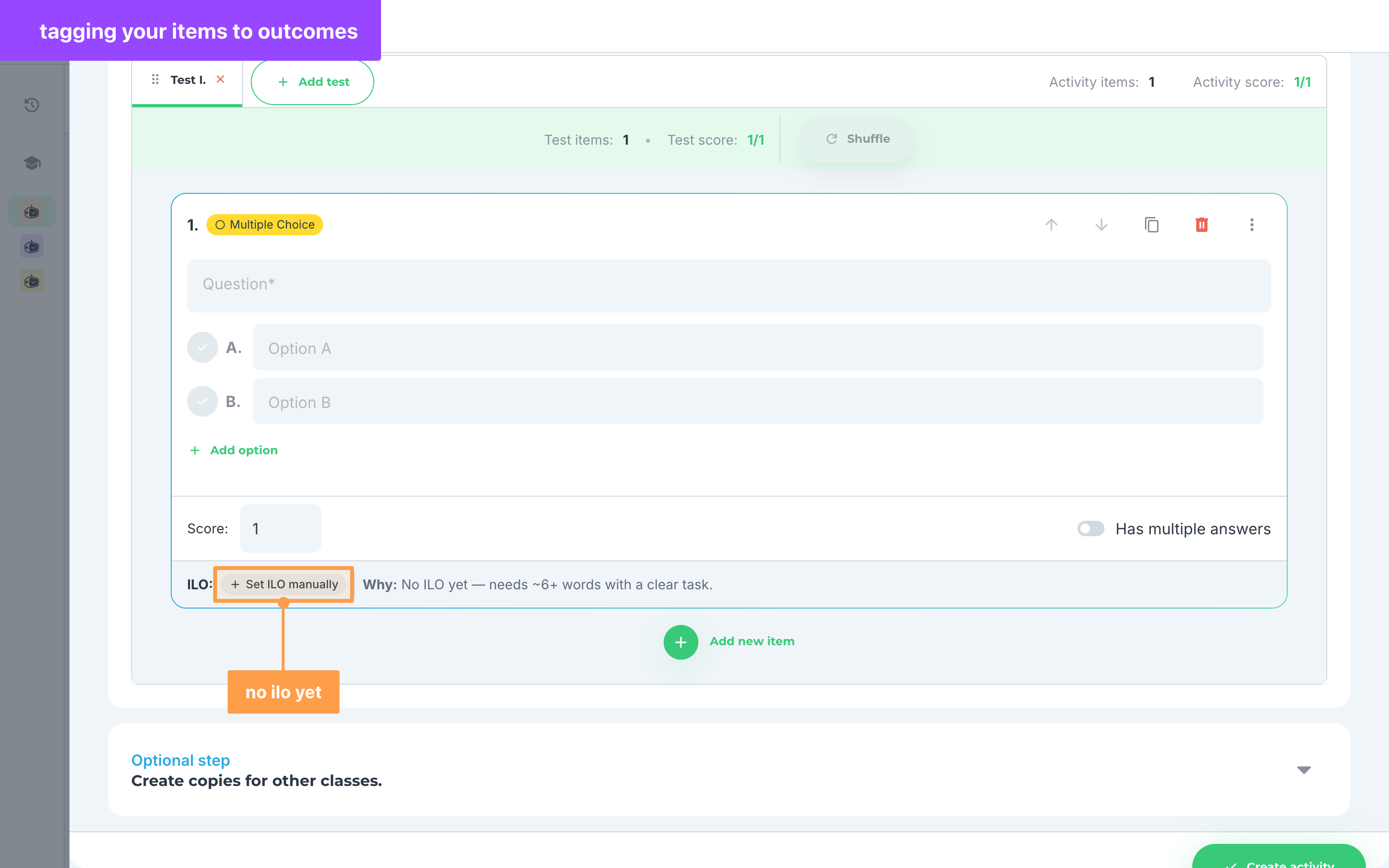
- To choose the outcome yourself, click the outcome badge, or Set ILO manually. Set the ILO for this item opens with every ILO listed under its CLO, and GradeChum's own suggestion marked with its percentage.
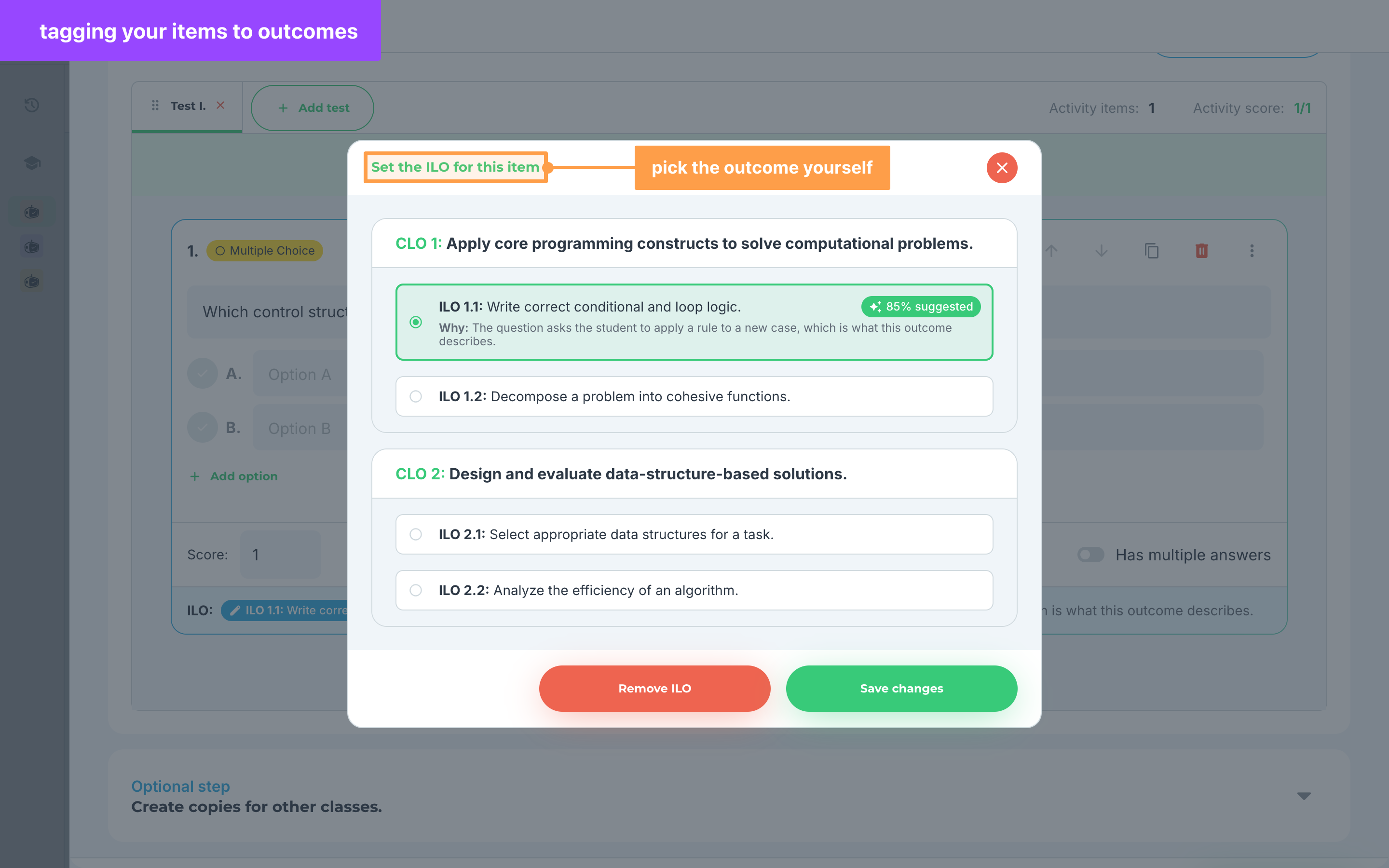
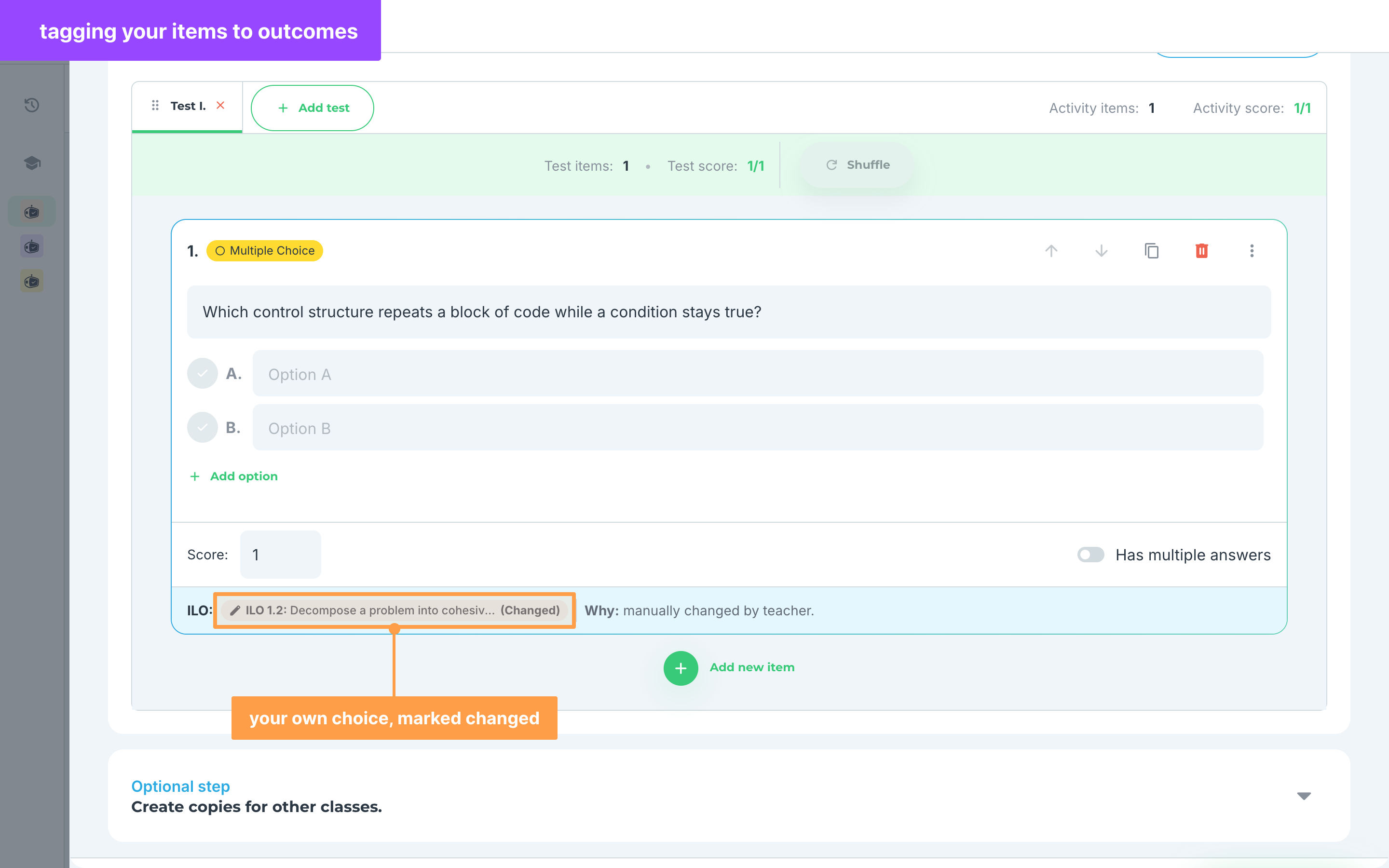
- Click the ILO this item measures, then click Save changes. The footer then reads (Changed) with "Why: manually changed by teacher." To clear the tag instead, click Remove ILO.
- Click Create activity or Save activity. Activity ILO Summary opens, listing each Intended Learning Outcome with its No. of Items and Coverage, and No ILO assigned for the rest. Items with no outcome are named under "No ILO set for item/s:".
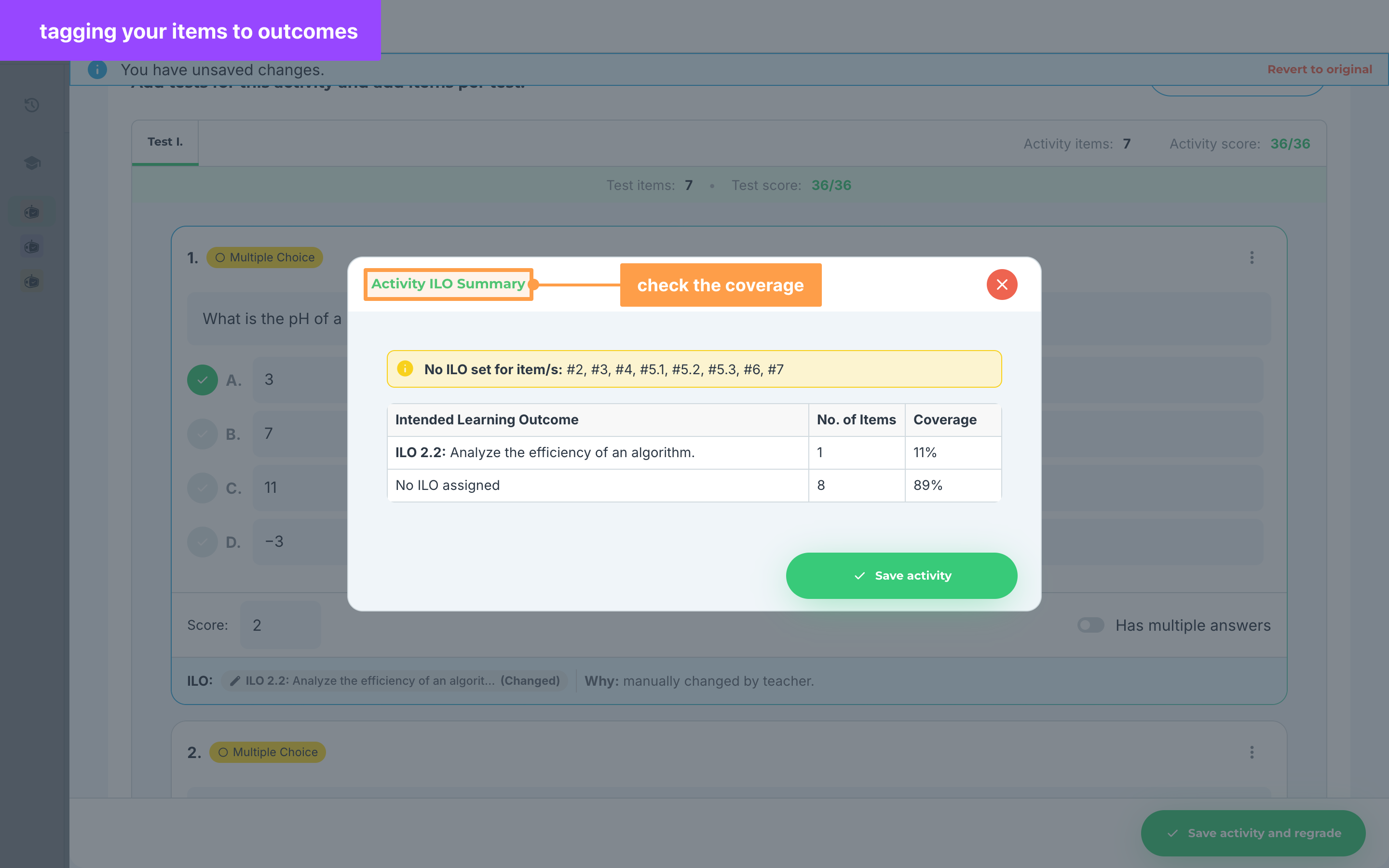
- Finally, read the table, then click Create activity or Save activity again to save. Close the window instead to go back to the form and fix the tags.
Note: Your own choice is never replaced by a later suggestion. Items you import or autogenerate are tagged for you in the background.
And that's how you read your class's learning outcomes! Next, let's view your class record.