
Sign up and log in
Introduction
Everything you do in GradeChum, from creating a class to checking your students' papers, happens inside your own teacher account. Your account keeps your classes, activities and results together, so you can pick up where you left off on any computer.
You can create an account with your email address or with your school's LMS (Canvas, Blackboard or Moodle). If your school has a GradeChum license, GradeChum also takes you to your school's own GradeChum address when you log in.
In this guide, you will create your GradeChum account, log in to it, and reset your password if you forget it.
Steps
Note: Students create their own accounts. See Sign up and log in for students.
To get into GradeChum, follow the instructions for each:
a. Create an account
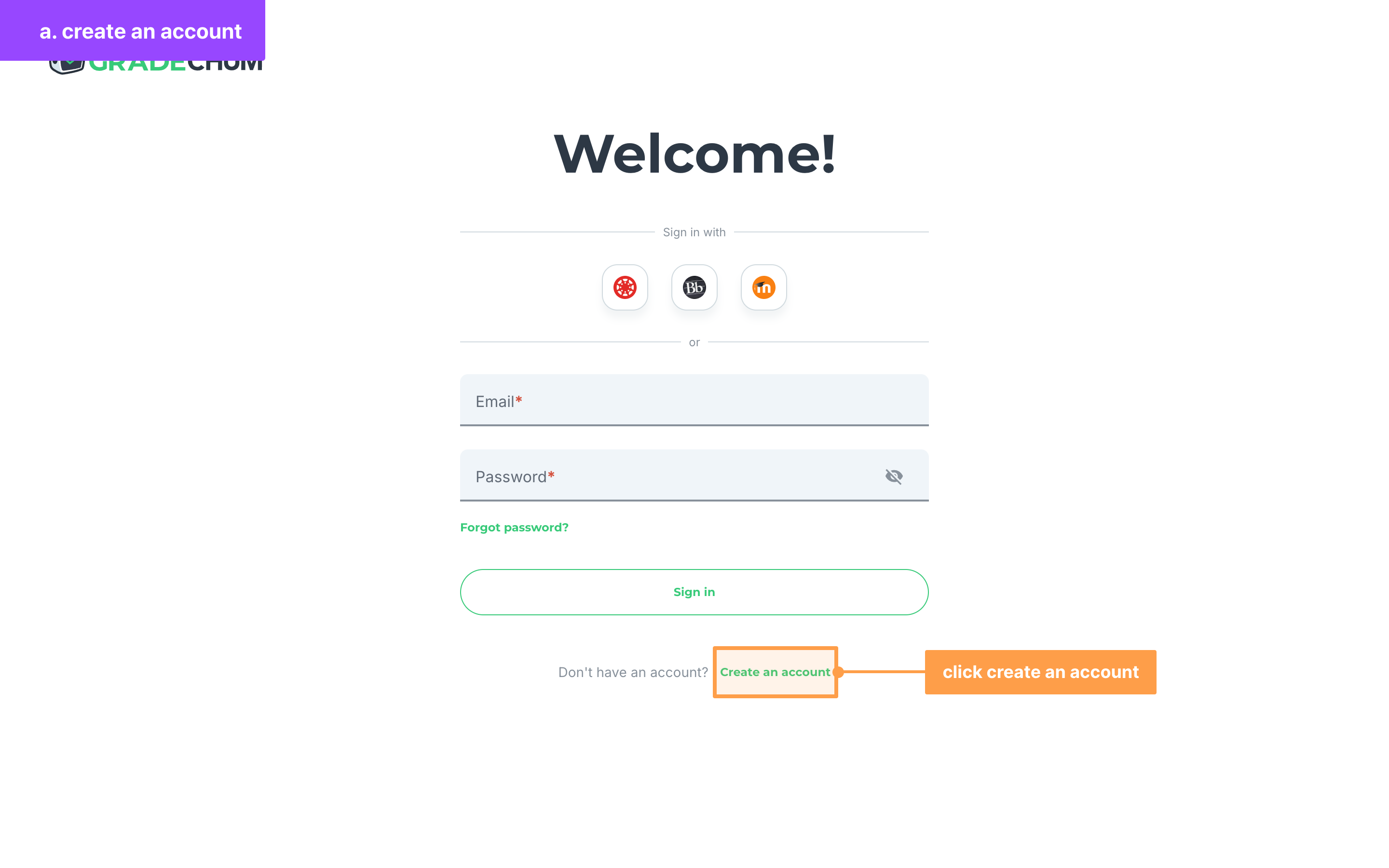
- Go to app.gradechum.com. On the Welcome! page, click Create an account.
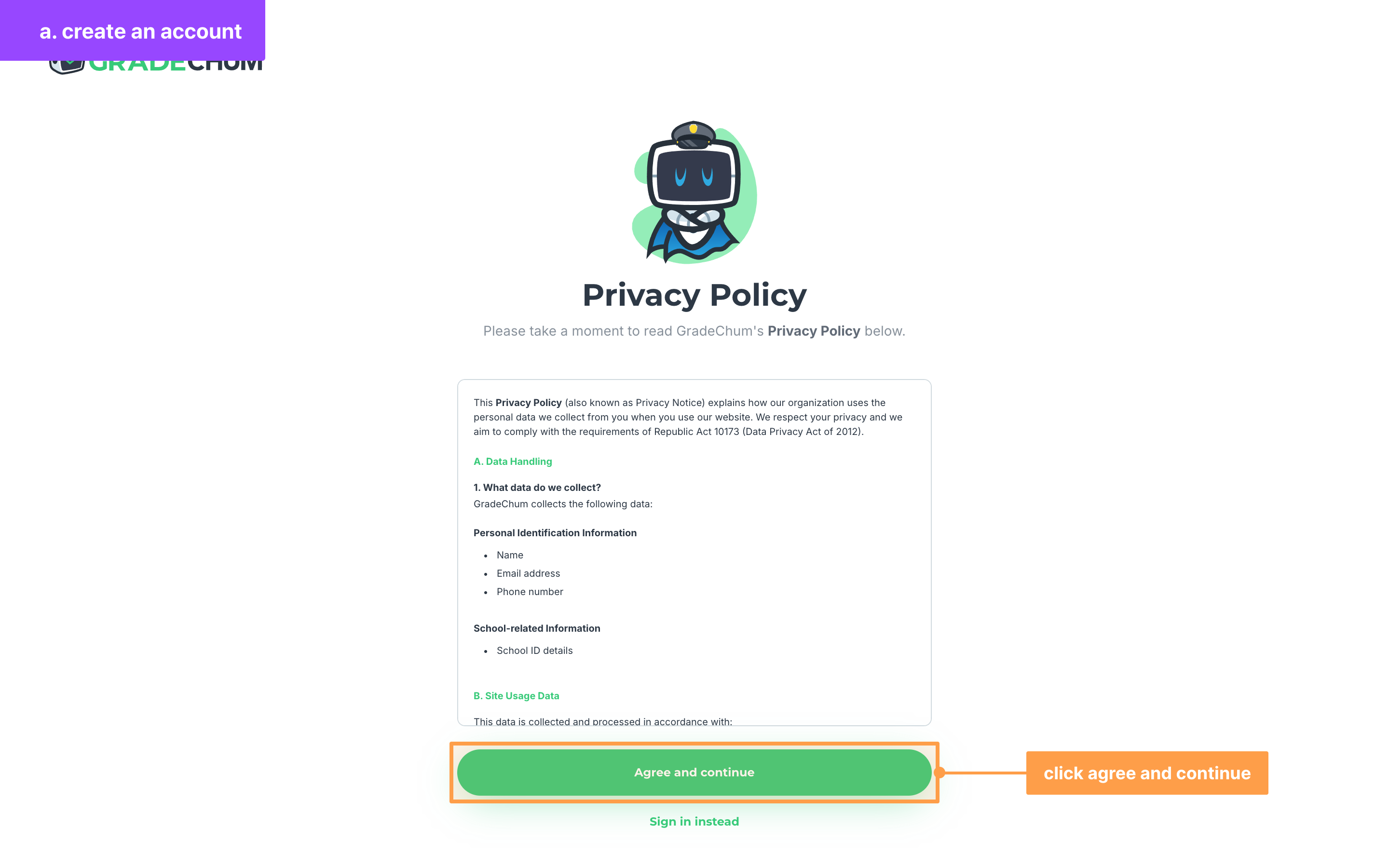
- Read GradeChum's Privacy Policy in the scroll box, then click Agree and continue. The ways to sign up only show after you agree.
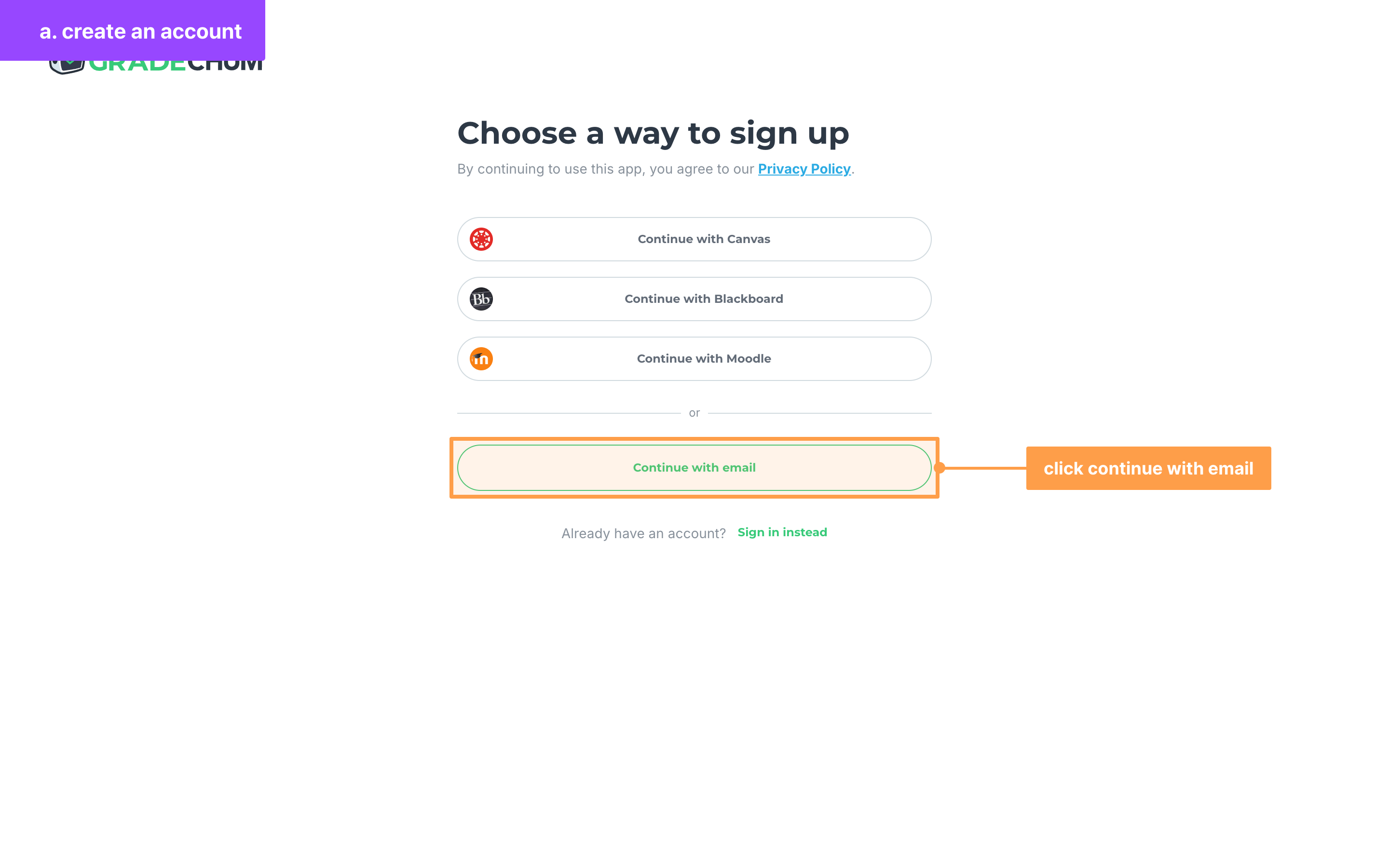
- On Choose a way to sign up, click Continue with email. To sign up with your school's LMS instead, see "If you sign up with your school's LMS" below.
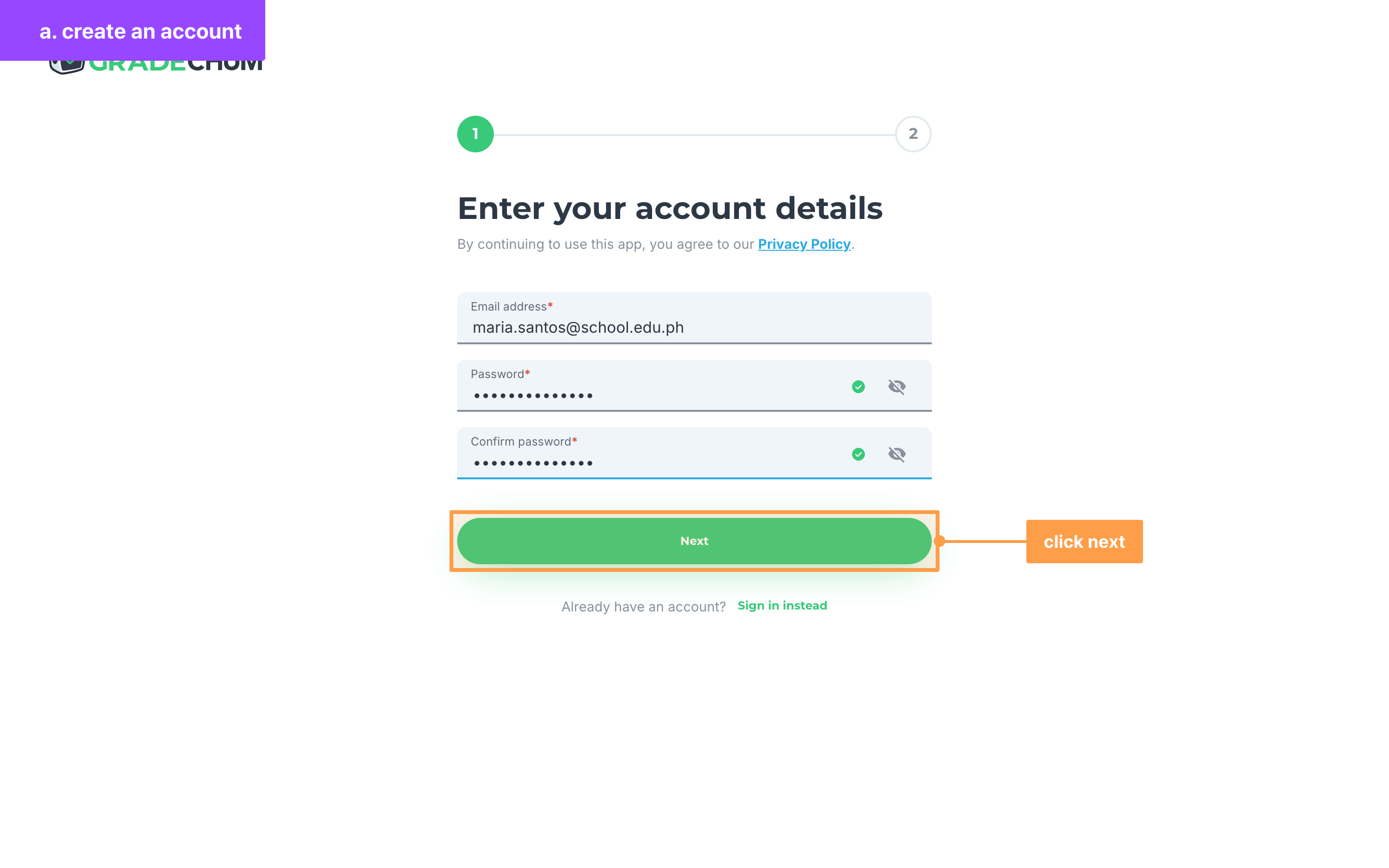
- Type your Email address, then type a password in Password and again in Confirm password. Click Next. The button stays disabled until your password meets every rule and all three fields are filled.
- On Just a few more things..., click Teacher under Select account type, then type your First name and Last name. Names can only have letters, spaces, apostrophes and hyphens.
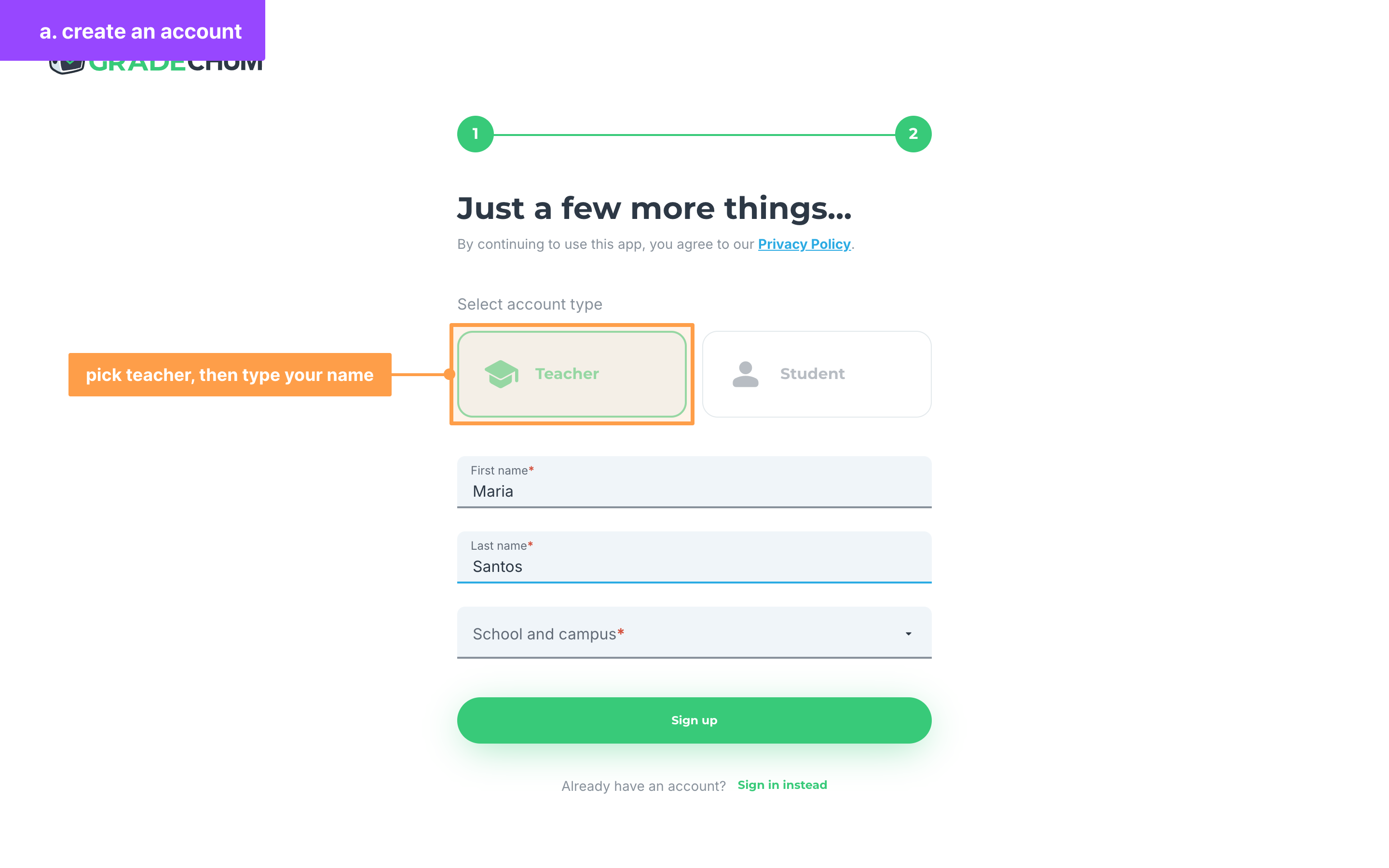
- Search for your school in School and campus and choose it, then click Sign up.
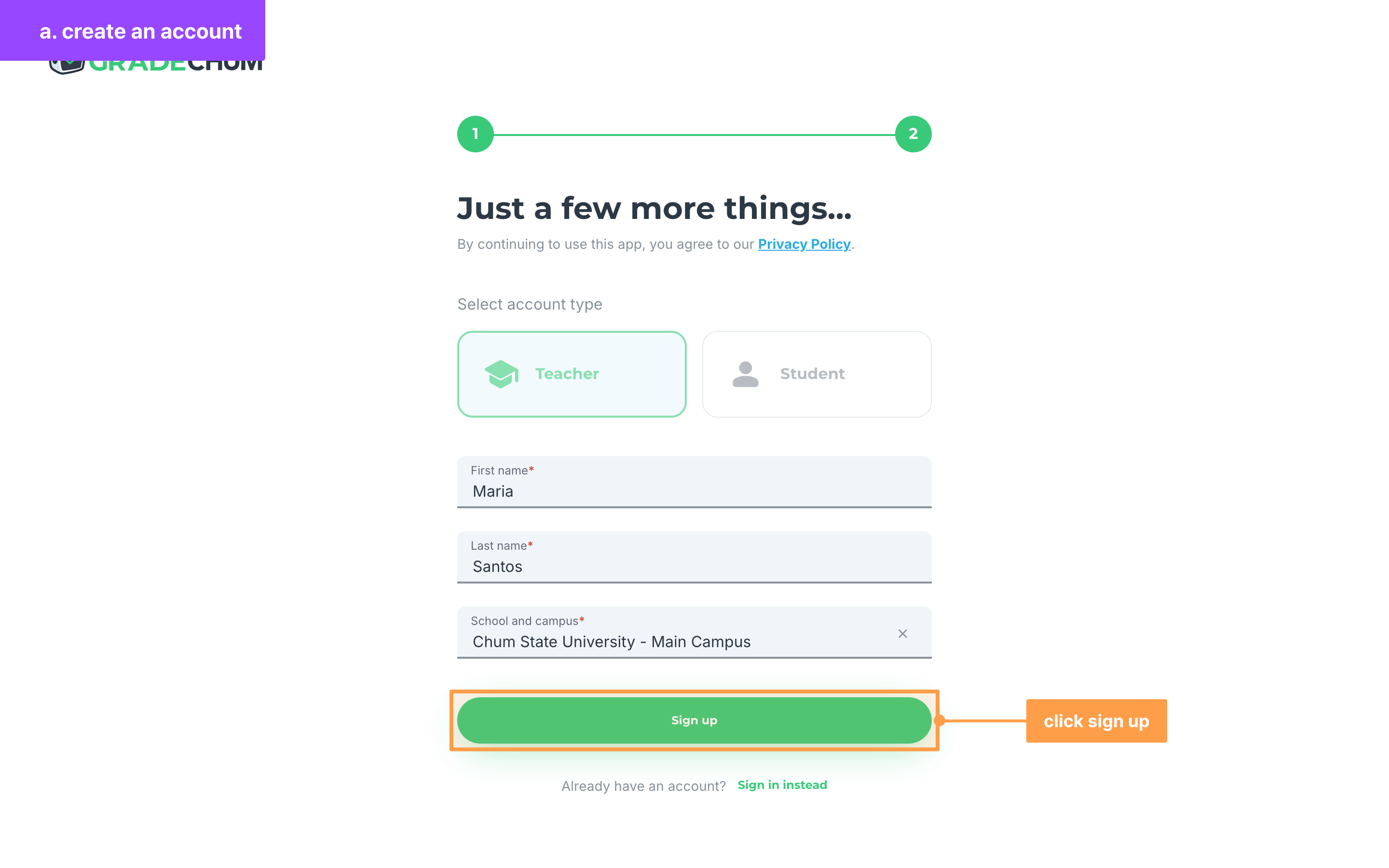
- Finally, verify your email with the 6-digit code GradeChum sends you (see Verify your email and phone number). On How did you hear about GradeChum?, tick at least one answer and click Submit to open My classes.
Password rules
When you click the Password field, a list of rules shows. Your password must:
- be at least 8 characters long
- have at least 1 special character, such as ! @ # $ - _ or ?
- have at least 1 uppercase letter, 1 lowercase letter and 1 number
- be shorter than 30 characters, with no spaces at the start or end
A red mark beside the field means a rule is not met yet, and it turns into a green check once every rule is met. Click the eye icon to show or hide what you typed.
If the sign-up form shows an error
- "This email is already in use. If you are the owner of this email, try signing in." means you already have an account with that email. Click signing in to log in instead.
- "Passwords don't match" means Confirm password is not the same as Password. Type it again.
- "School and campus is required" means you clicked Sign up without choosing your school.
- "This field can only contain valid letters and spaces." means your name has a number or a symbol other than an apostrophe or a hyphen.
- If an Uh oh modal says your account was created but something went wrong when logging you in, click Okay and log in with the email and password you just set.
If you sign up with your school's LMS
- On Choose a way to sign up, click Continue with Canvas, Continue with Blackboard or Continue with Moodle.
- Under Continue with your LMS, choose your school from Select a school, then click Next. Click Cancel to go back to the other ways to sign up.
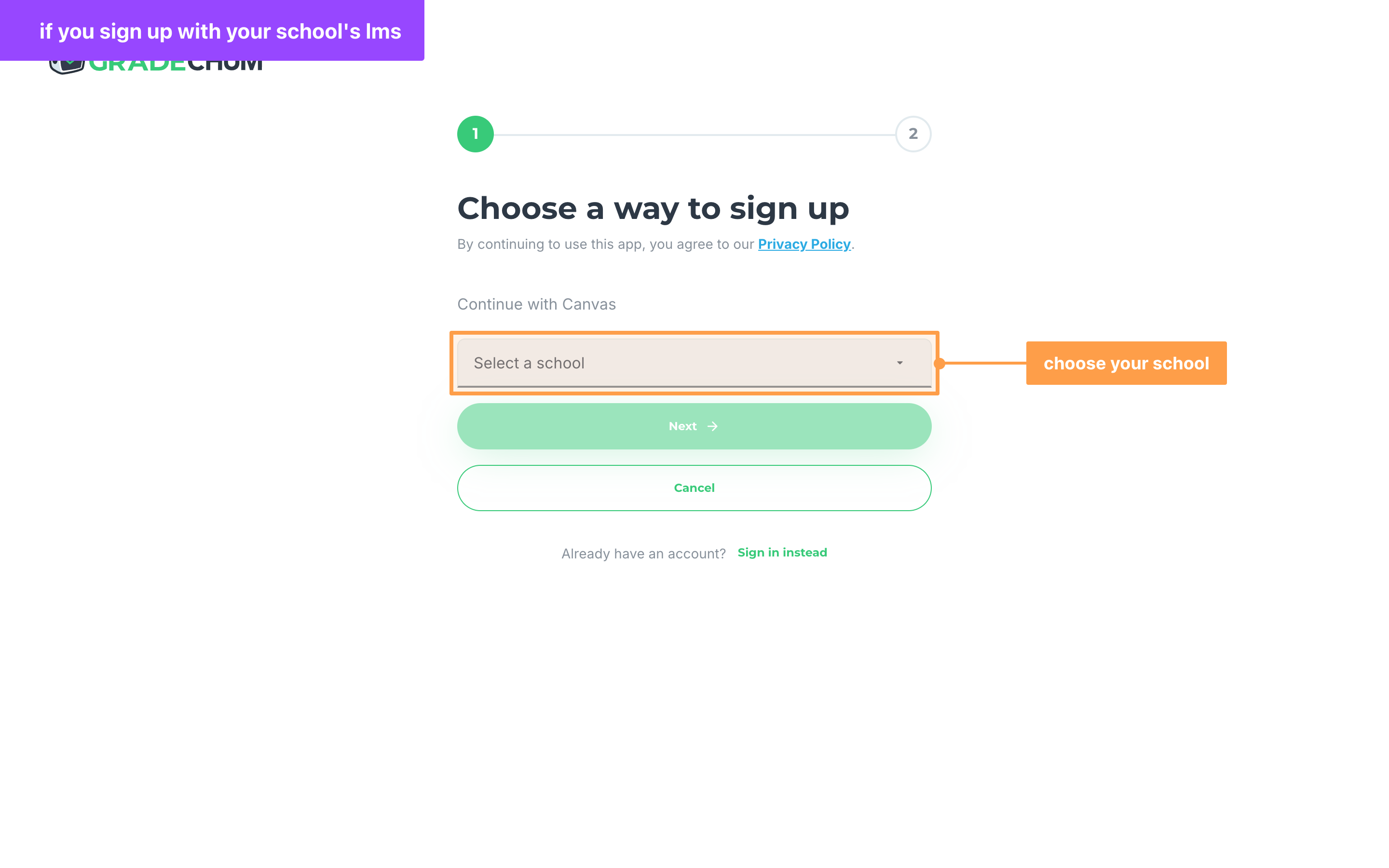
- For Canvas or Blackboard, sign in on your LMS's page and allow GradeChum to access your account. GradeChum shows "Authorization successful. Redirecting..." and brings you back.
- For Moodle, type your Moodle Username and Password on Sign in to Moodle, then click Sign in.
- Continue from step 5 above.
If GradeChum shows "Access denied" when you come back from your LMS, you did not allow GradeChum to access your account. Click the button below the message to go back to the Welcome! page, then try again. "LMS account is linked to another account." means your LMS account already belongs to another GradeChum account, so log in to that account instead. If a Moodle sign-up shows an Uh oh modal saying the username is already taken, click Okay and contact us through the links on How to report bugs/issues.
To connect an LMS to an account you already have, see Connect to LMS.
If you received a sign-up link by email
A sign-up link from GradeChum opens Enter your account details with your email already filled in, and you cannot change it.
- Type a password in Password and again in Confirm password. The same password rules apply.
- Click Sign up. GradeChum logs you in and opens My classes.
If an account already uses that email, the link opens the Welcome! page with your email filled in, so type your password and log in. If the page says "This signup link is invalid or has expired.", the link is old or broken: go to app.gradechum.com and click Create an account instead.
b. Log in
- Go to app.gradechum.com. On the Welcome! page, type the email and password of your account in Email and Password.
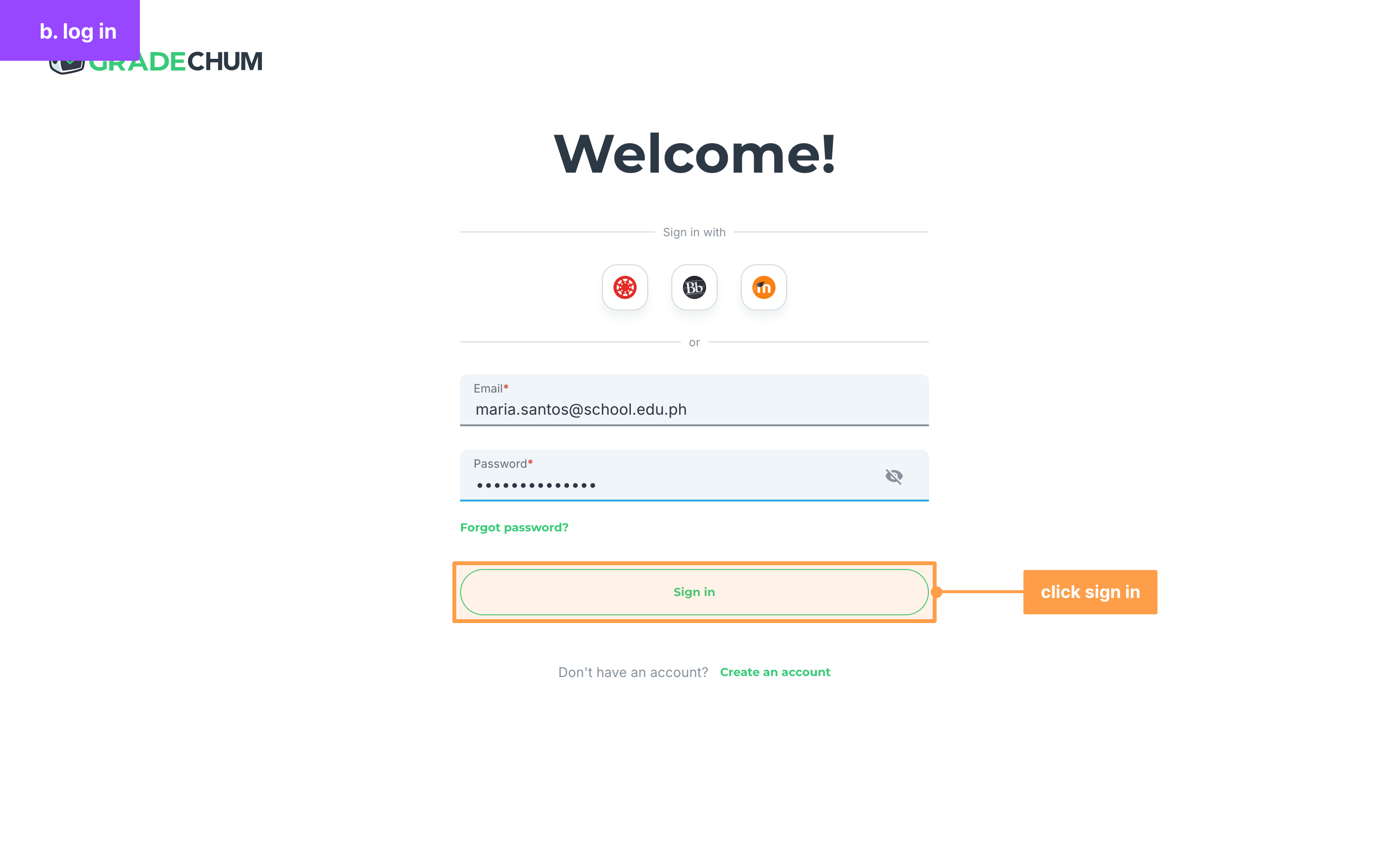
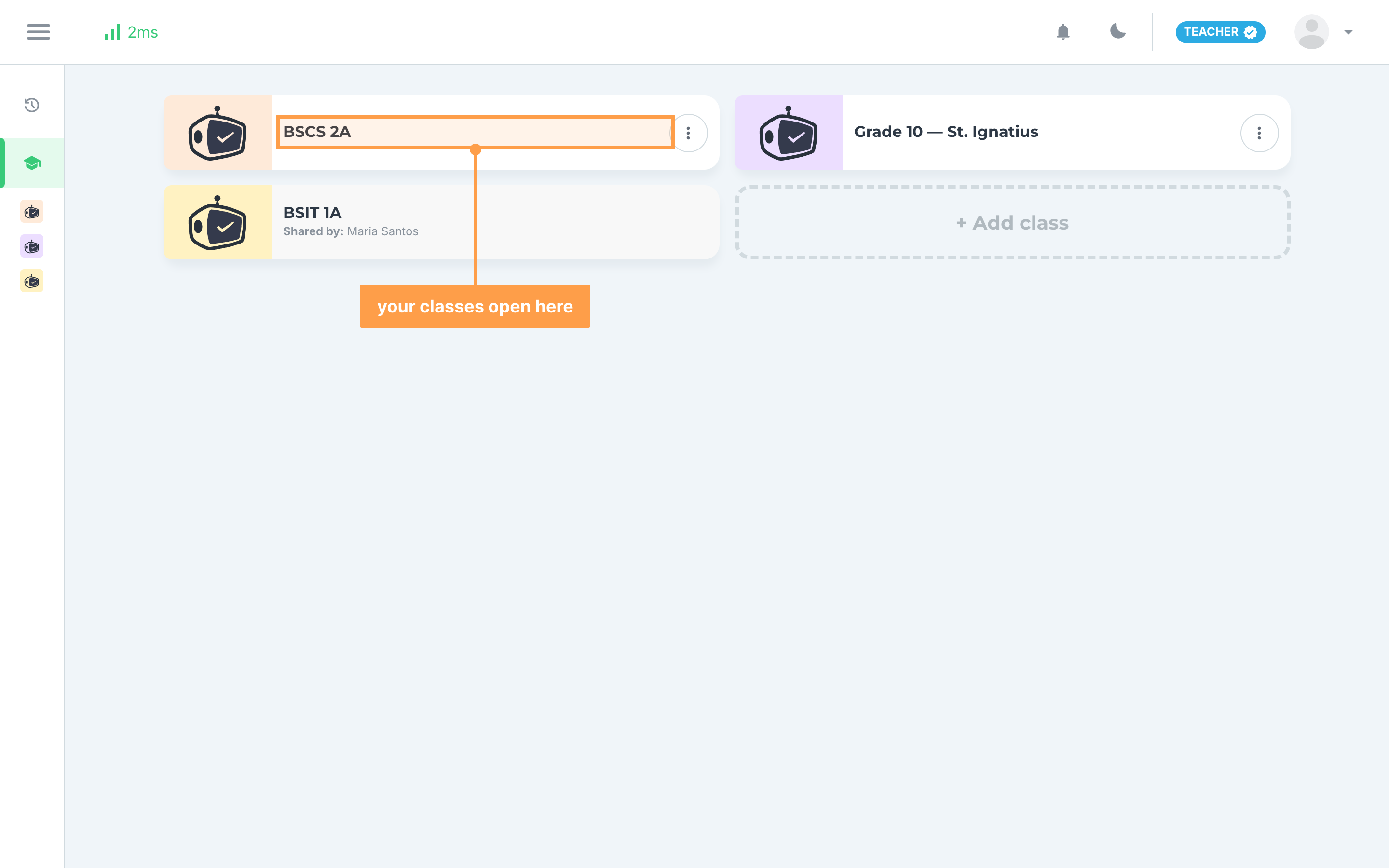
- Finally, click Sign in. GradeChum opens My classes. If you have not verified your email yet, Verify your email opens first, and if you did not finish signing up, Just a few more things... opens.
If you cannot log in
- "Email is required" or "Password is required" means that field is empty.
- "Email or password is invalid" means the email or the password is wrong. Check both, or reset your password (see "c. Reset a forgotten password" below).
- If a banner on the page says the website uses cookies, cookies are turned off in your browser. Click instructions. in the banner to turn them on, then reload the page.
If you log in with your school's LMS
- On the Welcome! page, under Sign in with, click the Canvas, Blackboard or Moodle icon.
- Choose your school from Select a school, then click Next.
- Sign in on your LMS's page, or for Moodle, type your Username and Password and click Sign in.
If you see "Account does not exist.", no GradeChum account is connected to that LMS account yet. Click Sign up instead to create one, or go back to the Welcome! page, log in with your email, and connect your LMS from your account.
If you log in with Moodle and have no GradeChum account yet, the form changes to Create new account?. Click Continue to create a GradeChum account with those Moodle details.
If your school has its own GradeChum address
Schools with a GradeChum license have their own address, such as
- When you log in anywhere else, GradeChum moves you to your school's address and keeps you logged in, so you do not have to log in again.
- On your school's address, only the LMS your school uses shows, and clicking it takes you straight to your LMS without asking you to pick a school.
- If "This sign-in link has expired or was already used. Please log in." shows, log in again on the page that opens.
- On an iPhone, an iPad or in Safari, GradeChum does not move you, and you stay on the address you used.
If GradeChum is open in more than one tab
Your tabs stay on the same account. When you log in, your other GradeChum tabs reload with your account. When you log out, or your session ends, in one tab, your other GradeChum tabs log out too.
To log out, click your name in the navigation bar, then click Logout.
c. Reset a forgotten password
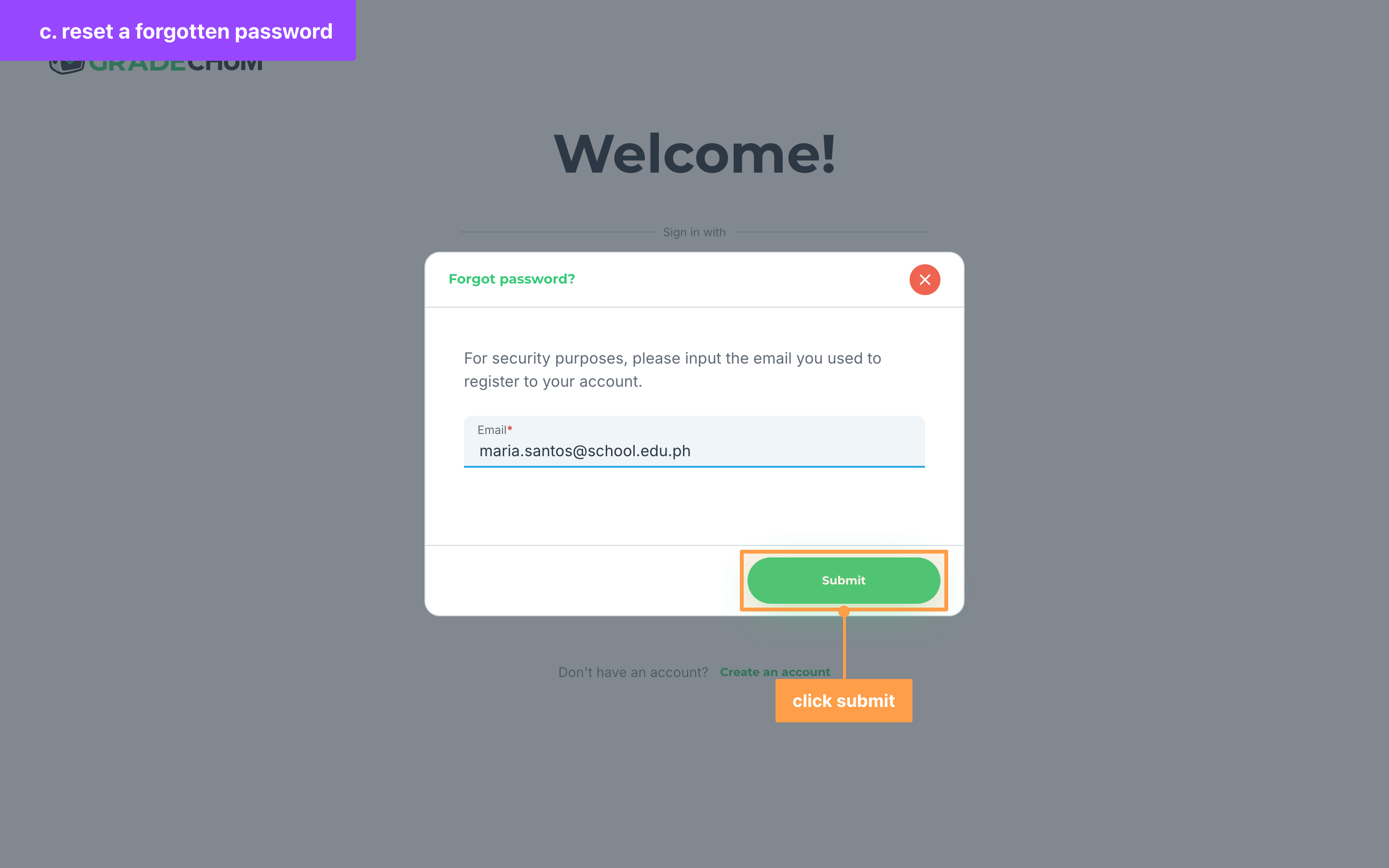
- On the Welcome! page, click Forgot password? under the Password field. In the modal that opens, type the email you used to register in Email, then click Submit.
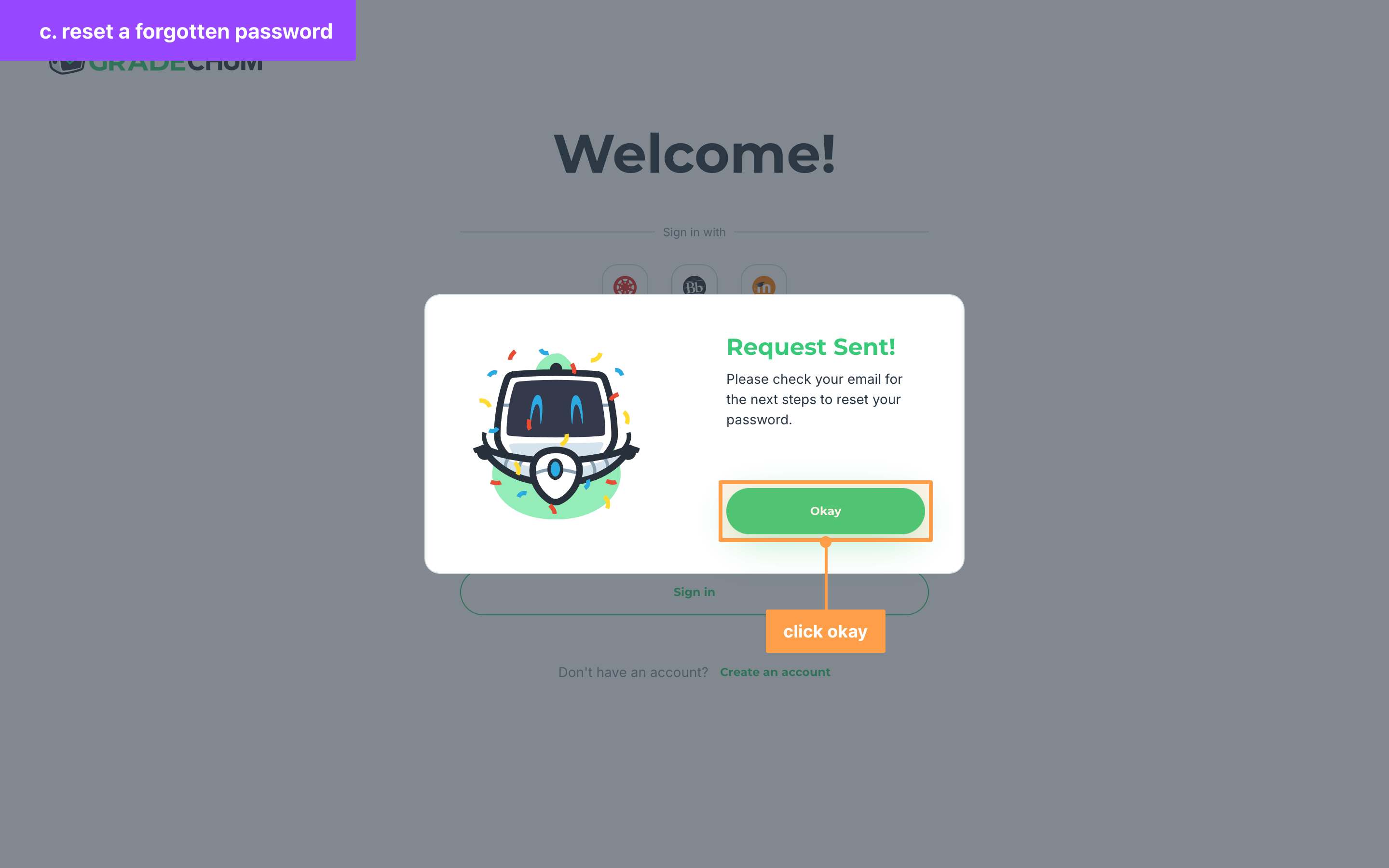
- Once Request Sent! shows, click Okay. GradeChum shows this message even if no account uses that email, so check that you typed the right one if no email arrives.
- Open the email GradeChum sent you and click its link. Set a New Password opens.
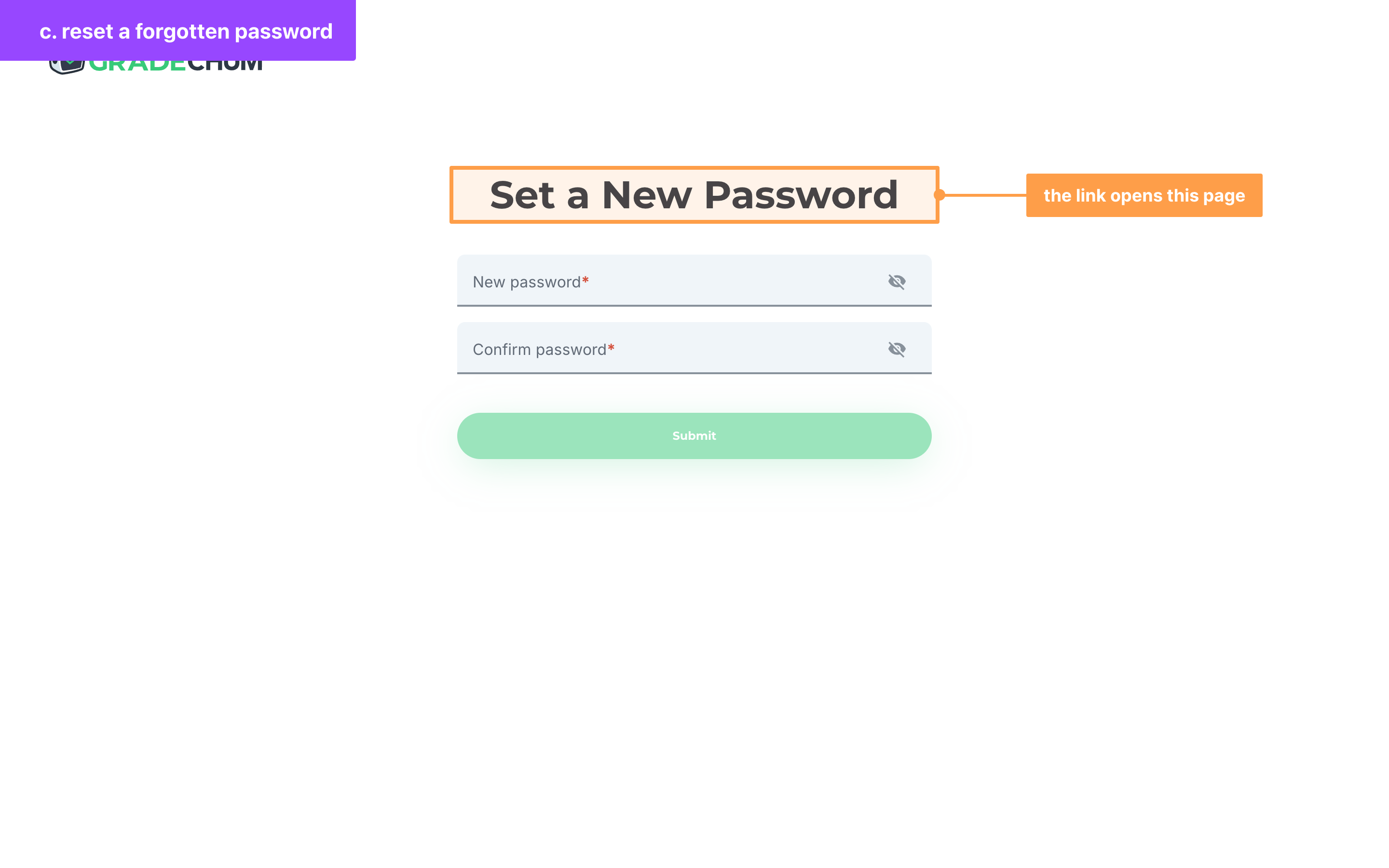
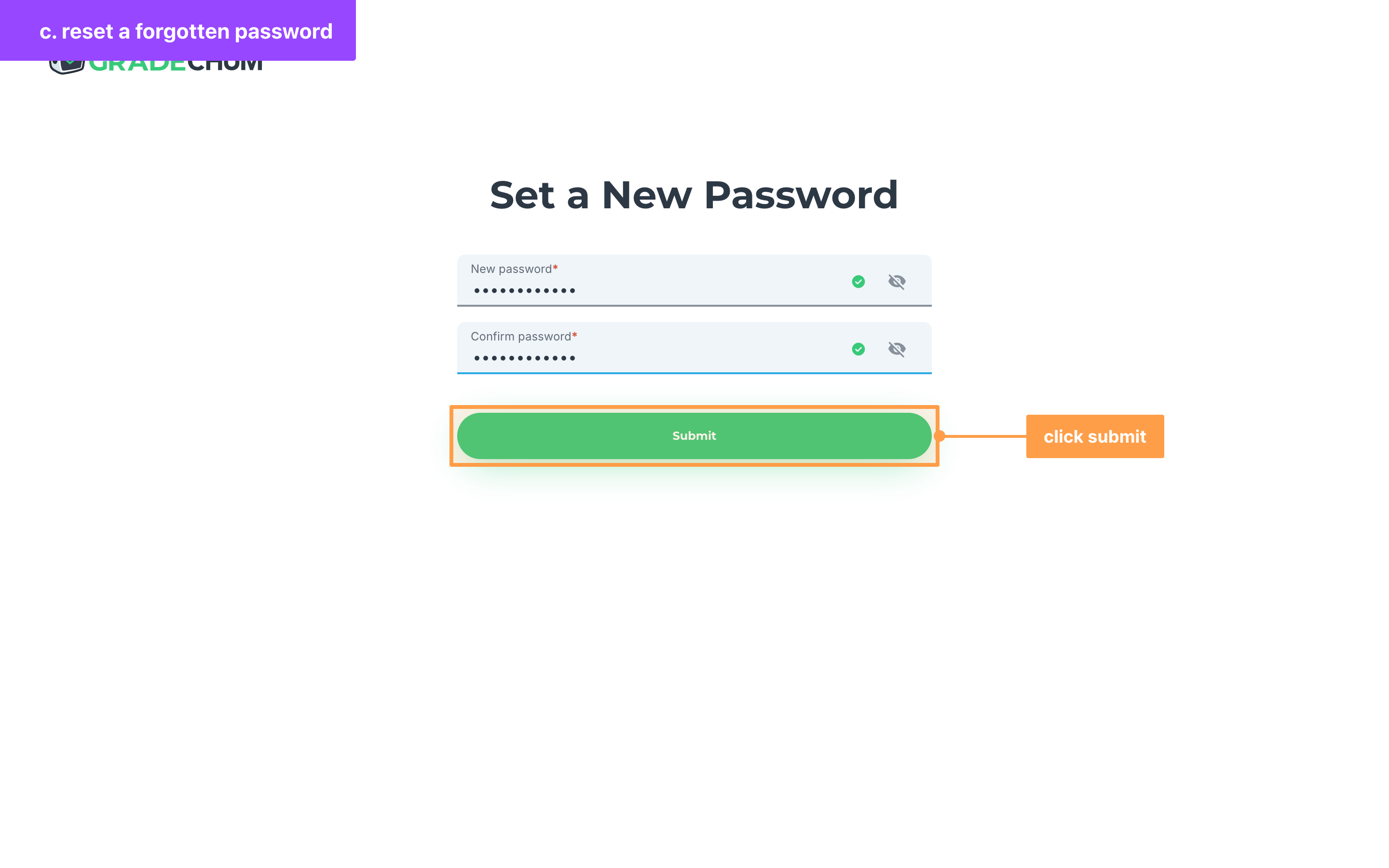
- Type your new password in New password and again in Confirm password, then click Submit. The same password rules apply, and "This must match with your new password." means the two do not match.
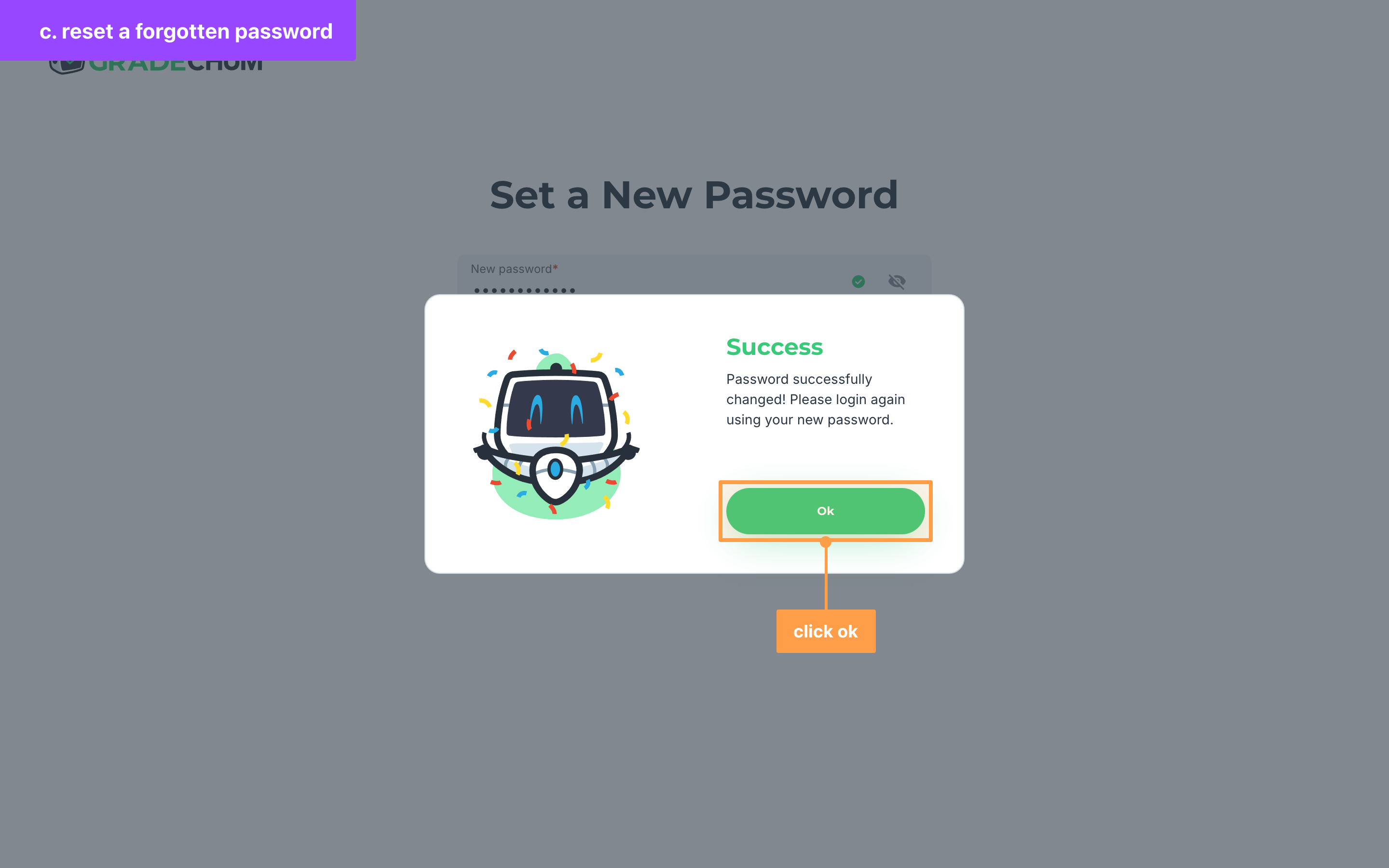
- Finally, once Success shows, click Ok. The Welcome! page opens, where you log in with your new password.
If an Uh oh modal says "Something went wrong, try again in a while." after you click Submit, the link is old or was already used. Click Forgot password? again to get a new email, and use the link in the latest one.
And that's how you sign up and log in to GradeChum! Next, let's verify your email and phone number.