
Connect to LMS
Introduction
When your teacher links a GradeChum class to a class in your school's LMS (Canvas, Blackboard or Moodle), you do not have to type a class code to get in. Once your GradeChum account is connected to your LMS account, GradeChum adds you to the linked classes you are enrolled in on your LMS.
You connect your account only once. GradeChum offers the Connect to LMS button when you try to join a class that is linked to your school's LMS, and you can also connect at any time from your account settings. In this article, let's explore both ways.
Steps
Note: Your school must have already set up its LMS for GradeChum, and you must already have a GradeChum student account. See Sign up and log in.
You can connect your account to your school's LMS in either of these two ways:
a. Connect to LMS modal
This modal shows when you type the class code of an LMS-linked class and your account is not connected to an LMS yet.
- On My classes, click + Join class, or Join a class if you have no classes yet. Type the class code your teacher gave you in Class code, then click Join class.
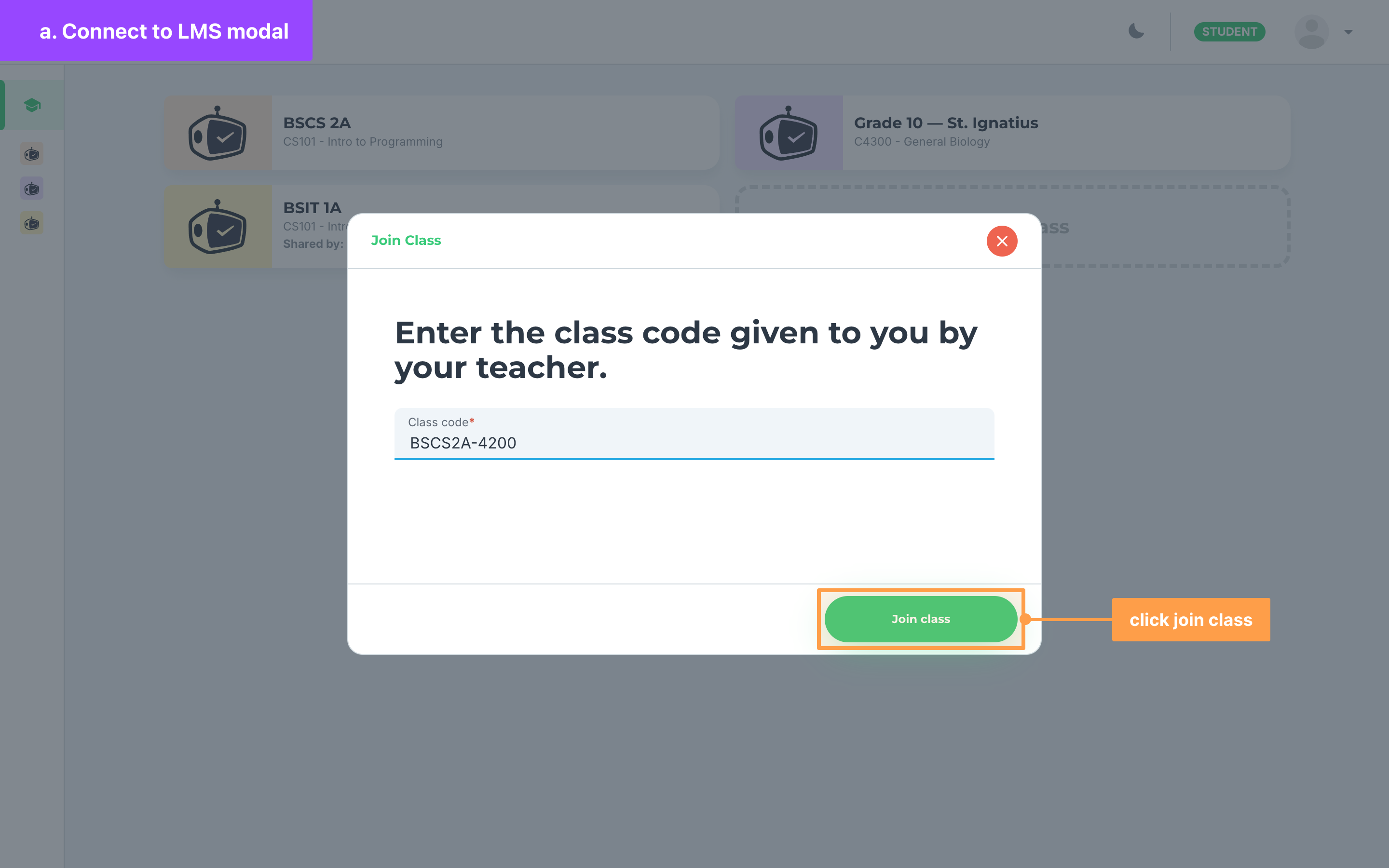
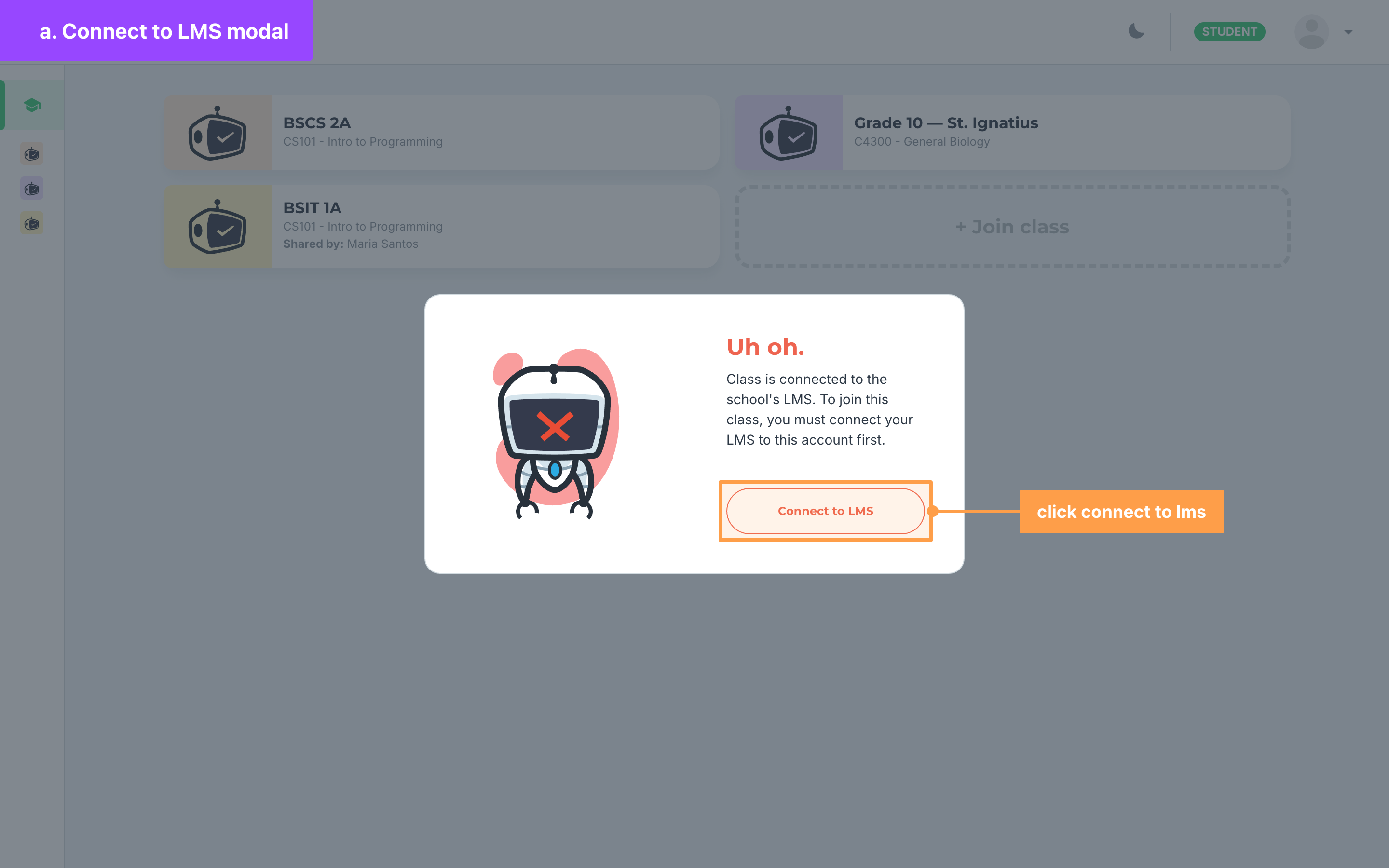
- The Uh oh. modal says "Class is connected to the school's LMS. To join this class, you must connect your LMS to this account first." Click Connect to LMS. The Connect to an LMS today! modal opens.
- Click Select a school and choose your school from the list. The modal then names the LMS your school uses, for example "This school is connected to Canvas.", and the button below it reads Connect to Canvas. Click it.
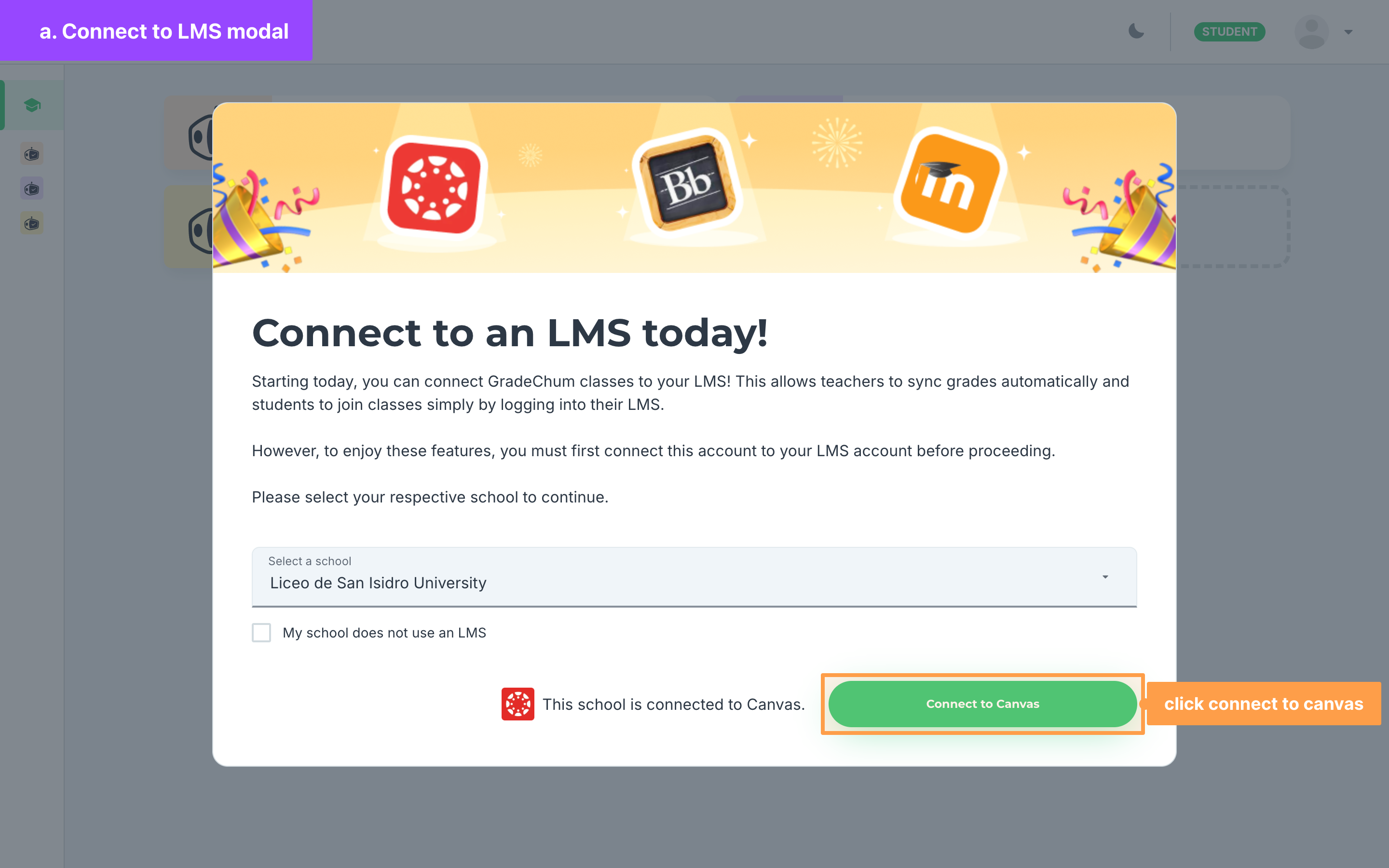
Note: If your school is not on the list, it has not finished setting up its LMS for GradeChum yet, so ask your teacher. If your school does not use an LMS, tick My school does not use an LMS instead. Ticking it clears and disables the school list, and the button reads Submit, which closes the modal.
- Log in to your LMS. What you see depends on your school's LMS:
Canvas or Blackboard
You are taken to your school's Canvas or Blackboard login page. Log in with your LMS account there. You then come back to GradeChum, which shows "Authorization successful. Redirecting..." while it finishes connecting your account.
Moodle
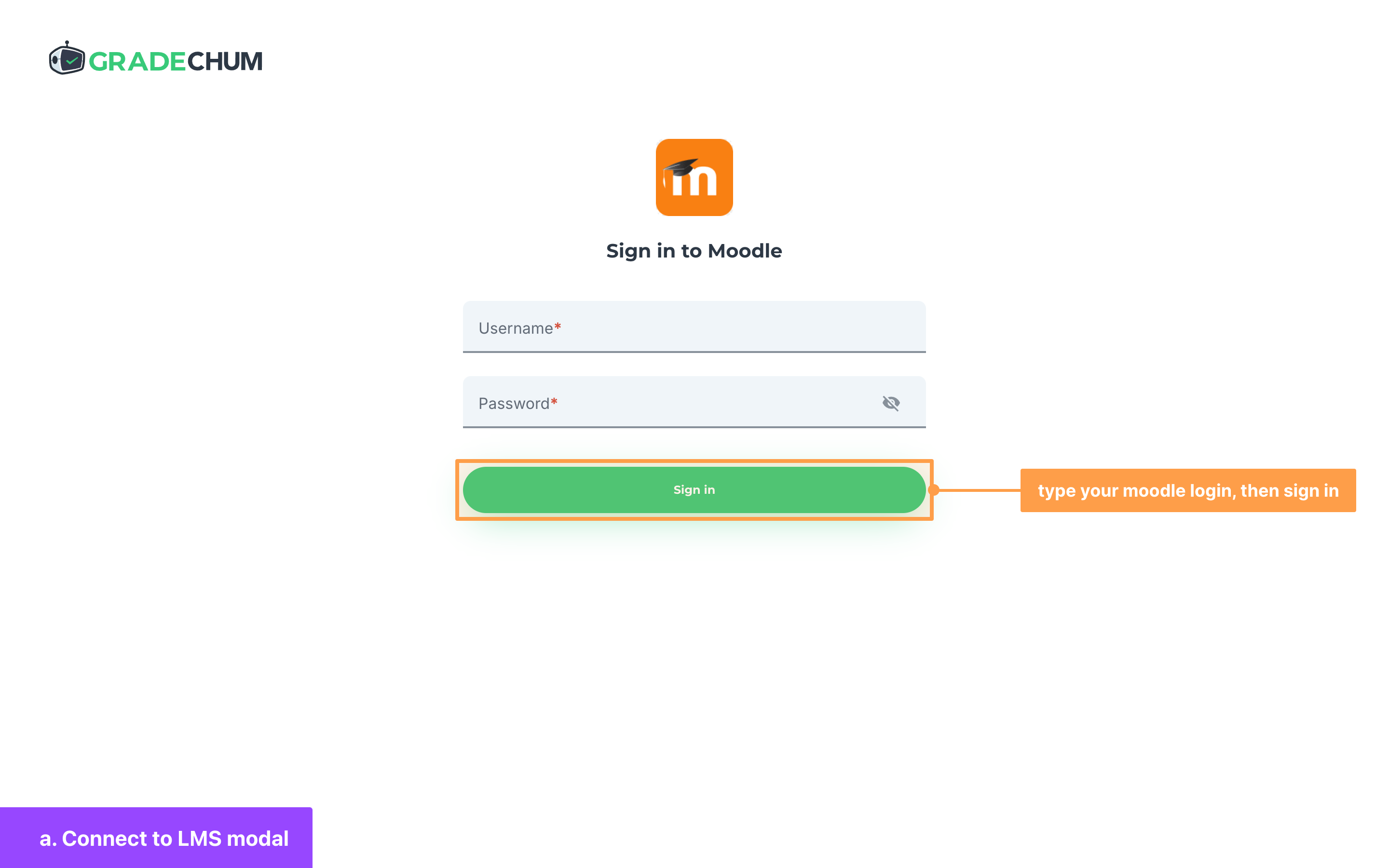
The Sign in to Moodle page opens in GradeChum. Type your Moodle username and password in the Username and Password fields, then click Sign in. The button reads Signing In while GradeChum checks your account.
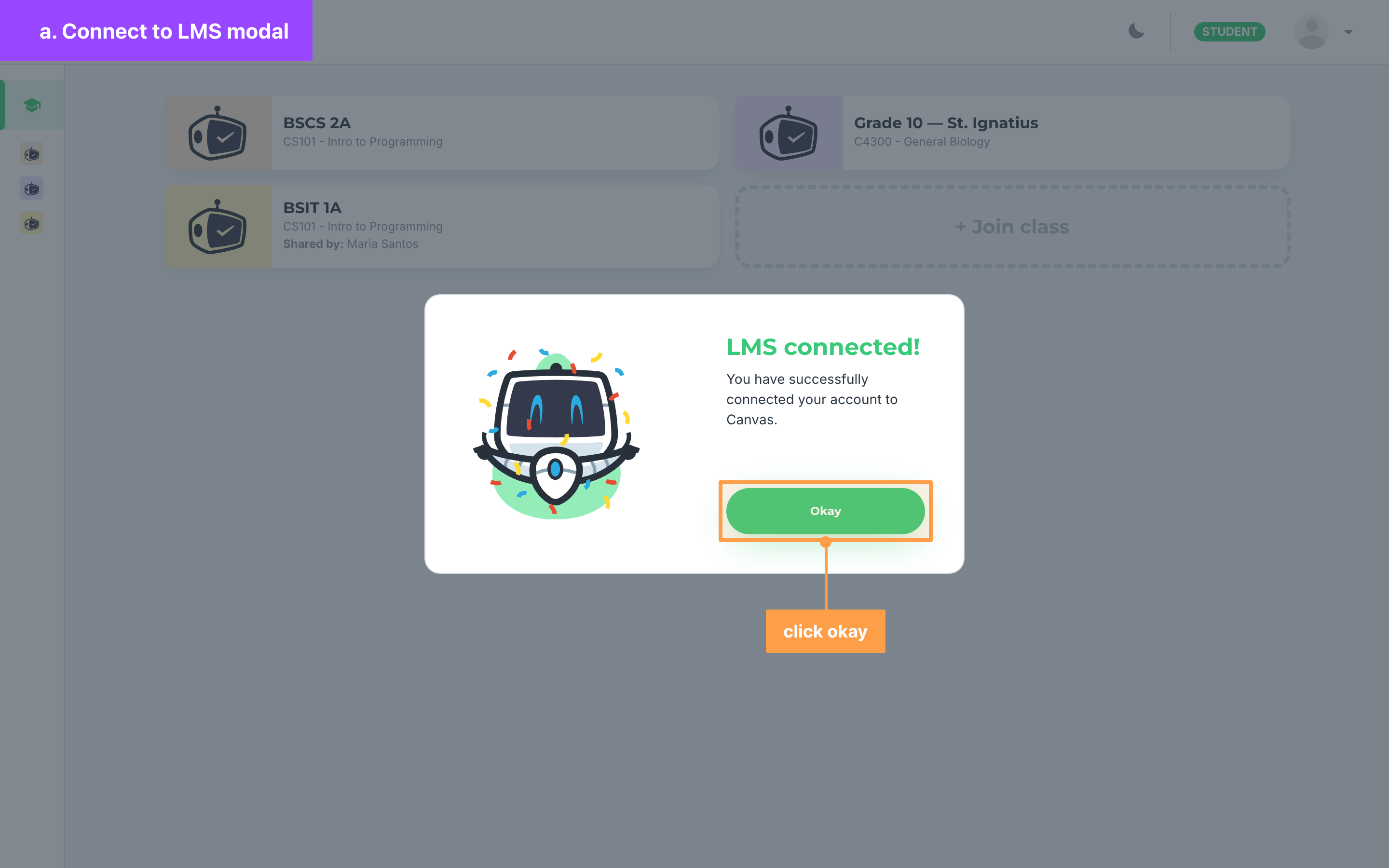
- Once your account is connected, GradeChum takes you back to My classes and shows LMS connected!, for example "You have successfully connected your account to Canvas." Click Okay.
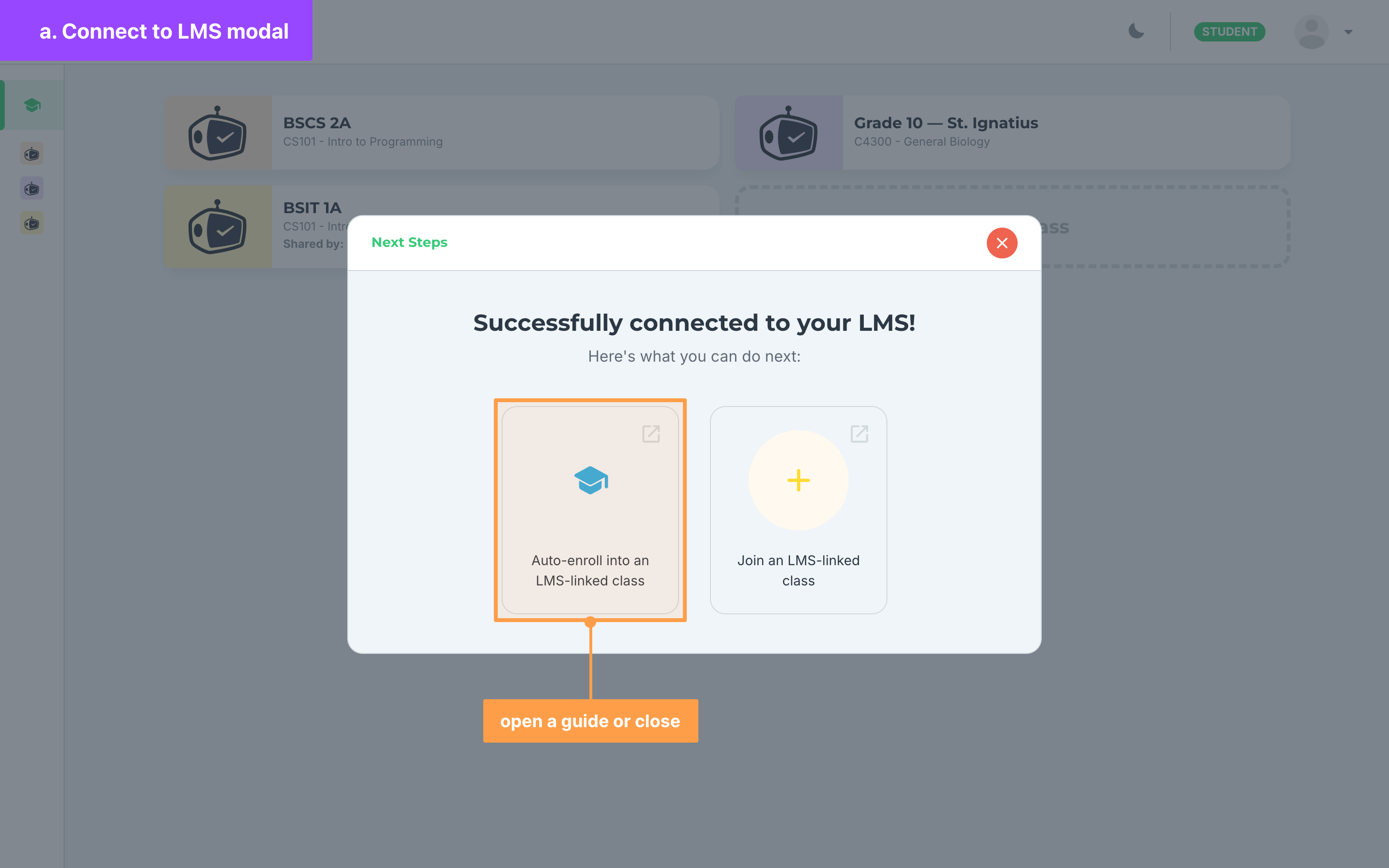
- The Next Steps modal lists two guides: Auto-enroll into an LMS-linked class and Join an LMS-linked class. Click a link to open its guide, or close the modal.
- Finally, check My classes. GradeChum adds you to the classes your teacher linked to LMS classes you are enrolled in. If the class you wanted is not there, join it with its class code again.
b. Account settings
You can also connect your account from your account settings at any time, whether or not you have tried to join a class.
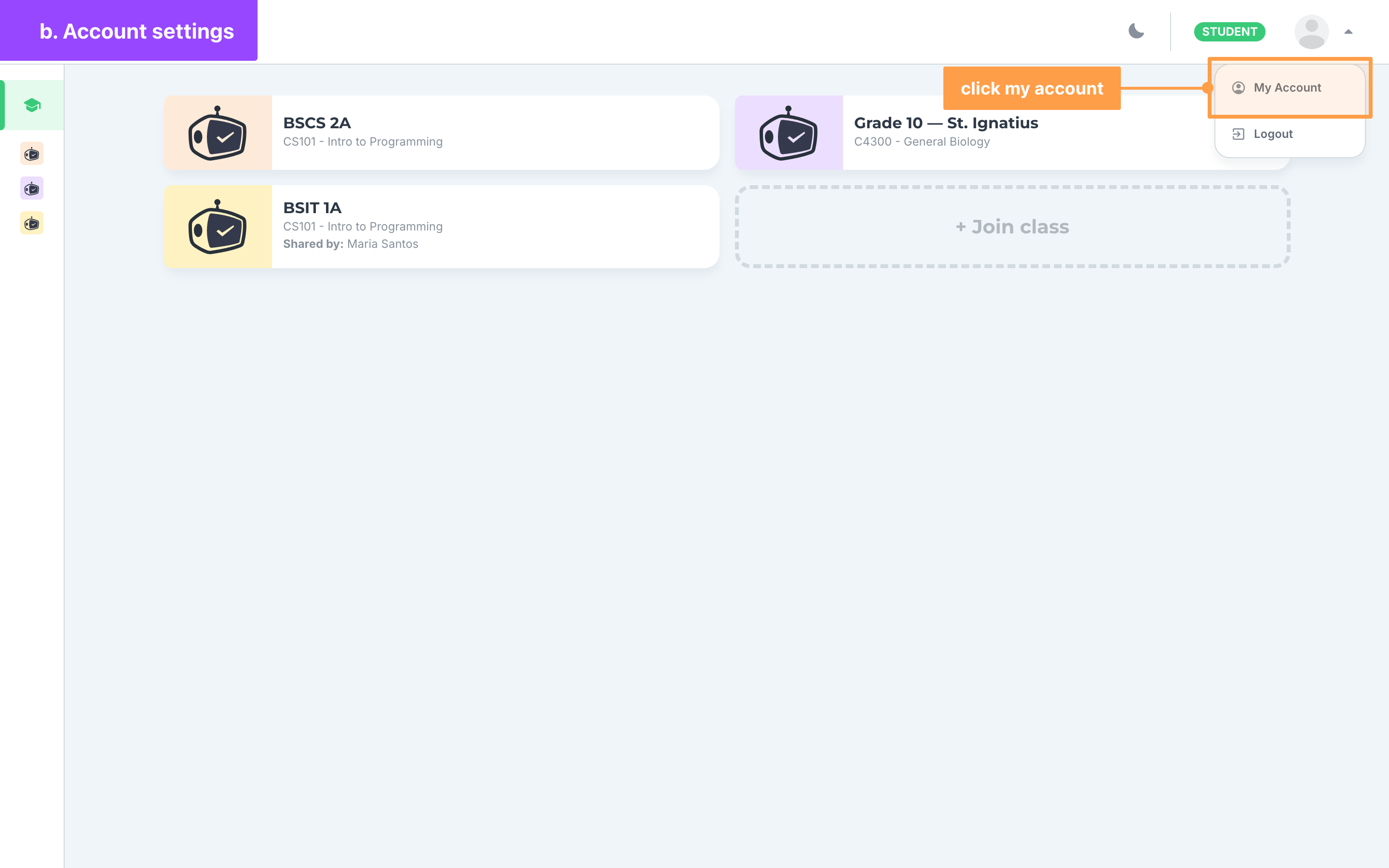
- After logging in, click your profile picture at the top right of the page, then click My Account.
- Click Account Information. Under your Email, the LMS email field shows N/A and "Not connected to LMS." while your account is not connected.
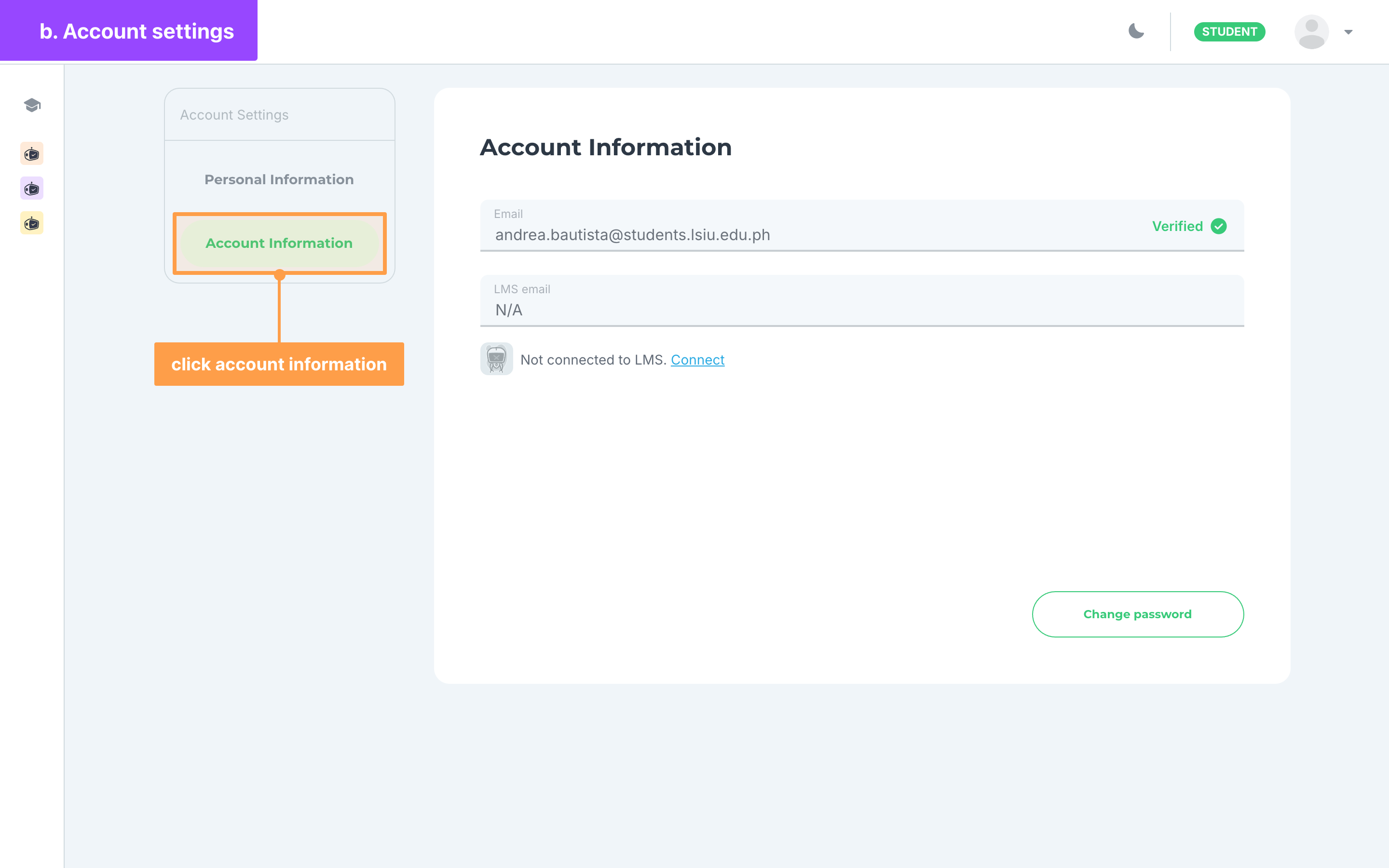
- Click Connect beside "Not connected to LMS." The Connect to an LMS today! modal opens.
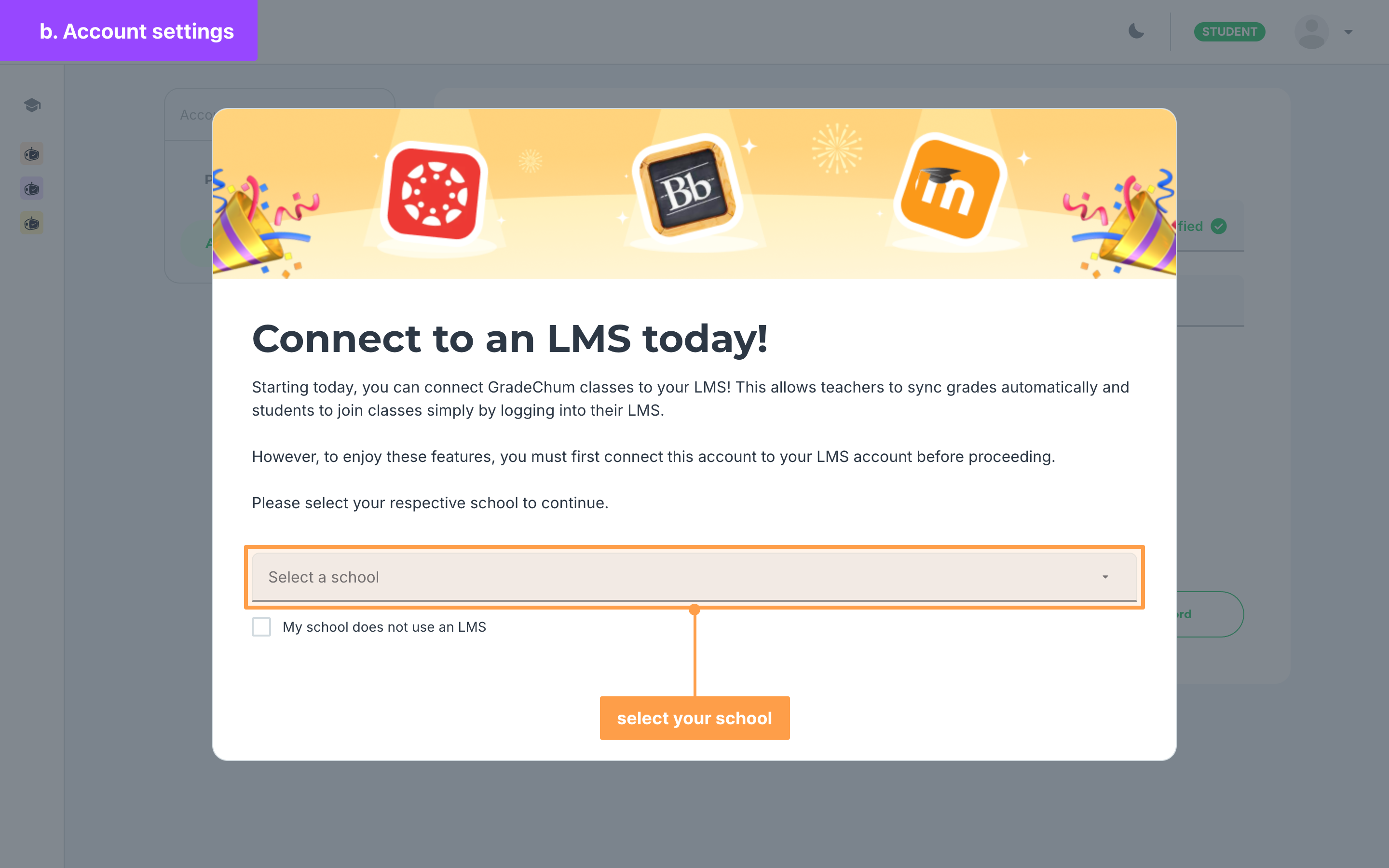
- Finally, follow steps 3-7 of a. Connect to LMS modal to choose your school, log in to your LMS and finish connecting.
Check your LMS connection
Go to My Account > Account Information at any time to see your connection. Once connected, the LMS email field shows the email of your LMS account, and "Connected to" names your LMS with a link that opens your school's LMS.
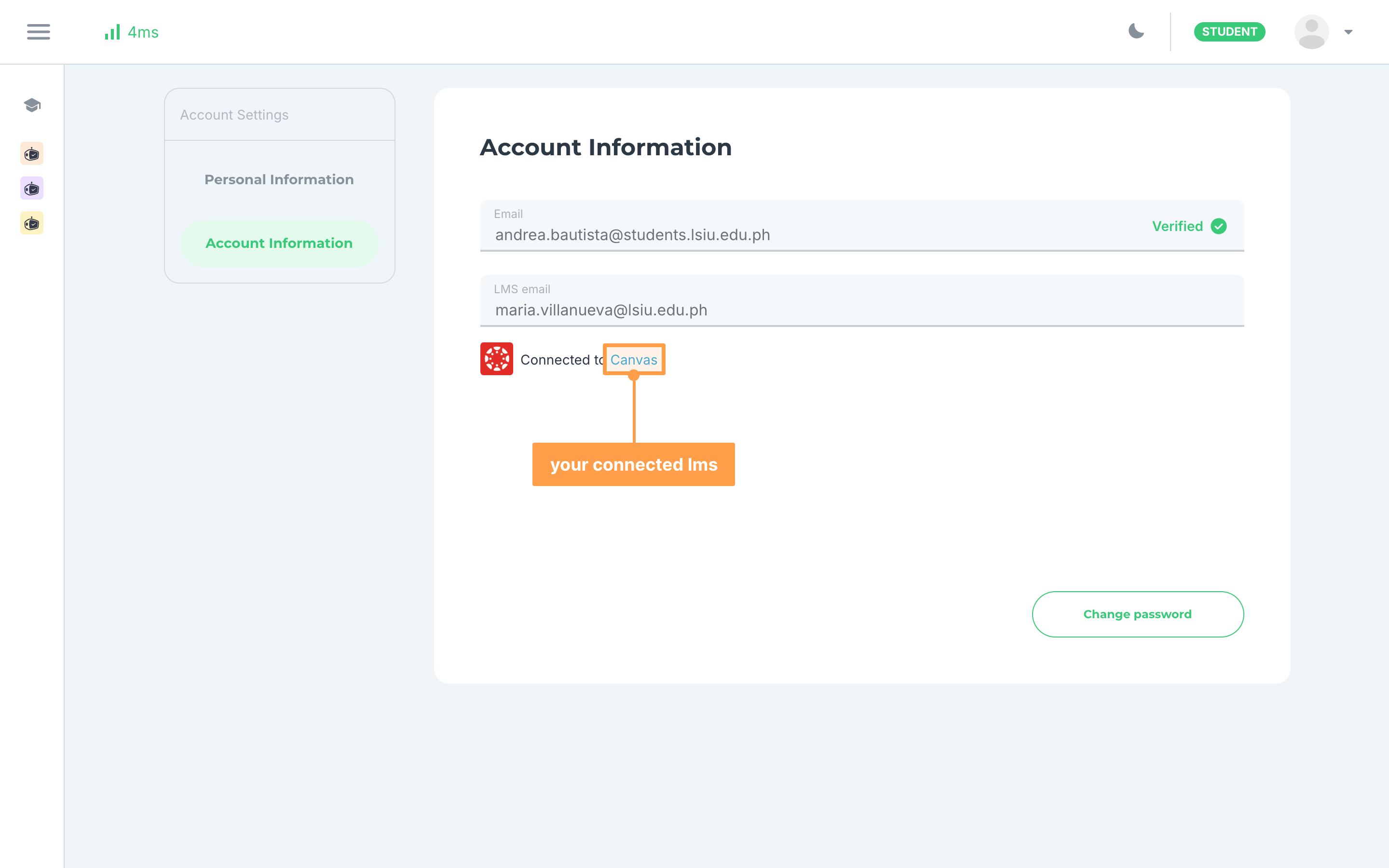
Note: A connected account cannot be disconnected from your account settings. If you connected the wrong LMS account, contact us at info@gradechum.com.
If connecting does not work
a. Access denied
If you do not allow GradeChum to use your Canvas or Blackboard account, the page shows "Access denied" with a button back to the log in page. Click it, log in to GradeChum, then start again.
b. This field is required
On the Sign in to Moodle page, both Username and Password are required. Fill in both fields, then click Sign in.
c. Account does not exist.
On the Sign in to Moodle page, this message means GradeChum found no account for that Moodle login. Click Sign up instead beside it to create a GradeChum account.
d. This username is already taken
If an Uh oh modal says "This username is already taken. Please contact GradeChum via Messenger for assistance in resolving this issue.", another GradeChum account already uses the email of your LMS account. Click Okay, then message GradeChum on Messenger so we can sort it out. On Canvas or Blackboard, the same problem shows as a message that the email is already used by an existing account.
e. LMS account is linked to another account.
Your LMS account is already connected to a different GradeChum account. Log in to that account instead, or contact us at info@gradechum.com.
f. Your LMS account has no email
If the message ends with "Please contact your administrator.", your LMS account has no email address, so GradeChum cannot connect it. Ask your school's LMS administrator to add an email to your LMS account, then try again.
g. Something went wrong. Try again later.
GradeChum could not connect your account for another reason. Wait a moment, then try again.
h. Not connected to the same LMS
If you join a class and the Uh oh. modal says "Your account is not allowed to join in this class because it is not connected to the same LMS of this class.", your account is connected to a different LMS than your teacher's class. You cannot join that class with this account. If this is wrong, click customer support in the message to contact us.
Once you have connected to your LMS, GradeChum adds you to the classes your teacher linked to your LMS classes, so you can go straight to your activities. Next, let's explore how to join via class code.