
6
Review regrade request
Introduction
When you release the results of an activity you can choose to accept regrade requests until a deadline you set. Until that deadline, students can ask you to look again at an answer they believe was checked wrongly, and this page is where you review and decide on those requests.
In this section, we will explore how to review the regrade requests of your students.
Steps
To review regrade requests of students, there are three ways to do so:
a. Shading
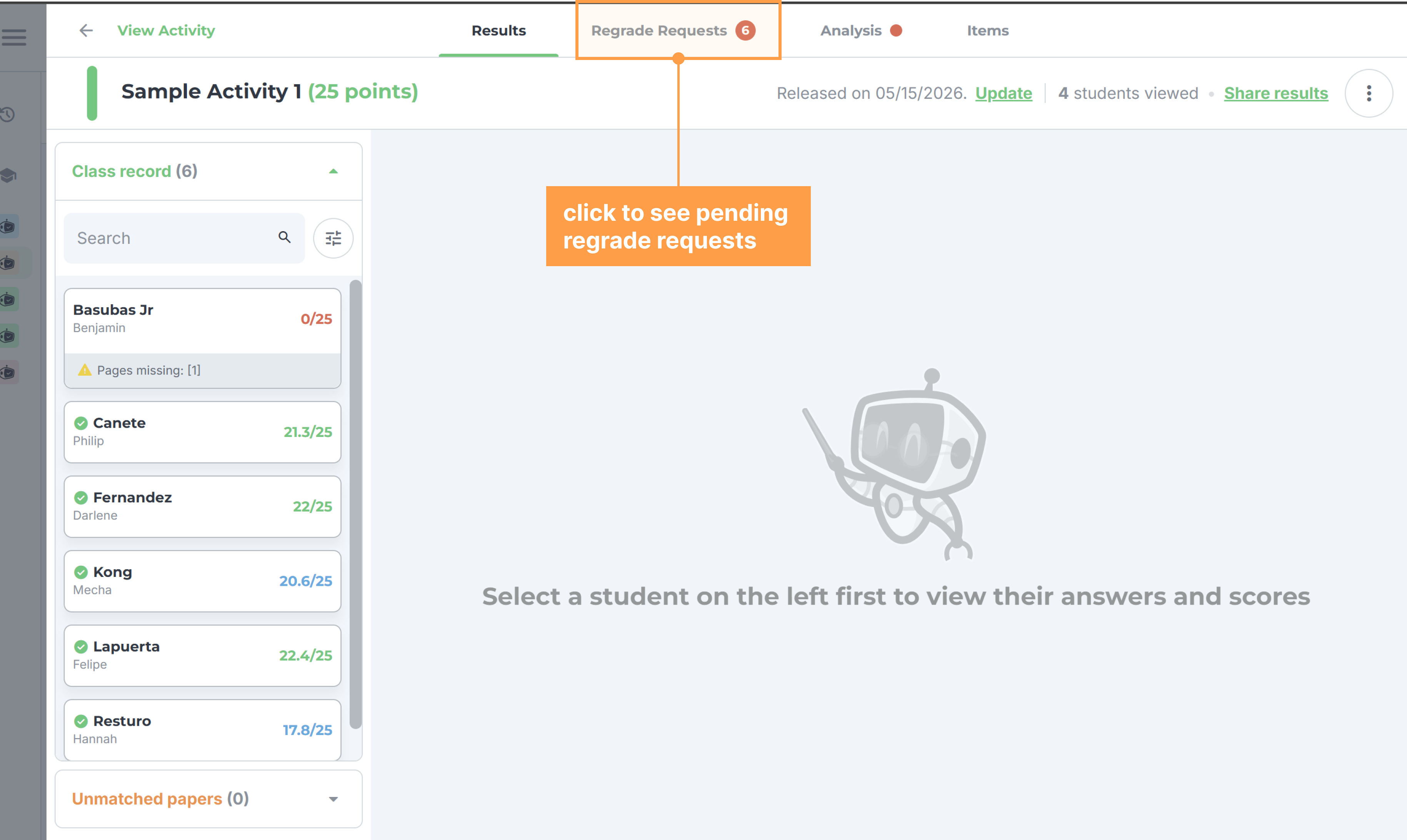
- Click on an activity to open, and proceed to the Regrade Requests tab that will show after releasing the results of the activity.
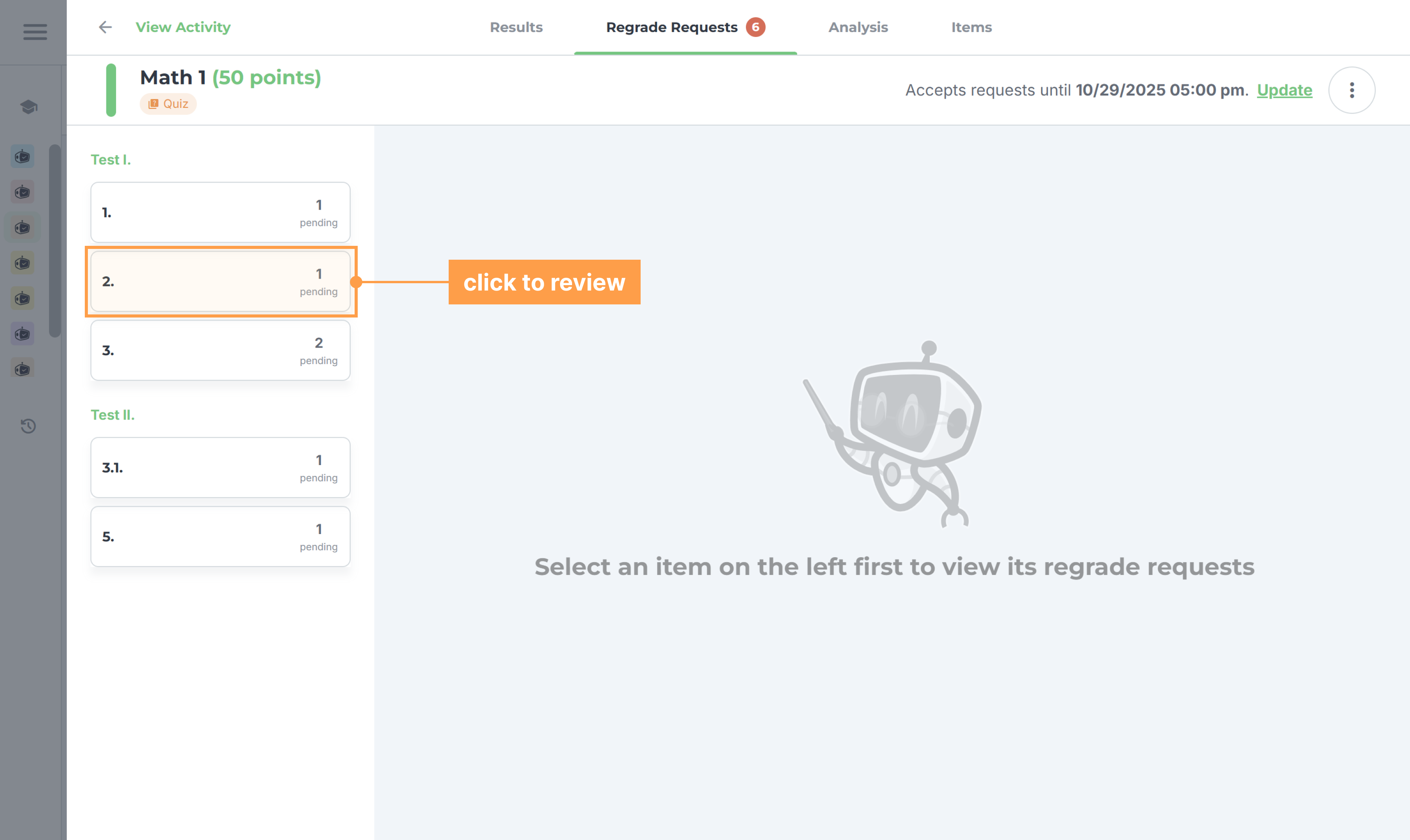
- Choose an item number that has a pending request/s.
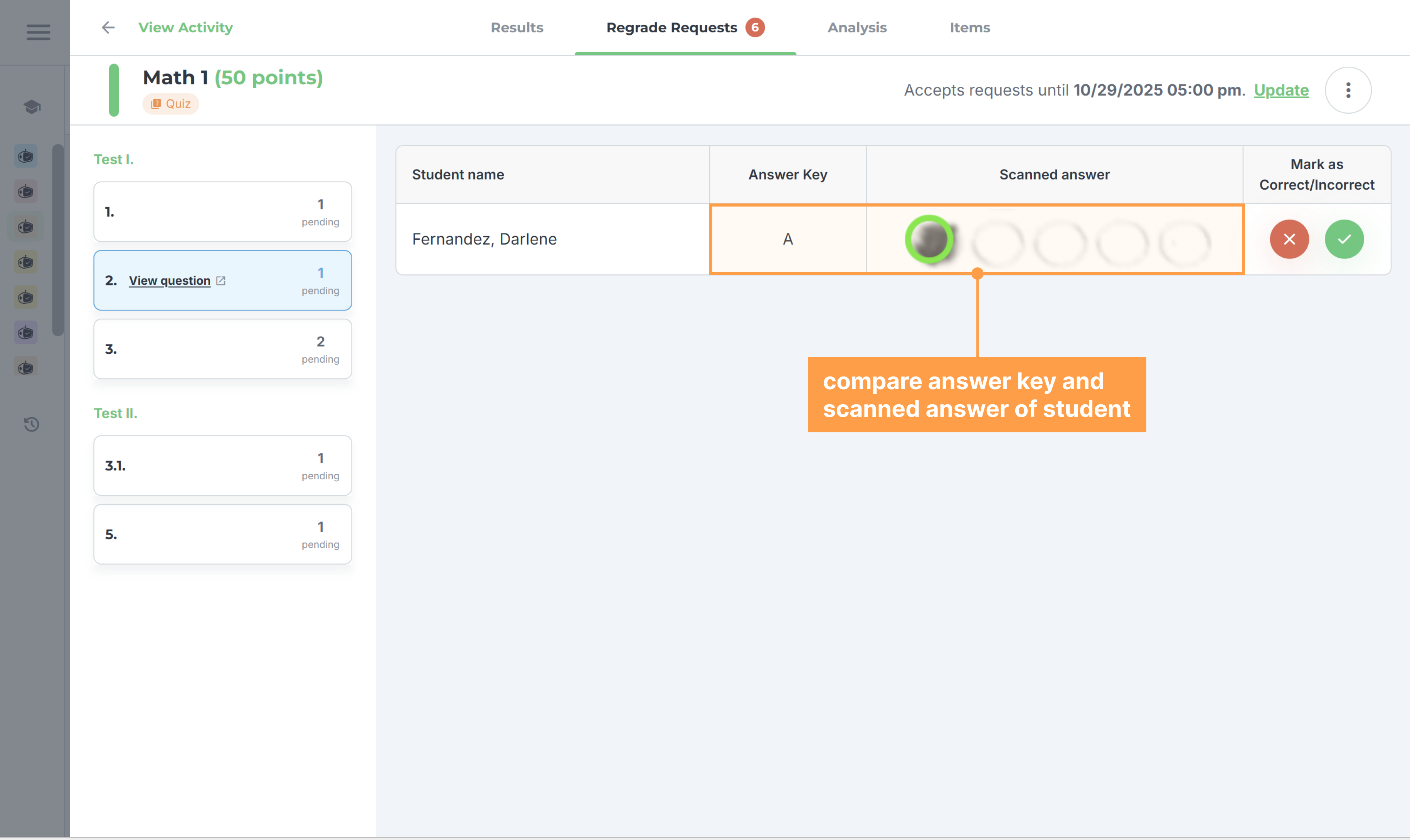
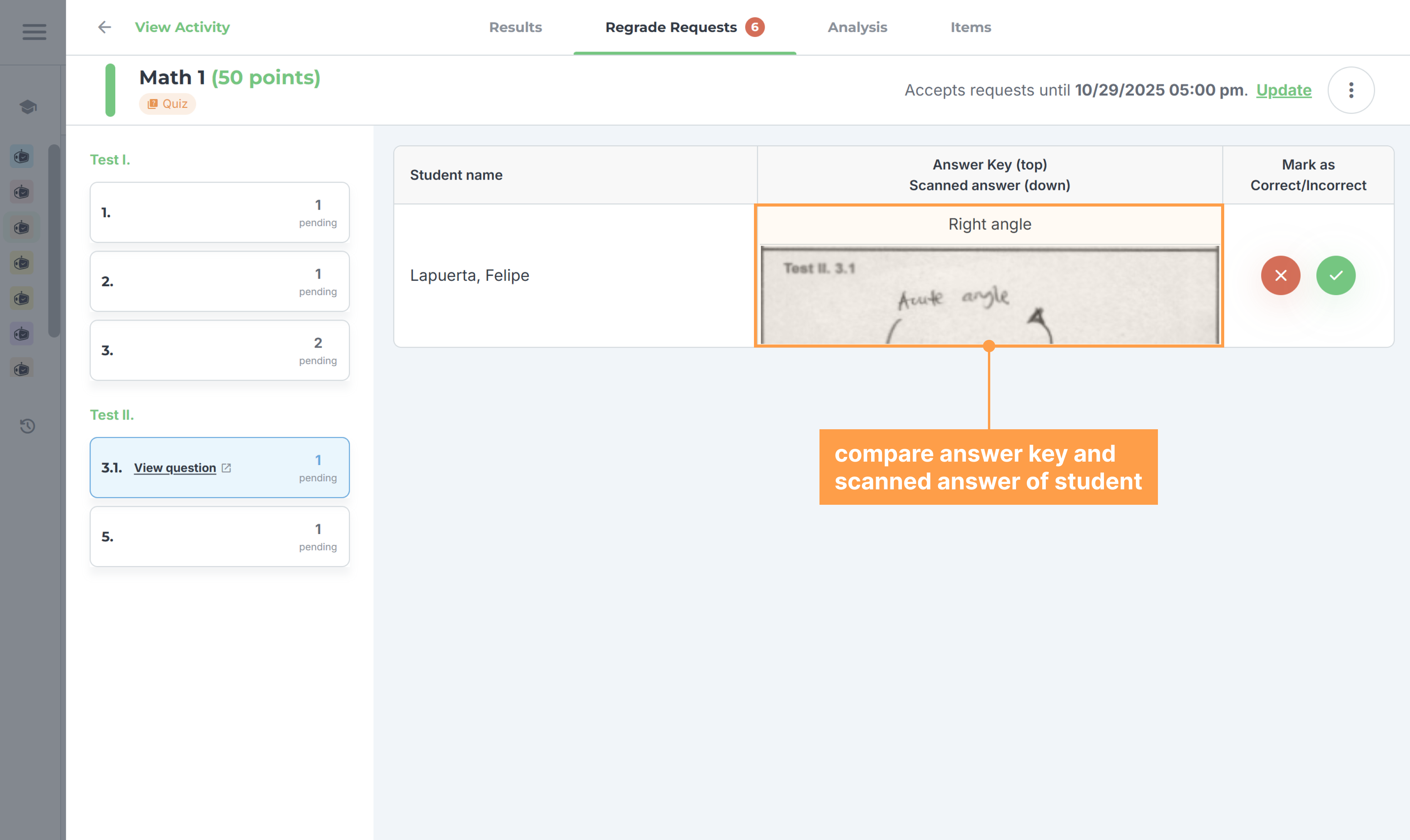
- Then, compare the answer key to the answer of the student. The column holding the student's work is headed Scanned answer for a paper activity and Student's answer for an online one.
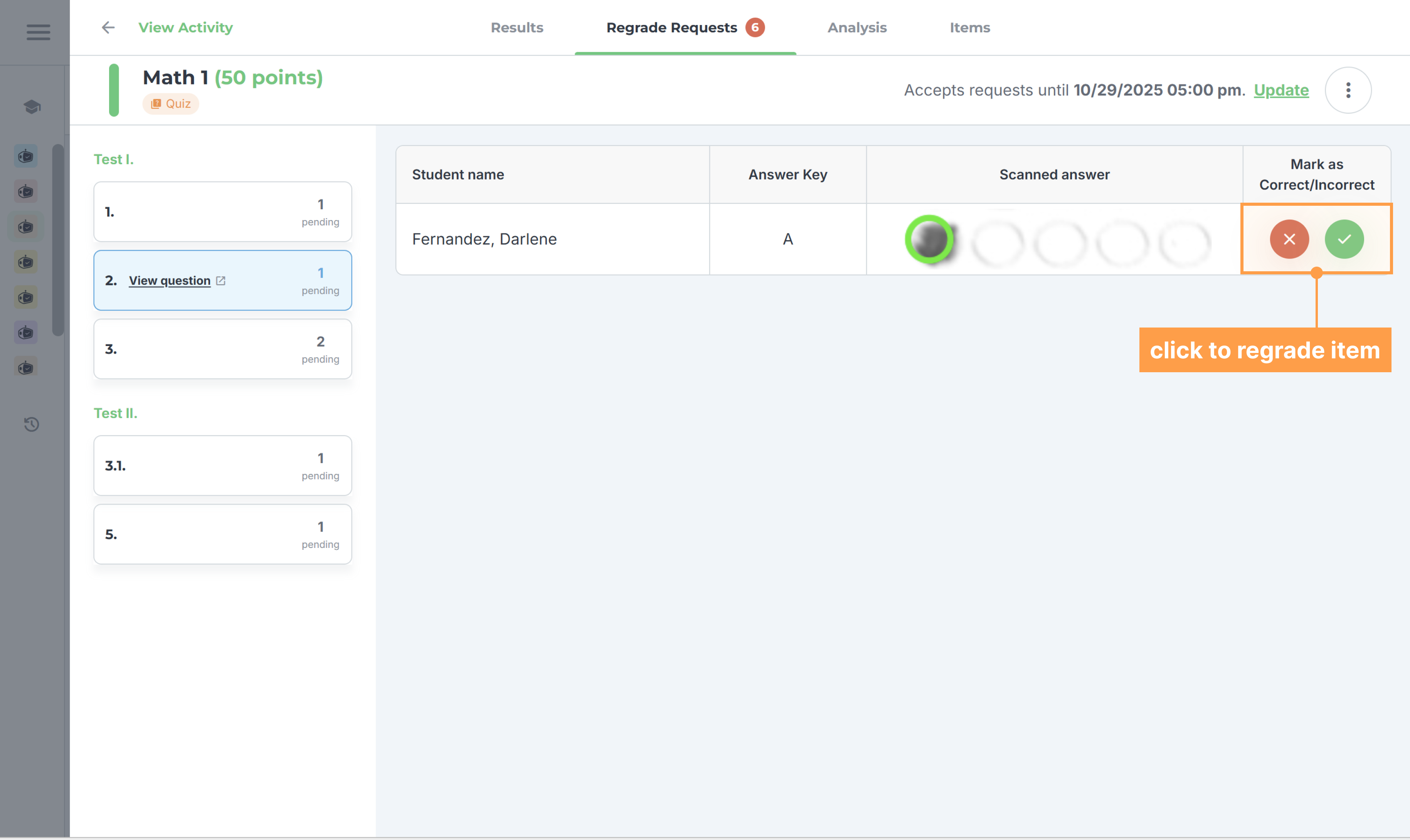
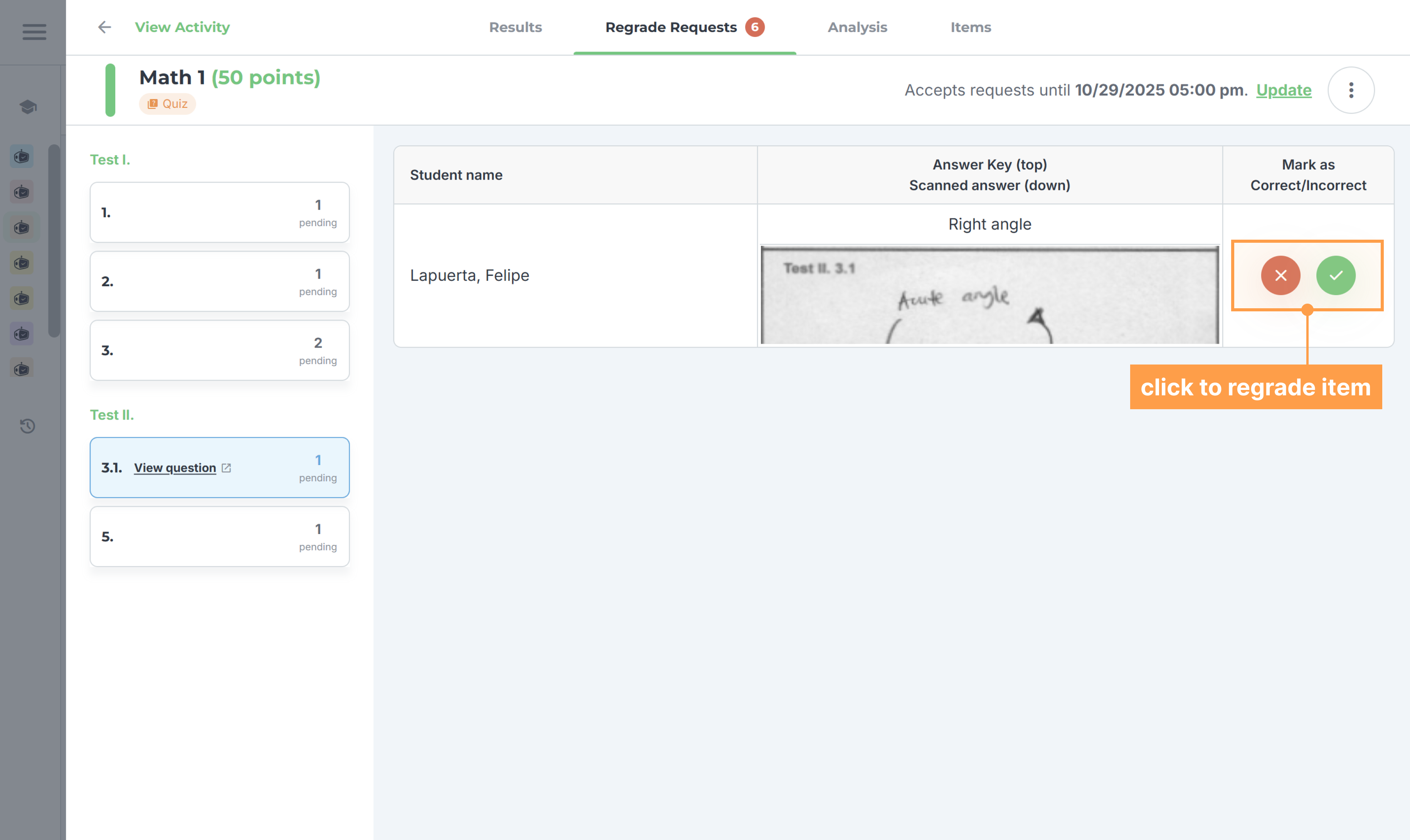
- Finally, click the ✅ button if the answer of the student is correct or the ❌ button if the answer of the student is incorrect.
b. Answer Box (Without rubrics)
- Click on an activity to open, and proceed to the Regrade Requests tab that will show after releasing the results of the activity.
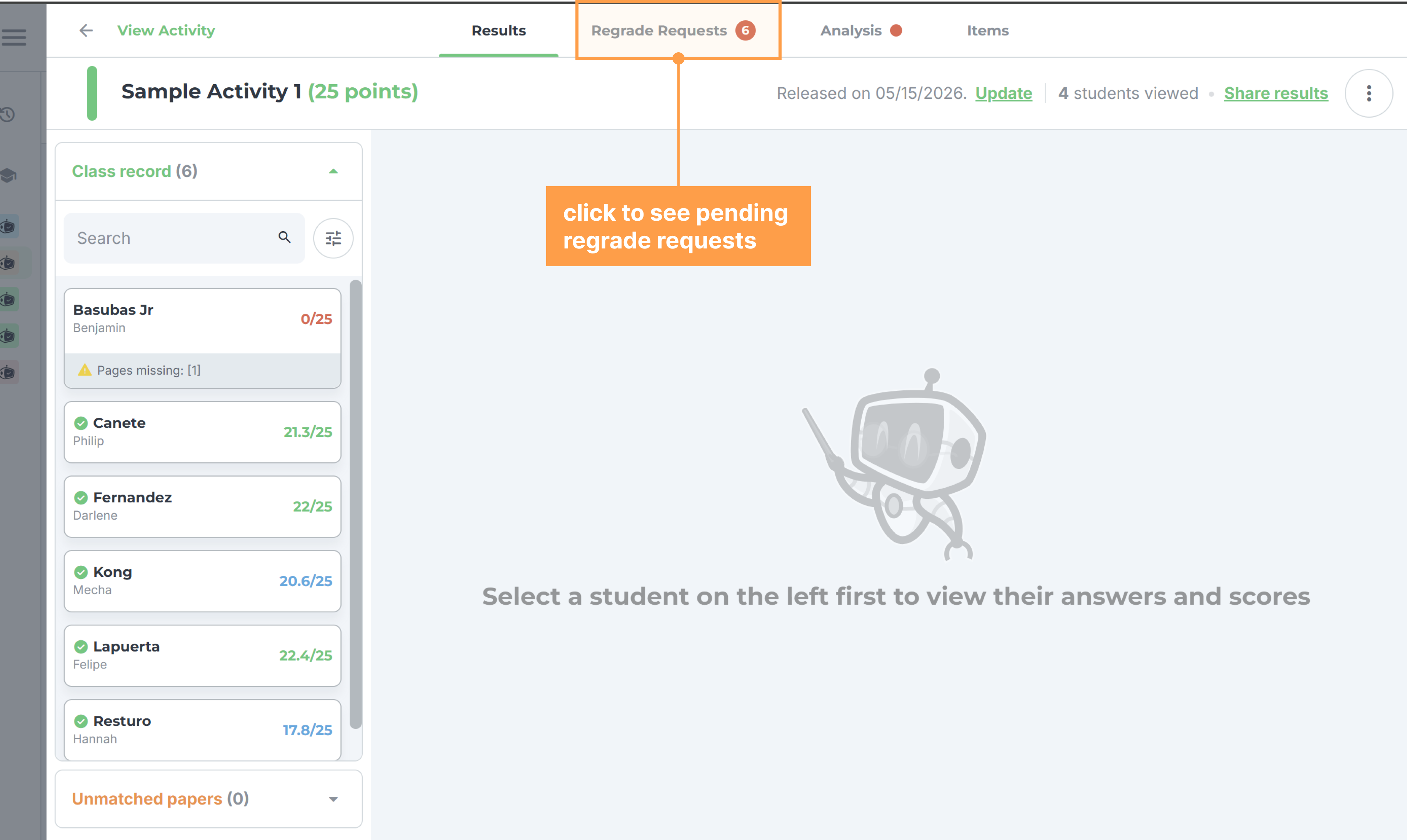
- Choose an item number that has a pending request/s.
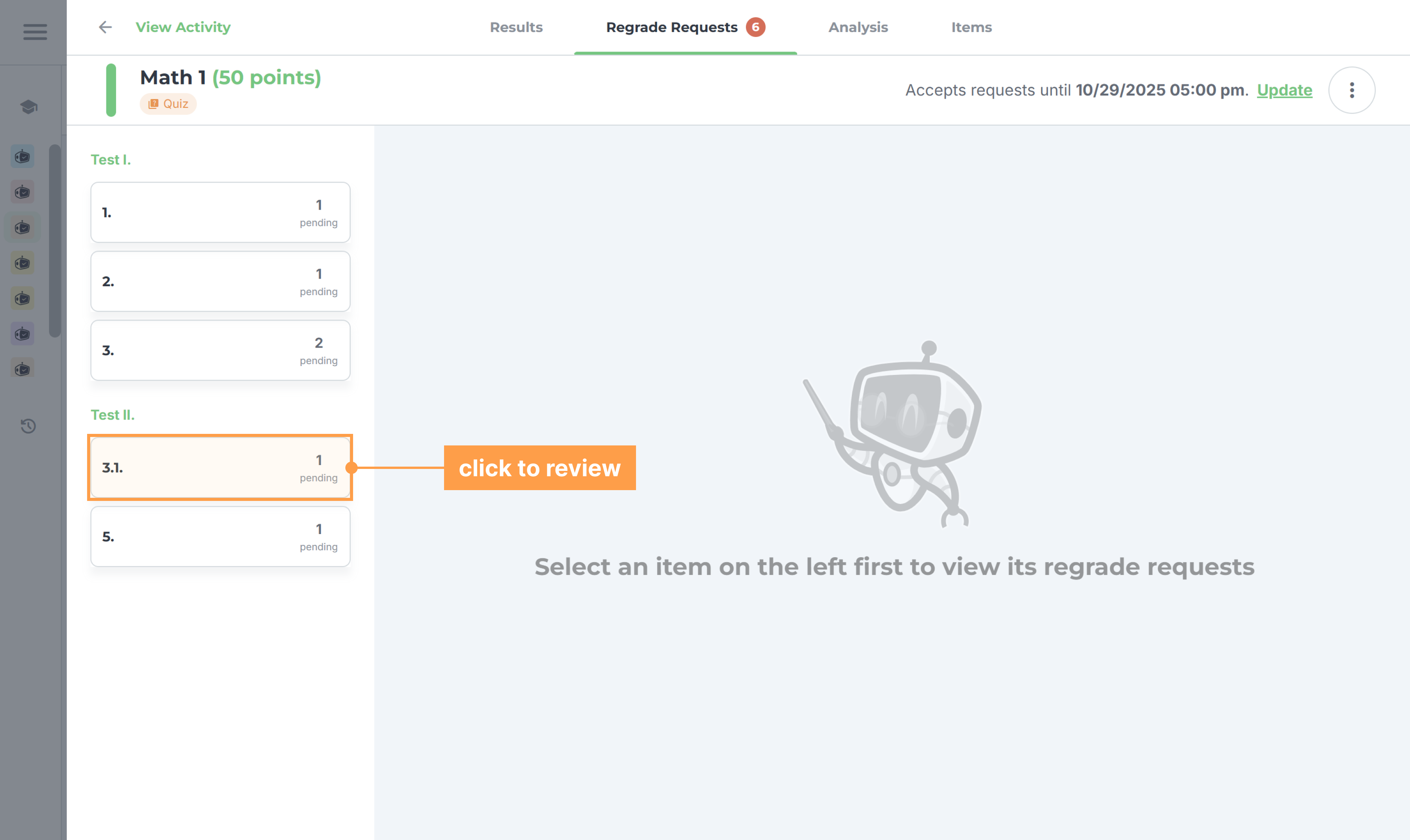
- Then, compare the answer key to the answer of the student.
- Finally, click the ✅ button if the answer of the student is correct or the ❌ button if the answer of the student is incorrect.
c. Answer Box (With rubrics)
- Click on an activity to open, and proceed to the Regrade Requests tab that will show after releasing the results of the activity.
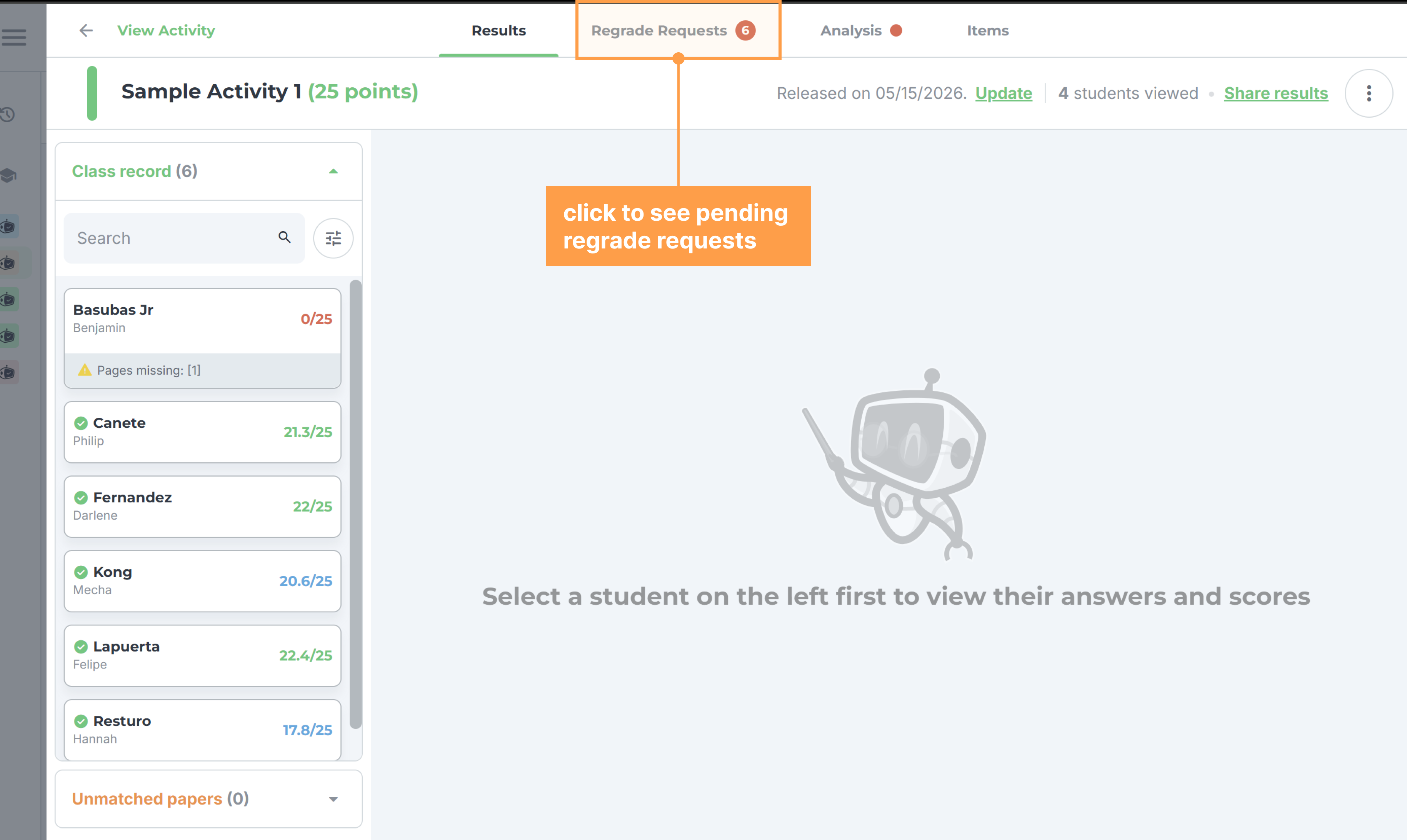
- Choose an item number that has a pending request/s.
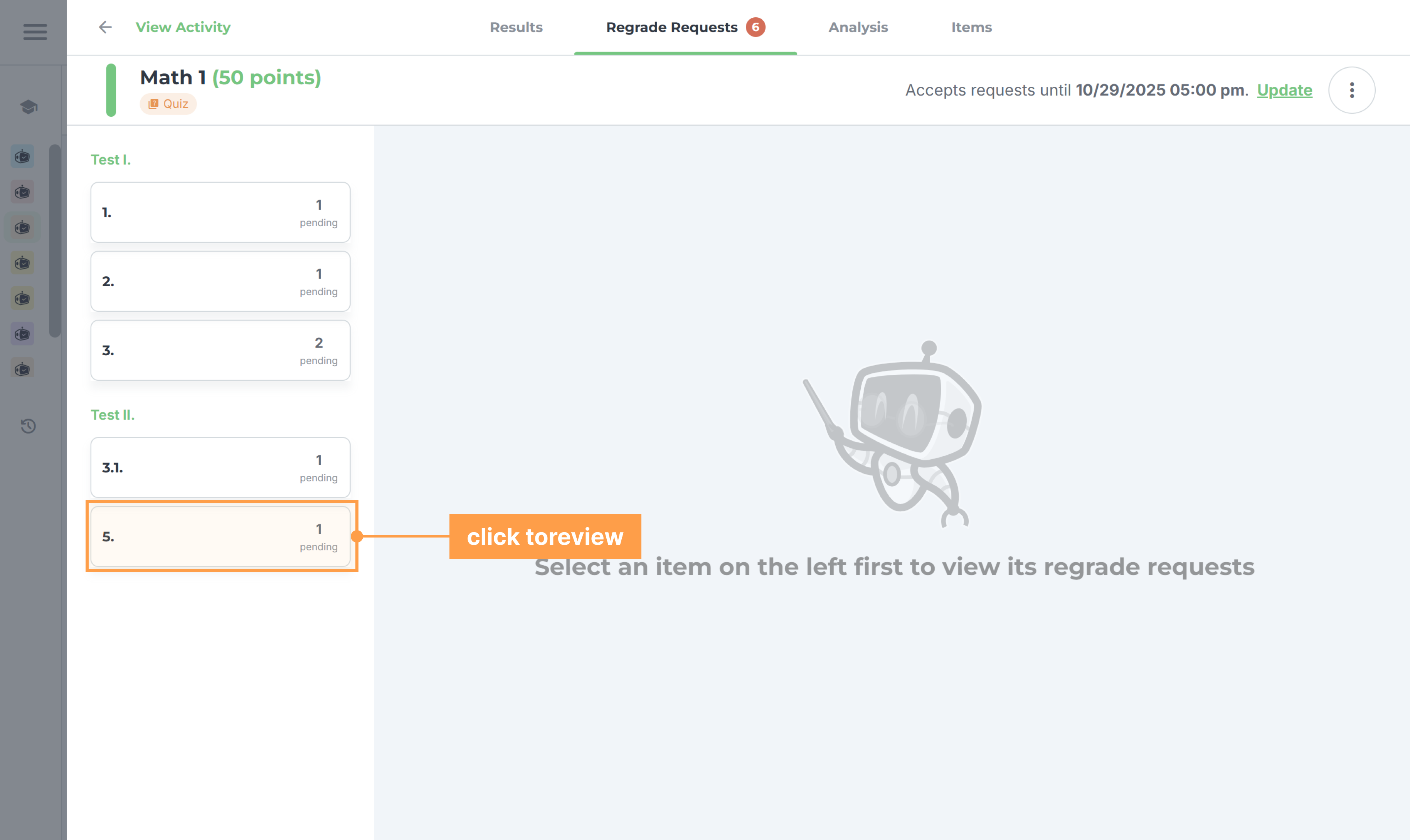
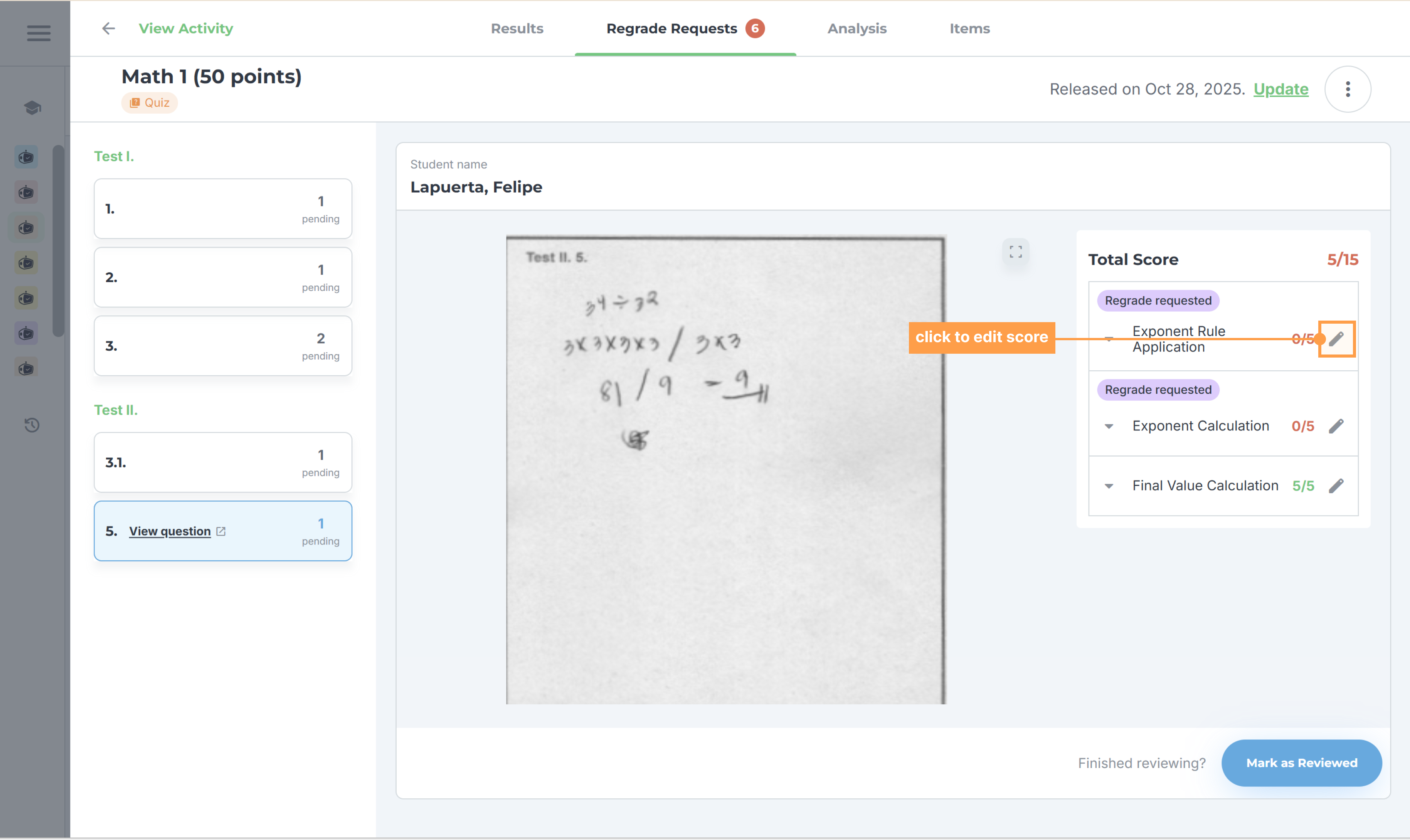
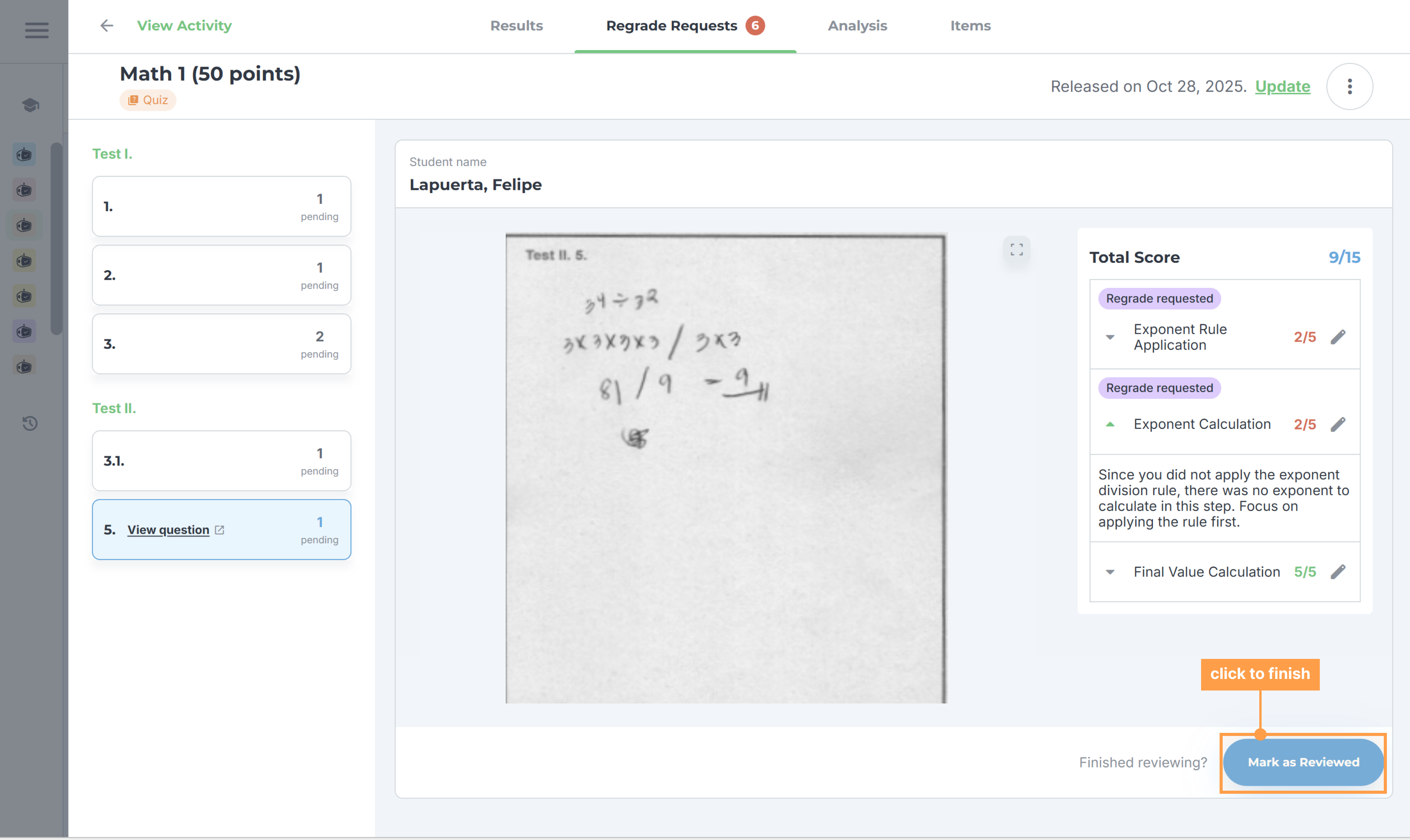
- Then, review the rubrics that has "Regrade requested" tags on it. Click on the pencil icon to change the score of the student per rubric. Depending on the item, the pencil either opens a score box you type into, or expands the rubric into a list of scoring levels for you to pick from.
- After changing the score of the student, click the ✅ button to save the changes.
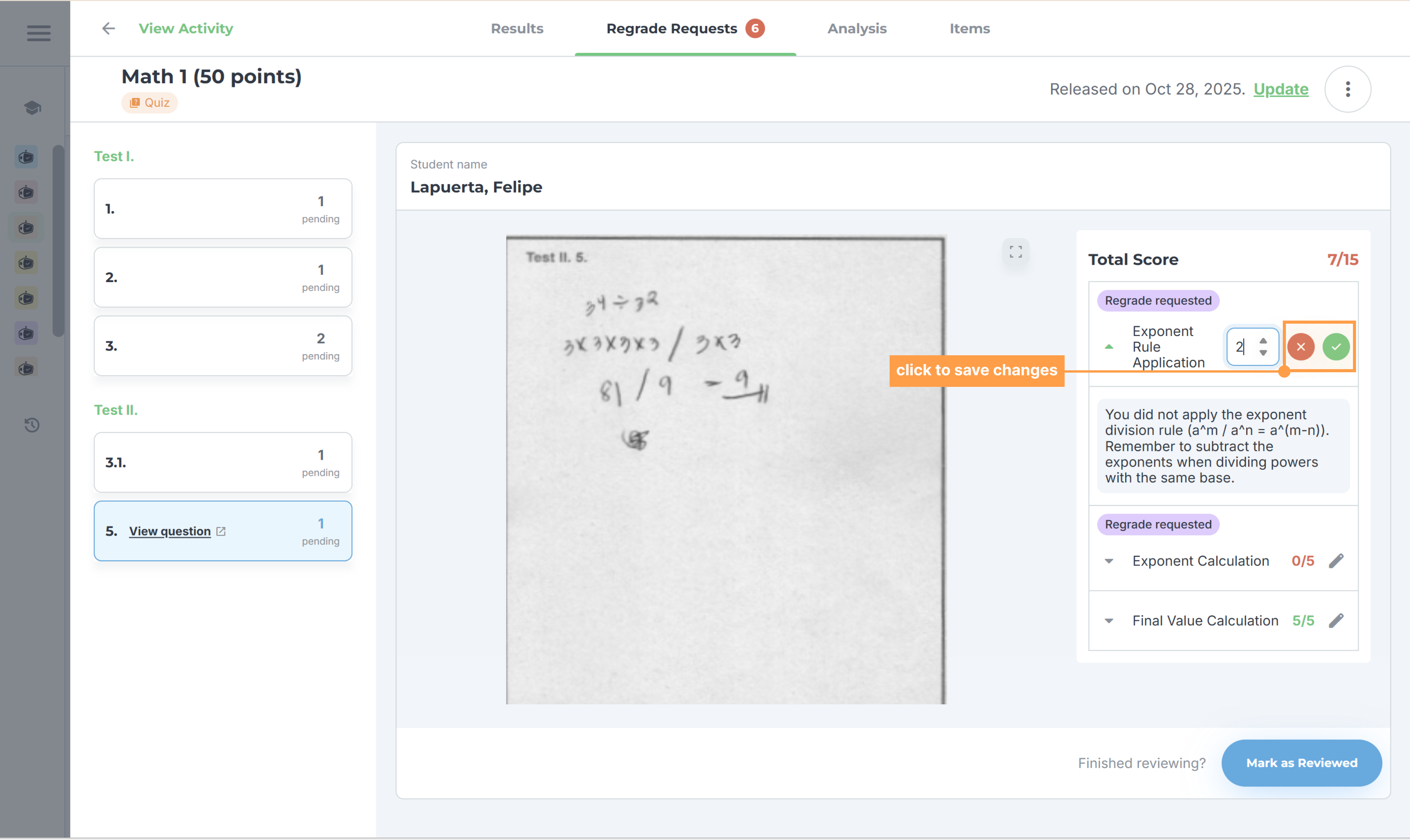
- Finally, click the Mark as Reviewed button to finish reviewing the item being requested for regrade.
And that's how you review the regrade requests of your students! Next, let's explore how to review regrade request of students.
Last updated May 20, 2026