
💻
Successfully Processed
Introduction
Once the activity is complete, you can now review the answers of your students on the activity, and whose papers were successfully processed by GradeChum.
In this article, we will explore the ways we can view the students' answers that are successfully processed.
Steps
To view students' answers, follow the steps below:
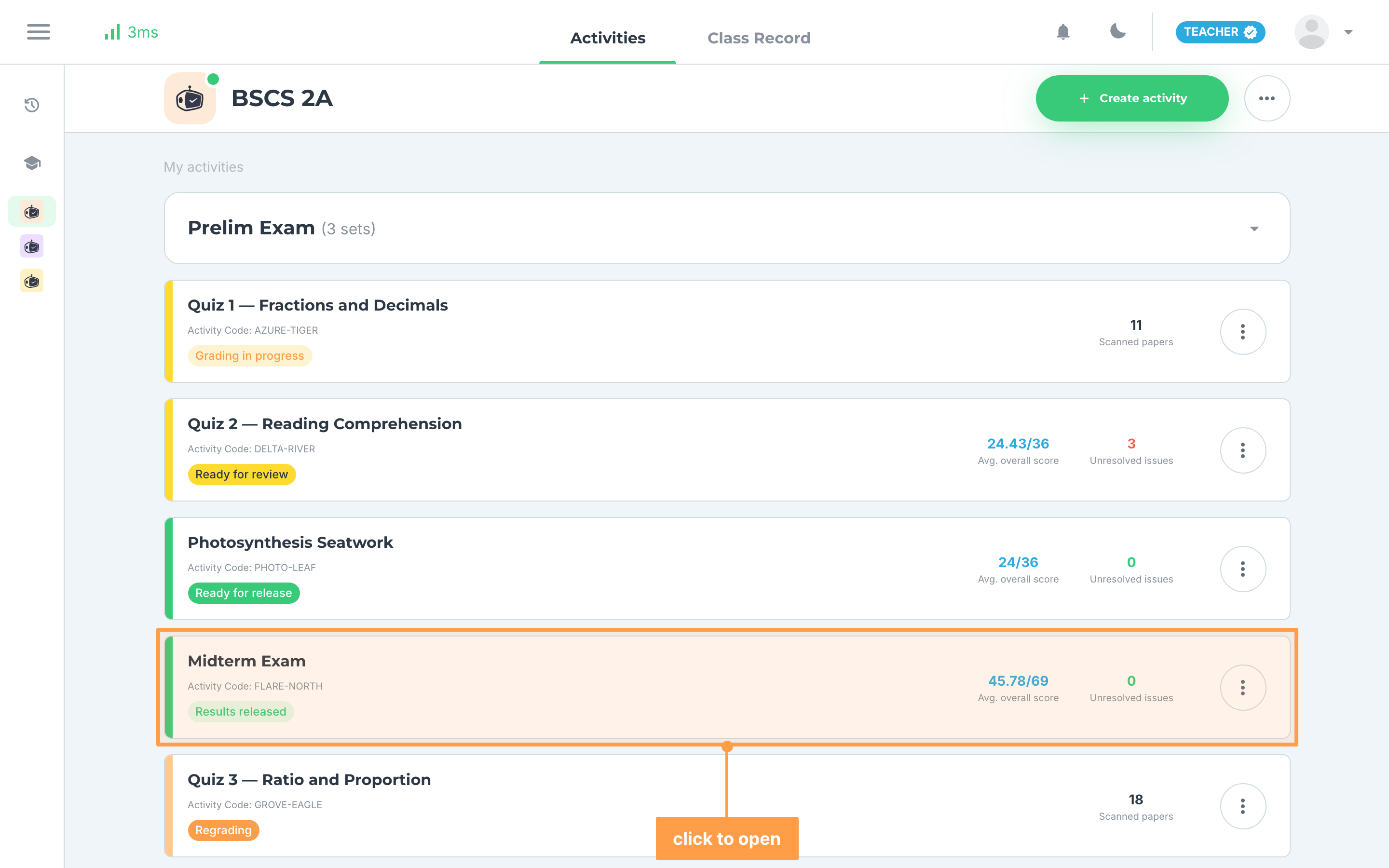
- Click on the evaluated activity.
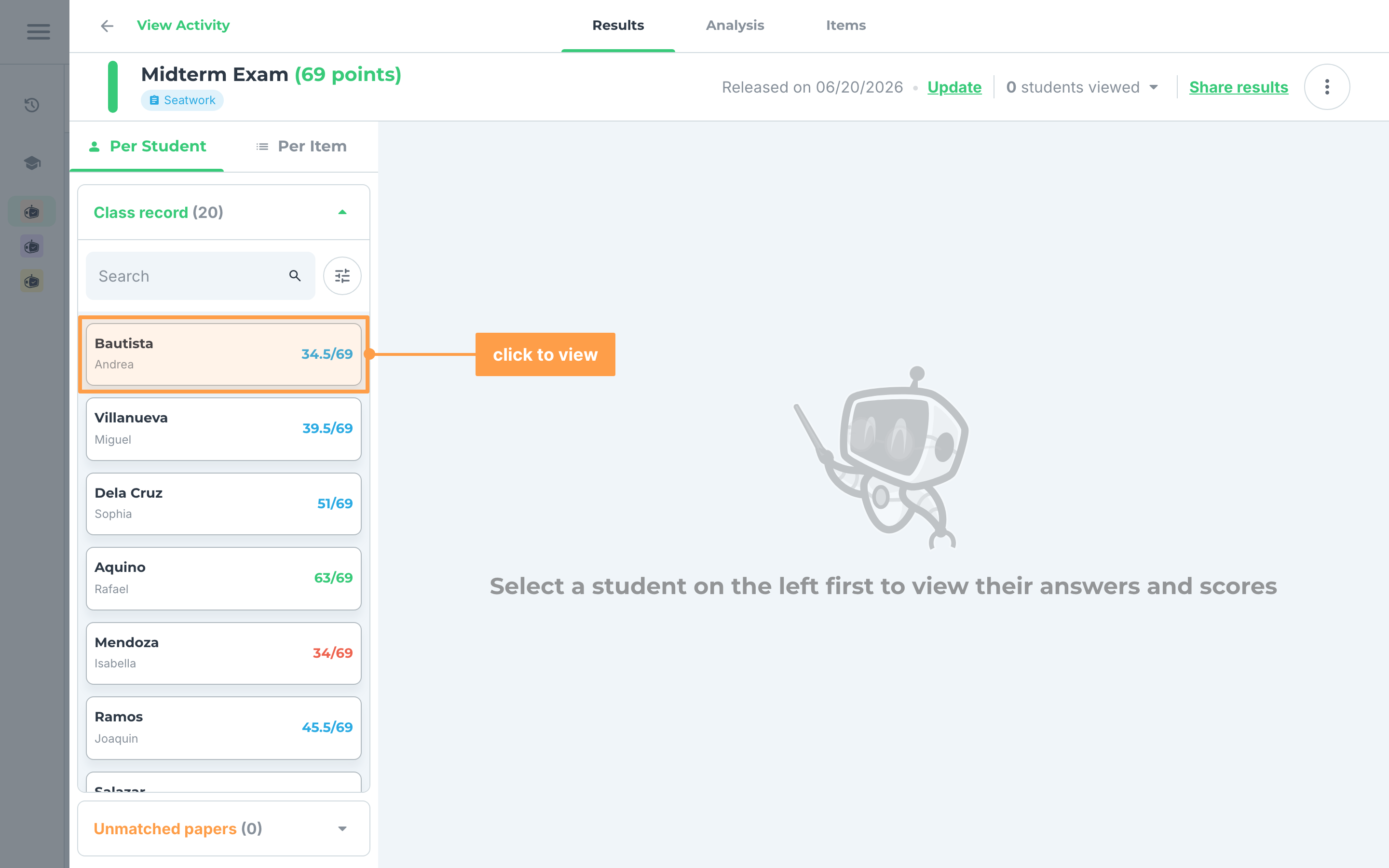
- The results open on Per Student. Choose the student's name whose answers you wish to see. (Switch to Per Item if you would rather read one item across the whole class.)
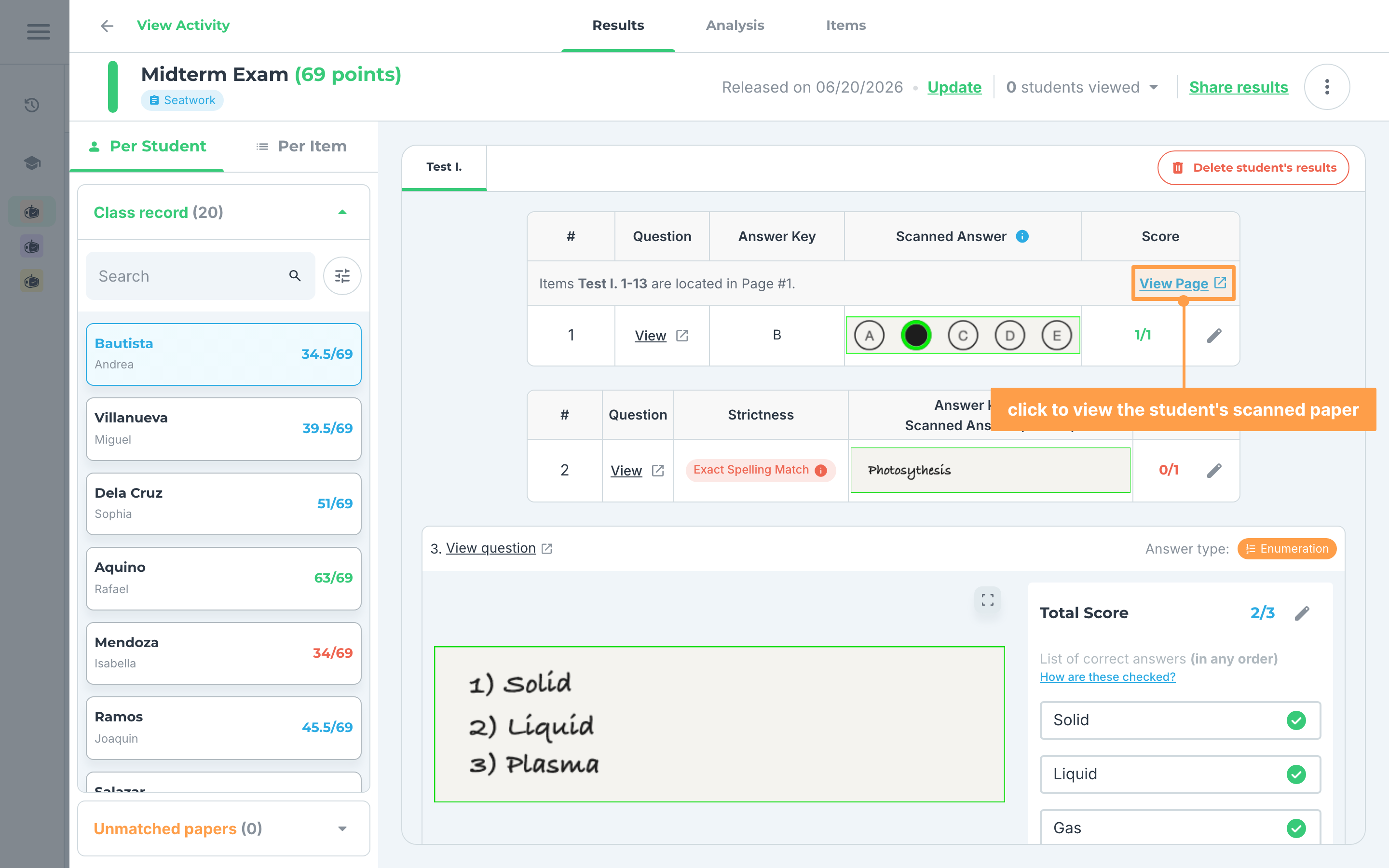
- Each table is headed by a banner naming the page those items came from, for example "Items Test I. 1-13 are located in Page #1.". Click the View Page link on that banner to see the student's scanned paper.
- There are three ways to view the answers of your students depending on the item type. See below:
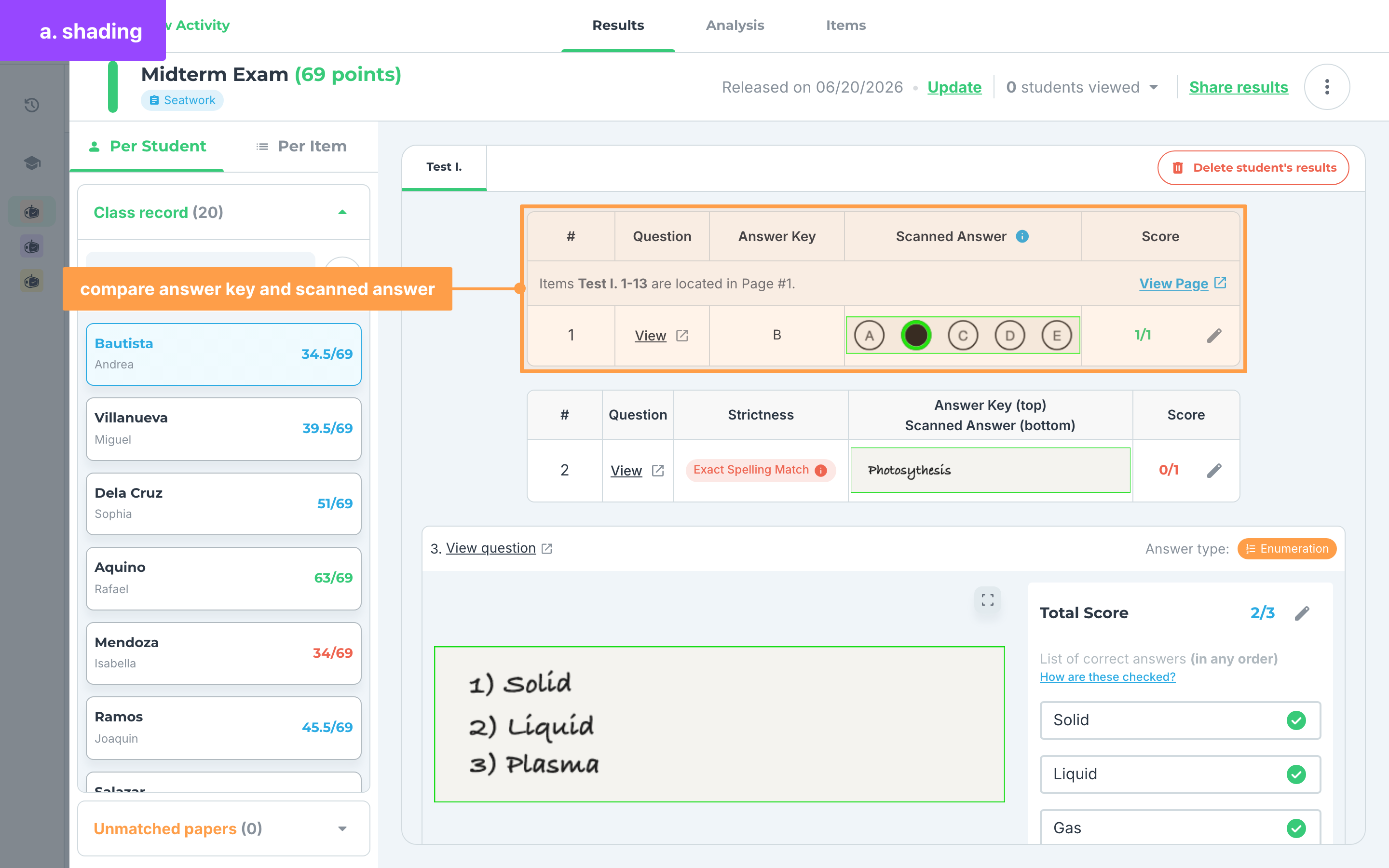
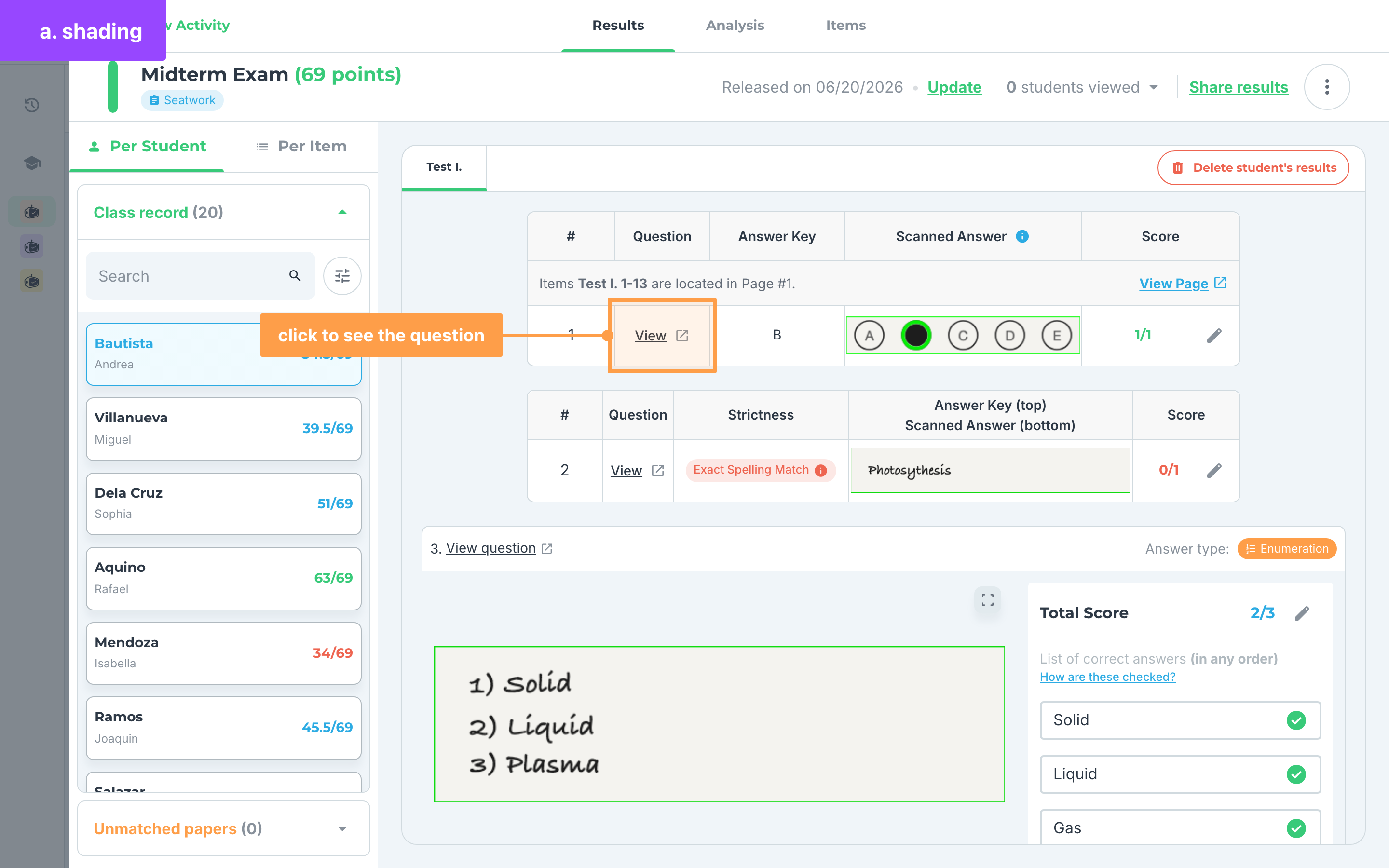
a. Shading
For items with multiple choice or multiple answers as the item type:
- You may now compare the Answer Key to the Scanned Answer of the student and their score. A green ring means the item was answered correctly and a red ring means it was answered incorrectly. A dashed green ring marks an answer that was correct but that the student was not penalised for missing.
- Finally, You may click the View text button under the Question column to see the question for that item.
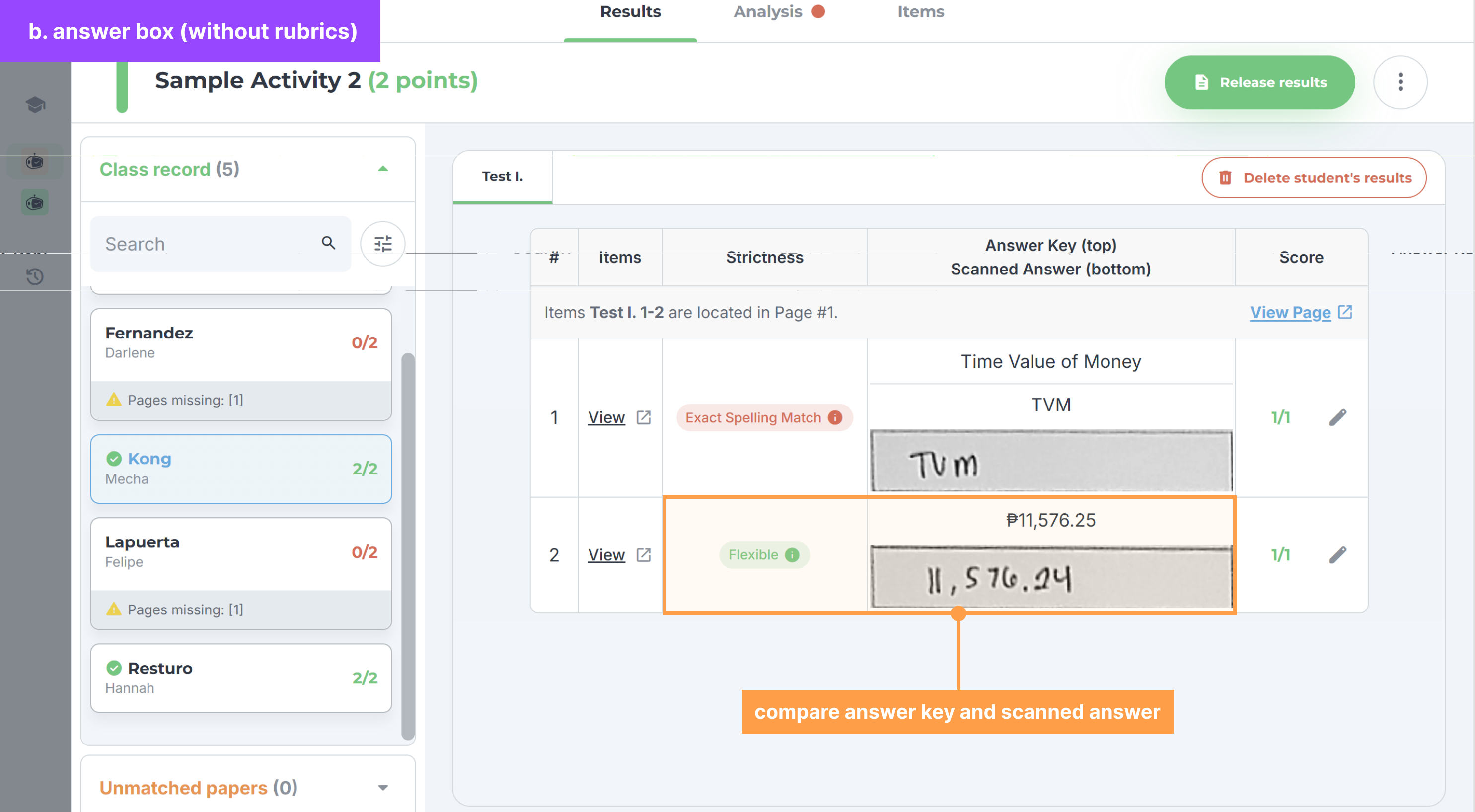
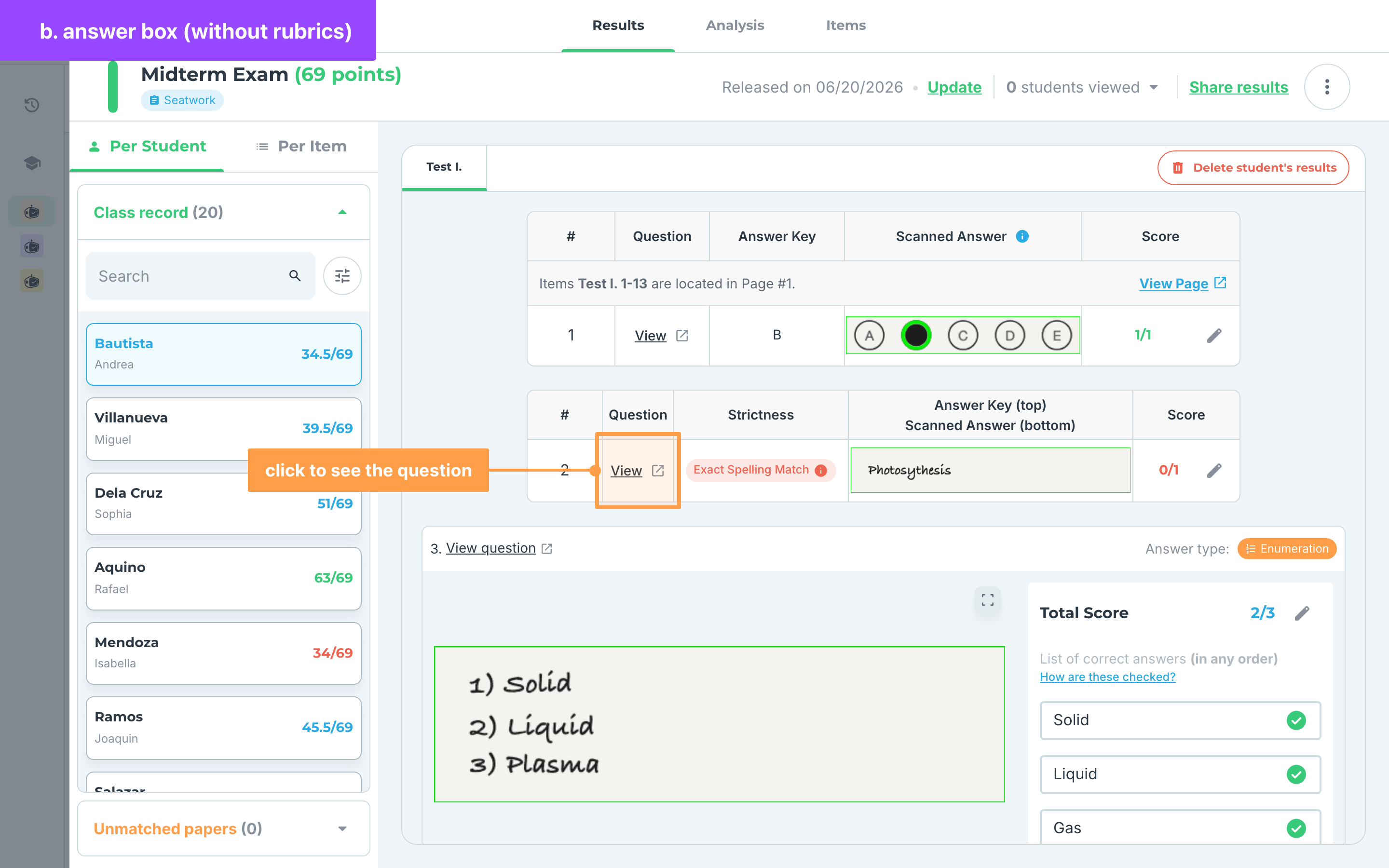
b. Answer Box (without rubrics)
For items with identification as the item type:
- You may now compare the Answer Key to the Scanned Answer of the student and their score.
- Finally, you may click the "View" text button under the Question column to see the question for that item.
c. Answer Box (with rubrics)
For items with essay, problem-solving, code on paper or visuals as the item type: and for the older Rubrics, Answer Key + Rubrics and Key Idea + Rubrics types:
- Click on the Scanned Answer of the student to view it.
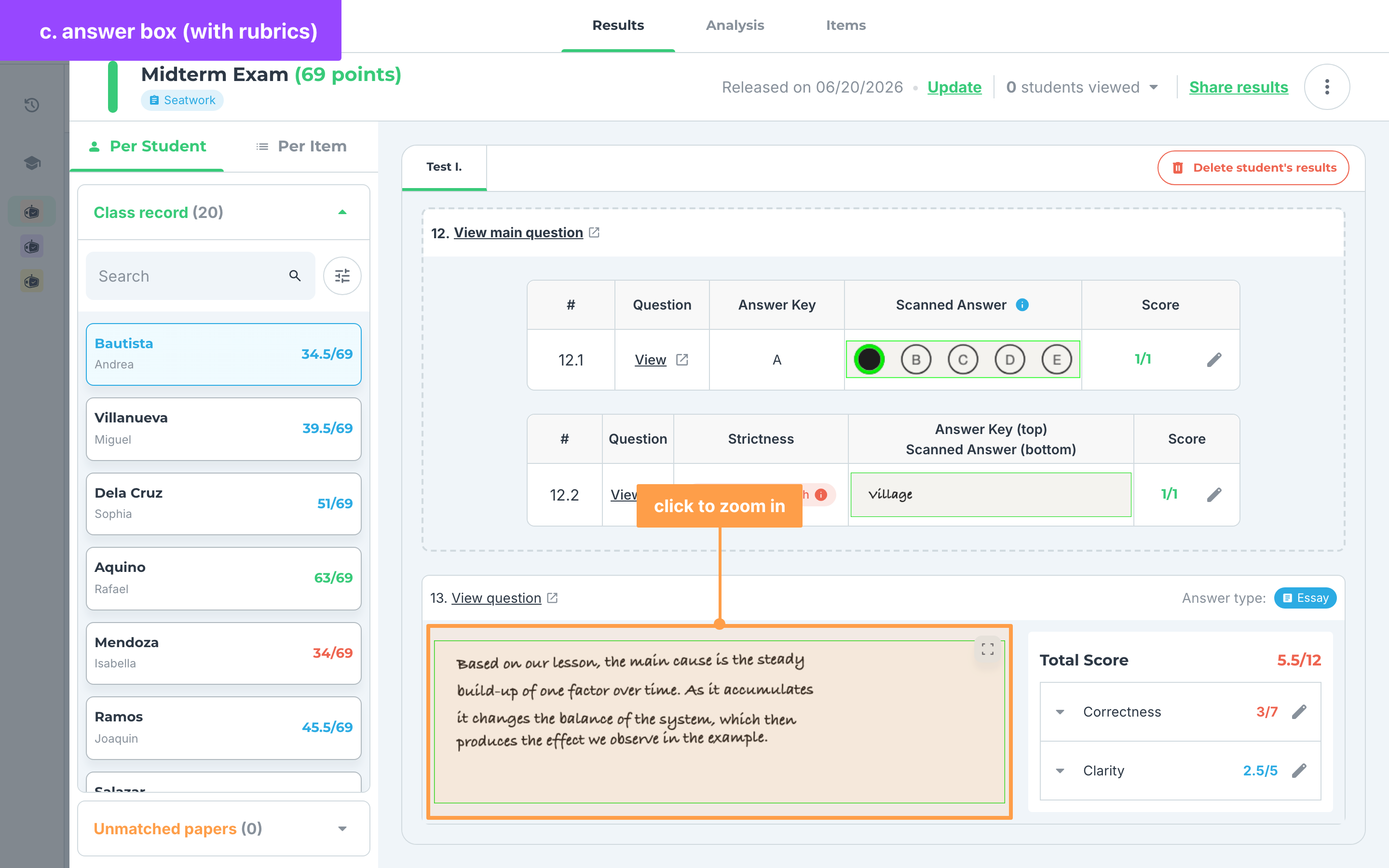
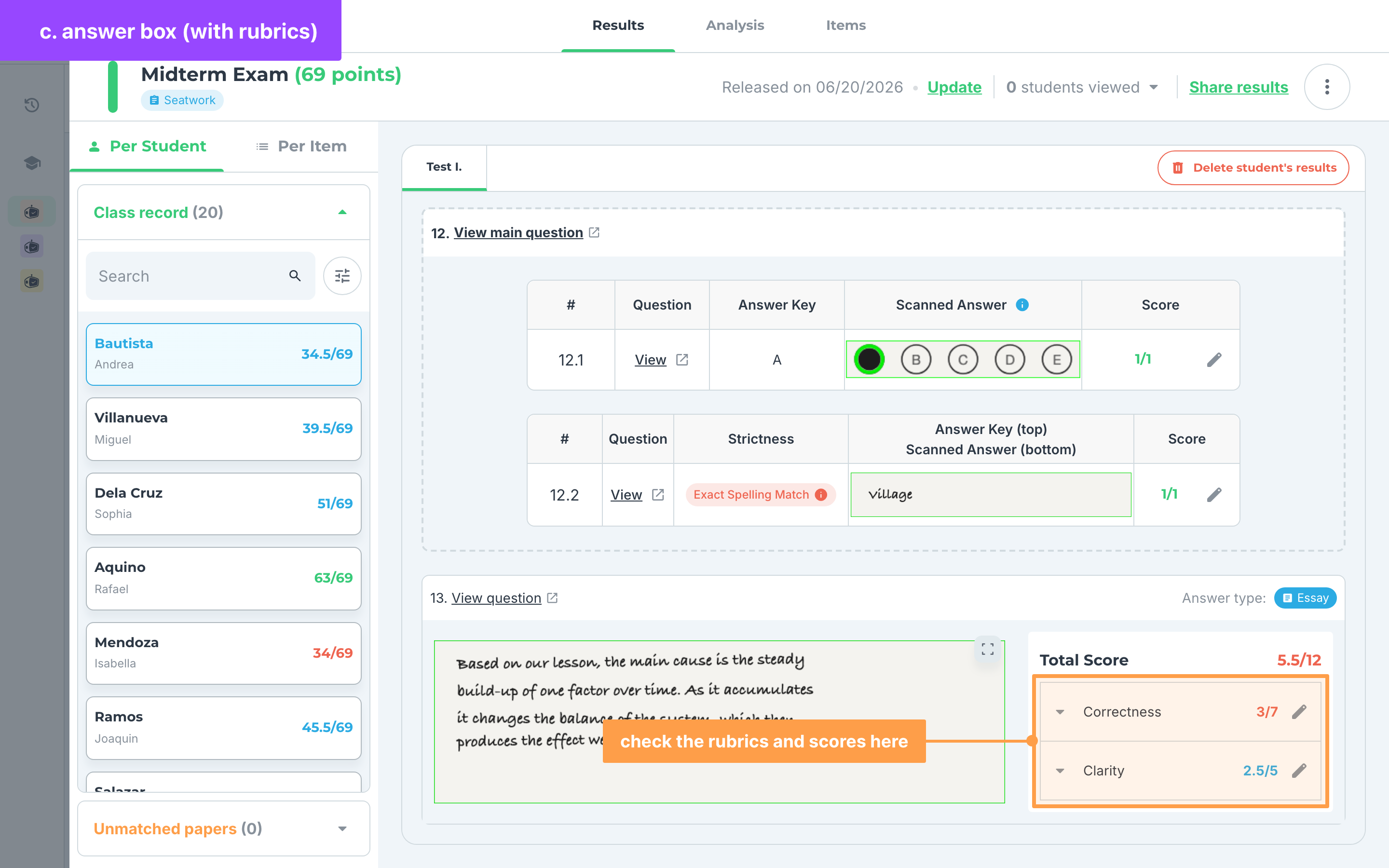
- Then, you may check the rubrics beside the scanned answer as well as the scores for each rubrics.
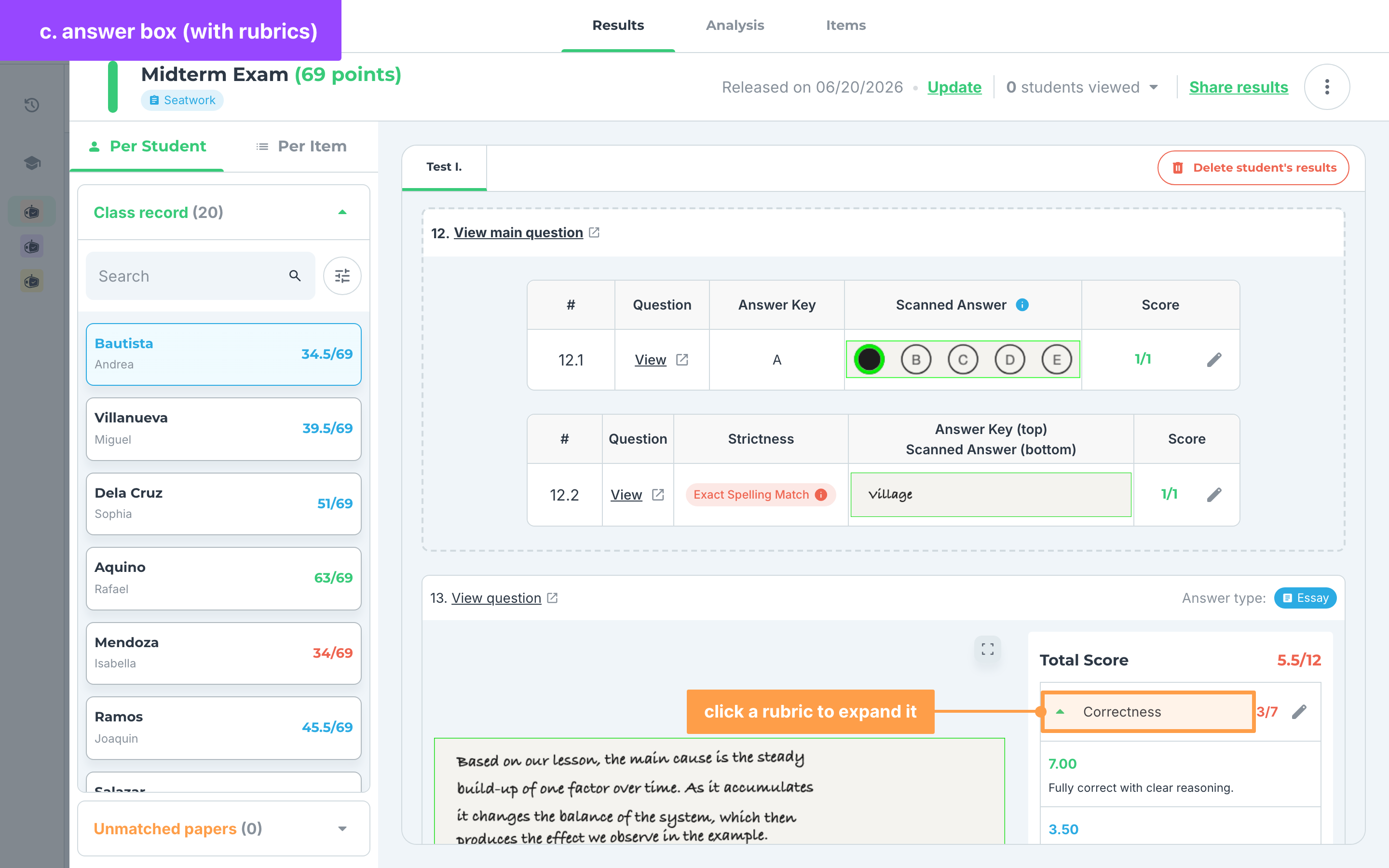
- Click on a rubric to expand it to view the details of the rubric or the personalized feedback of the student.
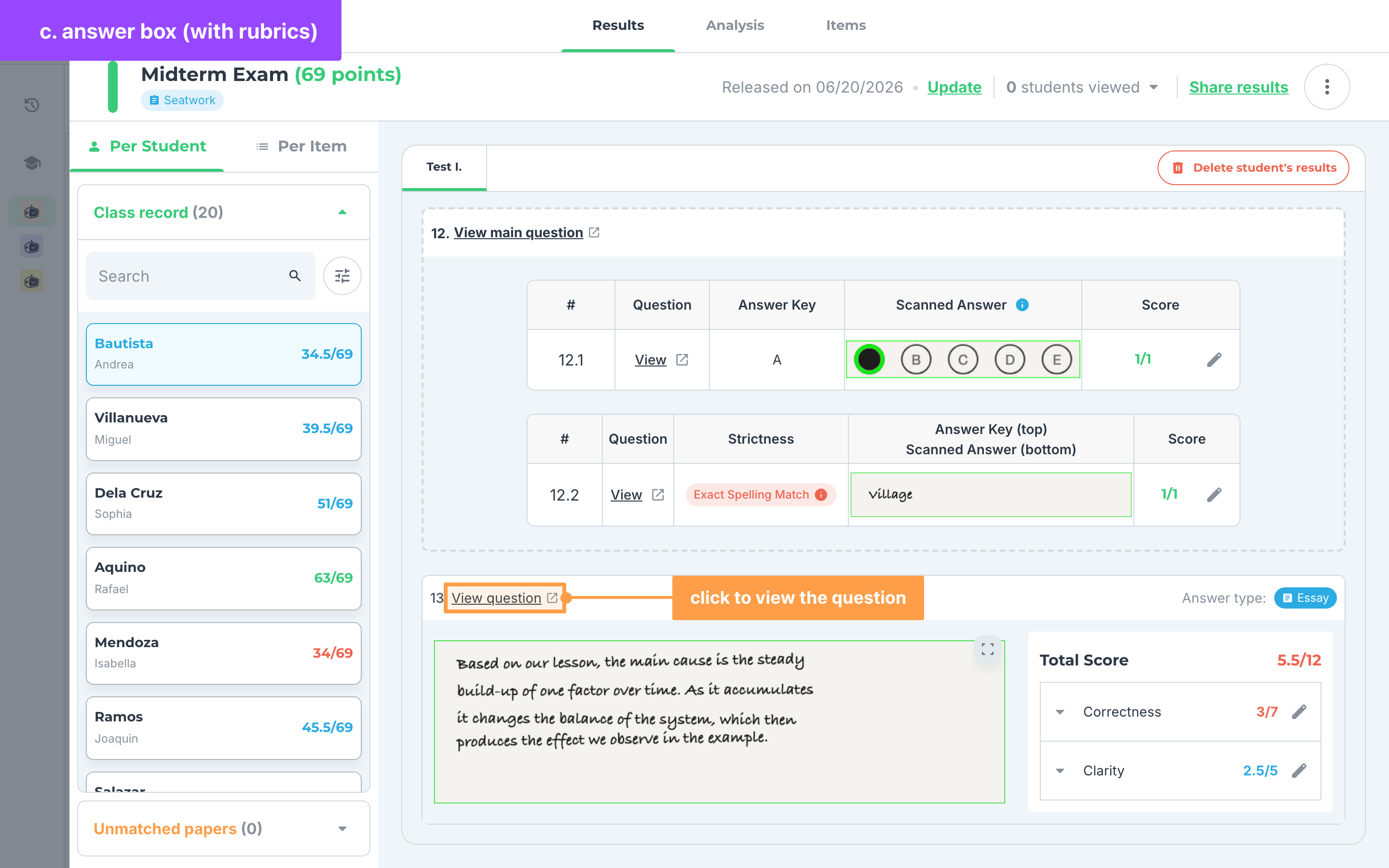
- Finally, click on the "View question" text button to see the question for that answer.
And that's how you can view the student's answers in an activity! Next, lets explore other ways to view the students' answers.
Last updated March 12, 2026